Check report quality and resolve problems
Before using a dashboard value in an operational decision, check its reporting period, timestamp, observation maturity, and data-quality information. Individual reports can update or fail independently.
Check freshness and data quality
- Read Snapshot as of for current status, or Data as of for other reports.
- Check the Report range within the report.
- Read any Data quality message.
- Expand Reporting details to view freshness, projection version, and metadata version.
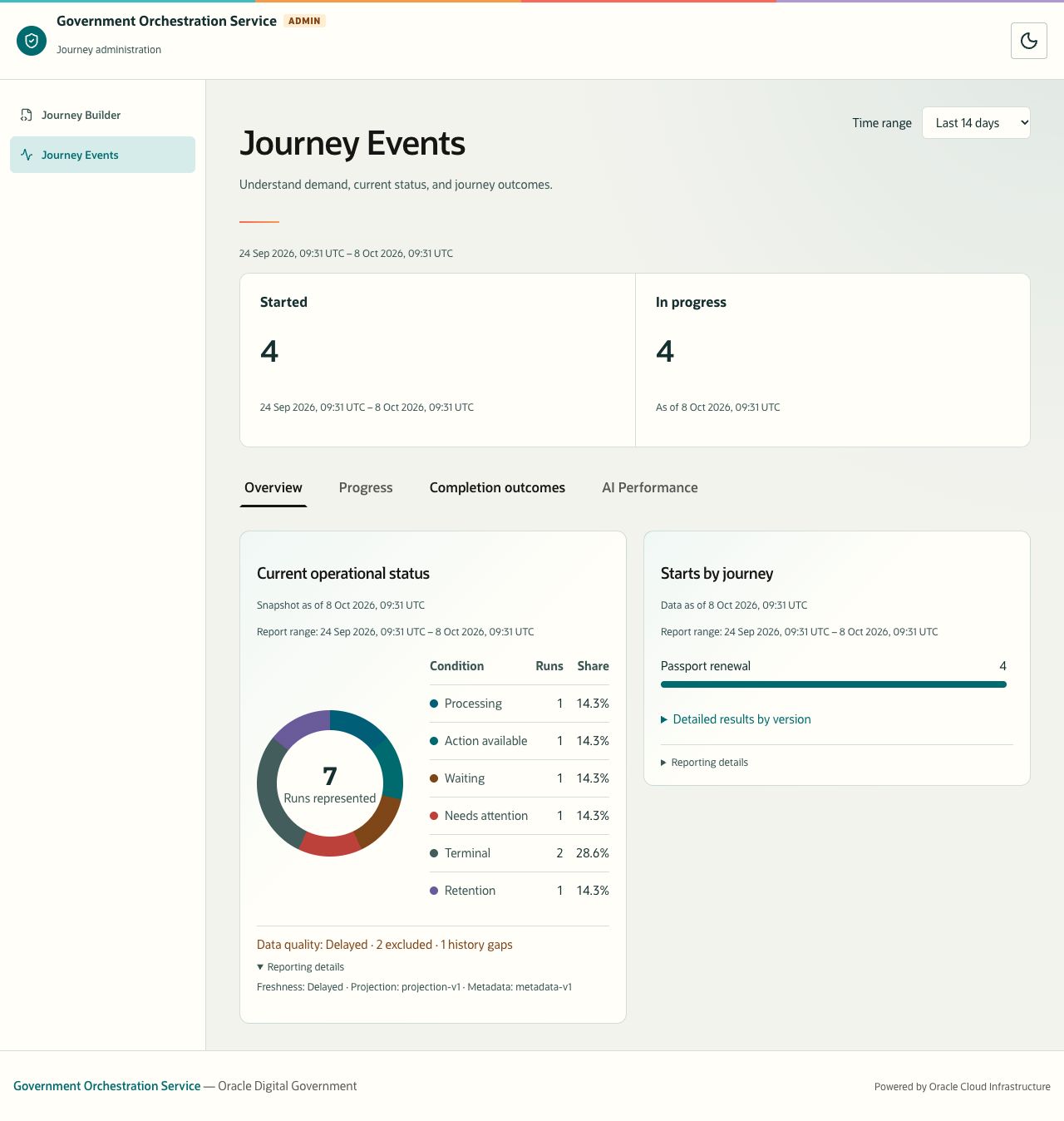
Description of the illustration reporting-quality-details.jpg
Figure 18. Reporting quality indicators qualify the displayed counts. Controlled sample warning.
| Indicator | What it tells you |
|---|---|
| Current | The reporting source describes the result as current. Check the timestamp; this is not a guarantee of immediate event delivery. |
| Delayed | The source reports a delay. Treat the figures with that qualification and investigate if it persists. |
| Rebuilding | Reporting is being rebuilt. Confirm readiness before treating the result as a complete operational picture. |
| Excluded | Records were left out of the calculation. This is not necessarily a count of whole journeys. |
| History gaps | Status history contains gaps. The count is not necessarily the number of missing journeys. |
| Without a start cohort | Reporting observations could not be associated with a start cohort. |
| Projection and Metadata | Version identifiers that help support teams identify how the result was calculated and labelled. |
Not classified and Complexity unavailable describe missing classification or score information. They do not imply zero activity. Do not infer the missing labels from nearby counts.
Retry an unavailable report
- Locate the unavailable report and read its message.
- If previous results remain, check their own range and timestamp. They may belong to a different period from the current selector.
- Select that report’s Retry button.
- Wait for the result. Confirm that the error has cleared and the report range matches your intended period.
- If the failure persists, record the information listed under Get help.
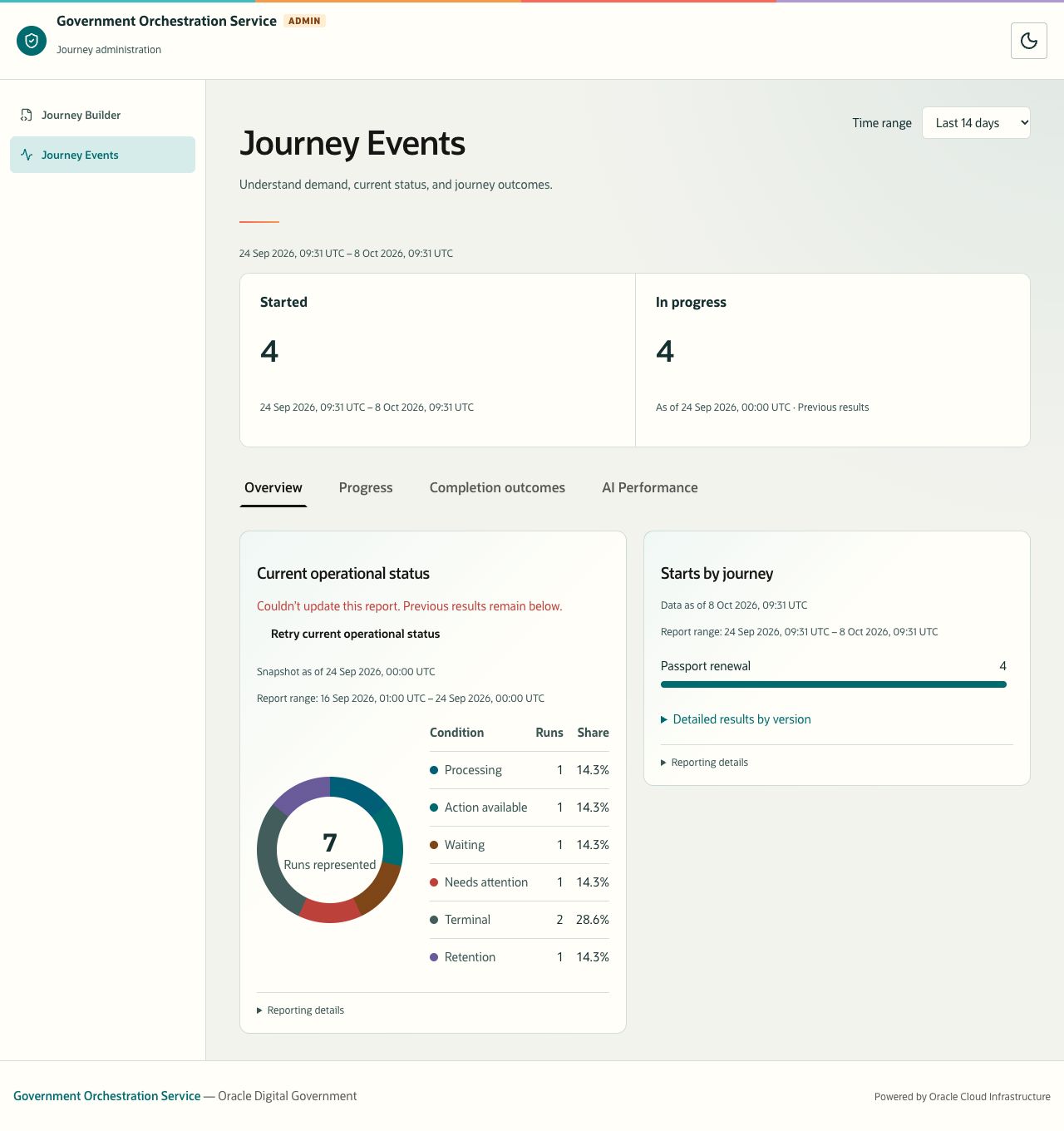
Description of the illustration report-retry-previous-results.jpg
Figure 19. Previous results remain labelled after a failed refresh. A failed report is not a zero result. Controlled sample failure.
Overview, Progress, and Completion outcomes retain their previous successful results while updating or after a failed request. Their Report range continues to describe those retained results. The summary cards also mark previous results when appropriate.
AI Performance has separate retry actions for the main GenAI report, participant handling, and quality categories. The main report may retain previous results with a message identifying them. Other sections can clear while a different range loads. Use each section’s state and timestamp; do not assume that every section refreshed together.
Resolve reporting problems
| What you see | What to do |
|---|---|
| Dashboard link missing or page unavailable | Confirm the correct application address, enabled reporting, and your assigned access with your administrator. |
| Custom-range warning | Enter a complete UTC range with start before end, a length no greater than 31 days, and no future end. Check the active range after correction. |
| No runs, starts, progress, or outcomes for the selection | Check the period and freshness. A valid empty result is different from an unavailable report. Try another appropriate period. |
| Still observing | Review an older start cohort if you need a complete observation window. Keep the provisional status with any figures you share. |
| No milestones configured | Ask the journey owner whether progress milestones are configured for that version. |
| A dash in a timing or rate field | Check the number of observations or the denominator. A missing measurement is not a measured zero. |
| Counts do not reconcile across cards or tabs | Check each population and time basis. Status snapshots, start cohorts, attempts, presentations, evaluation units, and assessments count different things. |
| Data-quality warning, persistent failure, or unexpected classification | Retry where available, record the reporting context, and contact your normal support channel. |
Get help
Provide the application and dashboard name, affected tab or section, selected UTC start and end, displayed report range and timestamp, and the exact message. Include freshness and projection/metadata versions if available, plus the journey/version label relevant to the issue.
State whether retrying resolved the problem and whether the screen retained previous results. A screenshot can help, provided it is suitable for the support channel you use and does not include credentials or confidential records.
Dashboard terms
| Term | Definition |
|---|---|
| Journey | An orchestrated service process. |
| Run | One execution of a journey. |
| Version | The journey definition version associated with the reported activity. |
| Cohort | Runs grouped by their start time within the selected period. |
| Milestone | A configured progress point used to report journey reach and visit timing. |
| Observation horizon | The period used to observe progress or outcomes after a start or presentation. Read the horizon shown by the report. |
| Terminal outcome | A recorded ending of a run, including successful completion, withdrawal, cancellation, or failure. |
| Retention | Processing that limits how long run information or results remain available. It can limit reporting observations. |
| Candidate | A structured result produced by GenAI for use in a journey. |
| Assessment | A recorded evaluation of candidate quality under a particular rubric and evaluator kind. |
For time and population differences, return to Using dashboards.