Using dashboards
Use the GovOS dashboards to understand demand for orchestrated journeys, review their operational position, and examine progress, outcomes, and GenAI reporting. These topics are for service owners, operational managers, leadership teams, and the people who define and manage journeys.
The staff application calls its leadership view Government Leadership Dashboard. The administration application calls its operations and service oversight view Journey Events. Both provide the same four reporting tabs and time controls. The reporting data available to you depends on your application and access.
The screenshots show the application UI with Government Orchestration Service in the masthead. They use sample reporting data to explain the controls; the figures are not measurements of a live service.
Before you begin
Have the application address and an account with access to reporting. Your administrator must enable the relevant dashboard. In the staff application, the Government Leadership Dashboard requires the GOVERNMENT_ADMIN role; ordinary caseworker access does not provide it. Use the administration application address supplied for your organization to access Journey Events.
If a dashboard link is missing or its page is unavailable, contact your administrator to confirm the application, reporting availability, and your access. See Resolve reporting problems.
Open the leadership dashboard
- Sign in to the staff application using the address provided by your administrator.
- Select Government Leadership Dashboard in the navigation bar.
- Check the Time range, then review the Started and In progress cards.
- Scroll down to view the reports under Overview.
The dashboard initially selects Last 7 days. Continue with Review demand and operational status.
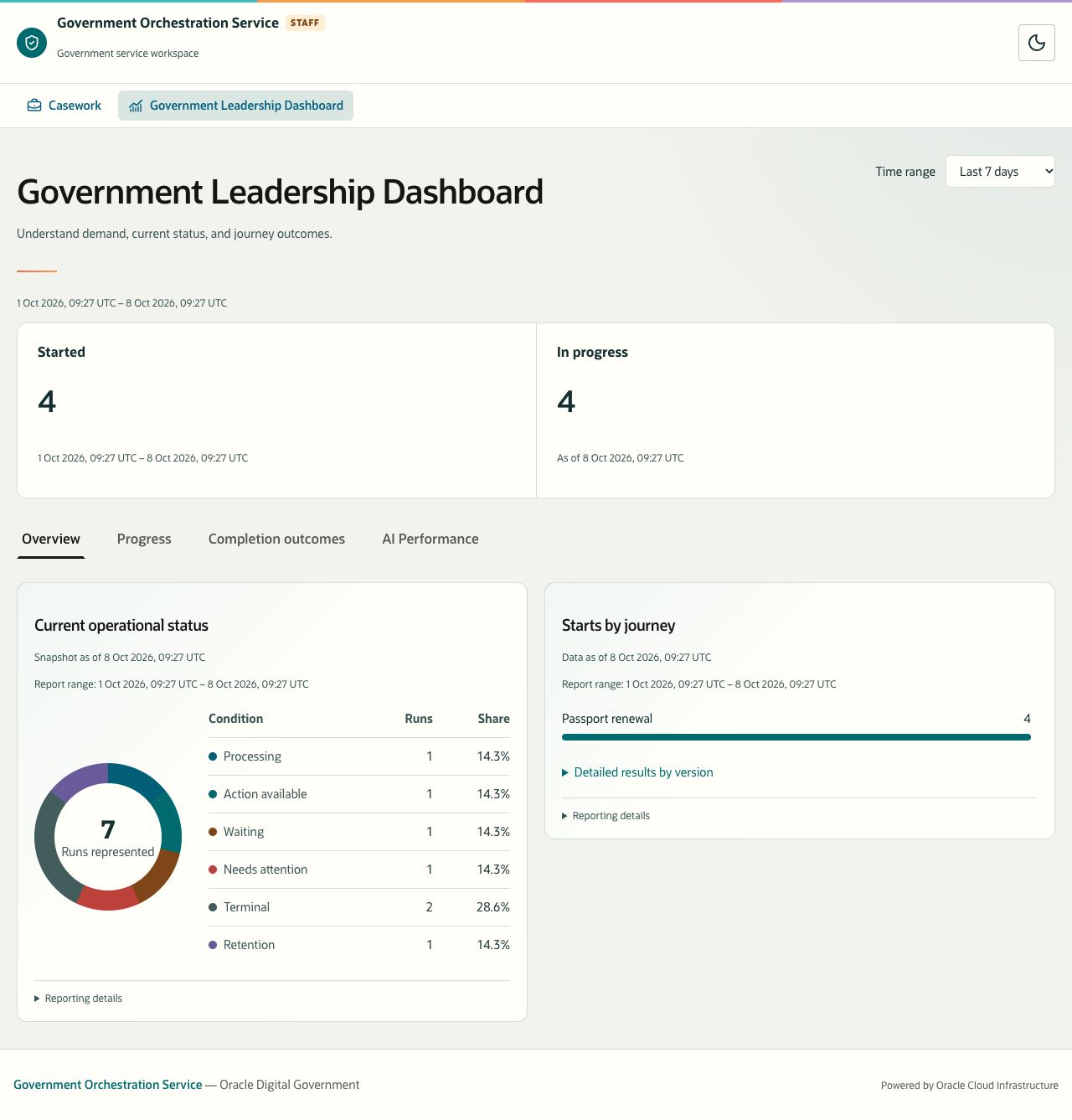
Description of the illustration cio-dashboard-overview.jpg
Figure 7. Government Leadership Dashboard, the leadership view in the staff application. Sample reporting data.
Open operations and service oversight
- Sign in to the administration application.
- Select Journey Events in the navigation menu.
- Check the Time range and select the report tab for your task.
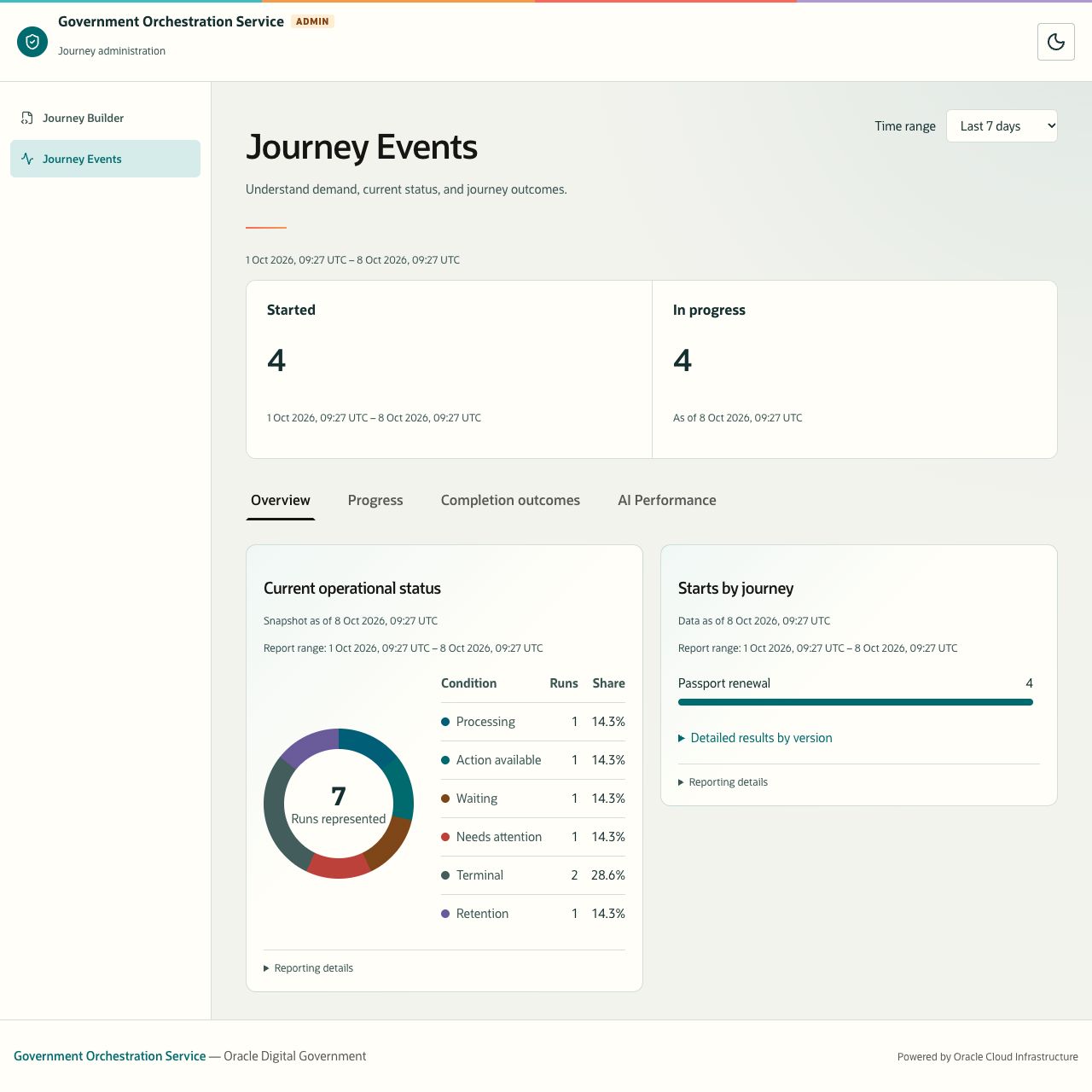
Description of the illustration journey-events-overview.jpg
Figure 8. Journey Events, the operations reporting view. Sample reporting data.
Get to know the dashboard
| Screen area | What you can do |
|---|---|
| Time range, at the upper right | Select one reporting period for the dashboard. |
| UTC range, below the heading | Confirm the active start and end times. |
| Started and In progress | Read period demand and the operational snapshot. Check the caption beneath each number. |
| Overview | Review current operational conditions and starts by journey. Expand version details when needed. |
| Progress | Examine milestone reach, visits, and timing for runs that started in the selected period. |
| Completion outcomes | Examine how that start cohort ended or remains active. |
| AI Performance | Review provider outcomes, invocation outcomes, usage, participant handling, and received quality assessments. |
| Reporting details, within reports | Check freshness and the report’s projection and metadata versions. |
Reports load automatically. Changing the time range requests updated results; there is no Show or Apply step. Switching tabs keeps the selected range. The page does not continuously refresh while left open. Reload it to obtain a fresh default selection, or choose another period and return to the desired preset.
The dashboards present aggregates. Their charts do not open individual journey runs. Use your organization’s operational process to investigate the journeys identified by your review.
Select a reporting period
- Open Time range.
- Select Today, Last 7 days, Last 14 days, or Last 30 days.
- Wait for loading messages to clear. Check the active UTC range and each report’s timestamp before comparing values.
Today starts at midnight UTC. The other presets cover the preceding number of 24-hour days. Presets end at the time they are selected. Times are UTC, irrespective of your local time zone.
To specify your own period:
- Select Custom range.
- Enter Start (UTC) and End (UTC) using the date and time controls.
- Set an end later than the start, no later than the present, and no more than 31 days after the start.
- Check the displayed UTC range after entering both values. Valid changes refresh reports automatically.
For example, 2 September at 00:00 UTC through 9 September at 00:00 UTC selects seven days. Start-time cohorts include the start boundary and exclude the end boundary.
An invalid or incomplete custom selection leaves the last valid range in use. Correct the fields, then check that the warning disappears and the report range changes. Intermediate values entered while editing may also be invalid.
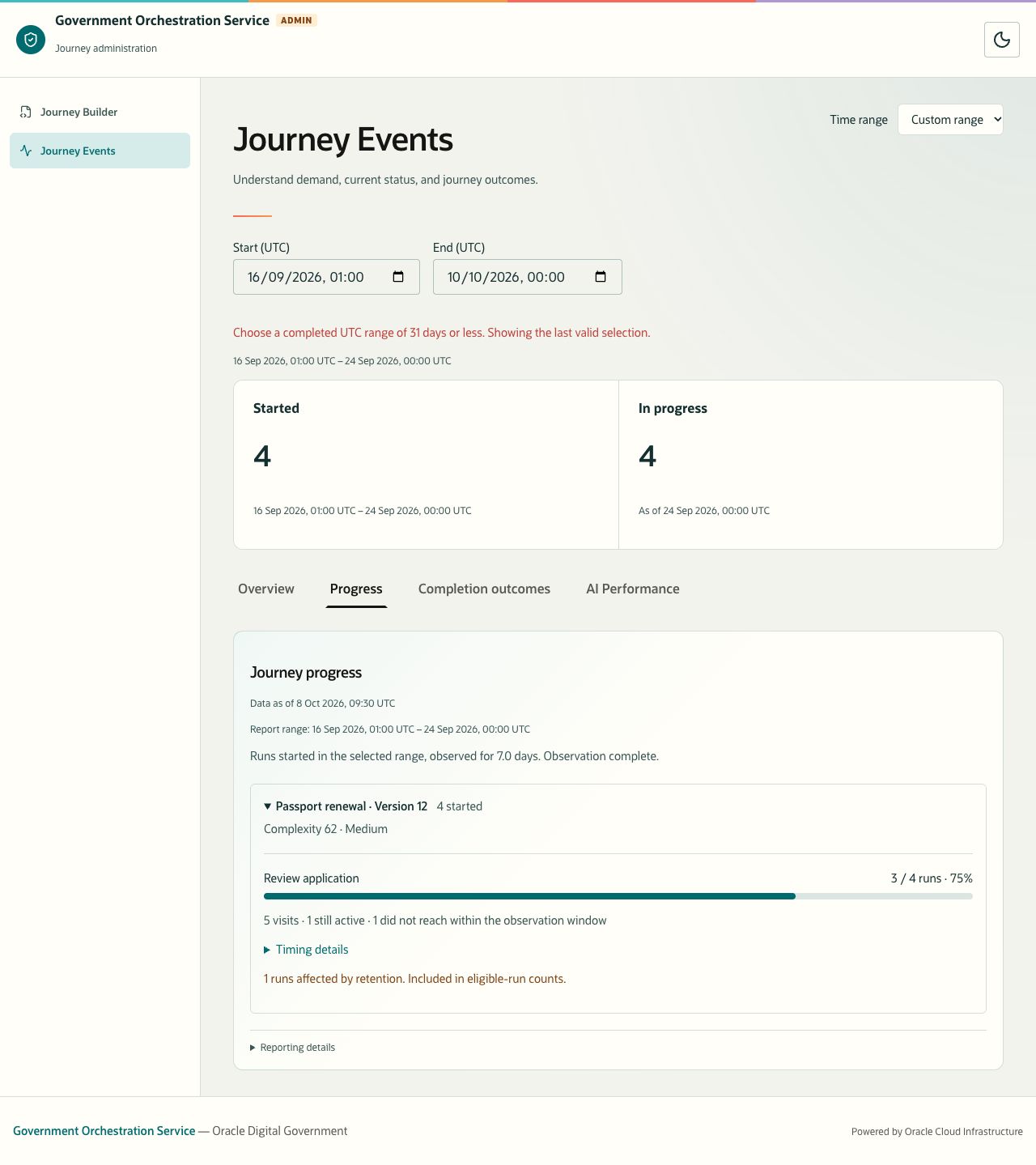
Description of the illustration custom-range-validation.jpg
Figure 9. An invalid custom range retains the last valid reporting selection. Read the range displayed with the results. Sample data.
Understand the different uses of time
| Report or measure | Meaning of the selected period |
|---|---|
| Started and Starts by journey | Counts starts during the period. |
| In progress and Current operational status | Shows the operational position as of the period end, including runs that started earlier. |
| Progress and Completion outcomes | Selects runs by their start time. The report then observes that cohort. Read its observation status and data timestamp. |
| GenAI provider and invocation outcomes | Counts recorded provider-attempt finishes and logical-invocation resolutions in the period. |
| Participant handling | Selects candidate presentations in the period and considers matching reviews within the seven-day review horizon. |
| Received quality assessments | Shows assessments that occurred in the period and have been received by reporting. |
Because these populations differ, their totals need not match. For a meaningful comparison, also check report freshness and whether any previous results remain on screen.