Review demand and operational status
Use Overview for a leadership review or the start of an operational review. It combines journey demand during a period with the operational position at the period end. The following tasks apply to both Government Leadership Dashboard and Journey Events.
Review service demand
- Open your dashboard and select the reporting period.
- Read Started to see how many runs started during that period.
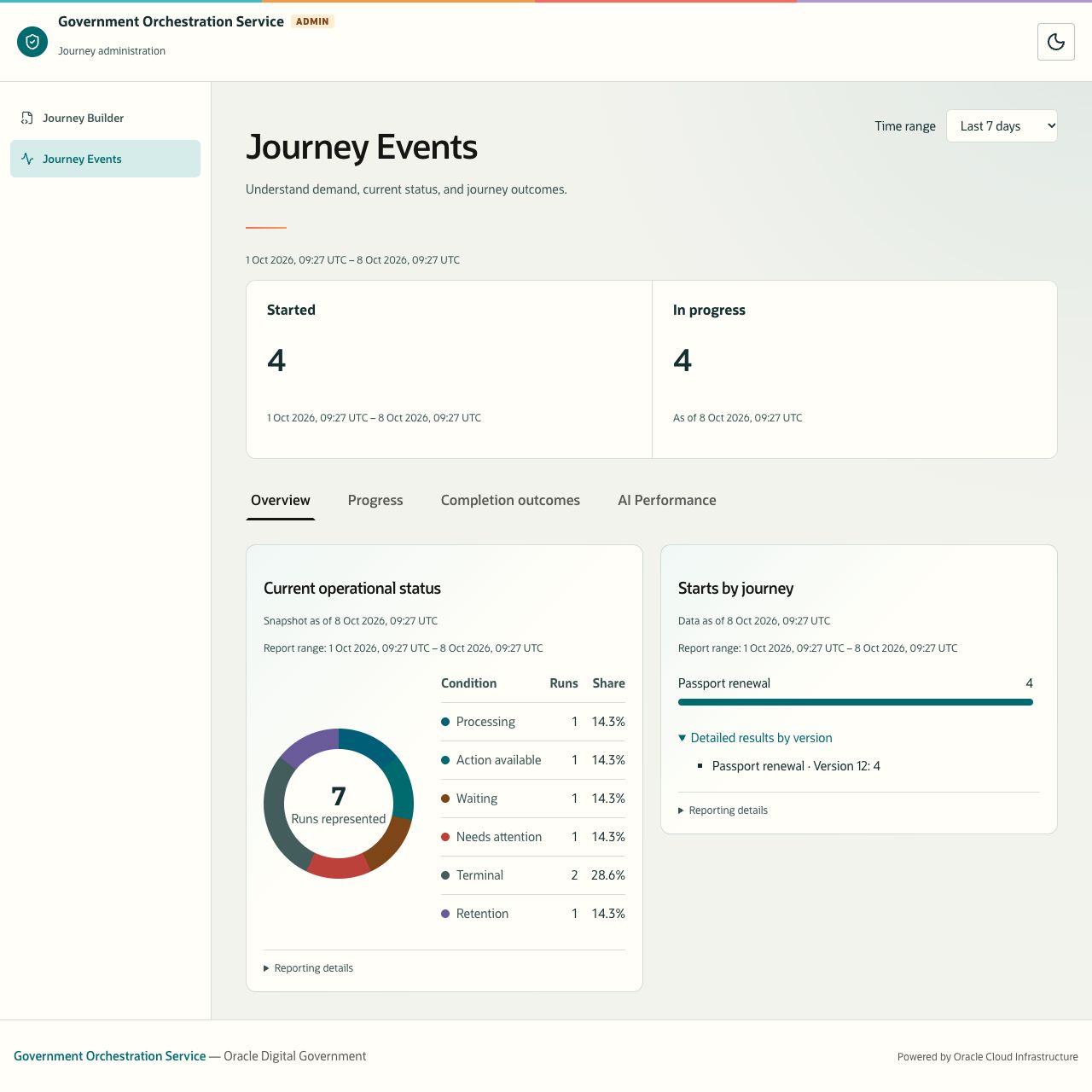
- Under Overview, find Starts by journey.
- Review the journey names and counts. Expand Detailed results by version to see the version breakdown.
- Check Data as of and Reporting details before using the figures in a service review.
The chart combines versions of the same journey and orders journeys by their start counts. Bar lengths compare counts with the largest journey count; they are not percentages or a time series. Not classified means the reporting data does not supply the approved classification for that label.
Description of the illustration overview-version-details.jpg
Figure 10. Expand Detailed results by version to inspect the counts behind a journey total. Sample reporting data.
Review the operational position
- Read In progress and its As of time.
- Find Current operational status in Overview.
- Check Snapshot as of and Report range.
- Read the Condition, Runs, and Share columns alongside the chart.
- Note conditions that need follow-up and review any data-quality warning.
| Condition | Interpretation |
|---|---|
| Processing | Work is being processed. |
| Action available | An action is available to move the journey forward. |
| Waiting | The journey is waiting, for example for a timer or another dependency. |
| Needs attention | The operational state requires attention. Use the normal support or operations process to investigate. |
| Terminal | The run has reached an ending outcome. Read Completion outcomes to understand the type of ending. |
| Retention | The run is in a retention-related state. |
Only conditions with represented runs appear. Share uses the total Runs represented in this chart, including Terminal and Retention. It does not use the In progress card as its denominator. In the sample screenshot, four runs are in progress while seven are represented in the status chart.
The snapshot can include runs that started before your selected period. Do not subtract In progress from Started to calculate completions.
Complete a leadership review
- Review demand and the distribution of operational conditions in Overview.
- Select Progress to identify milestones with lower reach or longer timings.
- Select Completion outcomes to examine how start cohorts ended. Distinguish completed, withdrawn, cancelled, and failed outcomes.
- If the journeys use GenAI, review its operational and assessment measures in AI Performance.
- Record the journey/version, UTC period, report timestamp, and any provisional or data-quality status alongside conclusions you share.
For repeated reviews, use comparable time windows and check that the cohorts have comparable observation maturity. These dashboards do not provide a side-by-side comparison, target, forecast, or service-level threshold. Agree the interpretation with the service owner using the measures available.
Continue with Review journey progress and outcomes or Review AI Performance reporting.