Define and publish a journey
Before you begin: Journey Builder is included in Release 1.0 for authorized users. Obtain your organization’s application address and the access required to validate and publish journey definitions. Follow these steps only in the intended, authorized environment.
Journey Builder accepts a YAML definition, validates it against the running platform, and lets you publish the exact validated draft. It is a text-based editor, not a visual journey designer. Keep your source file in an approved location outside the browser so you can recover and review it later.
Understand the workspace
| Screen area | Purpose |
|---|---|
| Available journeys | Lists published journeys in the current deployment and opens their details. |
| Journey key | Identifies the journey you are preparing. It must match the key declared in the YAML. |
| Journey YAML | Holds the draft definition. You can type or paste YAML, or use Open YAML file. |
| Validate journey | Checks the current key and YAML with the platform and returns findings. |
| Publish journey | Publishes the exact validated draft when the action is enabled. |
| Release readiness | Shows the Create, Validate, and Publish stages for the current draft. |
Available journeys appears above the Journey draft form. The current editor is a text area, with draft actions below Journey YAML.
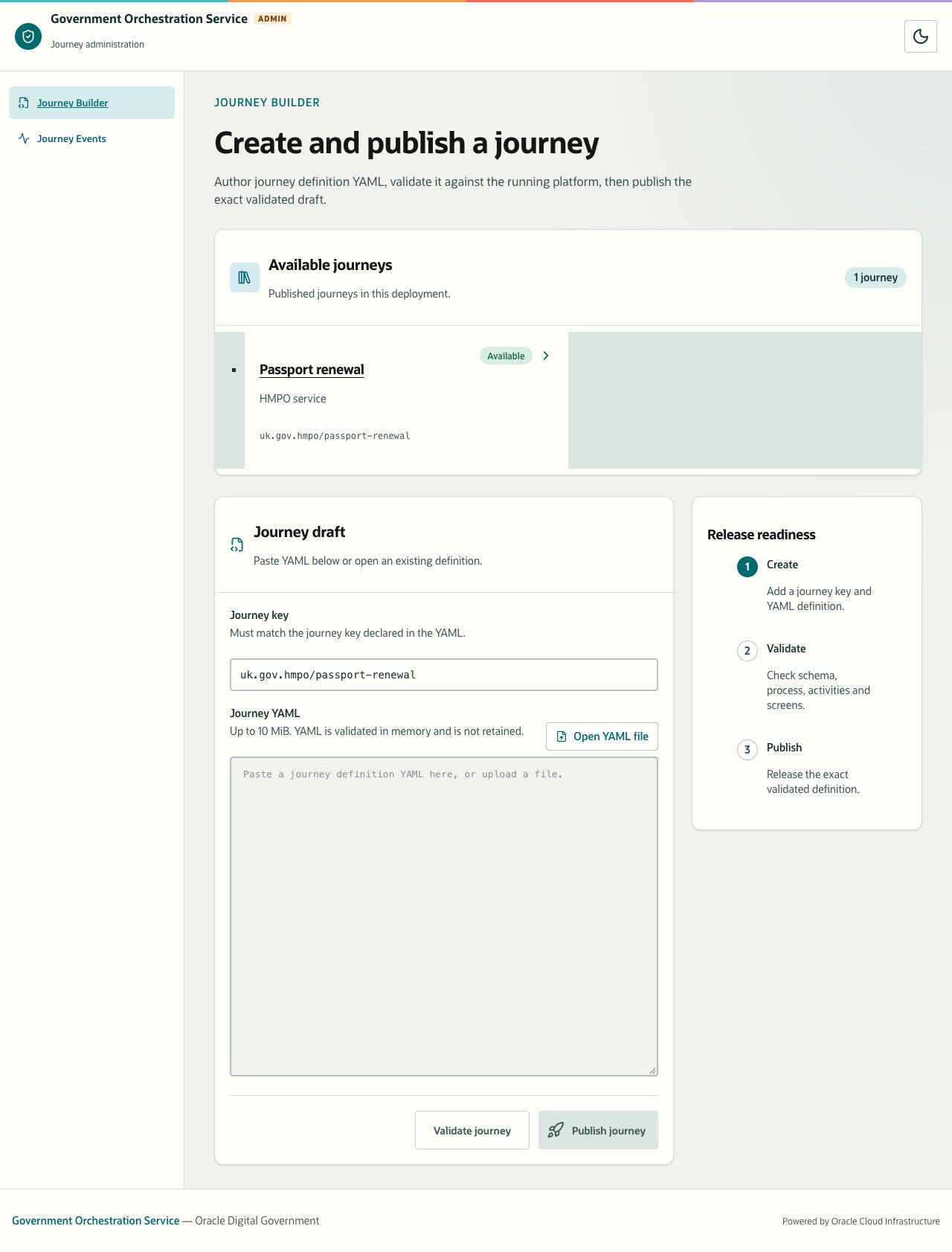
Description of the illustration workflow-studio.jpg
Figure 1. Journey Builder with the available-journey list, draft fields and release steps. Sample catalogue.
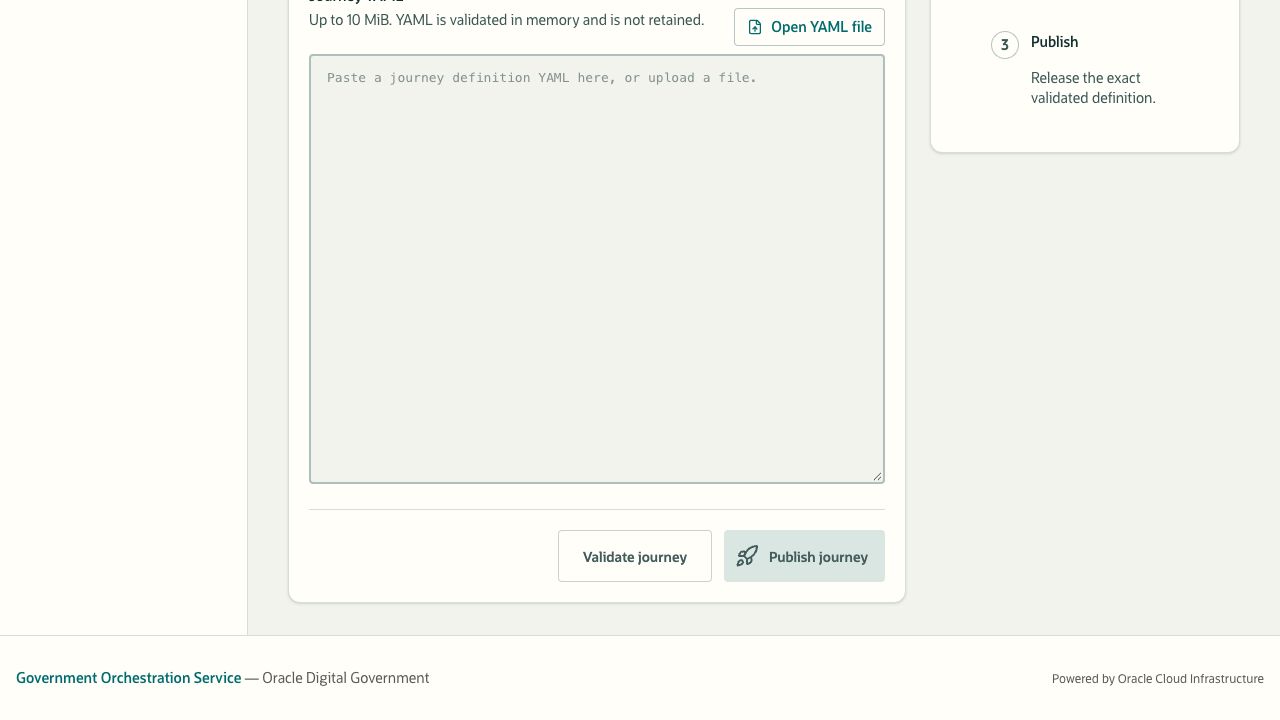
Description of the illustration workflow-studio-actions.jpg
Figure 2. Draft actions appear below Journey YAML. Validate journey and Publish journey are disabled for the empty draft.
The YAML editor accepts a file up to 10 MiB. It is validated in memory and is not retained as a saved draft by the editor. Opening a file or entering text does not publish it.
Prepare and validate a draft
- Open Journey Builder in the authorized environment.
- Enter the intended Journey key.
- Enter the definition in Journey YAML, or select Open YAML file and choose the source file.
- Confirm that the key matches the definition’s
workflowKeyand that the YAML is the intended version. - Select Validate journey.
- Read Validation findings, correct any issues, and validate again after each change.
Platform validation determines whether the current draft is ready to publish. When validation passes, the application says This exact draft is ready to publish. Editing the journey key or YAML invalidates the earlier validation.
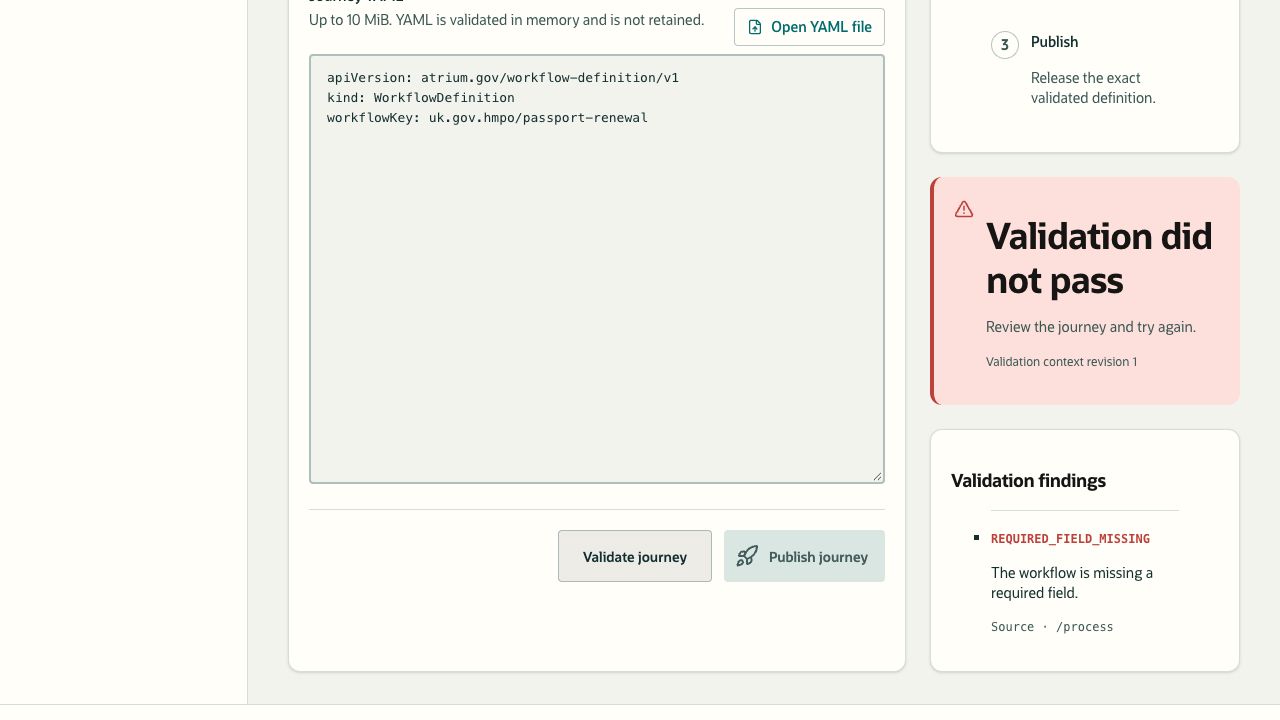
Description of the illustration workflow-validation.jpg
Figure 3. Review the validation findings before publishing. Controlled sample validation response.
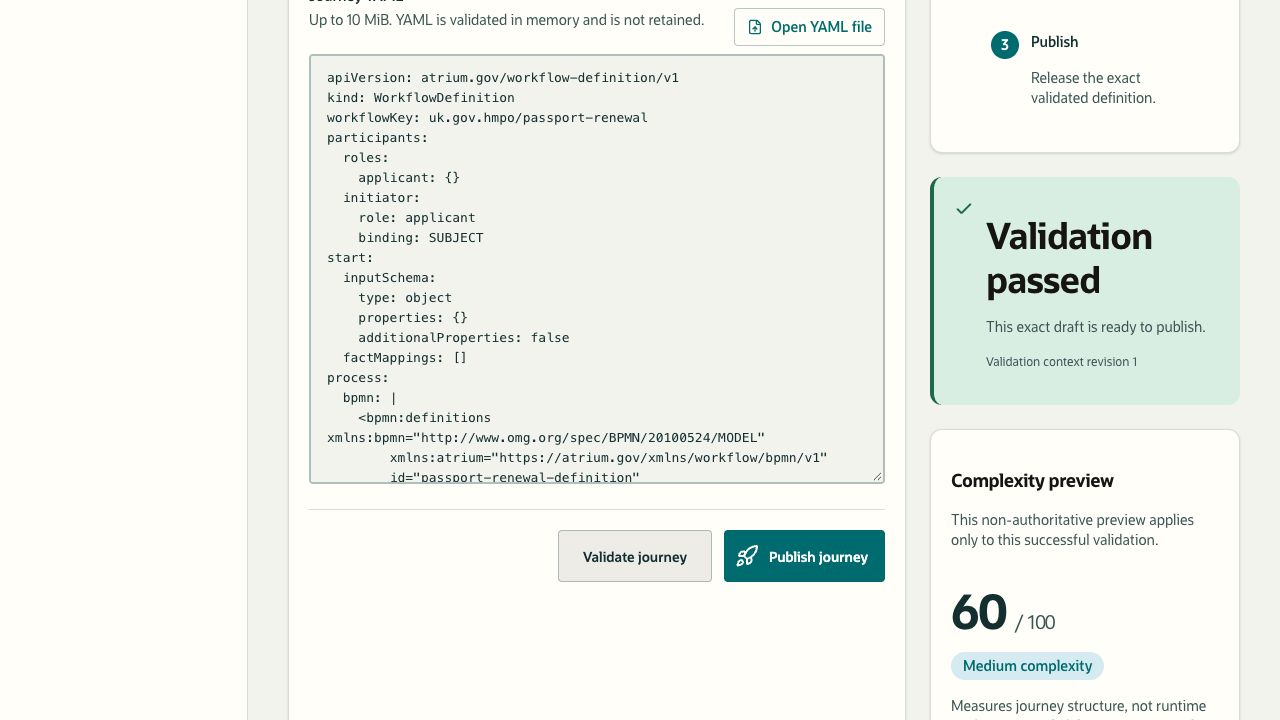
Description of the illustration workflow-validation-success.jpg
Figure 4. Successful validation enables Publish journey for the current draft. Sample validation response; no publication performed.
The Complexity preview describes journey structure for the successfully validated draft. It is not a measure of runtime performance, reliability, or service quality.
Publish the validated draft
Publication changes the available journey in the selected environment. Confirm the key, source file, deployment, and required approval before selecting Publish journey.
- Validate the exact intended key and YAML until validation passes.
- Select Publish journey when enabled.
- Wait for Journey published and note the version and availability revision shown.
- Find the journey under Available journeys and open its details.
- Check the current version, publication time, availability, and definition digests against the intended change. See Inspect a published journey.
After a confirmed successful publication, the editor clears and Available journeys refreshes. If the result says Publication outcome unknown, do not assume failure or immediately retry. Inspect the current published version and digests first. If you cannot determine whether the intended change was published, ask the environment owner to verify it.
Keep the reviewed YAML in its approved source location outside Journey Builder. After any edit to the key or YAML in the browser, select Validate journey again before publishing.