Install Admin Tool
Note:
All the tasks below need to be followed in sequential order.Prerequisites
Before installing the OUAW Admin Tool component, verify the following:
-
Ensure Oracle Database Server Enterprise is installed on the database server.
-
Ensure Java 17 is installed on the application servers.
-
Ensure Oracle Fusion Middleware Infrastructure 14.1.2.0 is installed on the application server.
-
Ensure Oracle APEX is downloaded on the application server and database server.
-
Ensure Oracle REST Data source (ORDS) is downloaded on the application server.
See Perform Pre-Installation Steps for OUAW for more information.
Install APEX on the Database Server
Note:
Make sure the same OS user installs all software, and replace all parameters enclosed in <> with actual values.-
Navigate to the Apex extracted directory. Example: </u01/ouaw/apex>
-
Connect to the Oracle Utilities Analytics Warehouse Database with sys user and execute the following commands in order:
-
sqlplus sys/<SYS USER PASSWORD>@<DATABASE SERVICE NAME> as sysdba -
@apxrtins.sql <Tablespace name> <Tablespace name> <Temp Tablespace name> /i/Example: @apxrtins.sql <CISTS_01> <CISTS_01> <TEMP> /i/
-
@apxchpwd.sql
A sample output for @apxchpwd.sql is shown below. Provide the inputs and store it for future reference.SQL> @apxchpwd.sql ...set_appun.sql ================================================================================ This script can be used to change the password of an Application Express instance administrator. If the user does not yet exist, a user record will be created. ================================================================================ Enter the administrator's username [ADMIN] User "ADMIN" does not yet exist and will be created. Enter ADMIN's email [ADMIN] <admin email id> Enter ADMIN's password [] Created instance administrator ADMIN. -
ALTER USER APEX_PUBLIC_USER ACCOUNT UNLOCK; ALTER USER APEX_PUBLIC_USER IDENTIFIED BY APEX_PUBLIC_USER; -
@apex_rest_config.sql
A sample output for @apex_rest_config.sql is shown below. Provide the inputs and store it for future reference.SQL> @apex_rest_config.sql Enter a password for the APEX_LISTENER user [] Enter a password for the APEX_REST_PUBLIC_USER user [] ...set_appun.sql ...setting session environment ...create APEX_LISTENER and APEX_REST_PUBLIC_USER users SQL>
-
Note:
Make sure that you save the passwords forAPEX_Listener user and APEX_REST_PUBLIC_USER
Configure APEX Workspace for OUAW
-
To connect to the database with the sys user:
sqlplus sys/<SYS USER PASSWORD>@<DATABASE SERVICE NAME> as sysdba -
To create a workspace and configure the users:
@CreateAppWorkspace.sql -
To import the OUAW application run:
@DeployAdminApp.sql
Install ORDS on the Application Server
This section provides the steps to install ORDS 25.1.1.
Installing ORDS 25.1.1
-
Create the configuration and installation log directories on the application server to configure ORDS.
Example:
mkdir -p </u01/ouaw/ords_configuration>
mkdir -p </u01/ouaw/ords_install_log>
-
Navigate to the ORDS extracted directory on the application server and make sure that the Apex extracted directory is available in the location.
Example: </u01/ouaw/ords>
-
To install ords, execute the following commands:
export JAVA_HOME=</u01/ouaw/java17>
export PATH=$JAVA_HOME/bin:$PATH
/u01/ouaw/ords/bin/ords --config /u01/ouaw/ords_configuration  install --interactive --log-folder /u01/ouaw/ords_install_log
Note:
See below an example of the command prompt, in which default options will appear enclosed in square brackets [ ]. Use these options or provide the necessary inputs for your requirement.ORDS: Release 25.1 Production on Tue Nov 11 12:17:33 2025 Copyright (c) 2010, 2025, Oracle. Configuration: /scratch/ouawcicd/ords_configuration The configuration folder /scratch/ouawcicd/ords_configuration does not contain any configuration files. Oracle REST Data Services - Interactive Install Enter a number to select the TNS net service name to use from /scratch/ouawcicd/Database_base/Ora_home/network/admin/tnsnames.ora or specify the database connection [1] OUACICDB SERVICE_NAME=OUACICDB [2] OUAW906DB SERVICE_NAME=OUAW906DB [S] Specify the database connection Choose [1]: <target pdb service name> Provide database username with administrator privileges. Enter the administrator username: sys Enter the database password for SYS AS SYSDBA: Retrieving information. ORDS is not installed in the database. ORDS installation is required. Enter a number to update the value or select option A to Accept and Continue [1] Connection Type: TNS [2] TNS Connection: TNS_NAME=OUAW906DB TNS_FOLDER=/scratch/ouawcicd/Database_base/Ora_home/network/admin Administrator User: SYS AS SYSDBA [3] Database password for ORDS runtime user (ORDS_PUBLIC_USER): <generate> [4] ORDS runtime user and schema tablespaces: Default: SYSAUX Temporary TEMP [5] Additional Feature: Database Actions [6] Configure and start ORDS in Standalone Mode: Yes [7] Protocol: HTTP [8] HTTP Port: 8080 [9] APEX static resources location: [A] Accept and Continue - Create configuration and Install ORDS in the database [Q] Quit - Do not proceed. No changes Choose [A]: 3 Enter your choice for the runtime user password (ORDS_PUBLIC_USER) [S] Specify your own password [G] Generate password [C] Cancel - No Changes Choose [G]: S Enter the database password for ORDS_PUBLIC_USER: Confirm password: Enter a number to update the value or select option A to Accept and Continue [1] Connection Type: TNS [2] TNS Connection: TNS_NAME=OUAW906DB TNS_FOLDER=/scratch/ouawcicd/Database_base/Ora_home/network/admin Administrator User: SYS AS SYSDBA [3] Database password for ORDS runtime user (ORDS_PUBLIC_USER): <specified password> [4] ORDS runtime user and schema tablespaces: Default: SYSAUX Temporary TEMP [5] Additional Feature: Database Actions [6] Configure and start ORDS in Standalone Mode: Yes [7] Protocol: HTTP [8] HTTP Port: 8080 [9] APEX static resources location: [A] Accept and Continue - Create configuration and Install ORDS in the database [Q] Quit - Do not proceed. No changes Choose [A]: 6 Enter a number to update the value or select option A to Accept and Continue [1] Connection Type: TNS [2] TNS Connection: TNS_NAME=OUAW906DB TNS_FOLDER=/scratch/ouawcicd/Database_base/Ora_home/network/admin Administrator User: SYS AS SYSDBA [3] Database password for ORDS runtime user (ORDS_PUBLIC_USER): <specified password> [4] ORDS runtime user and schema tablespaces: Default: SYSAUX Temporary TEMP [5] Additional Feature: Database Actions [6] Configure and start ORDS in Standalone Mode: No [A] Accept and Continue - Create configuration and Install ORDS in the database [Q] Quit - Do not proceed. No changes Choose [A]: The setting named: db.connectionType was set to: tns in configuration: default The setting named: db.tnsAliasName was set to: OUAW906DB in configuration: default The setting named: db.tnsDirectory was set to: /scratch/ouawcicd/Database_base/Ora_home/network/admin in configuration: default The setting named: plsql.gateway.mode was set to: proxied in configuration: default The setting named: db.username was set to: ORDS_PUBLIC_USER in configuration: default The setting named: db.password was set to: ****** in configuration: default The setting named: feature.sdw was set to: true in configuration: default The global setting named: database.api.enabled was set to: true The setting named: restEnabledSql.active was set to: true in configuration: default The setting named: security.requestValidationFunction was set to: ords_util.authorize_plsql_gateway in configuration: default 2025-11-11T12:20:06.063Z INFO Installing Oracle REST Data Services version 25.1.1.r1411642 in OUAW906DB 2025-11-11T12:20:07.418Z INFO ... Verified database prerequisites 2025-11-11T12:20:07.773Z INFO ... Created Oracle REST Data Services proxy user 2025-11-11T12:20:08.189Z INFO ... Created Oracle REST Data Services schema 2025-11-11T12:20:08.744Z INFO ... Granted privileges to Oracle REST Data Services 22025-11-11T12:20:11.076Z INFO ... Created Oracle REST Data Services database objects 2025-11-11T12:20:21.818Z INFO Completed installation for Oracle REST Data Services version 25.1.1.r1411642. Elapsed time: 00:00:15.732 2025-11-11T12:20:21.856Z INFO Completed configuring PL/SQL gateway user for Oracle REST Data Services version 25.1.1.r1411642. Elapsed time: 00:00:00.37 2025-11-11T12:20:21.858Z INFO Log file written to /scratch/ouawcicd/ords_install_log/ords_install_2025-11-11_122005_98638.log -
Navigate to the ORDS directory. You will find the ords.war.
Example: cd </u01/ouaw/ords>
-
To create i.war, complete these steps.
- Create a directory which is the source for your web archive. In that directory, create a WEB-INF directory with the following web.xml and weblogic.xml.
mkdir -p /u01/ouaw/temp/WEB-INF -
Create web.xml and weblogic.xml inside WEB-INF folder.
cd /u01/ouaw/temp/WEB-INFweb.xml<?xml version="1.0" encoding="UTF-8"?> <!DOCTYPE web-app PUBLIC "-//Sun Microsystems, Inc.//DTD Web Application 2.3//EN" "http://java.sun.com/j2ee/dtds/web-app_2_3.dtd"> <web-app> <!-- This Web-App leverages the alternate doc-root functionality in WebLogic to serve static content For WebLogic refer to the weblogic.xml file in this folder --> </web-app>weblogic.xml<weblogic-web-app xmlns="http://www.bea.com/ns/weblogic/weblogic-web-app"> <!-- This element specifies the context path the static resources are served from --> <context-root>/i</context-root> <virtual-directory-mapping> <!-- This element specifies the location on disk where the static resources are located --> <local-path>/scratch/apex/apex_21.2_en/images</local-path> <url-pattern>/*</url-pattern> </virtual-directory-mapping> </weblogic-web-app>Note:
<local-path> is the path of apex image folder. - To create i.war with the web.xml and weblogic.xml files, execute the following command:
export JAVA_HOME=</u01/ouaw/java17>
export PATH=$JAVA_HOME/bin:$PATH

jar cMf i.war WEB-INF/web.xml WEB-INF/weblogic.xml
Note:
For more information, refer to Deploying Oracle REST Data Services. - Create a directory which is the source for your web archive. In that directory, create a WEB-INF directory with the following web.xml and weblogic.xml.
Create the Apex Domain
This section describes how to create the apex domain. The apex domain is configured on the application server using the ords.war and i.war files generated in the previous procedure.
-
Navigate to the following directory: <FMW 14c HOME>/oracle_common/common/bin.
-
Add JAVA_HOME/bin to the PATH variable.
export JAVA_HOME=<JAVA HOME PATH> export PATH=$JAVA_HOME/bin:$PATH -
Execute the following command to launch the Oracle Fusion Middleware Configuration Wizard for <apex_domain> configuration:
./config.sh -
On the Create Domain screen, select Create a new domain, and click Next.
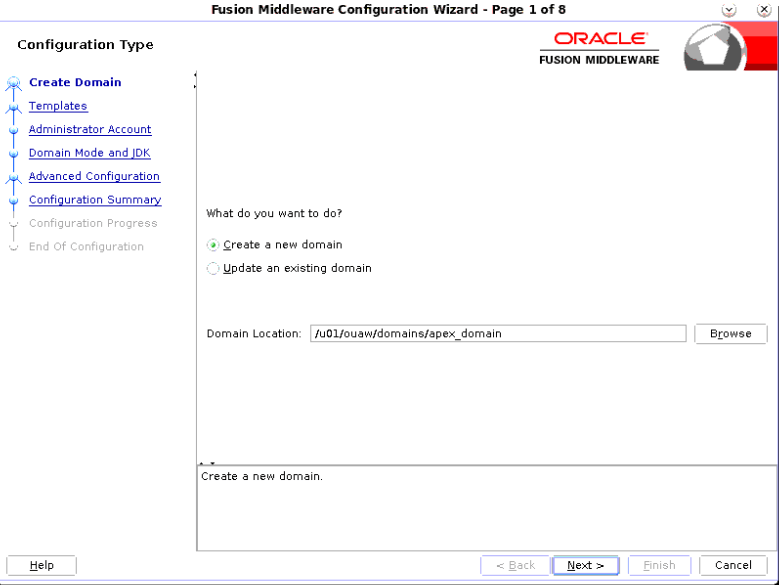
Field Name and Description Value Domain Location: Enter the location where the apex_domain can be created. Example: </u01/ouaw/domains/apex_domain> -
On the Templates page, below the Available Templates list, select Basic WebLogic Server Domain and click Next.
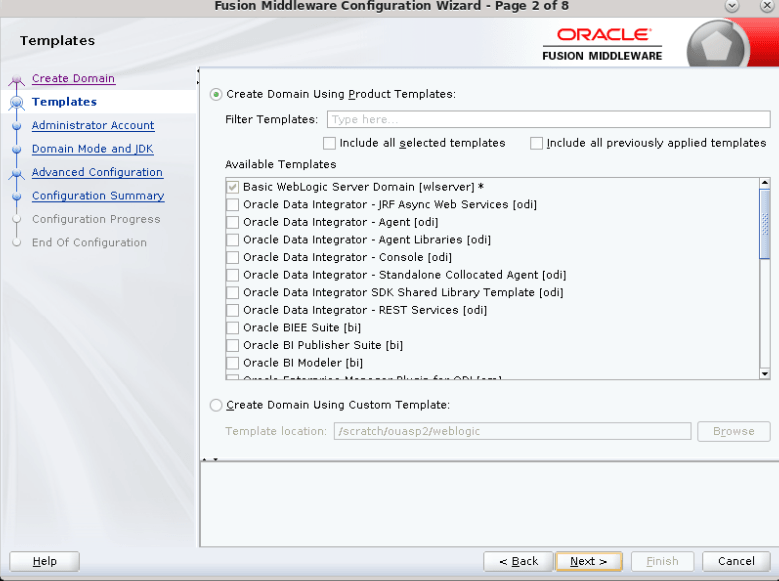
-
On the Administrator Account page, enter the following values and click Next.
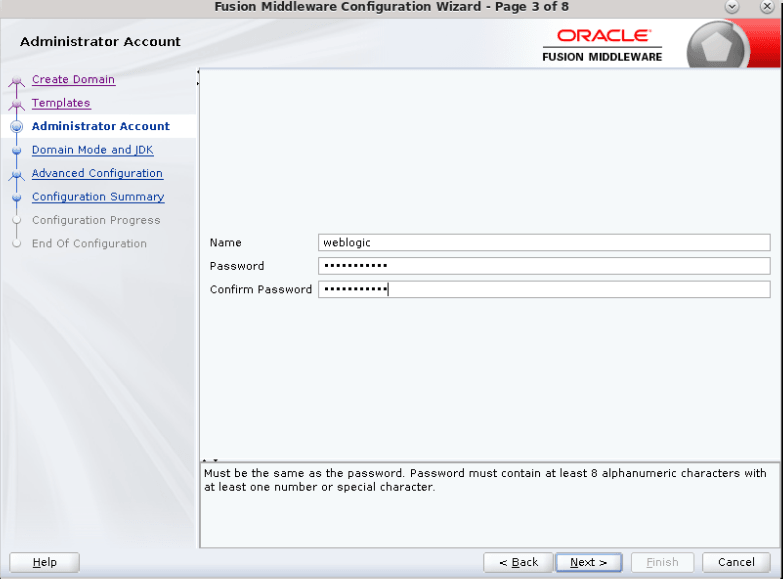
Field Name and Description Value Name: Enter the user name. weblogic Password: Enter the WebLogic user password. <weblogic user password> Confirm Password: Enter the same WebLogic user password as above. <weblogic user password> -
On the Domain Mode and JDK page, select the options as per your requirement, and click Next. The image below shows the option to configure NON SSL Domain.
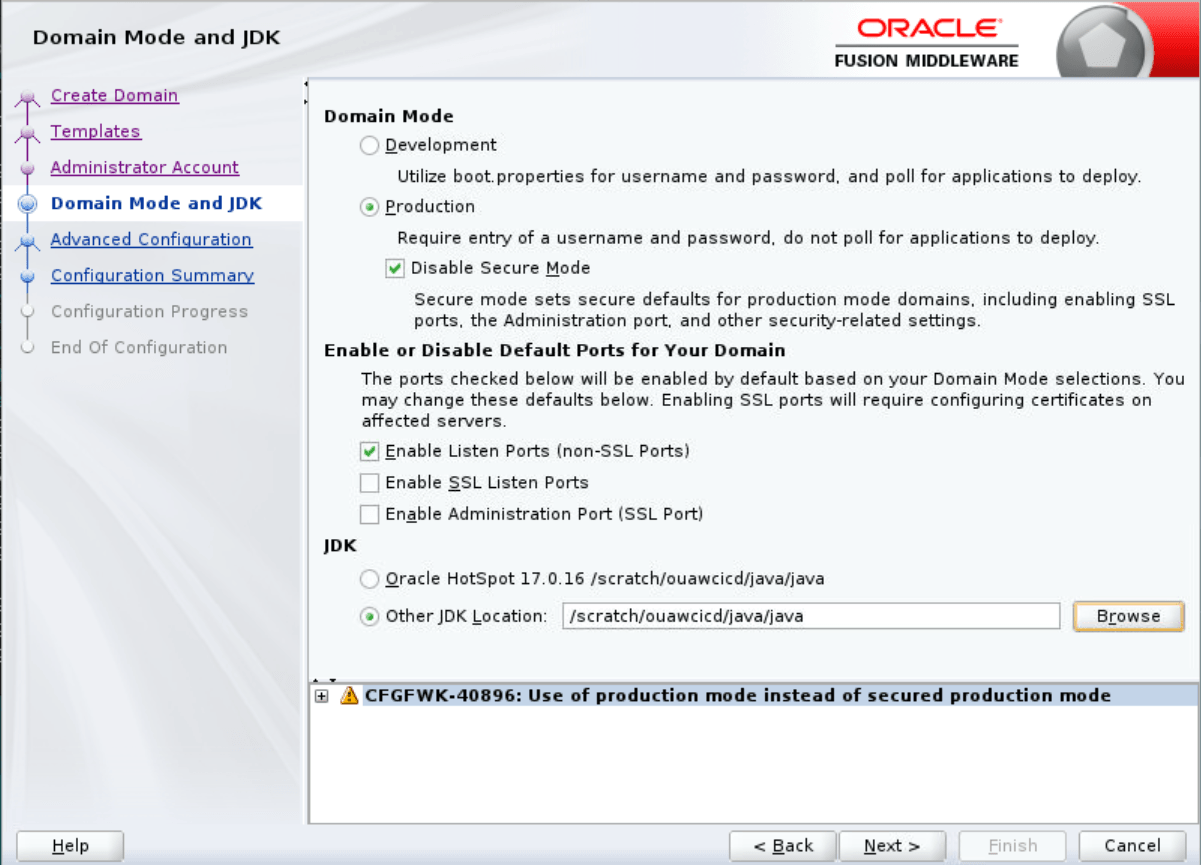
Field Name and Description Value Domain Mode: Select the appropriate domain mode. Production mode Disable Secure Mode: Check as per your requirement Enable or Disable Default Ports for Your Domain: Check as per your requirement JDK: Select the JDK location using a browser. Example: <JAVA HOME> -
On the Advanced Configuration page, select Administration Server and Topology.
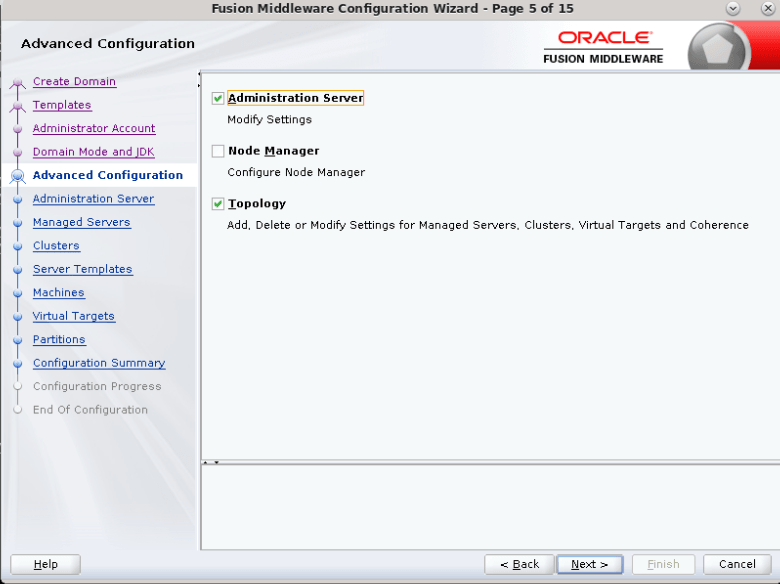
-
On the Administration Server page, enter the values as in the table below, and click Next.
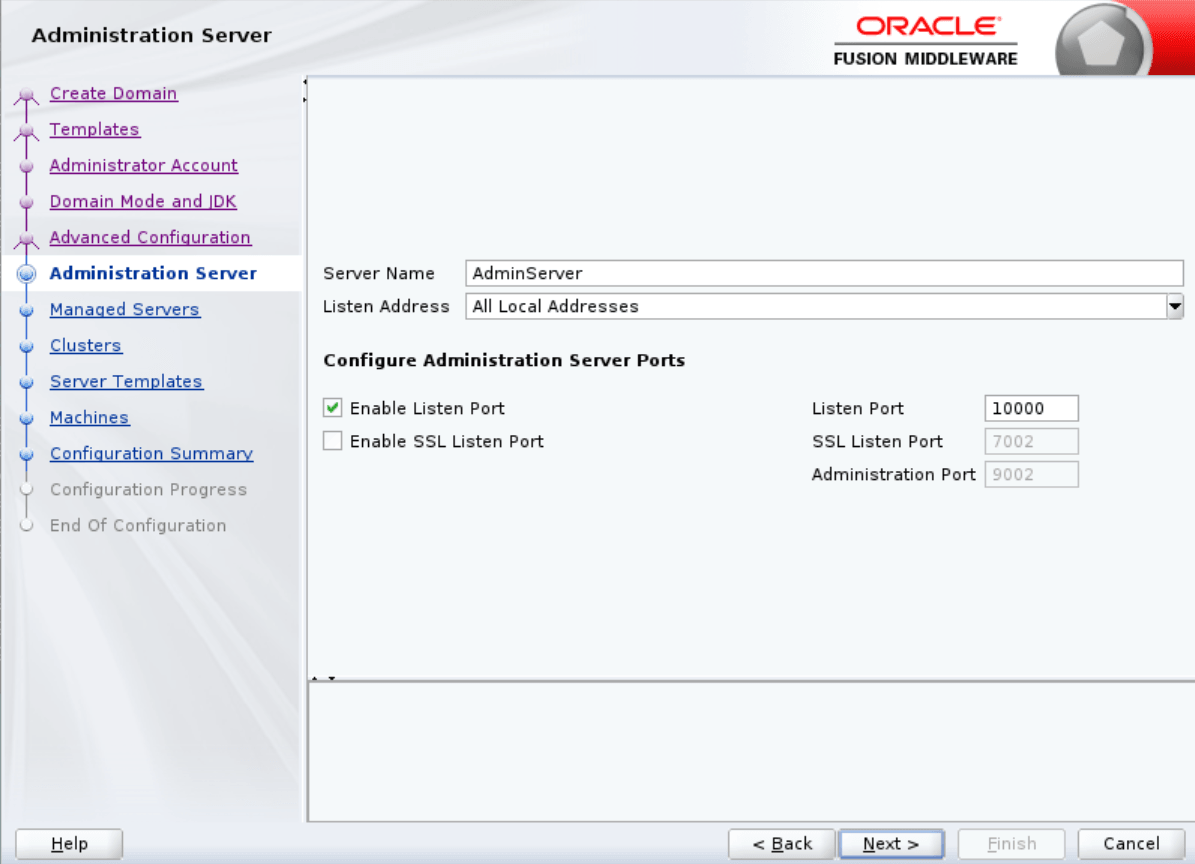
Field Name and Description Value Server Name: Enter the Admin server name. AdminServer Listen Address: Enter the listen address. All local addresses Enable Listen Port: For NON-SSL Select the checkbox as per your requirement Enable SSL Listen Port: For SSL Select the checkbox as per your requirement Listen Port: Enter the listen port number. Example: <12000>
NON-SSL Port
SSL Listen Port: Enter the SSL listen port number. For SSL Domain -
On the Managed Servers page, enter the following values to add a managed server. Click Next.
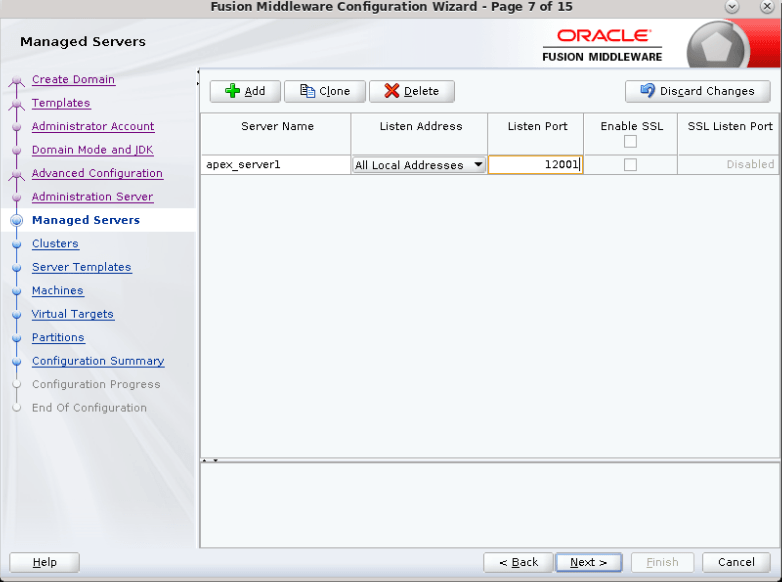
Field Name and Description Value Server Name: Enter the managed server name. Example: <apex_server1> Listen Address: Enter the listen address. All local addresses. Listen Port: Enter the listen port number. Example: <12001> -
Click Next on the Clusters, Server Templates, Machines, Virtual Targets and Partitions pages respectively. There is nothing to add or change to these pages.
-
On the Configuration Summary page, click Create .
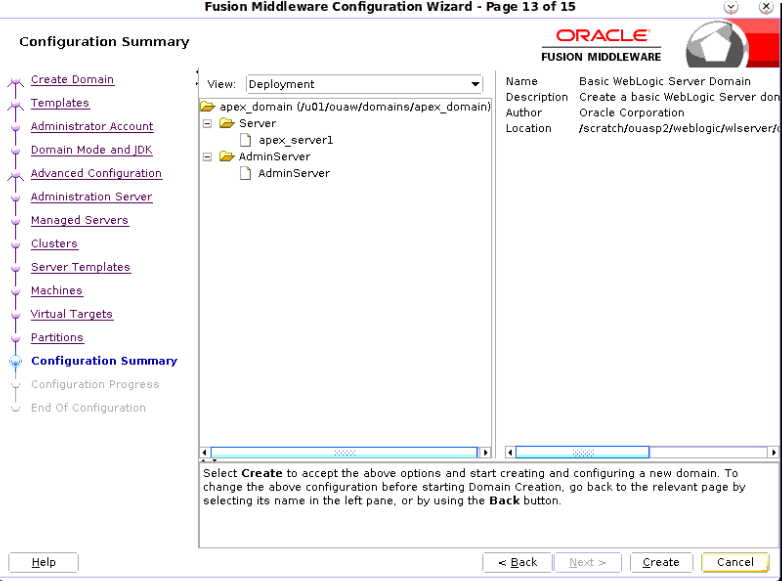
-
On the Configuration Progress page, wait until the progress bar is 100% complete and then click Next.
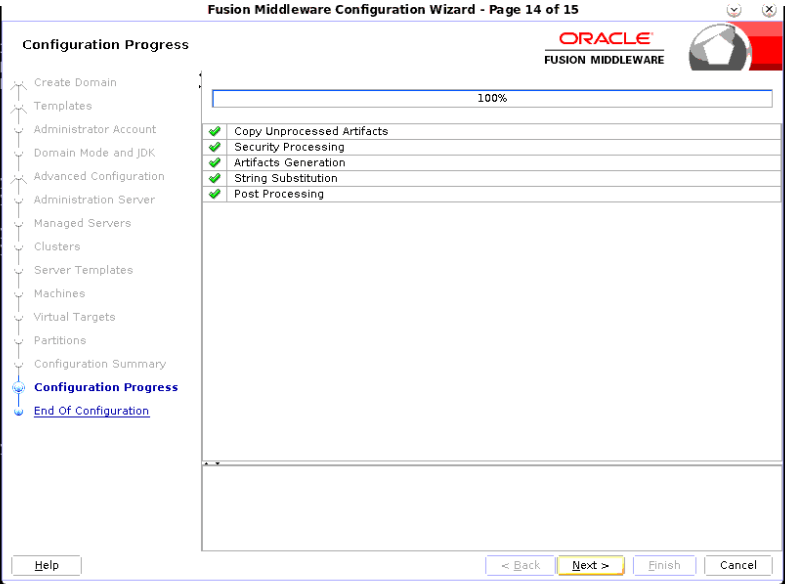
-
On the End Of Configuration page, you will find the domain path and the administration server URL that will be used in the following steps. Click Finish.
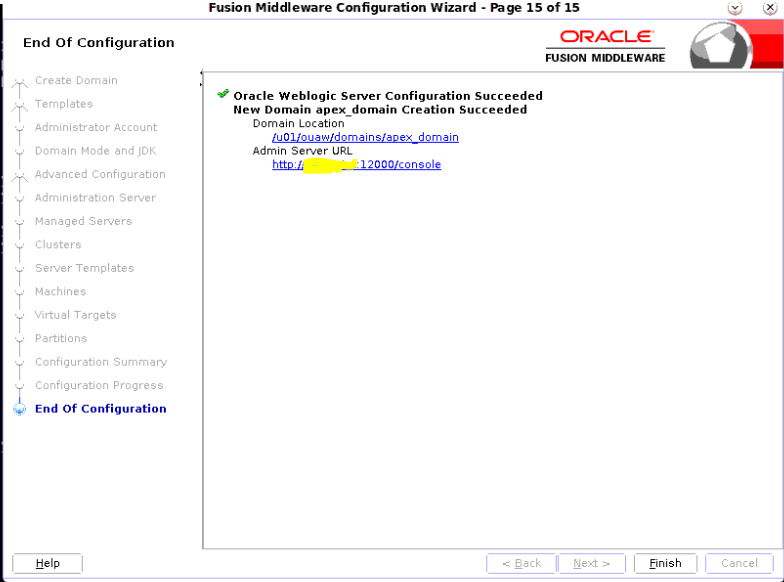
Start the Apex Domain
-
Navigate to the appropriate <apex_domain>.
Example: cd <apex_domain>
-
Create the boot.properties file under the AdminServer and Managed Server '<APEX DOMAIN>/servers' location.
mkdir -p AdminServer/security mkdir -p apex_server1/security -
Enter the following lines to
boot.properties:username=weblogic password=weblogic123 -
Start the administration server and managed server apex_server1.
cd <APEX DOMAIN>/bin
nohup ./startWebLogic.sh > adminserver.log 2>&1 &
nohup ./startManagedWebLogic.sh apex_server1 > apex_server1.log 2>&1 &
Install the ords.war and i.war Files
Installing ords.war and i.war in WebLogic 14c
Note:
To access the WebLogic 14c admin console, you need to install the WebLogic Remote Console in your system. Refer to WebLogic Remote Console for more information.-
Log in to the <apex domain> WebLogic administration console.
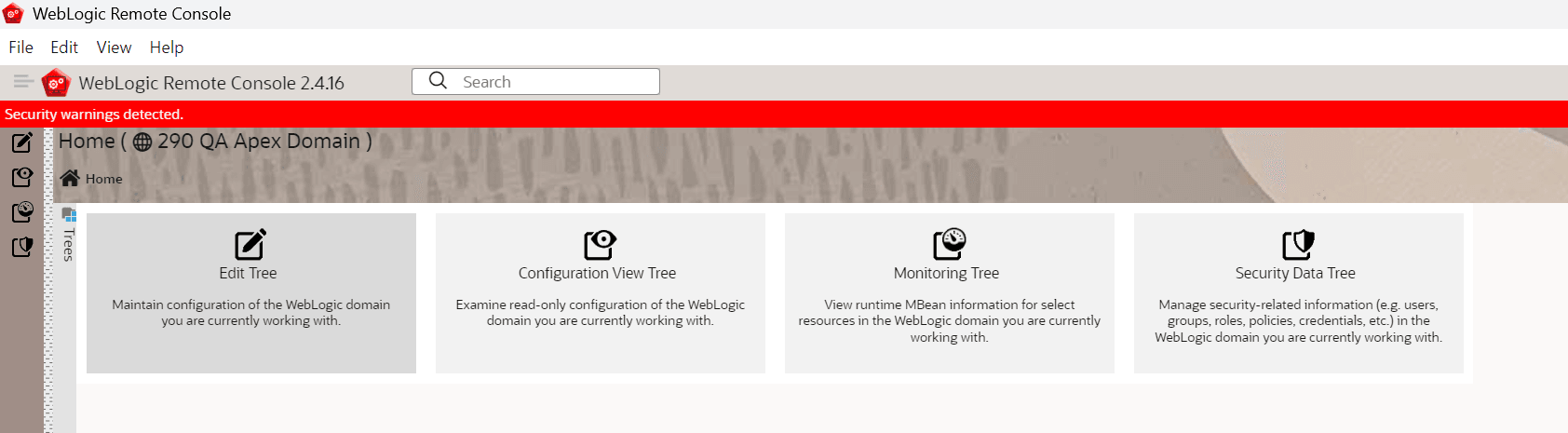
-
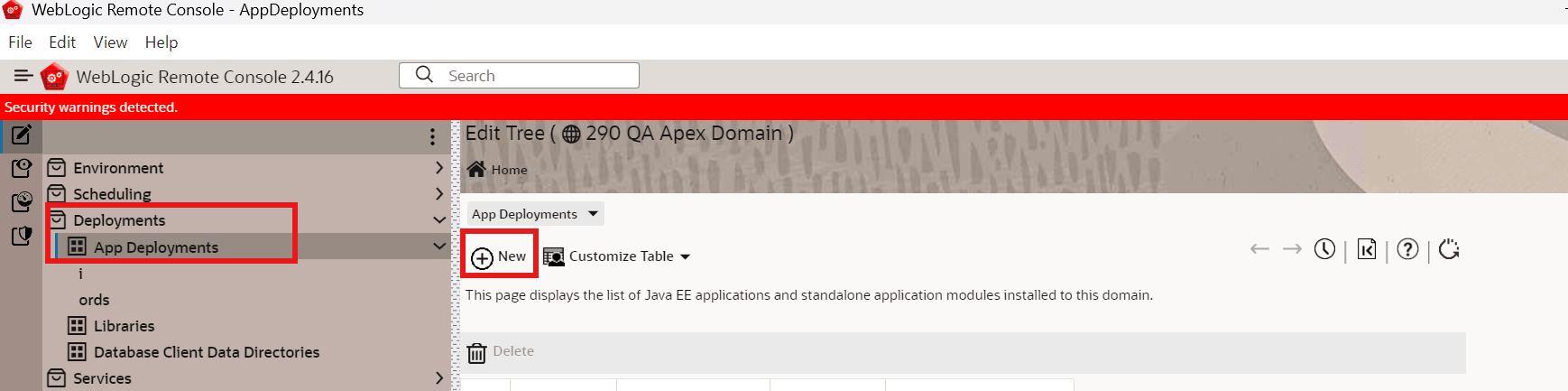
Navigate to Edit Tree > Deployments > App Deployments > New.
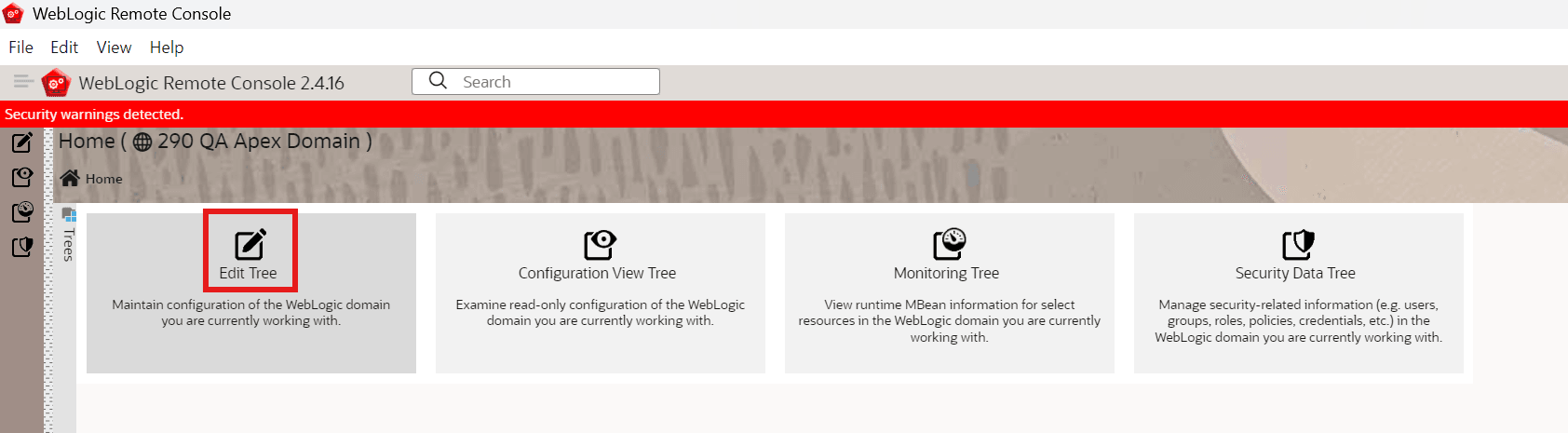
-
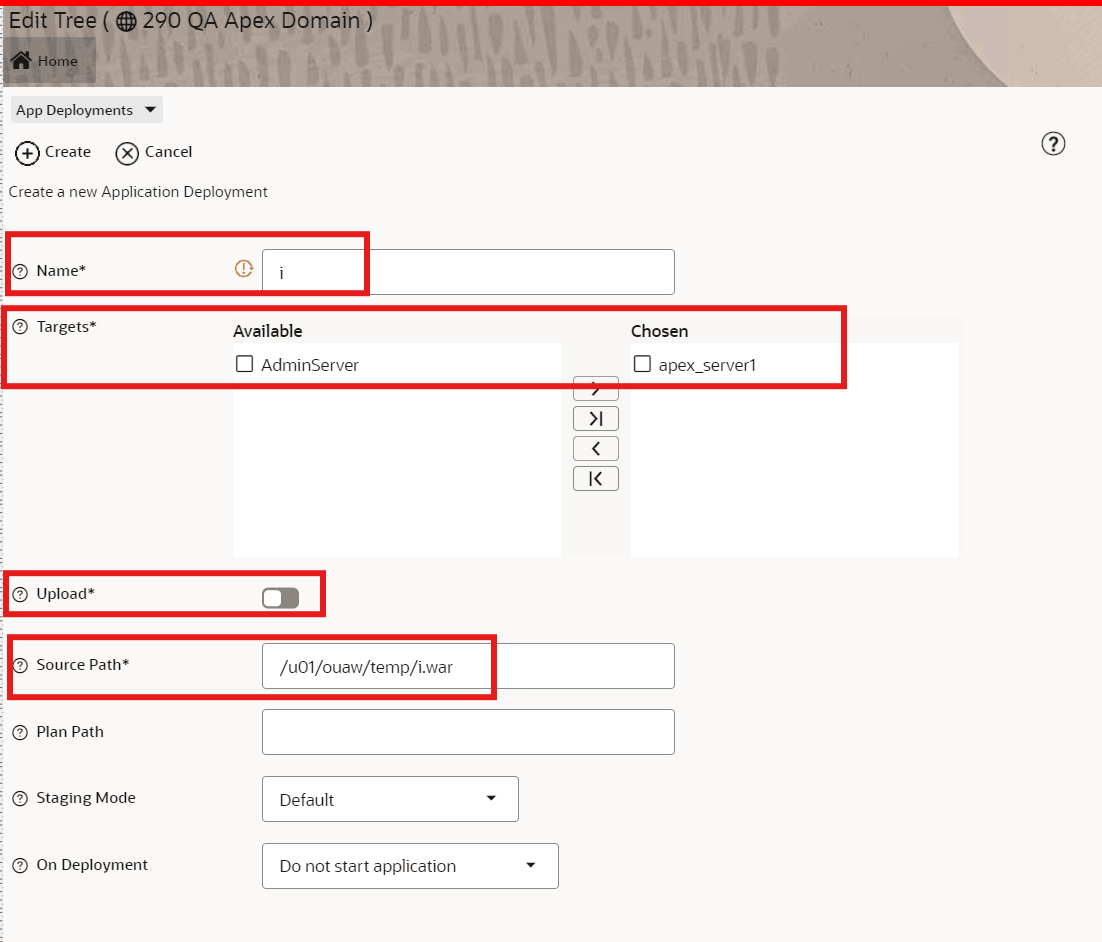
Enter the appropriate values for Name (Example: i), Targets (Example: Apex Managed Server apex_server1), and Source Path (Example: full path of the i.war file location).
-
Click Create and Save then the Commit Changes (
 ) button.

-
Repeat steps 2 to 4 to deploy the ords.war file.
-
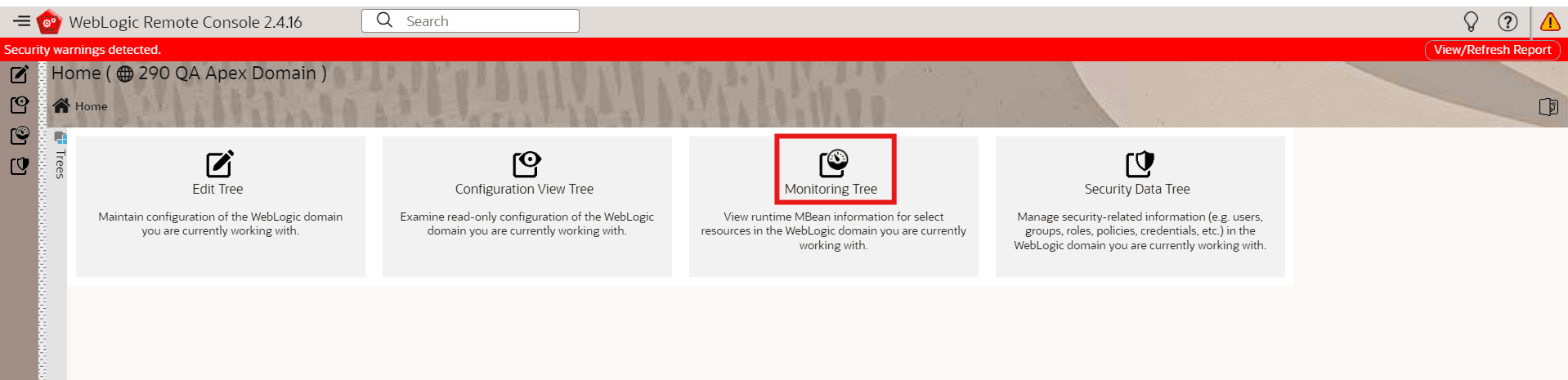
Navigate to Monitoring Tree > Deployments > Application Management.

-
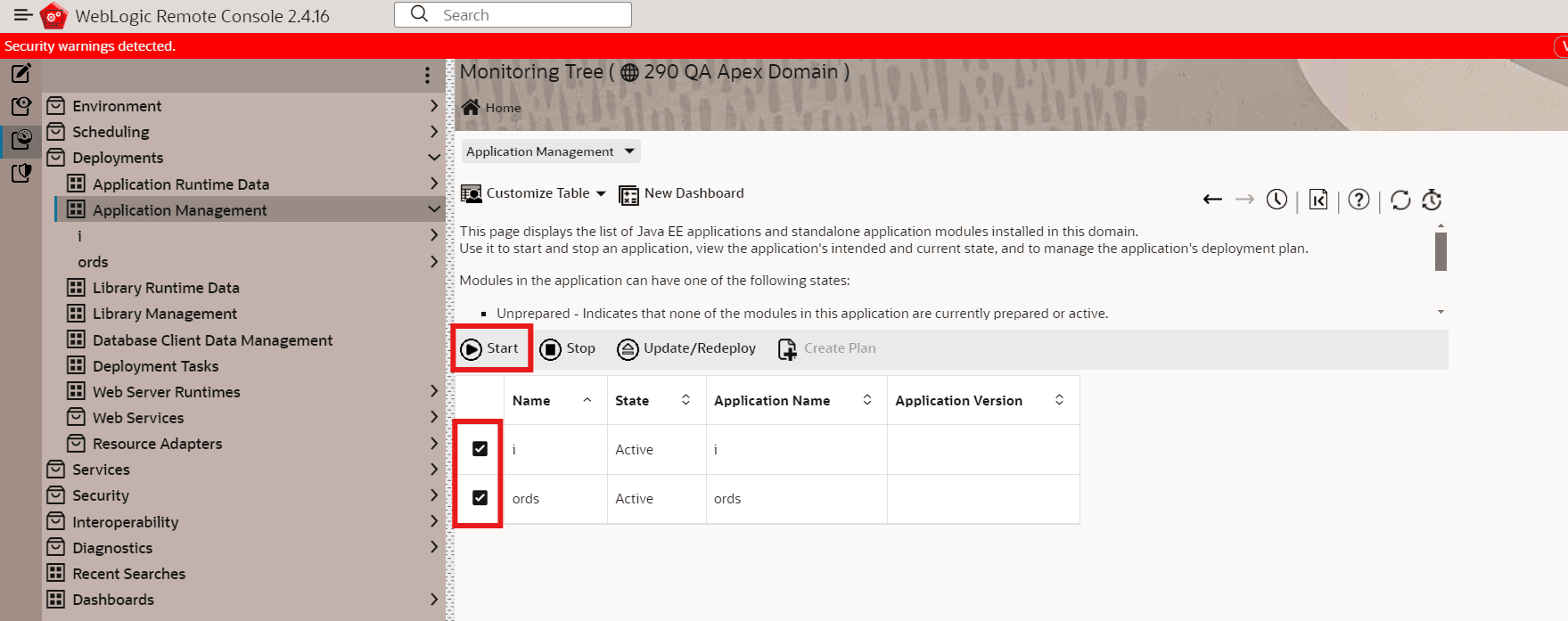
Select the i and ords checkboxes then click Start > Servicing All Requests.
-
Stop the Apex administration and managed servers.
-
Add this parameter to the end of setDomainEnv.sh, which is in the Apex Domain/bin folder.
JAVA_OPTIONS="${JAVA_OPTIONS} -Dconfig.url=/u01/ouaw/ords_configuration"Note:
Dconfig.url is the path of ords configuration folder. -
Restart the Apex administration and managed servers.
Access the AdminTool
-
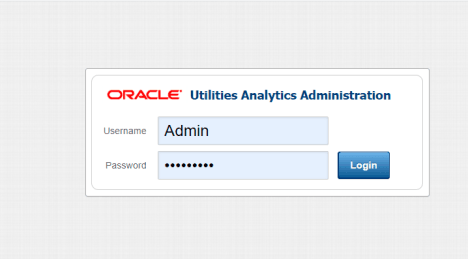
Access the AdminTool from the following URL: http://<hostname>:<apex_server1_port>/ords/f?p=104
-
Provide the following credentials to access the Admin Tool.
Username: Admin
Password: Admin_123
Note:
After logging in to the application for the first time, you will be asked to change your password. -
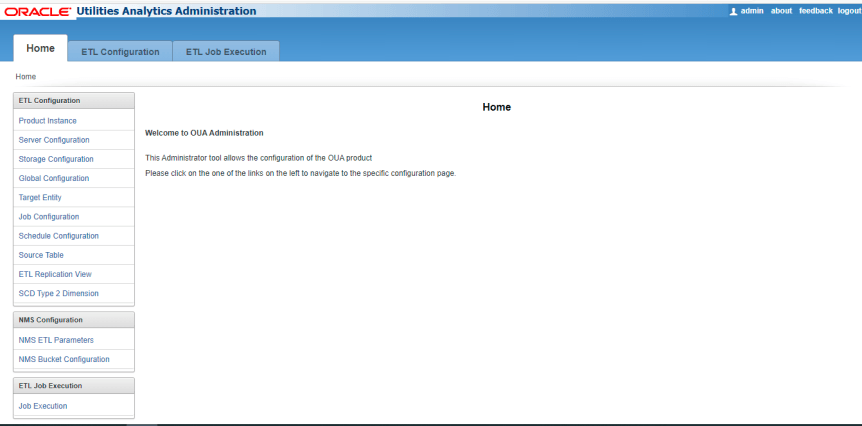
After logging in, you can get the following Admin Tool access to ETL Configuration and ETL Job Execution.
Change Default Password of the Admin User
begin

wwv_flow_api.set_security_group_id(p_security_group_id=>nvl(wwv_flow_application_install.get_workspace_id,2090606133849294));end;
/
begin
apex_util.edit_user(
p_user_id => '1467765078687596',
p_user_name => 'ADMIN',
p_web_password => 'New password',
p_new_password => 'New password'
);
end;
/
commit;
/
Note:
It is strongly recommended that you change the default password after logging in.