Perform Pre-Installation Steps for OUAW
This page will help you plan and execute the installation and configuration of the Oracle Utilities Analytics Warehouse (OUAW). Use the instructions and information below to download and install the prerequisite software, and then carry out the validations tasks on the database and application servers as described.
Note:
This page assumes you have database and middleware administrator knowledge.System Requirements and Supported Platforms
Before you begin installation, verify that the minimum system hardware and network requirements are met. See System Requirements Supported Platforms.
Next, determine your installation target. One possible OUAW deployment topology option is a multi-nodes topology, which deploys the database and application components on separate dedicated servers. The other option is to deploy both the OUAW database and application components on a single high-capacity server.
Pre-Installation Requisites for OUAW Database Server
The prerequisite software for installing OUAW on a target database server is listed below. The target database server will be used by the OUAW database component, as well as the repositories created for the Oracle Data Integrator-based ETL, Dashboards, and Admin Tool components.
Note:
Consider the following best practices to help ensure a successful pre-installation setup:- You can decide where to install the software. The table below includes example directory structures, but you may choose different locations.
- Keep track of all home directories you create. You will need these paths during the OUAW installation.
- Use the same operating system (OS) user account to install all software components.
- Replace any parameter enclosed in angle brackets (<>) with the actual value for your environment.
- Set the time zone of the OUAW database server and the database instance to match the source application server. When setting the database time zone (DBTIMEZONE), use a time zone region name, such as America/New_York. Do not use an absolute offset, such as -05:00.
| Task | Description |
|---|---|
| Download and install the Java Development Kit |
|
| Download and install Oracle Database Server Enterprise |
|
| Download and apply Database Server Patch |
Download and apply the Database Server Patch 37960098 from My Oracle Support.
Note: Find the detailed patch installation steps in the README file within each Patch Package. |
| Create database for installation | Create a database for OUAW installation. Use the AL32UTF8 character set. |
| Download and install GoldenGate Microservices |
|
| Apply patch for GoldenGate Microservices |
Download and apply patch 38139662 (for Linux) from My Oracle Support.
Note: Find the detailed patch installation steps in the README file within each Patch Package. |
| Create Oracle GoldenGate Microservices Deployment |
Note: OUAW only supports GoldenGate Microservice Secure Deployments.Prerequisite:
Add Oracle GoldenGate Microservices Deployment with the following command:
Refer to Deploy for more information. Examples:
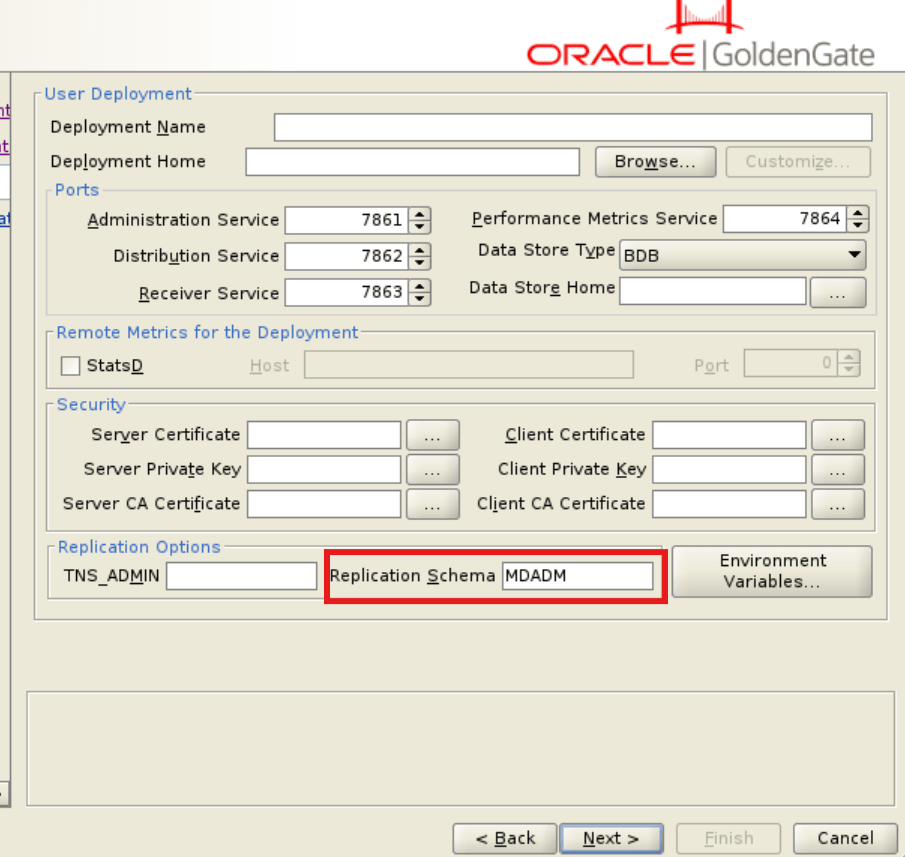
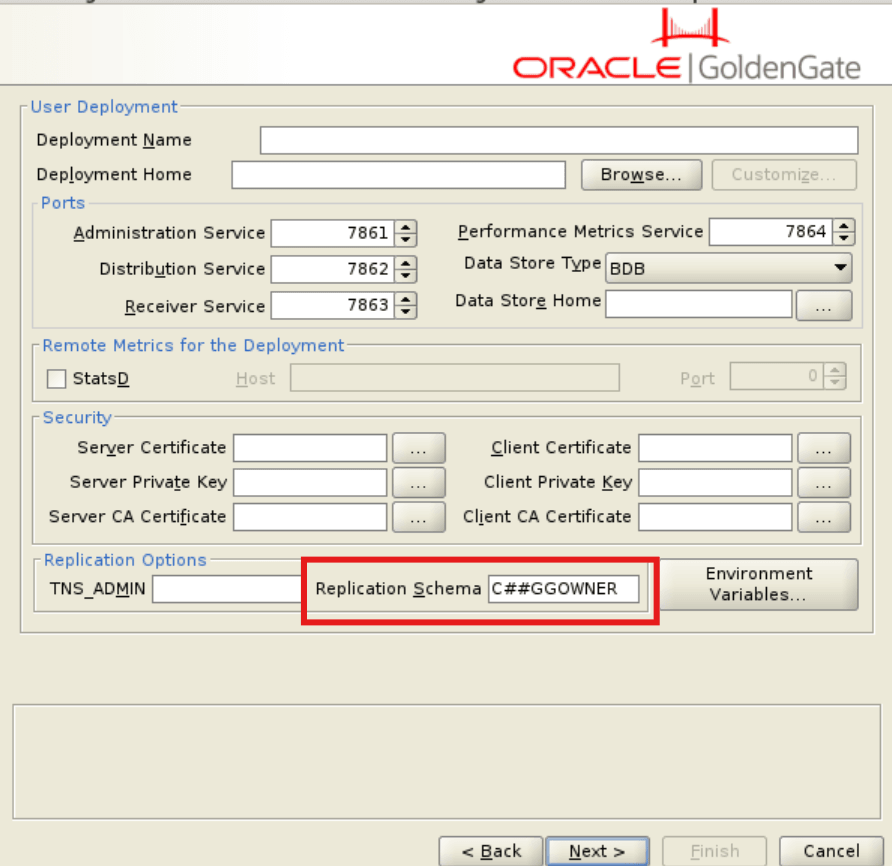
Note: Set the Replication Schema settings.
|
| Download and extract Oracle APEX |
|
| Download the OUAW database software |
Note: You can find the OUAW Database Installers at the following location after unzipping the file </u01/ouaw/temp/database/BI251000> . |
| Extract the Admin Tool |
|
Pre-Installation Requisites for OUAW Application Server
Note:
While the table below includes some example directory structures, you can decide where the software will be installed. Make sure you keep track of all the home directories you create, as these will be used at the time of OUAW installation. Additionally, make sure the same OS user installs all software, and replace all parameters enclosed in <> with actual values.| Task | Description |
|---|---|
| Download and install the Java Development Kit |
Java 8 or Java 21
Java 17
|
| Download and install database client |
Download the Oracle Database Client from Oracle Software Delivery Cloud and install it at a customized location. Example: </u01/ouaw/clientBase>.
Note: This task is optional if both the OUAW application server and the database server are installed on the same machine. See Install Oracle Database Client for more information. |
| Download and install Oracle Fusion Middleware Infrastructure |
FMW 12c
See Install Oracle Fusion Middleware Infrastructure for more information. FMW 14c
See Install Oracle Fusion Middleware Infrastructure for more information. |
| Download and apply Oracle Fusion Middleware Infrastructure Patch |
FMW/WLS 12c Patches
Note: FMW/WLS 12c are included in OAS STACK PATCH BUNDLE patch which will be applied after OAS Installation. FMW/WLS 14c Patches
|
| Download and install Oracle Analytics Server (OAS) |
See Install Oracle Analytics Server for more information. |
| Download and apply Oracle Analytics Server (OAS) Patch |
OAS 2025 Patches Download and apply the Oracle Analytics Server 2025 (8.2) patches 38161336 and 34809489 from My Oracle Support.
Note: Find the detailed patch installation steps in the README file within each Patch Package. |
| Configure Oracle Analytics Server domain |
See Configuring the Oracle Analytics Server Domain with the Configuration Assistant for additional details. |
| Download and install Oracle Data Integrator (ODI) |
|
| Download and apply the ODI patch |
Download and apply the Oracle Data Integrator 14.1.2 patches 38172533 and 36668195 from My Oracle Support.
Note: Find the detailed patch installation steps in the README file within each Patch Package. |
| Configure repository |
|
| Download APEX |
Download the Oracle APEX 24.2 from Oracle APEX and extract it to a local directory. Example: </u01/ouaw/apex>. After extraction you can see the apex folder. Example: </u01/ouaw/apex/apex>. |
| Download ORDS | Download the Oracle REST Data source (ORDS) 25.1.1 version from Oracle REST Data Services and extract it to a local directory. |
| Download the OUAW application software |
|
OUAW Directory Structures and Other Required Information
The example software installation directories listed below can be used for OUAW installations and configurations. These locations will be referred to as the Java Home, Oracle Home, GoldenGate Home, Domain Home, Database, and Application Home.
| Information Type | Example |
|---|---|
|
JAVA_HOME The Java installation path on the OUAW database and application servers. |
<Java Home on Application Server> Example: </u01/ouaw/java8> or </u01/ouaw/java17> |
|
ORACLE_HOME The Oracle database installation path on the OUAW database server. |
<Database Home on Database Server> Example: </u01/ouaw/database> |
|
Database Client The Oracle Database client installation path on the OUAW application server. |
<Database Client Home on Application Server> Example: </u01/ouaw/clientBase> |
|
GoldenGate Microservices Installation Home The Oracle GoldenGate Microservices installation path on the OUAW database server. |
<GoldenGate Microservices Installation Home on Database Server> Example: </u01/ouaw/goldengate_MA> |
|
GoldenGate Microservices Service Manager Home The Oracle GoldenGate Microservices Service Manager path on the OUAW database server. |
<GoldenGate Microservices Service Manager Home on Database Server> Example: </u01/ouaw/goldengate_SM> |
|
GoldenGate Microservices Deployment Home The Oracle GoldenGate Microservices Deployment Home on the OUAW database server. |
<GoldenGate Microservices Deployment Home on Database Server> Example: </u01/ouaw/goldengate_Deploy> |
|
FMW Home The Oracle Fusion Middleware Infrastructure installation path on the OUAW application server. |
<FMW Home on Application Server Used for OAS/ODI> Example: </u01/ouaw/middleware12C> or </u01/ouaw/middleware14c> |
|
OAS Domain The OAS Domain path. Keep track of this value, as it is referenced while Installing OUAW Dashboards. |
Example: </u01/ouaw/domains/oas_domain> |
|
Source & Target GoldenGate Microservice Service Manager Port |
Example: <7860> |
|
Source & Target GoldenGate Microservice Admin Service Port Keep track of this value, as it is referenced while installing OUAW ETL and Source Configuration |
Example: <7861> |
|
Source & Target GoldenGate Microservice Distribution Service Port Keep track of this value, as it is referenced while configuring Source |
Example: <7862> |
|
Source & Target GoldenGate Microservice Receiver Service Port Keep track of this value, as it is referenced while installing OUAW ETL |
Example: <7863> |
|
Database Server Host Name The database server where the database needs to be installed. |
Example: <target.dbserver.hostname> |
|
Source & Target GoldenGate Microservice Host Name The server where GoldenGate Microservice is installed. Here, the Database Server Host is the same as the GoldenGate Microservice Host. |
Example <target.ggms.server.host> = <target.dbserver.hostname> <source.ggms.server.host> = <source.dbserver.hostname> |
|
Application Server Host Name The application server where Java, FMW, ODI, and OAS software components need to be installed. |
Example: <appserver.hostname> |