Upgrade OUAW Components
This page details how to upgrade the database, ETL, admin tool, and dashboard components for Oracle Utilities Analytics Warehouse v25.10.0.0.0.
Upgrade the Database Component
This section details the steps to upgrade the Oracle Utilities Analytics Warehouse database component.
Copy and Decompress the Install Media
- Download Oracle Utilities Analytics Warehouse v25.10.0.0.0. Oracle Database part file (Oracle Utilities Analytics v25.10.0.0.0. Oracle Database Multiplatform.zip) from Oracle Software Delivery Cloud onto the target database server.
- Create a temporary directory (example: </OUA/temp > for a Linux machine). This directory (referred to as <TEMPDIR> below) must be located outside any current working Oracle Utilities application environment. All files that are placed in this directory as a part of the installation can be deleted after completing a successful installation.
- Unzip Oracle Utilities Analytics Warehouse v25.10.0.0.0. Oracle Database Multiplatform.zip to <TEMPDIR> using any zip utility.
- Execute the SQL below before installing the RELADM, MDADM, and DWADM Schemas. This provides the required permissions to the users created.
Usersgrants.sql in <TEMPDIR>/BI251000/Scripts/Usersgrants.sql
Install the RELADM Schema
- Log in to the target database server.
- Navigate to the temporary directory into which the Oracle Utilities Analytics Warehouse v25.10.0.0.0. Oracle Database Multiplatform zip file was extracted.
cd database/BI251000/RELADM/Install-Upgrade - Review Storage.xml to ensure the RELADM user has quota on the mentioned tablespace in file. If not, edit the file with correct tablespace name.
- Add JAVA_HOME/bin (JDK 17) to the PATH variable.
- Set CLASSPATH pointing to the location where OraDBI.jar and all dependency jars exist.
export CLASSPATH=<TEMPDIR>/BI251000/RELADM/Jarfiles/* - Execute the command below. Once complete, the utility creates the RELADM schema and system data definitions.
java com.oracle.ouaf.oem.install.OraDBI -d jdbc:oracle:thin:@<DATABASE SERVER>:<DATABASE PORT>/<ORACLE SERVICENAME>,RELADM,<Password of RELADM User>,,,,,RELADM -l 1,2 -o -q trueNote:
If an error occurs while executing a SQL or another utility, it logs and displays the error message and allows you to re-execute the current step. - To generate database statistics after connecting to sys user, run the statement below:
exec DBMS_STATS.GATHER_SCHEMA_STATS('RELADM')
Install the MDADM Schema
- Log in to the target database server.
- Navigate to the temporary directory into which the Oracle Utilities Analytics Warehouse v25.10.0.0.0. Oracle Database Multiplatform zip file was extracted.
cd database/BI251000/MDADM/Install-Upgrade - Review Storage.xml to ensure the MDADM user has quota on the mentioned tablespace in file. If not, edit the file with correct tablespace name.
- Add JAVA_HOME/bin (JDK 17) to the PATH variable.
- Set CLASSPATH pointing to the location where OraDBI.jar and all dependency jars exist.
export CLASSPATH=<TEMPDIR>/BI251000/MDADM/Jarfiles/* - Execute the command below. When completed, the utility creates the MDADM schema and system data definitions.
java com.oracle.ouaf.oem.install.OraDBI -d jdbc:oracle:thin:@<DATABASE SERVER>:<DATABASE PORT>/<ORACLE SERVICENAME>,MDADM,<Password of MDADM User>,,,,,MDADM -l 1,2 -o -q trueNote:
If an error occurs while executing a SQL or another utility, it logs and displays the error message and allows you to re-execute the current step. - To generate database statistics after connecting to sys user, run the statement below:
exec DBMS_STATS.GATHER_SCHEMA_STATS('MDADM');
Install the DWADM Schema
- Log in to the target database server.
- Navigate to the temporary directory into which the Oracle Utilities Analytics Warehouse v25.10.0.0.0 Oracle Database Multiplatform.zip file was extracted.
cd database/BI251000/DWADM/Install-Upgrade - Review Storage.xml to ensure the DWADM user has quota on mentioned tablespace in file. If not, edit the file with correct tablespace name.
- Add JAVA_HOME/bin (JDK 17) to the PATH variable.
- Set CLASSPATH pointing to the location where OraDBI.jar and all dependency jars exist.
export CLASSPATH=<TEMPDIR>/BI251000/DWADM/Jarfiles/* - Execute the command below. When completed, the utility creates the DWADM schema and system data definitions.
java com.oracle.ouaf.oem.install.OraDBI -d jdbc:oracle:thin:@<DATABASE SERVER>:<DATABASE PORT>/<ORACLE SERVICENAME>,DWADM,<Password of DWADM User>,DWUSER,DWREAD,DW_USER,DW_READ,DWADM -p <Password of DWUSER>,<Password of DWREAD> -l 1,2 -o -q trueNote:
If an error occurs while executing a SQL or another utility, it logs and displays the error message, allowing you to re-execute the current step. - To generate database statistics after connecting to sys user, run the statement below:
exec DBMS_STATS.GATHER_SCHEMA_STATS('DWADM');
Upgrade the ETL Component
Prerequisites
-
Use the same operating system user used to install the required software.
-
Ensure Oracle GoldenGate Microservices is installed on the target database server.
-
Ensure that Oracle GoldenGate Microservices Manager, Admin, and Receiver Services are running on the target database server.
-
Ensure latest Java 17 version (Example: 17.0.16+) is installed on the application server.
-
Ensure Oracle Fusion Middleware Infrastructure 14.1.2.0 installation and patches are applied on the target application server.
-
Ensure Oracle Data Integrator (ODI) 14.1.2.0 and patches are applied on the target application server.
-
Ensure ODI domain admin and managed servers are in stopped state.
-
Purge all the ODI operator logs.
Create a Security Wallet on the Target Database Server
-
Log in to the target database server.
-
Create a directory which will be used for security wallet creation.
Example:mkdir -p /scratch/ouawcicd/ouaw_target_wallet - Copy the Target GoldenGate Microservice Root CA & Intermediate certificates (if any) to the created directory and create the wallet with orapki.
orapki wallet create -wallet <wallet location> -auto_login -pwd <wallet password>Example:orapki wallet create -wallet /scratch/ouawcicd/ouaw_target_wallet/wallet -auto_login -pwd oracle123Where
/scratch/ouawcicd/ouaw_target_wallet/walletis Target Security Wallet location. - Import the Target GoldenGate Microservice Root CA & Intermediate certificates to the created wallet.
orapki wallet add -wallet <wallet location> -trusted_cert -cert <Root CA/Intermediate Certificate> -pwd <wallet password>Example:orapki wallet add -wallet /scratch/ouawcicd/ouaw_target_wallet/wallet -trusted_cert -cert DigiCert_Global_G2_TLS_RSA_SHA256_2020_CA1_INT.pem -pwd oracle123
Install the ETL Component
-
Log in to Oracle Utilities Analytics Warehouse ODI server and start the ODI client.
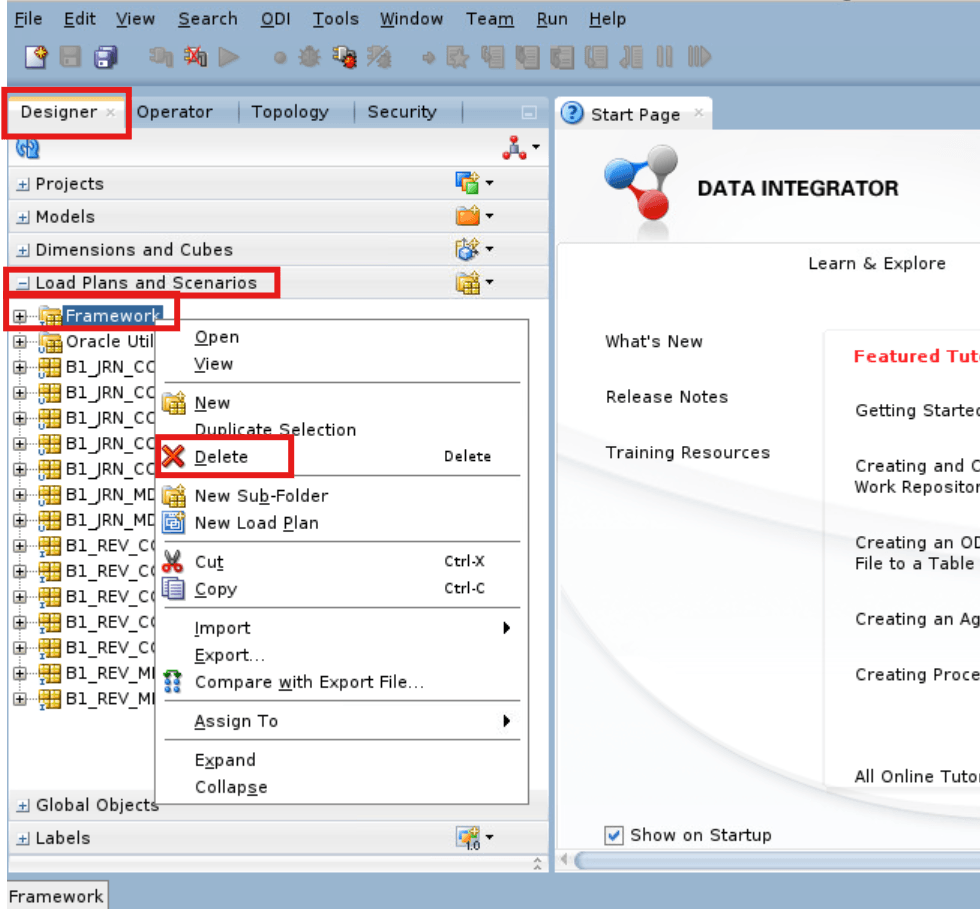
export JAVA_HOME=<JAVA 17 HOME> export PATH=$JAVA_HOME/bin:$PATH cd <FMW 14c Home>/odi/studio/bin ./odi - Delete the SFOL framework.
- In ODI Studio, navigate to Designer Tab > Load Plans and Scenarios > Framework.
-
Right-click on Framework then click Delete.
-
Navigate to the temporary directory where OUAW installer is downloaded. Example: <TEMPDIR/application>.
-
Set the JAVA 17 HOME and add PATH.
export JAVA_HOME=<JAVA 17 HOME>
export PATH=$JAVA_HOME/bin:$PATH
Note:
ETL Installer is now only supported with Java 17.0.16+. -
Launch the OUAW installer by running the command below. The OUAW installer Welcome page appears.
java -jar OUAW_25.10.0.0.0_ETL_generic.jar -logLevel finest -
Review the information before you begin the installation. Click Next to continue.
Note:
If you are installing Oracle software on the server for the first time, provide central inventory details such as the inventory directory location and operating system group. -
On the Installation Location page, define the installation location in the Oracle Home field and click Next.
Note:
The specified Oracle home directory must be an empty directory.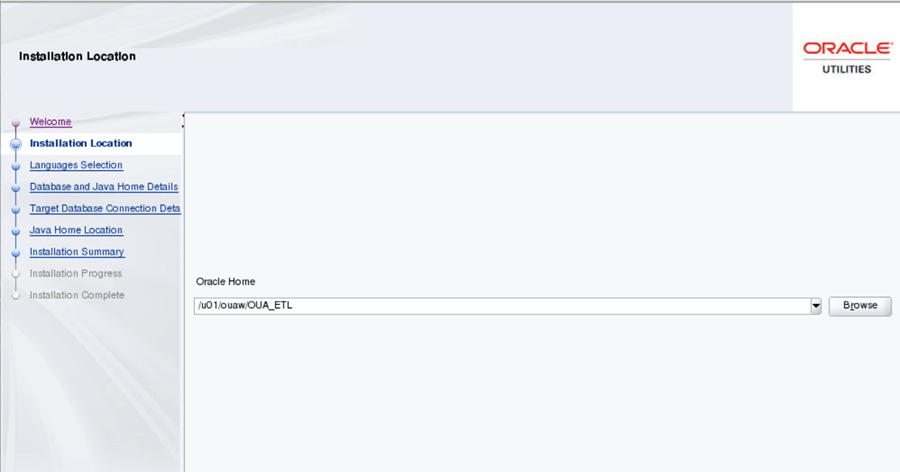
Field Name and Description Value Oracle Home: The directory where the Oracle Utilities Analytics Warehouse ETL is going to be installed.
Note:
This directory location is called the ETL Home. Keep track of it as it will be used during some deployment steps.Example: <OUA ETL Home>
</scratch/ouawcicd/deployments/OUAW_ETL>
-
On the Languages Selection page, select English and click Next.
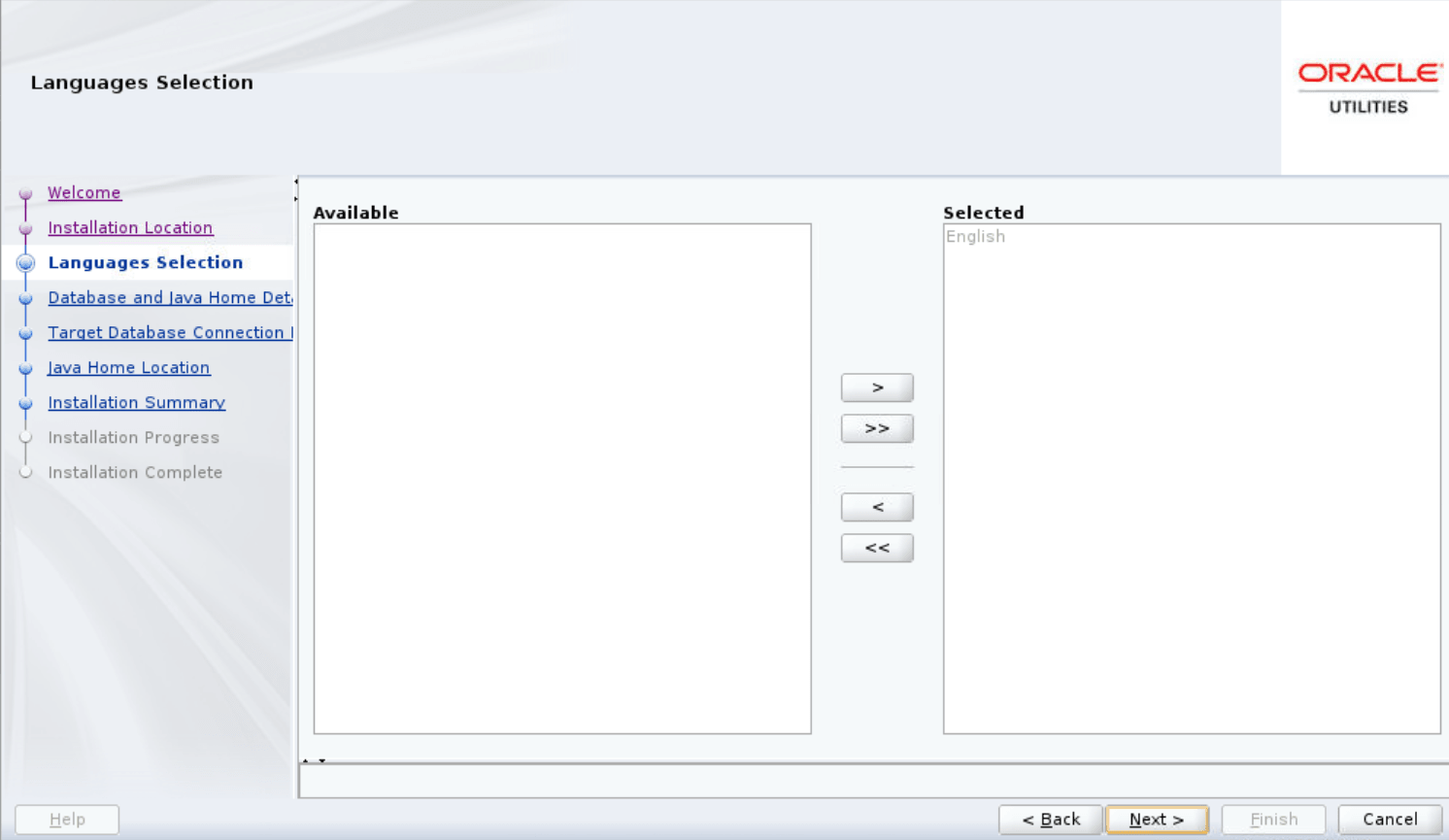
Field Name and Description Value Language Selection: The language for the installation process. English -
On the Database and Java Home Details page, enter the details as in the table below, and click Next.
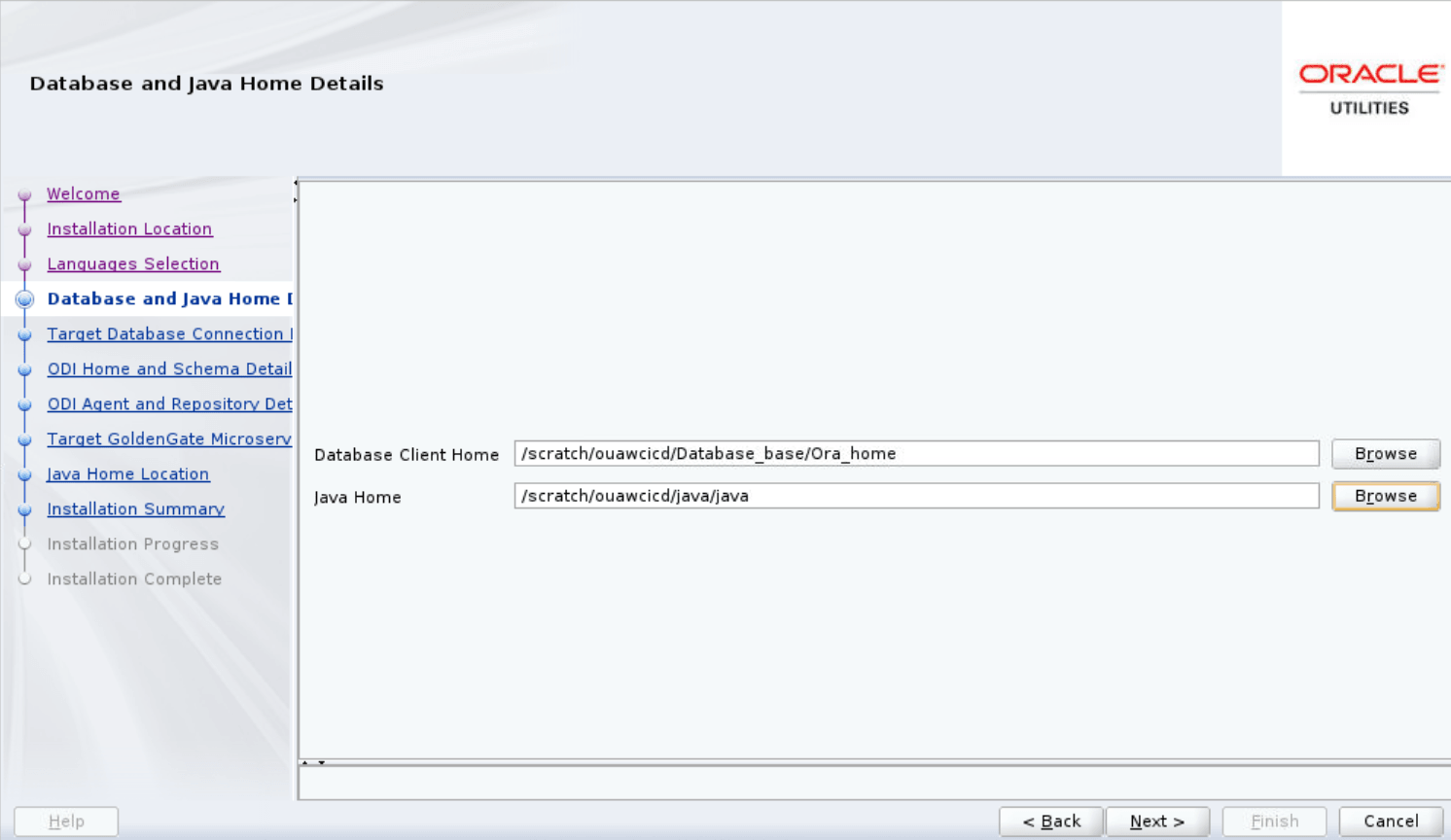
Field Name and Description Value Database Client Home: Enter the Oracle Database Client installed location or Database Home location in the case where the same server is being used for both the application and database server. Example: <Database Client> or <ORACLE_HOME>
</scratch/ouawcicd/dbclient> or </scratch/ouawcicd/Database_base/Ora_home>
Java Home: Enter the Java installed location. Example: <JAVA HOME>
</scratch/ouawcicd/java/java>
-
On the Target Database Connection Details page, enter the following and click Next.
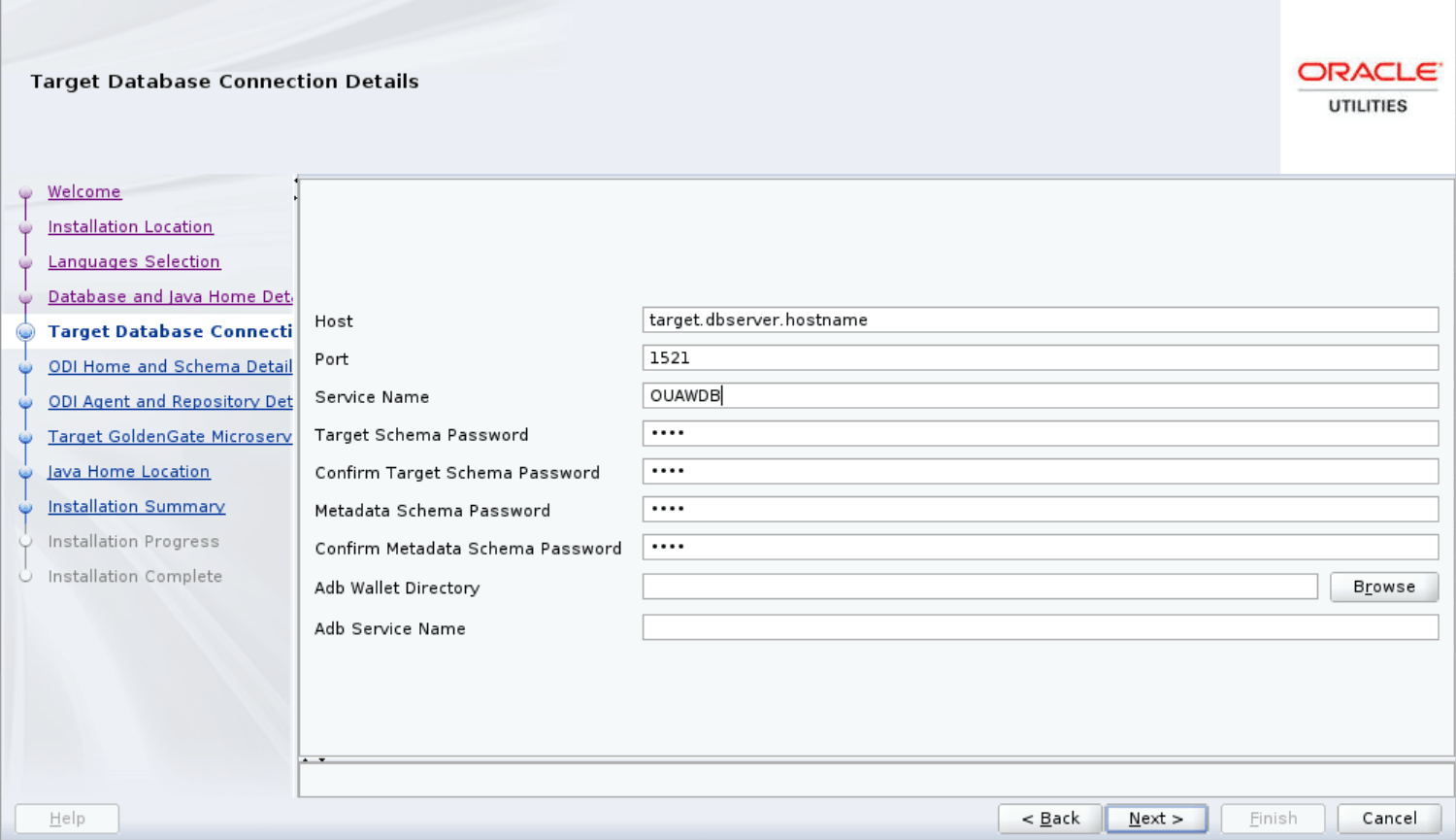
Field Name and Description Value Host: The target database server where database resides. Target Database server host name.
Example: target.dbserver.hostname
Port: The target database server port number. Target Database port.
Example: <1521>
Service Name: The target database service name. <Database service name> Target Schema Password: Password for the target schema (DWADM). <DWADM user password> Confirm Target Schema Password: Confirm password for the target schema (DWADM). <DWADM user password> Target Schema Password: Password for the metadata schema (MDADM). <MDADM user password> Confirm Target Schema Password: Confirm password for the metadata (MDADM) schema. <MDADM user password> Adb Wallet Directory: Directory of ADB wallet location. Keep it blank Adb Service Name: ADB Service Name Keep it blank -
On the ODI Home and Schema Details page, enter the following and click Next.
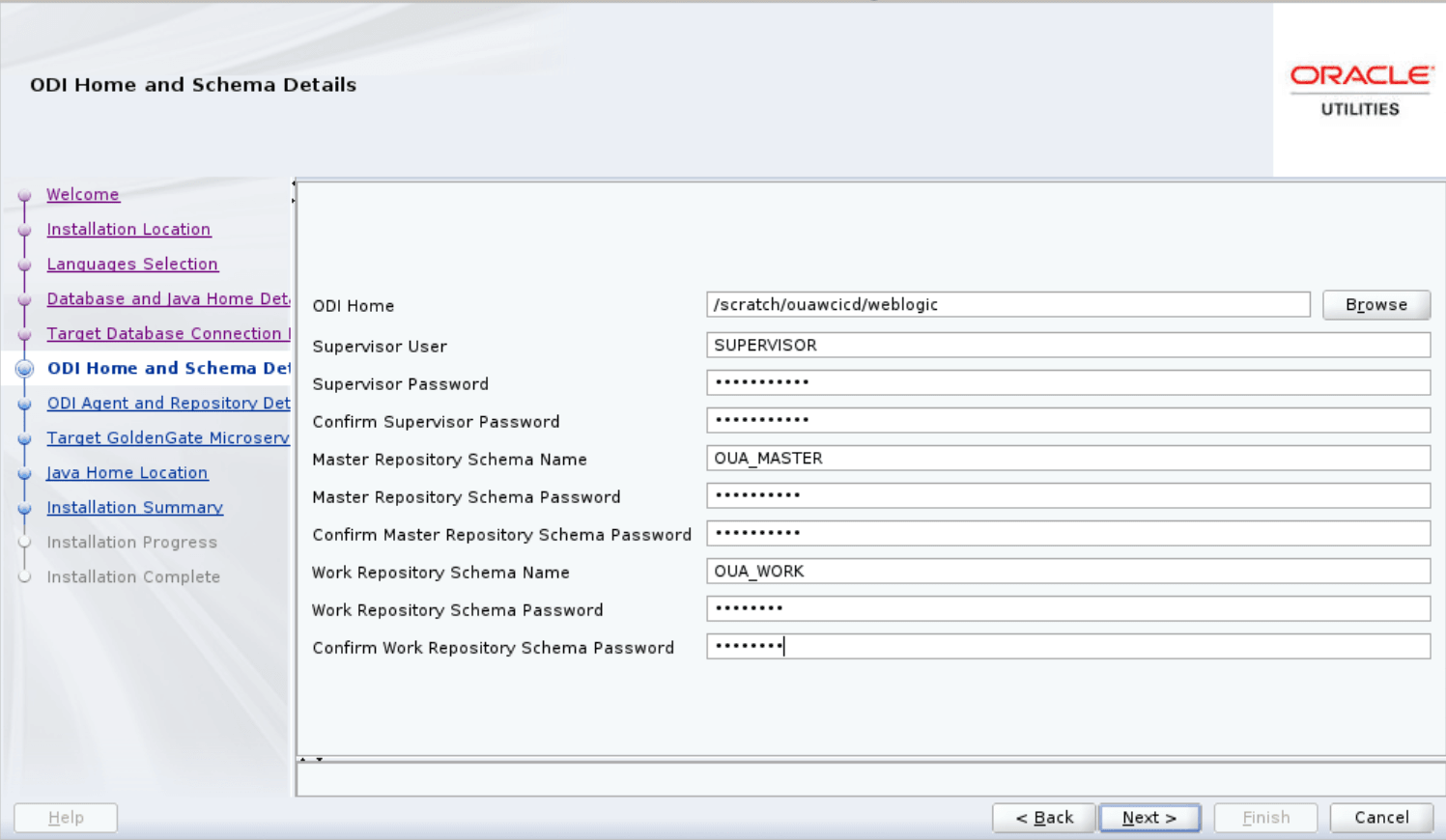
Field Name and Description Value ODI Home: The directory where Oracle Data Integrator (ODI) is installed. Location of FMW Home
Example: </scratch/ouawcicd/weblogic>
Supervisor User: Name of the Oracle Data Integrator Supervisor. SUPERVISOR Supervisor Password: Enter the Supervisor Password and store it for future reference. <Supervisor user password > Confirm Supervisor Password: Enter same as Supervisor Password. <Supervisor user password > Master Repository Schema Name: Oracle Data Integrator master repository schema name. OUA_MASTER Master Repository Schema Password: Master Repository schema password. <OUA_MASTER user password> Confirm Master Repository Schema Password: Confirm password of the Oracle Data Integrator master repository schema. <OUA_MASTER user password> Work Repository Schema Name: Oracle Data Integrator work repository schema name. OUA_WORK Work Repository Schema Password: Work Repository schema password. <OUA_WORK user password> Confirm Work Repository Schema Password: Confirm password of Oracle Data Integrator work repository schema. <OUA_WORK user password> -
On the Oracle Data Integrator Agent and Repository Details page, enter the details as in the table below and click Next.
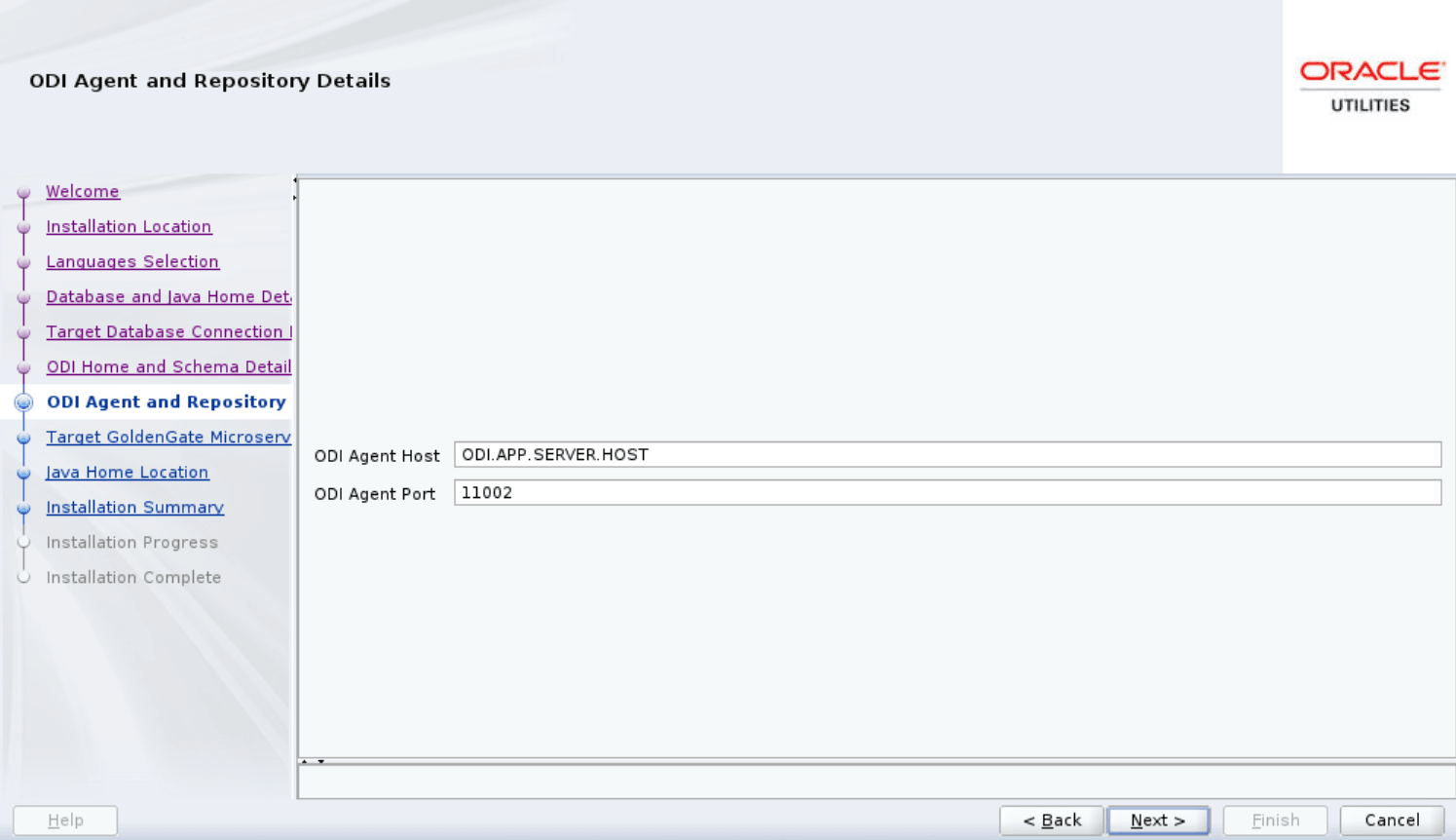
Field Name and Description Value ODI Agent Host: The application server hostname where the ODI application server is installed. Target APP Server Host
Example:
<ODI.APP.SERVER.HOST>
ODI Agent Port: Enter the port which is the Oracle Data Integrator WebLogic Managed Server port. Make sure that you use the same port while creating Oracle Data Integrator managed server. Example: <11002> -
On the Target GoldenGate Microservices Details page, enter the details as in the table below, and click Next.
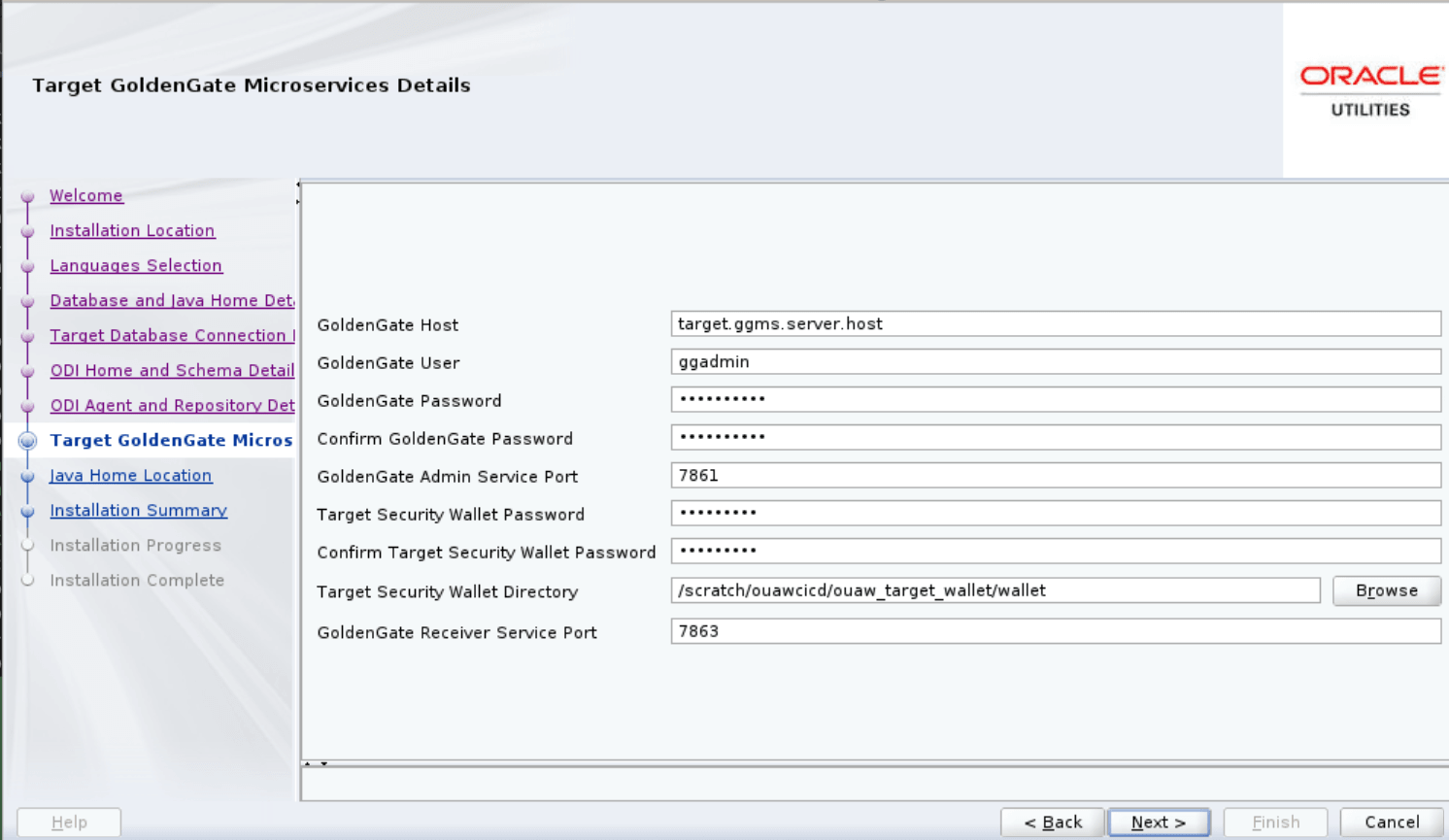
Field Name and Description Value GoldenGate Host: Target Oracle GoldenGate Microservice Host.
Enter the Target database hostname where GoldenGate Microservices is installed.
Target database server host/Target GoldenGate Microservice Server Host
Example: <target.ggms.server.host> = <dbserver.hostname>
GoldenGate User: Enter the GoldenGate Microservices Admin user. Example: <ggadmin> GoldenGate Password: Enter the GoldenGate Microservices Admin user password. Example: <ggadmin user password> Confirm GoldenGate Password: Re-enter the GoldenGate Microservices Admin user password. Example: <ggadmin user password> GoldenGate Admin Service Port: The Target Oracle GoldenGate Microservices Admin Service port which is running on the target database server host. Example: <7861> Target Security Wallet Password: Enter the Wallet Password on the target database server host. <Target Security Wallet Password> Confirm Target Security Wallet Password: Re-enter the Wallet Password on the target database server host. <Target Security Wallet Password> Target Security Wallet Directory: Enter the Wallet directory path on the target database server host. See Create a Security Wallet on the Target Database Server section.
Example: <scratch/ouawcicd/ouaw_target_wallet/wallet>
GoldenGate Receiver Service Port: The Target Oracle GoldenGate Microservices Receiver Service port which is running on the target database server host. Example: <7863> -
On the Java Home Location page, enter the details as in the table below, and click Next.
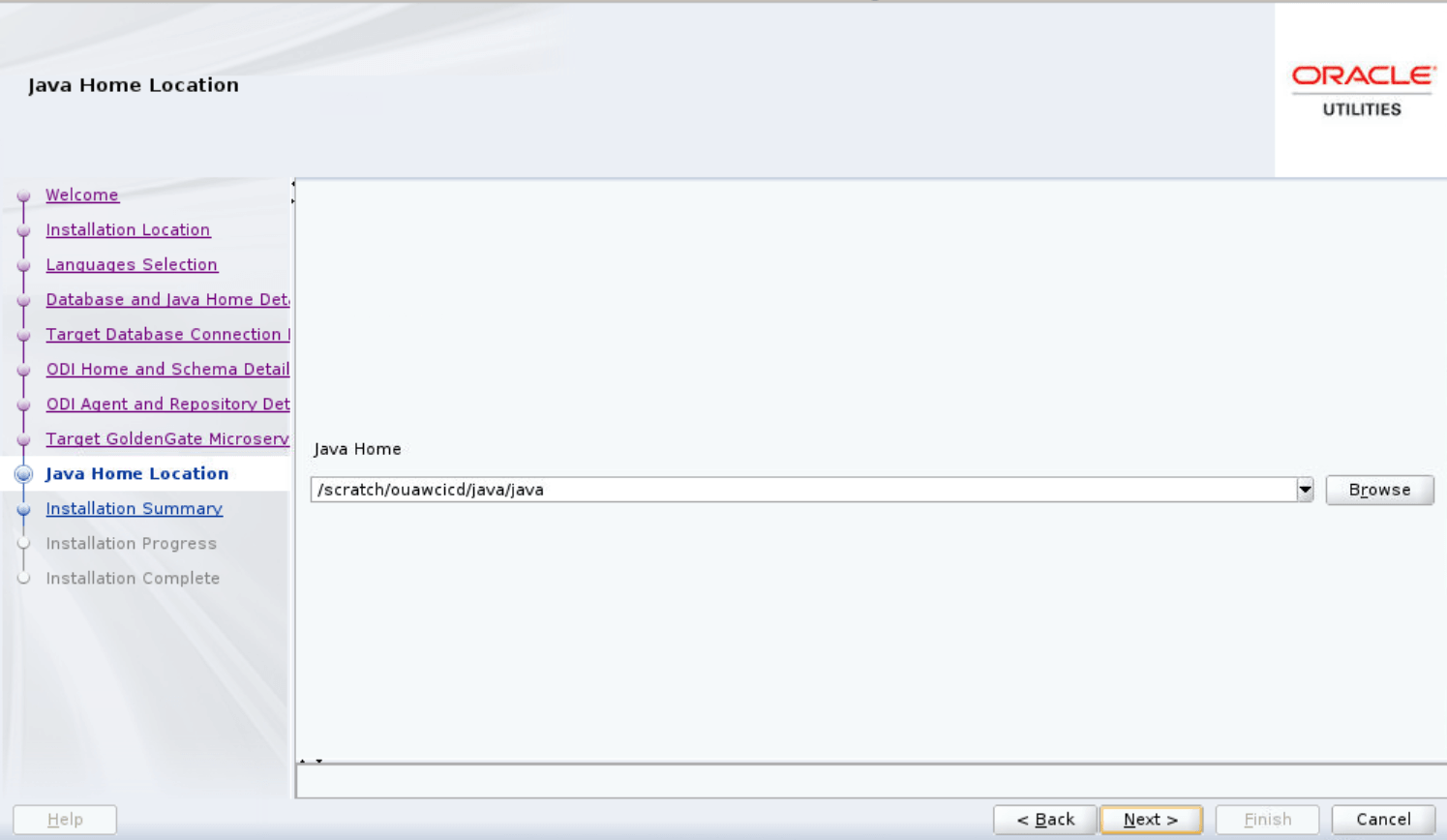
Field Name and Description Value Java Home: Enter the Java installed location (on the Application server). Example: </scratch/ouawcicd/java/java> -
On the Installation Summary page, a summary is displayed. Click the Install button to proceed.
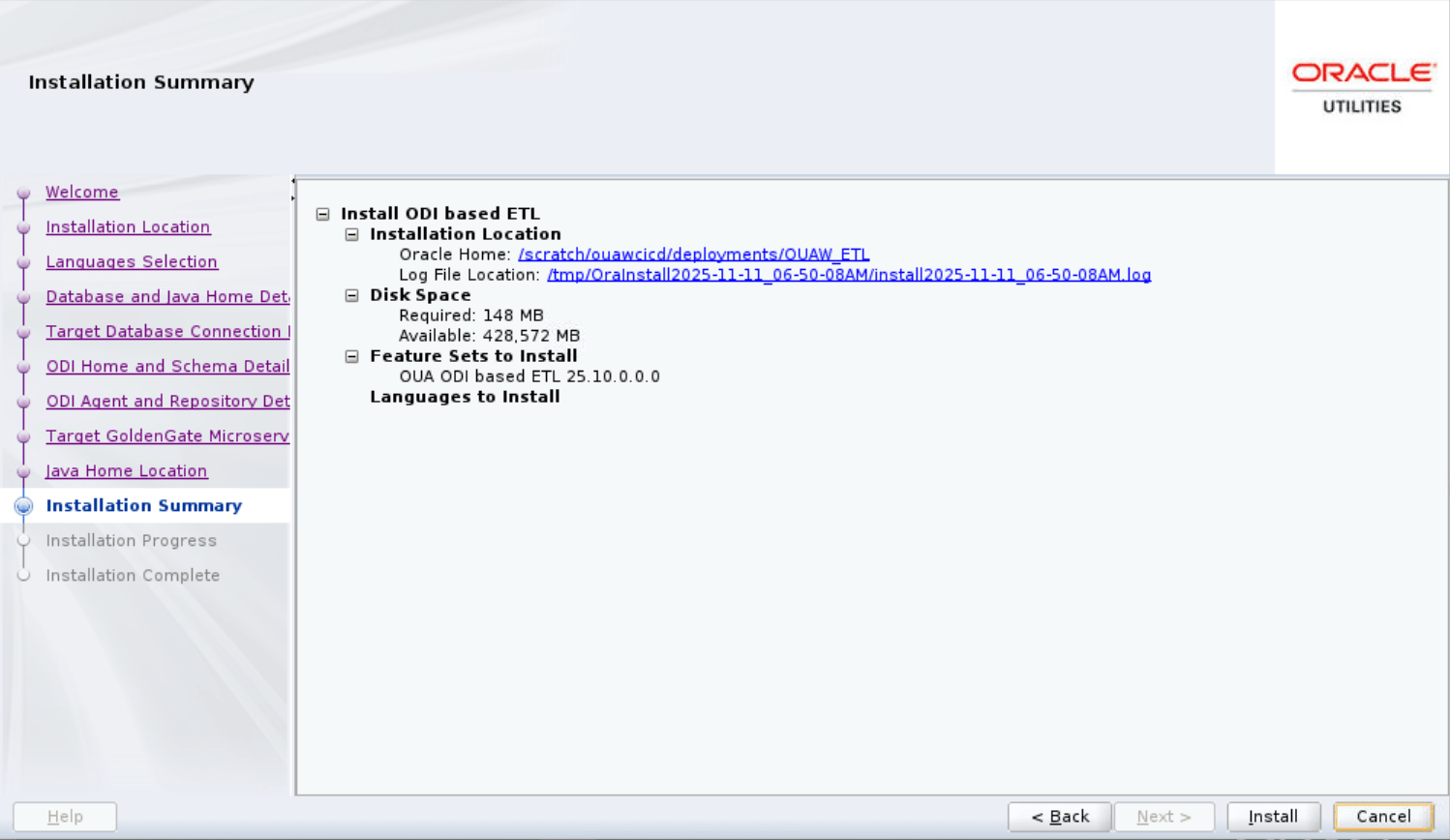
-
On the Installation Progress page, click Next when the progress reaches 100%.
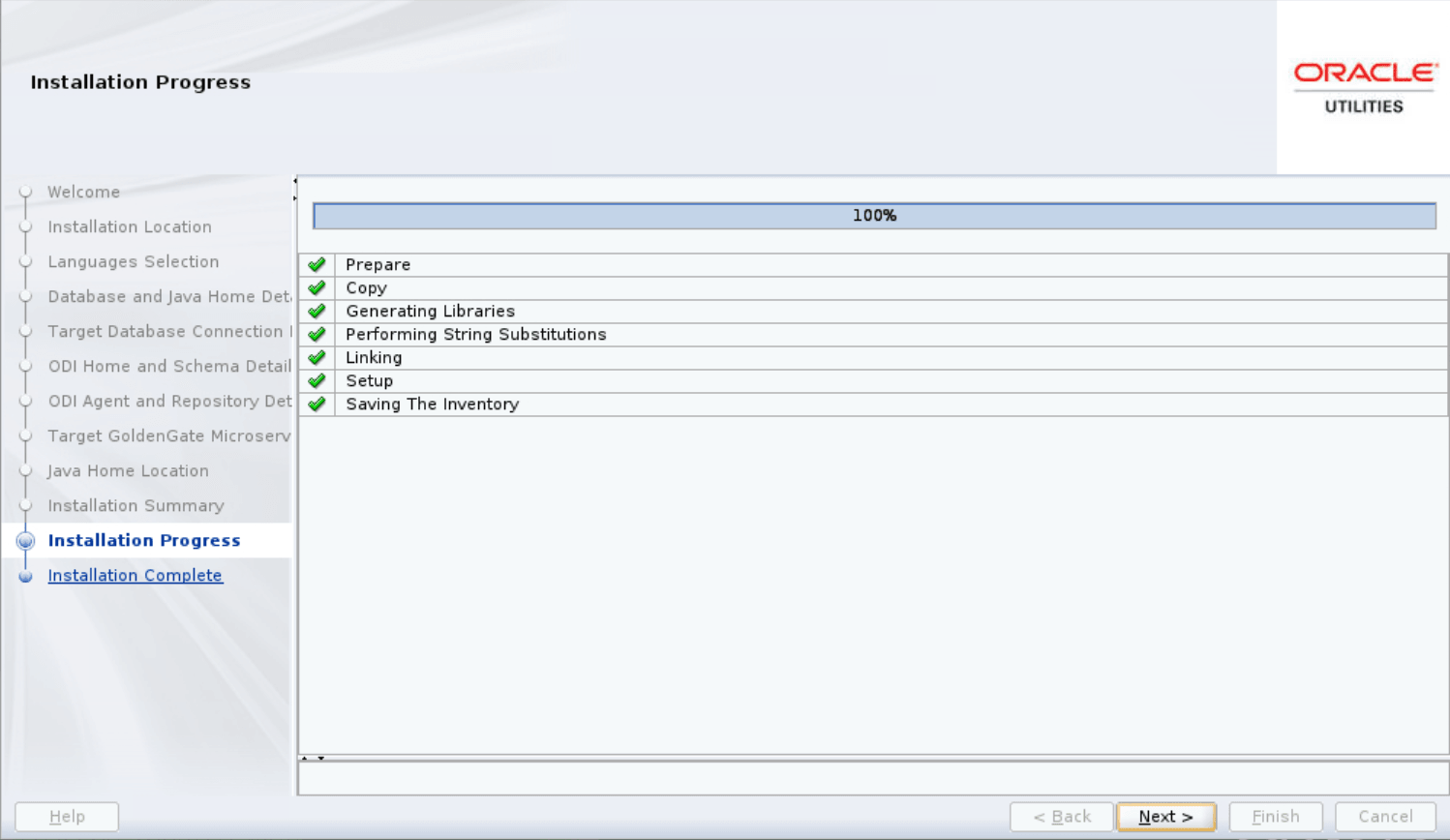
-
On the Installation Complete page, note the displayed details and click Finish to close the installer wizard. The ETL is now installed.
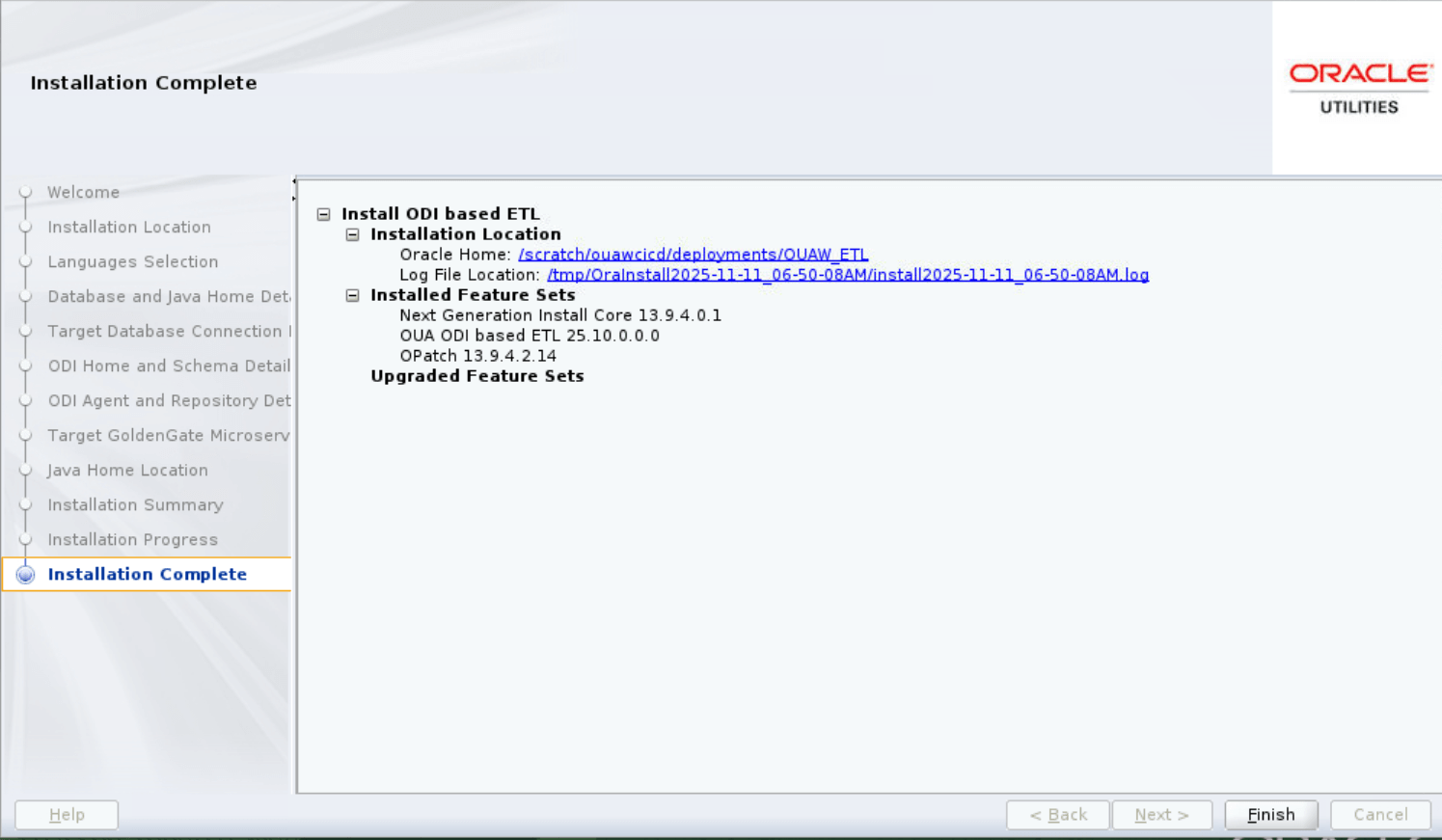
Note:
If the installation fails with "Error (ODI-10245: Cannot import SNP_SCENSTEP null … because its referenced object is not found in the target repository)" perform the steps below and run the installer again.Error ExampleERROR (oua.base.BIScenario) Scenario Importing SFOL MDM execution failed after 3 attempt(s) Session Failed :54827 : ODI-1217: Session Importing SFOL MDM (54827) fails with return code 7000._ODI-1226: Step Import XML fails after 1 attempt(s)._ODI-1241: Oracle Data Integrator tool execution fails._Caused By: com.sunopsis.tools.core.exception.SnpsSimpleMessageException: ODI-10245: Cannot import SNP_SCENSTEP null (with global id: 976cdddc-dc61-44a7-88c0-65f63ea2d892 and internal id: 250 | 0) belonging to SNP_SCEN B1_PKG_B1_VEE_EXCP_TOPX_MON_MV1 Version 001 (with global id: e94e9d0b-792a-31e7-87aa-f164342ca5c6 and internal id: 250) because its referenced object is not found in the target repository.-
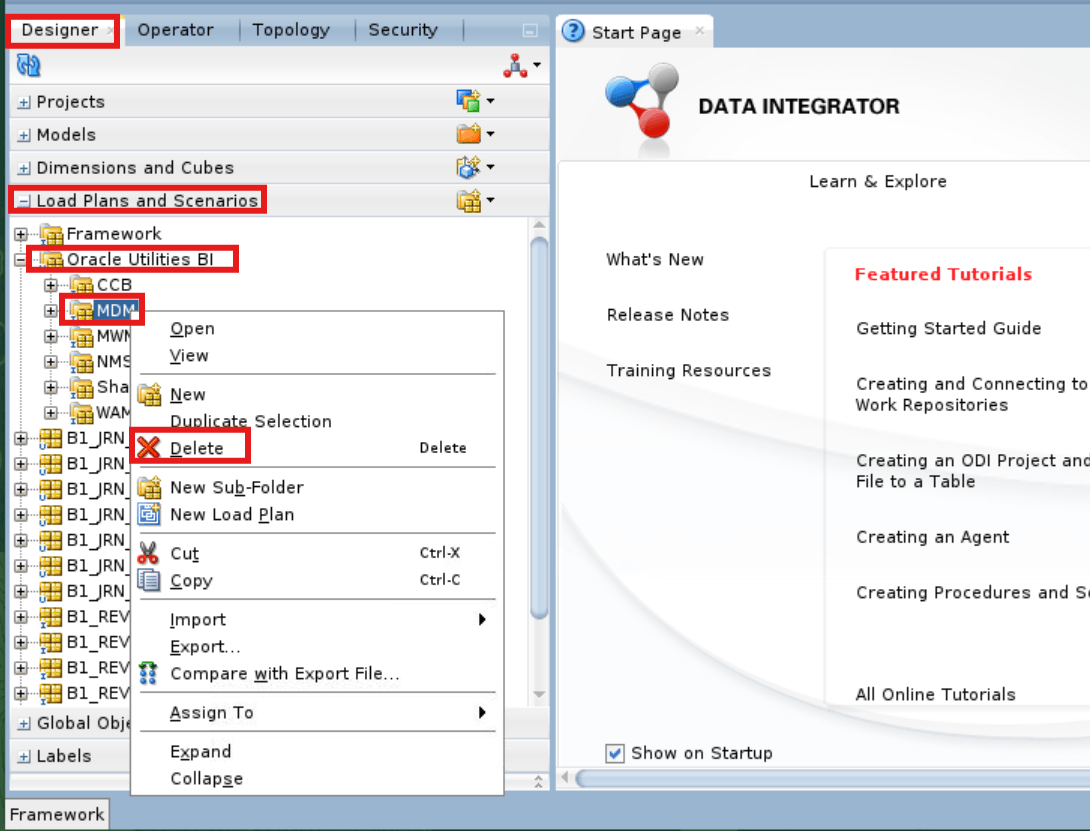
In ODI Studio, navigate to Designer Tab > Load Plans and Scenarios > Oracle Utilities BI > MDM (Select the product folder as per your error, here it is MDM.).
-
Right-click on MDM then click Delete.
- Run the ETL installer again.
-
-
Start ODI Admin and Managed servers.
nohup ./startWebLogic.sh > startWebLogic.log 2>&1 &
nohup ./startManagedWebLogic.sh <ODI_server1> > StartManagedWeblogic.log 2>&1 &
Upgrade the Administration Tool Component
Prerequisites
- Connect to the target database as SYSTEM user.
export ORACLE_HOME=<ORACLE_HOME> export ORACLE_SID=<DATABASE SERVICE NAME> export PATH=$ORACLE_HOME/bin:$PATH sqlplus system/<system user password>@<DATABASE SERVICE NAME> - Run the following PL/SQL procedure to remove the workspace.
BEGIN APEX_INSTANCE_ADMIN.REMOVE_WORKSPACE('OBIU_ADM'); END; / - Make sure no workspace with “OBIU” exists in the database.
select WORKSPACE from APEX_WORKSPACES where WORKSPACE like '%OBIU%';Note:
No rows should be returned from this query.
Configure APEX Workspace for OUAW
- Download and unzip the Oracle Utilities Analytics Warehouse v25.10.0.0.0 Multiplatform.zip file, which includes the AdminTool folder.
- Copy the Multiplatform zip file into a temp directory within the target database server.
Example: </u01/temp>
- Navigate to the TEMP directory and connect to the database using the system user.
cd </u01/temp/AdminTool> sqlplus system/<system user password>@<DATABASE SERVICE NAME>- Create a workspace and configure the users.
@CreateAppWorkspace.sql - Import the application.
@DeployAdminApp.sql
- Create a workspace and configure the users.
- Start the Apex Admin and Managed Server.
Access the AdminTool
Use this URL to access the administration tool: http://<hostname>:<apex_server1_port>/ords/f?p=104
- Provide the following credentials to access the Admintool:
Username: Admin
Password: Admin_123
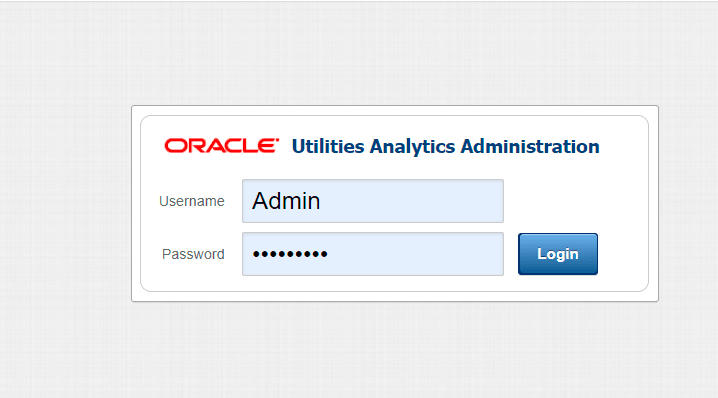
Note:
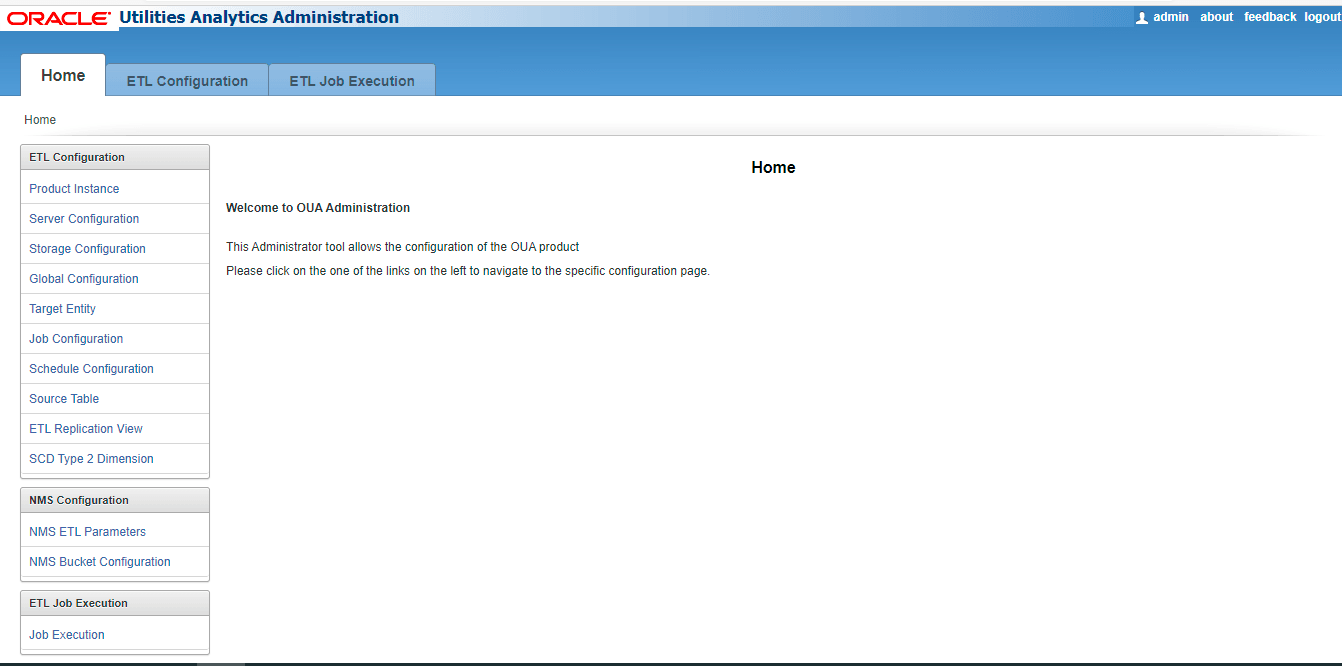
After logging in to the application for the first time, you will be requested to change the password. - After logging in, you can access the ETL Configuration and ETL Job Execution through the respective tabs.
Upgrade the Dashboards Component
Prerequisites
-
A single OS user must install all required software.
-
All required software (such as Java, Oracle Database Client, Oracle Fusion Middleware, Oracle Analytics Server) must be installed.
-
Verify that the OUAW Dashboards Components are unzipped and available in the
<TEMPDIR>/applicationdirectory on the application server.
Set Up the Dashboard Environment
- Log in to the application server.
- Create a Dashboard Home directory.
Example:
mkdir -p </u01/ouaw/deployment/OUAW_DASHBOARD>Note:
In the documentation, this directory location is referred to as Dashboards Home. Keep note of it because it will be used during some deployment steps. -
Copy catalog, WriteBackTemplates, and rpd folders from <TEMPDIR/application> to Dashboard Home folder.
cp -rp <TEMPDIR>/application/<OAS Version>/* </u01/ouaw/deployment/OUAW_DASHBOARD>
Deploy the Web Catalog
Note:
In case you want to take a backup of the deployed catalog, follow the OAS Doc ID 2724149.1 in My Oracle Support.- Navigate to <DOMAIN DOMAIN>/<OAS_DOMAIN>/bitools/bin.
-
Create a new credentials file called boot.txt and add the following contents to it:
login=<OAS Weblogc admin user>
pwd=<OAS Weblogic admin password>
For each catalog present under<Dashboards Home>/catalogdirectory, run the following command from the<OAS DOMAIN HOME>/bitools/binlocation. Replace all parameters enclosed in <> with the appropriate values../runcat.sh -cmd unarchive -folder "/shared" -online http://<OAS SERVER Host>:<OAS Managed SERVER PORT>/analytics-ws/saw.dll -credentials boot.txt -inputFile "<Dashboards Home>/Catalog/<Catalog Name>" -overwrite allNote:
The inputFile parameter must be in double quotes, and the catalog file name must include spaces. -
Deploy the 'Spatial Metadata Catalog' on the System folder. Replace all parameters enclosed in <> with the appropriate values.
Deploy the Merged RPD File
Note:
The inputFile parameter must be in double quotes, and the catalog file name must include spaces.-
Copy both 25.10.0.0.0 and 2.9.0.0.1 RPD files to the Windows machine where Oracle Analytics Client Tool 2025 is installed, then merge it.
Note:
RPD file merge steps can be found here: Merging Repositories - Once the RPD file merge is complete, copy the modified RPD back to the
<install dir>/rpd/UtilitiesBusinessAnalytics.rpd, where<install_dir>is the Oracle Utilities Analytics Warehouse Dashboard Component installation directory.
Upload the RPD File
- Log in to the target application server where OAS is installed.
- Navigate to <DOMAIN HOME>/<OAS DOMAIN>/bitools/bin.
- Run the following command to deploy the RPD:
./datamodel.sh uploadrpd -I <Dashboards Home>/rpd/UtilitiesBusinessAnalytics.rpd -W <rpd password, defaultpassword is oracle123> -U <Weblogic user name of OAS domain> -P <Weblogic password of OAS domain> -SI ssi - Run the following commands from the <OAS_DOMAIN>/bitools/bin directory to stop and start the OAS domain services respectively.
./stop.sh
./start.sh
Deploy Writeback Templates
- Log in to the application server and run the following commands to deploy writeback templates:
cp -rp <Dashboards Home>/WriteBackTemplates/* <FMW 12c Home>/bi/bifoundation/web/msgdb/l_en/custommessages/ - Restart the Oracle Analytics Server services after deploying these writeback templates in the specified path.
cd <OAS DOMAIN>/bitools/bin
./stop.sh
./start.sh
Configure Spatial Data
- Log in to the target database server.
- Navigate to the temporary directory where the Oracle Utilities Analytics Warehouse v25.10.0.0 Oracle Database Multiplatform.zip file was extracted.
cd database/BI251000/Spatial-Metadata - Set the following environment variables.
export ORACLE_SID=<DATABASE SERVICE NAME> export ORACLE_HOME=<ORACLE HOME> export PATH=$ORACLE_HOME/bin:$PATH - Create the database directory in the database after connecting to sys user.
sqlplus sys/<sys user password>@<DATABASE SERVICE NAME> CREATE DIRECTORY <dump_dir> AS '/u01/dumps'; - Copy the user_sdo.dmp dumpfile from the temporary directory <TEMPDIR>/database/BI251000/Spatial-Metadata to the database directory <dump_dir> location.
Example: </u01/dumps>
- Execute the impdp command to import the USER_SDO* tables data.
impdp directory=dump_dir dumpfile=user_sdo.dmp logfile=impdp_user_sdo.log schemas=DWADM remap_tablespace=cists_01:<tablespace_name> - Provide DWADM username password when prompted.
Note:
Ensure to change the tablespace_name to the name on which DWADM has the quota. If DWADM user have quota on cists_01 tablespace, then exclude the whole remap_tablespace clause from the command. - Review the impdp_user_sdo.log file to ensure the tables are imported successfully.
- After importing the tables, run the following SQL scripts from the <TEMPDIR>/BI251000/Spatial-Metadata directory.
sqlplus dwadm/<dwadm user password>@<database service name> @copy_spatial_metadata.sql @clean_sdo_release_tbls.sql - Review the log files.
Upgrade Network Management System BI Publisher Reports
Note:
This section is applicable only if the source is configured with Oracle Utilities Network Management System.
To upgrade/install Oracle Utilities Network Management System BI Publisher Reports, refer to Install Network Management System BI Publisher Reports.
Post-Upgrade Steps
Run Post-Upgrade Steps
Note:
Steps 1, 2, 9, and 10 are only valid for the Oracle Utilities Network Management System (NMS) Source. Ignore these steps for Oracle Utilities Customer Care and Billing, Meter Data Management, Customer To Meter, and Work and Asset Management.- Perform the steps below in accordance with the upgraded NMS version in ODI Studio.
Note:
The following steps are only valid for the NMS source application.For NMS Versions 2.6.0.0 and Later:- Navigate to Load Plans and Scenarios > Framework > Data correction > Repository Fixes.
- Right-click the B1_UPD_NMS_SCEN_FROM_260 scenario.
- Click Run.
- Set Context as "Global".
- Click OK.
For NMS Versions after 2.5.0.2 and below 2.6.0.0:- Navigate to Load Plans and Scenarios > Framework > Data correction > Repository Fixes.
- Right-click the B1_UPD_NMS_SCEN_FROM_2502_UNDER_260 scenario.
- Click Run.
- Set Context as "Global".
- Click OK.
For NMS Versions after 2.4.0.1 and below 2.5.0.2:- Navigate to Load Plans and Scenarios > Framework > Data correction > Repository Fixes.
- Right-click the B1_UPD_NMS_SCEN_FROM_2401_UNDER_2502 scenario.
- Click Run.
- Set Context as "Global".
- Click OK.
For NMS Versions below 2.4.0.1:- Navigate to Load Plans and Scenarios > Framework > Data correction > Repository Fixes.
- Right-click the B1_UPD_NMS_SCEN_UNDER_2401 scenario.
- Click Run.
- Set Context as "Global".
- Click OK.
- To change the names of scenarios related to NMS CD_ACCT, navigate to Load Plans and Scenarios > Framework > Data Correction > Repository Fixes, and execute the appropriate scenario based on the NMS version. To execute a scenario, right-click the selected scenario name in ODI, click Run, select the context as Global, and then click OK.
- NMS version ≥ 2.4.0.1.3: B1_UPD_NMS_ACCT_SCEN_FROM_24013
- NMS version < 2.4.0.1.3: B1_UPD_NMS_ACCT_SCEN_UNDER_24013
Note:
For NMS version ≥ 2.4.0.1.3, the scenario renames and loads CD_ACCT data from the NMS_ACCOUNTS_HISTORY table. - Run the source configuration in REGISTER mode.
Note:
- Context Code should be same with old Context Code which was cleaned during GoldenGate Classic cleanup process.
- Perform the source configuration as per the steps mentioned in Configure ETL Source for OUAW (except all steps from section Set Up Source Database Server for Oracle GoldenGate Microservices and step 1 from section Source Configuration Using OUAW Wizard).
- Make sure that all EXTRACT, REPLICAT, Distribution Paths are up and running. Lag at the Chkpt and Time Since Chkpt should be zero (0). This can be confirmed through the info after logging in to Source and Target OGG MS Administration server console and the Source Distribution Server console.
- Stop the GoldenGate Microservice REPLICAT processes in the target server.
- Run B1_SYNC_CONTEXT Version 001 in ODI studio for the configured product context.
- Start the GoldenGate Microservice REPLICAT processes in the target server.
- Bring up the source application.
- Perform the following steps to correct the historical data in CD_DAMAGE_ASMT and CF_DAMAGE_ASMT entities from DAMAGE_ASSETS source table.
For NMS Versions 2.4.0.1 and Later:
- Navigate to ODI Designer > Load Plans and Scenarios > Framework > Data correction > Data Fixes.
- Right-click B1_UPD_DAMAGE_ASMT_29001.
- Click Run.
Note:
Select the appropriate context. If multiple contexts are configured, execute for each context separately.
- Execute the following steps to update the Control zone secondary keys which are already loaded with -99 in the facts when the Control zone secondary key exclusion is enabled.
- Navigate to ODI Designer > Load Plans and Scenarios > Framework > Data correction > Data Fixes.
- b. Right-click B1_UPD_CZS_KEY.
- Click Run.
- Enable B1_RUN_ALL.