Monitoring from the Integration Layer
This section provides information on the following:
Customer Synchronization
The following diagram illustrates the Customer Synchronization- Error Handling: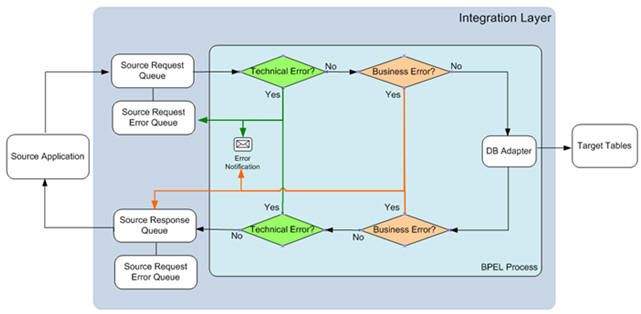
The following error types can be encountered in the integration:
• Business Errors are triggered when the DVM exception flag is set to ‘true’ and there is a DVM conversion error or business errors are triggered by the application. The business errors are sent back to the source application and can be re-tried from there.
• Technical Errors are triggered when there are connectivity issues (database is down, queue is not reachable). The technical errors are sent to the error queue and can be re-tried from the integration layer.
SNo. | Type of error | Action | Notification Type | Retry |
|---|---|---|---|---|
1 | CCB cannot reach the CCB Customer Data Sync Request Wrappers Service | Sync error response to CCB | CCB creates a To Do | User after ensuring that the source of the issue had been fixed can resend the message from CCB. |
2 | Internal failure in BPEL Process (Technical Error) | Message goes to the request error queue | Email (optional) | From WebLogic Admin Console, move message to the CCB request queue |
3 | BPEL cannot reach NMS DB (Technical Error) | Message goes to the request error queue | Email (optional) | From WebLogic Admin Console, move message to the CCB request queue |
4 | Error response from NMS DB (Business Error) | Insert a negative ack message to the CCB response queue | Email (optional) and CCB To Do | User after ensuring that the source of the issue had been fixed can resend the message from CCB. |
5 | Empty DVM values in incoming message or the DVM lookup values are not found. (Business Error) | Insert a negative ack message to the CCB response queue | Email (optional) and CCB To Do | User after ensuring that the source of the issue had been fixed can resend the message from CCB. |
6 | Any other Technical Error | Message goes to the request error queue | Email (optional) | From WebLogic Admin Console, move message to the CCB request queue. |
Note: A create To Do entry algorithm must be set up in the error status of the Sync Request BO for Oracle Utilities Customer Care and Billing to create a To Do entry on error.
To retry the technical error failure messages, perform the following steps:
1. Open a browser and access the WebLogic console for your installation.
2. Navigate to Services > Messaging > JMS Modules.
3. Select the CCB-NMS Integration JMS Module and it shows all the queues related to the integration.
4. Select the appropriate error queue and click the Monitoring tab. The details about the messages in the queue in a table are displayed.
5. Select the checkbox in the details table and click Show Messages. All the messages in the Error queue are shown.
6. Click Move and select the Move All option.
7. Select the CCB-NMS JMS Server to move the messages and click Next.
8. Select the correct parent queue for the error queue from the drop-down list and click Finish.
9. This action moves all the messages to the source queue and the integration processes all the messages again.
Note: When resending from Oracle Utilities Customer Care and Billing, the user can either change the status of the existing synchronization request in error from “Error” to “Pending Sync Request” or change data and create a new synchronization request, but also change the status of the existing synchronization request in error from “Error” to “Discarded”.
Trouble Call Interface
The following diagram shows Trouble Calls Interface-Error Handling: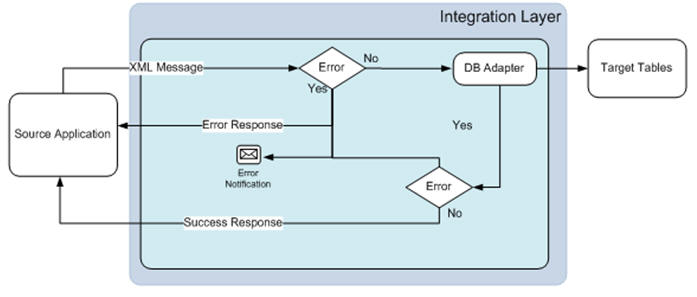
S. No | Type of error | Action | Notification Type | Retry |
A1 | CCB cannot reach BPEL (Technical Error) | Sync error response to CCB | • CCB Display Error in the Outage Call UI. | User can resend the message from the Outage Call UI after ensuring that the source of the issue had been fixed. |
A2 | Internal failure in BPEL (Technical Error) | Sync error response to CCB | • CCB Display Error in the Outage Call UI • Email (optional). | |
A3 | BPEL cannot reach NMS database (Technical Error) | Sync error response to CCB | • CCB Display Error in the Outage Call UI • Email (optional). | |
A4 | Error response from NMS (Business Error) | Sync error response to CCB | • CCB Display Error in the Outage Call UI • Email (optional). | |
A5 | DVM exception (Business Error) | Sync error response to CCB | • CCB Display Error in the Outage Call UI • Email (optional). |
Online Queries (Job History / Call History / Planned Outages)
The following diagram shows the online queries: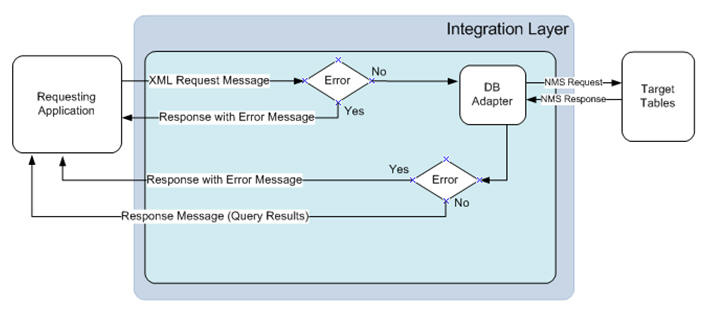
Any errors encountered in the integration layer reported back to the Oracle Utilities Customer Care and Billing synchronously and an error message is displayed in the UI to inform the user that an error was encountered by the external system. No error notification is needed.
Error Notification Setup
To enable EMAIL notification for CCB-NMS Error Handling module:
1. Login to the Enterprise Manager console.
2. Click and expand SOA. Right-click soa-infra > SOA Administration > Workflow Notification Properties.
3. Select EMAIL from the drop-down list.
4. Provide the email IDs for Address/Actionable Address and Reply To Address.
Error Handling Module Configuration
Error Handling module configuration is governed by the integration_err_lookup table. The following table describes the columns in the table, the suggested values, and how it affects Error Handling.
INTEGRATION_ERR_LOOKUP
This table contains processing instruction for each composite & Error_Processing_Parent composite picks data for one composite & call the error_Processing_Detail for processing.
S. No. | Column Name | Description | Default / Suggested values |
|---|---|---|---|
1 | LookUp_ID | Sequence ID of entry in this table. It is auto generated. | Auto generated |
2 | IP_Name | Composite name for which processing should be done. Example: OUCCBOUNMSCustomerSyncEBF Note: It is case sensitive and modifying these values results in breaking the code. | This column is pre-populated with the individual enterprise business process name. |
3 | Processing_Status | Current status of processing. It has to be one of the following: • HALTED (waiting for manual intervention) • NOT REQUIRED • ALIVE | NOT REQUIRED |
4 | Run_Flag | Processing flag status, Y or N • Unread value = N • Read = Y | N |
5 | Next_Runtime | Next runtime when the error record should be processed for this composite. | SYSDATE+200 |
6 | Halt_For_Error | Allowed values Y or N. • When set to Y: Manual intervention is required after one successful error record processing. • When set to N: Processing continues without halting. | N |
7 | RunTime_Interval | Runtime (in minutes) after which the next error processing should be done. It will be in the picture format. Example: P10Y0M0DT0H0M0S Next processing is done after 10 years 0 months 0 days 0 hours 0 minutes and 0 seconds. This value has to be updated based on the business requirement. Setting fewer intervals may have impact on performance. Need to set this value appropriately. | Default: P10Y0M0DT0H0M0S |
8 | Email_ID | Email-ID to which error notification should be sent for the integration point. This value can be different or same for all the composites. | Default: email@email.com |
9 | Email_Content_Type | • GENERIC - One email be send for all error without detail information • SINGLE - One email be send for all error with all information dump into attachment • MULTIPLE - Multiple emails are sent & each email has information equal to the value specified in Error_Count_Per_Notification column. The values are case sensitive and must always be given in upper case. Example: GENERIC, SINGLE,MULTIPLE | Default: GENERIC |
10 | Email_XSL | XSL to be applied for creating email subject & e-mail body. This is stored in MDS so that you can update its look & feel. | Default file is provided for all the composites and present under xsl folder of composite. Example: xsl/Transformation_Create_Email.xsl If the client wants then can put it under the mds and provide mds path in this column. |
11 | Error_Count_Per_Processing | No of records for which a notification to be sent. Example: If this is 50 then email notification will be sent after every 50 records for this composite are created in error store and each email will contain 50 records. | Default: 100 |
12 | Email_Attachment_Location | Location where the email attachment be created on server hosting SOA suite. This value will point to the location / folder where attachment needs to be stored. It is used to create the attachment file in following format: INTEGRATION_ERR_LOOKUP.Email_Attachment_Location + IP_Name + Date (in YYYYMMDDHH24MMSS) | Location on server where email attachment be persisted. |
13 | Email_Attachment_Flag | Y - Send email with attachment. In this case it is not mandatory to have Email_Attachment_Location specified. N - Send email without attachment but send the attachment location. In this case Email_Attachment_Location has to be specified. ServerName +INTEGRATION_ERR_LOOKUP.Email_Attachment_Location + IntegrationPoint_Name + Date in YYYYMMDDHH24MMSS. | N |
14 | Publish_Human_Task_Flag | Y - Publish human task N - Don't publish human task If Halt_For_Error value is set to Y and Publish_Human_Task_Flag is also Y then human task will be published and user can take action from worklist application. | N |
15 | ID_Human_Task | User/Group ID to which human task should be published in case Halt_For_Error is set to Y. | Weblogic |
16 | Last_Updated_Date | Last updated date time | SYSDATE |
17 | Purge_Error_Store_Flag | Y – Purge data N – No purge require | Default: N |
18 | Purge_Processing_Status_Flag | Y – Purge Processing in process N – Purge processing not happening | Default: N |
19 | Purge_Frequency | No of days after which data should be purged. This will be in picture format. Example : P10Y0M0DT0H0M0S Next processing will be done after 10 years 0 months 0 days 0 hours 0 minutes and 0 seconds. This value has to be updated based on the business requirement. Setting fewer intervals may have impact on performance. Need to set this value appropriately. | Default: P10Y0M0DT0H0M0S |
20 | Next_Purge_Date | Next purge date. It will be populated based on Next_Purge_date + Purge_Frequency | SYSDATE+100 |
21 | Purge_File_Name | Directory Name where purge file should be stored. | 'location on server where purge record should be persisted' |