Measurement Plugin
Measurements manage the asset operational and runtime data collected and tracked for assets. Asset measurements include mileage, hours of uptime, number of start-stops, and more.
Since they almost entirely depend on the usage of the related asset, readings cannot be calculated or predicted accurately by the system. Instead, readings must be collected and entered into the system, either manually by a user or imported as the result of activity completion.
To import plugins:
1. Login to Oracle Field Service with valid credentials.
2. Click the three lines menu icon that is on the upper-left corner of the Home page.
3. Navigate to Configuration > Displays > Forms and Plugins.
4. Click the Import drop-down list and select Plugins.
5. Click the Drag and Drop field to select measurement plugin. Click Validate.
Oracle Field Service validates the plugin and the number of valid items should be 1.
6. Click Import. Ensure the "Number of valid items" is 1 and "Number of not valid items" is 0.
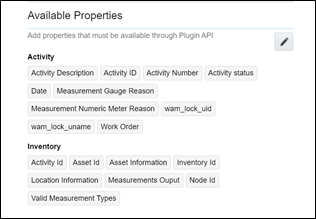
After the successful import of the plugin, Oracle Field Service displays the details as shown below.

7. Make sure the Available Properties tab is populated with all properties.
Resource Usage Plugin
Timesheets are used to record the amount of time that workers (labor resources) spend on activities or work orders. Once charges are entered, processing allows employees to receive proper compensation for their work and labor charges are applied to the appropriate cost buckets.
Generally, only each individual and the person designated as the supervisor on that individual's crew can access timesheet information for that person. Superivisor can enter individual timesheet for himself if the secure parameter "ofsc_sup_in_team " is set to 'true/yes'.
To import the plugin:
1. Repeat steps 1 to 5 from Measurement Plugin.
2. Click the Import drop-down list and select Plugins to import the resource usage plugin provided in the package.

3. Select the resource plugin and enter the following details:
• oic_url: https://OIC_host:OIC_port/ic/api/integration/v1/flows/rest/OUTL-BA-OFSC_WACS_RES_USAGE_SEND/1.0/resourceUsage
• oic_uname/oic_password: OIC username/password
Oracle Field Service users should configure the following:
• ofsc_uname: clientID@instance ID
• ofsc_password: client secret key
• ofsc_siteAddress : instance ID
• ofsc_bucket: External ID of bucket configured in your environment
• ofsc_sup_in_team : true/false or yes/no
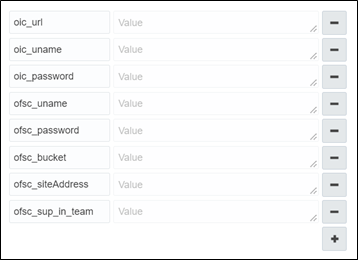
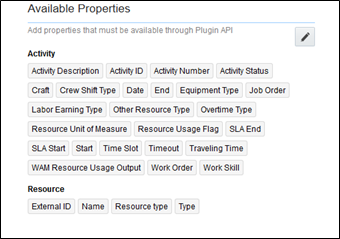
Make sure the Available Properties tab is populated with properties as shown below.
Service History Plugin
Service history is information about some type of service or maintenance performed on an asset. Information typically associated with service history include record inspection feedback, pass/fail details, downtime, parts failure information, maintenance or service logs, or other information regarding service on the asset.
1. Repeat steps 1 to 5 from Measurement Plugin.
2. Click the Import drop-down list and select Plugins to import the service history plugin provided in the package.
3. Make sure the Available Properties tab is populated with the properties as shown below.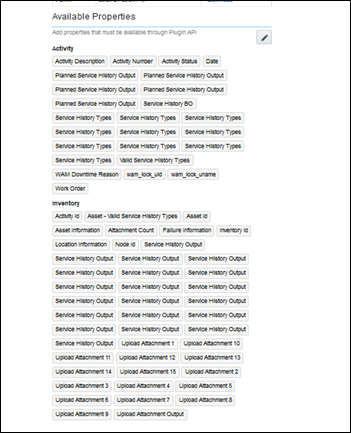
Validate Completion Plugin
This plugin helps crew to validate the eligibility to the activity to complete. If the activity is not yet eligible, the plugin displays corresponding error message if the eligibility is success crew navigates to end activity screen to complete the activity.
1. Repeat steps 1 to 5 from the Measurement Plugin section.
2. Click Import Validate Completion Plugin to import the validate completion plugin provided in the package. 
3. Make sure that the Available Properties tab is populated with the properties as shown below.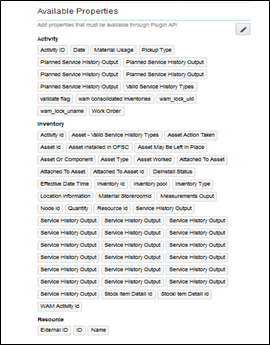
Planned Service History Plugin
Planned Service history is information regarding some type of service or maintenance performed on an asset. Information typically associated with service history include record inspection feedback, pass/fail details, downtime, parts failure information, maintenance or service logs, or other information regarding service on the asset.
1. Repeat steps 1 to 5 from the Measurement Plugin section.
2. Click on Import dropdown and click Plugins to import the Planned Service History plugin provided in the package. 
3. Make sure the Available Properties tab is populated with the properties as shown below. 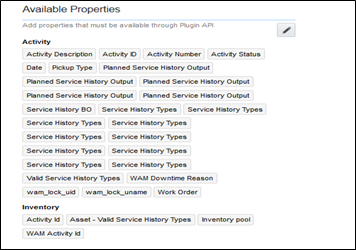
Asset Component Install Exchange Undo Plugin
Handle operations on Install, Uninstall and Replace actions for the assets and components in a work activity. Information associated with the components used for the assets on completion of the activity is handled.
1. Repeat steps 1 to 5 from the Measurement Plugin section.
2. Click the Import drop-down box and select Plugins to import the Asset Component Install Exchange Undo plugin provided in the package.
3. Select the Asset Component Install Exchange Undo plugin and enter the details:
• oic_url: https://OIC_host:OIC_port/ic/api/integration/v1/flows/rest/OUTL-BA-OFSC_WACS_ASSET_QUERY/1.0/assetQueryDetails
• oic_uname/oic_password: OIC username/password
• ofsc_multiDay_act_lbls: The Activity type of the Multi-Day activity created in OFSC. If there are more than one use '|' separator.
Example: Act1|Act2|Act3
• ofsc_uname: OFSC username - applicationid@instanceid (application should have access to all the apis)
• ofsc_password: OFSC password
• ofsc_siteAddress: instance id of OFSC
4. Make sure the Available Properties tab is populated with the properties as shown below. 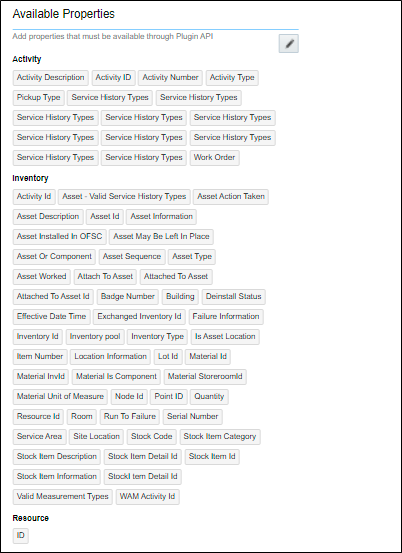
Lock Unlock Activity Plugin
Handle operations lock or unlocking of an activity for a crew so that he can work on it.
1. Repeat steps 1 to 5 from the Measurement Plugin section.
2. Click the Import drop-down box and select Plugins to import the Lock Unlock Activity Plugin provided in the package.
3. Make sure the Available Properties tab is populated with properties as shown below.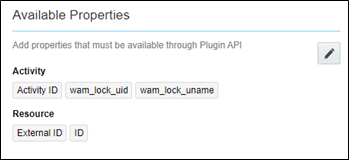
Pick Up Work Plugin
This plugins helps the crew to create Work order, Work Request of types Asset related or non-Asset related from Oracle Field Service application itself. It can be a follow up to existing activity or a new work which is unrelated pickup.

2. Select the Pick Up Work plugin and enter the following details:
• oic_url: https://OIC_host:OIC_port/ic/api/integration/v1/flows/rest/OUTL-BA-OFSC_WACS_ASSET_QUERY/1.0/assetQuery
• oic_url1 : https://OIC_host:OIC_port/ic/api/integration/v1/flows/rest/OUTL-BA-OFSC_WACS_ASSET_QUERY/1.0/assetQueryDetailsPickup
• oic_uname/oic_password: OIC username/password
• ofsc_uname: clientID@instance ID
• ofsc_password: client secret key
• ofsc_siteAddress : instance ID
• groupLabel : OFSC group label
• bucket_for_nonScheduled : External ID of the bucket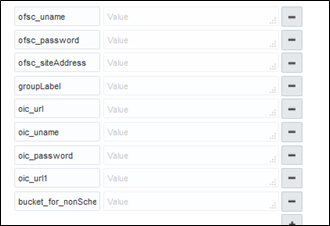
3. Click the Import drop-down box and select Plugins to import the Pick Up Work Plugin provided in the package.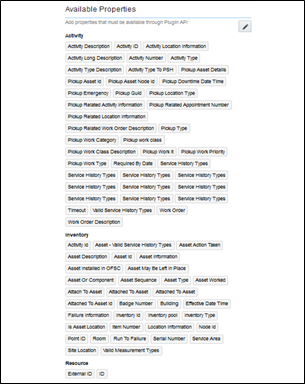
Materials Plugin
This plugin handles the operations related to mobile storerooms in Oracle Field Service Cloud including reporting the use of materials. The operations includes Use/Undo Use Item, Install/Undo Install Asset, and Attach/Undo Attach component from truck inventories. Oracle Field Service Cloud can request an update of a mobile storeroom passing date/time of the last snapshot.
To import the plugin:
1. Repeat steps 1 to 5 from the Measurement Plugin section.
2. After the successful import of plugin, Oracle Field Service displays the details as shown below.
3. Select the Materials plugin and enter the details:
• oic_storeroom_sync_url: https://OIC_host:OIC_port/ic/api/integration/v1/flows/rest/OUTL-BA-OFSC_WACS_STOREROOM_SYNC/1.0/syncStoreroom
• oic_uname/oic_password: OIC username/password
• oic_assetQueryDetails_url: https://OIC_host:OIC_port/ic/api/integration/v1/flows/rest/OUTL-BA-OFSC_WACS_ASSET_QUERY/1.0/assetQueryDetails
• oic_activityUpdate_url: https://OIC_host:OIC_port/ic/api/integration/v1/flows/rest/OUTL-BA-OFSC_WACS_ACTV_UPDT_PULL/1.0/retrieveUpdates
Oracle Field Service Cloud users should to configure the following:
• ofsc_uname: clientID@instance ID
• ofsc_password: client secret key
• ofsc_siteAddress: instance ID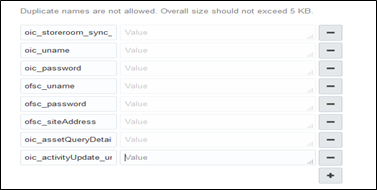
4. Make sure the Available Properties tab is populated with all properties.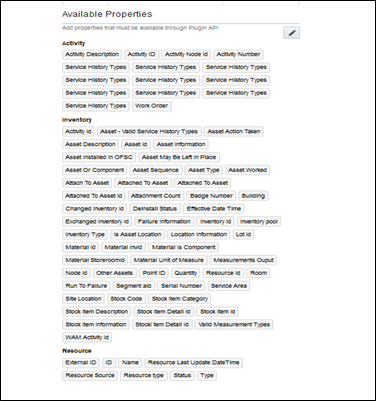
User Types
The user types are used to manage permissions for all the users. Each user type has a profile that defines security and display permissions, such as the user's login method, the ability to use certain functions, and access to menu items and properties. Screen-configuration settings define the screens, windows, pop-up windows and other elements visible to a certain user type. They also support the context layout editor, in which the content, arrangement, and visibilities of each context are set.
Use the user types to create custom screen context layouts for Oracle Work and Asset Cloud Service integration to Oracle Field Service Cloud for utilities by accessing the screen configuration settings in specific user types created.
The user types that are part of this integration are:
• WACS_OFSC_Dispatcher_User_Type
• WACS_OFSC_User_Type
To set up the user types:
Important! Make sure to load the Properties, Activity Types, and Plugins before proceeding.
1. Login to Oracle Field Service.
2. Click the three line menu icon that is on the upper-left corner of the Home page.
3. Navigate to Configuration page > Users, Security, Integrations > User Types.
4. Click Import to import the user types.
5. On the Choose file field, click Browse to select WACS_OFSC_User_Type.
6. Click Import and verify the import is successful. Ensure that there are no "Imported with warnings" and "Not Imported".
7. Click Import 'WACS_OFSC_Dispatcher_User_Type'. Ensure that there are no "Imported with warnings" and "Not Imported".
After the Dispatcher user type is set up, perform the following:
1. Make sure the Dispatcher user type import is successful without warnings.
2. Navigate to resources search for admin user. Note the user type configured in your environment.
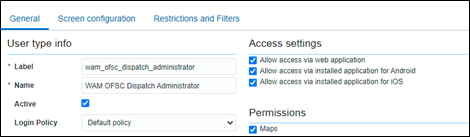
3. Navigate to Configuration > User types > WAM OFSC Dispatch Administrator.
4. On the General tab, configure the display profile as 'WAM OFSC Dispatch Administrator' and the profile that was configured to admin user.
5. Navigate to Resources search for admin and click Edit.
6. Set the user type as 'WAM OFSC Dispatch Administrator'.
7. Enter the password and click Submit.
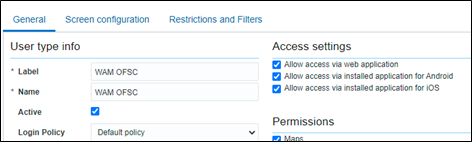
Make sure that the Access settings are selected for both the user types.