Business Flows
The integration scope supports the following business processes:
• Admin flows
• ArcGIS Asset Synchronization flows
• Common Integration Flows (Internally Initiated)
OU WACS OIC GISMapping Sync (Oracle Integration Cloud Scheduled Job)
This integration flow is used to synchronize the WACS GIS Asset class and related attributes through the Oracle Utilities Work and Asset Cloud Service admin rest service into a lookup inside this Oracle Integration Cloud project.
The integration flow is run as a first step for asset synchronization. It inserts, updates, and deletes asset class information in the existing OUTL-BRT-ArcGIS_WACS_AssetClass lookup.
The end user enters values in the Query, RelativeURI, and ServerId fields. Refer to the Things to Remember, Limitations, and Workarounds chapter for more information about these fields.
The integration is initiated as a scheduled process or via ad-hoc run.
The following diagram shows a graphical representation of the flow: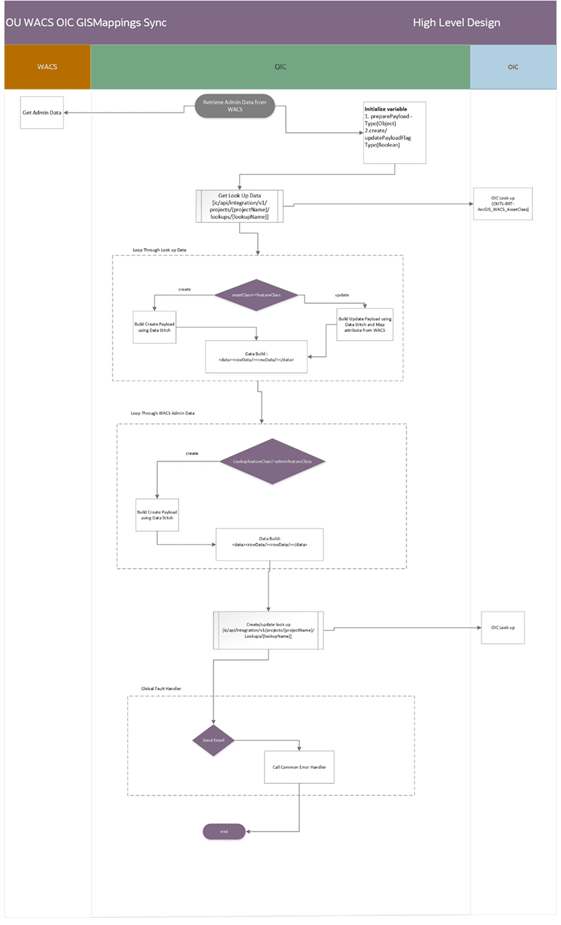
Business Processing
This scheduled integration process includes the following activities:
1. The Oracle Utilities WACS OIC GISMappings Sync flow is a scheduled integration. It operates asynchronously, allowing both manual execution and scheduling to retrieve the GIS Asset Class and Asset & Location field mapping information defined in the W1-GISToWAMSyncMapping extendable lookup in Oracle Utilities Work and Asset Cloud Service.
2. The process reads the existing OUTL-BRT-ArcGIS_WACS_AssetClass lookup via Oracle Integration Cloud Rest APIs.
3. Each “Active” record in the W1-GISToWAMSyncMapping extendable lookup in Oracle Utilities Work and Asset Cloud Service is inserted into the OUTL-BRT-ArcGIS_WACS_AssetClass lookup table in Oracle Integration Cloud. If there is a change in the GIS Asset Class or Asset & Location field mappings in the Oracle Utilities Work and Asset Cloud Service extendable lookup, an update is made on the AssetClass and Attribute fields in the Oracle Integration Cloud lookup table. When the record in the OIC lookup table is updated, any entries in Query, RelativeURI, and ServiceId are not updated or removed. If the record is removed or made inactive in the WACS extendable lookup, the corresponding record in the OUTL-BRT-ArcGIS_WACS_AssetClass lookup is removed as well.
4. Out of the box, the OUTL-BRT-ArcGIS_WACS_AssetClass lookup table is populated with a sample record. This record is removed when the flow is run.
5. Any unrecoverable errors thrown are handled by the global fault handler.
6. An optional email notification with error details is sent to the users configured in the OUTL-BRT-ArcGIS_OFS_Email_ID lookup.
7. Email notification is optional. Configure the email.flag property in the OUTL-BRT- ArcGIS_OFS_ConfigProps lookup to ‘true’ to receive email notifications when errors are encountered.
8. Error Handling:
• If notification.type.email.flag in the ArcGIS_WACS_ConfigProps lookup is set to true’, all errors will be sent to the respective email IDs configured in the ArcGIS_WACS_Email_ID lookup under “to”.
• Functional errors: The GISMappings Sync flow reports functional errors due size linit of the lookup column value which is more than 2K characters.
• Remote errors:
• The remote error will occur when the OUTL-BRT-ArcGIS_WACS_AssetClass lookup is accidently deleted from the project and the flow tries to access the lookup.
• The remote error will occur when Oracle Utilities Work and Asset Cloud Rest API is down. An exception will be thrown, and the Oracle Integration Cloud instance will be marked as ‘failed’.
• After fixing the error, the flow can either be manually triggered or can wait for the next scheduled iteration.
Technical Details
The following table describes the integration processes and the respective ESRI ArcGIS and Oracle Utilities Work and Asset Cloud Service artifacts used in this integration process:
Artifacts | Value |
|---|---|
Integration Process Name | OU WACS OIC GISMappings Sync |
Integration Process Identifier | OUTL-BA-WACS_OIC_GISMAPPING |
Integration Project Name | OU ESRI ArcGIS WACS |
Source Connection (Utilities Adapter) | scheduled / ad-hoc OU REST WACS for ArcGIS-WACS |
Target Connection (Rest Adapter) | OU REST OIC for ArcGIS-WACS |
OIC API(s) | /ic/api/integration/v1/projects/{projectId}lookups/{lookupName} |
Local Integrations | OU Common Notification Handler |
Lookups Referenced
The following table describes customized properties referenced in the integration. For more information about the lookup properties, refer to Configuring Lookups, Error Handling, and Email Notifications.
DVM | Property |
|---|---|
OUTL-BRT-ArcGIS_WACS_ConfigProps | notification.type.email.flag |
OUTL-BRT-ArcGIS_WACS_AssetClass | • AssetClass • Attributes • Query • RelativeURL • ServerId |
OUTL-BRT-ArcGIS_WACS_Email_ID | • Recipient • To |
ArcGIS Asset Synchronization
Assets in ArcGIS are synchronized to Oracle Utilities Work and Asset Cloud Service as initial and incremental synchronizations. The assets synchronized to Oracle Utilities Work and Asset Cloud Service can be updated in ESRI ArcGIS by the updates sent from Oracle Utilities Work and Asset Cloud Service.
The Oracle Utilities Work and Asset Cloud Service inbound initial and incremental synchronizations are initiated from the OU ArcGIS WACS Asset Sync scheduled parent flow. This flow, in turn, calls the Initial and Incremental child flows to perform bulk or incremental synchronizations.
The child integrations will retrieve the data from ESRI ArcGIS and will place the files in the on-premises FTP Server or in an OCI Object Storage location based on the configuration.
The updates to these assets in ESRI ArcGIS are handled by the WACS ArcGIS Assets Update flow to synchronize the updates from Oracle Utilities Work and Asset Cloud Service to ESRI ArcGIS.
The synchronization is handled by the following Oracle Integration Cloud integration flows depending on the file transfer preference:
The following diagram shows the synchronization-related processes: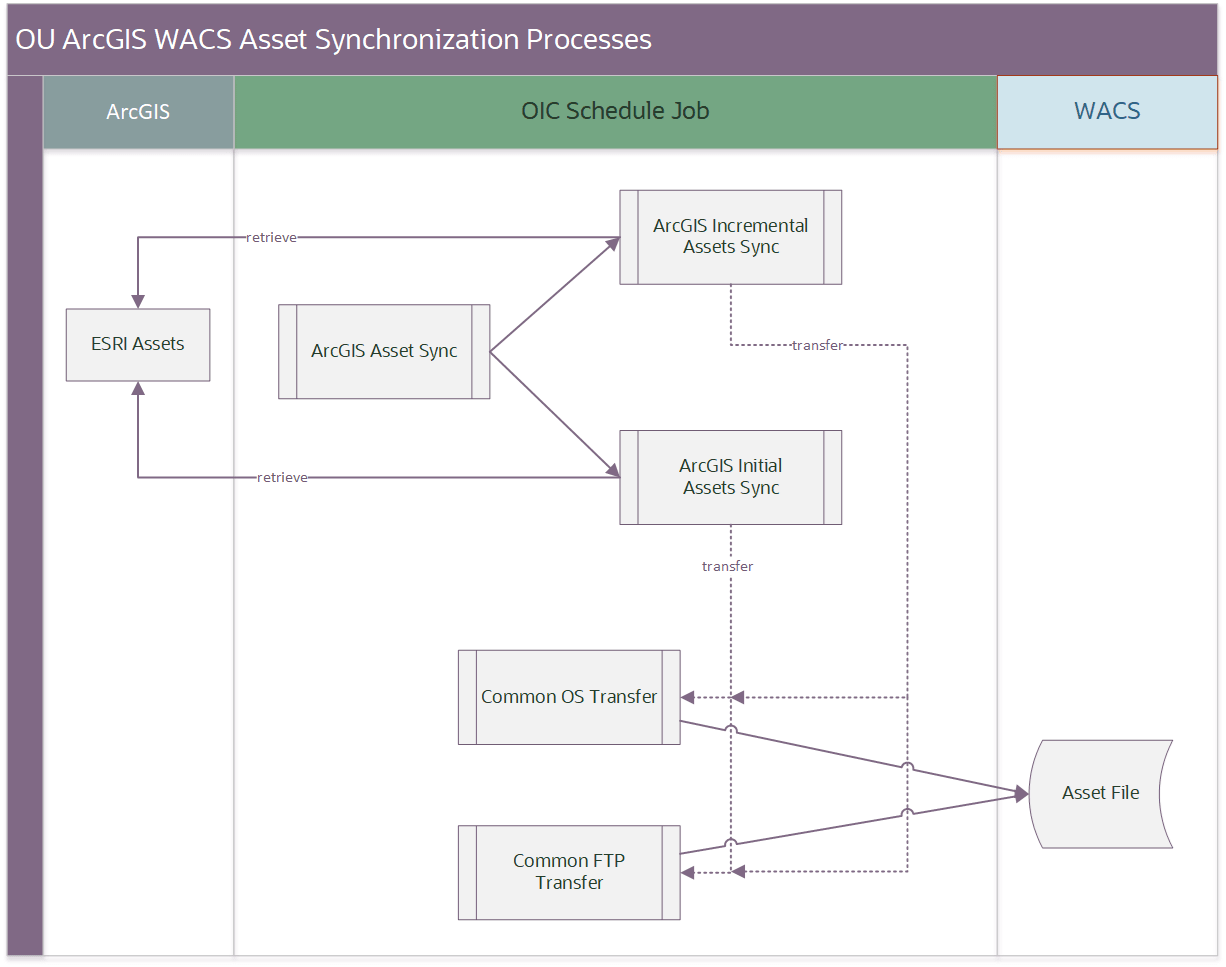
OU ArcGIS WACS Asset Sync (Oracle Integration Cloud Scheduled Job)
This integration process retrieves the Asset classes information stored in the OUTL-BRT-ArcGIS_WACS_AssetClass lookup table and initiates the child integrations to retrieve the assets from ESRI ArcGIS.
The integration can be run as a scheduled integration with the following scheduled parameters:
• Full_sync: Performs a full or incremental asset synchronization. A full synchronization is done for the first time. The value either contains a “N”(Incremental sync) or a “Y”(Full/Initial sync).
• Last_incremental_execution_datetime: Sets the starting date and time from which to retrieve the ESRI ArcGIS assets data. The last incremental execution datetime contains the last date and time when the incremental synchronization was executed and is reset after each performed execution. This applies only to incremental synchronization. The format for this value is “YYYY-MM-DD HH:mm” in a 24-hour notation.
• Max_records_per_file: Specifies the maximum number of records to be include in each file.
• AssetClasses_to_process: Used to run specific asset classes from the OUTL-BRT-ArcGIS_WACS_AssetClass lookup table. This parameter is a comma separated list of asset classes. Specify “ALL” if all the asset classes in the lookup needs to be run. The default value is “ALL”. And, after each execution this parameter is reset to “ALL”.
The following diagram shows a graphical representation of the Delete Activities integration process: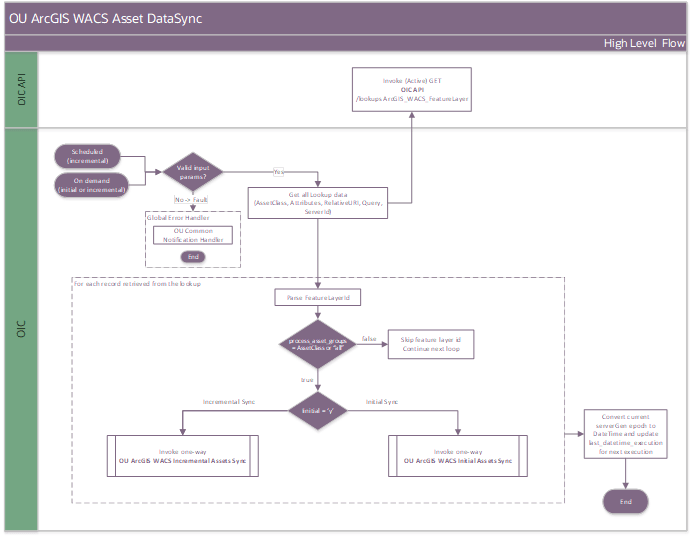
Business Processing
The integration process includes the following activities:
1. Initialization phase
• This is a scheduled integration. It operates asynchronously, allowing both manual execution and scheduling.
• Parameters set during each run dictate the how and what to synchronize:
• Full_sync: Defaults to “N” or set to “Y”.
• Last_incremental_execution_datetime: Set in the YYYY-MM-DD HH:mm 24-hour format. This value is reset after the last execution.
• Max_records_per_file: Specifies the number of records to be included in each file.
• AssetClasses_to_process: List of comma separated asset classes to be processed. The default value is “ALL”.
Note:
• If the parameters are left empty, the last value of the parameter it was executed with is taken. If the parameters are empty on the very first run, the default values are taken.
• For the AssetClasses_to_process parameter, the value is reset to “ALL” after each run.
2. Validate the parameters set for execution. The integration will stop processing and call the Common Notification Handler if any parameters are incorrectly set.
3. Read and loop through the OUTL-BRT-ArcGIS_WACS_AssetClass lookup table. This lookup will be refreshed by the OU WACS OIC GISMappings Sync integration.
4. If the “AssetClasses_to_process” parameter is ALL or contains the specific asset classes from the lookup, then the flow depending on the “Full_sync” parameter passes the request to either of the following:
• OU ArcGIS WACS Initial Assets Sync
• OU ArcGIS WACS Incremental Assets Sync
5. Error handling
An email is triggered based on the “notification.type.email.flag” property value in the OUTL_BRT_AccGIS_WACS_ConfigProps lookup.
• Business errors due to incorrect parameters will trigger an email request. It contains an invalid parameter with the value provided as well with correct information.
• Errors due to faults being triggers will also trigger the email request.
• Faults can occur due to failing to reach the child integrations, or errors during processing.
• Oracle Cloud Integration instance in the above cases is marked as “Failed”.
6. Emails are also sent when configuration errors on the OUTL-BRT-ArcGIS_WACS_AssetClass are encountered. In this case, the Oracle Cloud Integration instance is successful, and it is the user’s responsibility to correct the configuration errors and retry the particular asset classes.
7. The email requests are forwarded to the “OU Common Notification Handler” flow.
Technical Details
The following table describes the integration processes and the respective ESRI ArcGIS and Oracle Utilities Work and Asset Cloud Service artifacts used in this integration process:
Artifacts | Value |
|---|---|
Integration Process Name | OU ArcGIS WACS Assets Sync |
Integration Process Identifier | OUTL-BA-ARCGIS_WACS_ASSETS_SYNC |
Integration Project Name | OU ESRI ArcGIS WACS |
Source Connection (Rest Adapter) | scheduled / ad-hoc OU REST OIC for ArcGIS-WACS |
Target Connection (Rest Adapter) | OU REST OIC for ArcGIS-WACS |
OIC API(s) | /ic/api/integration/v1/projects/{projectId}lookups/{lookupName} |
Local Integrations | • OU ArcGIS WACS Initial Assets Sync • OU ArcGIS WACS Incremental Assets Sync • OU Common Notification Handler |
Lookups Referenced
The following table describes customized properties referenced in the integration. For more information about the lookup properties, refer to Configuring Lookups, Error Handling, and Email Notifications.
DVM | Property |
|---|---|
OUTL-BRT-ArcGIS_WACS_ConfigProps | • notification.type.email.flag |
OUTL-BRT-ArcGIS_WACS_AssetClass | • AssetClass • Attributes • Query • RelativeURI • ServerId |
OUTL-BRT-ArcGIS_WACS_Email_ID | • Recipient • to |
OU ArcGIS WACS Initial Assets Sync (Oracle Integration Cloud Initiated)
This process receives an internal request from ArcGIS WACS Asset Sync to retrieve all features with specific attributes from ESRI ArcGIS. The retrieved data is stored in the GeoJSONL files that are uploaded to Oracle Utilities Work and Asset Cloud Service to process.
The following diagram shows a graphical representation of the integration process: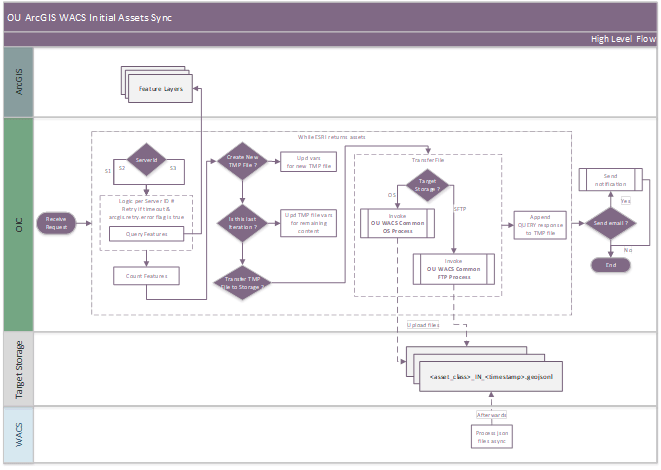
Business Processing
The integration process includes the following activities:
1. Initialization phase
a. Initializes variables from the incoming request retrieved and Oracle Integration Cloud lookups.
b. Defines parameters for querying the ESRI ArcGIS servers (up to three connections/servers identified by ServerId; S1, S2, and S3, defined in the OUTL-BRT-ArcGIS_WACS_AssetClass lookup).
Note: Assets can be stored across different ESRI ArcGIS portals. The incoming request includes the ServerId field, specifying which portal to use. This integration supports up to three configurable ESRI ArcGIS servers with server connection “S1” as the default. Expanding beyond three portals requires cloning and customizing the project.
2. Execute the Feature Extraction Loop.
a. Iterates over assets, retrieving feature details via ESRI Query API calls.
b. Handles pagination, updates counters, and ensures correct batch sizes.
• The batch size is controlled by the sync.initial.maxresult.count property in the OUTL-BRT-ArcGIS_WACS_ConfigProps lookup.
Important: This value must be equal or less than the "Maximum Number of Records Returned by Server" setting found on the Parameters page for each Service Layer in ESRI ArcGIS Server Manager. Any optimization to this lookup value must not exceed the Maximum Number of Records Returned by Server parameter. Exceeding the Service Layer limit can result in incomplete synchronization.
• The number of iterations is determined by the records returned by the API response. If the API does not return any records the iteration stops. The number of features are counted using getFeaturesCount javascript.
c. Response from Query API is read as binary. This response is enhanced to include Assetclass and action by passing it through getCustomGeoJSON javascript function.
3. Manage File Transfer
a. Transfers completed files to the target storage, as specified by the wacs.file.target.transfer.pref property in the OUTL-BRT-ArcGIS_WACS_ConfigProps lookup.
b. The transferred file name follows the “AssetClass_IN_YYYY_MM_DDTHH_MM_SS_sssZ.geojsonl” format.
a. Starting with version 25.10, Oracle Utilities Application Framework restricts the use of invalid characters in the file names. (File Name and Extension Restrictions)
b. Special characters such as “:” and “-” are replaced with underscores in the AssetClass and DateTime portions of the file name.
c. If target storage is “os” (Object Storage), it calls the Common OS Process child integration process.
d. If the target storage is “ftp” (FTP), it calls the Common FTP Process child integration process.
4. Business Notification Email
a. If the notification.email.process.complete.flag is set to ‘true’, a completion email on successful completion with the files and record count information, is sent to the respective email IDs configured in the the ArcGIS_WACS_Email_ID lookup.
5. Error Handling
If the notification.type.email.flag in the ArcGIS_WACS_ConfigProps lookup is set to ‘true’, all errors will be sent to the respective email IDs configured in the ArcGIS_WACS_Email_ID lookup under “to”.
a. Functional errors: ESRI ArcGIS reports functional errors due to invalid parameters or data.
b. Remote errors: Technical errors, such as ESRI ArcGIS is not available.
6. When errors occur:
a. An exception will be thrown, and the Oracle Integration Cloud instance will be marked as ‘failed’.
b. After fixing the error, the flow can either be manually triggered or can wait for the next scheduled iteration.
c. Retry on specific errors: ArcGIS API requests can be automatically retried if certain errors occurs. The specific error codes that trigger a retry are specified in the 'arcgis.retry.error.codes' property within the OUTL-BRT-ArcGIS_WACS_ConfigProps lookup.
Example: If the ArcGIS Server is under heavy load and resources are low, it may return an HTTP 500 response indicating a timeout or failed connection, this can trigger a retry if the HTTP code is configured. Additional HTTP codes can be added as needed to enable automated retries.
a. When a timeout error occurs, if the error code is present in the “arcgis.retry.error.codes” configuration property and the “arcgis.retry.error” configuration property is set to ‘true’, the retry logic will be triggered.
b. For up to “arcgis.retry.count” attempts, the same payload will be resent.
c. Each attempt will wait “arcgis.retry.wait.time” seconds before retrying.
d. If the error persists, it will be captured and continue with the same logic for error handling as described in the Functional Errors step.
Technical Details
The following table describes the integration processes and the Oracle Integration Cloud artifacts used in this integration process:
Artifacts | Value |
|---|---|
Integration Process Name | OU ArcGIS WACS Initial Assets Sync |
Integration Process Identifier | OUTL-BA-ARCGIS_WACS_ASSETS_INIT |
Integration Project Name | OU ESRI ArcGIS WACS |
Source Connection (Rest Adapter) | OU REST for ArcGIS-WACS |
Target Connection (Rest Adapter) | • OU REST ArcGIS for ArcGIS-WACS • OU REST ArcGIS for ArcGIS-WACS S2 • OU REST ArcGIS for ArcGIS-WACS S3 • OU REST OIC for ArcGIS-WACS |
Local Integrations | • OU Common Notification Handler • OU WACS Common FTP Process • OU WACS Common OS Process |
Lookups Referenced
The following table describes customized properties referenced in the integration. For more information about the lookup properties, refer to Configuring Lookups, Error Handling, and Email Notifications.
DVM | Property |
|---|---|
OUTL-BRT-ArcGIS_WACS_ConfigProps | • notification.type.email.flag • notification.email.process.complete.flag • wacs.file.target.transfer.pref • wacs.os.namespace • wacs.os.bucket.assetsync • wacs.projectedcoordinatesystem.wkid • sync.initial.maxresult.count • sync.increment.objectid.count • arcgis.retry.wait.time • arcgis.retry.count • arcgis.retry.error.codes • arcgis.retry.error |
OUTL-BRT-ArcGIS_WACS_Email_ID | • Recipient • to |
OU ArcGIS WACS Incremental Assets Sync (Oracle Integration Cloud Initiated)
This process receives an internal request from ArcGIS WACS Asset Sync to retrieve all features with specific attributes from ESRI ArcGIS that have changed within a defined period. The defined period is mostly defined as the last execution date time. This will retrieve ESRI ArcGIS changes from that time on.
The retrieved data is stored in a GeoJSONL files that are uploaded to Oracle Utilities Work and Asset Cloud Service to process.
The following diagram shows a graphical representation of the integration process: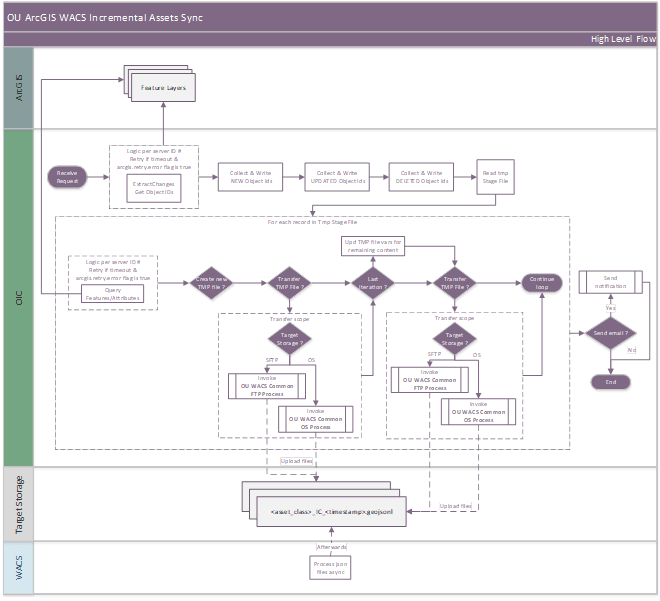
Business Processing
The integration process includes the following activities:
1. Initialization phase
a. Initializes variables from the incoming request retrieved and Oracle Integration Cloud lookups.
b. Defines parameters for querying the ESRI ArcGIS servers (up to three connections/servers identified by ServerId; S1, S2, and S3).
Note: Assets can be stored across different ESRI ArcGIS portals. The incoming request includes the ServerId field, specifying which portal to use. This integration supports up to three configurable ESRI ArcGIS servers with server connection “S1” as the default. Expanding beyond three portals required cloning and customizing the project.
c. Sets up tracking variables for files, asset counts, and synchronization details.
2. Retrieve updated asset data.
a. Invoke the ESRI ExtractChanges API to obtain ObjectIDs for updated, added, and deleted features. The request uses “returnIdsOnly = true” to return only ObjectIds.
b. Results are returned only when the specified attributes have changed and fall within the modification time window.
c. Stores the response in a global variable for further processing.
d. Write the ObjectIds to a Stage file for additions, updates, and deletions. Batch size is controlled by the “sync.increment.objectid.count” configuration property.
3. Process added assets.
a. Iterates through the “adds” collection, grouping ObjectIds into batches.
b. Stores the ObjectIds in temporary stage files for later retrieval.
4. Process updated assets.
a. Identifies modified assets based on specified fields set in the Attributes column in the OUTL-BRT-ArcGIS_WACS_AssetClass lookup.
b. Group the object IDs into batches and stores them in the Stage files.
5. Process deleted assets.
a. Retrieves the deleted object IDs and groups them into batches.
b. Stores the object IDs in temporary stage files for later retrieval.
6. Query and retrieve asset details.
a. Reads the stage files and retrieves asset details from the ESRI ArcGIS server connections (according to ServerId field: S1, S2, S3).
b. Constructs and executes queries with the appropriate filters and formatting.
c. Response from Query API is read as binary. This response is enhanced to include Assetclass and action by passing it through getCustomGeoJSON javascript function. Results are appended to the temporary files.
7. Manage file creation
a. Creates new files when the record limit per file is reached.
b. During the last iteration, a new file will be created to store any remaining records, even if the record limit is not reached.
c. File name follows this format: “AssetClass_IC_YYYY_MM_DDTHH_MM_SS_sssZ.geojsonl”
a. Starting with version 25.10, Oracle Utilities Application Framework restricts the use of invalid characters in the file names. (File Name and Extension Restrictions)
b. Special characters, such as “:” and “-” are replaced with underscores in the AssetClass and DateTime portions of the file name.
8. Manage file transfer.
a. Transfers the completed files to the target storage, as specified by the wacs.file.target.transfer.pref property in the OUTL-BRT-ArcGIS_WACS_ConfigProps lookup.
b. If the target storage is “os” (Object Storage), it calls the Common OS Process child integration process.
c. If the target storage is “ftp” (FTP), it calls the Common FTP Process child integration process.
9. Business notification email.
a. If the notification.email.process.complete.flag is set to ‘true’, on successful completion, a completion email with files and record count information, is sent to the respective email IDs configured in the ArcGIS_WACS_Email_ID lookup.
10. Error handling
If the notification.type.email.flag in the ArcGIS_WACS_ConfigProps lookup is set to ‘true’, all errors will be sent to the respective email IDs configured in the ArcGIS_WACS_Email_ID lookup under “to”.
a. Functional errors: ESRI ArcGIS reports functional errors due to invalid parameters or data.
b. Remote errors: Technical errors, such as ESRI ArcGIS is not available.
c. Retry on specific errors: ArcGIS API requests can be automatically retried if certain errors occurs. The specific error codes that trigger a retry are specified in the “arcgis.retry.error.codes” property within the OUTL-BRT-ArcGIS_WACS_ConfigProps lookup.
Example: If the ESRI ArcGIS server is under heavy load and resources are low, it may return an HTTP 500 response indicating a timeout or failed connection, this can trigger.
a. When a timeout error occurs, if the error code is present in the “arcgis.retry.error.codes” configuration property and the “arcgis.retry.error” configuration property is set to ‘true’, retry logic will be triggered.
b. For up to 'arcgis.retry.count' attempts, the same payload will be resent.
c. Each attempt will wait 'arcgis.retry.wait.time' seconds before retrying.
d. If the error persists, it will be captured and continue with the same logic for error handling as described in the Functional errors step.
11. When errors occur:
a. An exception will be thrown, and the Oracle Integration Cloud instance will be marked as ‘failed’.
b. After fixing the error, the flow can either be manually triggered or can wait for the next scheduled iteration.
Technical Details
The following table describes the integration processes and the artifacts used in this integration process:
Artifacts | Value |
|---|---|
Integration Process Name | OU ArcGIS WACS Incremental Assets Sync |
Integration Process Identifier | OUTL-BA-ARCGIS_WACS_ASSETS_INCR |
Integration Project Name | OU ESRI ArcGIS WACS |
Source Connection (Rest Adapter) | OU REST for ArcGIS-WACS |
Target Connection (Rest Adapter) | • OU REST ArcGIS for ArcGIS-WACS • OU REST ArcGIS for ArcGIS-WACS S2 • OU REST ArcGIS for ArcGIS-WACS S3 • OU REST OIC for ArcGIS-WACS • OU REST OIC for ArcGIS-WACS |
Local Integrations | • OU Common Notification Handler • OU WACS Common FTP Process • OU WACS Common OS Process |
Lookups Referenced
The following table describes customized properties referenced in the integration. For more information about the lookup properties, refer to Configuring Lookups, Error Handling, and Email Notifications.
DVM | Property |
|---|---|
OUTL-BRT-ArcGIS_WACS_ConfigProps | • notification.type.email.flag • notification.email.process.complete.flag • wacs.file.target.transfer.pref • wacs.ftp.directory.assetsync • wacs.projectedcoordinatesystem.wkid • sync.initial.maxresult.count • sync.increment.objectid.count • arcgis.retry.wait.time • arcgis.retry.count • arcgis.retry.error.codes • arcgis.retry.error |
OUTL-BRT-ArcGIS_WACS_Email_ID | • Recipient • to |
OU WACS ArcGIS Assets Update (Oracle Integration Cloud Initiated)
This scheduled integration synchronizes asset attribute changes published by Oracle Utilities Work and Asset Cloud Service to ESRI ArcGIS. It works by retrieving update files generated by Oracle Utilities Work and Asset Cloud Service, either from FTP or Object Storage locations, then applying all updates from each AssetClass file to the corresponding ArcGIS feature layer.
Key Assumptions:
• The integration only processes existing assets; it does not create new assets in ESRI ArcGIS.
• Any asset updated by this process has already been synchronized from ESRI ArcGIS to Oracle Utilities Work and Asset Management/Oracle Utilities Work and Asset Cloud Service during the prior inbound synchronization (OU ArcGIS WACS Asset Sync).
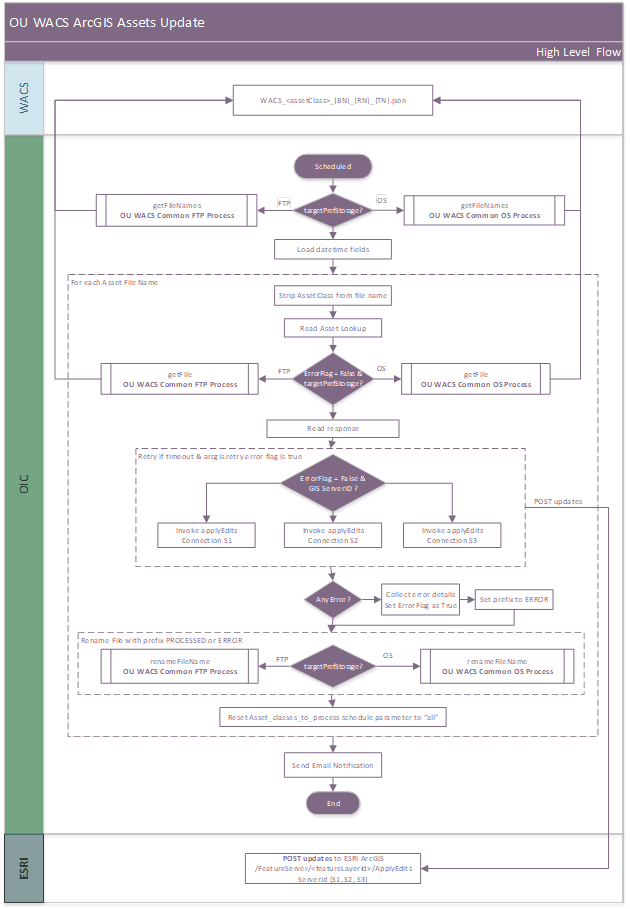
Business Processing
The integration process includes the following activities:
1. Initialization phase.
a. This is a scheduled integration. It operates asynchronously, allowing both manual execution and scheduling. It uses a schedule parameter “Asset_classes_to_process” that specifies which asset classes to process. The default value is “all”, but a comma-separated list of asset class names (names may contain spaces) can be provided. Each name must match the AssetClass value in the OUTL-BRT-ArcGIS_WACS_AssetClass lookup table.
2. Get the list of file names.
a. The integration obtains a list of file names from the specified target storage location, which can be either FTP or Object Storage (OS). The target storage is determined by the “wacs.file.target.transfer.pref” property set in OUTL-BRT-ArcGIS_WACS_ConfigProps.
b. Only files with the prefix defined by the “wacs.file.prefix” property (default: “WACS_”) are retrieved.
a. If FTP is the target storage, the system uses the OS WACS Common FTP Process child flow.
b. If Object Storage is the target, the OS WACS Common OS Process child flow is used.
c. If the storage preference set in the configuration property wacs.file.target.transfer.pref in the ArcGIS_WACS_ConfigProp lookup is invalid, or if the child flow encounters an error, the integration process will fault and stop further execution for that file.
3. Load the ESRI Datetime fields.
a. Attributes requiring datetime conversion from Oracle Utilities Work and Asset Cloud Service datetime type to ESRI datetime field type must be listed in the “OUTL-BRT-ArcGIS_WACS_DateTimeFields” lookup. If a datetime attribute with same name is converted differently in different featurelayers, then the FeatureLayerId column needs to be populated with the featurelayerId.
b. The integration reads all records from this lookup and concatenates column values into a variable "varDateTimeFieldsLookup".
a. If FeatureLayerId is empty, “ALL” is used. Same datetime conversion is applied to ArcGISFields in all the feature layers. Else, the actual FeatureLayerId is appended.
c. This variable “varDateTimeFieldsLookup” is used to identify and transform each record DateTime fields from Oracle Utilities Work and Asset Cloud Service into ESRI ArcGIS format during file processing.
d. For transformation rules reference, refer to the WAM to ESRI Date/Time Field Mapping Transformation table.
4. Processing each file name.
a. Extract the AssetClass from the filename pattern: WACS_AssetClass_{BN}_{RN}_{TN}.json.
a. WACS: Prefix that identifies the source system generating the files.
b. AssetClass: Indicates the GIS Asset Class defined in the “W1-GISToWAMSyncMapping” Oracle Utilities Work and Asset Cloud Service extendable lookup.
c. BN (Batch number): Identifies a batch id of the batch job.
d. RN: Run number: Identifier for a specific execution of the batch.
e. TN (Thread Number): Thread ID when running multithreaded.
b. Retrieve and validate column values for the AssetClass from OUTL-BRT-ArcGIS_WACS_AssetClass.
a. ServerId: Specifies the GIS portal instance (S1, S2, S3, or empty for default S1).
Note: Assets can be stored across different ESRI ArcGIS portals. Each server is identified by the S1, S2, or S3 IDs. The incoming request includes the ServerId field, specifying which portal to use. This integration supports up to three configurable ESRI ArcGIS servers with server connection “S1” as the default. Expanding beyond three portals requires cloning and customizing the project.
b. RelativeURI: URI for the ESRI ArcGIS layer; must match the asset class configuration.
c. FeatureLayerId: Taken from the last path segment of RelativeURI. If RelativeURI ends with '/', this is an error.
5. Get file to process. Use a child flow to download the file from the target storage (FTP or Object Storage), as set by wacs.file.target.transfer.pref in OUTL-BRT-ArcGIS_WACS_ConfigProps.
6. Apply updates via the ESRI ArcGIS applyEdits endpoint.
a. Read all records in the file, map each record to a feature using the original Oracle Utilities Work and Asset Cloud Service values, aggregate the features into the applyEdits payload, and invoke the ESRI applyEdits endpoint to update the corresponding matching records.
b. Non Datetime fields: Send as strings and escape backslashes and double quotes.
c. Datetime fields (from the OUTL-BRT-ArcGIS_WACS_DateTimeFields lookup)
a. Determine whether a field requires datetime conversion by matching the attribute name and FeatureLayerId; if FeatureLayerId is not provided, use “ALL”.
b. Identify the ESRI ArcGIS datetime field type (esriFieldTypeDate, esriFieldTypeTimestampOffset). Matching is case-insensitive and treated as uppercase. Apply the corresponding datetime transformation based on the identified type. See the WAM to ESRI Date/Time Field Mapping Transformation table for more details.
c. If no match is found (type “None”), treat the field as a string due to missing or invalid configuration.
7. Rename the file.
a. If an error occurs while processing a file, it is renamed in the target storage with the error prefix from wacs.file.prefix.error (default: "ERROR_"). If successful, the processed prefix from wacs.file.prefix.processed (default: "PROCESSED_") is used.
b. Renaming the file is handled via a child flow, based on the storage type set by wacs.file.target.transfer.pref in OUTL-BRT-ArcGIS_WACS_ConfigProps:
a. FTP: Uses the “OS WACS Common FTP Process” child flow.
b. Object Storage: Uses the “OS WACS Common OS Process” child flow.
8. Send the notification.
a. After processing all files, the Asset_classes_to_process schedule parameter is reset to its default value ("all").
b. If any errors occurred and the notification.type.email.flag is ‘true’ (set in the OUTL-BRT-ArcGIS_WACS_ConfigProps lookup), an error notification email is sent to the address or distribution list specified in the “to” property defined in OUTL-BRT-ArcGIS-WACS_Email_ID.
c. If the notification.email.process.complete.flag is ‘true’, a completion notification email is sent to the address in the “to.process.notification” property of OUTL-BRT-ArcGIS-WACS_Email_ID. The email includes a table listing each processed AssetClass, the related filename, and the number of records updated in ESRI.
9. Error handling
If notification.type.email.flag in the ArcGIS_WACS_ConfigProps lookup is set to ‘true’, all errors will be sent to the respective email IDs configured in the ArcGIS_WACS_Email_ID lookup under “to”.
a. Technical errors such as:
a. Invalid values for the Asset_classes_to_process schedule parameter.
b. Errors loading datetime fields from OUTL-BRT-ArcGIS_WACS_DateTimeFields.
c. Exceptions from the GetFileList child flow.
• These errors raise a global error that triggers a technical error email and marks the Oracle Integration Cloud instance as ‘Failed’.
• After resolving the schedule parameter or configuration issue, re-run the integration.
b. Business errors encountered during file processing, such as:
a. Invalid FeatureLayerId or GIS ServerID lookup values.
b. Errors reading/writing stage files.
c. Error responses from ESRI ArcGIS on update.
• Errors are logged, and processing continues with the next file.
• At the end of the flow, if the notification.email.process.complete.flag is ‘true’, a business notification email with error details is sent to recipients in OUTL-BRT-ArcGIS_OFS_Email_ID.to.process.notification. The email includes a table listing the AssetClass with errors, the related filename, and a description of the error.
• The affected files are renamed with the error prefix (wacs.file.prefix.error, default “ERROR_”).
• Invalid Token error: Renaming of the file will be skipped when ESRI ArcGIS returns error code 498 for Invalid Token.
• Failed files are skipped in the next run; user must correct and manually rename them for reprocessing.
c. Retry on specific errors: ArcGIS API requests can be automatically retried if certain errors occurs. The specific error codes that trigger a retry are specified in the 'arcgis.retry.error.codes' property within the OUTL-BRT-ArcGIS_WACS_ConfigProps lookup.
Example: If the ArcGIS server is under heavy load and resources are low, it may return an HTTP 500 response indicating a timeout or failed connection, this can trigger.
a. When a timeout error occurs, if the error code is present in 'arcgis.retry.error.codes' config property and the config property 'arcgis.retry.error' is set to ‘true’, retry logic will be triggered.
b. For up to 'arcgis.retry.count' attempts, the same payload will be resent.
c. Each attempt will wait 'arcgis.retry.wait.time' seconds before retrying.
d. If the error persists, it will be captured and continue with the same logic for error handling as described in the Functional errors step.
WAM to ESRI Date/Time Field Mapping Transformation
WAM TYPE | SAMPLE VALUE | MAPPED ESRI TYPE | TRANSFORMATION SUMMARY |
|---|---|---|---|
DateTime | 2002-05-30T09:30:10+00:00 | esriFieldTypeTimestampOffset | No conversion needed; passes as ISO format string |
DateTime | 2002-05-30T09:30:10+00:00 | esriFieldTypeDate | Convert to Epoch (UTC) |
DateTime | 2002-05-30T09:30:10+05:00 | esriFieldTypeDateOnly | Extract date (YYYY-MM-DD) from datetime |
DateTime | 2002-05-30T09:30:10+07:00 | esriFieldTypeTimeOnly | Extract time (hh:mm:ss) from datetime |
Date | 2002-05-30+07:00 | esriFieldTypeTimestampOffset | No conversion |
Date | 2002-05-30+07:00 | esriFieldTypeDate | Convert to UTC by adding "00:00:00" |
Date | 2002-05-30+07:00 | esriFieldTypeDateOnly | Extract date (YYYY-MM-DD) |
Date | 2002-05-30+07:00 | esriFieldTypeTimeOnly | Extract time (hh:mm:ss) |
Hour | 09:30:10 | esriFieldTypeTimeOnly | No conversion |
Hour | 09:30:10 | Any other ESRI type | Mapping results in an error; considered mismatch, and no conversion is performed. |
• If the mapping is invalid (example: Hour ? Date type), it results in an error, with no conversion applied.
• All ESRI ArcGIS Date/Time field types are handled in uppercase.
• The Date fields with timezone are converted to UTC where needed.
Technical Details
The following table describes the integration processes and the artifacts used in this integration process:
Artifacts | Value |
|---|---|
Integration Process Name | OU WACS ArcGIS Assets Update |
Integration Process Identifier | OUTL-BA-WACS_ARCGIS_ASSET_UPD |
Integration Project Name | OU ESRI ArcGIS WACS |
Connections (Rest Adapter) | • OU REST ArcGIS for ArcGIS-WACS • OU REST ArcGIS for ArcGIS-WACS S2 • OU REST ArcGIS for ArcGIS-WACS S3 • OU REST OIC for ArcGIS-WACS |
Local Integrations | • OU Common Notification Handler • OU WACS Common FTP Process • OU WACS Common OS Process |
Lookups Referenced
The following table describes customized properties referenced in the integration. For more information about the lookup properties, refer to Configuring Lookups, Error Handling, and Email Notifications.
DVM | Property |
|---|---|
OUTL-BRT-ArcGIS_WACS_ConfigProps | • wacs.file.target.transfer.pref • wacs.os.namespace • wacs.os.bucket.assetupdate • wacs.ftp.directory.assetupdate • notification.type.email.flag • notification.email.process.complete.flag • wacs.file.prefix • wacs.file.prefix.processed • wacs.file.prefix.error • wacs.files.per.run • arcgis.version.name • arcgis.retry.wait.time • arcgis.retry.count • arcgis.retry.error.codes • arcgis.retry.error |
OUTL-BRT-ArcGIS_WACS_Email_ID | • to.process.notification • to |
Common OS Process (Oracle Integration Cloud Initiated)
This integration will handle the file processing operation in Object Storage. The flow has four different triggers for each operation, namely send a file, retrieve file list, download a file, and rename a file.
The following diagram shows the common object storage process for the entire integration: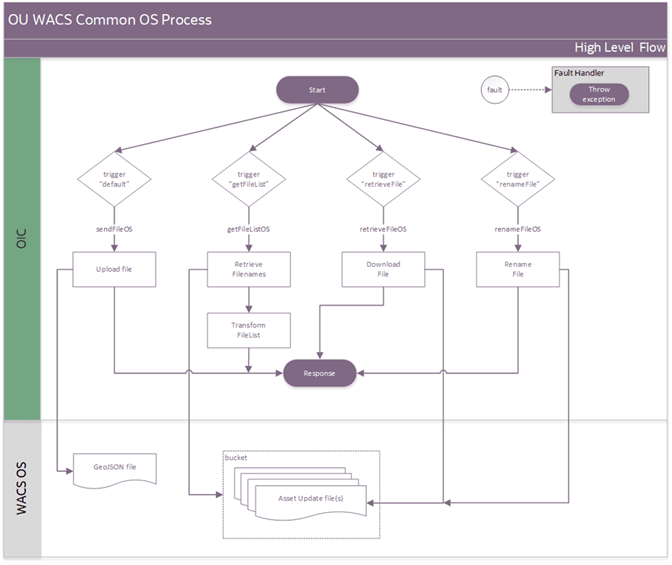
Common OS Process: Send File
This trigger receives a request to transfer the attached file reference to an Oracle Integration Cloud Object Storage location from where Oracle Utilities Work and Asset Cloud Service will process them.
The following diagram shows a graphical representation of the integration process: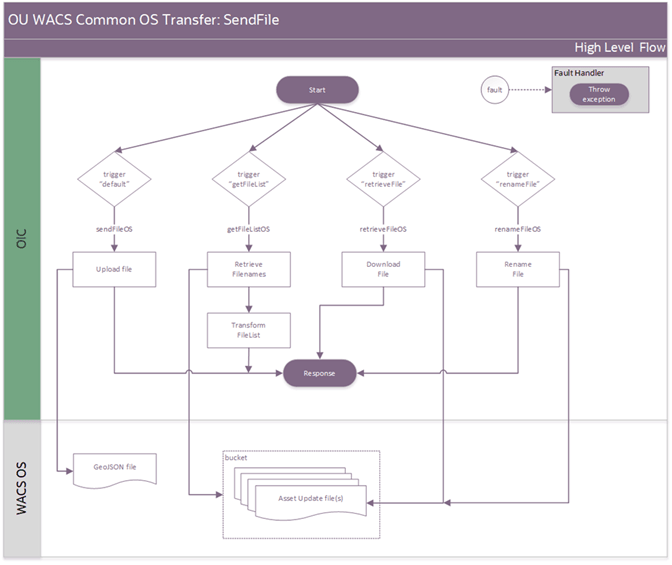
Business Processing
The integration process deployed on Oracle Integration Cloud is exposed as a REST API and performs the following activities:
1. Map the incoming request to the Object Storage REST API.
2. Initiate the file transfer.
3. Error handling:
• The instance will throw a fault to the initiating integration to handle this error.
• The status of this Oracle Integration Cloud instance is marked as ‘Failed’.
Technical Details
The following table describes the integration processes and the artifacts used in this integration process:
Artifacts | Value |
|---|---|
Integration Process Name | OU WACS Common OS Process |
Integration Process Identifier | OUTL-BA-WACS_OS_TRANSFER |
Integration Project Name | OU ESRI ArcGIS WACS |
Source Connection (Rest Adapter) | OU REST for ArcGIS-WACS |
Trigger Name | receiveTransferDetails |
Target Connection (Rest Adapter) | OU REST WACS Object Storage for ArcGIS-WACS |
Lookups Referenced
The following table describes customized properties referenced in the integration. For more information about the lookup properties, refer to Configuring Lookups, Error Handling, and Email Notifications.
DVM | Property |
|---|---|
N/A | No properties are retrieved directly, but are passed from the calling integration. |
Common OS Process: File List
This trigger receives a request to retrieve the names of the files that are located on the Oracle Integration Cloud Object Storage location where Oracle Utilities Work and Asset Cloud Service stored them.
The following diagram shows a graphical representation of the integration process: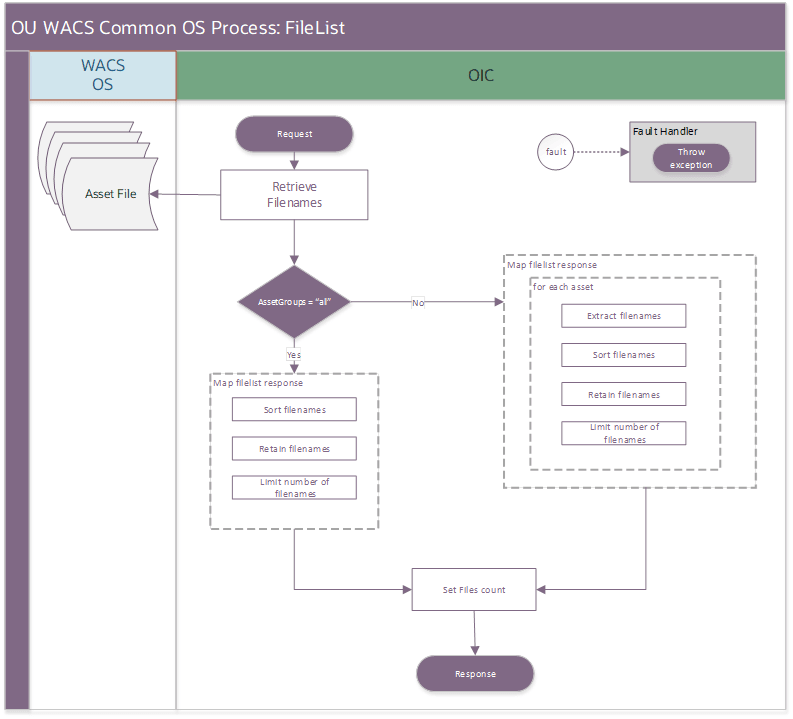
Business Processing
The integration process deployed on Oracle Integration Cloud is exposed as a REST API and performs the following activities:
1. Map the incoming request to the Object Storage REST API.
• A file prefix denoting what files need to be processed, is passed inside the business key field named fileListPrefix within the request schema.
2. Invoke the file list request.
3. The retrieved file list is processed according to the requested asset groups, but will involve sorting, extracting, and limiting the number of filenames depending on these business key fields:
• assetClasses: a delimited string containing specific asset classes or “ALL”.
• fileLimit: the number of file names to return.
4. Error handling:
• The instance will throw a fault to the initiating integration to handle this error.
• The status of this Oracle Integration Cloud instance is marked as ‘Failed’.
Technical Details
The following table describes the integration processes and the artifacts used in this integration process:
Artifacts | Value |
|---|---|
Integration Process Name | OU WACS Common OS Process |
Integration Process Identifier | OUTL-BA-WACS_OS_TRANSFER |
Integration Project Name | OU ESRI ArcGIS WACS |
Source Connection (Rest Adapter) | OU REST for ArcGIS-WACS |
Trigger Name | getFileList |
Target Connection (Rest Adapter) | OU REST WACS Object Storage for ArcGIS-WACS |
Lookups Referenced
The following table describes customized properties referenced in the integration. For more information about the lookup properties, refer to Configuring Lookups, Error Handling, and Email Notifications.
DVM | Property |
|---|---|
N/A | No properties are retrieved directly, but are passed from the calling integration. |
Common OS Process: Get File
This trigger receives a request to download a file that is located on the Oracle Integration Cloud Object Storage location where Oracle Utilities Work and Asset Cloud Service stored them.
The following diagram shows a graphical representation of the integration process: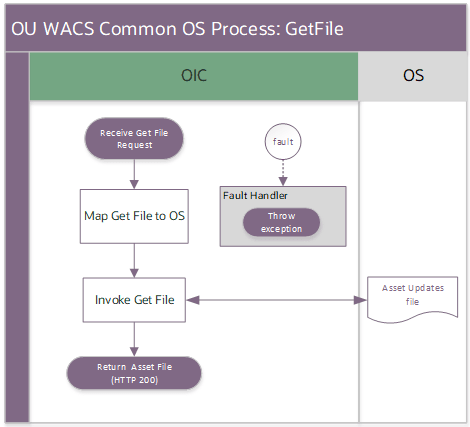
Business Processing
The integration process deployed on Oracle Integration Cloud is exposed as a REST API and performs the following activities:
1. Map the request to the Object Storage REST API.
• The filename to be downloaded is passed in the request schema.
2. Invoke the file list request.
3. A file reference to the downloaded file is returned in the response object.
4. Error handling:
• The instance will throw a fault to the initiating integration to handle this error.
• The status of this Oracle Integration Cloud instance is marked as ‘Failed’.
Technical Details
The following table describes the integration processes and the artifacts used in this integration process:
Artifacts | Value |
|---|---|
Integration Process Name | OU WACS Common OS Process |
Integration Process Identifier | OUTL-BA-WACS_OS_TRANSFER |
Integration Project Name | OU ESRI ArcGIS WACS |
Source Connection (Rest Adapter) | OU REST for ArcGIS-WACS |
Trigger Name | retrieveFile |
Target Connection (Rest Adapter) | OU REST WACS Object Storage for ArcGIS-WACS |
Lookups Referenced
The following table describes customized properties referenced in the integration. For more information about the lookup properties, refer to Configuring Lookups, Error Handling, and Email Notifications.
DVM | Property |
|---|---|
N/A | No properties are retrieved directly, but are passed from the calling integration. |
Common OS Process: Rename File
This trigger receives a request to rename a file that is located on the Oracle Integration Cloud Object Storage location where Oracle Utilities Work and Asset Cloud Service stored them. This is done after the file was downloaded and processed.
The following diagram shows a graphical representation of the integration process: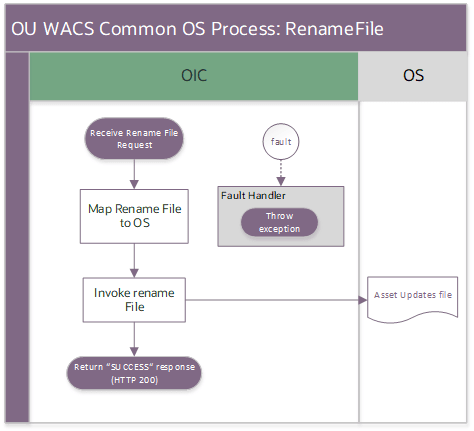
Business Processing
The integration process deployed on Oracle Integration Cloud is exposed as a REST API and performs the following activities:
1. Map the request to the Object Storage REST API.
• The old filename is passed in the request schema.
• The new filename is passed inside the business key field named newFileName within the request schema.
2. Invoke the file rename request.
3. A success or fault is returned accordingly.
4. Error handling:
• The instance will throw a fault to the initiating integration to handle this error.
• The status of this Oracle Integration Cloud instance is marked as ‘Failed’.
Technical Details
The following table describes the integration processes and the artifacts used in this integration process:
Artifacts | Value |
|---|---|
Integration Process Name | OU WACS Common OS Process |
Integration Process Identifier | OUTL-BA-WACS_OS_TRANSFER |
Integration Project Name | OU ESRI ArcGIS WACS |
Source Connection (Rest Adapter) | OU REST for ArcGIS-WACS |
Trigger Name | renameFile |
Target Connection (Rest Adapter) | OU REST WACS Object Storage for ArcGIS-WACS |
Lookups Referenced
The following table describes customized properties referenced in the integration. For more information about the lookup properties, refer to Configuring Lookups, Error Handling, and Email Notifications.
DVM | Property |
|---|---|
N/A | No properties are retrieved directly, but are passed from the calling integration. |
Common FTP Process (Oracle Integration Cloud Initiated)
This integration handles the file processing operation in FTP.
The flow has four different triggers for each operation namely send a file, retrieve file list, download a file, and rename a file.
The following diagram shows the common FTP process for the entire integration: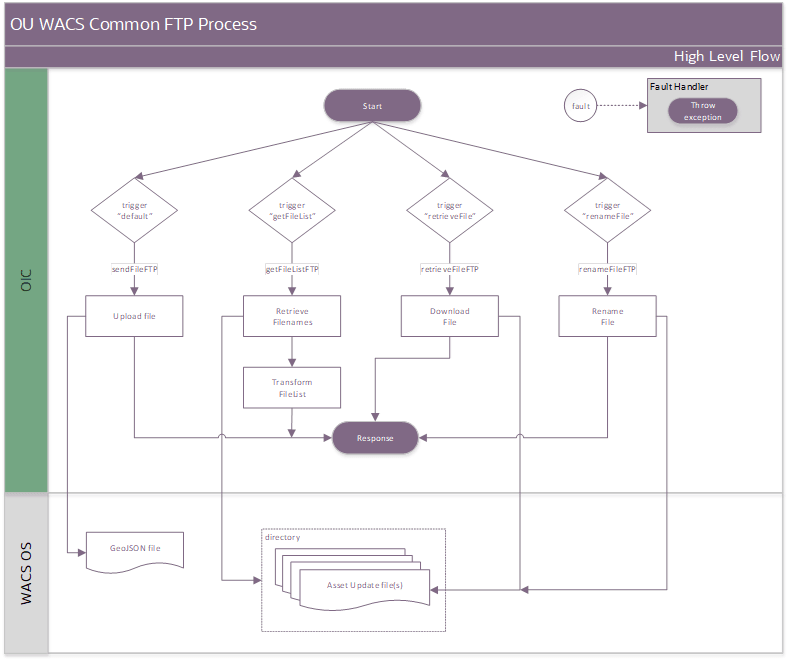
Common FTP Process: Send File
This trigger receives a request to transfer the attached file reference to an SFTP content storage location from where Oracle Utilities Work and Asset Cloud Service will process them.
The following diagram shows a graphical representation of the integration process: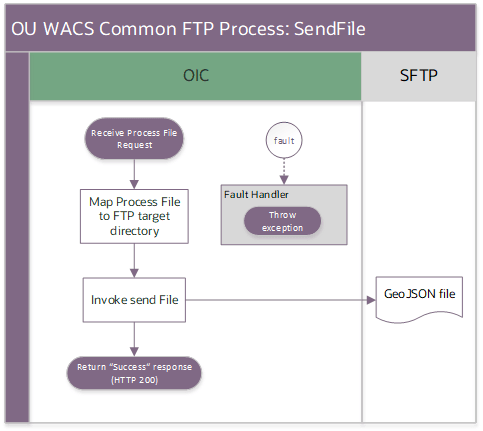
Business Processing
The integration process deployed on Oracle Integration Cloud is exposed as a REST API and perform the following activities:
1. Map the incoming request to the FTP Adapter.
2. Initiate the file transfer.
3. Error handling:
• The instance will throw a fault to the initiating integration to handle this error.
• The status of this Oracle Integration Cloud instance is marked as ‘Failed’.
Technical Details
The following table describes the integration processes and the artifacts used in this integration process:
Artifacts | Value |
|---|---|
Integration Process Name | OU WACS Common FTP Process |
Integration Process Identifier | OUTL-BA-WACS_FTP_TRANSFER |
Integration Project Name | OU ESRI ArcGIS WACS |
Source Connection (Rest Adapter) | OU REST for ArcGIS-WACS (rest) |
Trigger Name | receiveTransferDetails |
Target Connection (Rest Adapter) | OU FTP WACS for ArcGIS-WACS (adapter) |
Lookups Referenced
The following table describes customized properties referenced in the integration. For more information about the lookup properties, refer to Configuring Lookups, Error Handling, and Email Notifications.
DVM | Property |
|---|---|
N/A | No properties are retrieved directly, but are passed from the calling integration. |
Common FTP Process: File List
This trigger receives a request to retrieve the names of the files that are located on the sFTP content storage where Oracle Utilities Work and Asset Cloud Service stored them.
The following diagram shows a graphical representation of the integration process: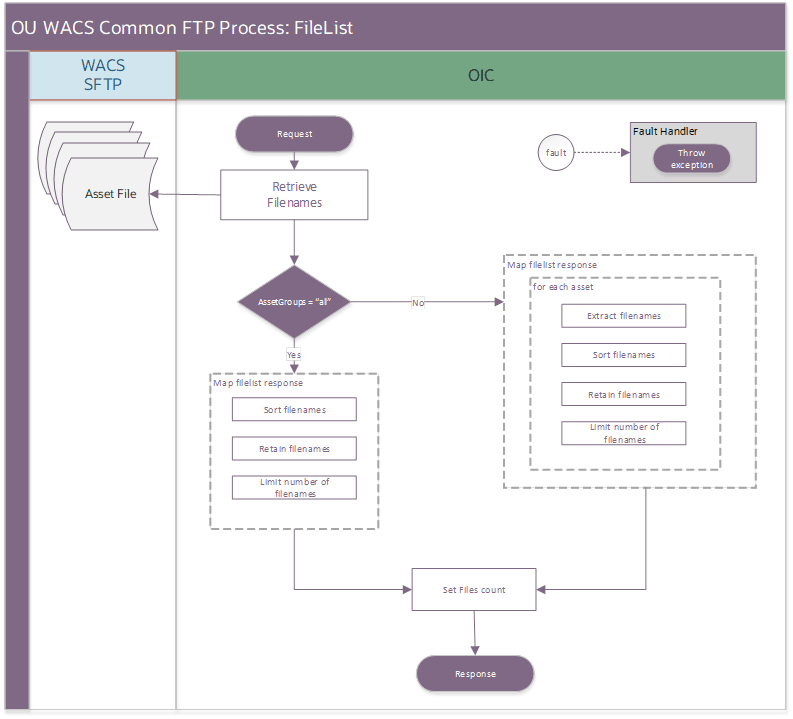
Business Processing
The integration process deployed on Oracle Integration Cloud is exposed as a REST API and perform the following activities:
1. Map the incoming request to the FTP Adapter.
• A file prefix denoting what files need to be processed, is passed inside the business key field named fileListPrefix within the request schema.
2. Invoke the file list request.
3. The retrieved file list is processed according to the requested asset groups, but will involve sorting, extracting, and limiting the number of filenames depending on these business key fields:
• assetClasses: A delimited string containing specific asset classes or “ALL”.
• fileLimit: The number of file names to return.
4. Error handling:
• The instance will throw a fault to the initiating integration to handle this error.
• The status of this Oracle Integration Cloud instance is marked as ‘Failed’.
Technical Details
The following table describes the integration processes and the artifacts used in this integration process:
Artifacts | Value |
|---|---|
Integration Process Name | OU WACS Common FTP Process |
Integration Process Identifier | OUTL-BA-WACS_FTP_TRANSFER |
Integration Project Name | OU ESRI ArcGIS WACS |
Source Connection (Rest Adapter) | OU REST for ArcGIS-WACS (rest) |
Trigger Name | getFileList |
Target Connection (Rest Adapter) | OU FTP WACS for ArcGIS-WACS (adapter) |
Lookups Referenced
The following table describes customized properties referenced in the integration. For more information about the lookup properties, refer to Configuring Lookups, Error Handling, and Email Notifications.
DVM | Property |
|---|---|
N/A | No properties are retrieved directly, but are passed from the calling integration. |
Common FTP Process: Get File
This trigger receives a request to download a file that is located on the sFTP storage where Oracle Utilities Work and Asset Cloud Service stored them.
The following diagram shows a graphical representation of the integration process: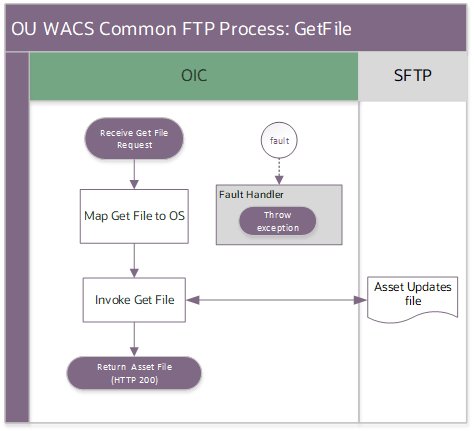
Business Processing
The integration process deployed on Oracle Integration Cloud is exposed as a REST API and performs the following activities:
1. Map the request to the FTP Adapter.
• The filename to be downloaded is passed in the request schema.
2. Invoke the get file request.
3. A file reference to the downloaded file is being returned in the response object.
4. Error handling:
• The instance will throw a fault to the initiating integration to handle this error.
• The status of this Oracle Integration Cloud instance is marked as ‘Failed’.
Technical Details
The following table describes the integration processes and the artifacts used in this integration process:
Artifacts | Value |
|---|---|
Integration Process Name | OU WACS Common FTP Process |
Integration Process Identifier | OUTL-BA-WACS_FTP_TRANSFER |
Integration Project Name | OU ESRI ArcGIS WACS |
Source Connection (Rest Adapter) | OU REST for ArcGIS-WACS (rest) |
Trigger Name | retrieveFile |
Target Connection (Rest Adapter) | OU FTP WACS for ArcGIS-WACS (adapter) |
Lookups Referenced
The following table describes customized properties referenced in the integration. For more information about the lookup properties, refer to Configuring Lookups, Error Handling, and Email Notifications.
DVM | Property |
|---|---|
N/A | No properties are retrieved directly, but are passed from the calling integration. |
Common FTP Process: Rename File
This trigger receives a request to rename a file that's located on the aFTP storage where Oracle Utilities Work and Asset Cloud Service stored them. This is done after the file was downloaded and processed.
The following diagram shows a graphical representation of the integration process: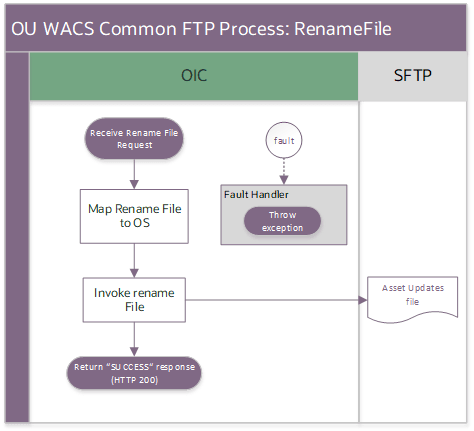
Business Processing
The integration process deployed on Oracle Integration Cloud is exposed as a REST API and performs the following activities:
1. Map the request to the FTP Adapter.
• The old filename is passed in the request schema.
• The new filename is passed inside the business key field named newFileName within the request schema.
2. Invoke the file rename request.
3. A success or fault is returned accordingly.
4. Error handling:
• The instance will throw a fault to the initiating integration to handle this error.
• The status of this Oracle Integration Cloud instance is marked as ‘Failed’.
Technical Details
The following table describes the integration processes and the artifacts used in this integration process:
Artifacts | Value |
|---|---|
Integration Process Name | OU WACS Common FTP Process |
Integration Process Identifier | OUTL-BA-WACS_FTP_TRANSFER |
Integration Project Name | OU ESRI ArcGIS WACS |
Source Connection (Rest Adapter) | OU REST for ArcGIS-WACS (rest) |
Trigger Name | renameFile |
Target Connection (Rest Adapter) | OU FTP WACS for ArcGIS-WACS (adapter) |
Lookups Referenced
The following table describes customized properties referenced in the integration. For more information about the lookup properties, refer to Configuring Lookups, Error Handling, and Email Notifications.
DVM | Property |
|---|---|
N/A | No properties are retrieved directly, but are passed from the calling integration. |
Common Notification Handler (Oracle Integration Cloud Initiated)
This integration process is used to send email notification in case of errors in Oracle Integration Cloud.
The following diagram shows a graphical representation of the integration process: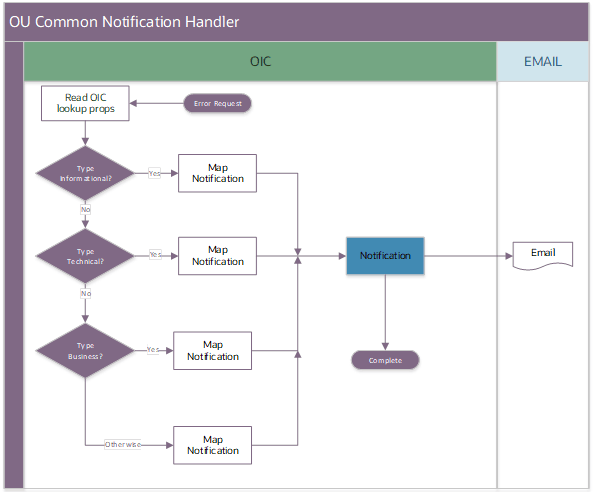
Business Processing
The integration process deployed on Oracle Integration Cloud is exposed as a REST API and perform the following activities:
1. Map the incoming request to the correct notification type.
• The type is determined against the incoming “type” element in the request. The following are the templates configured.
• Informational:
To: {to}
Cc: n/a
Bcc: n/a
From: [value 'from' property]
Subject: Integration flow {flowNameVersion} - instance {instanceId} has been processed
Body:
<html>
<body>
<p>Hello,</p>
<p>Below files were successfully created as part of the excecution:</p>
<p/>
{reason}
<p/>
<p/>
<p>Click <a href="{oicinstance}/home/?root=monitoringTracking&tracking_id={instanceId}">here</a> to access the instance</p>
</body>
</html>
• Technical:
To: {to}
Cc: n/a
Bcc: n/a
From: [value 'from' property]
Subject: Integration flow {flowNameVersion} - instance {instanceId} has been processed
Body:
<html>
<body>
<p>Hello,</p>
<p>OIC Instance {instanceId} has failed with following error.</p>
<table border='1' width='100%'>
<tr><td width='20%'><b>Error Code</b></td><td>{code}</td></tr>
<tr><td><b>Error Reason</b></td><td>{reason}</td></tr>
<tr><td><b>Error Details</b></td><td>{details}</td></tr>
</table>
<p/>
<p/>
<p>Click <a href="{oicinstance}/home/?root=monitoringTracking&tracking_id={instanceId}">here</a> to access the instance</p>
</body>
</html>
• Business:
To: {to}
Cc: n/a
Bcc: n/a
From: [value 'from' property]
Subject: Integration flow {flowNameVersion} - instance {instanceId} has been processed
Body:
<html>
<body>
<p>Hello,</p>
<p>{reason}</p>
<p/>
{details}
<p/>
<p/>
<p>Click <a href="{oicinstance}/home/?root=monitoringTracking&tracking_id={instanceId}">here</a> to access the instance</p>
</body>
</html>
• Otherwise:
To: {to}
Cc: n/a
Bcc: n/a
From: [value 'from' property]
Subject: {reason}
Body:
<html>
<body>
<p>Hello,</p>
<p>{details}</p>
<p/>
{messageDetails}
<p/>
<p/>
<p>Click <a href="{oicinstance}/home/?root=monitoringTracking&tracking_id={instanceId}">here</a> to access the instance</p>
</body>
</html>
2. Send the notification email.
3. Error handling:
• The instance will throw a fault to the initiating integration to handle this error.
• The status of this Oracle Integration Cloud instance is marked as ‘Failed’.
Technical Details
The following table describes the integration processes and the artifacts used in this integration process:
Artifacts | Value |
|---|---|
Integration Process Name | OU Common Notification Handler |
Integration Process Identifier | OUTL-BA-COMMON_NOTIF_HNDLR |
Integration Project Name | OU ESRI ArcGIS WACS |
Source Connection (Rest Adapter) | OU REST for ArcGIS-WACS |
Target Connection (Rest Adapter) | OIC Notification action |
OIC API(s) | n/a |
Local Integrations | n/a |
Lookups Referenced
The following table describes customized properties referenced in the integration. For more information about the lookup properties, refer to Configuring Lookups, Error Handling, and Email Notifications.
DVM | Property |
|---|---|
OUTL-BRT-ArcGIS_WACS_Email_ID | • Recipient • from |