Measures, Attributes, and Dimensions
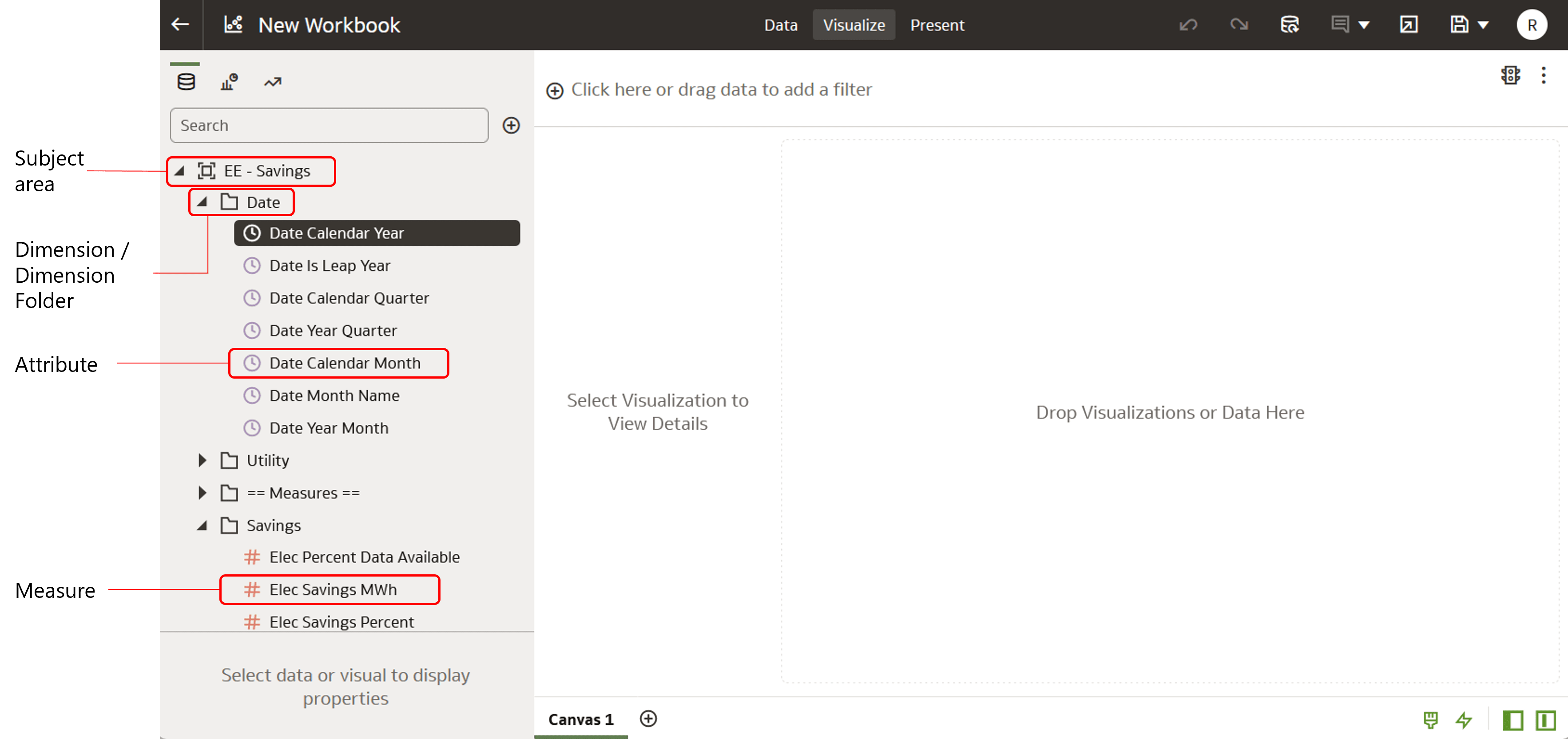
There are three common components within Customer Insights Analytics subject areas: measures, attributes, and dimensions.
Measures and attributes are data elements that you use to build your visualizations. Dimensions are simply categories or folders that contain attributes.
You can think of a measure as a "numerator" with a quantitative number that can be divided or filtered by an attribute. Conversely, an attribute is a "denominator" that can divide or filter a measure. Or you can think of a measure as a quantity for the y-axis of a graph, and an attribute as a value used on the x-axis of a graph. Both elements are used to dissect and analyze your data in different ways.
Example: Households by Income Level
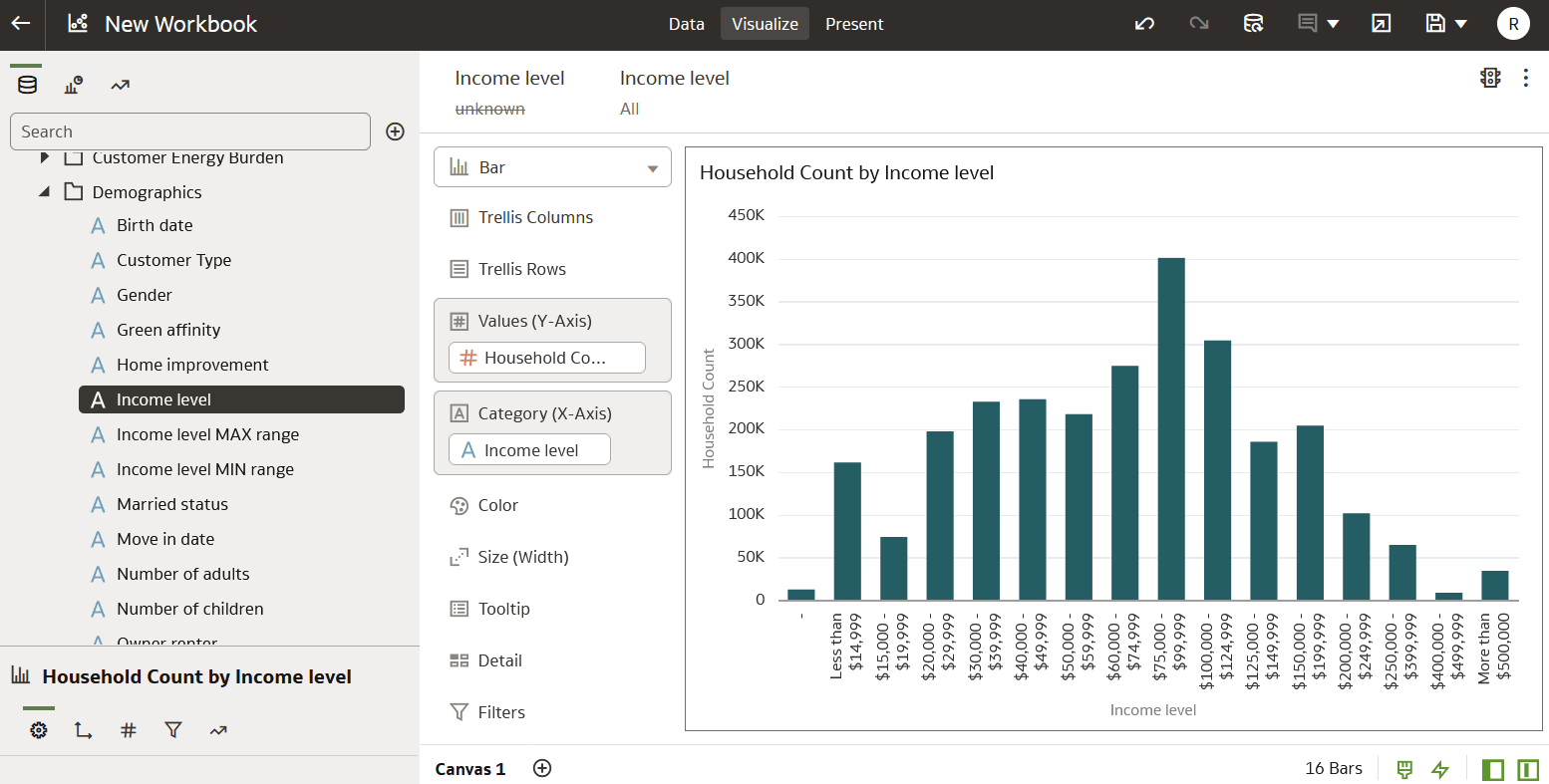
One common measure in Opower Analytics Visualization is household count, which can be found in the Household - Count of Customers subject area. Let's say you want to know the number of households in your service area that have a certain income level. You would want to filter the number of households in your service territory into income level groupings.
To do this, you would navigate to the Household - Count of Customer subject area. Then you would select Household Count as your measure, and select Income Level as your attribute, and drag both to the canvas. See the screenshot below for how this might look in the user interface. Notice that Household Count is on the y-axis and Income Level is on the x-axis.
Note about Attributes Filtering Attributes
Note that an attribute cannot be used to filter another attribute. For example, let's say you wanted to create a x-y axis bar graph with two attributes: Site Sections and Income Level. This would be a nonsensical filter because site sections are just names for different sections of a website, and income level groupings are just names for different categories of income. Neither of these attributes has a quantity, and so there would be no numerical value to show.