Promoting Targets
To promote targets so they can be managed:
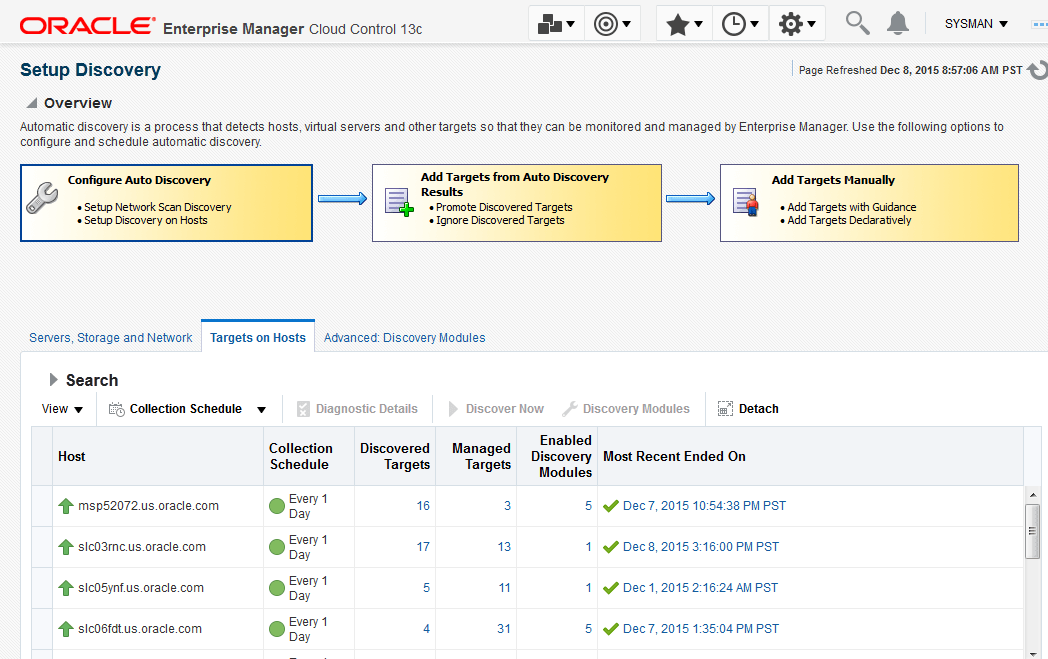
- Choose The Setup Discovery window opens. Go to the Targets on Hosts tab.
Figure 4-7 Setup Discovery window
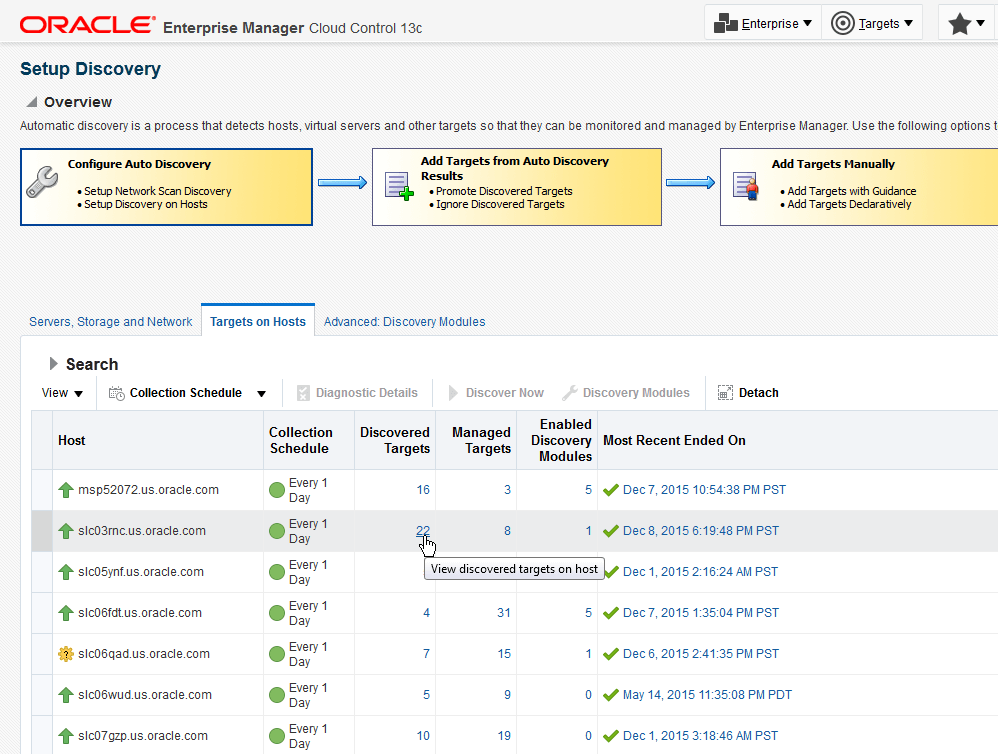
- For the host on which the discovery was run, click on the number that is in the Discovered Targets column.
Figure 4-8 Choosing a target
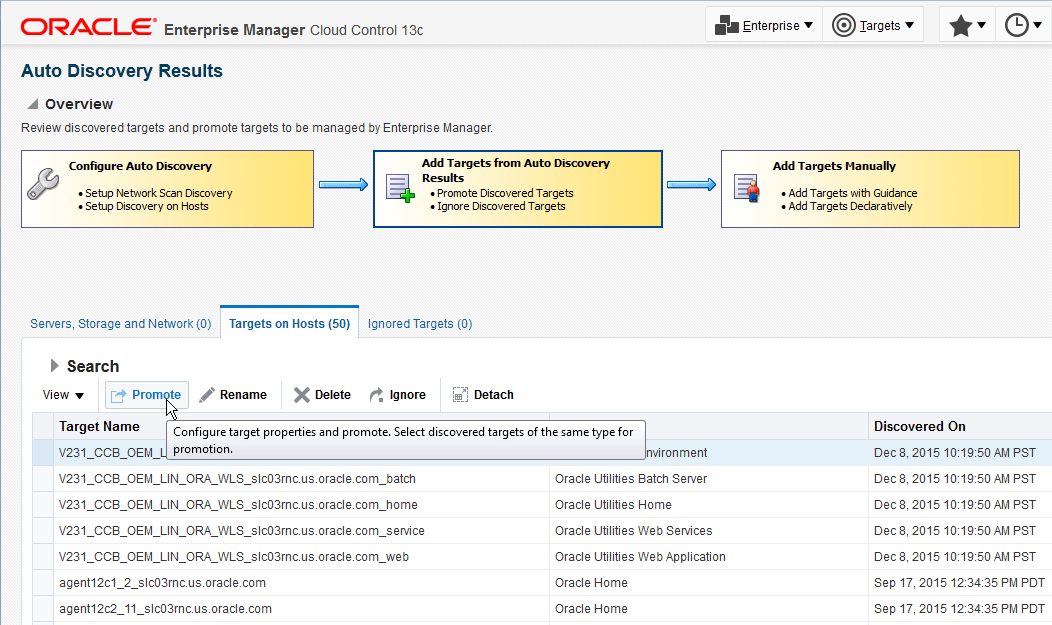
- A list of targets that were discovered but not yet promoted is displayed. Select the
target you want to promote, then click the Promote button.
Figure 4-9 Promoting the target
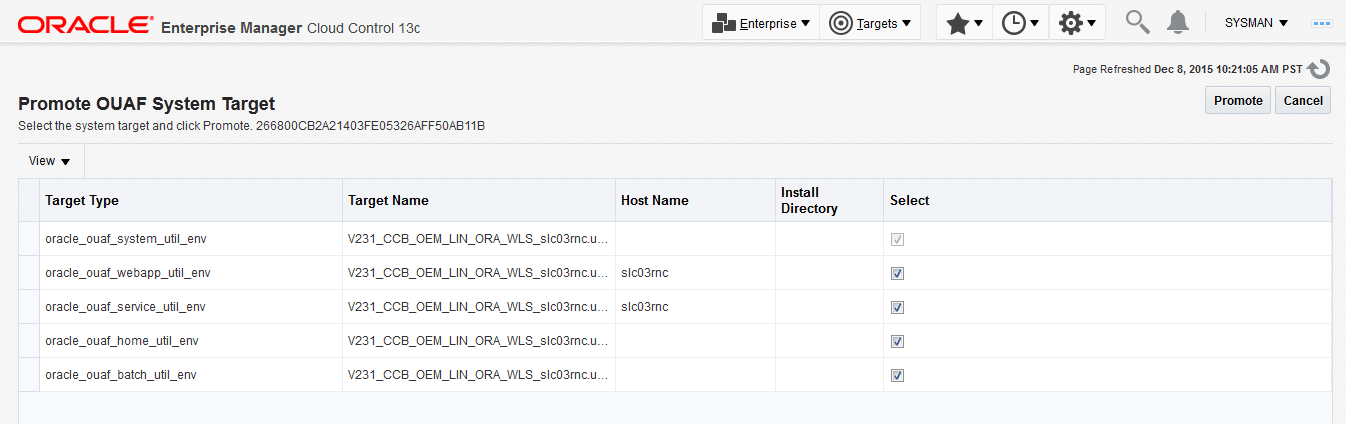
- All related members of the target system are shown and promoted at the same time. Click the Promote button.
Figure 4-10 Unmanaged system targets
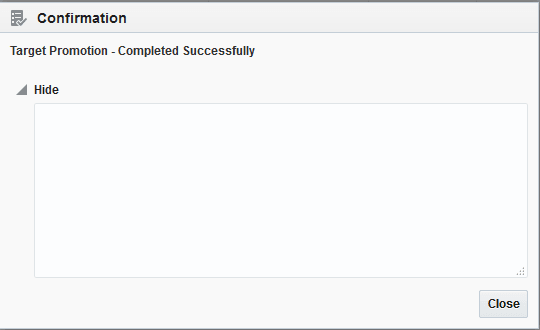
- A confirmation dialog appears when the promotion is successful.
Figure 4-11 Confirmation dialog
- If any changes are made to the environment configuration using the command-line utilities (e.g.,
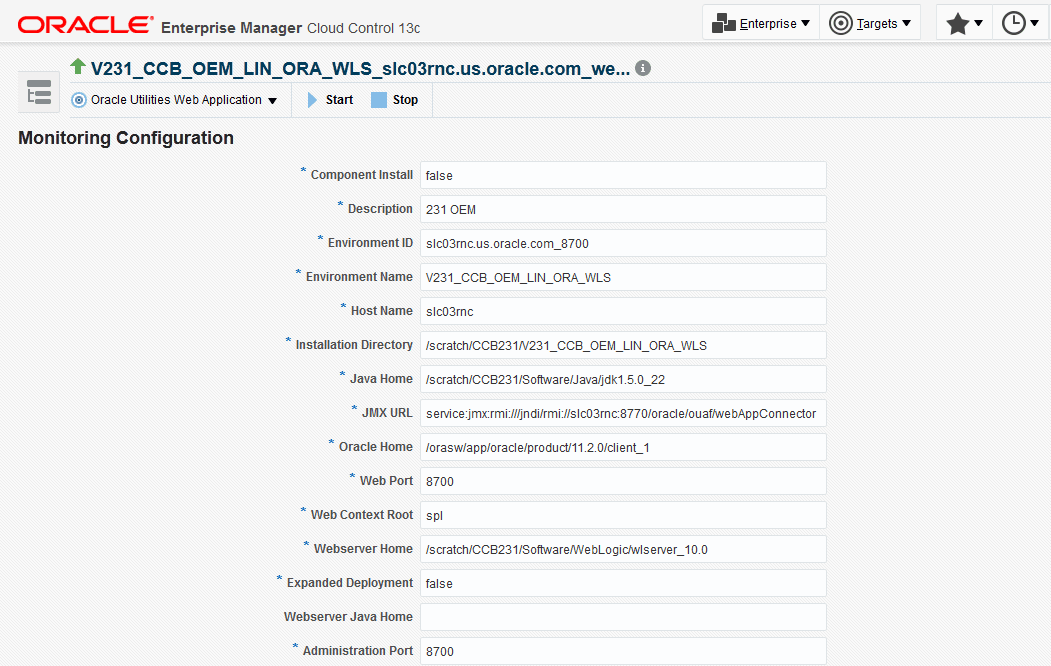
configureEnv.sh/cmd), the corresponding changes must also be made to the target properties. The quickest way to do this is to remove the target and perform the discovery and promotion process. You can also make changes by choosing and making the appropriate updates on the UI page.Figure 4-12 Monitoring Configuration page