Using the Alarm Displays
The Web Workspace Tools menu’s Alarm Displays sub‑menu provides options to view current alarms (Alarms... option), devices in abnormal states (Abnormal Devices... option), DERs in abnormal states (Abnormal DERs... option), alarm history (Alarm History... option), and device operation history (Device Operations History... option). In systems with a Flex SCADA license, another sub-menu option is available to view a list of alarm shelve events (Alarm Shelving... option); see Understanding Alarm Shelving for information.
Understanding the Alarms List
To display active alarms, select Alarms... from the Web Workspace Tools menu. The Alarms (Main) tab will open.
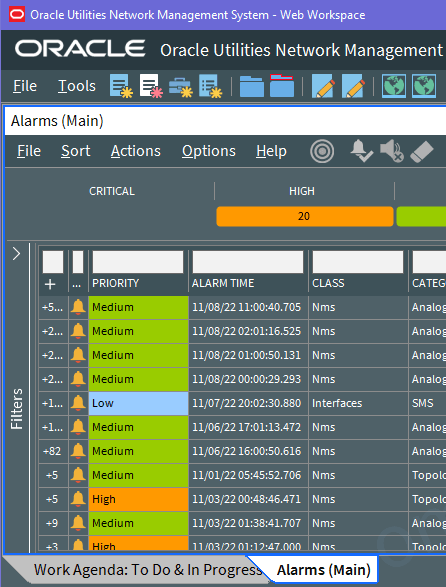
The Alarms tool lists active alarms in your system. The types of alarms will depend on what Oracle Utilities Network Management System applications and integrations are implemented. The Oracle Utilities Network Management System can be configured to handle how the Alarms tool behaves, such as whether the tool stays open or rises to the top of other windows when you get receive a new alarm. These options are set (by an Administration user) using the Configuration Assistant's Event Management Rules tab (see Using the Event Management Rules Tab).
• To keep the Alarms tool open, it is possible to prevent the main alarm list from being closed by setting the NMSAlarmsAllowMainAlarmListClosure SRS rule to no.
• To add further visibility to new alarms, the main alarm list can be configured to automatically receive focus when a new unacknowledged alarm is raised. This can be achieved using the NMSAlarmsDisplayUponNewUnackAlarm SRS rule
The Alarms tool has three main components:
Alarms Tool Menus and Toolbar
File Menu
Menu Option | Description | Toolbar Icon |
|---|---|---|
Toggle Dockable Window | Changes a standalone window to a pane that may be moved or docked in another window or frame. See Understanding Docked Panes and Standalone Window Tools for more information on dockable and standalone windows. | -- |
Exit | Closes the window. | -- |
Sort Menu
The table below describes the options available on the Sort menu.
Menu Option | Description | Toolbar Icon |
|---|---|---|
Sort Dialog... | Opens the Sort Dialog, allowing you to create, modify, apply, and save user-defined sorts. See Using the Sort Dialog Box. | -- |
Default | Applies the default sort. | -- |
Priority | Sort by alarm priority. | -- |
View Menu
The table below describes the options available on the View menu.
Menu Option | Description | Toolbar Icon |
|---|---|---|
Alarm Shelving... | Opens the Alarm Shelving tool. Available if Flex SCADA is license and enabled. | -- |
Nuisance Alarms... | Opens the Nuisance Alarm list. Available if Flex SCADA is license and enabled. | -- |
Actions Menu
Menu Option | Description | Toolbar Icon |
|---|---|---|
View... | Focuses the Viewer on the device associated with the alarm. | |
Acknowledge | Acknowledges the selected alarms. | |
Acknowledge Page | Acknowledges visible alarms. | |
Silence | Silences the selected alarms. | |
Clear | Clears the selected alarms. | |
Silence All Alarms... | Silences all alarms. | |
Freeze Alarm Display | This option allows you to freeze the display so new alarms will not be added to the visible display. Available if Flex SCADA is license and enabled. See Freezing Alarms from the Alarms List for more information. | -- |
Email Alarms... | This option allows you to send selected alarms via email as a CSV file attachment. See Understanding Emailing Alarms for more information. | -- |
Unfreeze Alarm Display | When the display is frozen, this option will allow new alarms to be added to the active alarms list. Available if Flex SCADA is license and enabled. See Freezing Alarms from the Alarms List and Understanding Frozen Alarms for more information. | -- |
Add Comment... | This option allows you to add a comment to the selected alarm. See Understanding the Alarm Comments Dialog Box for details. | |
Edit Comment... | This option allows you to edit an existing comment on an alarm. See Understanding the Alarm Comment dialog for details. | |
Clear Comment | This option removes a comment from an alarm. | |
View Comment... | This option allows you to view an existing comment on an alarm. See Understanding the Alarm Comments Dialog Box for details. | |
Attachments... | This option allows you to view any attachments associated with an alarm. See Understanding Alarm Attachments for details. | |
Shelve | Displays a sub‑menu that allows you to pick from the following: • Shelve (One Shot): Sets the selected alarms to be nuisance alarms, removes them from the active alarm list, and places them in the Nuisance Alarm List. The next time the alarm is generated, the alarm is automatically removed from the Nuisance Alarm List, and is returned to the active Alarms list. • Shelve (Continuous): Sets the selected alarms to be nuisance alarms, removes them from the active Alarms list, and places them in the Nuisance Alarm List. The alarm and all future occurrences of the alarm remain in the Nuisance Alarm List until you manually return them to the active Alarms list or the shelve time associated with the nuisance alarm expires. | |
Disable Alarm Sounds | Silences the selected alarms. | |
Enable Alarm Sounds | Re-enables alarm sounds. | |
Disable Alarm Sounds for a Specific Duration | Opens a field next that allows you to select a duration for silencing alarms. | |
Show Nuisance Audit | Show the nuisance alarm history for the selected alarm. | -- |
Options Menu
Menu Option | Description | Toolbar Icon |
|---|---|---|
Show All Zones | Display alarms for all zones. | -- |
Show Milliseconds | Toggles the display of time down to milliseconds. | -- |
Help Menu
Menu Option | Description | Toolbar Icon |
|---|---|---|
Help | Opens the online help content. | -- |
Alarm Priority Pane
The Alarms priority pane shows the count of alarms by priority and allows you to filter the Alarms table by selecting or deselecting priorities.
Alarms Table
The Alarms table displays alarm data in rows.
Note: Like other data tables, the Alarms table shows certain columns by default, but you may select the columns to view using standard table functions. See Working with Tables for more information.
• The Child Count (+) column contains the count of the number of child alarms associated with the alarm, if applicable. See Viewing Child Alarms for information.
• The Unacknowledged column contains a bell icon () if the alarm is unacknowledged.
• The Alarm Attachment column contains a paper clip icon ( ) if the alarm has an associated attachment.
) if the alarm has an associated attachment.• The Alarm Comment column contains a chat line icon ( ) if the alarm has an associated comment.
) if the alarm has an associated comment.• The Priority column contains the priority associated with the alarm. The priority field's background is filled with the priority's associated color while the alarm is not acknowledged.
• The Alarm Time column contains the time the alarm was generated in the field. For a SCADA alarm, this is the time stamp supplied by the RTU.
• The Class column contains the alarm class associated with the alarm. The alarm classes group alarm types. For example, in the NMS product configuration, alarms generated by an NMS Advanced Distribution Management System application would be in the DMS class.
• The Category column contains the alarm category associated with the alarm. Categories are child groupings of Class. For example, an alarm generated by Fault Location Analysis, would be in the category FLA.
• The Attribute column contains the type of SCADA measurement or System alarm. An ellipsis in the Attribute cell indicates that there is more information available; if you hover over the cell, a tooltip will display all of the unique attributes.
• The Alarm Message column contains the alarm text, which are preconfigured for the alarm class/category. An ellipsis at the beginning of the alarm message indicates that there is more information available; if you hover over the cell, a tooltip will display all of the unique messages. The lines in the tooltip are the unique messages from the alarm and its child alarms. For example, if there are three child alarms and each have unique messages, the tooltip will contain four lines.
• The Phases column contains the phases applicable to the alarm.
• The Phases Present column contains the device's phases whether involved in the alarm condition or not.
Note: Other columns are available. See Understanding Column Display Options for information on showing and hiding columns.
Alarms Filters Applied
The Filters Applied pane provides a tree view of the alarm classes and categories. You can deselect nodes in the tree to hide those types of alarms. If you deselect a class, all alarms associated with the class (and its child categories) will be filtered from the table.
The Main Alarm Window
The first alarm window invoked in the Web Workspace is deemed to be the main alarm window. The main alarm window is distinguished from other alarm windows in its title with the text '(Main)'.
Several rules define the behavior of the main alarm window:
• NMS Alarm Allow Main Alarm List Closure: This rule defines whether or not the main alarm window can be closed by the operator.
• NMS Alarms Display Upon New Unack Alarm: This rule defines the behavior of the main alarm window when a new unacknowledged alarm appears in the alarm display. If set to yes then the main alarm window will be raised to the front of your display if it is hidden behind another window when a new unacknowledged alarm appears in the alarm list.