Understanding Table Components
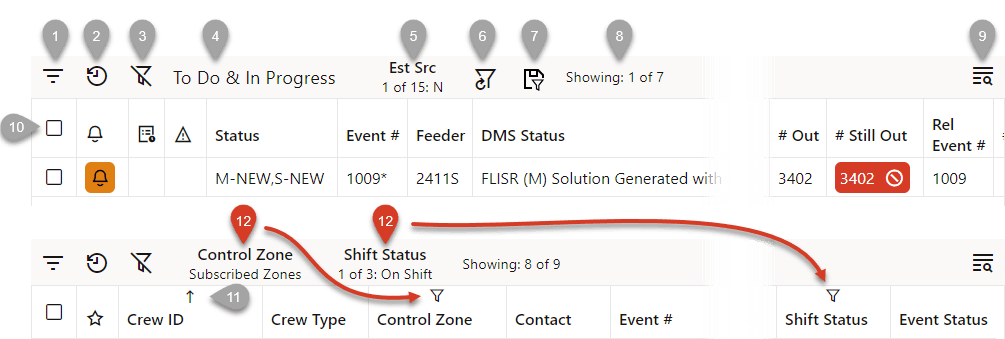
The following image shows an illustrated screen capture of a table showing call outs for the components.
 ); see
 2. Filter and Selection History ( ) shows a list of recent filters, which may include Column Quick Filter additions, and selected rows. See Understanding Quick Filters for more information on column filters.
) shows a list of recent filters, which may include Column Quick Filter additions, and selected rows. See Understanding Quick Filters for more information on column filters.3. Disable Filtering button ( ) temporarily disables (removes) currently applied filters; clicking the button again restores the filters.
) temporarily disables (removes) currently applied filters; clicking the button again restores the filters.4. The applied filter name (for example, To Do & In Progress).
5. Column Filter results shows the column being filtered and the number of rows that meet the column filter criteria; see Understanding Quick Filters.
6. Reset All Column Filters button ( ) removes any quick filtering selections; see Understanding Quick Filters for more information.
) removes any quick filtering selections; see Understanding Quick Filters for more information. 7. Save the Current Filters button ( ) allows you to save the combination of the filter and column quick filter criteria.
) allows you to save the combination of the filter and column quick filter criteria.8. Filter results; see Understanding Table Filtering for details.
9. The table Search button. See Understanding Searching in Tables for details on using the Search feature.
10. The header row check‑box allows you to select all of the table rows.
11. The column sort arrow icon shows the current sort direction for that column; clicking it will sort the table by that column. See Understanding Table Sorting for details.
12. The column filter button ( ) appears on any column being used in a quick filtering. When you click the button, the values available to filter on are listed allowing you to modify the quick filter; see Understanding Quick Filters.
) appears on any column being used in a quick filtering. When you click the button, the values available to filter on are listed allowing you to modify the quick filter; see Understanding Quick Filters.