Using Call Entry
The Flex Operations Call Entry tool allows authorized users to enter call information to create events. The Call Entry tool's primary user type is the Flex Call Taker. Logging in as the Flex Call Taker user type displays the Call Entry page and provides Map access from the Tool selector.
Notes:
• The Call Entry tool is also available in the Flex Operations Tool selector for Flex Full Operations plus Switching and Flex Full Operations users.
• Call Entry provides the functionality of the legacy Web Call Entry application in the Flex Operations framework. See Web Call Entry for additional details on call entry functionality.
The main Call Entry page provides Manual Call Entry and Scripted Call Entry views. The Manual Call Entry view is functionally equivalent to Web Call Entry. The Scripted Call Entry view displays configured questions and controls that guide you through a series of steps to collect call information.
The Call Entry page includes the following components.
1. File Menu: Provides an Exit option to close the Call Entry tool.
2. Button Bar: Allows you to select the data entry mode (Manual Call Entry or Scripted Call Entry), clear the information in the form, and submit a call after all required information is entered. See Entering Data with Manual Call Entry and Entering Data Using Scripted Call Entry, respectively.
3. Search Pane: Allows you to search for information related to the event being reported. See Using Search for details.
4. Request Pane: Contains selection fields to enter event information. This section dynamically changes based on the data entry mode and the entered information.
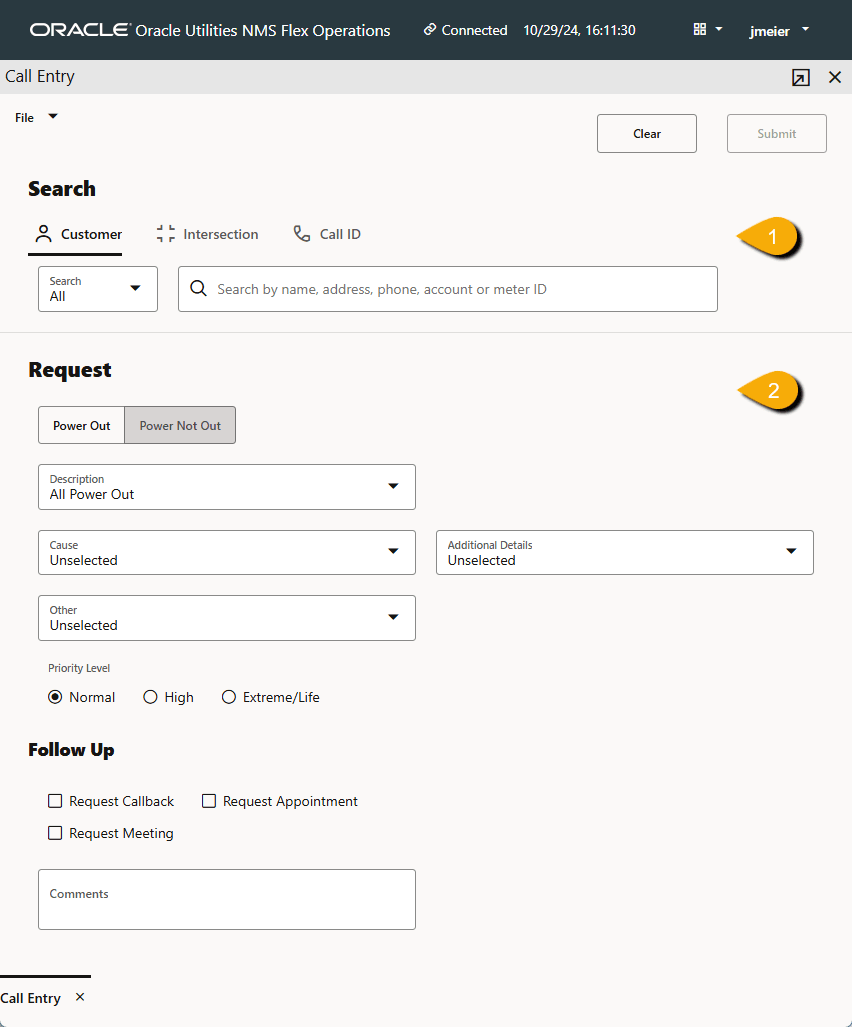
Using Search
Search contains three search options.
1. Customer: Allows you to search by customer data such as name, address, account number, and meter ID.
2. Intersection: Allows you to search by street name or intersection by listing the two streets separated by an ampersand (&).
3. Call ID: Allows you to search by a submitted call's ID.
Notes:
• You need to add at least four characters for the search suggestion to be populated.
• In the Customer, Intersection, and Call ID searches, if multiple possible values are returned, you will see a minimum of one to a maximum of 100 entries by default. For Customer and Intersection searches, the first suggestion will always be Submit Fuzzy Call (see Entering a Fuzzy Call for more information).
• If you select Submit Fuzzy Call, a Create Fuzzy Call dialog box opens that allows you to enter the information needed to create the fuzzy call.