Day by Day and Hourly Breakdown Module
The Day By Day and Hourly Breakdowns module displays these breakdowns one after the other. Refer to each section to learn about each breakdown.
Configuration Options - Day by Day Breakdown
For each element listed in the table, indicate the desired configuration in the Input Value column. If you do not provide an input for optional configurations, the default will be used.
| Configuration Option | Input Value |
|---|---|
|
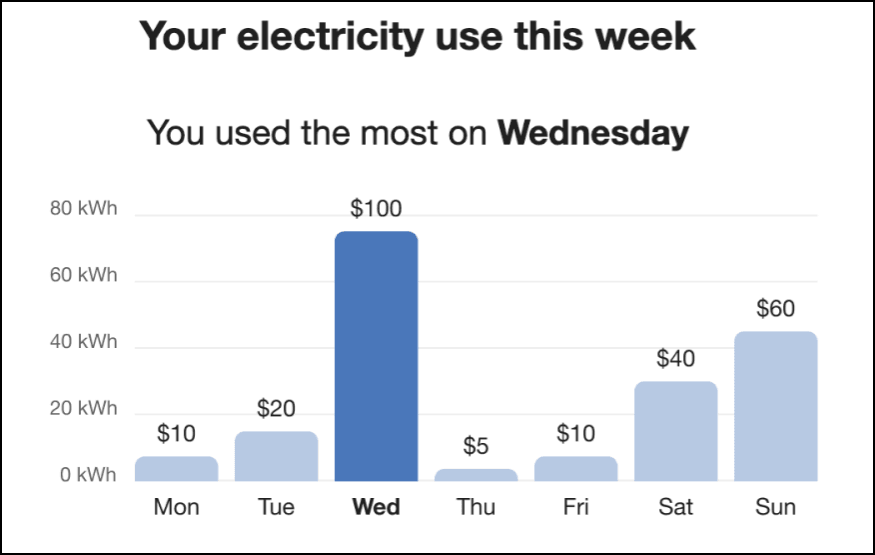
Title and Subtitle The title indicates the purpose of the graph. The subtitle indicates the day when energy usage or cost was the highest. Default: Varies by fuel type. See User Experience Variations below for details. |
Optional Choose one of the following:
|
|
Bar Colors Bar colors in the graph can match the utility’s color palette. Both the peak bar color and the non-peak bar color can be changed. Default: The colors in the example represent the default colors. |
Required Choose one of the following:
|
|
Display Cost Information (not depicted) If a customer's rates are modeled, the cost per day can be displayed below each bar in the graph. Default: Display cost information if it is available. |
Optional Choose one of the following:
|
User Experience Variations - Day by Day Breakdown
The user experience varies for customers depending upon their service types, available data, costs, and locale. Note that the following list indicates the primary user experience variations, not all possible variations.
Title
- “Your electricity use this week”
- “Your gas use this week”
Subtitle
- “You used the most on <day>”
Gas-Only
For gas-only customers, the electricity unit “kWh” is replaced by “therms” or "CCFs" (whichever unit of measure is appropriate for the utility), and the word "electricity" is replaced by "gas".
Dual Fuel
Dual fuel customers see two separate Day-by-Day Breakdown modules, one for electricity use and one for gas. The heading above each graph specifies the fuel type.
Rates Modeled
If rates are modeled and the utility has opted to display cost information in this module, then cost information is displayed beneath each bar in the graph to indicate the cost of energy for that day.
Negative Values for Solar Customers
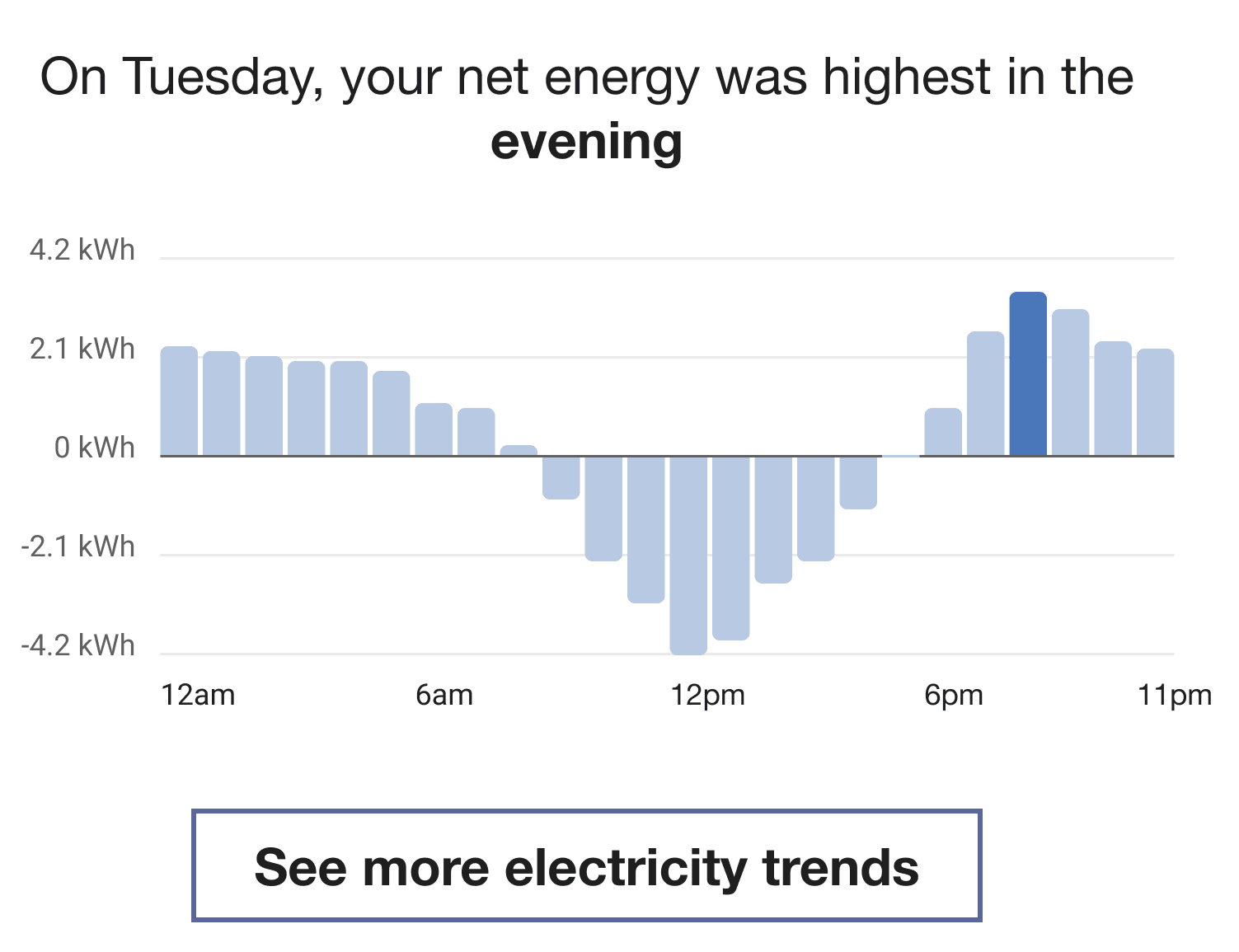
For customers on net metering rate plans that support solar credits, negative energy use or energy cost can be displayed in the Day by Day Breakdown graph. This can include bars that are displayed below the graph axis to represent negative values as shown in the example below. Be aware the support for negative value display must be configured, which is discussed as part of the global configurations in Design and Configuration.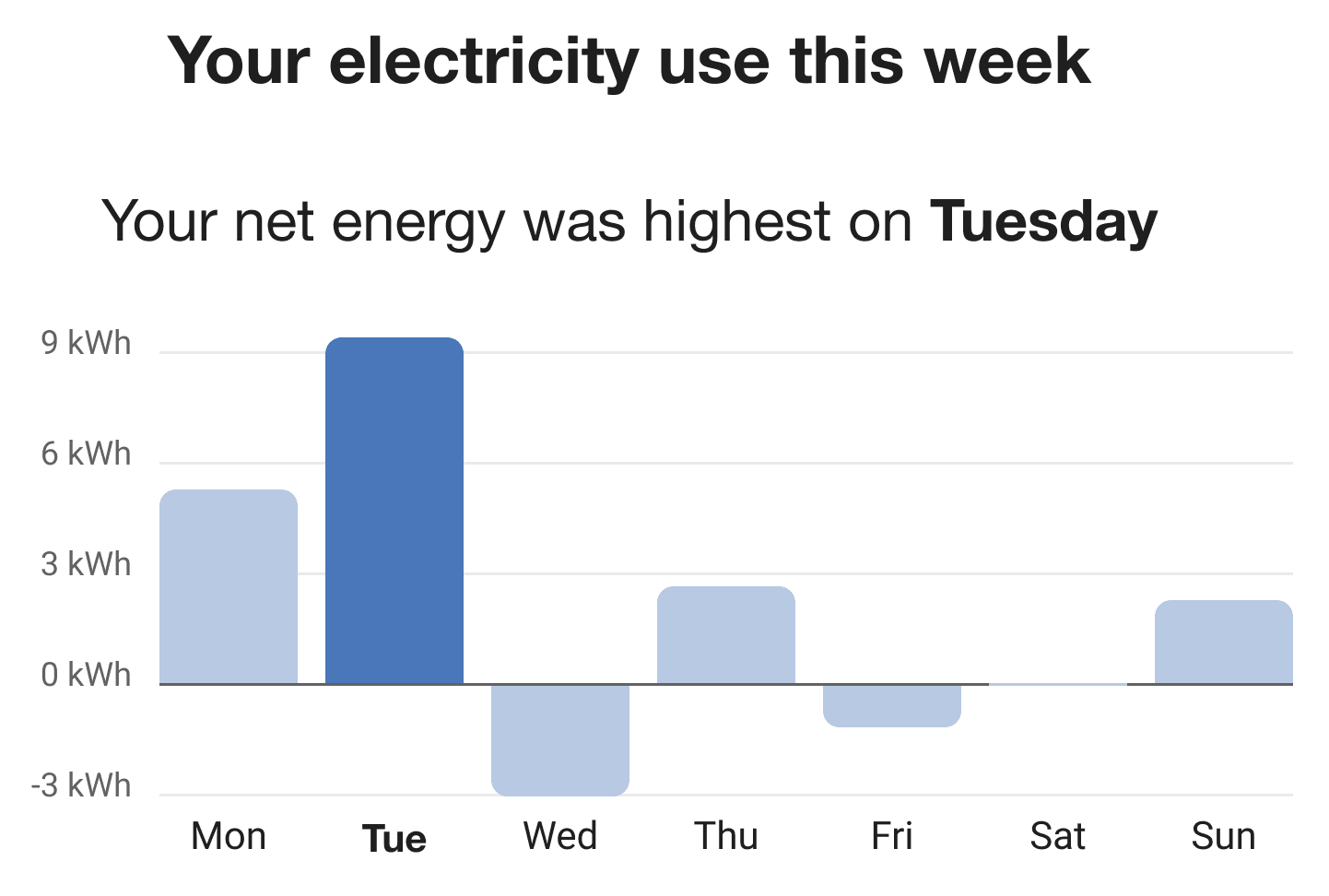
Configuration Options - Hourly Breakdown
For each element listed in the table, indicate the desired configuration in the Input Value column. If you do not provide an input for optional configurations, the default will be used.
| Configuration Option | Input Value |
|---|---|
|
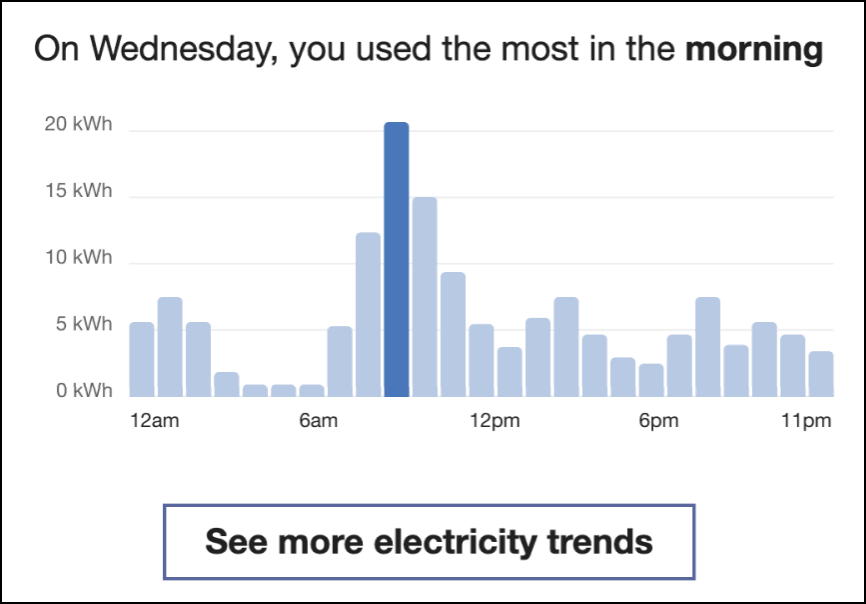
Title The title indicates the general time period during which the customer used the most energy. Default: Varies by time of day. See User Experience Variations below for details. |
Optional Choose one of the following:
|
|
Line Colors Colors in the graph line graph and in the shading below the line can match the utility’s color palette. Default: The colors in the example represent the default colors. |
Required Choose one of the following:
|
|
Call-to-Action URL The call-to-action URL (“See more electricity trends”) directs the user to another web feature where this more detailed information about their energy use over time. Default: The link points to the Energy Management Data Browser. |
Optional Choose one of the following:
|
User Experience Variations - Hourly Breakdown
The user experience varies for customers depending upon their service types, available data, costs, and locale. Note that the following list indicates the primary user experience variations, not all possible variations.
Gas-Only
For gas-only customers, the electricity unit “kWh” is replaced by “therms” or "CCFs" (whichever unit of measure is appropriate for the utility), and the word "electricity" is replaced by "gas".
Dual Fuel
Dual fuel customers see two separate Hourly Breakdown modules, one for electricity use and one for gas. The button below each graph specifies the fuel type.
Titles
The title varies by the time period during which the customer used the most energy.
- “On [date], you used the most in the morning.”
- “On [date], you used the most in the afternoon.”
- “On [date], you used the most in the evening.”
- “On [date], you used the most at night.”
Negative Values for Solar Customers
For customers on net metering rate plans that support solar credits, negative energy use can be displayed in the Hourly Breakdown graph. This can include bars that are displayed below the graph axis to represent negative values as shown in the example below. Be aware the support for negative value display must be configured, which is discussed as part of the global configurations in Design and Configuration.