Setting up Virtual Cloud Networks and Subnets
These tasks use the Virtual Cloud Networks option available from the Networking page.
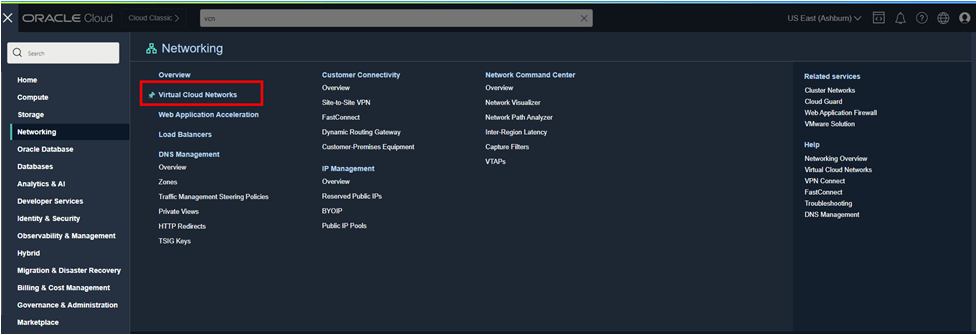
Creating a Virtual Cloud Network
To create a virtual cloud network (VCN), use the following steps:
- Select Virtual Cloud Networks from the Networking page.
- Select your compartment from the Compartment drop-down list.
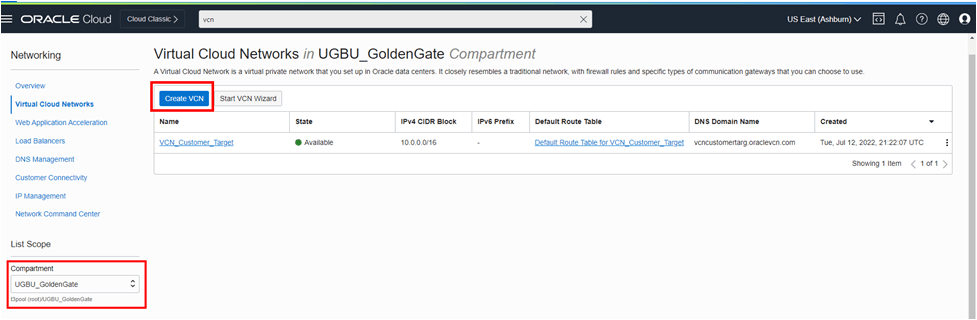
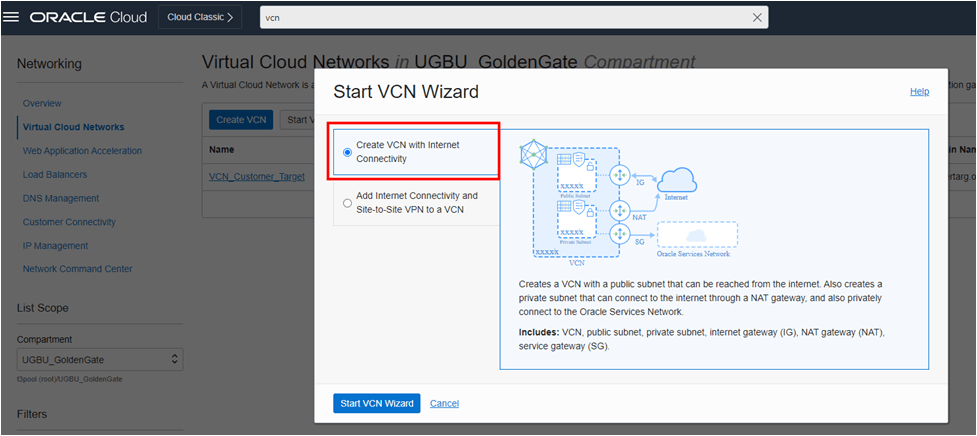
- Click Create VCN to create a new virtual cloud network using the VCN Wizard (make sure that you are working in the appropriate compartment). The Start VCN Wizard panel opens.
- Select the Create VCN with Internet Connectivity option. Note – Replication out of SaaS does not require all of the resources created by the VCN wizard. However, this is the simplest way to create the VCN and subnet required for replication out of your cloud service and will provide other networking resources that may support the use cases for accessing data.
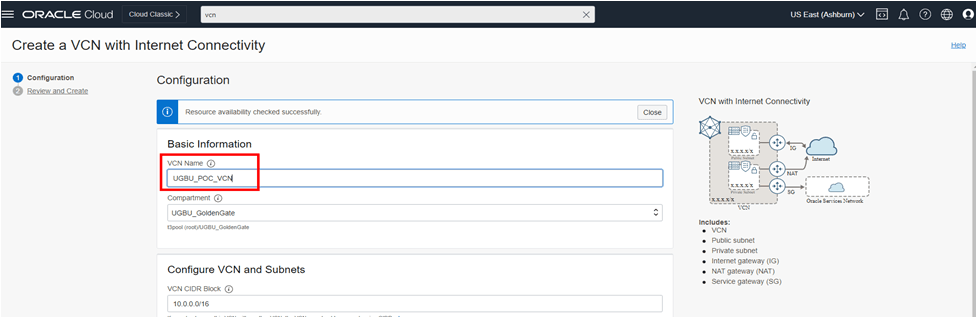
- Enter a VCN Name. Accept all other defaults and press Next.
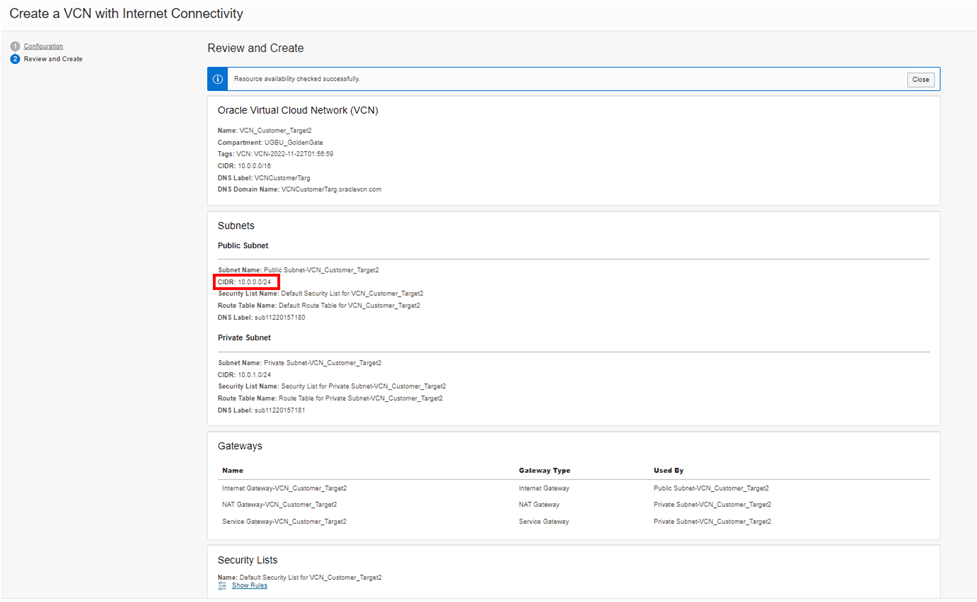
- Review the virtual cloud network resources and note the CIDR for the subnet (in the Public Subnet box). Your Target environment resources will be associated with this subnet.
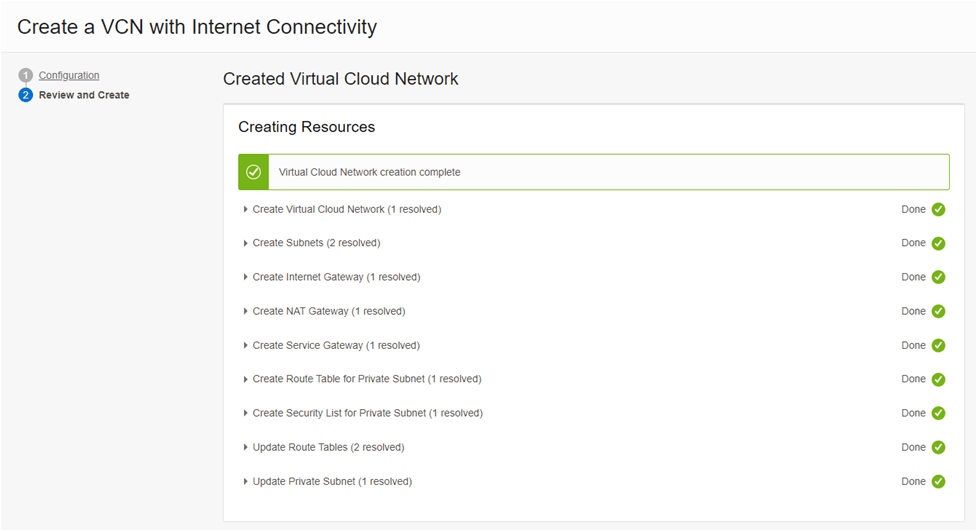
- As the resources are built for the virtual cloud network, the Created Virtual Cloud Network screen will display a list of resources and statuses.
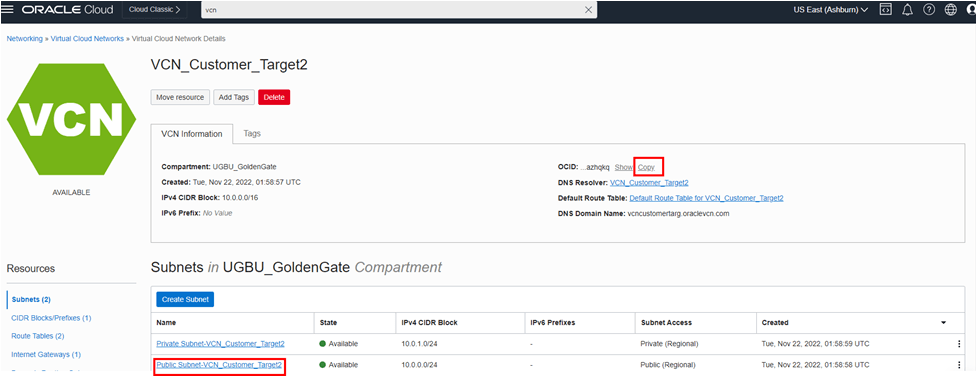
- Close the VCN Wizard to view the Virtual Cloud Network. Copy and note the VCN’s OCID and Name. This information is required for the Network Path Creation.
- Click the Name of the subnet where you would like your Target environment resources to be located.
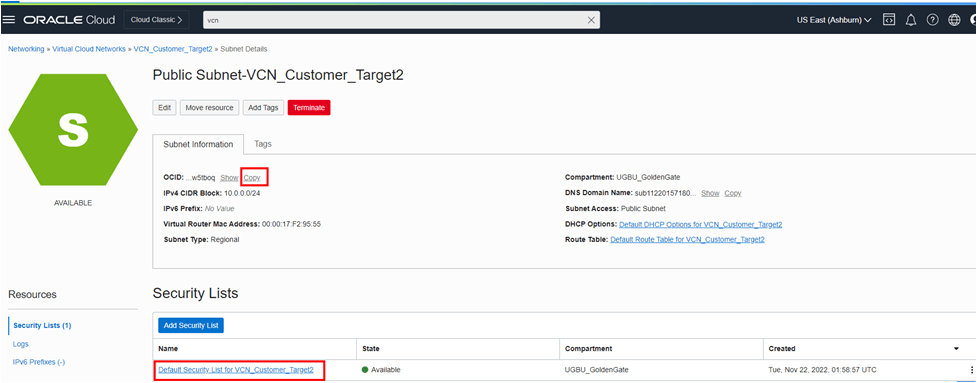
- Copy and note the Subnet’s OCID, Name, and IPv4 CIDR Block. This information is required for the Network Path Creation.
- Click the Default Security list associated with this subnet.
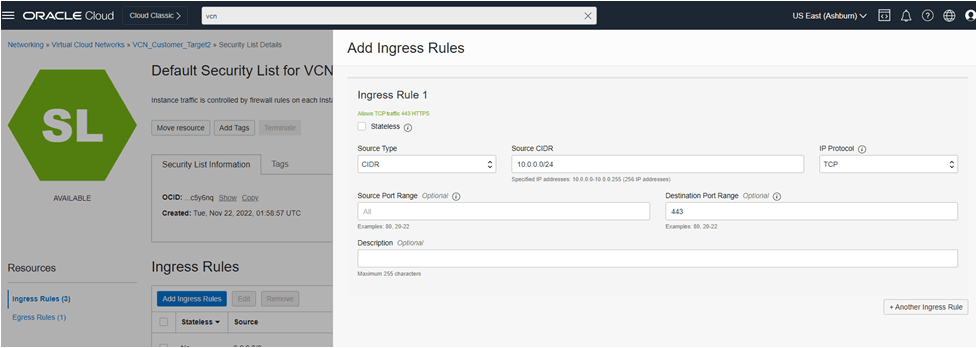
- Click Add Ingress Rules to add an Ingress Rule to the default Security list. This Security Rule is prerequisite of the Environment Creation.
- Configure the Ingress Rule as follows:
- Stateless: Leave this checkbox unchecked to make the rule stateful (this means that any response to the incoming traffic is allowed back to the originating host, regardless of any egress rules applicable to the instance_.
- Source Type: Select "CIDR”.
- Source CIDR: Enter the subnet’s IPv4 CIDR Block.
- IP Protocol: Select "TCP".
- Source Port Range: Leave blank
- Destination Port Range: Enter "443".
- Description (Optional): Add a descriptive string for the ingress rule.
When the above steps have been completed, the required resources, policies and security rules will be in place to support GoldenGate Replication.
Note that this document shows only the OCI components required to implement the basic Replication out of Oracle Utilities SaaS. It is likely that your production OCI architecture will contain additional components as required by your production requirement.