5 Identifying Fields For a Web Service Request
The requisite fields need to be filled up with data in order to map the value on a given schema.
Example: When a person is added online, only the field description is shown, but the exact field mapping is hidden from the user.
Following are the methods you can use to identify fields for a web service request and add data in those fields:
Debug Mode in the Application
The debug mode enables users to check the field mapping on a given maintenance page. This is actually the easiest among the different possible ways; however some clients may have system restriction (such as access restriction) on using debug mode.
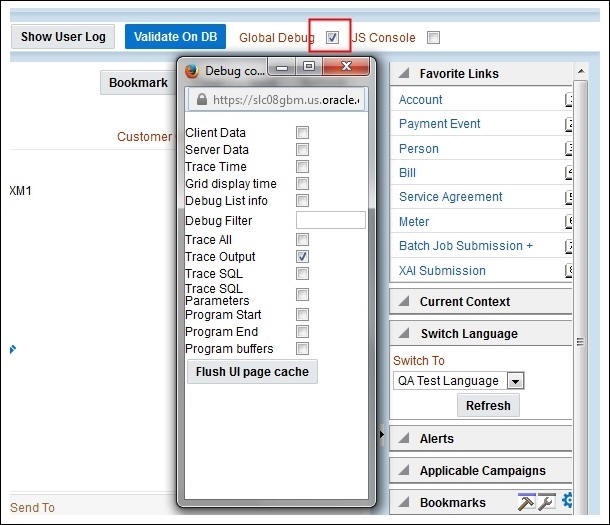
- Login to the application in the ‘debug’ mode.
- Before clicking the Debug mode switch ensure to navigate first to the target page. Example: Person maintenance page
Figure 5-1 Debug Switch
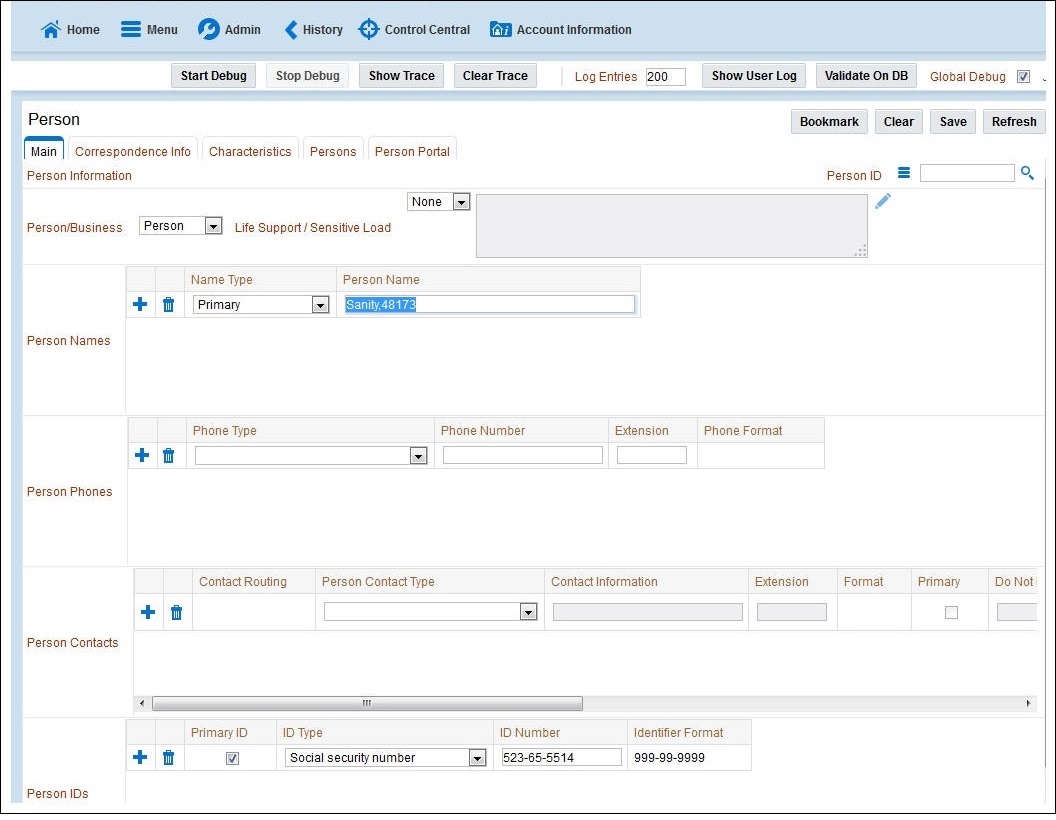
- Perform the required action and click Save.
Example: The figure below shows adding a person (person name, person phone, person contacts, Person IDs, etc) .
Figure 5-2 Add a person
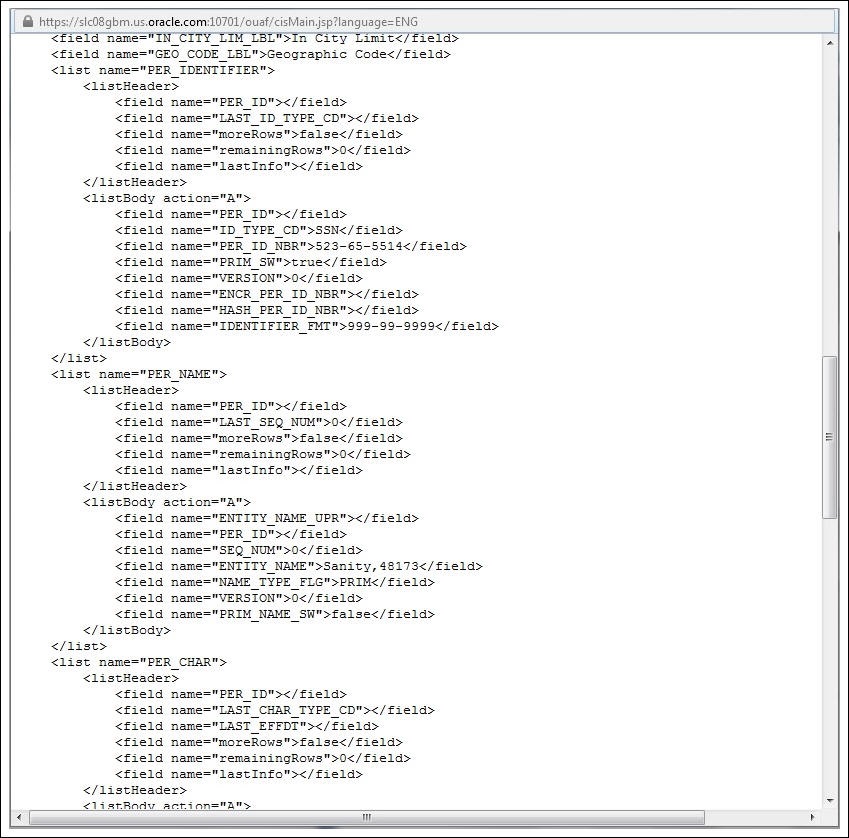
The schema window showing the populated values is displayed.
Figure 5-3 Schema window
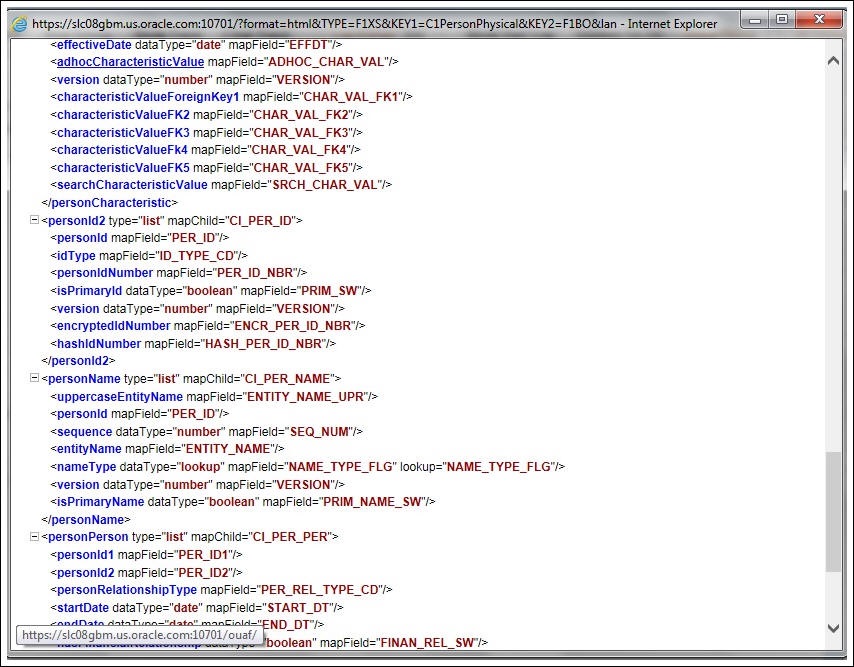
- Navigate to the Business Object or Business Service lookup window for the requisite field.
Example: In the figure below, ENTITY_NAME is named as entityName.
Figure 5-4 Business Object Lookup window
- In the flow, search for the requisite field and enter the component test data.
Figure 5-5 Component Test Data
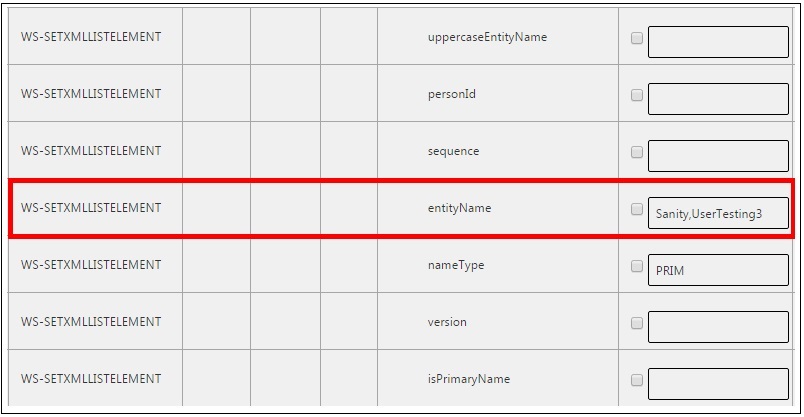
- Click Save to save the test data.
IE Development Tool Bar
The IE Development tool bar, available in IE11, enables users to inspect the page and its field mapping. It is on a 1:1 basis, meaning one inspect = one field.
To enter test data in the requisite fields using the IE Development tool bar:
- Login to Oracle Utilities Rate Cloud Service using Internet Explorer 11.
- Navigate to the page where the requisite field needs to be updated with data.
Example: The figure below shows the Account page where the Characteristic Value field on the Characteristics tab needs to be updated.
Figure 5-6 Accounts page
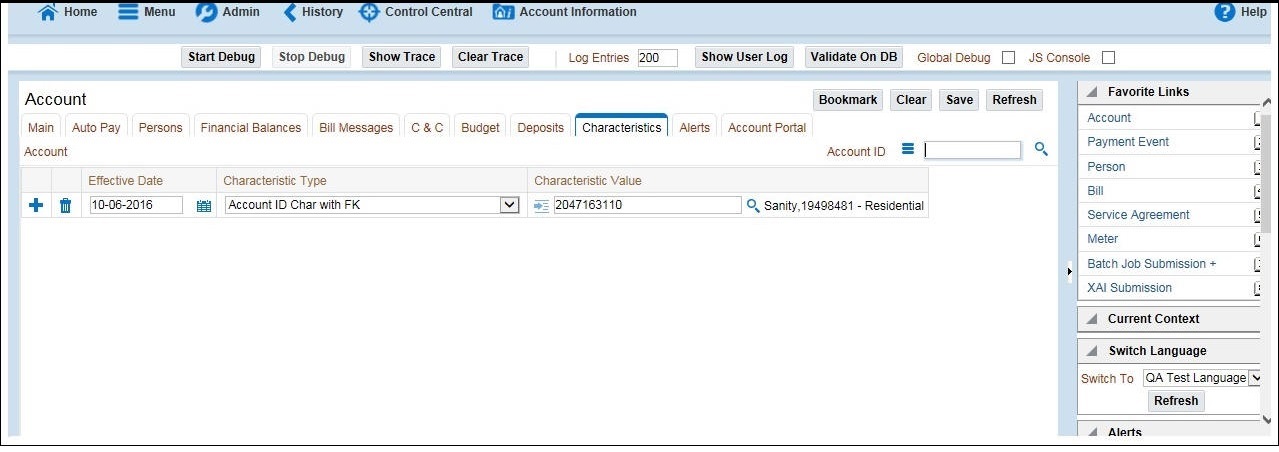
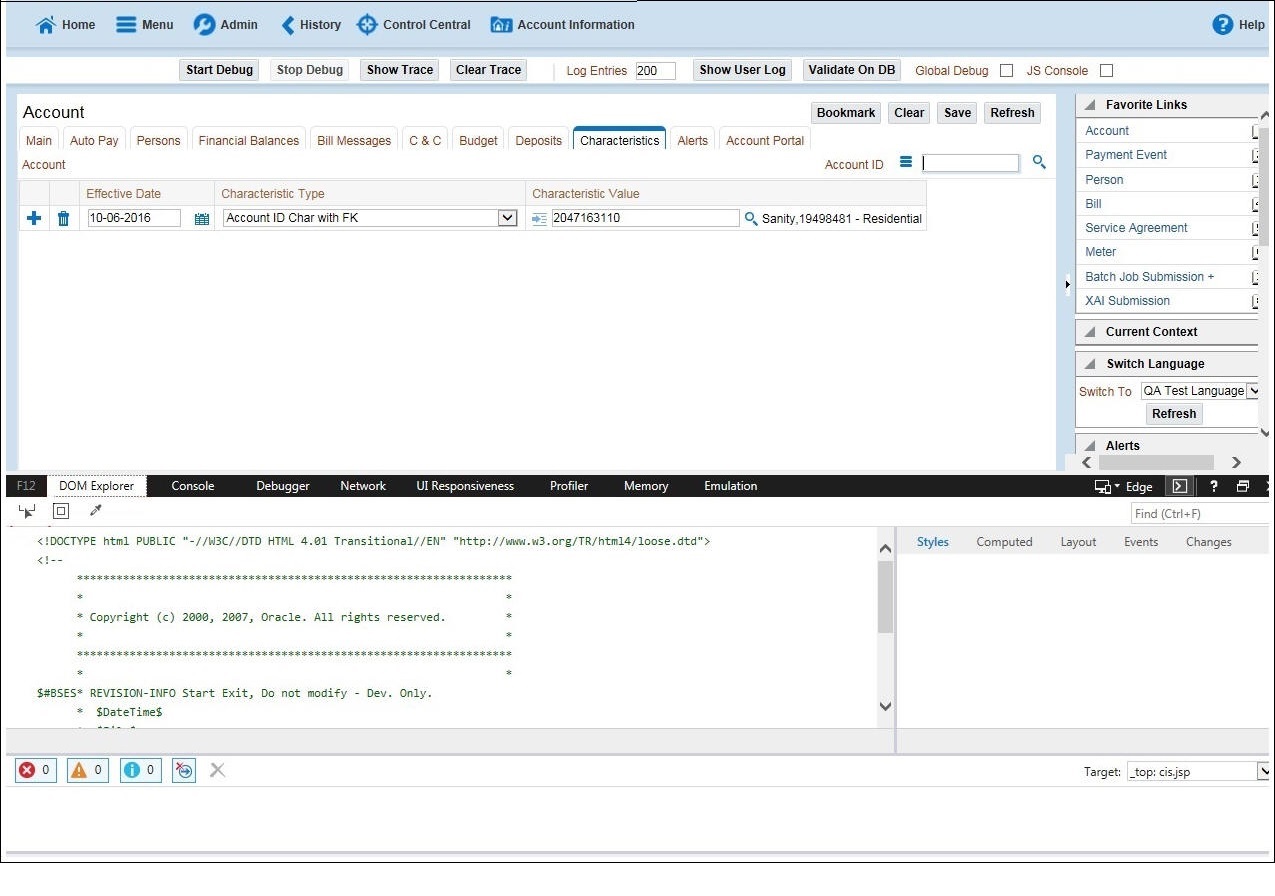
- Press F12. The browser displays the F12 developer tools that help in building and debugging web pages.
Figure 5-7 F12 Developer tools
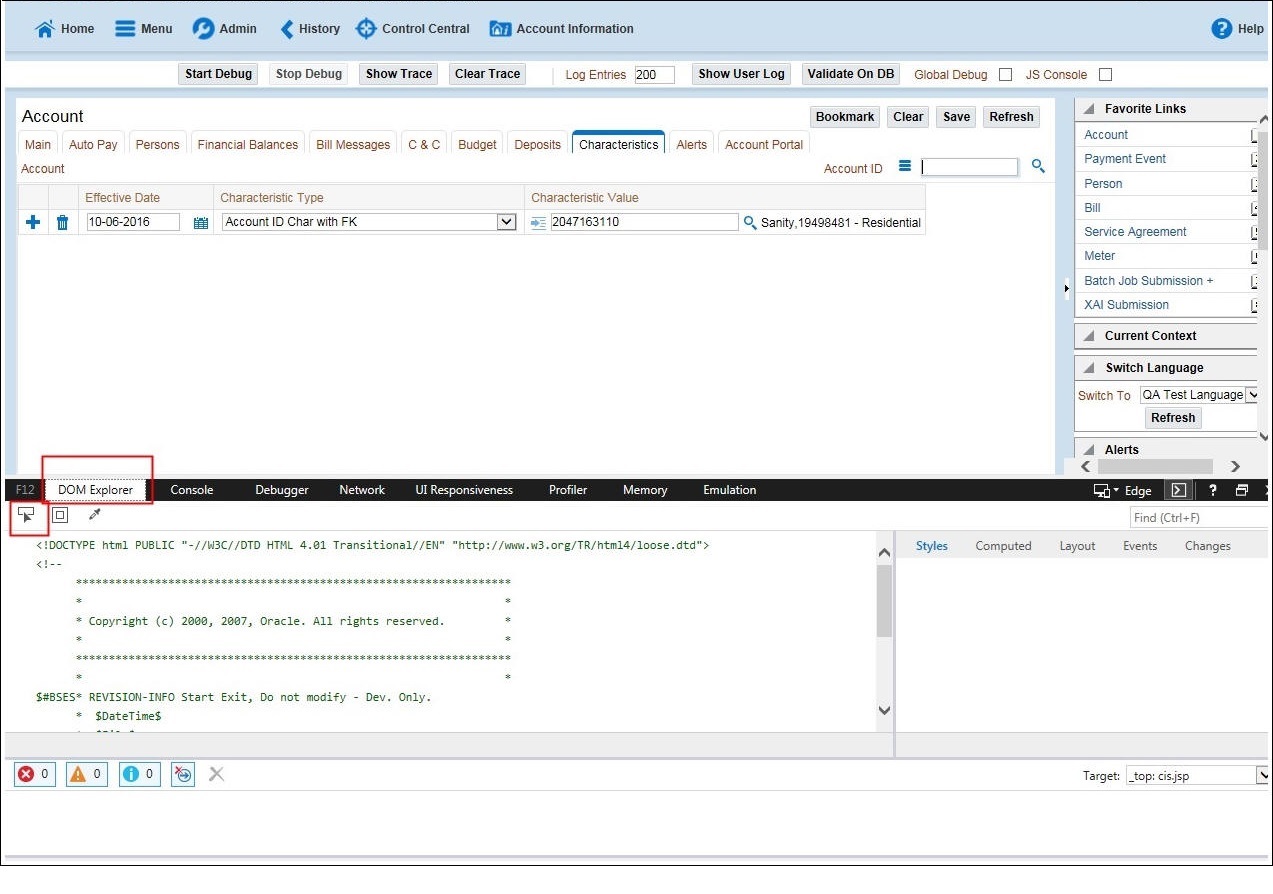
- On the F12 tools menu, click the DOM Explorer tab, and then click the Select element icon.
Figure 5-8 DOM Explorer
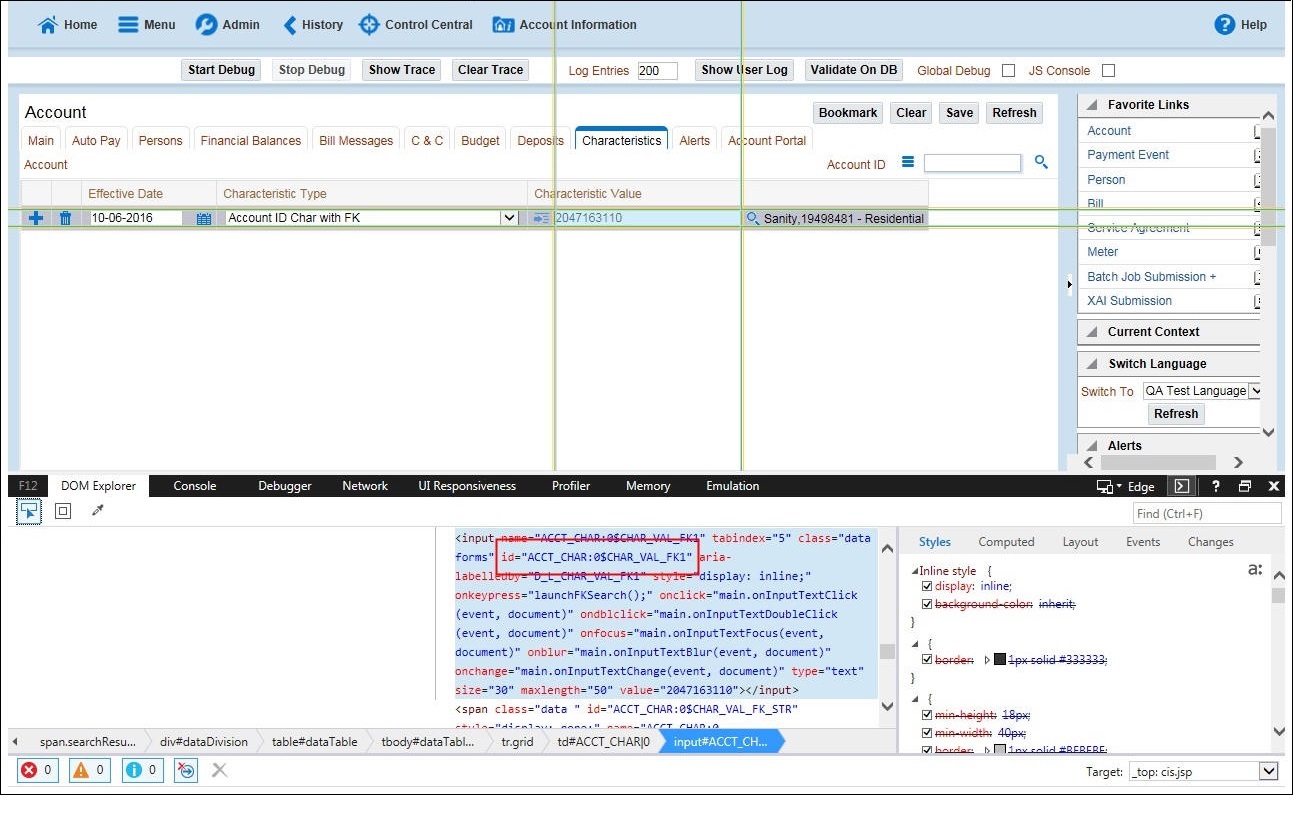
- On the application page, click the field for which you need to enter the data. The DOM Explorer shows the HTML for the selected field.
Example: Click the Characteristic Value field on the Account page. The DOM Explorer shows the ID of that field.
Figure 5-9 DOM Explorer
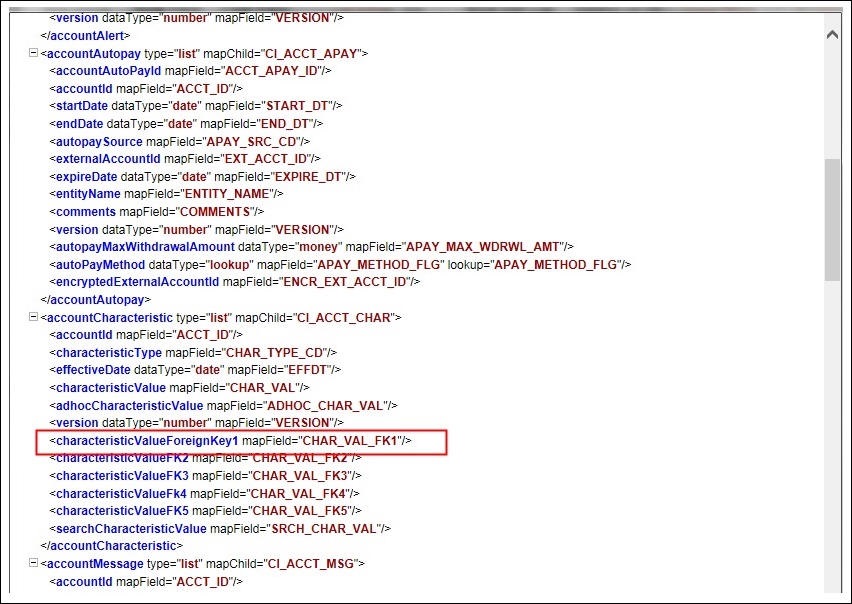
- On the object lookup window, search the requisite field.
Example: Search for CHAR_VAL_FK1.
Figure 5-10 Object Lookup window
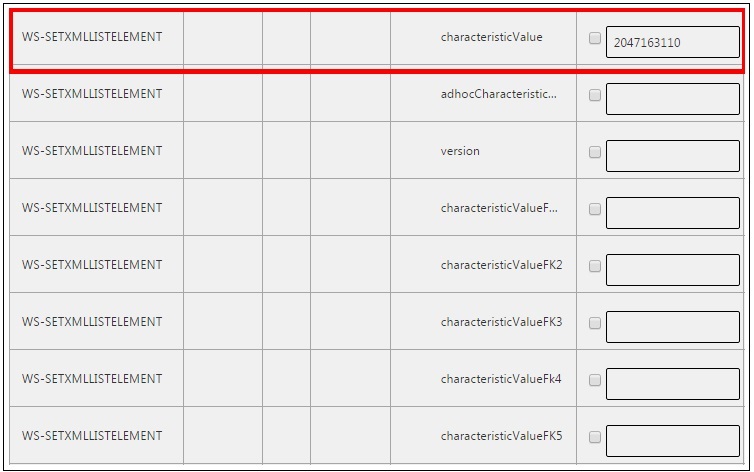
- In the flow, add the necessary data into the field.
Figure 5-11 Flow window
- Click Save to save the data.
SOAP UI
This method is an alternative to the other methods mentioned above if the user is familiar with SOAP UI.
To identify the requisite fields using SOAP UI:
- Login to the Oracle Utilities Rate Cloud Service application.
- Navigate to the page where the test data has to added. Add the data in the respective fields.
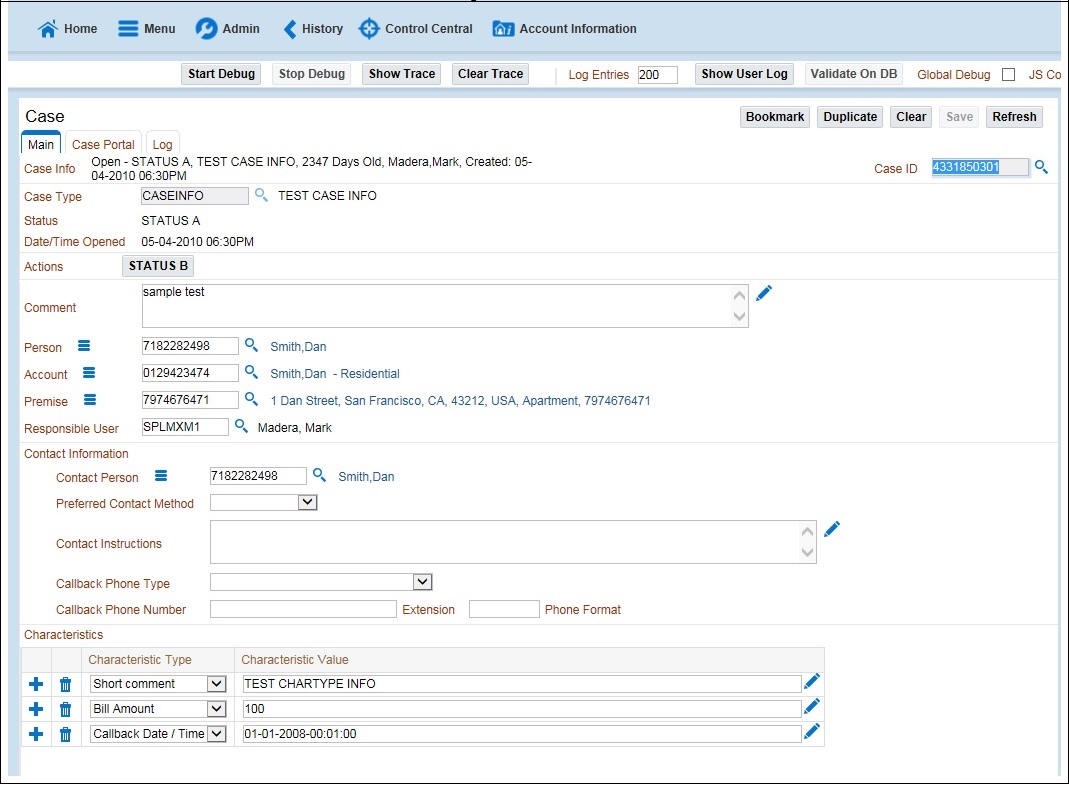
Example: The figure below shows the Case page where Characteristics Type and Characteristic Value are added in the Characteristics section.
Figure 5-12 Case page
- On the SOAP UI, perform a Read using the data that has been added on the Case page (in step 2). The result is displayed in the right pane.
Figure 5-13 Performing a read
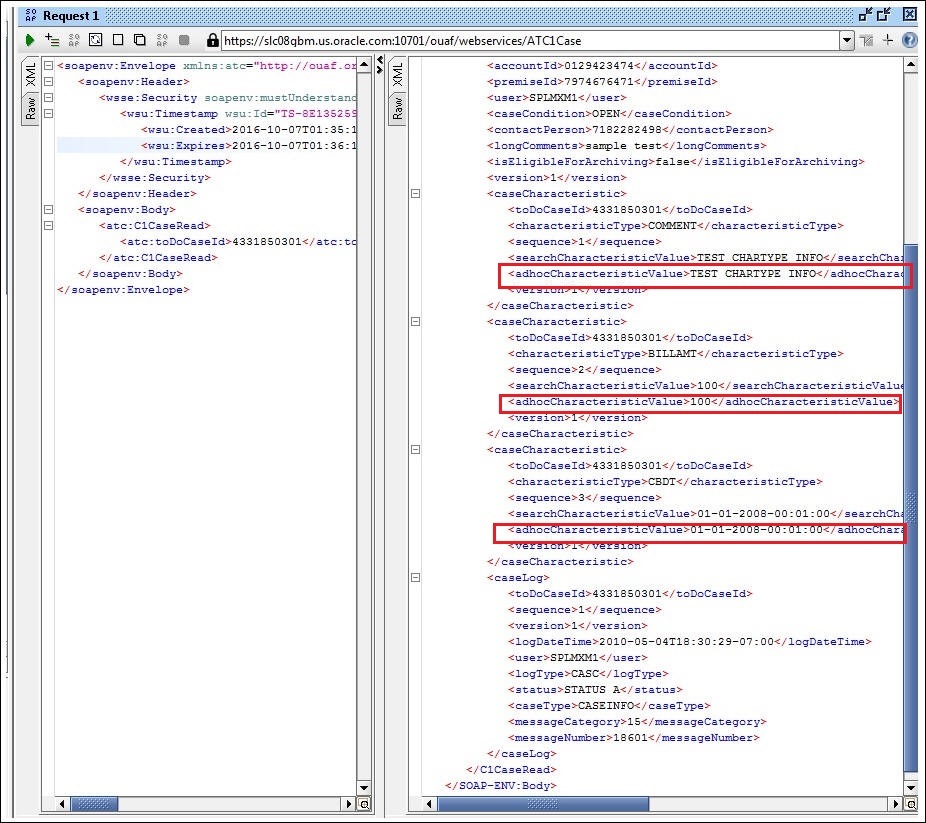
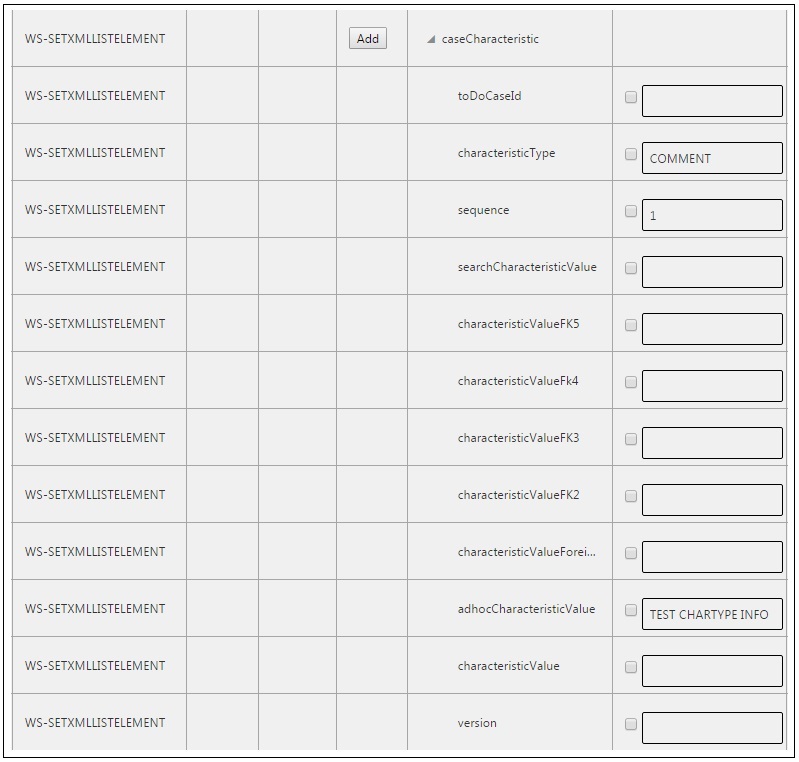
- Copy the values and paste them in the respective fields on the flow. Example: COMMENT and TEST CHARTYPE INFO are the values for characteristicType and adhocCharacteristicValue fields.
Note:
Not all fields populated on the SOAP response needs to be populated on the flow. (Example: version, info, other type of description, etc).Figure 5-14 Copy values
- Click Save to save the data.