3.4 Internal Transfer
This topic explains the process to transfer funds between two accounts under the same IRA plan for a customer using the Internal Transfer screen.
Note:
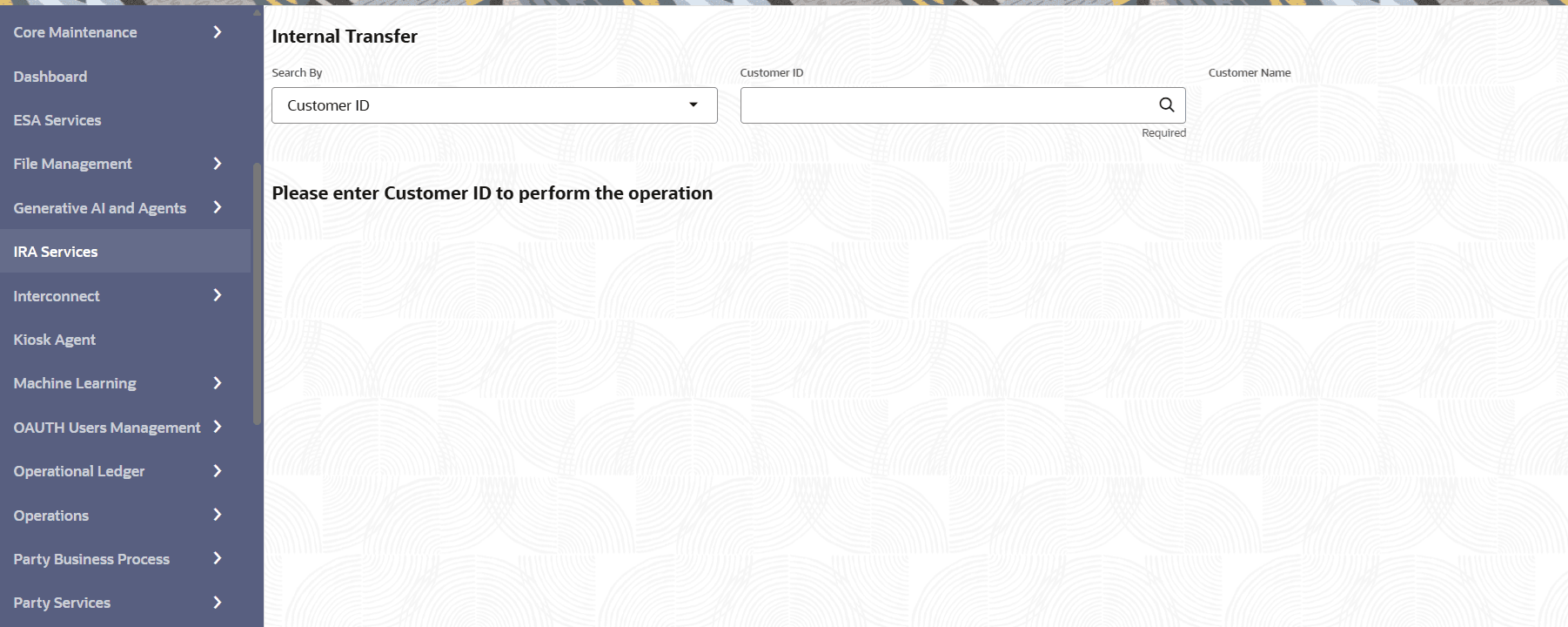
The fields marked as Required are Mandatory.- On the Home screen, from the IRA Services menu, under Transaction, click Internal Transfer, or specify Internal Transfer in the search icon bar and select the screen.The Internal Transfer screen is displayed.
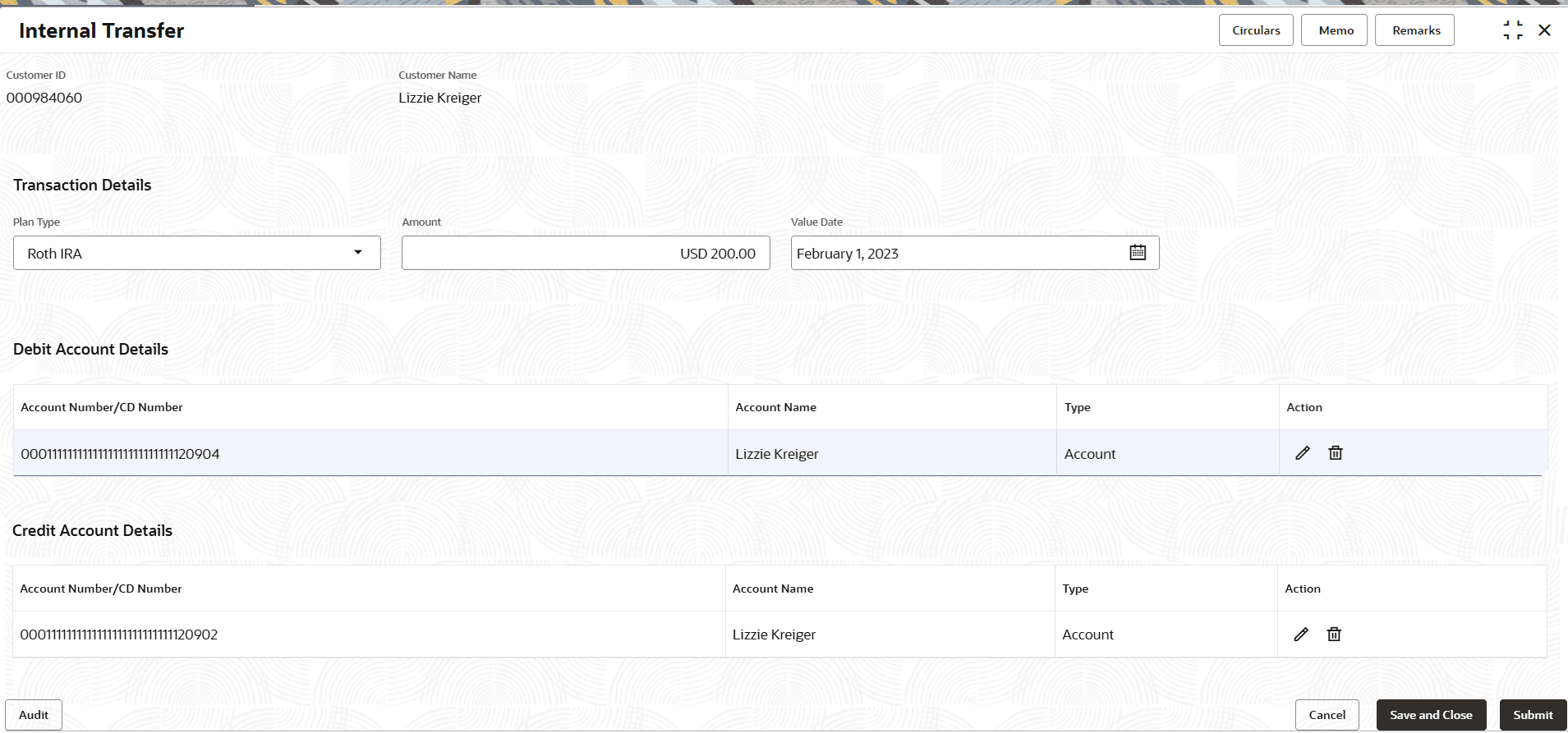
- Perform the required action, based on the option selected from the Search by field.The transaction and account details are displayed.
Figure 3-26 Transaction and Account Details
- On the Internal Transfer screen, specify the fields.For more information on fields, refer to the field description table.
Table 3-20 Internal Transfer - Field Description
Field Description Customer ID Customer ID is the default option shown when the screen is launched. A Customer ID can be directly entered into the adjacent field or it can searched using the search option. Mobile Number, Email, and Tax Identification Number are the other options available to filter a Customer ID. If Mobile Number, Email, and Tax Identification Number are used to find a customer ID, the respective IDs have to be input entirely in the adjacent filed for the system to display the customer number. For a given search criteria, multiple customer numbers may be linked.
For example, two or more customer number may be linked to a single Mobile Number. In such cases, system displays all the matches and the user can select the relevant option on which to perform the transaction.
Transaction Details This section displays the fields to be maintained for transaction. Plan Type Select the plan type for the transaction. All the plan types linked to the customer are listed here. User can select any one.
Amount Specify the transaction amount. Value Date Select or specify the transaction value date. User can specify the value date as back dated, but not future dated.
Debit Account Details/Credit Account Details This section displays the debit or credit account details. When user clicks Add Account, this section displays the list of IRA CDs and accounts present under the selected plan type for the customer.
Account Number/CD Number Displays the debit or credit account number. Account Name Displays the account name associated with the account number. Type Displays the account type. Action Displays the following actions:  : Click to edit the debit or credit account details.
 : Click to delete the debit or credit account details.
To add a debit or credit account:Note:
An error message is displayed, if user selects the same account in the Debit Account Details and Credit Account Details section.- In the Debit Account Details or Credit Account Details section, click Add Number.
Note:
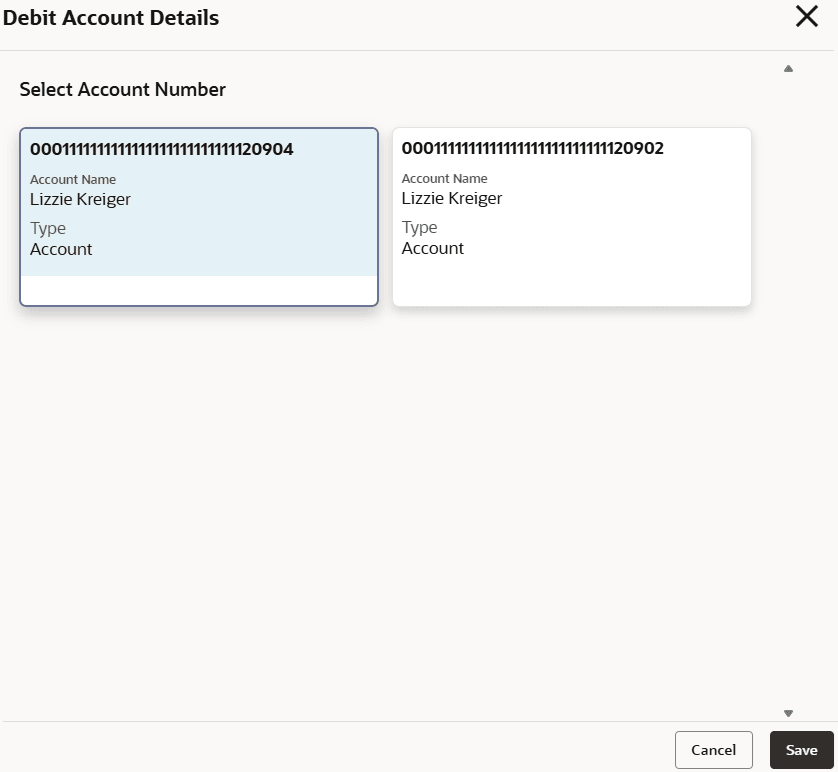
The Add Number button is enabled, if an option is selected from the Plan Type field.If you add number from Debit Account Details section, then the following Debit Account Details section is displayed:
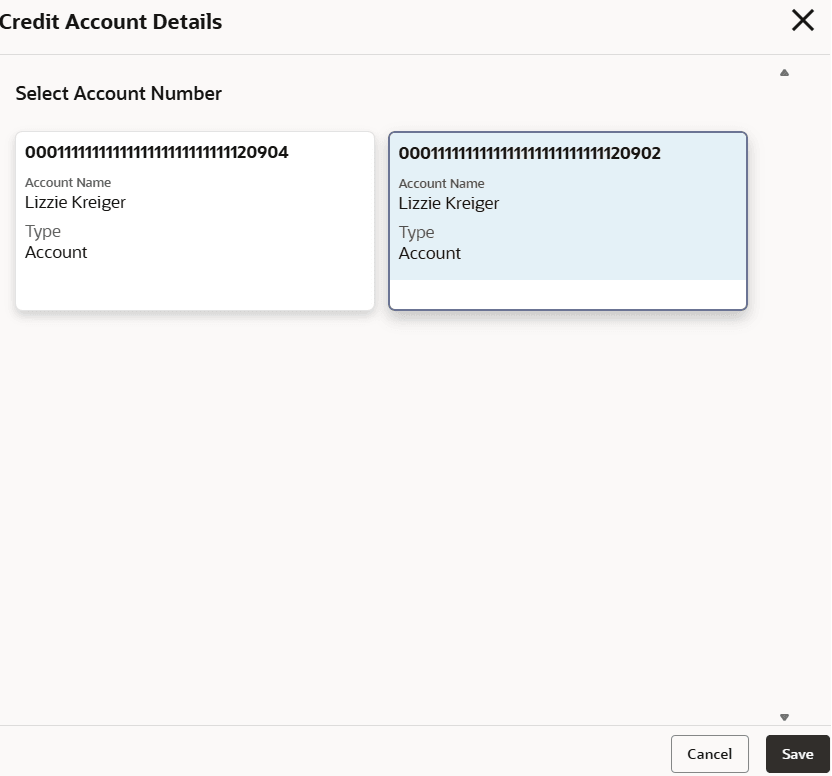
If you add number from Credit Account Details section, then the following Credit Account Details section is displayed:
- In the Debit Account Details or Credit Account Details section, select the account. For more information on fields, refer to field description table below:
Table 3-21 Debit or Credit Account Details – Field Description
Field Description Select Account Number This section displays the account number details in each widget, that can be added for transfer. <Account Number> Displays the debit or credit account number. Account Name Displays the account name associated with the account. Type Displays the account type. - Click Save.
The account details are displayed in the Debit Account Details and Credit Account Details section in the Internal Transfer screen.
Parent topic: Transaction