3.3 Rollover
User can move the funds from an account or deposit under one plan to an account or deposit under another plan of the same customer or a different customer using the Rollover screen.
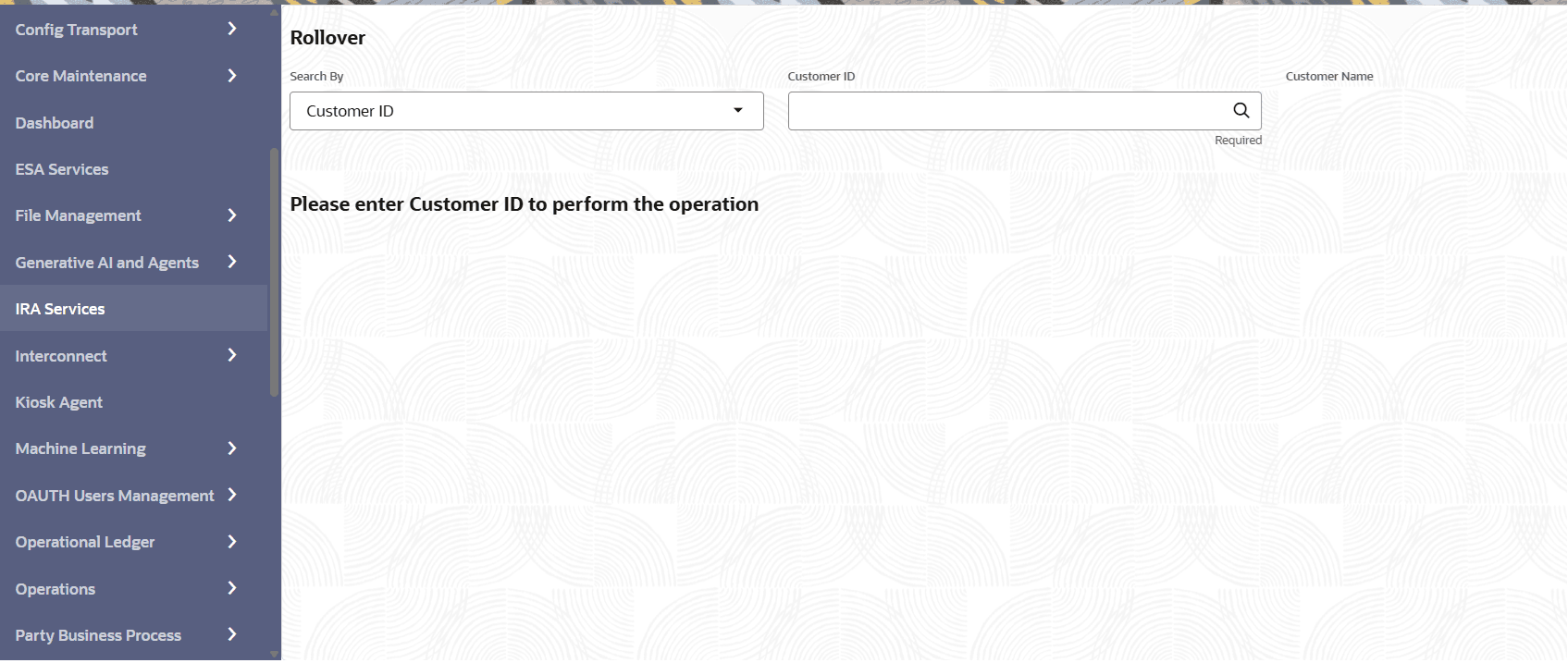
- On the Home screen, from IRA Services, under Transaction click Rollover, or specify the Rollover in the Search icon bar.The Rollover screen is displayed.
- Perform the required action, based on the option selected from the Search by field.The sections for maintaining rollover are displayed.
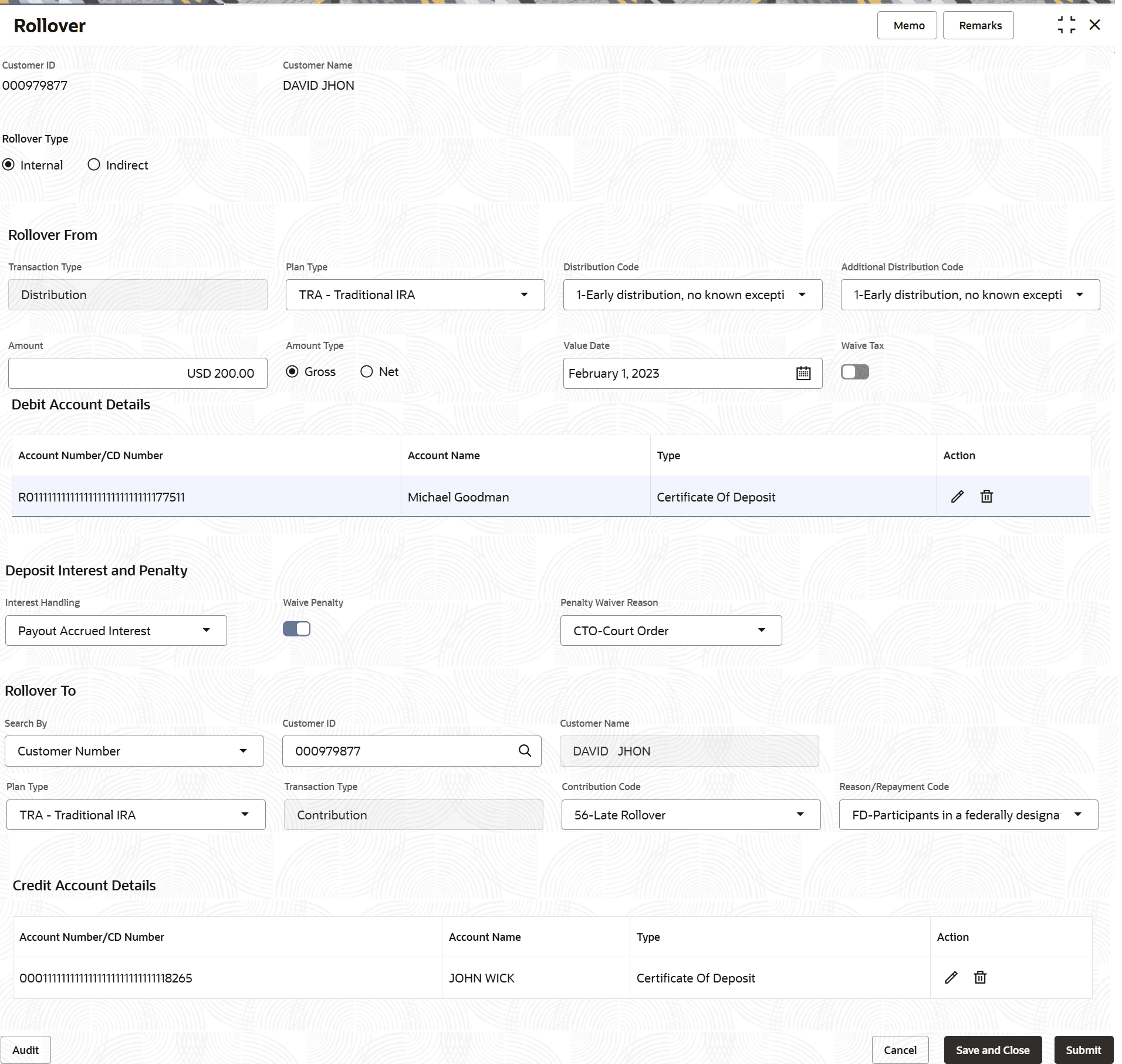
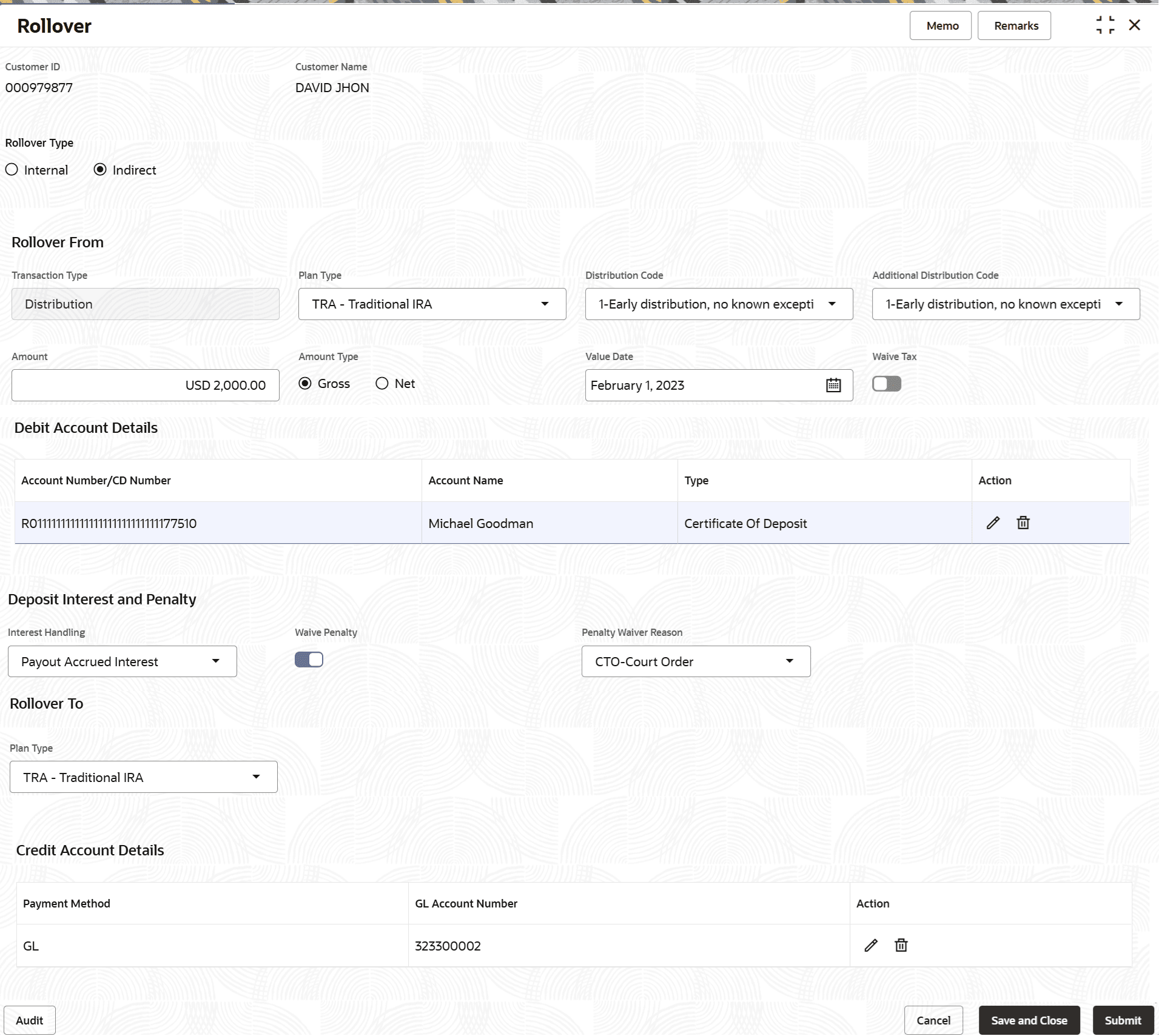
- On the Rollover screen, specify the details. For more information on fields, refer to field description table below:
Table 3-18 Rollover – Field Description
Field Description Customer ID Select or specify the customer ID. User can specify or search using the search option adjacent to this field. The other options are Mobile Number, Email, and Tax Identification Number. If Mobile Number, Email, and Tax Identification Numbers are used to find a customer ID, then the respective IDs have to be specified in the adjacent filed for the system to display the customer number. For a given search criteria, multiple customer numbers may be linked. For example, two or more customer number may be linked to a single Mobile Number. In such cases, system displays all the matches and the user can select the relevant option on which to perform the transaction.
Rollover Type This section displays the type of rollover to be performed. The options are: - Internal
- Indirect
By default, Internal option is selected. In an Internal rollover transaction, the customer and their accounts and deposits in the Rollover From and the Rollover To sections belong with the same Financial institution. However, when Indirect rollover is chosen, the customer chooses to move funds from the current financial institution to a different financial institution.
Rollover From This section displays the rollover from details to be maintained. Transaction Type Displays the transaction type as Distribution. In a rollover transaction, since the first leg involves movement of funds out of accounts or deposits of the customer, it is considered as a Distribution transaction and the value is defaulted.
Plan Type Select the plan type for rollover. The list displays all the plan types linked to the customer.
Distribution Code Select the appropriate distribution code for rollover. Additional Distribution Code Select the appropriate additional distribution code for rollover. Amount Specify the rollover amount. Amount Type Select the type of transaction amount. The options are: - Gross: If this method is selected, then the redemption amount entered is treated as the gross value. Applicable penalties and taxes are deducted from this amount, and the remaining balance is paid to the customer.
- Net: If this method is selected, then the redemption amount entered is treated as the net value to be paid to the customer. The system calculates the required gross amount so that, after applying applicable penalties and taxes, the requested net amount is paid out.
The Gross and Net amount types represent how the distribution amount is calculated.
Value Date Select or specify the value date for the rollover. Waive Tax Switch the toggle ON to waive the rollover tax. Debit Account Details This section displays the debit account details. When user clicks Add Account, this section displays the list of IRA CDs and Accounts present under the selected Plan Type for the customer.
Account Number/CD Number Displays the account or CD number. Account Name Displays the account name associated with the account number. Type Displays the account type. Action Displays the following actions:  : Click to edit the debit account details.
 : Click to delete the debit account details.
Deposit Interest and Penalty This section displays the interest and penalty details of deposit account. This section is displayed if a CD account is added in the Debit Account Details section.
Interest Handling Select the appropriate option for handling deposit interest during redemption. Depending on the option selected, the accrued interest is payed out immediately, retained within the deposit for continued accrual in case of a partial redemption, or if it is a full redemption, the accrued interest is forfeited according to Bank policy. The options are:
- Payout Accrued Interest
- Continue Interest Accrual
- Forfeit Accrued Interest
Waive Penalty Switch the toggle ON to waive the penalty calculated on the deposit redemption during the distribution leg of the rollover transaction. Penalty Waiver Reason Select the reason for waiving the penalty. Note:
This field is displayed, if Waive Penalty toggle in ON.Rollover To This section displays the rollover to details to be maintained. Search By Select the options from Customer ID, Tax Identification Number, Mobile Number, and Email.
By default, Customer Number is displayed, and the Customer ID which was initially specified at the beginning of the screen is defaulted into the adjacent field. Depending on whether the rollover transaction is happening between the accounts or deposits of the same customer, or between different customers, user have the option to specify or select a different customer ID.Note:
This field is displayed if the Rollover Type is Internal.Plan Type Select the plan type for rollover. The list of plan types displayed in this field for selection depends on the Customer ID selected. If the defaulted Customer ID (same as the one in Rollover From section) is retained, then the plan types owned by the customer other than the one selected in the Rollover From section is displayed here. If a different Customer ID is selected, then the Plans Types owned by this customer is displayed for selection.
In Indirect rollover, since the customer is moving funds out of the financial institution, this field lists all the Plan Types configured in the system.
Transaction Type Displays the transaction type as Contribution. In a rollover transaction, since the second leg involves movement of funds into the accounts or deposits of the customer, it is considered as a Contribution transaction and the value is defaulted.
Note:
This field is displayed if the Rollover Type is Internal.Contribution Code Select the appropriate contribution code for rollover. Note:
This field is displayed if the Rollover Type is Internal.Reason/Repayment Code Select the related reason or repayment code. The values in this drop-down list appears only when certain contribution codes are selected. Currently, contribution codes 56 and 60 populate values in this field. Any other value selected in the contribution code field does not display values in this field.
Note:
This field is displayed if the Rollover Type is Internal.Credit Account Details This section displays the credit account details. When user clicks Add Account, this section displays the list of IRA CDs and accounts present under the selected Plan Type for the customer.
Account Number/CD Number Displays the account or CD number. Account Name Displays the account name associated with the account number. Type Displays the account type. Action Displays the following actions: - : Click to edit the credit account details.
- : Click to delete the credit account details.
To add a debit or credit account:- In the Debit Account Details or Credit Account Details section, click Add Number.
Note:
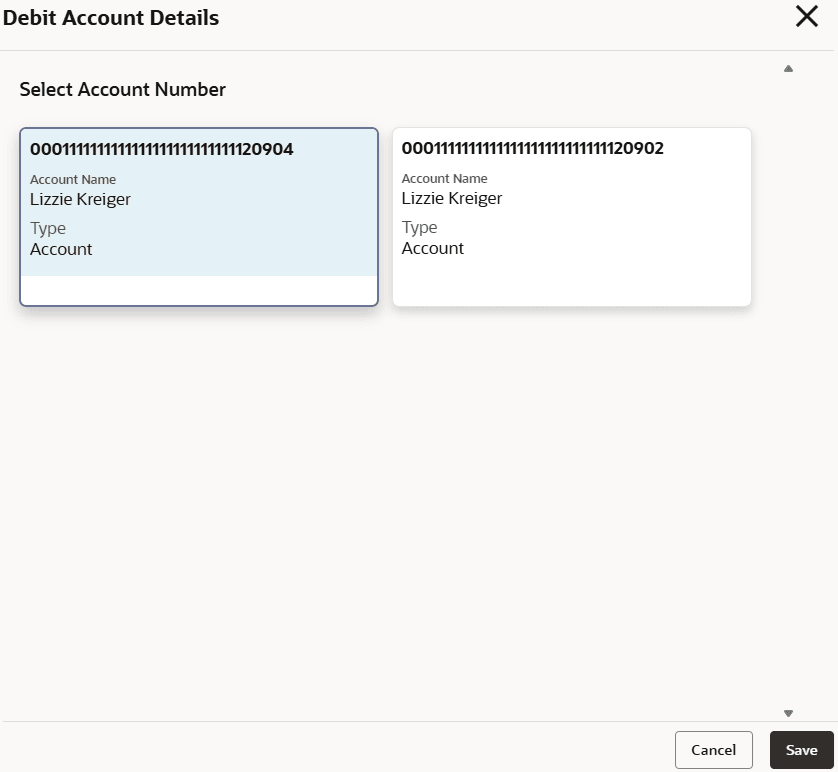
The Add Number button is enabled, if an option is selected from the Plan Type field.If you add number from Debit Account Details section, then the following Debit Account Details section is displayed:
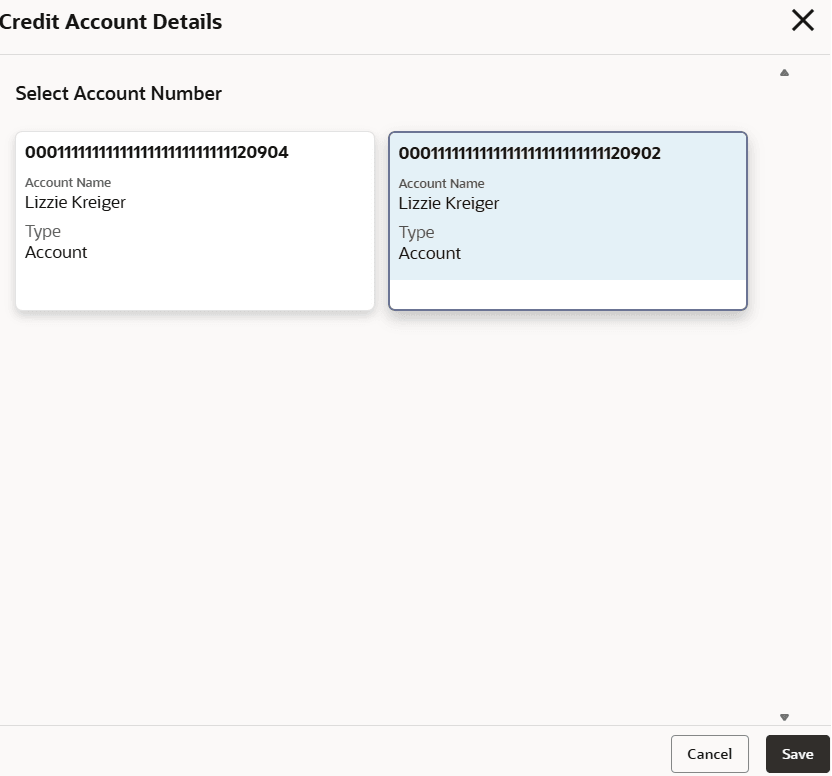
If you add number from Credit Account Details section, then the following Credit Account Details section is displayed:
- In the Debit Account Details or Credit Account Details section, select the account. For more information on fields, refer to field description table below:
Table 3-19 Debit or Credit Account Details – Field Description
Field Description Select Account Number This section displays the account number details in each widget, that can be added for transfer. <Account Number> Displays the debit or credit account number. Account Name Displays the account name associated with the account. Type Displays the account type. - Click Save.
The account details are displayed in the Debit Account Details and Credit Account Details section in the Rollover screen.
Parent topic: Transaction