5.1.6.3 Multi BC Issuance Against GL
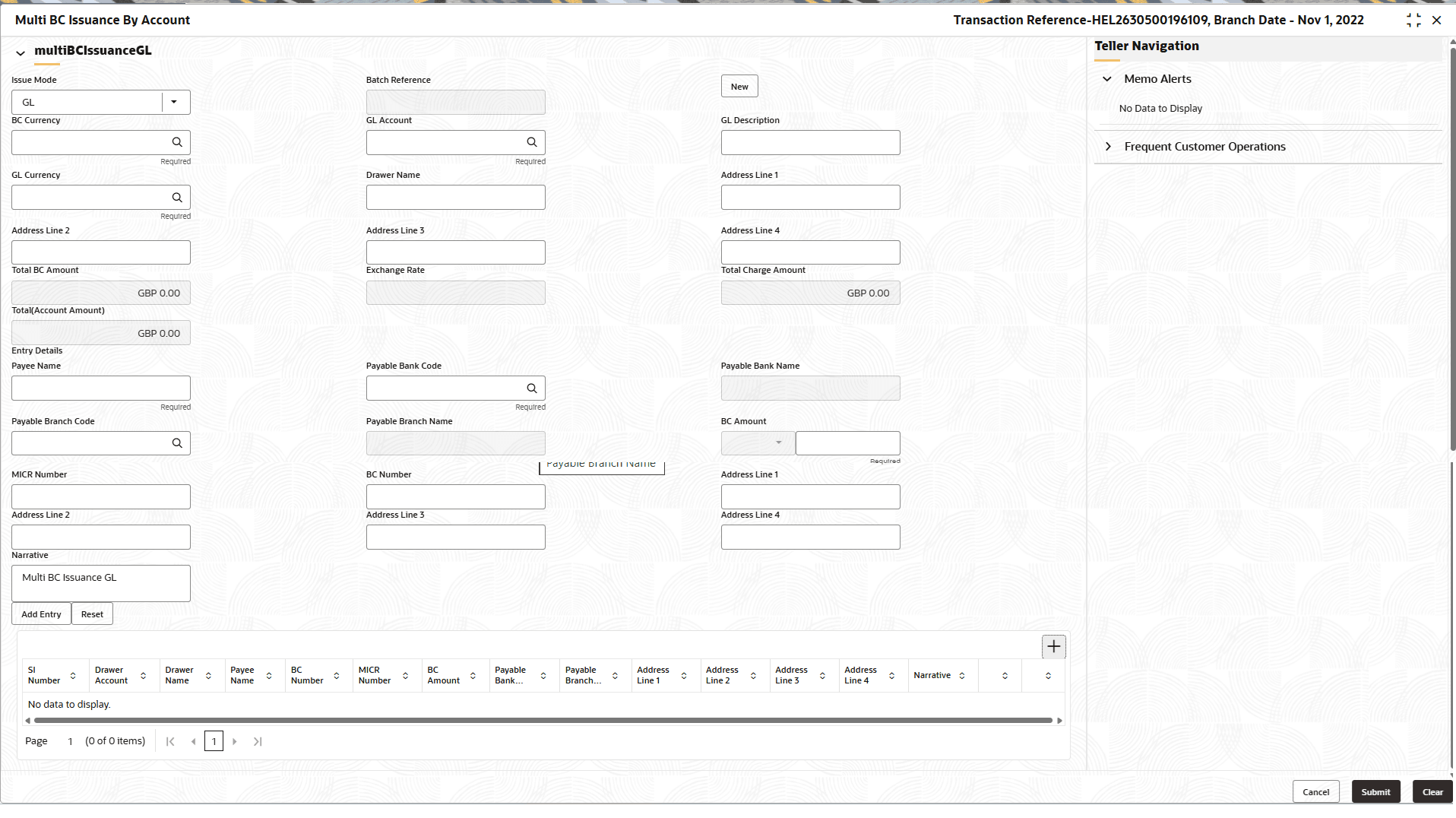
The Teller can use the Multi BC Issuance screen to issue BC against GL for walk-in customers.
- On the Homepage, from Teller mega menu, under Remittances, click Multi BC Issuance or specify Multi BC Issuance in the search bar and select the screen.The Multi BC Issuance By Account screen is displayed.
- On the Multi BC Issuance GL screen, specify the fields. For more information on fields, refer to the field description
table.
Note:
The fields marked as Required are mandatory.Table 5-22 Multi BC Issuance Cash - Field Description
Field Description Issue Mode Select the issue mode as GL from the drop-down values.
Batch Reference
Displays the auto-generated batch reference number.
New
Click New to generate a batch reference number.
BC Currency
Click
 icon to select BC Currency.
GL Account
Click
icon to select GL Account.
GL Description
Specify the GL Description.
GL Currency
Click
icon to select GL Currency.
Drawer Name
Specify the name of the drawer.
Address Line 1 to Address Line 4
Specify the address of the drawer.
Total BC Account Displays the total sum of the multiple BC amount inputs, which is computed by the system.
Exchange Rate
Displays the exchange rate, and it can be modified.Note:
If the transaction currency is the same as the account currency, the system will display the exchange rate as 1. This field is displayed only ifMulti-Currency Configurationat Function Code Indicator level is set as Y.Total Charge Amount
Displays the total amount available in the specified charge account.
Total (Account Amount)
Displays the total charge amount.Note:
This field is displayed only ifTotal Charges Configurationat Function Code Indicator level is set as Y.Payee Identification Number
Specify the identification number of the Payee.
Entry Details
Specify the fields.
Payee Name
Specify the payee name.
Payable Bank Code
Select the payable bank code from the list of values.
Payable Bank Name
Displays the bank name of the specified payable bank code.
Payable Branch Code
Select the payable branch code from the list of values.
Payable Branch Name
Displays the bank name of the specified payable branch code.
BC Amount
Specify the BC amount and currency.
MICR Number
Specify the MICR number.
BC Number
Specify the BC number.
Address Line 1 to Address Line 4
Specify the address of the payee.
Narrative
Displays the default narrative as Multi BC Issuance, and it can be modified.
Add Entry
After filling the necessary fields, click Add Entry to add a new entry.
Reset
Click Reset to reset the added entries.
Parent topic: Multi BC Issuance