3.3 Initiate Migration
This topic describes the systematic instructions to initiate migration.
- To complete the Initiate Migration task, follow the steps below:
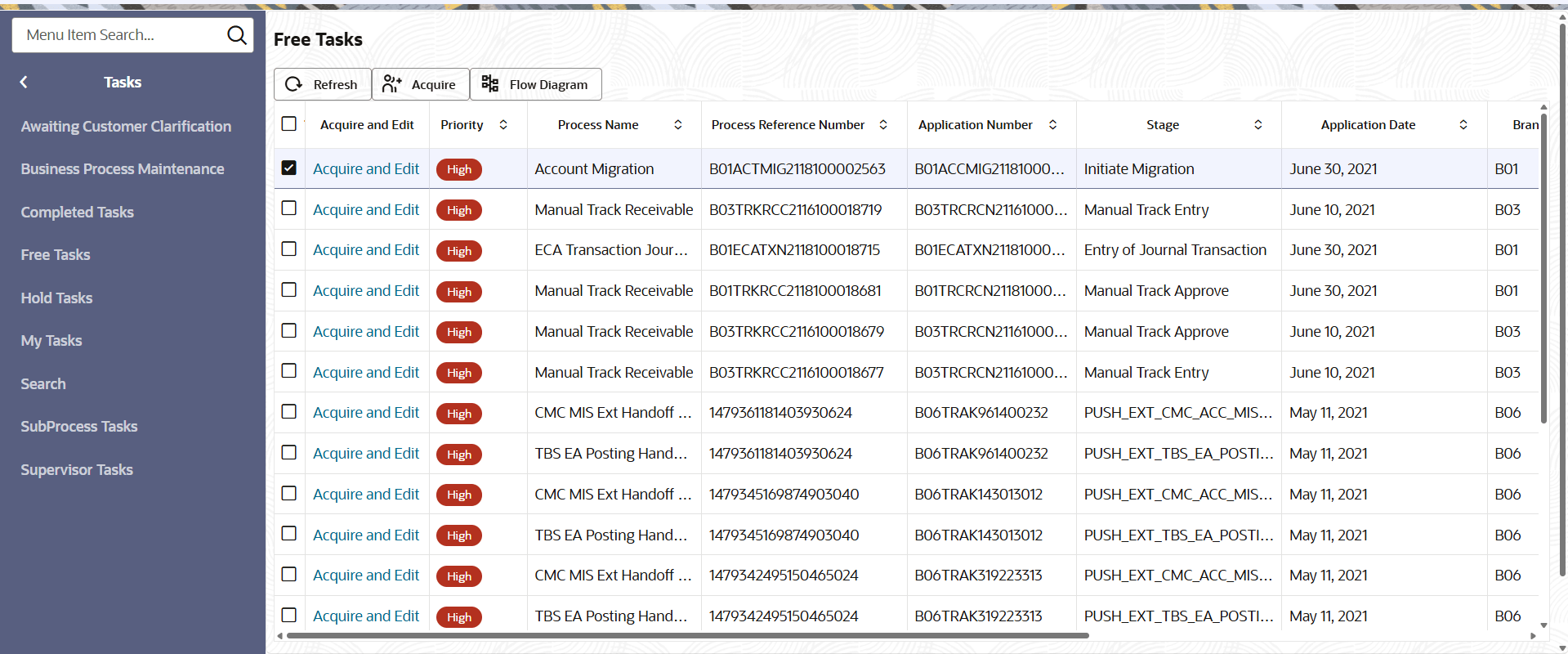
- Click Tasks under Tasks, click Free Tasks.The Free Task screen displays.
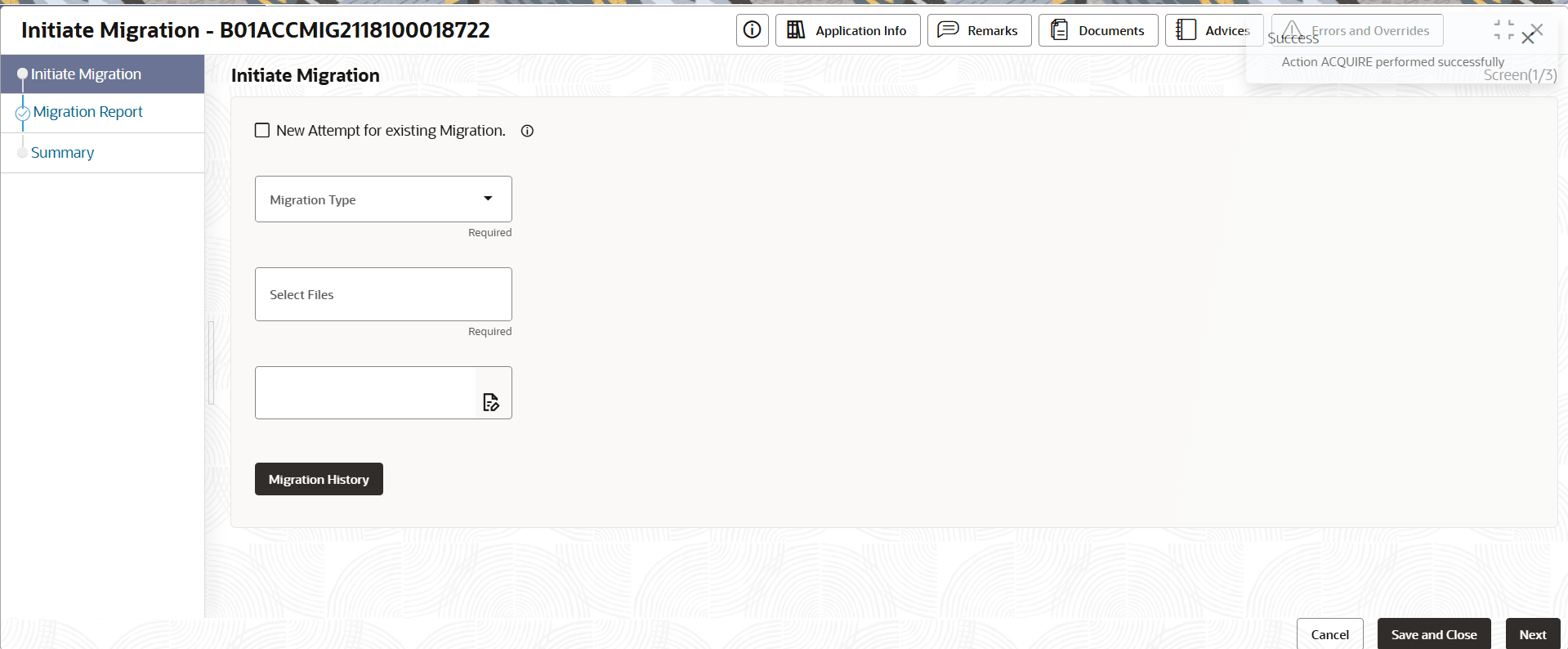
- Click Acquire and Edit.The Initiate Migration screen displays.
For more information on fields, refer to the field description table.
Table 3-5 Initiate Migration - Field Description
Field Description New Attempt for existing Migration This check box indicates that, does the user want to initiate Stage 1 for an existing Migration Id. Migration Type Displays the Migration Type for which the Stage 1 initiation has to be triggered. - Account
- Financial
Select Files Displays all the files available in the cloud object store for the selected Migration Type. The user will have to select the files they want to trigger Stage 1. Remark User can provide any remarks they have for this Stage 1 initiation.
Stage 1 migration is initiated for the selected inputs. - Click Tasks under Tasks, click Free Tasks.
Parent topic: Migration Process