3.2 File Upload
This topic describes the systematic instructions to file upload.
- To complete the Account Migration task, follow the steps below.
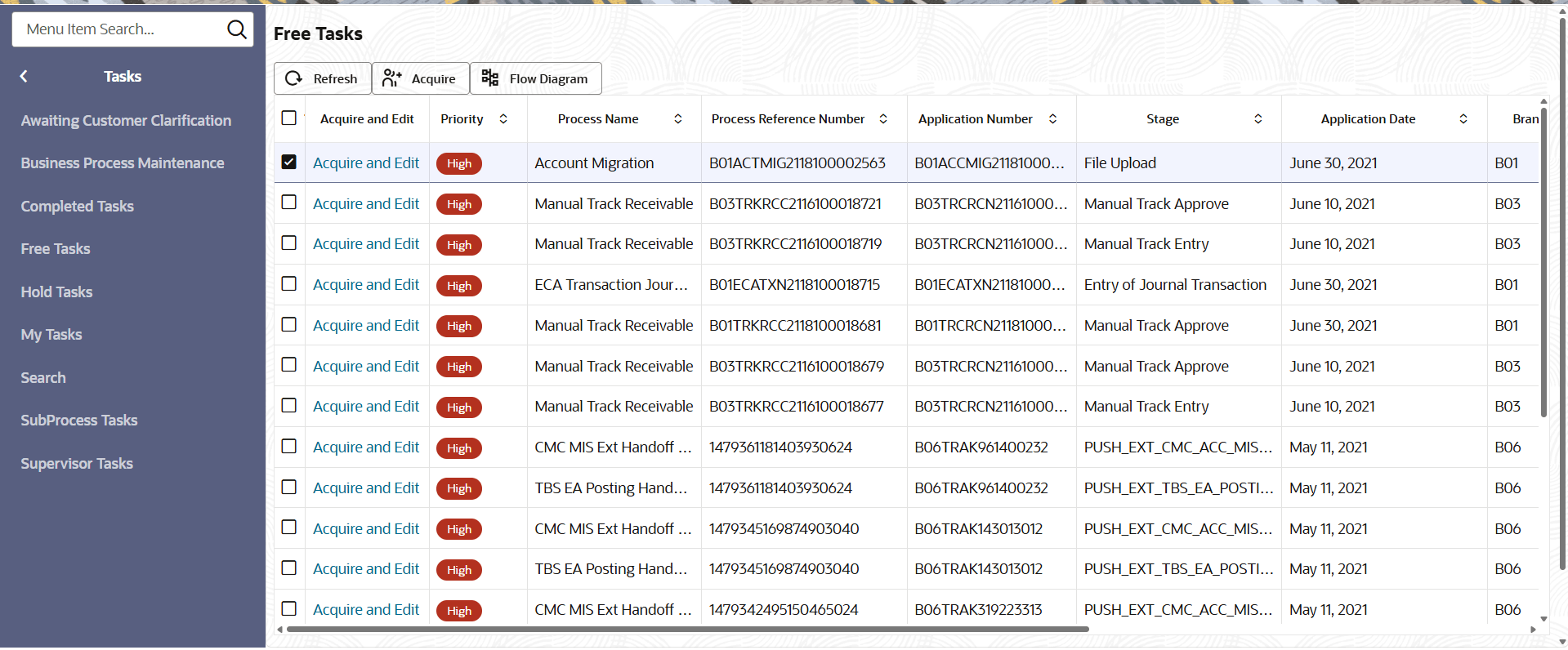
- Click Tasks under Tasks, click Free Tasks.The Free Tasks screen displays.
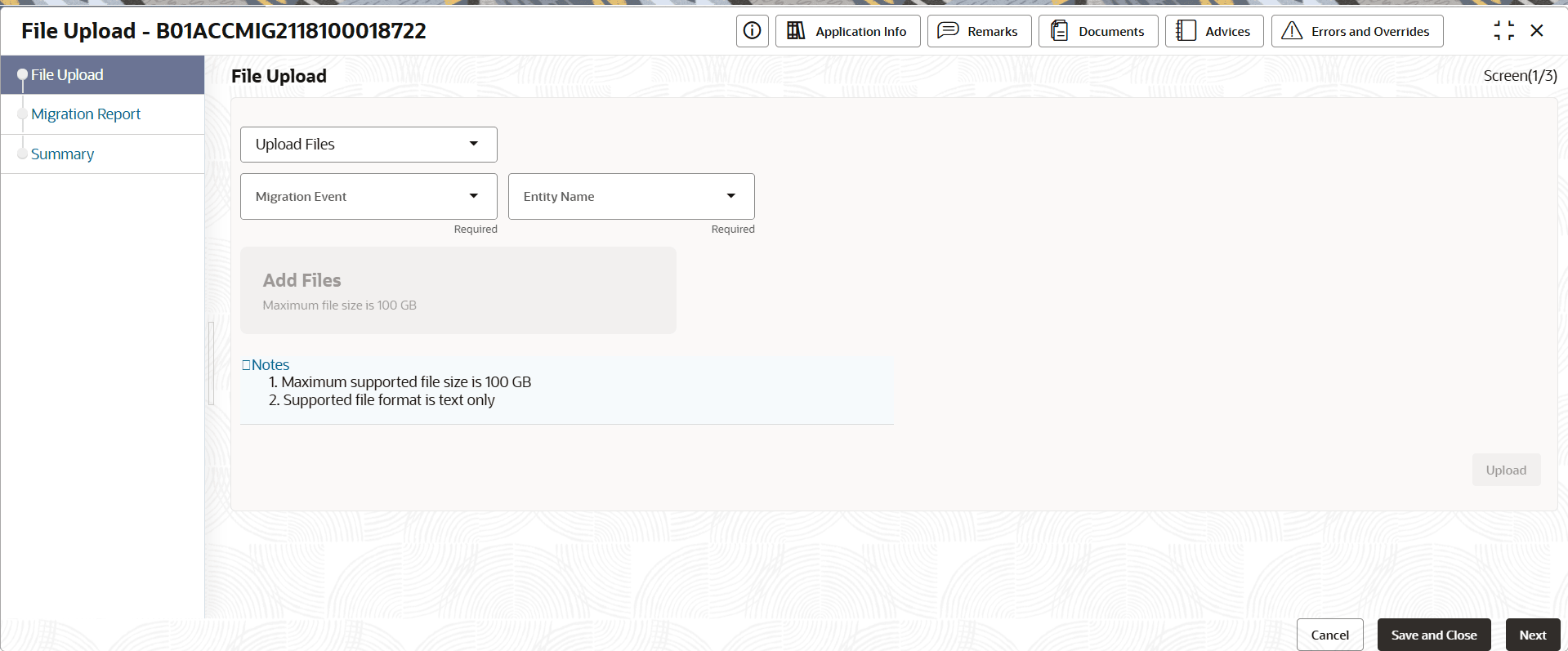
- Click Acquire and Edit.The File Upload screen displays.
For more information on fields, refer to the field description table.
Table 3-3 File Upload - Field Description
Field Description File Upload Specify required field. The available options are:
- Upload Files
- View Files
Migration Event Specify the migration event from the options. - Account
- Financial
Entity Name Specify the entity name from the drop down lists. Some examples of the available options are:- Customer Account
- Account Address
- Provisioning GL
- Banking Channel
- Click Tasks under Tasks, click Free Tasks.
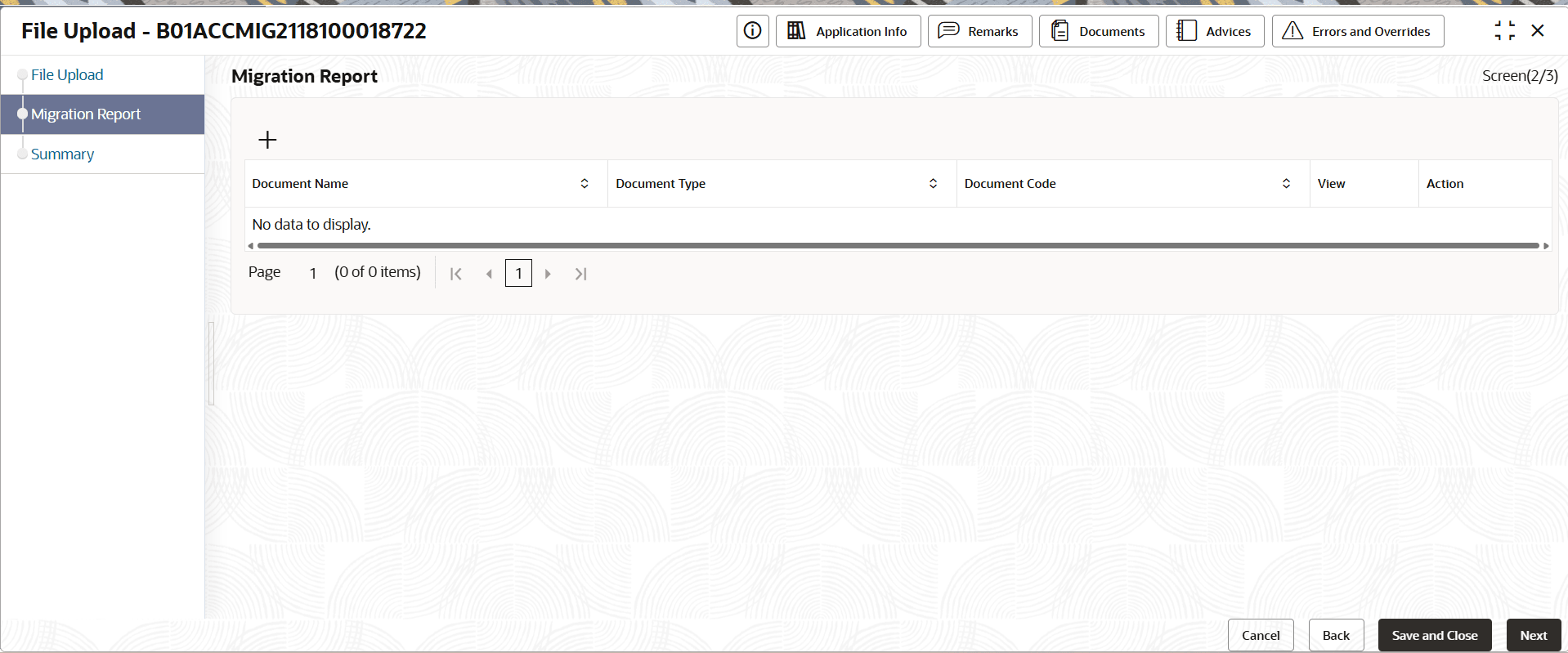
- Click Next.The Migration Report screen displays.
For more information on fields, refer to the field description table.
Table 3-4 Migration Report - Field Description
Field Description Document Name Displays the document name. Document Type Displays the document type. Document Code Displays the document code. View View the Document. Action Provides an option to delete the task.
Parent topic: Migration Process