3.5.2 View and Modify Amount Block
You can view or modify the already added block details using this screen.
Note:
The fields marked as Required are mandatory.To view the amount block details:
- On the Home screen, from the Certificate of
Deposit Services mega menu, under Certificate of
Deposits and Maintenance, click
View and Modify Amount Block, or specify
View and Modify Amount Block in the search icon bar
and select the screen.
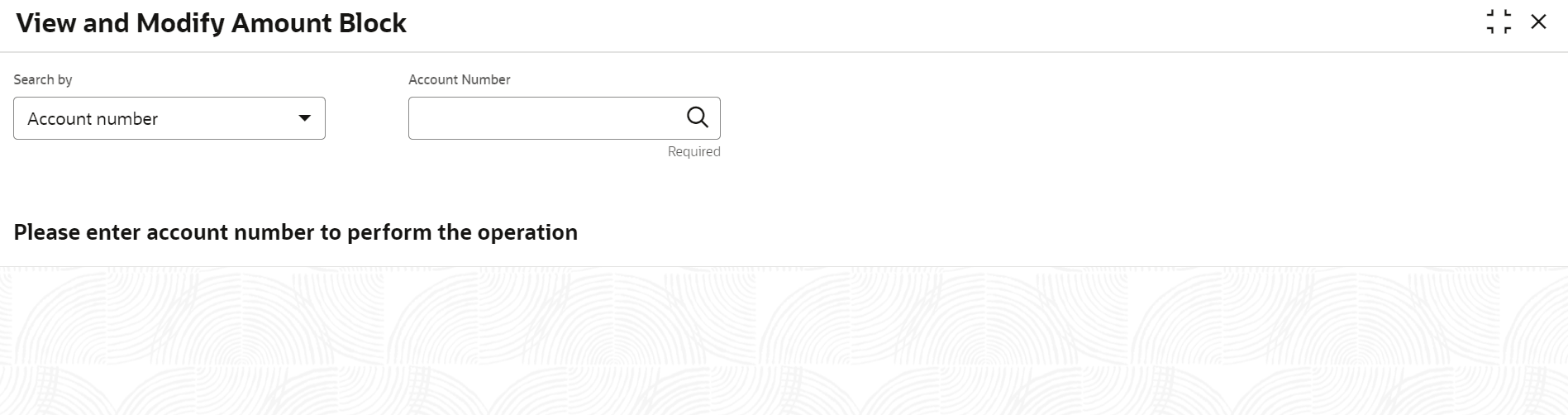
The View and Modify Amount Block screen is displayed.
- Perform the required action, based on the option selected from the Search by field. The Amount Block Details section is displayed.
Figure 3-43 View and Modify Amount Block Details
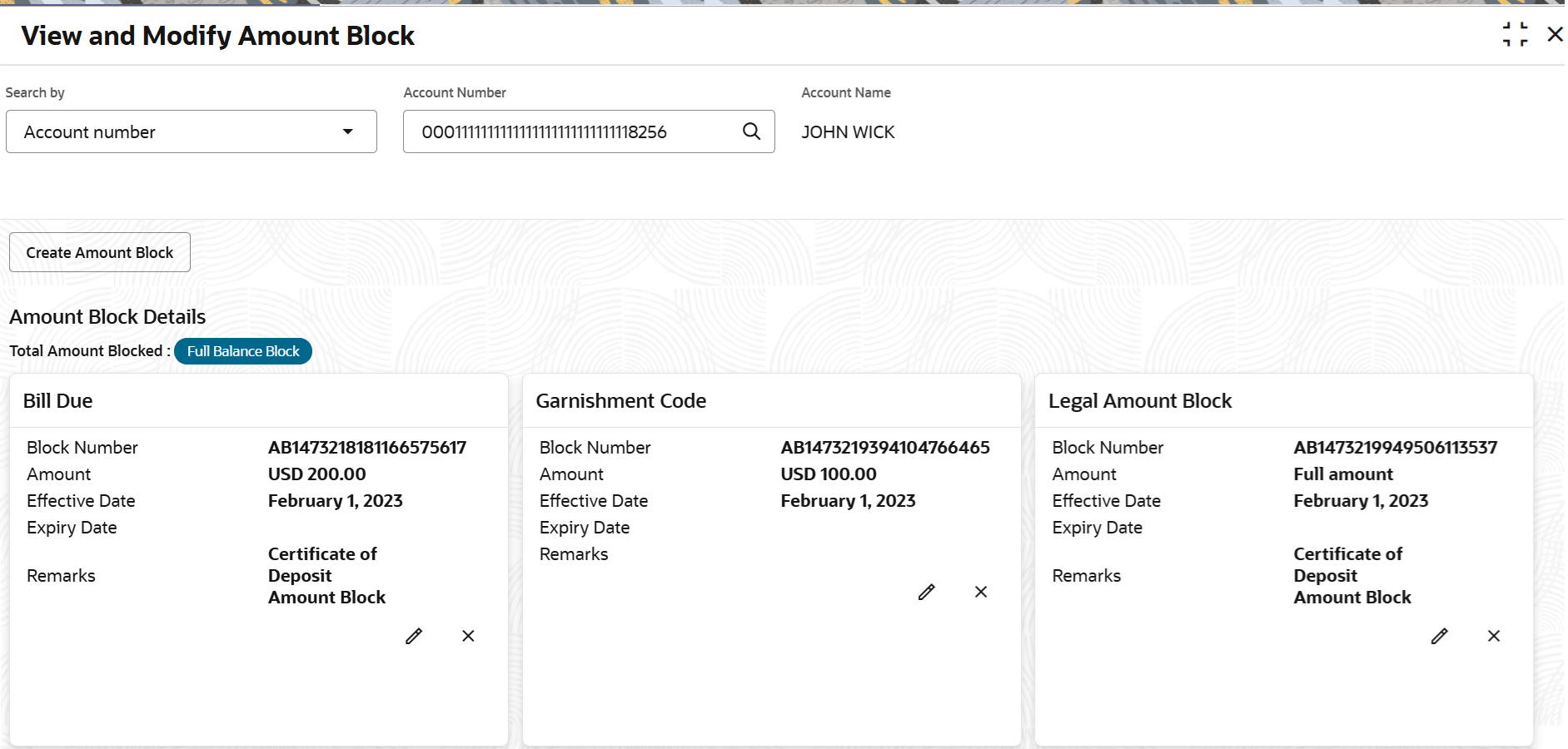
Description of "Figure 3-43 View and Modify Amount Block Details" - On the Amount Block Details section, view the block details. For more information on fields, refer to the field description
table.
Table 3-38 View Amount Block Details – Field Description
Field Description Search By Users can search for an account number by using any of the available search criteria. The account number is set as the default search option. Users can specify the account number directly in the adjacent field or search for an account number by clicking the Search icon. Users can also search for the specific account number by providing customer ID, account number, or account name.
Other search options available in the Search by field are Customer ID, Tax Identification Number, Mobile Number, and Email.
A specific customer ID can be searched by providing the customer name or customer ID. If Tax Identification Number, mobile, or email IDs are chosen to find an account number, the respective IDs have to be input entirely in the adjacent field for the system to display the account number. For a given search criteria, multiple account numbers may be linked.
For example, two or more account numbers can be linked to a single mobile number. In such cases, the system displays all the account number matches and the user can select the relevant account number on which to perform a servicing operation.- The label of the field adjacent to the Search by field changes dynamically. For example, if the Account number is chosen as the search criteria, the label of the adjacent field is displayed as the Account Number. If Tax Identification Number is chosen as the search criteria, then the adjacent field would display the label as Tax Identification Number.
- If user selects an account with closed status, then an appropriate message is displayed. The user will not be allowed to proceed with the required action in the screen.
Amount Block Details
This section displays the CD amount block details.
Total Amount Blocked
Displays the total amount blocked on the CD account.
In case of full balance block, a Full Balance Block indicator is displayed.
<Block Reason> Displays the block reason as the top of the widget. Block Number
Displays the block number.
Amount
Displays the block amount along with the currency.
A value Full Amount is displayed in case of full balance block.
Blocked Reason
Displays the block reason along with code.
Effective Date
Displays the block effective date.
Expiry Date Displays the block expiry date.
Remarks Displays the block remarks.
Status Displays the block status.
- Click Create Amount Block to add a new amount block.
- You can edit a CD amount block details by clicking the Edit icon. For more information, refer Modify Amount Block.
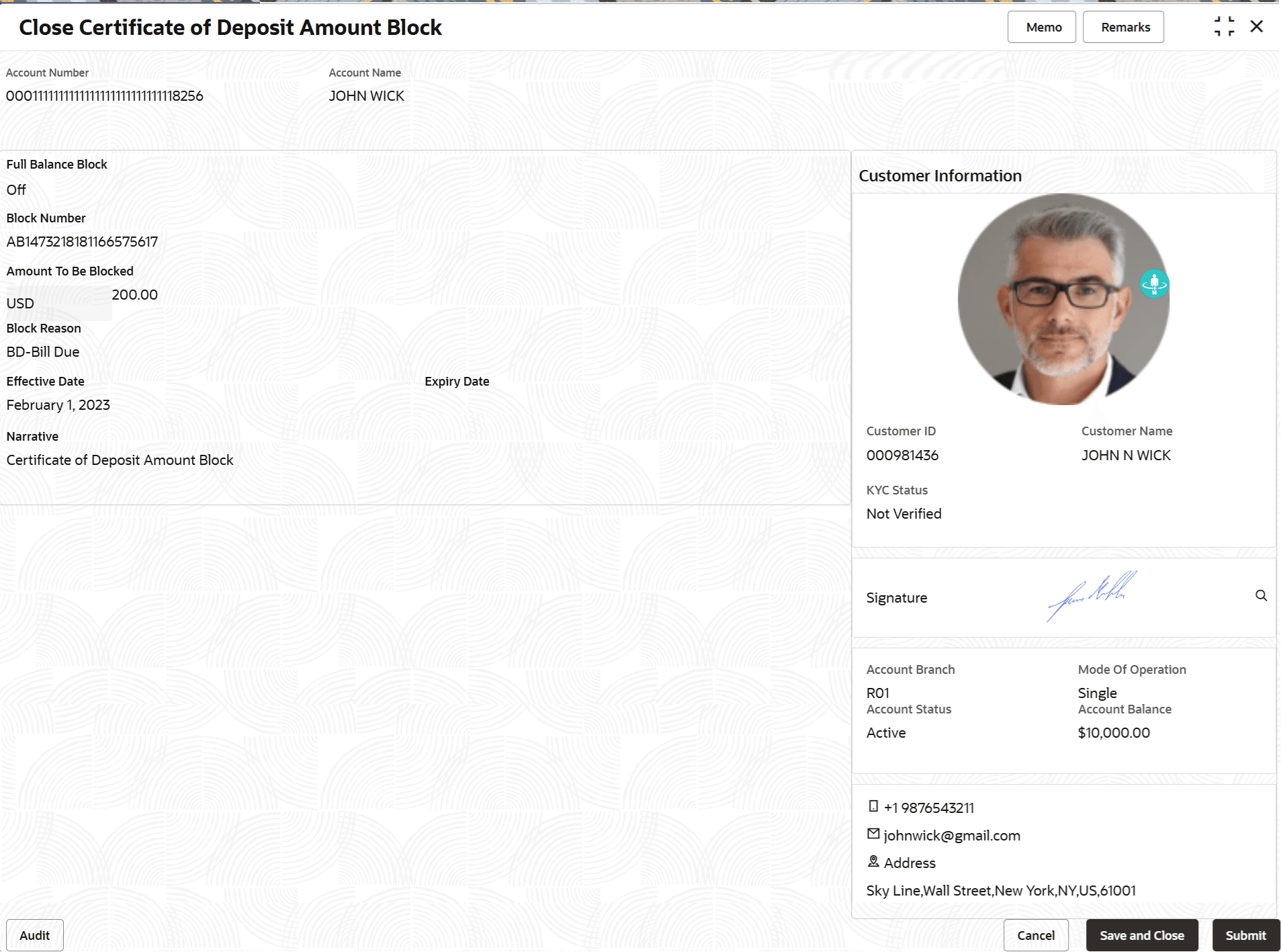
- You can delete a CD amount block details by clicking the Close icon. The Close Certificate of Deposit Amount Block screen is displayed with the closed amount block details.
Figure 3-44 Close Certificate of Deposit Amount Block
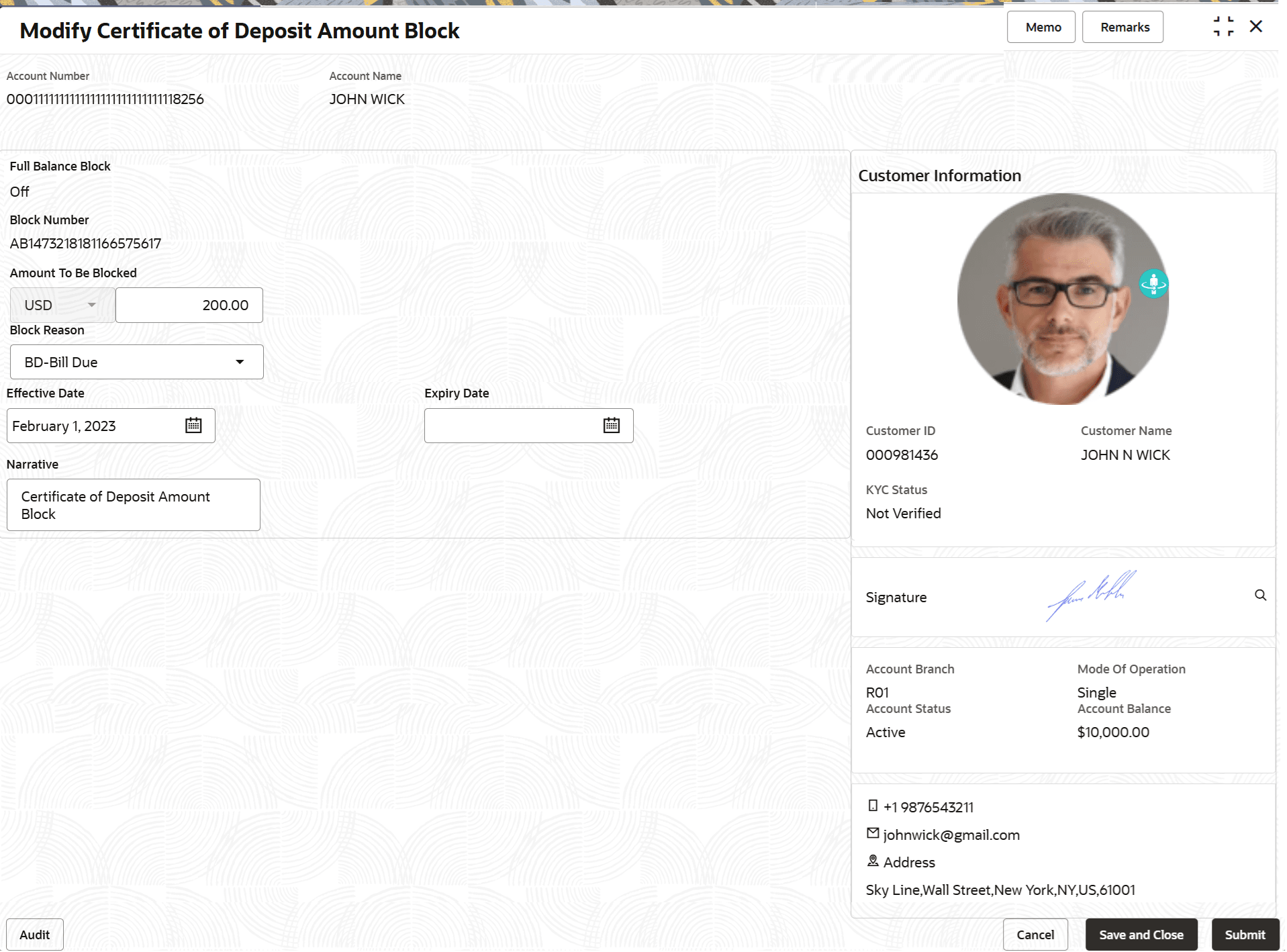
- Modify Amount Block: As you click the Edit icon from the View and Modify Amount Block screen from a particular widget, that widget details are opened in Modify Certificate of Deposit Amount Block screen.
- In the Modify Certificate of Deposit Amount Block screen, modify the required details.
Figure 3-45 Modify Certificate of Deposit Amount Block
For more information on fields, refer to the field description table.
Table 3-39 Modify CD Amount Block – Field Description
Field Description Full Balance Block Displays whether full balance amount is blocked for the account. Block Number Displays the block identification number. Amount To Be Blocked
Specify the CD amount to be blocked. Note:
By default, the currency and amount is displayed. The currency is editable, but if required you can edit the amount.Block Reason
Displays the reason for the block on CD account. Effective Date Specify or select the effective date for the block. Note:
By default, the effectiev date is displayed. If required you can edit the date.Expiry Date Specify or select the expiry date for the block. Note:
By default, the expiry date is blank. If required user can add the date.Narrative Specify the narration, if any for the block. Note:
By default, a narration is displayed. If required you can edit it.
Parent topic: CD Maintenances