4.4 Account Closure

This topic describes the systematic instructions to search and close an account.

When the user closes an account, the system performs the following actions before closing the account:
  • Closes the account checkbooks
  • Settles interest owed by or to the account
  • Completes account maintenance in the product processor
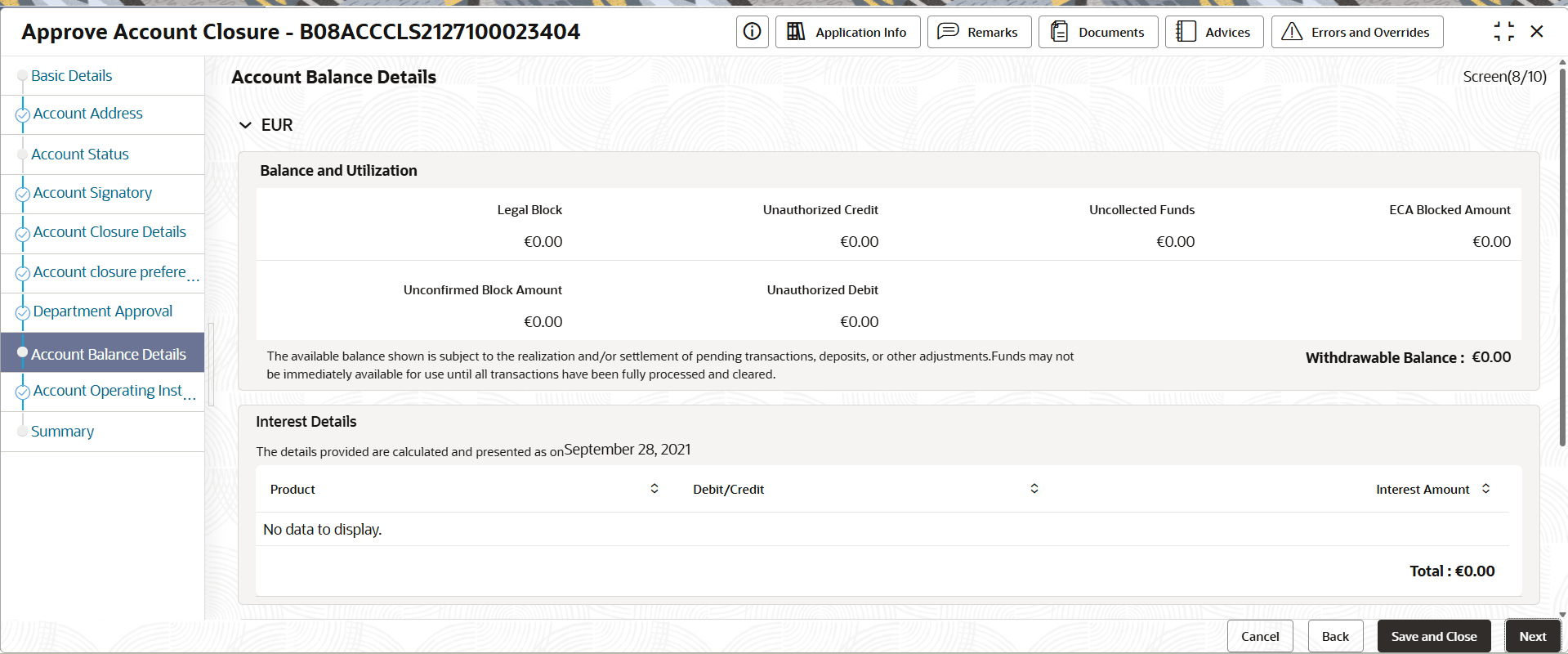
  1. On the Home screen, click Corporate Account Services. Under Corporate Account Services, click Account Closure.
    The Account Closure page displays.

    Figure 4-8 Account Closure Page


  2. In the Account Search section, specify one or more fields. For more information on fields, refer to the field description table.

    Table 4-4 Account Search - Field Description

    Field Description
    Customer Number Specify the CIF number of the customer owning the account.
    Customer Name Displays the name of the selected customer.
    Account Category Specify the account category to which the account belongs.
    Description Displays the description of the selected account category.
    Currency Specify the operating currency of the account.
    Currency Description Displays the description of the operating currency.
    Account Number Specify the account number for closure.
    To fetch an account number:
    1. Click Fetch.

      The Account Number dialog displays.

    2. Search for the required account by providing some or all of the following details: Account Number, Account Name, or Account Currency.
    3. Select the required account from the results.
  3. Click Search.
    The accounts matching the search filters display in the Account Selection section.
  4. Click an account tile to select it and then click Initiate.
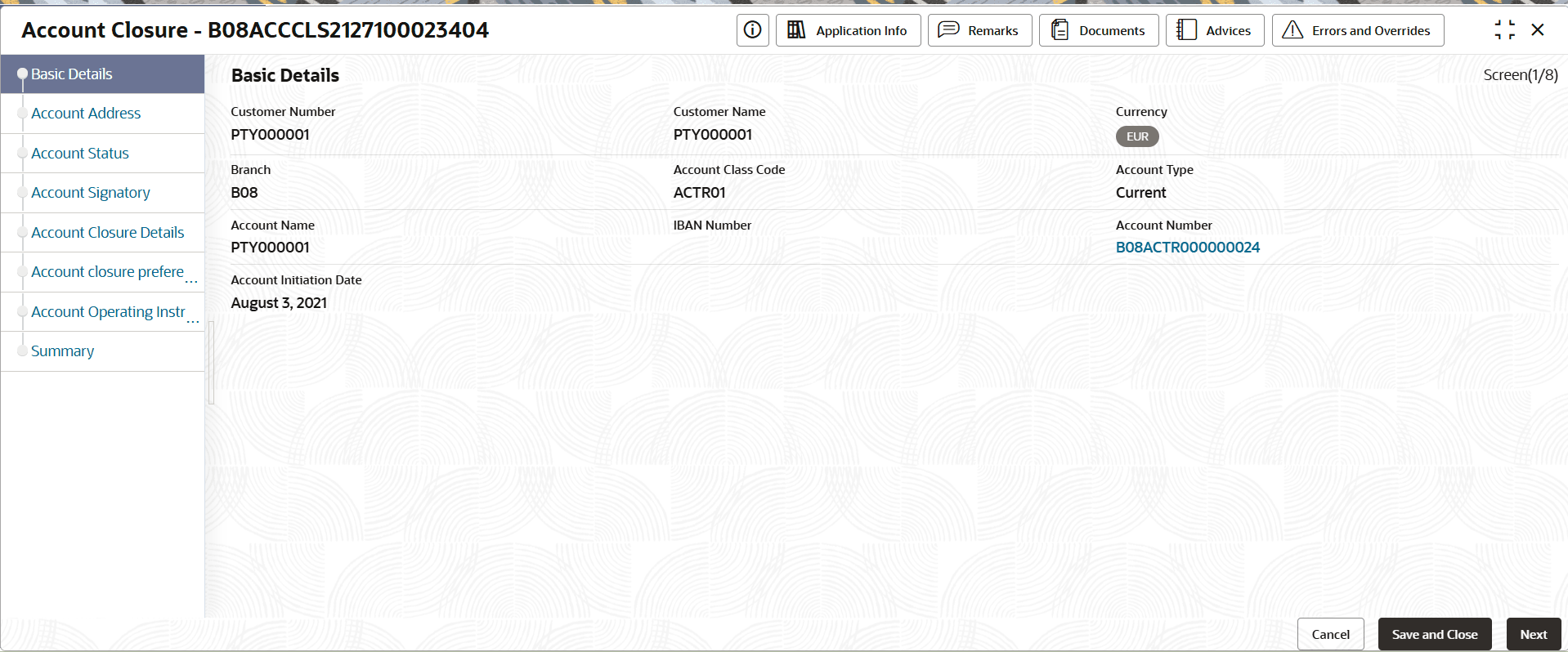
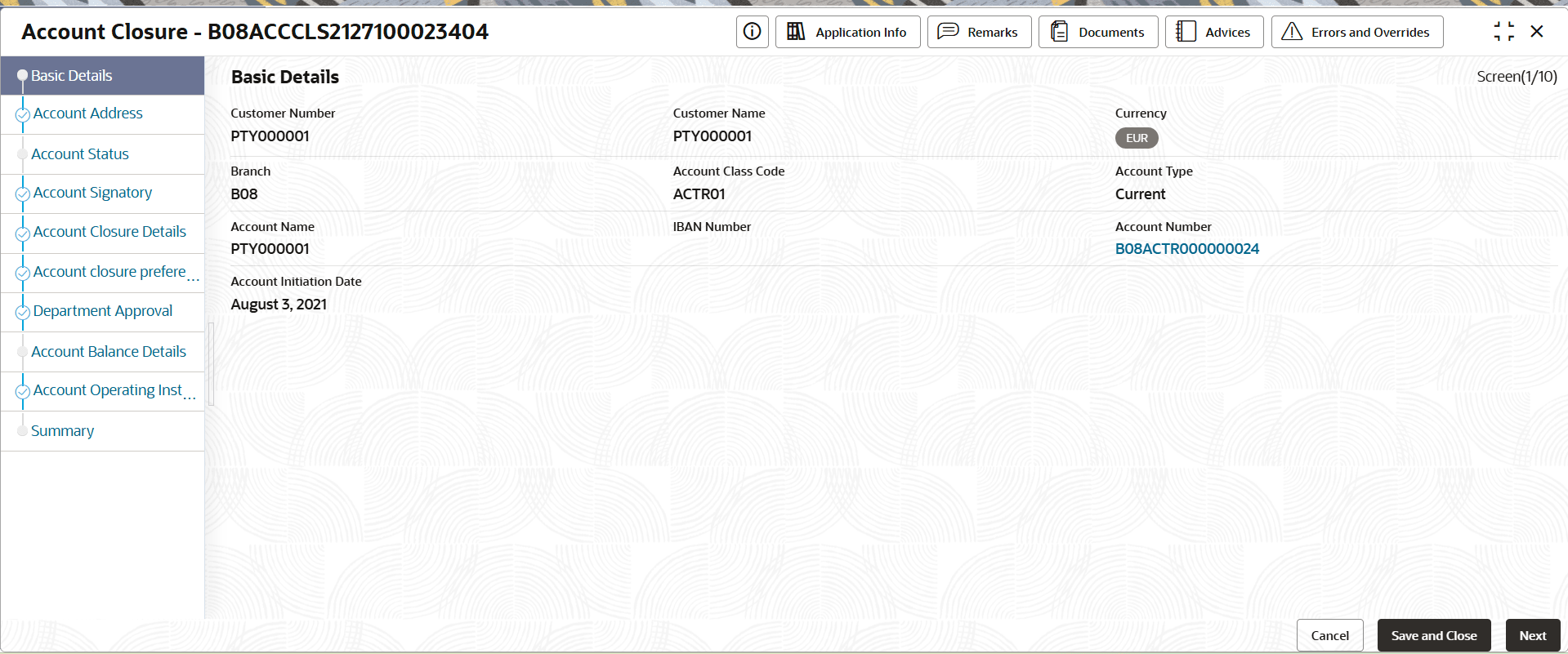
    The Account Closure - Application Number page displays the Account Basic Details screen.

    Tip:

    Make a note of the Application Number. This is needed to identify the task at the entry, enrich, and approval stages in the matching process, on the Free Tasks page.

    Figure 4-9 Account Closure Page


    Note:

    The following data segments on field-level descriptions refer to the Account Creation topic.
    • Account Basic Details
    • Account Address
    • Account Status
    • Account Signatory
  5. Click Next
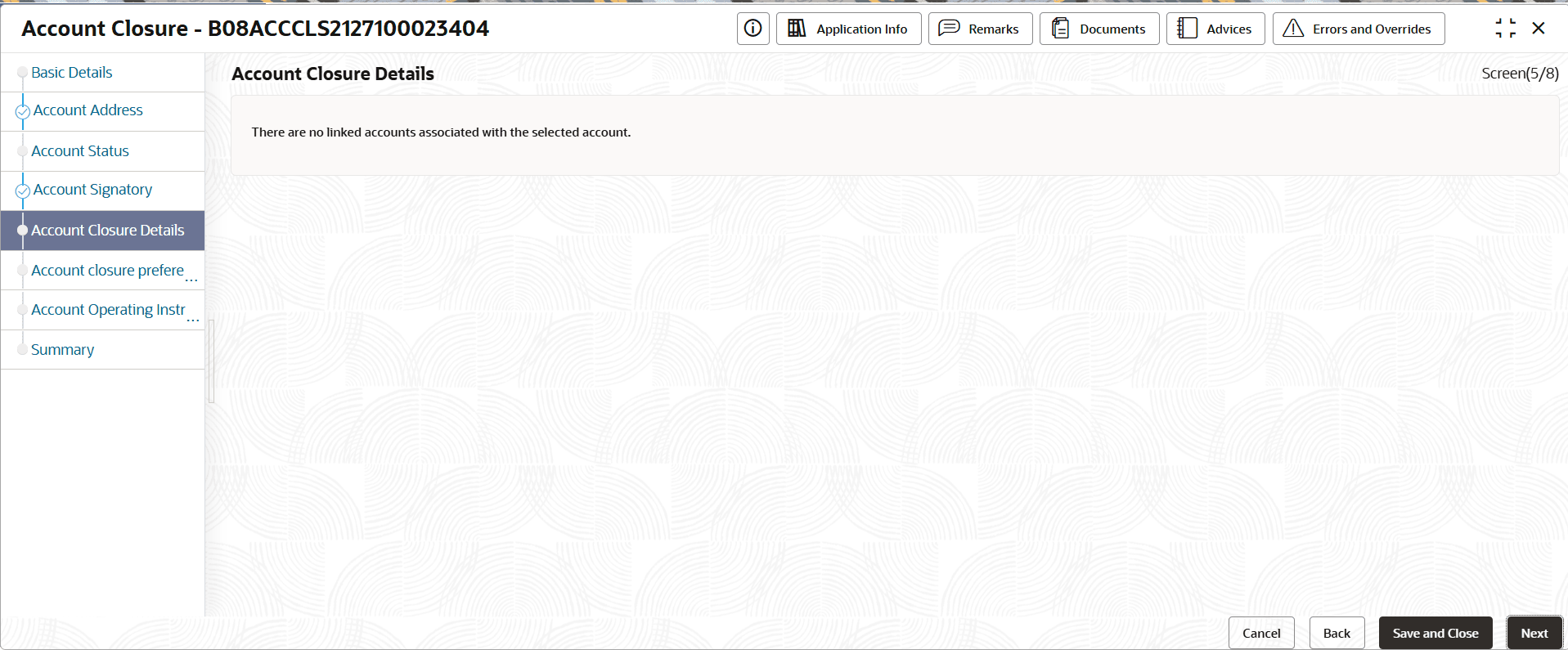
    The Account Closure Details page displays.

    Figure 4-10 Account Closure Details


  6. Click Next.
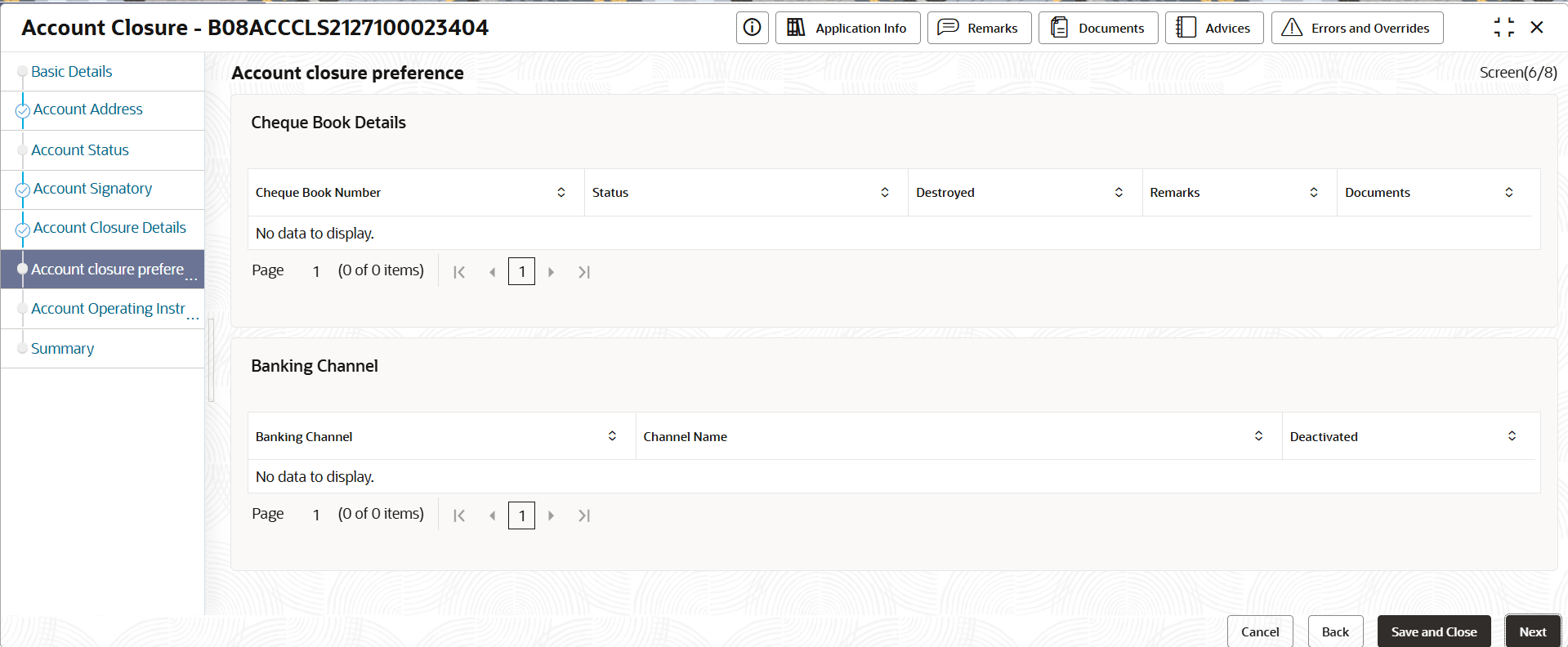
    The Account Closure Preference page displays.

    Figure 4-11 Account Closure Preference


  7. On the Account Closure Preference screen, specify the details by following the steps below:
    On the Account Closure Preference screen, specify the fields. For more information on fields, refer to the field description table.

    Table 4-5 Account Closure Preference - Field Description

    Field Name Description
    Cheque Book Number Display the cheque book number.
    Status Display the current status of the record.
    Destroyed Switch the toggle to ON, to specify whether the cheque is destroyed.
    Remarks Displays the remarks.
    Documents Update the required documents.
    Banking Channel Display all the active banking channel for the account.
    Channel Name Display all the active banking channel name for the account.
    Deactivated Displays the deactivated status.
  8. Click Next.
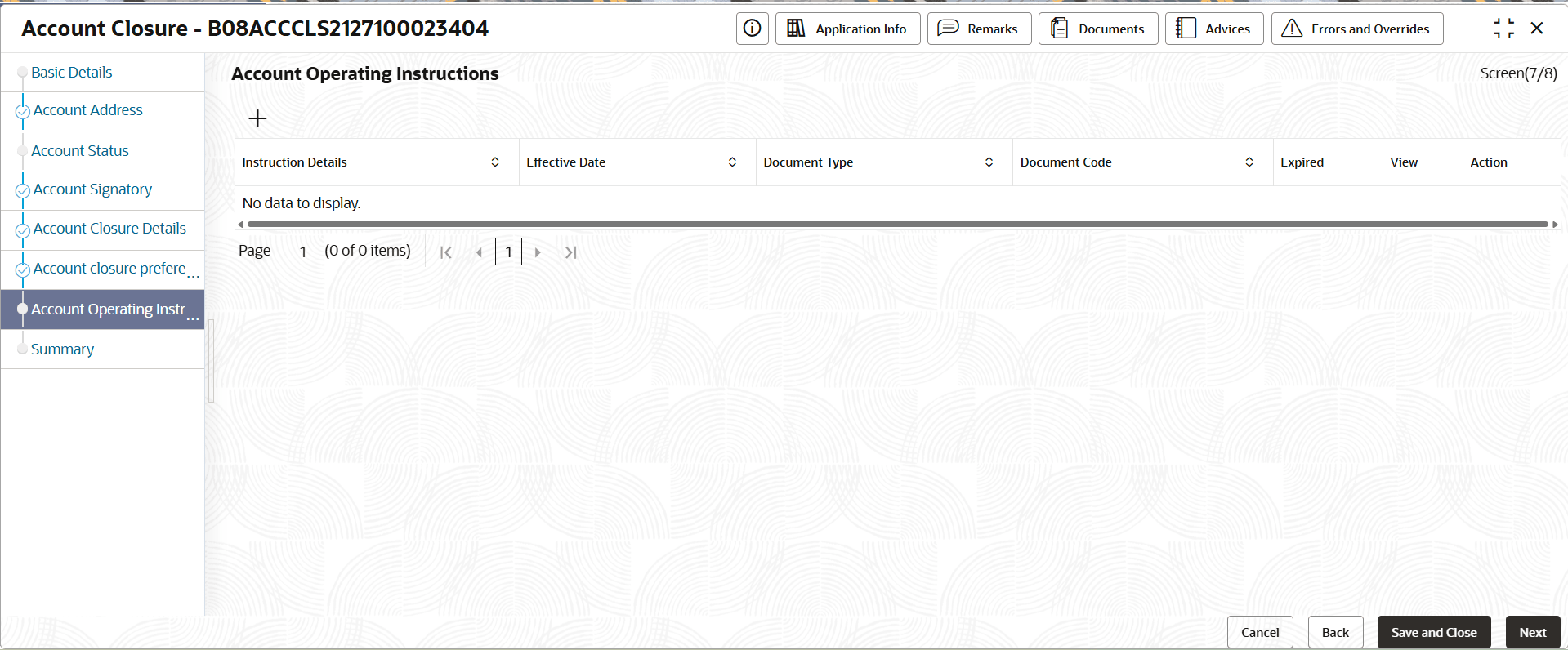
    The Account Operating Instructions page displays.

    Figure 4-12 Account Operating Instructions


  9. On the Account Operating Instructions screen, specify the details. For more information on fields, refer to the field description table.

    Table 4-6 Account Operating Instructions - Field Description

    Field Name Description
    Instruction Details Displays the instruction details.
    Effective Date Displays the date from which the block is active.
    Document Type Displays the type of document.
    Document Code Displays the document code.
    Expired Displays the expired date of the instruction.
    View Click the icon to view the document.
  10. Click Next.
    The Summary page displays.
  11. Click Submit from the Summary screen.
    The Stage Movement Submission dialog displays.
  12. Complete the Stage Movement Submission process, by following the steps below:
    1. Accept any Overrides generated and click Proceed Next.
      The Checklist stage fetches and displays checklists mapped to this stage.
    2. Confirm the checklist items and then click Proceed Next.
      The Outcome stage displays.
    3. Select PROCEED from the drop-down list and click Submit.
      The Stage Movement Submission process creates the Corporate Account Closure task.
  13. Complete the Corporate Account Closure tasks, by following the steps below:
    1. Click Tasks, and under Tasks, click Free Tasks.
      The Free Tasks page displays.
    2. Search the listed tasks with these column values. The Process Name column contains Corporate Account Closure, the Stage column contains Account Closure.
    3. Click Acquire and Edit.
      The Account Closure page displays.
  14. Click Next from the Account Closure Preference screen.
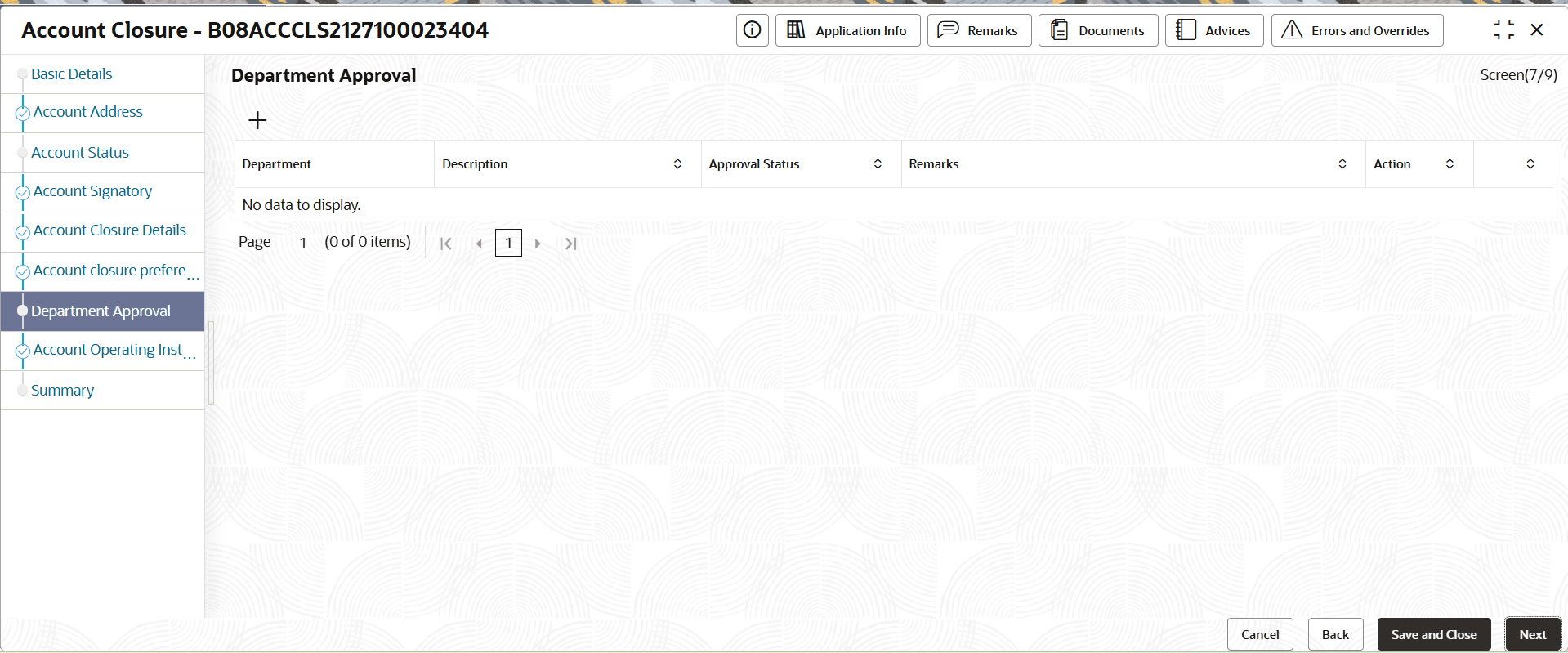
    The Department Approval page displays.

    Figure 4-14 Department Approval


  15. To provide the details on the Department Approval page, follow the steps below.
    Specify the column on the screen. For more information on fields, refer to the field description table.

    Table 4-7 Department Approval - Field Description

    Column Name Description
    Department Display all the department considering the source code.
    Description Display the brief description of the source code.
    Approval Status Display the current status of the record. The possible options are:
    • Accepted
    • Rejected
    Remarks Displays the remarks.
    Action Update the required documents.
  16. Click Submit from the Summary screen.
    The Stage Movement Submission dialog displays.
  17. Complete the Stage Movement Submission process, by following the steps below:
    1. Accept any Overrides generated and click Proceed Next.
      The Checklist stage fetches and displays checklists mapped to this stage.
    2. Confirm the checklist items and then click Proceed Next.
      The Outcome stage displays.
    3. Select PROCEED from the drop-down list and click Submit.
      The Stage Movement Submission process creates the Corporate Account Closure task.
    4. Complete the Corporate Account Closure tasks.
  18. Click Acquire and Edit.
    The Account Closure page displays.

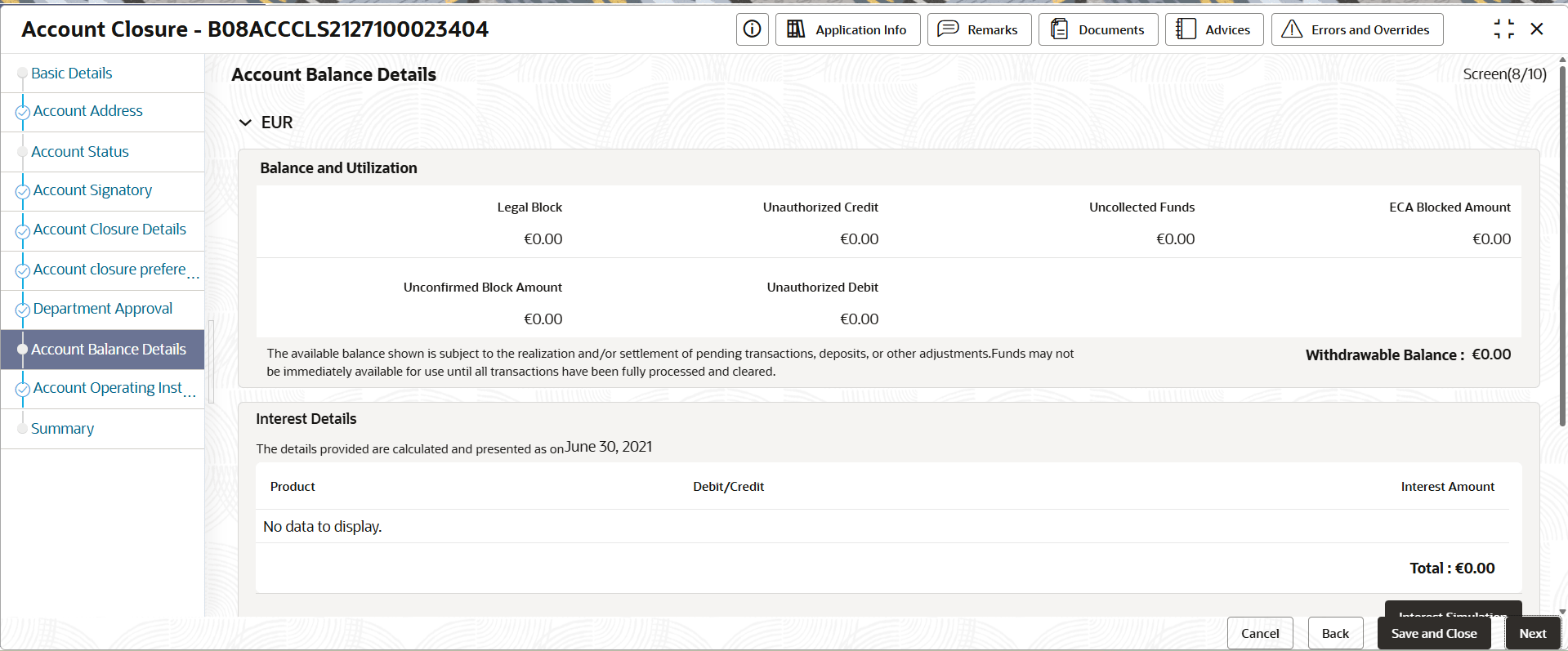
    Figure 4-15 Account Closure - Account Balance Details


  19. To provide the details on the Account Balance Details page, follow the steps below:
    1. Specify the fields on the screen. For more information on fields, refer to the field description table.

      Table 4-8 Account Balance Details - Field Description

      Field Name Description
      Legal Block Displays the legal block.
      Unauthorized Credit Displays the total amount of Credits that are not authorized.
      Uncollected Funds Displays the uncollected funds that are applicable to the account.
      ECA Blocked Amount Displays the amount blocked in the account due to External Credit Approval (ECA) sought by external applications such as Liquidity Management applications.
      Unconfirmed Block Amount Displays the unconfirmed block amount.
      Unauthorized Debit Displays the total amount of debits that are not authorized.
      Withdrawable Balance Displays the sum of balances of Legal Blocks, Unauth Credit, Uncollected funds , Blocked Amount , Unauth Debit.
      Product Displays the interest product details.
      Debit/Credit Displays the type of transaction. The possible options are:
      • Credit
      • Debit
      Interest Amount Displays the interest amount.
      Settlement Amount Displays the settlement amount.
      Waiver/Residual Required Switch the toggle to ON, to add the waiver or residual amount.
      Waiver/Residual Amount Displays the waiver or residual amount.
      Final Settlement Amount Displays the final settlement amount.
      Update Exchange Rate Displays the exchange rate to convert the original currency to the currency of the local branch.
      Exchange Rate Displays the exchange rate.
      Local Currency Equivalent Displays the local currency equivalent amount.
      Transfer Out Details Select the required option from the list. The options are:
      • None
      • Manager Checks
      • Internal Account
      • External Account
    2. Click Interest Simulation.
      The Interest Simulation page displays.

      Figure 4-16 Interest Simulation


    3. On the Interest Simulation screen, specify the fields. For more information on fields, refer to the field description table.

      Table 4-9 Interest Simulation - Field and Description

      Field Name Description
      From Date Specify the date from which the simulation is to be done.
      To Date Specify the date till which the simulation is to be done.
      Product Displays the product for simulation.
      Debit/Credit Displays the type of transaction. The possible options are:
      • Debit
      • Credit
      Projected Interest Amount Displays the projected interest amount.
  20. Click Next from Account Operating Instructions.
    The Summary page displays.
  21. Click Submit from the Summary screen.
    The Stage Movement Submission dialog displays.
  22. Complete the Stage Movement Submission process.
  23. Complete the Corporate Account Closure tasks, by following the steps below:
    1. Click Tasks, and under Tasks, click Free Tasks.
      The Free Tasks page displays.
    2. Search the listed tasks with these column values. The Process Name column contains Corporate Account Closure, the Stage column contains Approve Account Closure.
    3. Click Acquire and Edit.
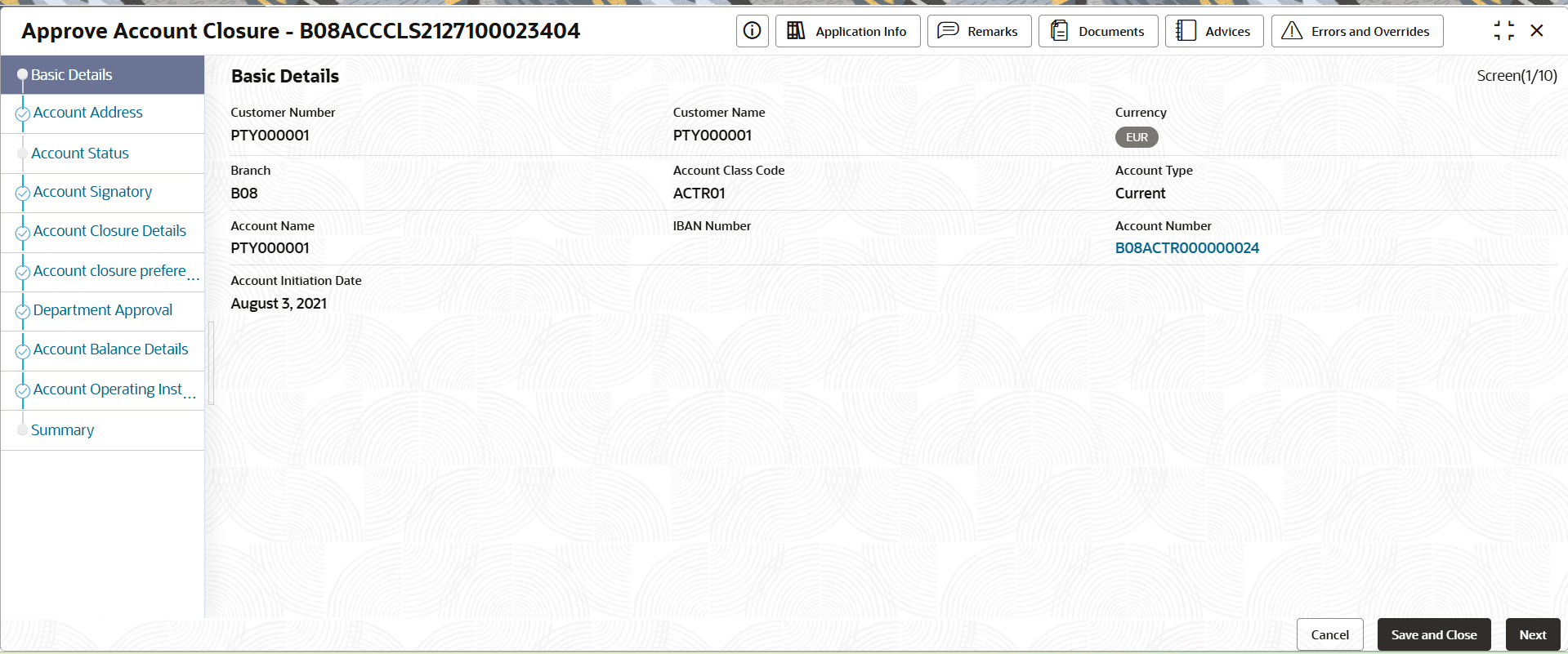
      The Approve Account Closure page displays.

      Figure 4-17 Approve Account Closure


  24. Click Next from the Department Approval screen.
    The Account Balance Details page displays.
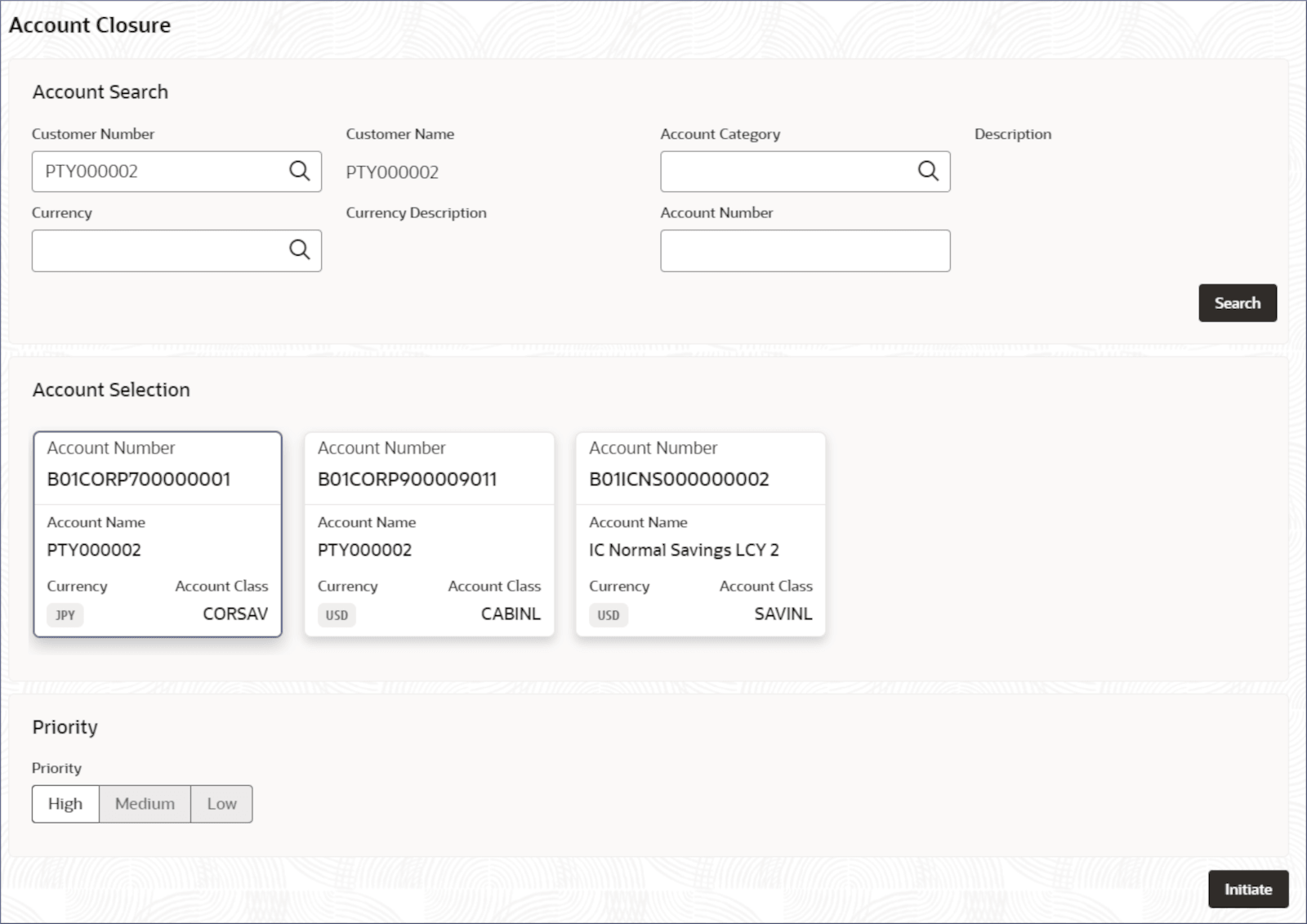
    Figure 4-18 Account Balance Details


  25. Click Submit from the summary screen.
    The Stage Movement Submission dialog displays the Overrides stage.
  26. Complete the Stage Movement Submission process, by following the steps below:
    1. Accept any Overrides generated and click Proceed Next.
      The Checklist stage fetches and displays checklists mapped to this stage.
    2. Confirm the checklist items and then click Proceed Next.
      The Outcome stage displays.
    3. Select PROCEED from the drop-down list and click Submit.
      The Account closure is approved.