4.5 Account Creation

This topic describes the systematic instructions to create accounts for an existing Corporate customer.

The process generates a unique identity for the Corporate account known as the Account Number. The Account Number can be a combination of the CIF Number, the Account Class, the Currency, and any other alphabet(s) or number(s) of the account or currency as defined.

During account creation, user can specify other parameters such as the Account Category, Primary Currency of the account, Customer Name, and more.

Authorization is required to activate the new account. When user creates or modify an account, the system generates a notification message for the new or modified record.

  1. To search and initiate an account creation, follow the steps below:
    1. On the Home screen, click Corporate Account Services. Under Corporate Account Services click Account Creation.
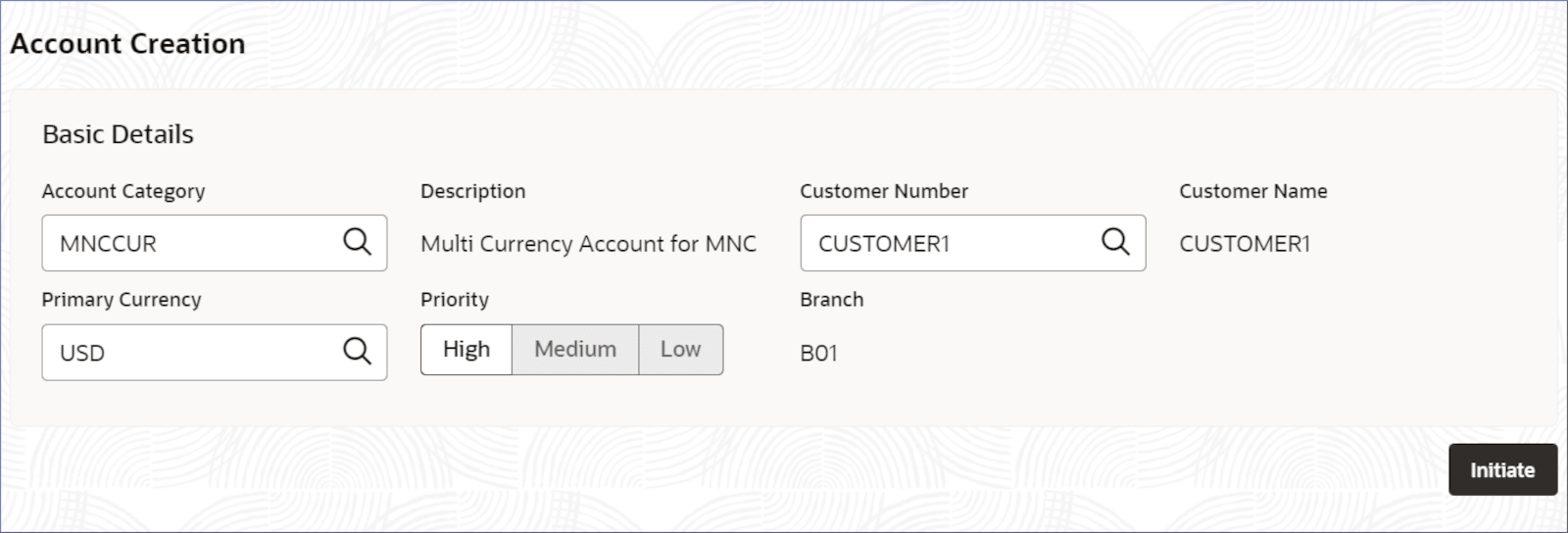
      The Account Creation page displays.
    2. In the Account Creation screen, specify the basic details of the account. For more information on fields, refer to the field description table.

      Table 4-10 Account Creation - Field Description

      Field Description
      Account Category Specify the account category to which the account belongs.

      A single customer can have any number of accounts. The structure of the account number is defined in the customer account mask, maintained as an Account Parameter under Branch Parameters. The Account Number can be a combination of some or all of the following: customer code (CIF number), serial number, Account Class, and Currency, as defined in the Customer Account mask. The last part of the account number is always a system-generated alphanumeric check digit. User cannot change the relative position of the customer account constituent (defined in the mask) while maintaining the actual customer account.

      Description Displays the description of the account category.
      Customer Number Specify the customer CIF number. CIF number can be part of the account mask.

      The customer's CIF code is required to create an account. If the CIF number is part of the account mask, the system automatically defaults the customer CIF code in the appropriate field. If the CIF number is not part of the account mask, manually specify the customer CIF code. All valid customer codes are displayed in the adjoining option list. User can select the required one.

      Customer Name Displays the customer name. This field is auto-populated.
      Primary Currency Specify the primary currency of the customer account. It denotes the currency in which the account can transact.
      Priority Select the priority for creating the account. The options are:
      • High
      • Medium
      • Low
      Branch Displays the branch code of the account.
    3. Click Initiate.
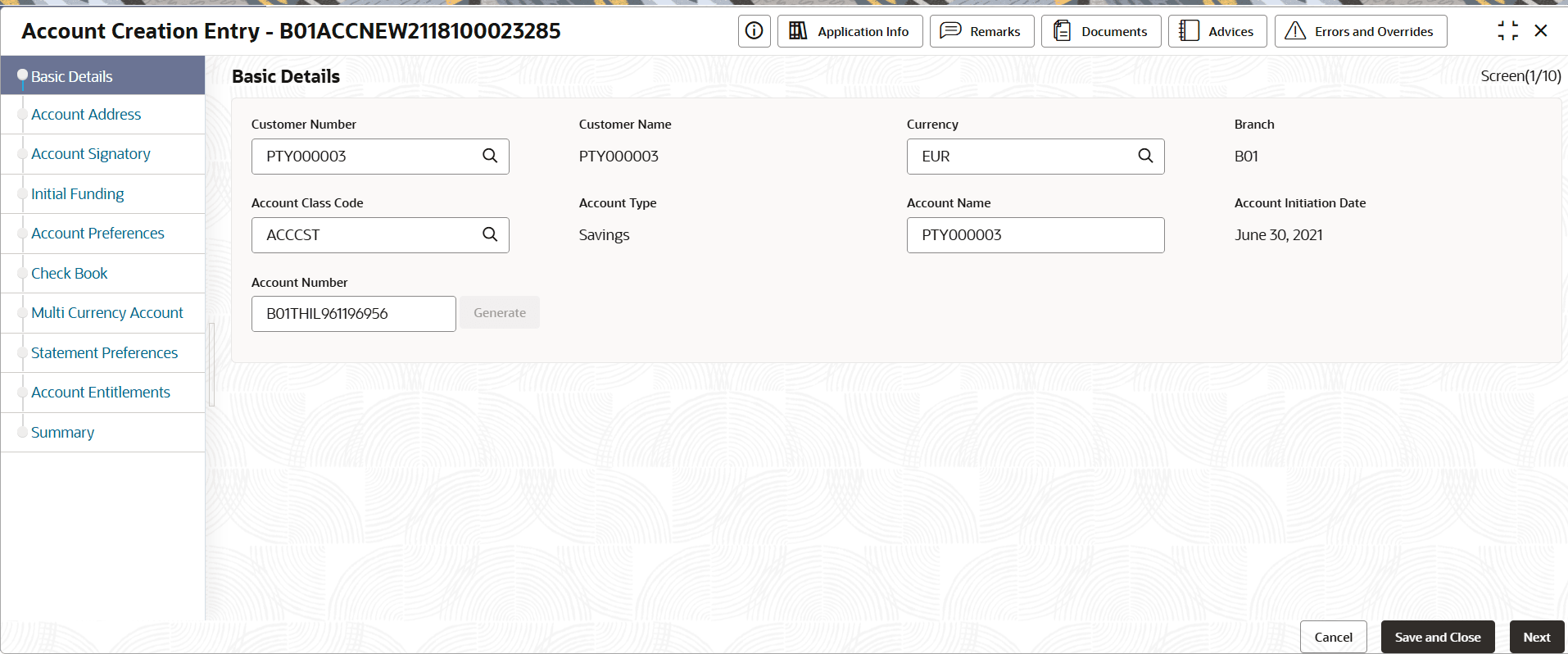
      The Account Creation Entry - Application Number screen displays the Account Basic Details screen. The screen is populated with the details provided in the previous step.

      Figure 4-20 Account Basic Details


      Tip:

      Make a note of the Application Number. This is needed to identify the task at the entry, enrich, and approval stages in the matching process, in the Free Tasks screen.
  2. To provide the Account Basic Details, follow the steps below:
    1. Specify the Account Class Code for the account.

      Note:

      The Account Class provides the Interest Details, Account Status, GL Reporting Details, and Account MIS details. Select the appropriate account class that supports the features user require in the account. For example, to include interests and charges in the account, ensure that the account class supports the interest and charges feature.
    2. Click Generate.
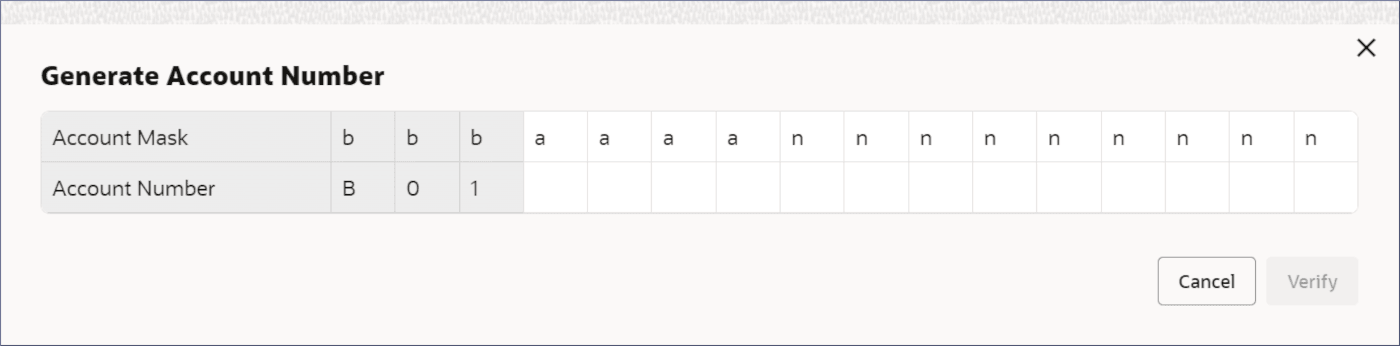
      The Generate Account Number dialog displays.

      Figure 4-21 Generate Account Number


      Note:

      The columns masked with L represent the account class (may or may not be present and is decided by the banking organization), the columns masked with b represent the branch code, the columns masked with a represent the alphabets to be provided, and the columns masked with n represent the number to be provided. Together they represent a unique Corporate account number.
    3. Double-click the first column masked by a.

      The cells become editable.

    4. Enter the required alphabets and numbers for the account number. Press the Tab key to move to the next cell.
    5. Press Verify.

      The account number is verified and generated. The Account Basic Details screen displays the Account Number field populated with the new account number.

    6. Click Next.
      The Account Address page displays.
  3. To provide the details on the Account Address page, follow the steps below:
    1. To use an existing CIF Address, expand the Defaulted CIF Address node and select the required address. Click Use Address.
      The selected CIF address is added to the Account Contact Address section.
    2. In the Account Contact Address section, click Add to add a new address.

      Note:

      User can add as many addresses as needed.
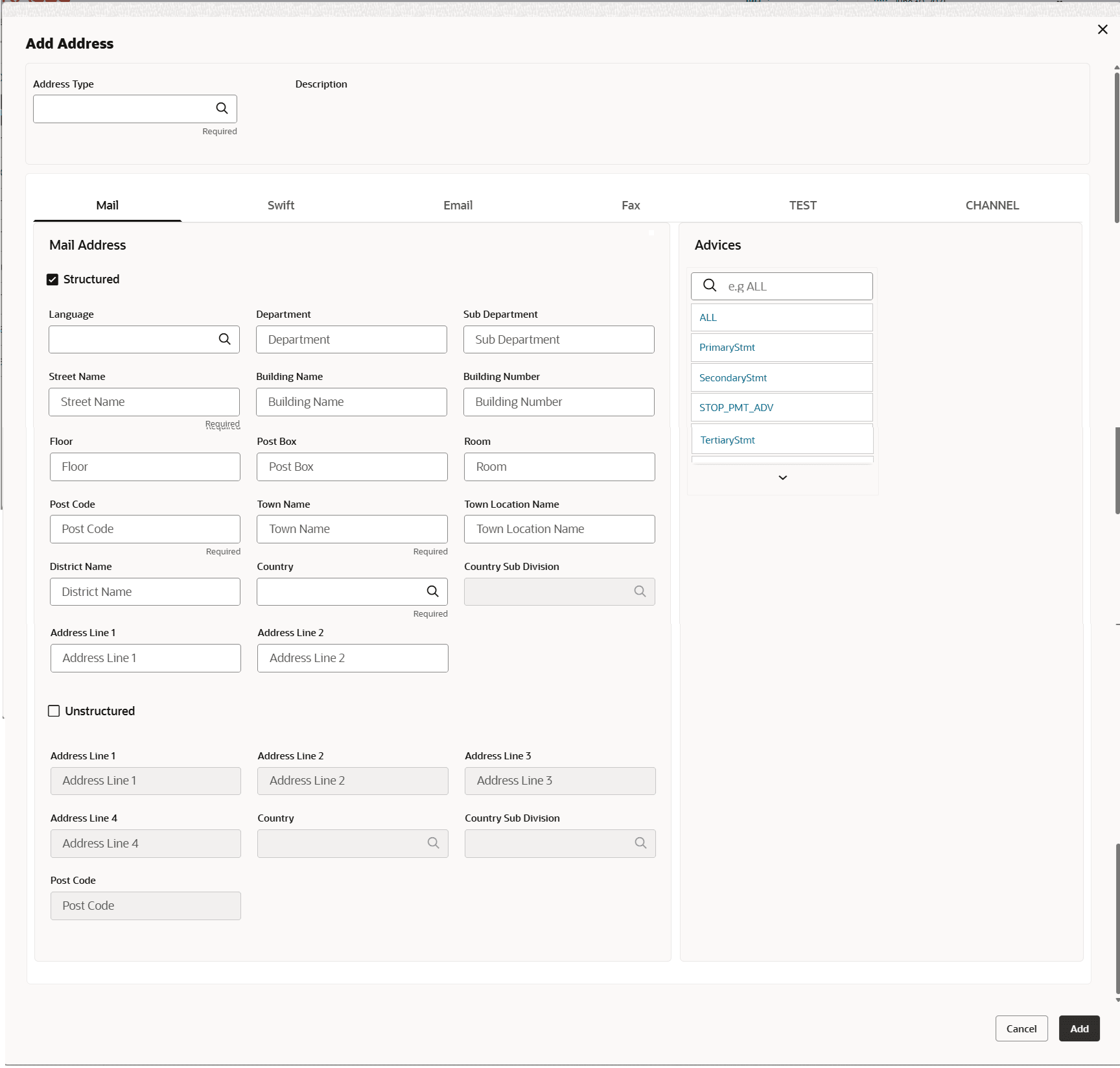
      The Add Address section displays.
    3. In the Add Address section, specify the Address Type and mailing address details. For more information on fields, refer to field description table.

      Table 4-11 Account Address - Field Description

      Field Description
      1Address Type Select the required address type. The options are:
      • HOA - Head Office
      • ROA - Registered Office
      • BOA - Branch Office
      • COA- Communication Address
      Language Specify the language of the address details.
      Department Specify the department which identifies a division of a large organization or building.
      Sub Department Specify the sub-division of a large organization or building.
      Street Name Specify the street or thoroughfare name.
      Building Name Specify the building name.
      Building Number Specify the building number.
      Floor Specify the floor within a building.
      Post Box Specify the numbered box in a post office, assigned to a person or organization, where letters are kept until called for.
      Room Specify the room number in the building.
      Post Code Specify the code consisting of a group of letters and/or numbers that is added to a postal Address to assist the sorting of mail.
      Town Name Specify the name of a built-up area, with defined boundaries, and a local government.
      Town Location Name Specify the specific location name within the town.
      District Name Specify a subdivision within a country sub-division.
      Country Sub Division Specify a subdivision of a country such as state, region, county.
      Country Specify the nation with its own government.
      Address Line 1 The first line of the current address, typically including the building name or primary address details.
      Address Line 2 The second line of the address, usually containing the street name or additional address details.
      Unstructured Select Unstructured check box to enter address.
      Address Line 1 Specify the Address Line 1.
      Address Line 2 Specify the Address Line 2.
      Address Line 3 Specify the Address Line 3.
      Address Line 4 Specify the Address Line 4.
      Country Click Search to select the country
      Country Sub Division Click Search to select country sub division.
      Post Code Specify the code consisting of a group of letters and/or numbers that is added to a postal Address to assist the sorting of mail.
    4. In the Media Address field, click the Mobile tab and specify the mobile number.
    5. In the Media Address field, click the Swift tab and specify the BIC (Bank Identifier Code). BIC uses eight to eleven-digit characters that identify the country, city, bank, and branch.
    6. In the Media Address field, click the Email tab and specify the Email address.
    7. In the Media Address field, click the Fax tab and specify the fax number.
    8. In the Account Address section, click Add.
      Adds a new account address row.
    9. To add more addresses, repeat the above steps.
    10. Click Next.
      The Account Signatory page displays.
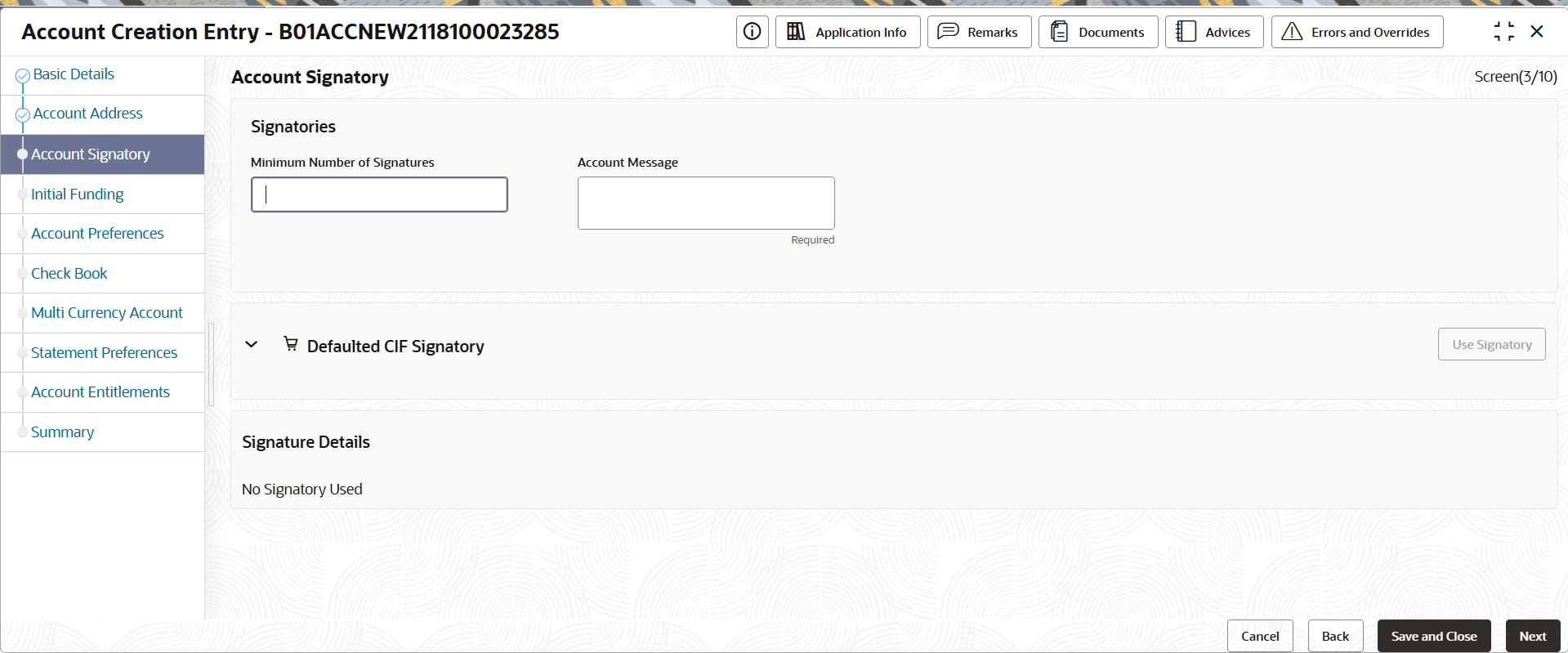
  4. To provide the details on the Account Signatory page, follow the steps below:
    1. In the Account Signatory page, specify the fields. For more information on fields, refer to field description table.

      Table 4-12 Account Signatory - Field Description

      Field Description
      Minimum number of Signatures Specify the minimum number of signatories required to perform a transaction on this account.
      Account Message Specify the message that is displayed when a transaction is initiated on this account.
      Defaulted CIF Signatories Select the default signatories imported from the Customer Information File.
      Use Signatories Click to use the selected default signatory.
      Signature Details Displays the signature details of the signatories.
    2. Click Next.
      The Initial Funding screen displays.
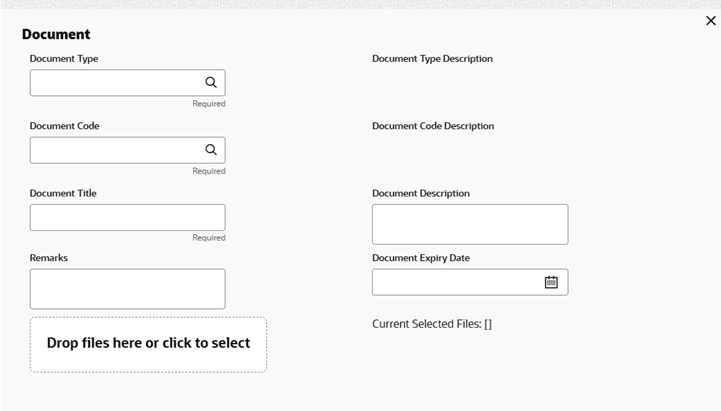
  5. Click Add icon to upload the document.
  6. The Document pop-up dialog displays.
  7. Click Drop files here or click to select to upload the file.
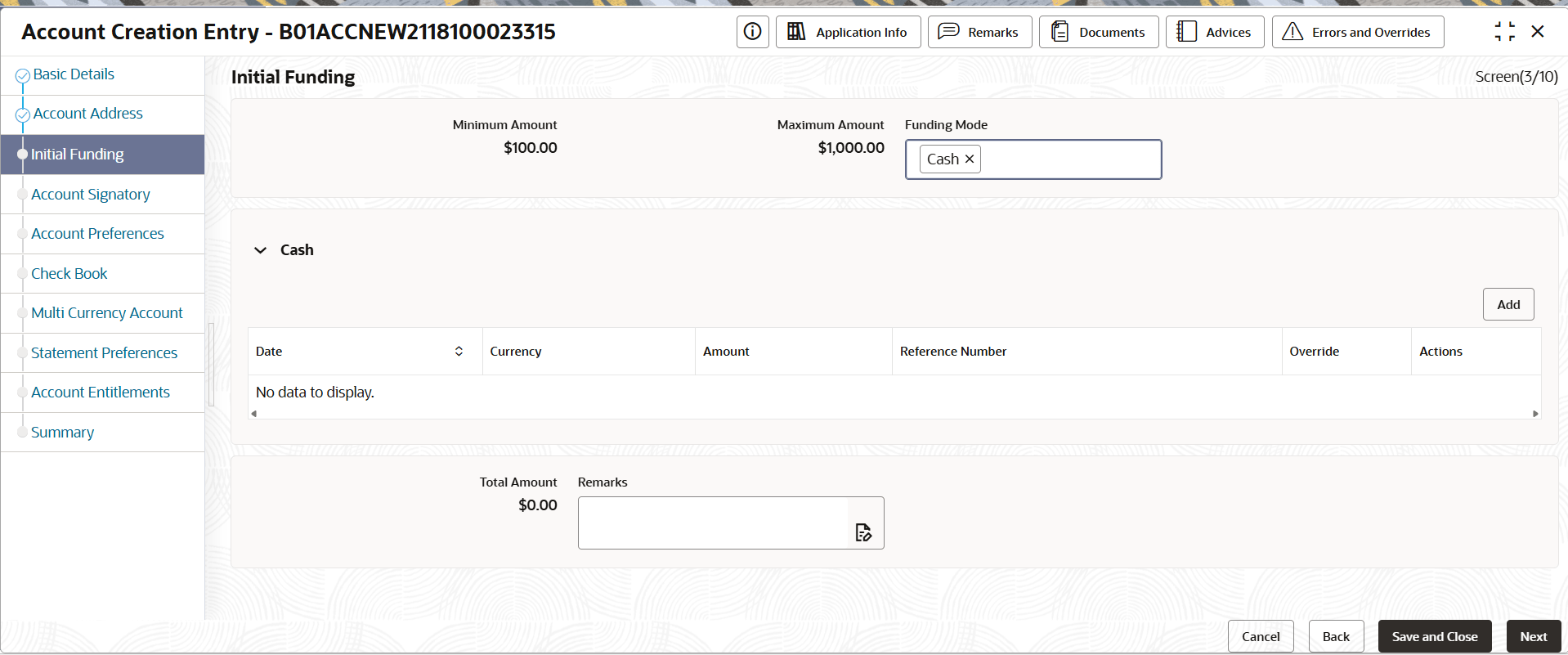
  8. In the Initial Funding screen, specify the details. For more information on fields, refer to field description table.

    Table 4-13 Initial Funding - Field Description

    Field Description
    Minimum Amount Specify the Minimum Amount.
    Maximum Amount Specify the Maximum Amount.
    Funding Mode Select Funding Mode from the list of values.
    • Cash
    • Cheque
    • Account Transfer
    Cash This section displays the following fields.
    Date Specify the Date.
    Currency Specify the operating currency of the account.
    Amount Specify the required amount.
    Reference Number Specify the transaction reference number.
    Actions Click Delete to delete the row.
  9. Click Add to displays a new row.
    1. Double-click on the row to activate.
      The cells is enabled for editing.
    2. Press the Tab key to move to the next cell and specify the required fields.
  10. Specify the Total amount.
    The system marks the account as Funded. if the application has an initial funding requirement marked as YES, then the system marks the account as Non Funded.
  11. Click Next.
    The Account Preferences page displays.

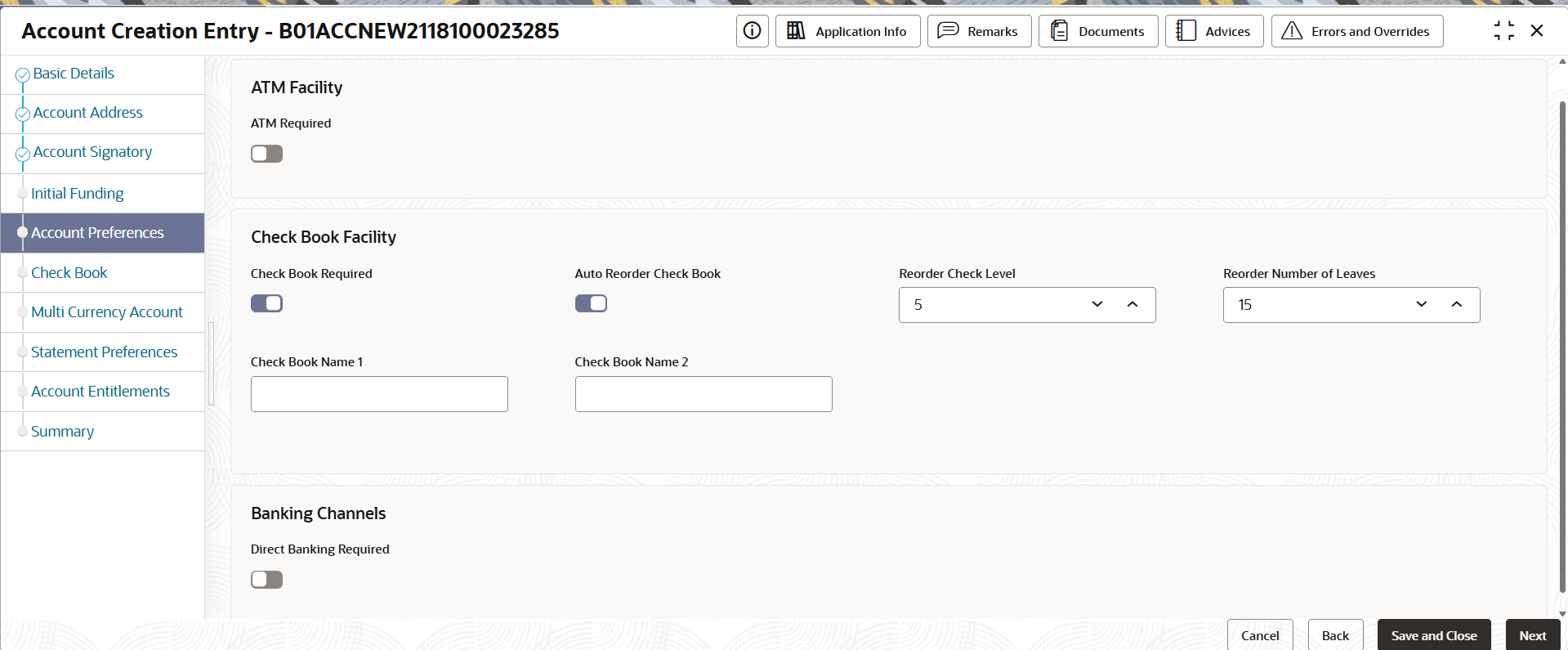
    Figure 4-27 Account Preferences


  12. Perform the following actions on the Account Preferences screen:
    1. On the Account Preferences screen, specify the fields. For more information on fields, refer to field description table.

      Note:

      The account preference mentioned in the following table can be activated only if the same is allowed for the account class selected for the account creation in Step 2.a.

      Table 4-14 Account Preferences - Field Description

      Field Description
      ATM Required Toggle the switch to ON to enable the ATM facility for the account.
      Check Book Required Toggle the switch to ON to enable the check book facility for the account.
      Auto Reorder Check Book Toggle the switch to ON to auto-reorder check book.
      Reorder Check Level Specify the number of check leaves left when the reorder is triggered.

      Note: To find the number of checks left, the automatic reorder process considers the stopped, blocked, and used checks.

      Reorder Number of Leaves Specify the number of check leaves in the new check book.
      Check Book Name 1 Specify a name for the first check book.
      Check Book Name 2 Specify a name for the second check book.
      Direct Banking Required Toggle the switch to ON to enable direct banking options for the account.
    2. Click Next.
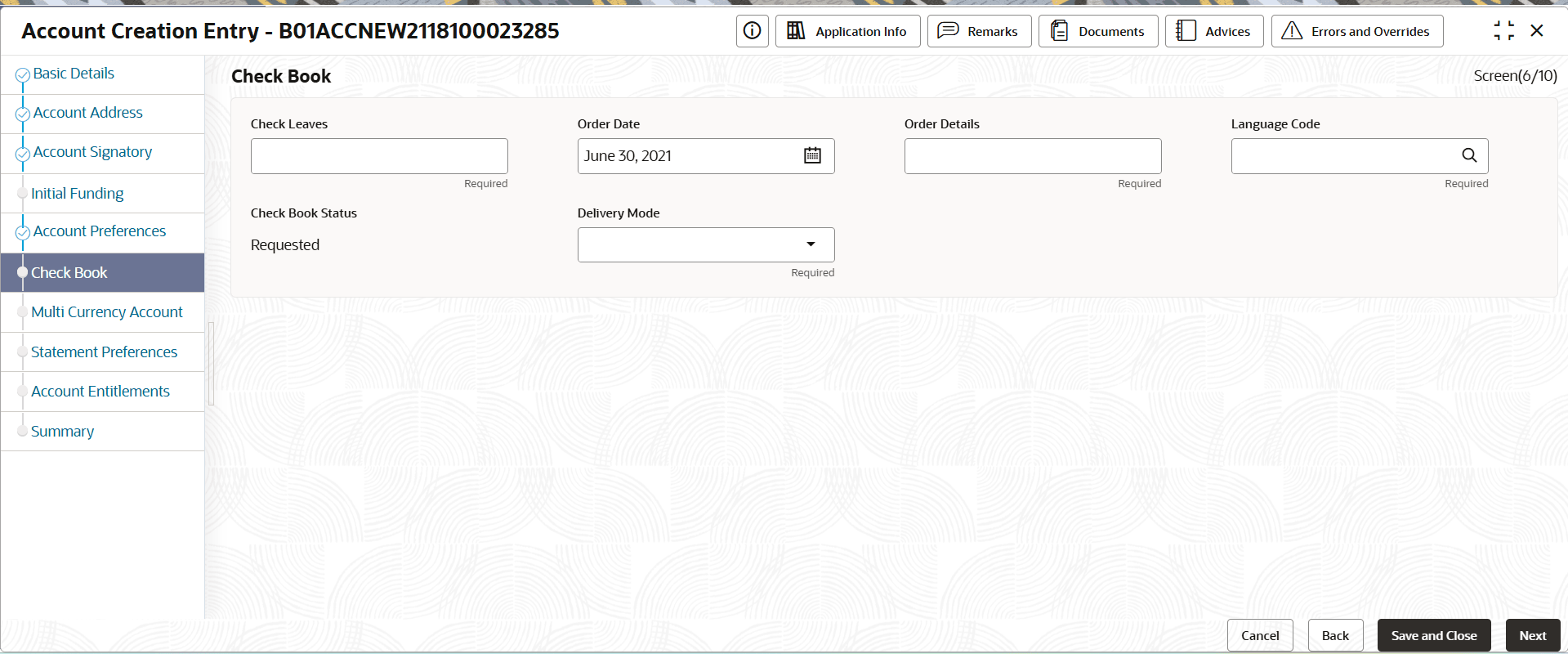
      The Check Book screen displays.
  13. Perform the following actions on the Check Book screen.
    1. In the Check Book screen, specify the fields. For more information on fields, refer to field description table.

      Table 4-15 Check Book - Field Description

      Field Description
      Check Details Specify the number of check leaves required in the check book.
      Order Date Specifies the Check Book order placement date.
      Order Details Specify the Order details, such as requesting a new check book.
      Language Code Select the language code from the available options.
      Check Book Status By default, this value is set to Requested.
      Delivery Mode Select the mode of the check book delivery. The options are:
      • Branch- Check book is delivered at the specified branch.
      • Post/Courier- Deliver the check book from the address types provided in the Account Address screen or a custom address to be provided.
      Branch Code Specify the Branch code to deliver the check book.

      Note: This field is visible only if the Delivery Mode is set to Branch.

      Address Type Select the address type from the drop-down list. The options are:
      • Custom - Select this option and provide the required address in the Add Address dialog.
      • Other Address Types - These address types will be the ones provided in the Account Address screen.
      Delivery Address Displays the address to deliver the check book that corresponds to the Delivery Mode selected.
    2. If required, specify a custom delivery address.
      1. In the Delivery Mode drop-down field, select Post/Courier.
      2. In the Address Type drop-down field, select Custom.
        The Add Address section displays.

        Note:

        For more information on Add Address dialog refer Account Address data segment.
      3. Click Add.

        In the Delivery Address section, the CUSTOM address displays.

    3. Click Next.
      The Multi screen displays.
  14. Click Next.
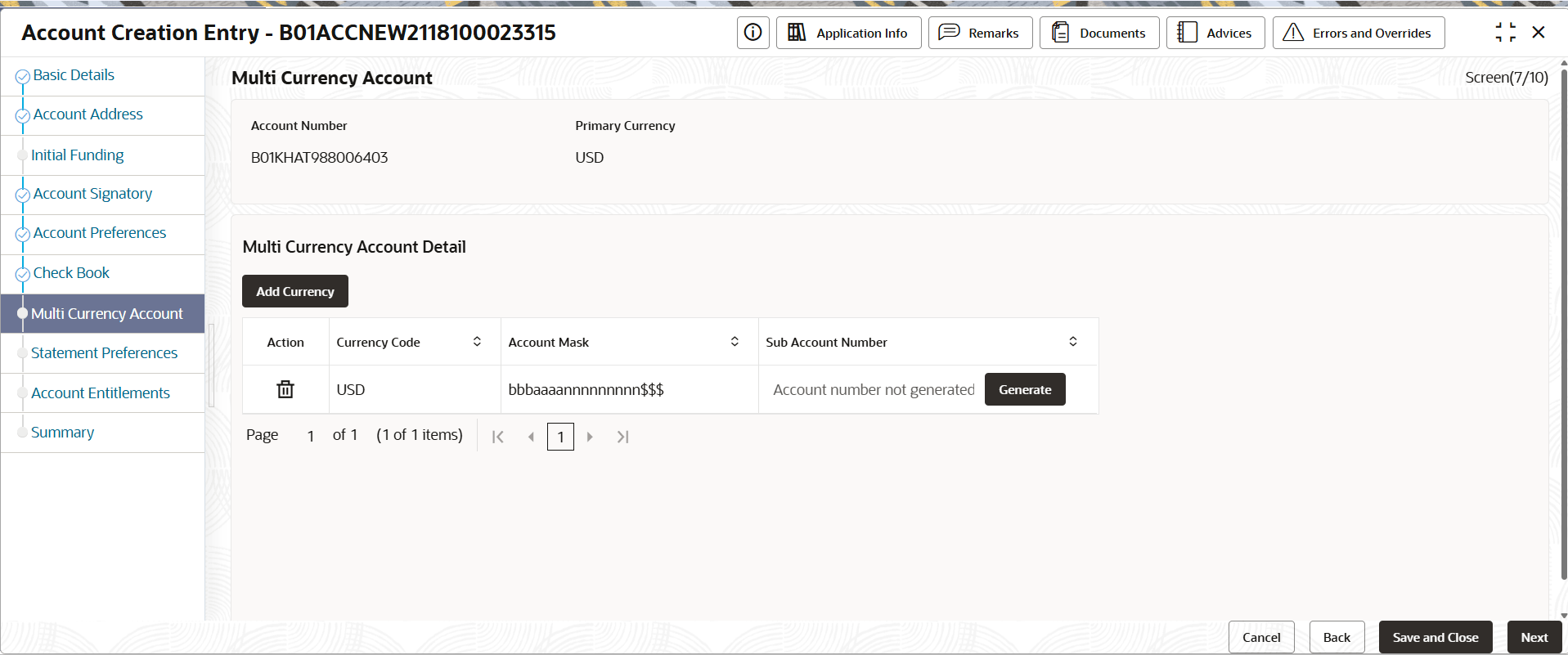
    The Multi Currency Account screen displays.

    Figure 4-29 Multi Currency Account


  15. In the Multi Currency Account screen, create the sub-accounts for the required currencies.
    The Multi Currency Account page displays the primary currency of the account and allows the addition of sub-accounts for other supported currencies.

    Note:

    This screen is not available for single currency account. To create a multi-currency account, select an appropriate account class that supports multiple currencies in Step 2. a. (Account Basic Details).
    1. In the Multi Currency Account Detail section, click Add Currency.
      The Account Currency List will be displayed.
    2. Select the required currencies from the list.
      The Account Mask column will be auto-populated.
    3. In the Sub Account column, click Generate.
      The Generate Account Number pop-up displays.

      Note:

      The columns masked with L represent the account class (may or may not be present and is decided by the banking organization), the columns masked with b represent the branch code, the columns masked with a represent the alphabets to be provided, the columns masked with n represent the number to be provided and the columns masked with $ represent the currency code. Together they represent a unique Corporate sub-account number.
    4. Double-click the first column masked by a.
      The cells become editable.
    5. specify the required alphabet and numbers for the sub-account number. Press the Tab key to move to the next cell.
    6. Click Verify.
      The account number is verified and generated, and the new account number is populated in the Sub Account Number column.
    7. Repeat the above steps to generate the sub-account number for more supported currencies.
  16. Click Next.
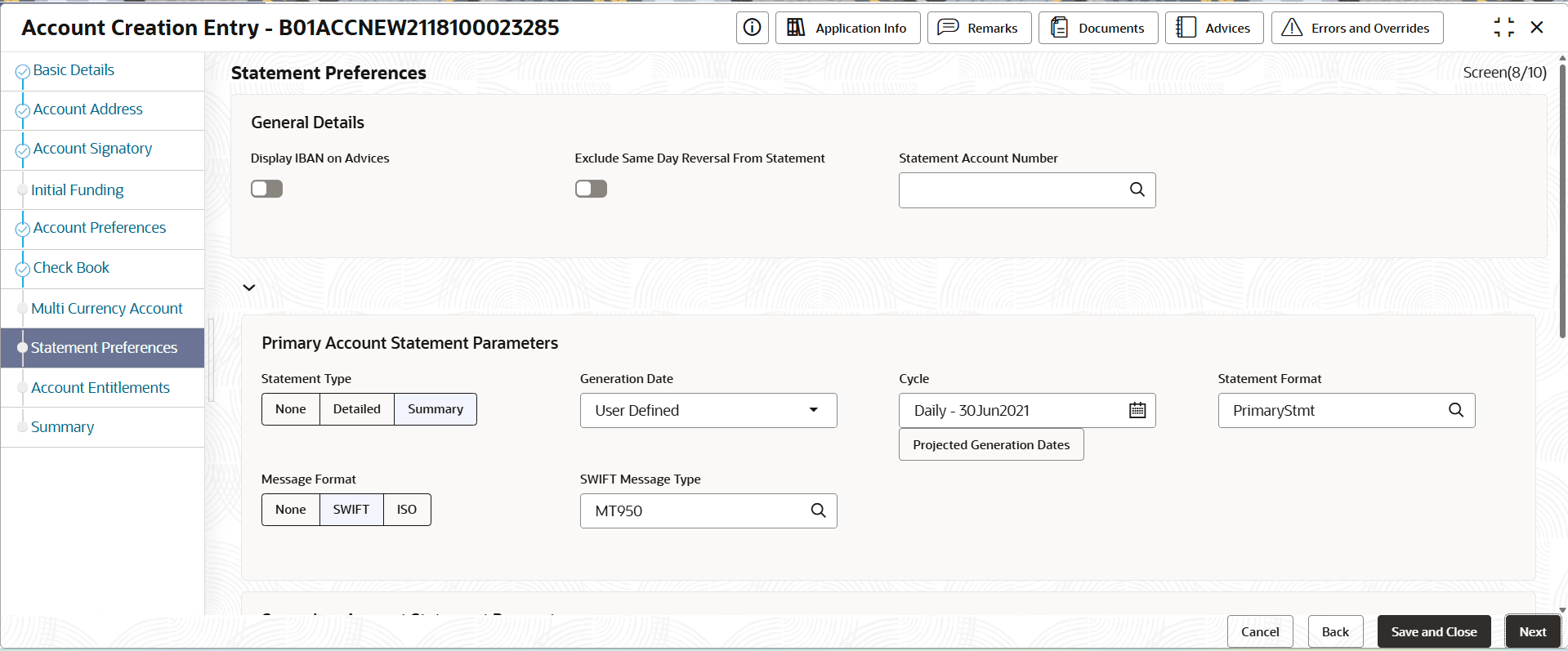
    The Statement Preferences screen displays.

    Figure 4-30 Statement Preferences


  17. In the Statement Preference screen, specify the fields. For more information on fields, refer to field description table.

    Table 4-16 Statement Preferences - Field Description

    Field Description
    Display IBAN on Advices Toggle the switch to ON to display IBAN on advices.
    Exclude Same Day Reversal From Statement Toggle the switch to ON to exclude the same day reversed transactions.
    Account Statement Parameters Select the statement parameter details for the statement types. The options are:
    • Primary
    • Secondary
    • Tertiary
    Statement Type Select an appropriate statement type. The options are:
    • None
    • Detailed
    • Summary

    Note: The remaining fields in the table are common for these three statement types.

    Cycle Specify the frequency of statements generated. Click the Calendar icon and select the frequency from the drop-down. Select from Daily, Weekly, Fortnightly, Monthly, Quarterly, Semi-annual, and Annual. Specify the weekday or day of the month, or the month for the statement cycle.
    Note:
    • If the user selects the 31st and any upcoming month does not have a 31st, the system will use the last day of that month as the statement due date.
    • The user will be able to view the resolved due dates for the next 12 statement cycles.
    Projected Generation Dates Displays the list of upcoming dates on which account statements are scheduled to be generated, based on the selected statement preferences and cycle.
    Statement Format Specify the format of the statement generated.
    SWIFT Required Toggle this switch to ON to generate statements in the SWIFT format. This field is available only when the Statement Type is Summary or Detailed.
    Swift message Type Specify the SWIFT message type to generate. The supported Swift message type currently is MT950. This field is available only when SWIFT Required is Yes.
    ISO Statement Required Toggle the switch to ON to generate statements in the ISO format. This field is available only when the Statement Type is Summary or Detailed.
    ISO Message Type Specify the SWIFT message type to generate. The supported ISO message type currently is CAMT053. This field is available only when ISO Statement Required is Yes.
  18. Click Next.
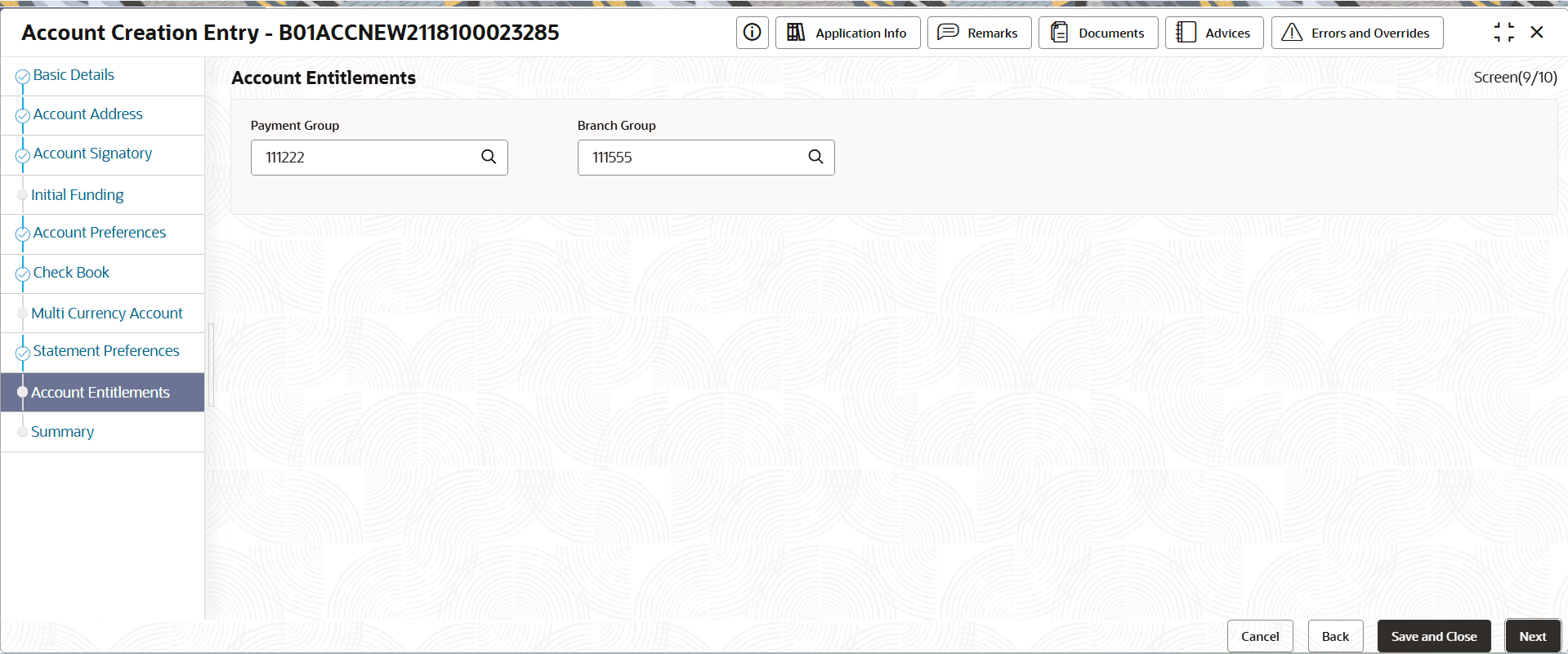
    The Account Entitlements screen displays.

    Figure 4-31 Account Entitlements


    For more information on fields, refer to field description table.

    Table 4-17 Account Entitlements - Field Description

    Field Description
    Payment Group Click the Search icon to select the payment group.
    Branch Group Click the Search icon to select the branch group.
  19. Click Next.
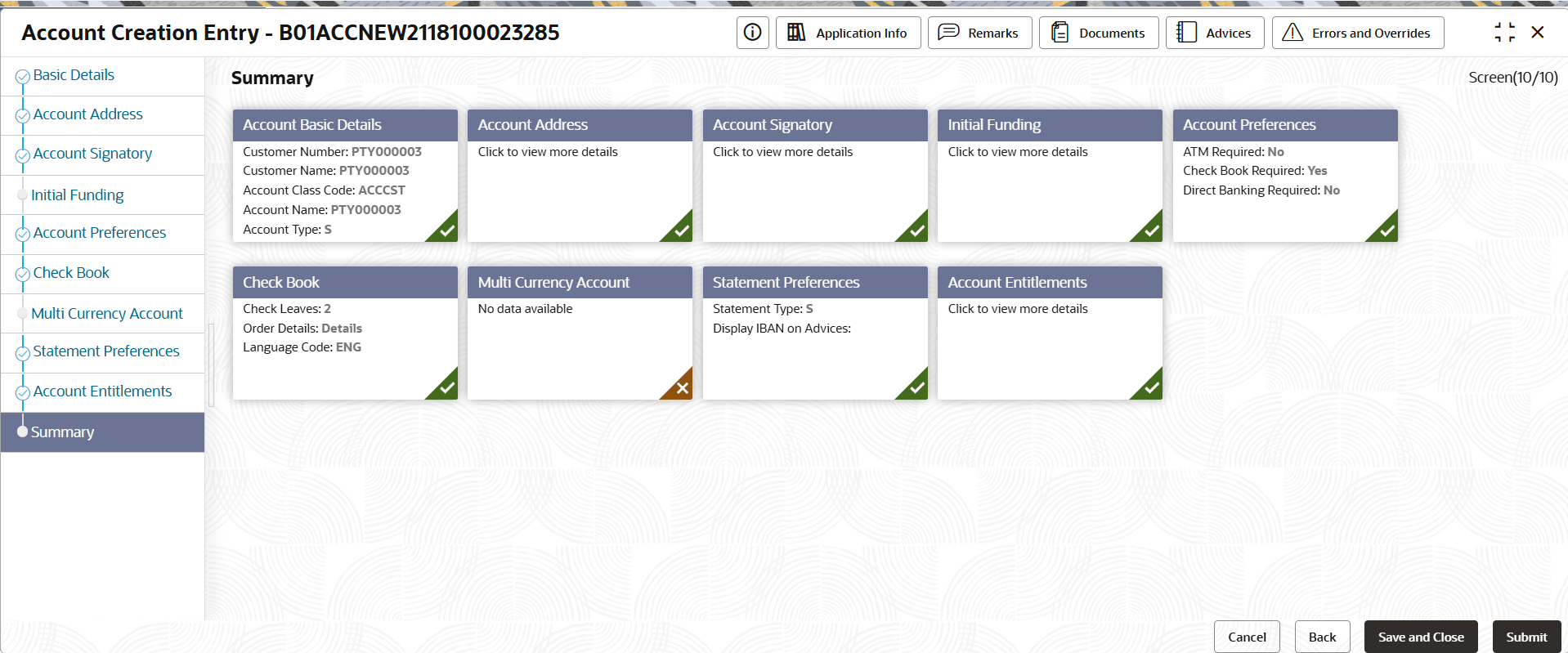
    The Summary page displays.
  20. Click Submit.
    The Stage Movement Submission dialog displays the Overrides stage.
  21. To complete the Stage Movement Submission process, follow the steps below:
    1. Accept any Overrides generated and click Proceed Next.
      The Checklist stage fetches and displays checklists mapped to this stage.
    2. Confirm the checklist items and then click Proceed Next.
      The Outcome stage displays.
    3. Select PROCEED from the drop-down list and click Submit.
      The Stage Movement Submission process creates the Account Creation Enrich task.
  22. Acquire and edit the Account Creation Enrich page.
    1. Select Tasks under Tasks and click Free Tasks.
      The Free Tasks page displays.
    2. Search the listed tasks with these column values. The Process Name column contains Account Opening Existing Customer, the Stage column contains Account Creation Enrich, and the Application Number column contains the number noted in Step 1. c.
    3. Click Acquire and Edit.
      The Account Creation Enrich - Application Number page displays.

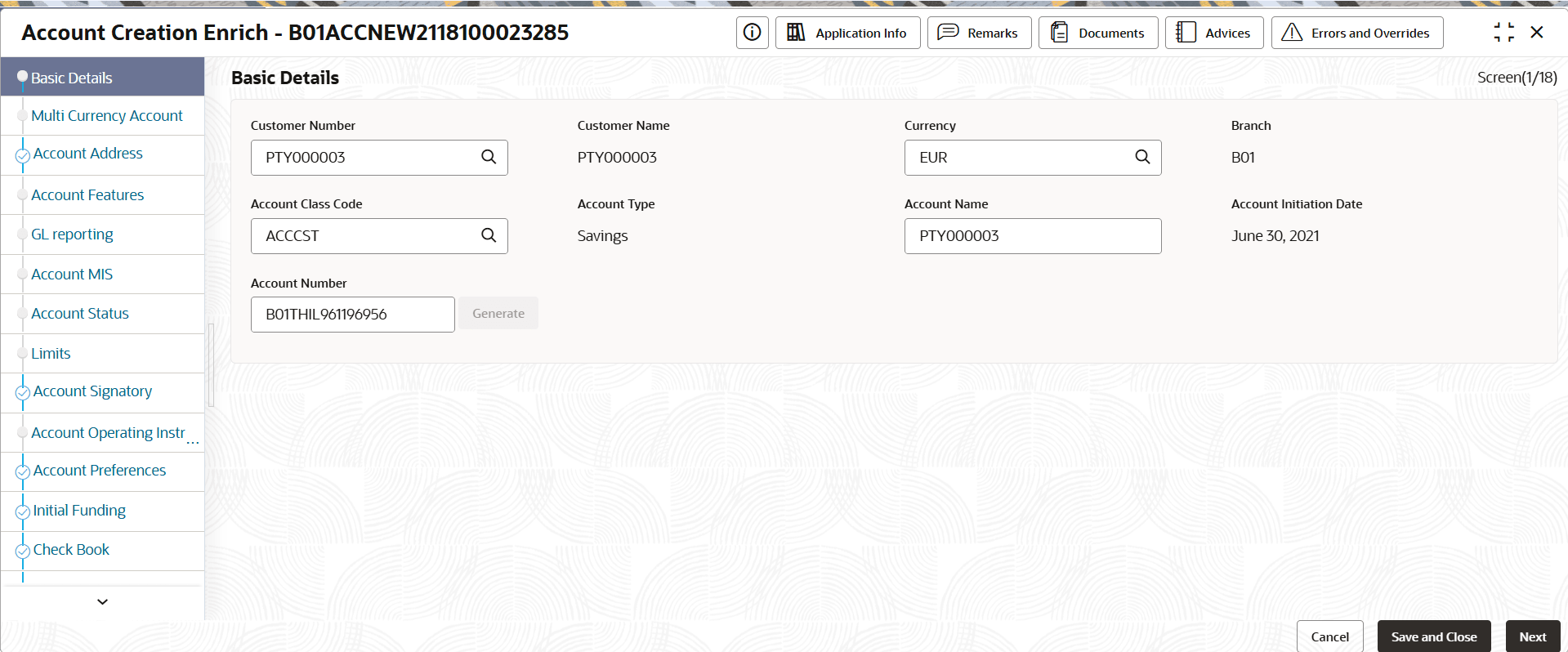
      Figure 4-33 Basic Details - Account Creation Enrich


      For more information on the following data segments, see the field description table in the Account Creation Entry stage:
      • Basic Details
      • Multi Currency Account
      • Account Address
  23. Click Next.
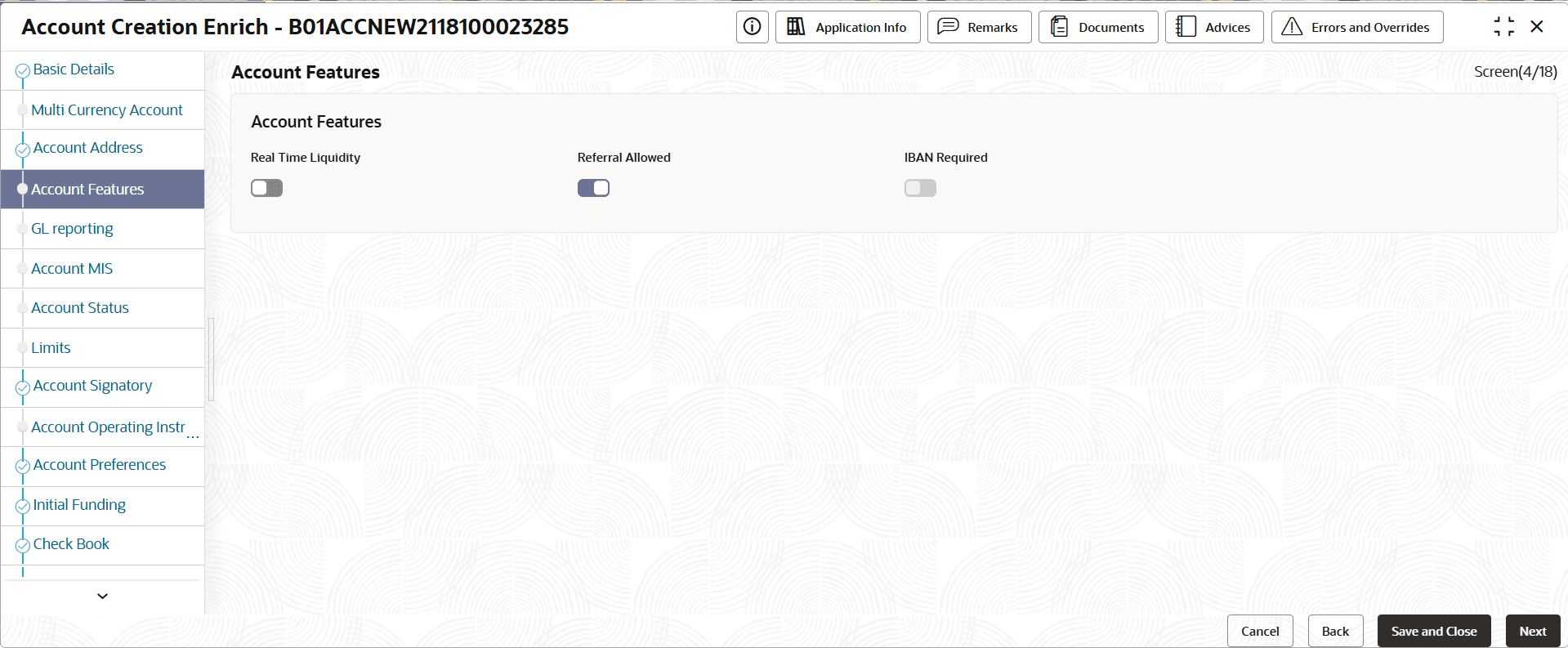
  24. On the Account Features screen, specify the fields. For more information on fields, refer to field description table.

    Note:

    The account features mentioned in the table can be activated only if the same is allowed for the account class selected for the account creation in Step 2.a.

    Table 4-18 Account Features - Field Description

    Field Description
    Real Time Liquidity Toggle the switch to ON to enable real-time liquidity management.
    Referral Required Toggle the switch to ON to perform referral checks on the account. The application checks the available balance before triggering a referral check for all transactions.
    IBAN Required Toggle the switch to ON to enable the IBAN (International Bank Account Number) requirement.
  25. Click Next.
  26. To review and enrich the GL Reporting Details, follow the steps below:
    1. Click the GL Reporting Details tab.
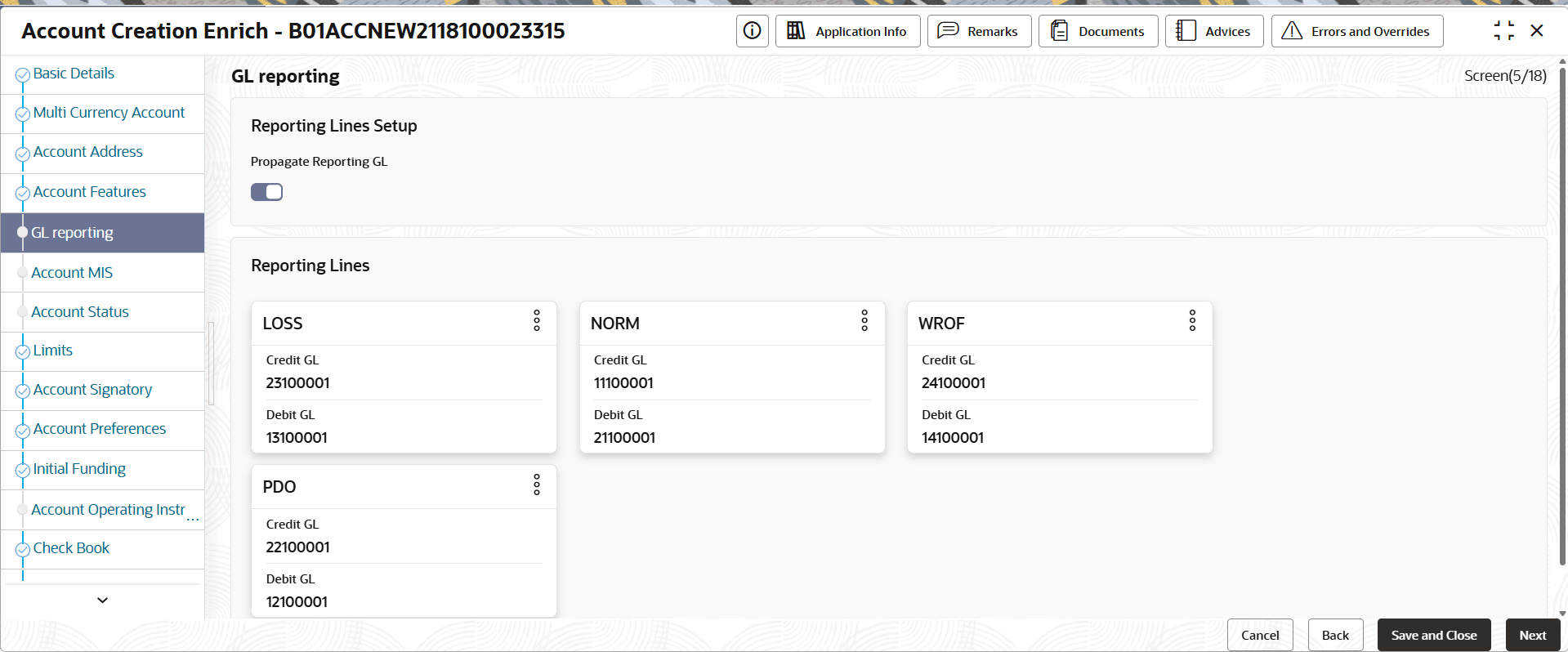
      The GL Reporting Details screen displays the Reporting Lines as tiles.

      Figure 4-35 GL Reporting Details


    2. From the Propagate Reporting GLs field, toggle the switch to ON or Off.
      If propagation of GL Lines is turned on then the Reporting lines cannot be edited. To edit the Reporting Lines turn this option off.
    3. Click More Option of a Reporting Line tile, and select View.
      The Reporting Line dialog displays.
    4. Click Close.
  27. Click Next.
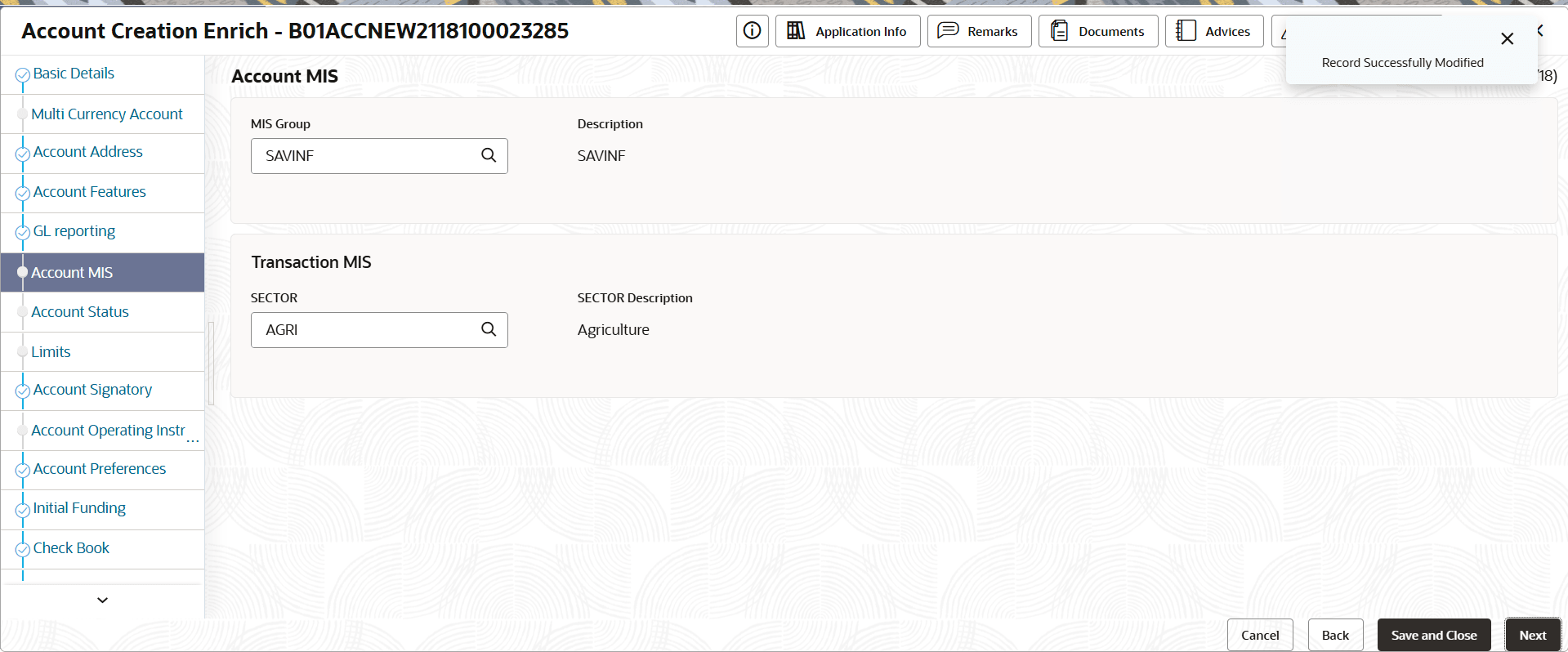
  28. Perform the following actions to review and enrich the Account MIS details:
    1. Click the Account MIS tab.
      The Account MIS screen displays.
    2. Modify the Account MIS details if required. For more information on fields, refer to field description table.

      Table 4-19 Account MIS - Field Description

      Field Description
      MIS Group Specify the MIS Group the account belongs to.
      Description Displays the MIS group description.
      Sector Specify the sector the account belongs.
      Description Displays the description for the sector.
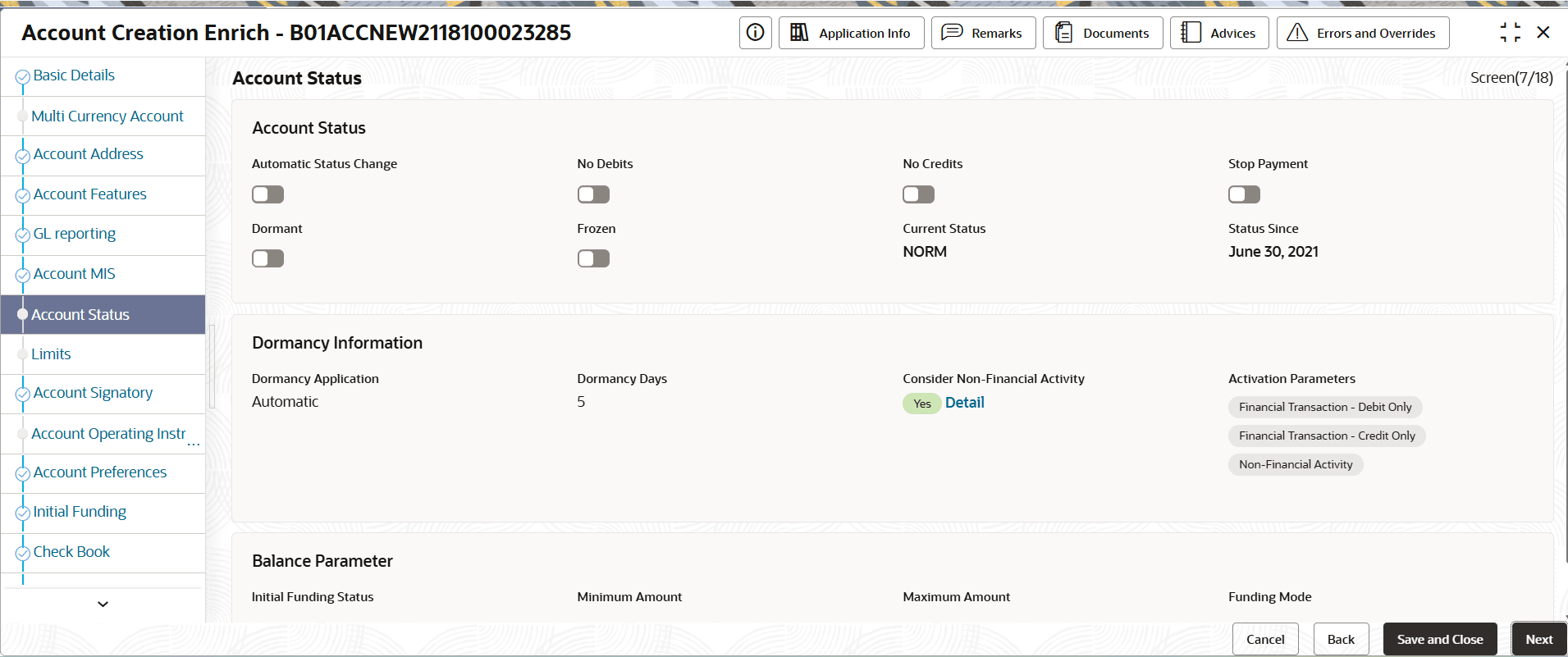
  29. Perform the following actions to review and enrich the Account Status details:
    1. Click the Account Status tab in the left panel.
      The Account Status screen displays.
    2. Review and update the account status details if required.

      Note:

      For more information on the fields, see Step 18 in Create Account Class topic.
  30. Review and Enrich the remaining data entry screens.

    Note:

    For more information on the data entry screens, see the steps from Step 2 to Step 10 above.
  31. Review and enrich the Account Status details and click Next.
    The Limits page displays.
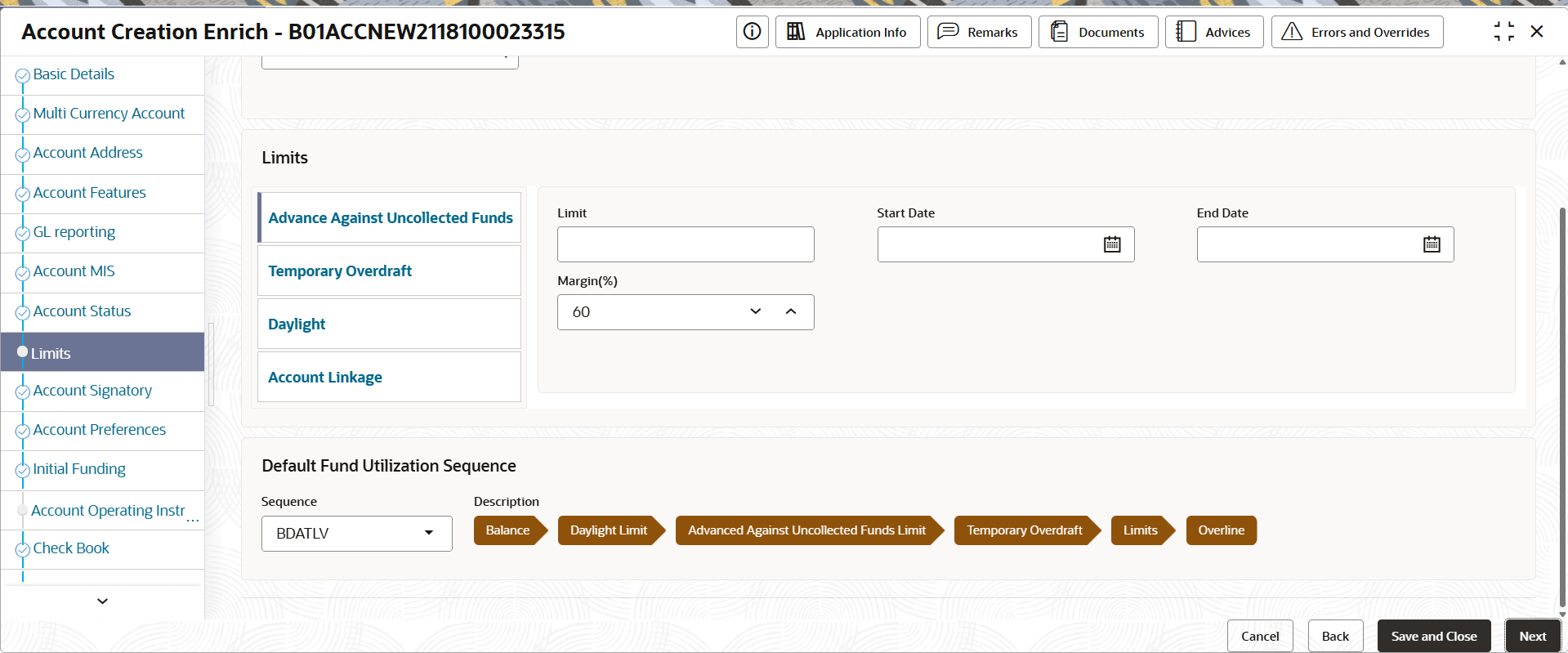
  32. To provide the limit details on the Limits Screen, follow the steps below:
    1. In the Limits screen, click Add.
      A blank node displays.

      Note:

      The primary currency of the account is available for selection. For multi-currency accounts all the sub-account currencies would be available to select.
    2. Expand the node and specify the required currency in the currency field.
      The specified Currency node displays limit details for the Advance Against Uncollected Funds tab.
    3. In the Advance Against Uncollected Funds tab, specify the limit details. For more information on fields, refer to field description table.

      Table 4-20 Advance Against Uncollected - Field Description

      Field Description
      Limit Specify the limit amount on an AUF (Advance Against Uncollected Funds).
      Start Date The start date from when the limit is valid.
      End Date The end date of the limit validity.
      AUF Margin(%) The percentage of AUF allowed.
    4. Select the Temporary Overdraft tab and specify the fields. For more information on fields, refer to field description table.

      Table 4-21 Temporary Overdraft - Field Description

      Field Description
      Limit Specify the limit amount.
      Start Date The limit start date.
      End Date The end date after which the limit is no longer available.
      Auto Renew Turn this option On to automatically renew the temporary overdraft after the end date.
      Frequency Select the limit renewal frequency. The options are:
      • Daily
      • Monthly
      • Yearly
      Unit Specify the number of limit renewals in the frequency interval.
      Amount Specify the temporary overdraft amount allowed.
    5. Select the Daylight tab and specify the daylight limit amount allowed during business hours.
    6. Select the Account Linkage tab and specify the details. For more information on fields, refer to field description table.

      Table 4-22 Account Linkage - Field Description

      Field Description
      Linkage Reference Specify the reference number of the linked liability account.
      Liability Number Displays the liability number from the Linkage Reference.
      Effective Date Specify the date on which the account linkage is active.
      Limit Amount Specify the limit amount that is available from the linked liability account.
    7. To specify the Utilization Sequence of the limit amounts user can select from the following:
      • BDATL - Balance, Daylight Limit, AUF Limit, Temporary OD, and Limits
      • BDATLV - Balance, Daylight Limit, AUF Limit, Temporary OD, Limits and Overline.
    8. Click Next.
      The Account Signatory screen displays.
    For more information on the Account Signatory, see the field description table in the Account Creation Entry stage
  33. Click Next.
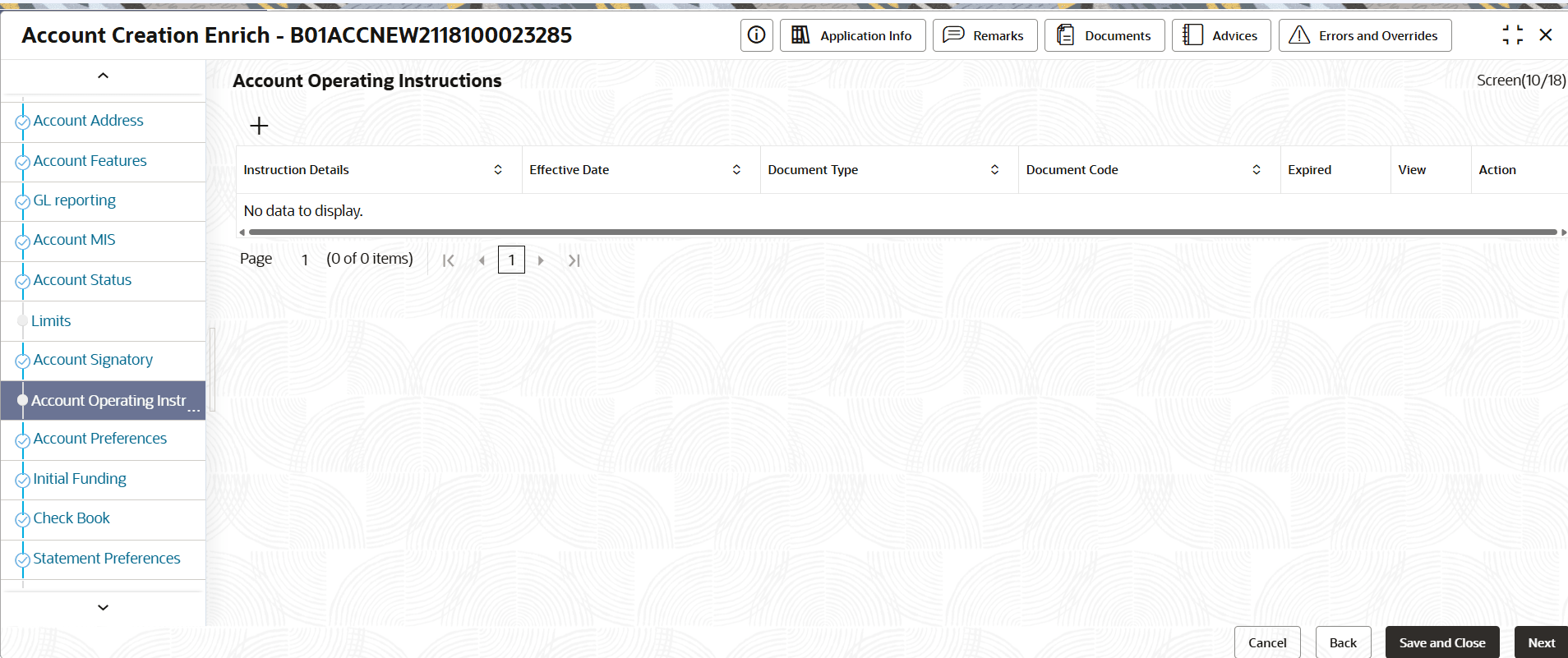
    The Account Operating Instructions screen displays with instruction details.

    Figure 4-39 Account Operating Instructions


  34. On the Account Operating Instructions screen, specify the details. For more information on fields, refer to field description table.

    Table 4-23 Account Operating Instructions - Field Descriptions

    Column Name Description
    Instruction Details Displays the Instruction Details.
    Effective Date Displays the date from which the block is active.
    Document Type Displays the Document Type.
    Document Code Displays the Document Code.
    Expired Displays the Expired date.
    View View the Document.
  35. Click Next.
    For more information on the following data segments, see the field description table in the Account Creation Entry stage:
    • Account Preferences
    • Initial Funding
    • Check book
    • Statement Preferences
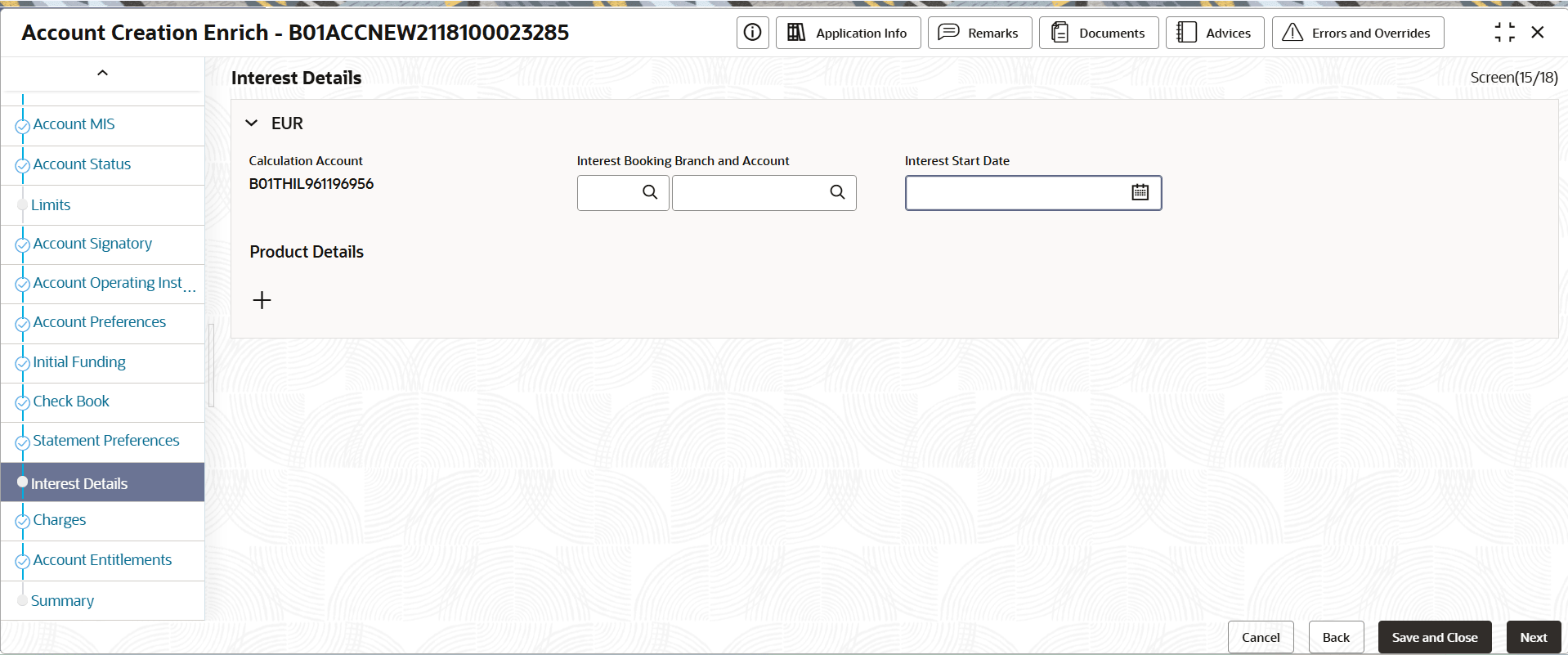
    The Interest Details screen displays with instruction details.
  36. Perform the following action to review and enrich the Interest Details tab.
    1. Click the Interest Details tab.
      The Interest Details screen displays.

      Note:

      Users may proceed by clicking Next without entering any information in the Interest tab. The system will automatically apply the default account number and Interest product values configured in the Account Class. If any special conditions are required, they must be defined by adding the necessary details under the Product Details section.

      The Interest Details screen is blank if the selected account class does not support the Interests and Charges feature.

    2. In the Interest Details screen, specify the fields. For more information on fields, refer to field description table.

      Table 4-24 Interest Details - Field Description

      Field Description
      Calculation Account Calculation Account is displayed by default with account number.
      Booking Branch Specify the branch to book the interest.
      Booking Account Specify the account to book the interest.

      Note: For a multi-currency account, the main account is the booking account. The sub-accounts cannot be a booking account.

      Interest Start Date The date to start interest calculation.
      Product Details Displays the interest products applied to the account.

      Note: The interest product has to be applied before it is displayed.

    3. Click Add to add an interest product to the account.
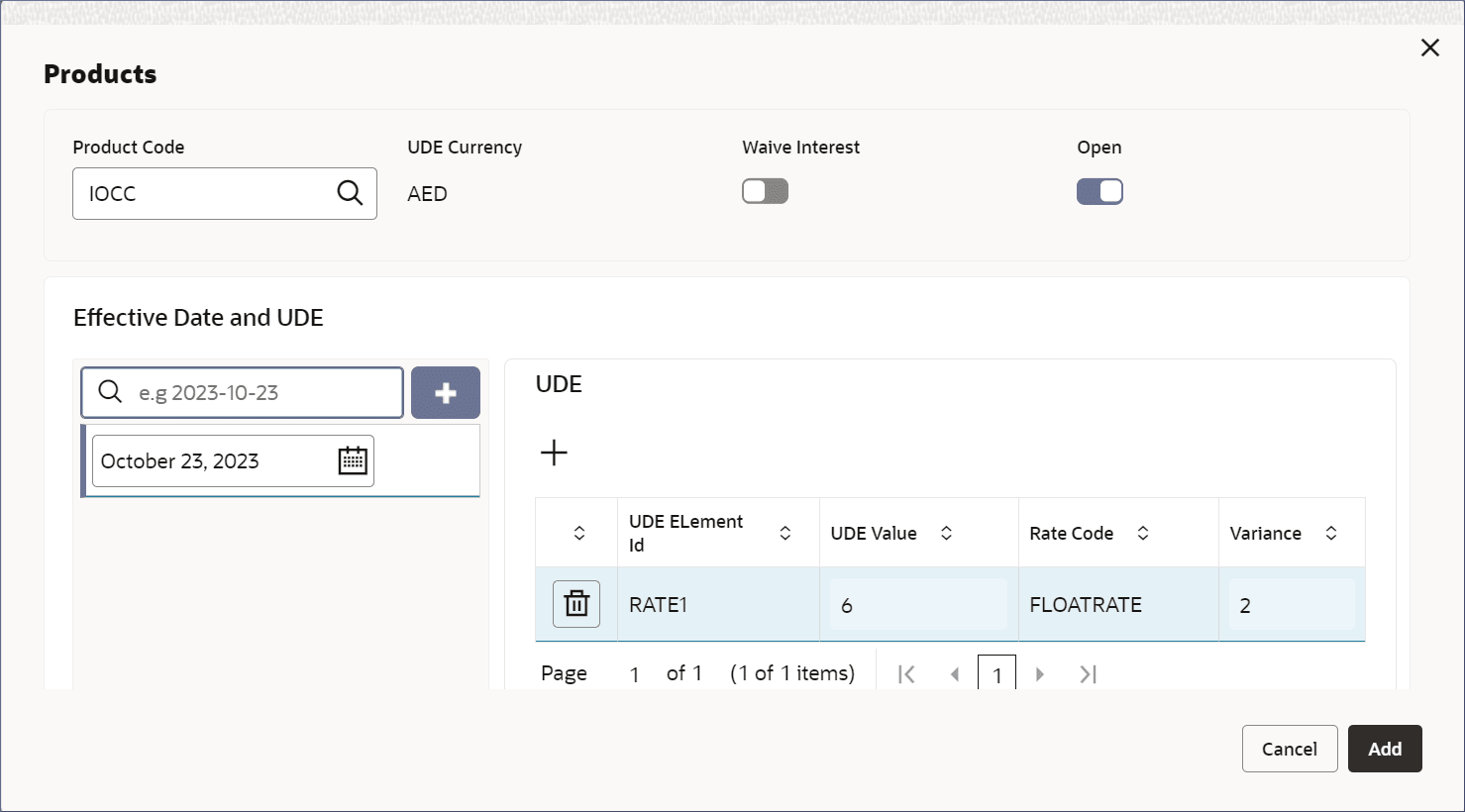
      The Products dialog displays.

      Figure 4-41 Add Interest Products


    4. Specify the interest product details fields. For more information on fields, refer to field description table.

      Table 4-25 Products - Field Description

      Field Description
      Product Code Specify the interest product's code.
      UDE Currency Specify the currency of the UDE product.
      Waive Interest Toggle the option On to enable interest waiver.
      Effective Date and UDE Specify the effective date from which the interest product is active on the account. Specify the User Data Elements (UDE) of Interests and Charges.
      Note: The interest product calculates interest using an interest rule. The interest rule has two components:
      • A method to calculate the interest or charge
      • User Data Elements to be specified
    5. In the Effective Date and UDE section, click Add.
      A blank date field displays.
    6. Click the date field and specify the date from which the interest product is active on the product.
    7. In the UDE section, click Add .
      A blank row displays.
    8. Double-click the UDE Element ID column to activate the row and specify the UDE details described in the following table.

      Table 4-26 UDE - Field Description

      Field Description
      UDE Element ID Specify the ID of the Interest and Charges UDE element. The ID of the UDE.
      UDE Value Specify the interest or charge rate to be applied.
      Rate Code Select the Rate code to which the UDE Value is applied.
      Variance Specify the variance of the UDE Value that is allowed.
    9. Click Add.
      The Interest Details page displays the new product details tile.
  37. Click Next.
    The Charges page displays .
  38. Click Next.
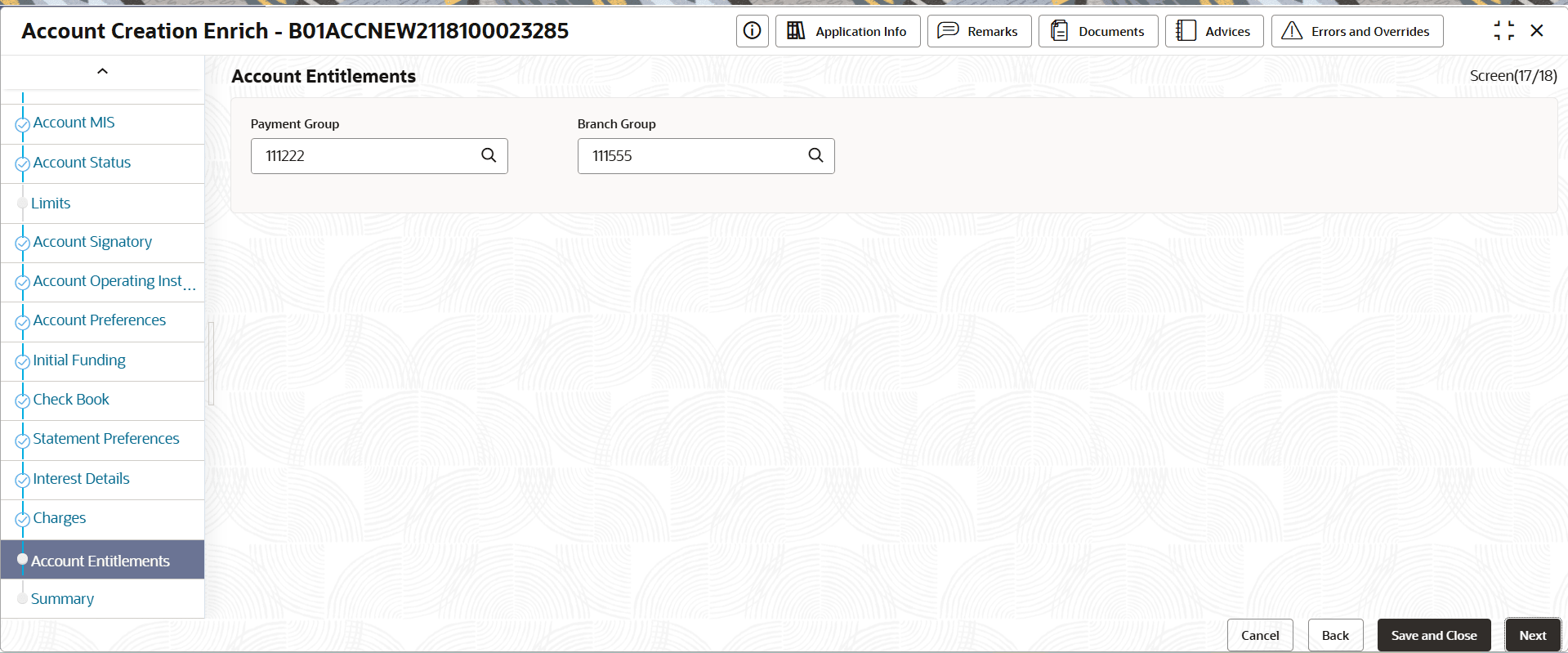
    The Account Entitlements page displays.

    Figure 4-42 Account Entitlements


    Table 4-27 Account Entitlements - Field Description

    Field Description
    Payment Group Click the Search icon to select the payment group.
    Branch Group Click the Search icon to select the branch group.
  39. Click Submit from the Summary screen.
    The Stage Movement Submission dialog displays.
  40. Complete the Stage Movement Submission process, by following the steps below:
    1. Accept any Overrides generated and click Proceed Next.
      The Checklist stage fetches and displays checklists mapped to this stage.
    2. Confirm the checklist items and then click Proceed Next.
      The Outcome stage displays.
    3. Select PROCEED from the drop-down list and click Submit.
      The Stage Movement Submission process creates the Scrutinize Account Creation task.
  41. Complete the Scrutinize Account Creation tasks, by following the steps below:
    1. Click Tasks, and under Tasks, click Free Tasks.
      The Free Tasks page displays.
    2. Search the listed tasks with these column values. The Process Name column contains Account Opening Existing Customer, the Stage column contains Scrutinize Account Creation, and the Application Number column has the number noted in Step 1. c.
    3. Click Acquire and Edit.
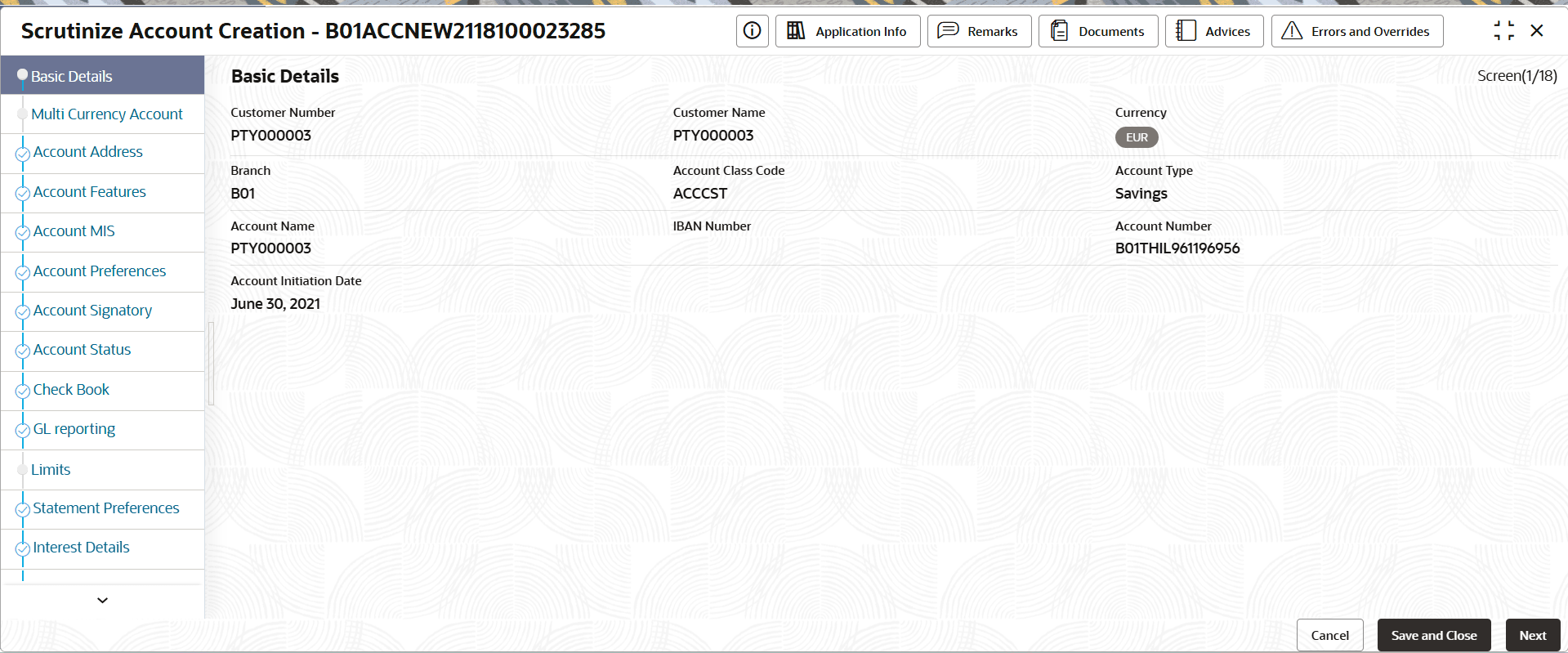
      The Account Creation Scrutinize- <Application Number> page displays.

      Figure 4-43 Basic Details - Scrutinize Account Creation


      The Scrutinize Account Creation stage involves the following data segments:
      • Basic Details
      • Multi Currency Account
      • Account Address
      • Account Features
      • Account MIS
      • Account Preferences
      • Account Signatory
      • Account Status
      • Check Book
      • GL Reporting
      • Limits
      • Statement Preferences
      • Interest Details
      • Charges
      • Account Entitlement
      • Initial Funding
      • Account Operating Instruction
      • Summary
    4. Scrutinize and ensure that all the data entry screens are correct.
    5. Click Submit from the Summary screen.
      The Stage Movement Submission dialog displays.
  42. To complete the Stage Movement Submission process, follow the steps below:
    1. Accept any Overrides generated and click Proceed Next.
      The Checklist stage fetches and displays checklists mapped to this stage.
    2. Confirm the checklist items and then click Proceed Next.
      The Outcome stage displays.
    3. Select PROCEED from the drop-down list and click Submit.
      The Stage Movement Submission process creates the Approve Account Creation task, and the Free Tasks page displays.
  43. To complete the Approve Account Creation task, follow the steps below:
    1. Search the listed tasks with these column values. Process Name column contains Account Opening Existing Customer, the Stage column contains Approve Account Creation, and the Application Number column has the number noted in Step 1. c.
    2. Click Acquire and Edit.
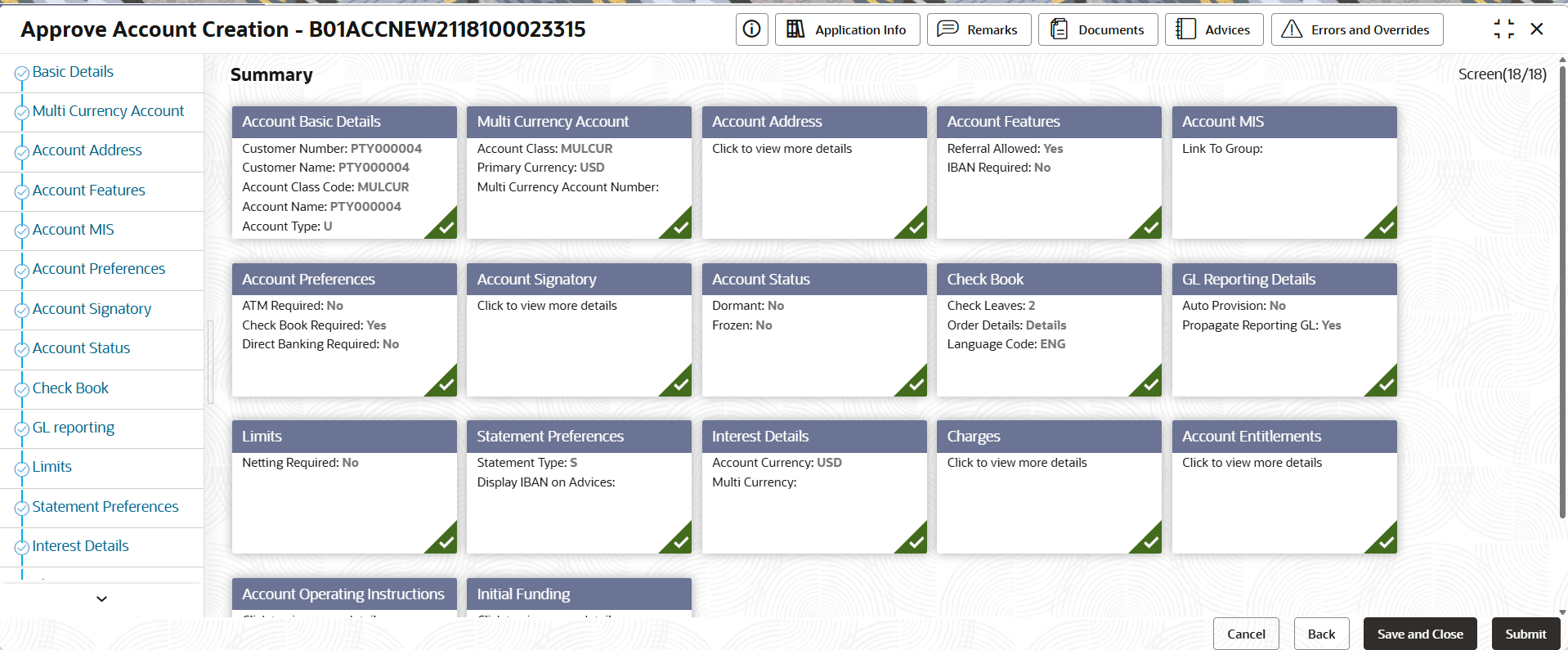
      The Account Creation Approve- Application Number page displays the summary page.

      Figure 4-44 Account Creation Approve- Application Number


      The Account Creation Approve Stage involves the following data segments:
      • Basic Details
      • Multi Currency Account
      • Account Address
      • Account Features
      • Account MIS
      • Account Preferences
      • Account Signatory
      • Account Status
      • Check Book
      • GL Reporting
      • Limits
      • Statement Preferences
      • Interest Details
      • Charges
      • Account Entitlement
      • Initial Funding
      • Account Operating Instruction
      • Summary
    3. Review and ensure that all the data entry screens are correct.
    4. Click Submit from the Summary screen.
      The Stage Movement Submission dialog displays.
  44. Complete the Stage Movement Submission process, by following the steps below:
    1. Accept any Overrides generated and click Proceed Next.
      The Checklist stage fetches and displays checklists mapped to this stage.
    2. Confirm the checklist items and then click Proceed Next.
      The Outcome stage displays.
    3. Select PROCEED from the drop-down list and click Submit.
      The account creation is complete.
  45. To confirm that all stages of the Account Creation process are complete, click Tasks under Tasks, and then click Completed Tasks.
    The Completed Tasks screen displays all four stages of the Account Creation process, Entry, Scrutinize, and Approve stages.