4.6 Account Creation for New Customer

This topic describes the systematic instructions to create an account for a new customer.

Using the Account Creation for New Customer screen, user can create a new account for an new customer. User have to onboard the new customer before creating accounts for the customer.
  1. Click Corporate Account Services under Corporate Account Services, and click Account Creation for New Customer.
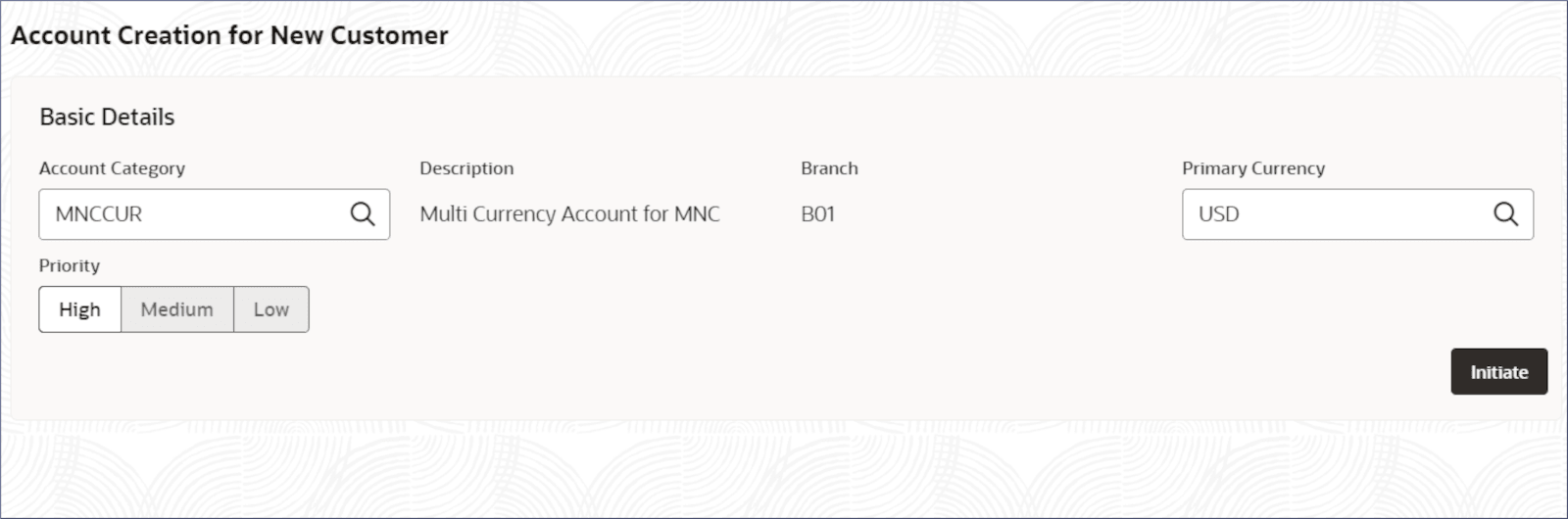
    The Account Creation for New Customer screen displays.

    Figure 4-45 Account Creation for New Customer


  2. Specify the Account Category, Primary Currency, and Priority fields, and then click Initiate to start the account creation process.
  3. To proceed with the customer onboarding, user need to select a default address.
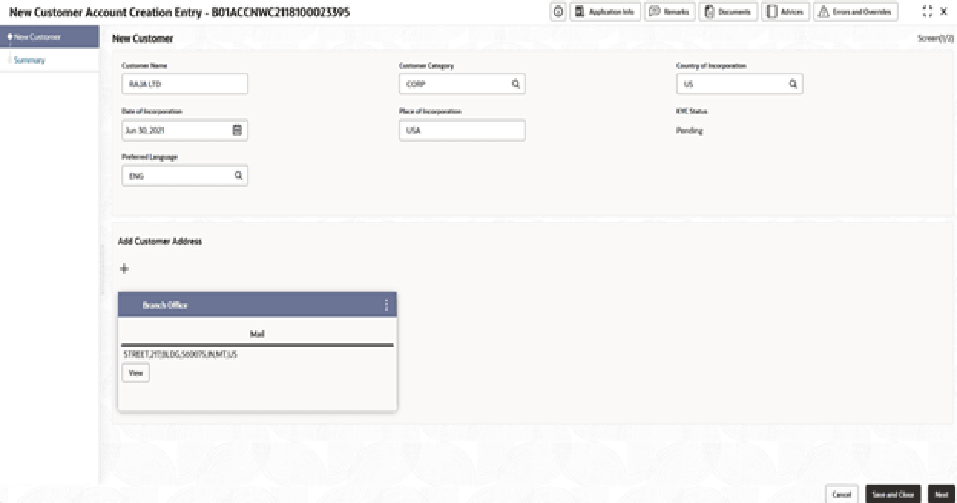
    The New Customer Account Creation Entry - <Application Number> screen displays the New Customer Onboarding section.

    Figure 4-46 New Customer Account Creation Entry


  4. In the New Customer Onboarding section, specify the fields. For more information on fields, refer to field description table.

    Table 4-28 New Customer Onboarding - Field Description

    Field Description
    Customer Name Specify the customer name.
    Party Type Specify the party type of the customer. The option is:
    • COR– Corporate (Default)
    Country of Incorporation Specify the country of incorporation.
    Date of Incorporation Specify the date of incorporation.
    Place of Incorporation Specify the place of incorporation.
    KYC Status Select the KYC status of the customer from the drop-down list. The options are:
    • Pending
    • Yet to verify
    • Verified
    • Not verified
    Preferred Language Select the preferred language of the customer from the drop-down list.
    Address Type Select the type from the drop-down list which uniquely relates the address to the customer by its type. The options are:
    • HOA - Head Office
    • ROA - Registered Office
    • BOA - Branch Office
    • COA - Communication Address
    Department Specify the department which identifies a division of a large organization or building.
    Sub Department Specify the sub-division of a large organization or building.
    Street Name Specify the name of a street or thoroughfare.
    Building Number Specify the number that identifies the position of a building on a street.
    Building Name Specify the name of the building or house.
    Floor Specify the floor or story within a building.
    Post Box Specify the numbered box in a post office assigned to a person or organization, to keep letters until called for.
    Room Specify the building room number.
    Post Code Specify the code consisting of a group of alphanumeric characters added to a postal address to assist in sorting mail.
    Town Name Specify the name of a built-up area with defined boundaries and a local government.
    Town Location Name Specify the specific Location name within the town.
    District Name Specify a subdivision within a country sub-division.
    Country Subdivision Specify a subdivision of a country, such as a state, region, or county.
    Country Specify the nation with its government.
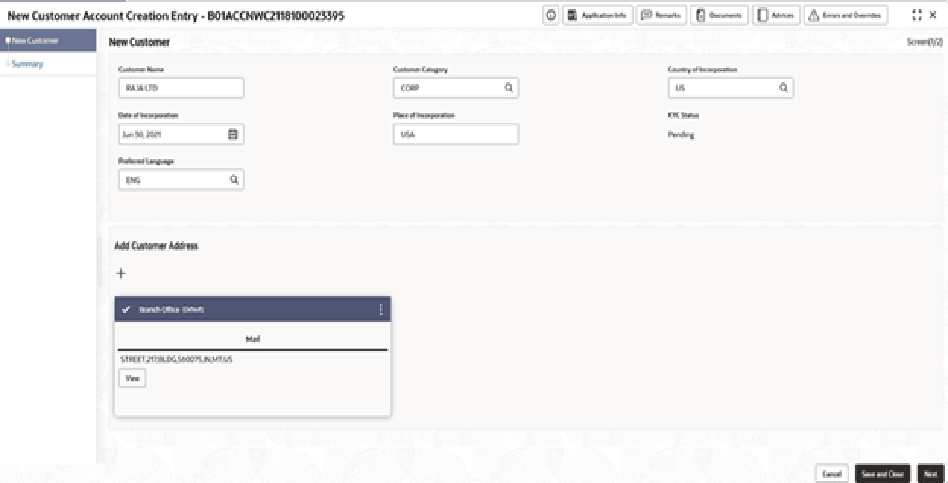
  5. Click on the address ribbon on the card.
    The Add Customer Address segment displays with tick mark on address ribbon.

    Figure 4-47 New Customer Account Creation Entry


  6. Click Next.
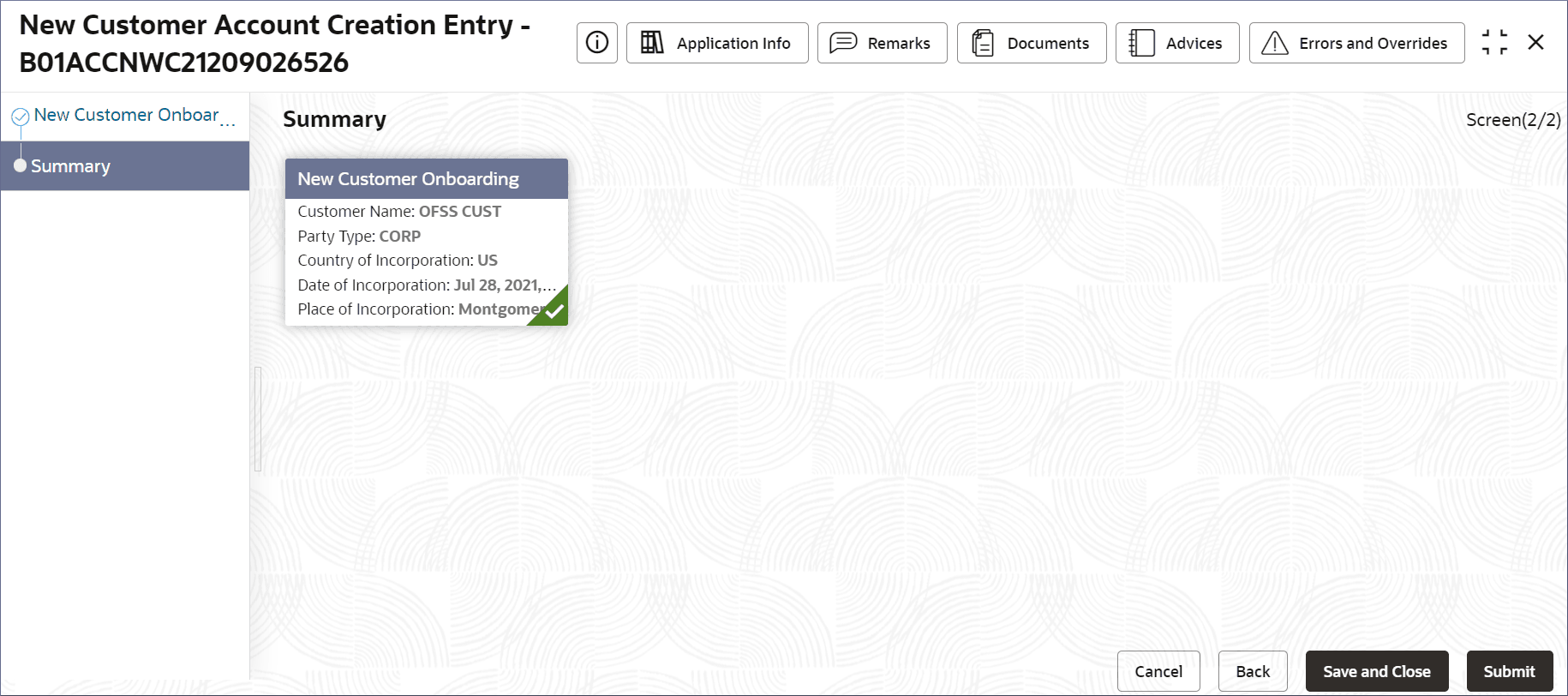
    The Summary tab displays.
  7. Click Submit.
    The Stage Movement Submission dialog displays the Overrides stage.
  8. Complete the Stage Movement Submission process, by following the steps below:
    1. Accept any Overrides generated and click Proceed Next.
      The Checklist stage fetches and displays checklists mapped to this stage.
    2. Confirm the checklist items and then click Proceed Next.
      The Outcome stage displays.
    3. Select PROCEED from the drop-down list and click Submit.
      The Stage Movement Submission process creates the New Customer Account Creation Enrich task.
  9. Complete the Account Creation for New Customer tasks.
    1. Select Tasks, and under Tasks, click Free Tasks.
      The Free Tasks page displays.
    2. Search the listed tasks with these column values. The Process Name column contains Account Opening For New Customer, the Stage column contains New Customer Account Creation Enrich task and the Application Number column contains the number noted in Step 6. c.
    3. Click Acquire and Edit.
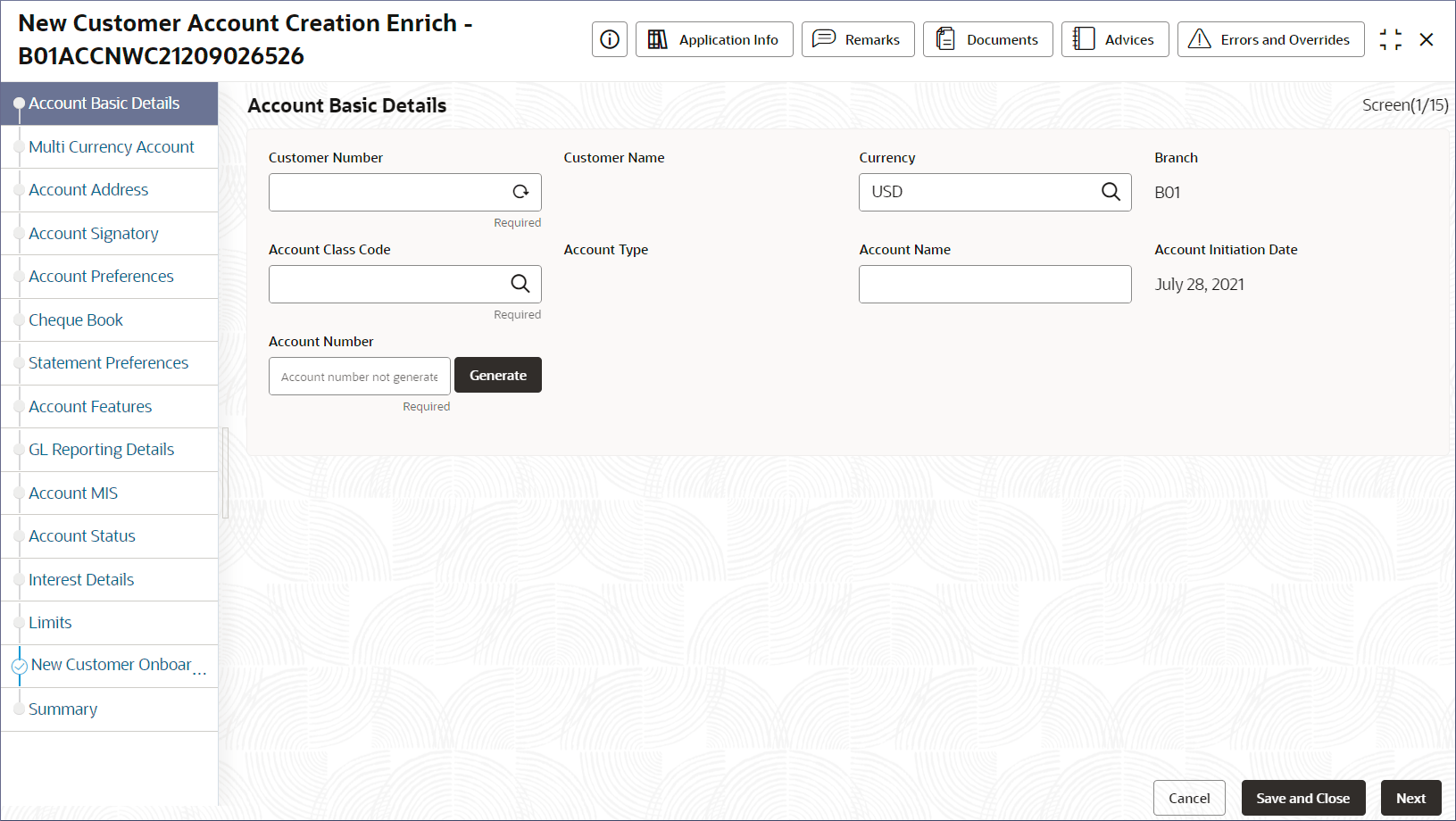
      The New Customer Account Creation Enrich - <Application Number> page displays.

      Figure 4-49 New Customer Account Creation Enrich - Account Details


  10. Update the data entry screens to create the new customer account.
    At this point, the steps to create the new customer account are similar to the steps in the account creation for existing customers. Follow the instructions in Account Creation.