3.4 Amount Block Enquiry
This topic explains the systematic instructions to enquire about the External Credit Approval (ECA) and legal blocks on an account.
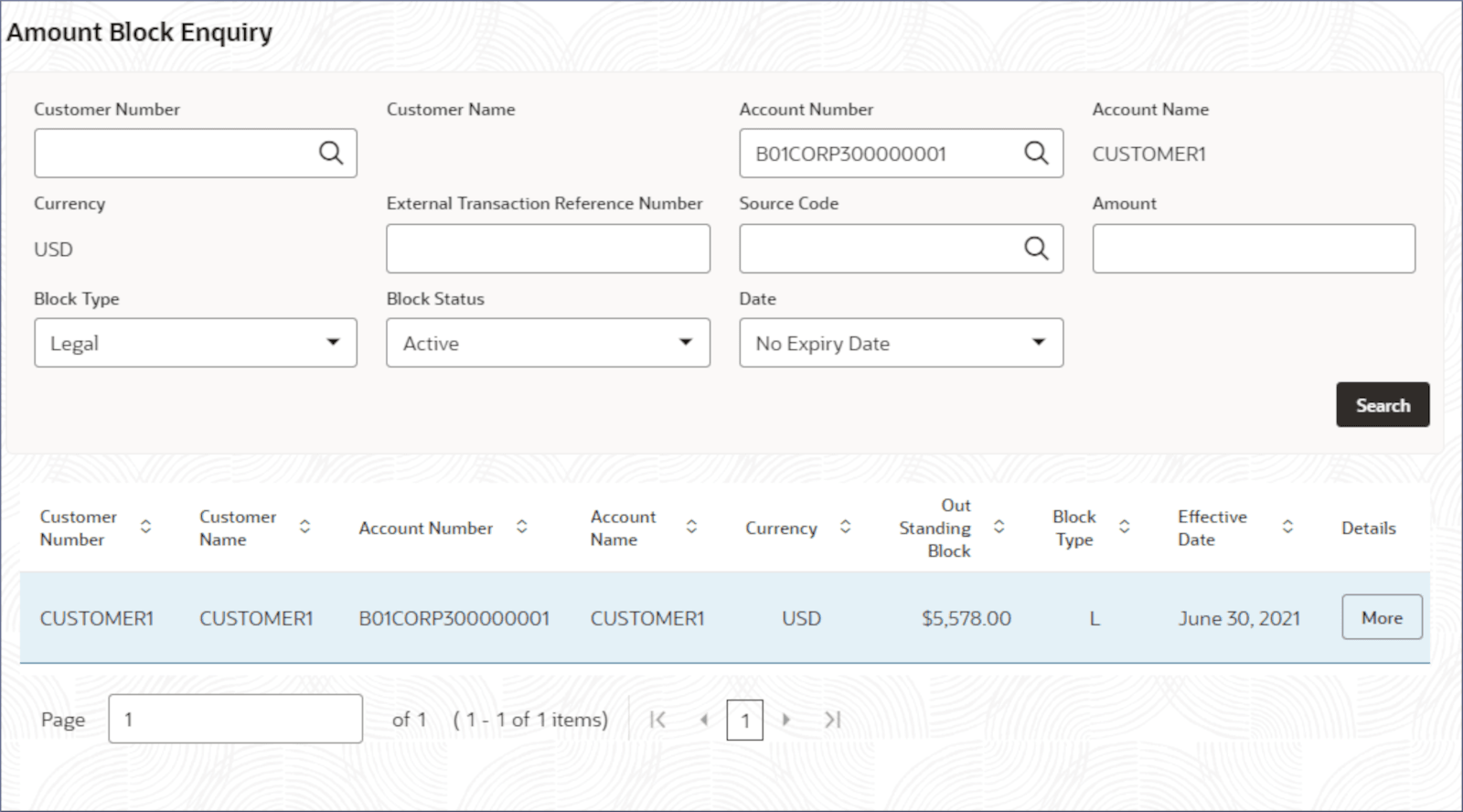
- Specify the details on the Amount Block Enquiry page to
narrow your search results.For more information on fields, refer to the field description table below:
Table 3-19 Amount Block Enquiry- Field Description
Field Description Customer Number Specify the Customer Information File (CIF) number. Customer Name Displays the customer name specified in the CIF displays. Account Number Specify the Account Number. Note: When searching for the required account, provide the customer number to display all the accounts belonging to the customer. Otherwise, all the account numbers of all customers are listed.
Account Name Displays the account name based on the account number selected. Currency Displays the operating currency of the account. For a multi-currency account, displays the list of sub-account currencies. External Transaction Reference Number Specify the external reference number as part of External Account (EA) or External Credit Approval (ECA) provided by the external system. Source Code Specify or select the source of the transaction from the list. Amount Specify the amount blocked. Block Type Select the block type. The options are: - ECA: This option is displayed by default.
- Legal
Block Status Select the block status. The options are: - Active: This option is displayed by default.
- Closed
Date Select the date type. The options are: - Effective Date: This option is displayed by default.
- Expiry Date
- No Expiry Date
From Effective Specify the date from which the amount block would be effective. To Effective Specify the date until when the amount block is effective. - Click
 .The list of ECA and legal blocks on the specified account display in rows in the table. See the image in Step 2
For more information on fields, refer to the field description table.
Table 3-20 Search Result - Field Description
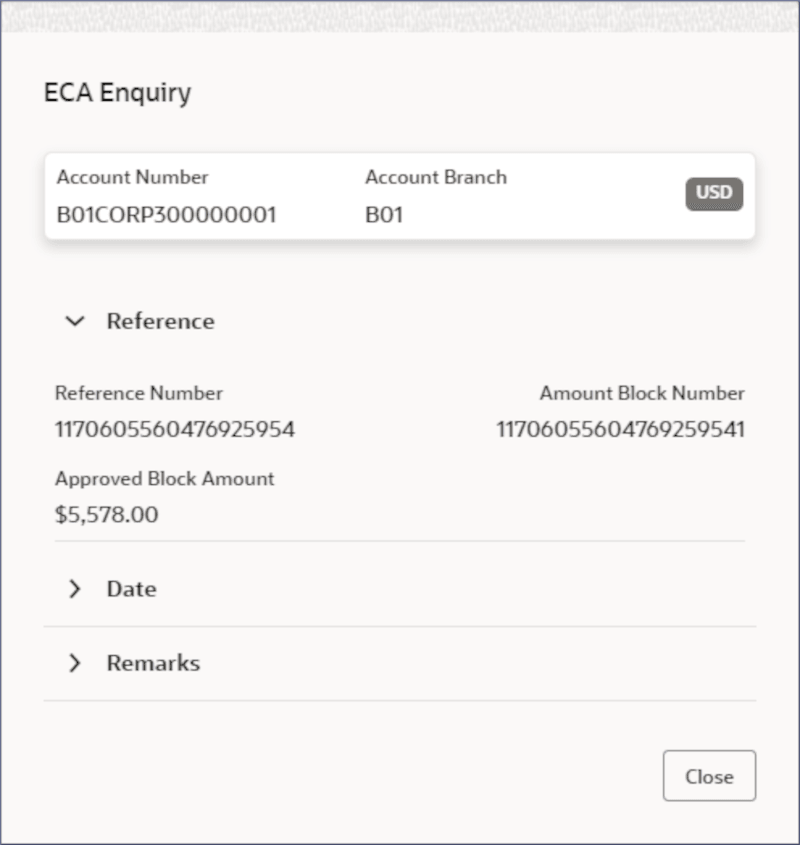
Field Name Description Customer Number Displays the CIF number of the customer. Customer Name Displays the customer name. Account Number Displays the account number of the customer. Account Name Displays the name of the account. Currency Displays the account currency. Outstanding Block Displays the amount blocked on the account. Block Type Displays the type of the amount block imposed. Effective Date Displays the effective dates on which the block is operational. Details Click More to view the details of a specific block. - Click More in the Details field.The ECA Enquiry dialog displays. For more information on fields, refer to the field description table below:
Table 3-21 ECA Enquiry - Field Description
Field Name Description Reference Number Displays the transaction reference number. Amount Block Number Displays the number assigned to the block request. Approved Block Amount Displays the amount approved to be blocked. Effective Date Displays the date from which the block is active. Expiry Date Displays the date on which the block expires. Remarks Displays any remarks added with the block request.
Parent topic: Corporate Account Enquiries