6.5 Create and Load Custom Views

Create a custom view of a Corporate Accounts Widget to track and monitor specific accounts and their activities. The default widgets provided on the Dashboard are generic and track all entities.

  1. On Home screen, click Filter, and click Add.
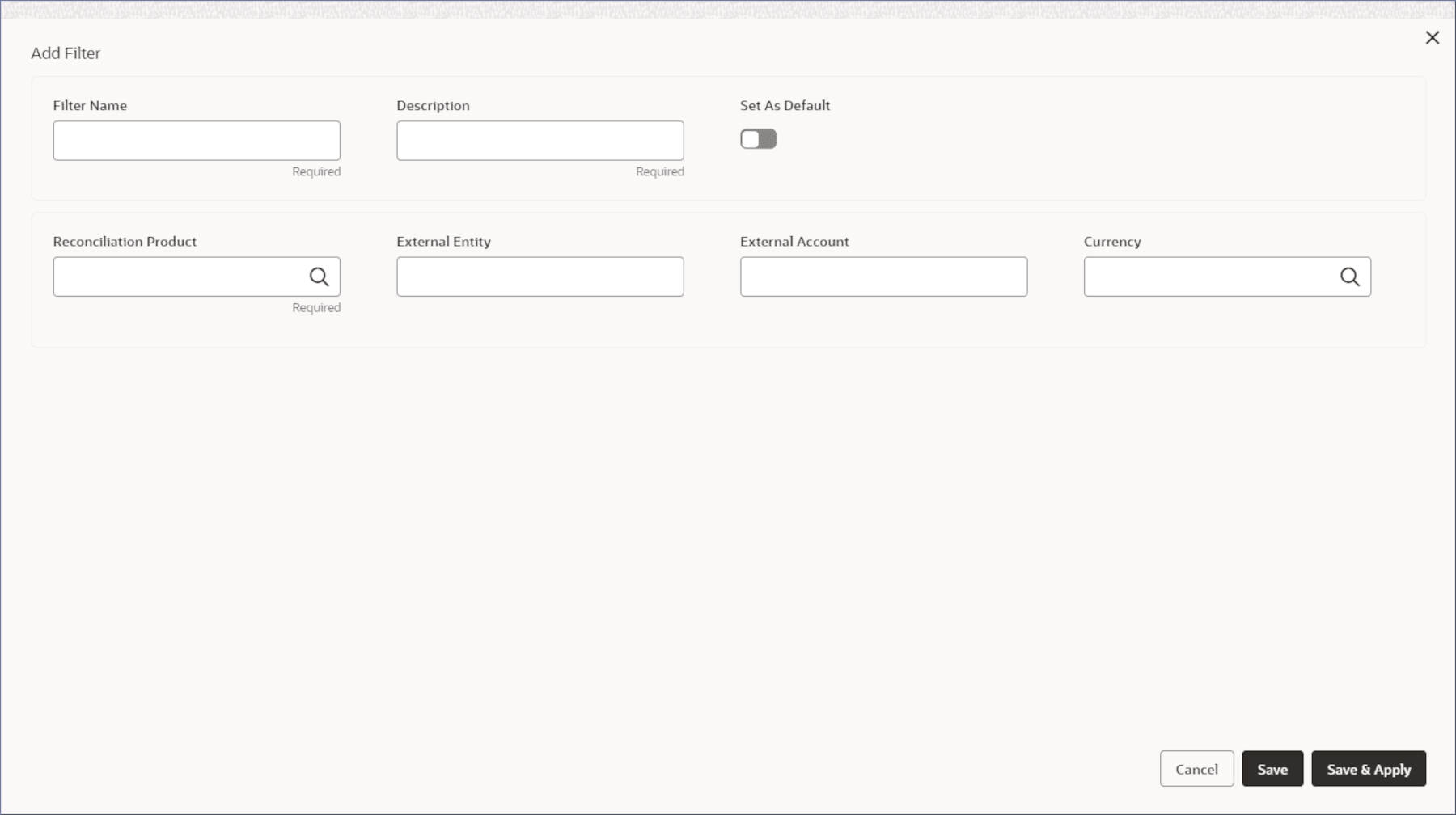
    The Add Filter section displays.
  2. In the Add Filter section, specify the details. For more information on fields, refer to field description table.

    Table 6-5 Add Filters - Field Description table

    Field Description
    Filter Name Specify a name for the custom filter.
    Description Specify a description for the custom filter.
    Reconciliation Product Select the required reconciliation product from the list.
    Set as Default Toggle the switch to ON to set the filter as the default.
    External Entity Specify the BIC ID of the external entity.
    External Account Specify the account number of the external entity.
    Currency Select the required currency from the list.
  3. Select Save and Apply.
  4. To load the custom view, follow the steps below:
    1. Click Filter.
      The Filters dialog displays the custom filters.
    2. Click a custom filter.
      The Custom View section displays.
  5. To update a custom filter, follow the steps below:
    1. Click Filter.
      The Filters dialog displays the custom filters.
    2. Click Edit on the custom filter.

      The Update Filter section displays.

    3. In the Update Filter section, specify the details. For more information on the fields, refer the table above.