5.6 Online Interest Liquidation

This topic describes the systematic instructions to online interest liquidation.

The Online Interest Liquidation screen allows users to Liquidate the accrued interest for Single or Multiple accounts.
  1. On Home screen, click Corporate Account Transactions. Under Corporate Account Transactions, click Online Interest Liquidation.
    The Online Interest Liquidation page displays.

    Figure 5-27 Online Interest Liquidation


  2. On the Online Interest Liquidation screen, specify the fields. For more information on fields, refer to field description table.

    Table 5-16 Online Interest Liquidation - Field Description

    Field Description
    Account Type Select the required account type. The options are:
    • Single
    • Multiple

    Note: The Account Number field displays only when user select the Single Account type.

    Customer Number Select the customer number from the active customers list.
    Customer Name Displays the customer name based on the customer number selection.
    Multi Currency Account Toggle the switch to ON to enable this feature to filter the multi-currency account.

    Note: This field displays only when user select the Single Account type.

    Account Number Specify the account number.
    Account Currency Select the required currency from the drop-down list. Alternatively, type to narrow the listed items and select the required currency.

    Note: This field displays only when Multi-Currency Account is enabled.

    Liquidation Date Select a liquidation date. Interest will be applied from the last liquidation date to the selected date across all chosen accounts.
  3. Select the required account and click Initiate.
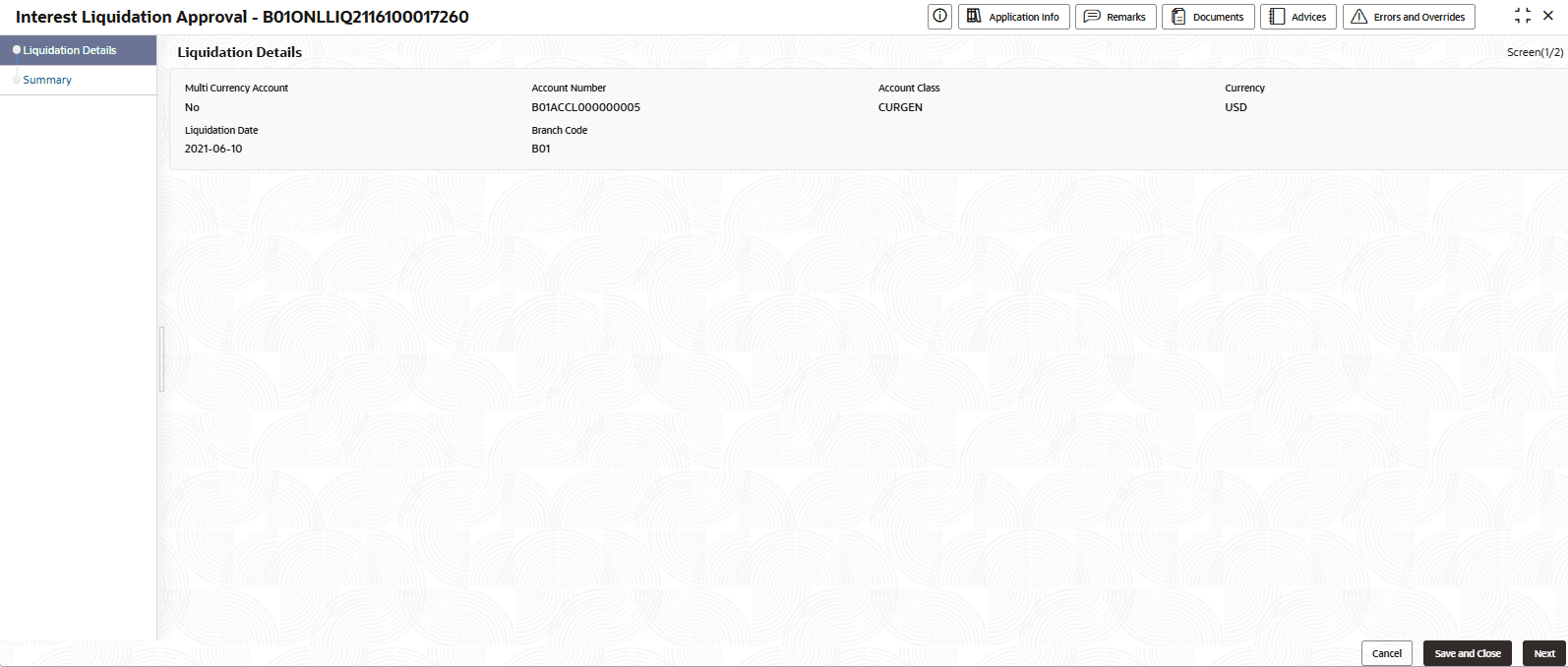
    The Interest Liquidation Approval - Application Number page displays the Liquidation Details screen.

    Tip:

    Note the Application Number. It is needed to identify the tasks on the Free Tasks page.

    Figure 5-28 Liquidation Details


  4. Review the liquidation details and ensure the correct account is selected.
  5. Click Next.
    The Summary screen displays.

    Note:

    Click the summary tab to see the liquidation details.
  6. Click Submit.
    The Stage Movement Submission dialog for the Online interest liquidation Approval stage displays the Overrides present in this stage.
  7. To complete the Stage Movement Submission process, follow the steps below:
    1. Accept any Overrides generated and click Proceed Next.
      The Checklist stage fetches and displays checklists mapped to the liquidation process.
    2. Confirm the checklist items and then click Proceed Next.
      The Outcome stage displays.
    3. Select the Outcome from the following:
      • Proceed: To proceed with the submission.
      • Cancel: To cancel the submission.
    4. Click Submit.
      The Online Interest Liquidation is approved.