2.1 ESA 360 - Accounts
User can inquire the details of ESA for retail accounts using the ESA 360 screen.
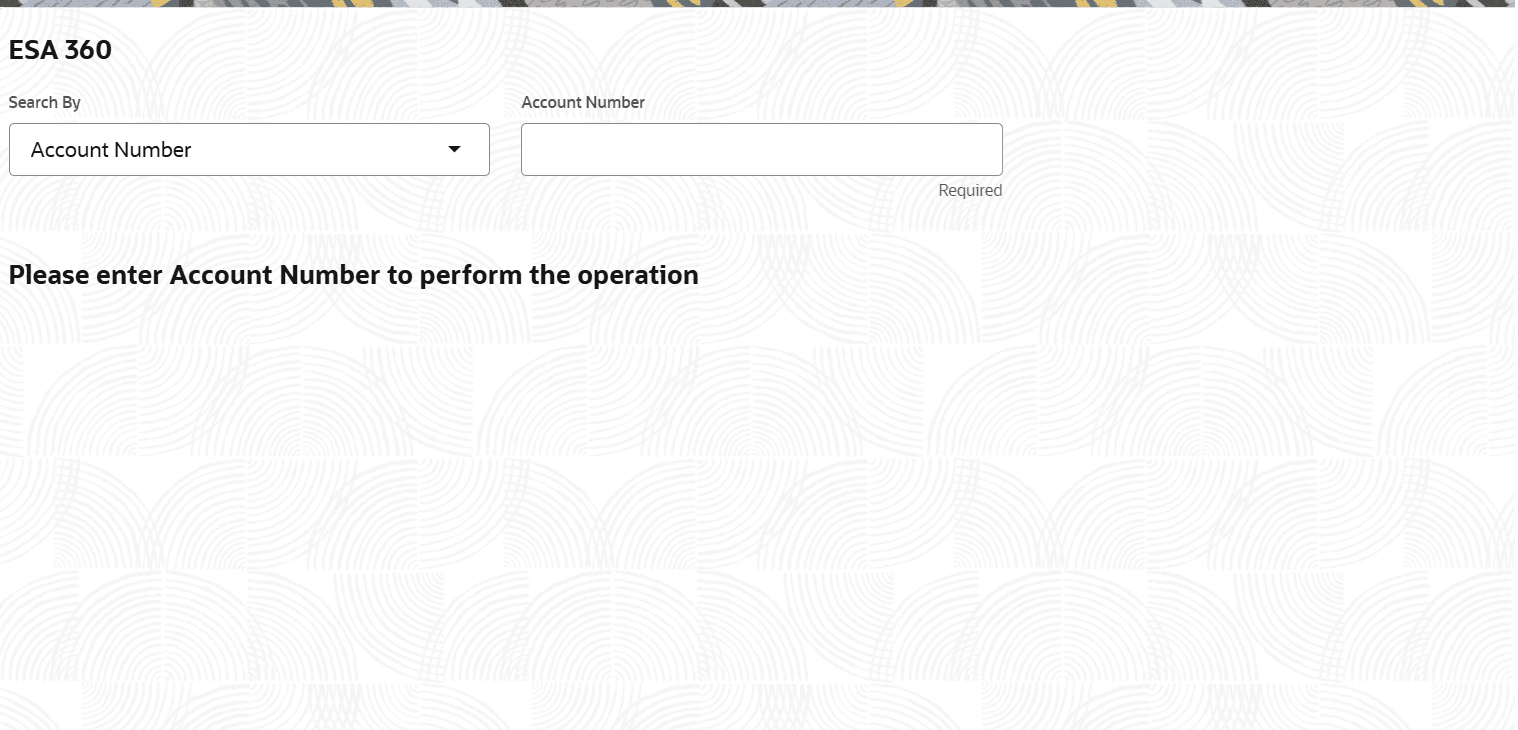
- On the Home screen, from ESA Services, click ESA 360, or specify the ESA 360 in the Search icon bar.The ESA 360 virtual screen is displayed.
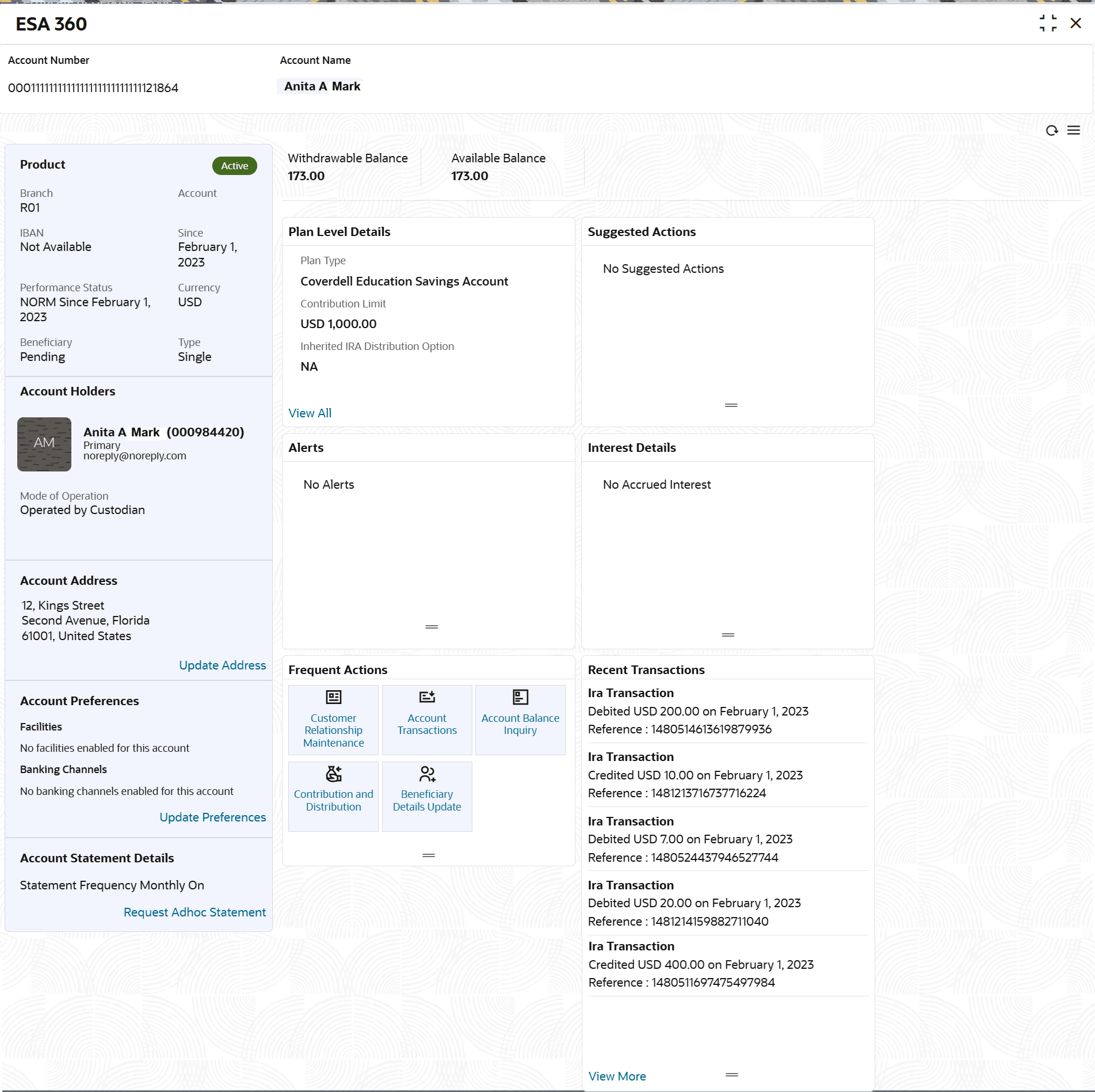
- Perform the required action, based on the option selected from the Search by field.The existing ESA 360 details are displayed.For more information on fields, refer to field description table below:
Table 2-1 ESA 360 Details – Field Description
Field Description Search By Users can search for an account number by using any of the available search criteria. The account number is set as the default search option. Users can specify the account number directly in the adjacent field or search for an account number by clicking the Search icon. Users can also search for the specific account number by providing customer ID, account number, or account name.
Other search options available in the Search by field are Customer ID, Tax Identification Number, Mobile Number, and Email.
A specific customer ID can be searched by providing the customer name or customer ID. If Tax Identification Number, mobile, or email IDs are chosen to find an account number, the respective IDs have to be input entirely in the adjacent field for the system to display the account number. For a given search criteria, multiple account numbers may be linked.
For example, two or more account numbers can be linked to a single mobile number. In such cases, the system displays all the account number matches and the user can select the relevant account number on which to perform a servicing operation.
Note: The label of the field adjacent to the Search by field changes dynamically. For example, if the Account number is chosen as the search criteria, the label of the adjacent field is displayed as the Account Number. If Tax Identification Number is chosen as the search criteria, then the adjacent field would display the label as Tax Identification Number.
<Product> Displays the product name from the product master. <Status> Displays the current account status. Branch Displays the branch code or identifier where the account is held. Account Displays the date when the account was opened. IBAN Displays the International Bank Account Number. Since Displays the balance amount since the account is opened. Performance Status Displays the current status and effective date. Currency Displays the currency used for the account. Beneficiary Displays the status of beneficiary nomination. Type Displays the type of account. Account Holders This widget displays the details of individuals holding the account. This includes, customer name, ID, and type, along with Email ID. Mode of Operation Displays the mode of operation. Account Address This widget displays the address associated with the account. Note:
User can update the address from this widget.Account Preferences This widget displays the preferences such as facilities or banking channels enabled for the account. Note:
User can update the preferences from this widget.Account Statement Details This widget displays the information on statement frequency and options for requesting ad hoc statements. Note:
User can request adhoc statement from this widget.Withdrawable Balance Displays the amount available for withdrawal from the account. Available Balance Displays the total accessible balance in the account. Plan Level Details This widget displays the ESA plan level details for the account. Note:
User can view more plan details on the account from this widget.Plan Type Displays the plan type. Contribution Limit Displays the contribution limit on the account. Inherited ESA Distribution Option Displays the option set for the inherited ESA distribution. Suggested Actions This widget displays the system-recommended actions. Alerts This widget displays the notifications or alerts related to the account. Interest Details This widget displays the information on accrued interest. Frequent Actions This widget displays commonly used features. Recent Transactions This widget displays the latest account activity.
Parent topic: Account View