8 Cashflow Inquiry - Recurring
This topic describes the systematic instructions to search the master created through UI or file upload.
User can search for all authorized Recurring master based on the search parameters. The screen displays the master details / information with basic details of underlying transactions created. For detailed inquiry of each transaction created user can navigate the existing cashflow inquiry where detailed transactions along with status update can be viewed.
- On Home screen, click Cash Management. Under Cash Management, click Inquiry.
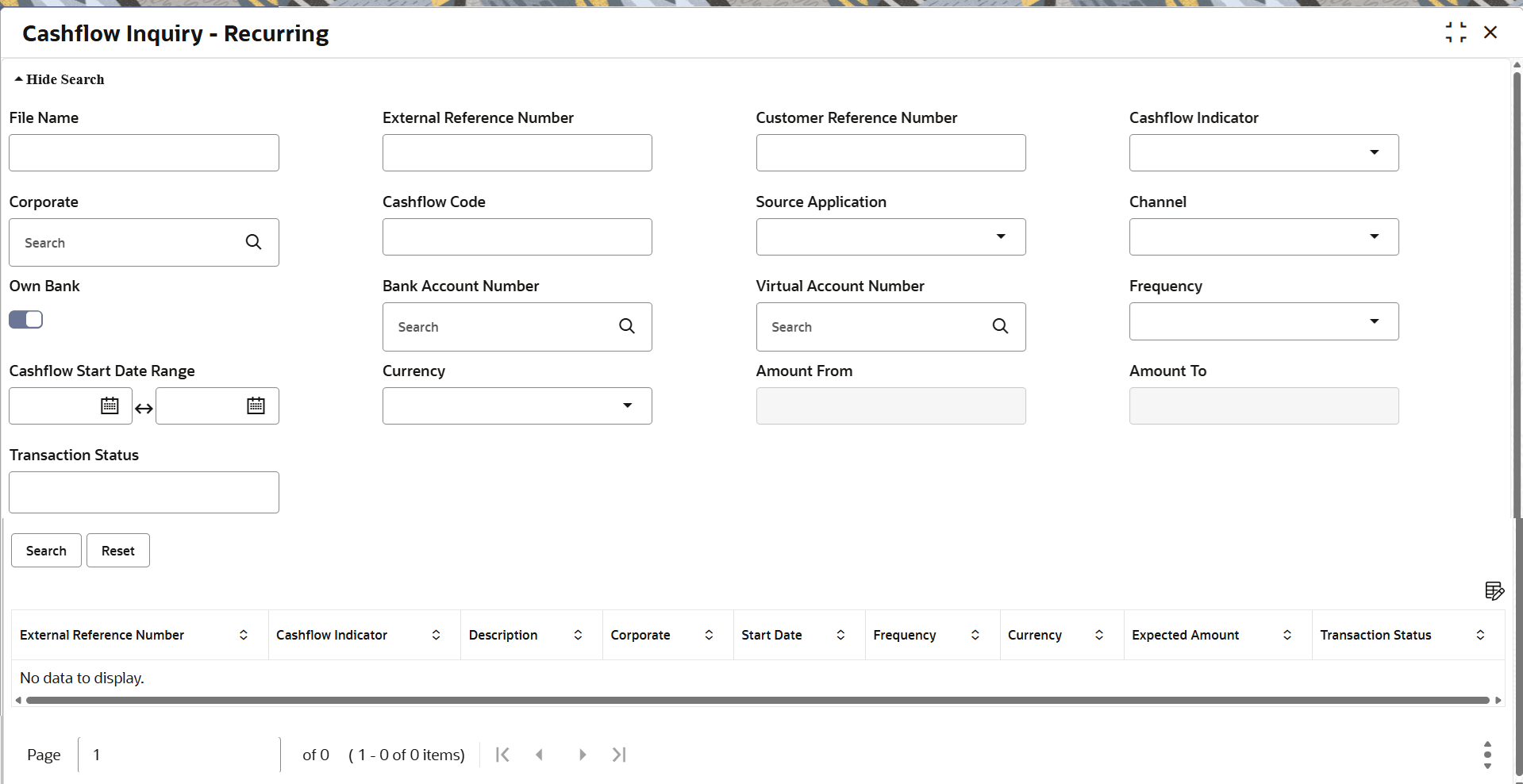
- Under Inquiry, click Cashflow Inquiry - Recurring.The Cashflow Inquiry - Recurring screen displays.
- Specify the fields on Cashflow Inquiry - Recurring screen.For more information on fields, refer to the field description table.
Note:
The fields marked as Required are mandatory.Table 8-1 Cashflow Inquiry - Recurring - Field Description
Field Description File Name Specify the full file name, the recurring master if uploaded / created / modified via a file upload. e.g. Recurringmaster1.csv External Reference Number Specify the external number which was used while creating the cashflow. Customer Reference Number Specify the exact value in Corporate Reference Number search. This reference number is typically provided by customer especially when input from channel.
Cashflow Indicator Select the cashflow type. The options are:- Inflow
- Outflow
Corporate Click the Search icon to select a specific customer to search. Cashflow Code Specify the exact Cashflow code to search. Source Application Select the source of the expected cashflow. The options are:- OBCM
- OBDX
- OBSCF
- OTHER
Channel Select the channel of the expected cashflow. The options are:- OBCM
- OBDX
- OBSCF
- OTHER
Own Bank Switch the toggle On to indicate if the bank account where the cashflow is received / paid is from own bank or external bank. Bank Account Number Click Search icon to search and select the customer bank accounts from common core or OBLM. Virtual Account Number Specify the virtual account number. Click Search icon to fetch the Virtual Account of the corporate from VAM, if the Own Bank switch is enabled.
Frequency Select the frequency of the recurring cashflow details. The options are:- Daily
- Weekly
- Fortnightly
- Monthly
- Quarterly
In case Cashflow Type field is Recurring; then frequency of the cashflow needs to be included. Based on this new cashflow txns will be created
Cashflow Start Date Range Select the date range when the recurring master may / could have started. Currency Select the currency in which the Cashflow transaction is created. Amount From - Amount To Specify the amount within which the Recurring master was set up. Transaction Status Specify the transaction status. Search Results This section displays the search results matching the search criteria. External Reference Number Displays the reference number that have been generated in some external system as available in the selected cashflow transaction. Cashflow Indicator Displays the cashflow indicator as available in the transaction. Description Displays the saved description for the recurring cashflow. Corporate Displays the customer for recurring cashflow. Start Date Displays the date when the recurring master may / could have started . Frequency Displays the frequency of the recurring cashflow details. The values can be:- Daily
- Weekly
- Fortnightly
- Monthly
- Quarterly
Currency Displays the currency of the recurring cashflow. Code Displays the code for the recurring cashflow. Expected Amount Displays the amount of expected cashflow. Transaction Status Displays the transaction status of the recurring cashflow. - Perform any of the following steps as per your requirement:
- Click Search to search the recurring cashflow.
The search results displays on the basis of search parameters.
- Click Reset to reset / clear the data on the screen.
- Click Search to search the recurring cashflow.
- Click
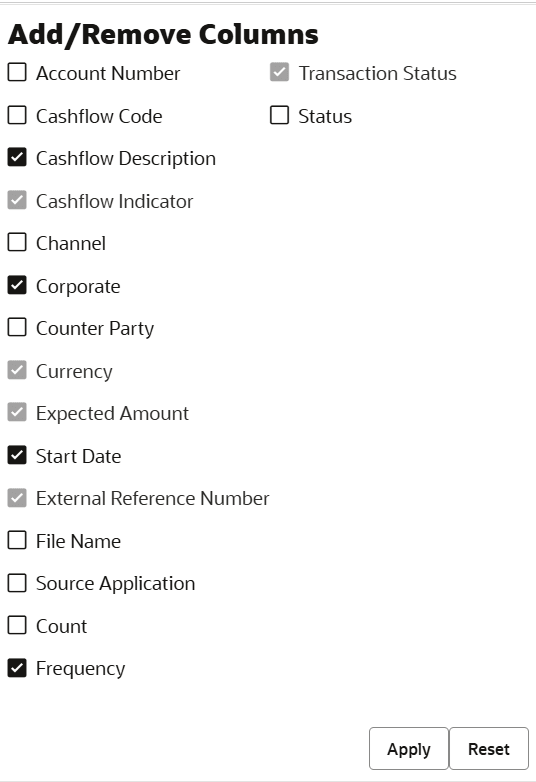
 to add or remove columns.The Add/Remove Columns screen displays.
 - Select/De-select the check box against the fields that you want to include or exclude as columns of the Search Result.