7 Cashflow Inquiry - One Time
This topic describes the systematic instruction to inquire about the status of the expected debits and credits in the Cashflow Forecasting module.
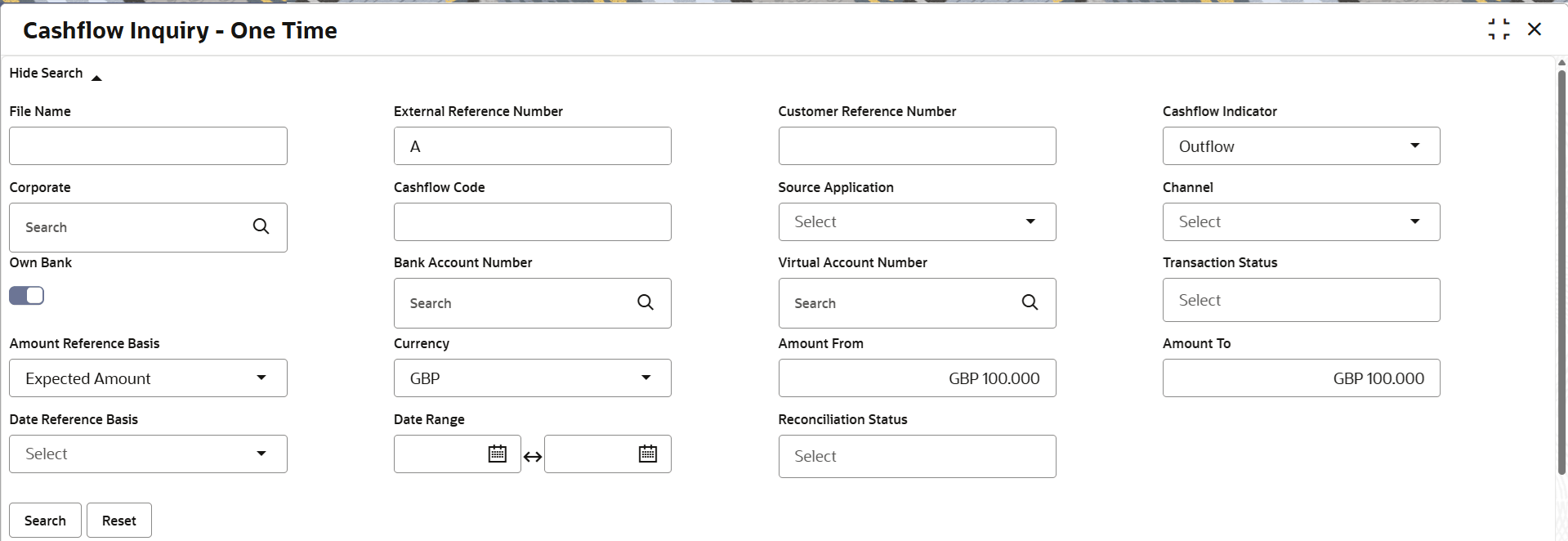
The Cashflow Inquiry screen helps the user to inquire the status of expected debits and credits based on the various criteria such as File Name, Bank Account Number, External Reference Number, Date range, Amount range, etc.
- On Home screen, click Cash Management. Under Cash Management, click Inquiry.
- Under Inquiry, click Cashflow
Inquiry.The Cashflow Inquiry screen displays.
- Specify the fields on Cashflow Inquiry screen.For more information on fields, refer to the field description table.
Note:
The fields marked as Required are mandatory.Table 7-1 Cashflow Inquiry - Field Description
Field Description File Name Specify the file name to inquire for. Note: File name must be of at least 5 alpha-numeric characters.
External Reference Number Specify the external reference number of the cashflow. Customer Reference Number Specify the customer reference number of the cashflow. Cashflow Indicator Select the cashflow type to search for inflow or outflow data. Corporate Click the Search icon and select the beneficiary or remitter based on selected cashflow type. Cashflow Code Specify the specific cashflow code to inquire for. Source Application Select the source application impacted by the cashflow. Channel Select the channel through which cashflow data is flowing. Own Bank Switch On the toggle if the Bank account search is from common core. Switch off the toggle if the Bank account search is from an external bank account data storage system.
Bank Account Number Click the Search icon and select the bank account number of the corporate. Virtual Account Number Click the Search icon and select the virtual account number of the corporate. Transaction Status Select the transaction status of the cashflow transaction. The user can select multiple transaction statuses (maximum 3 status selection allowed). The options are:- Authorization In Progress
- Authorized
- Rework In Progress
- Rejected
- Deleted
- Rework In Progress - Deletion
- Authorization In Progress - Deletion
Amount Reference Basis Select the reference basis of the amount range as Expected Amount or Reconciled Amount. Currency Select the amount currency of the cashflow. Amount From Specify the lowest cashflow amount of the range. Amount To Specify the highest cashflow amount of the range. Date Reference Basis Select the reference basis of the date range as Expected Date or Reconciliation Date. Date Range Click the Calendar icon and select the date range. Note: Maximum date range can be of six months.
Reconciliation Status Select the reconciliation status of the cashflow to search by. The user can select multiple reconciliation statuses. The options are:- Part Reconciled
- Reconciled
- Unreconciled
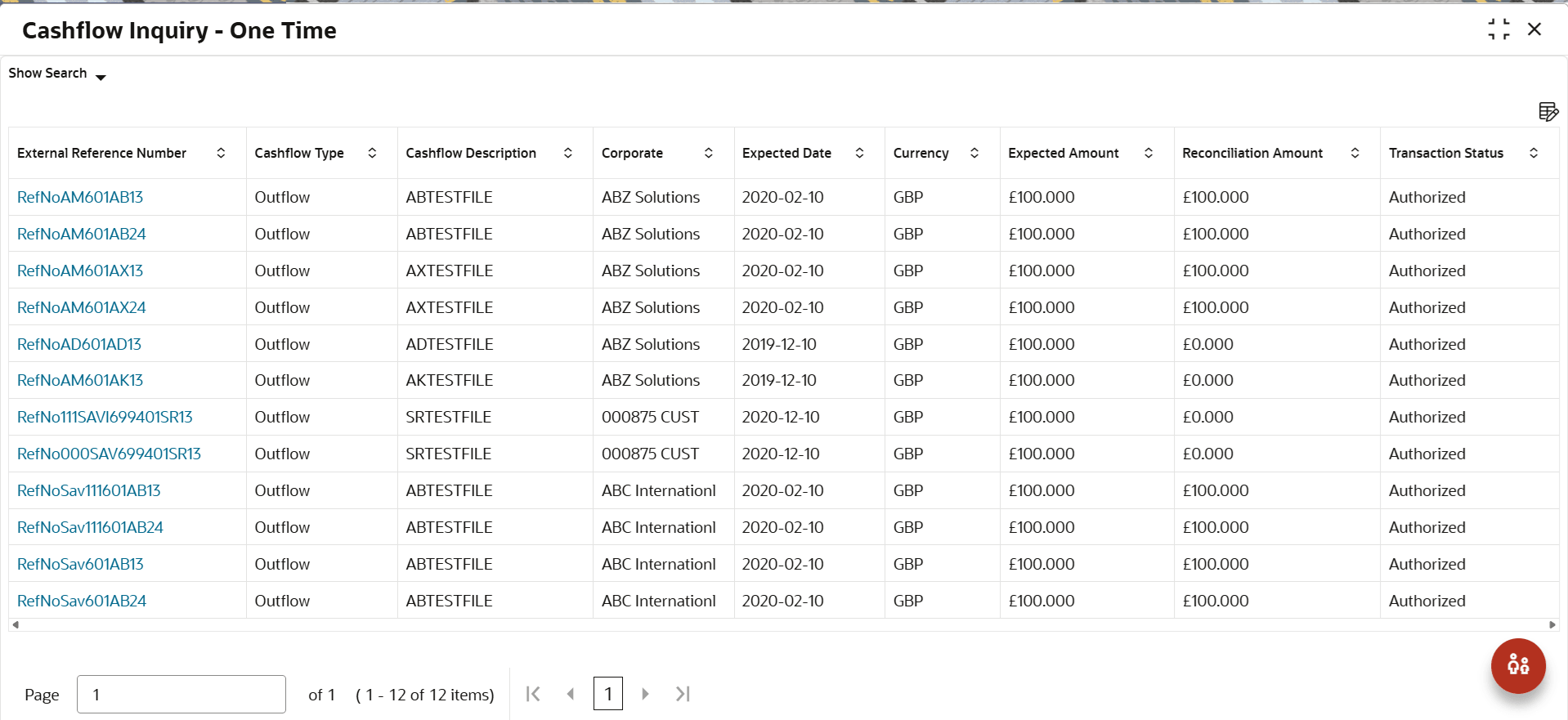
- Click Search to view the search result.The searched results are displayed based on the parameters provided.For more information on fields, refer to the field description table.
Figure 7-2 Cashflow Inquiry - Search Result
Table 7-2 Cashflow Inquiry - Search Result - Field Description
Field Description File Name Displays the file name. External Reference Number Displays the external reference number of the cashflow. Click the link to view the cash flow details.
Cashflow Code Displays the cashflow code of the cashflow. Cashflow Type Displays the cashflow type as Inflow or Outflow. Cashflow Desription Displays the description of the cashflow type. Account Number Displays the bank account number of the corporate. Channel Displays the channel through which cashflow data is flowing. Corporate Displays the beneficiary or remitter based on selected cashflow type. Counter Party Displays the name of the counter party. Currency Displays the amount currency of the cashflow. Expected Amount Displays the reference basis of the amount range as Expected Amount or Reconciled Amount. Expected Date Displays the reference basis of the date range as Expected Date or Reconciliation Date. Reconciliation Amount Displays the reconciliation amount of the cashflow. Reconciliation Date Displays the reconciliation date. Reconciliation Status Displays the reconciliation status of the cashflow. The reconcilation status can be:- Reconciled
- Part Reconciled
- Unreconciled
Source Application Displays the source application impacted by the cashflow. Transaction Status Displays the transaction status of the cashflow transaction. Unreconciled Amount Displays the unreconciled amount of the cashflow. Status Displays the status of the cashflow. The status can be:- Active
- Delete
- Click the External Reference Number to view more details.The Cash Flow Details screen displays.
- Click the Add/Remove Columns icon to select columns to be displayed in the search result.