4.1 Create Recurring Cashflow
This topic describes the systematic instruction to create a Recurring Cashflow transaction.
Create Recurring Cashflow functionality enables the capturing of cashflow's that are recurring in nature hence saving efforts of manual input of each cashflow transaction. The user can input the details once and then OBCM creates the recurring expected Cashflow transactions. The screen will help the user capture the details one time like a master.
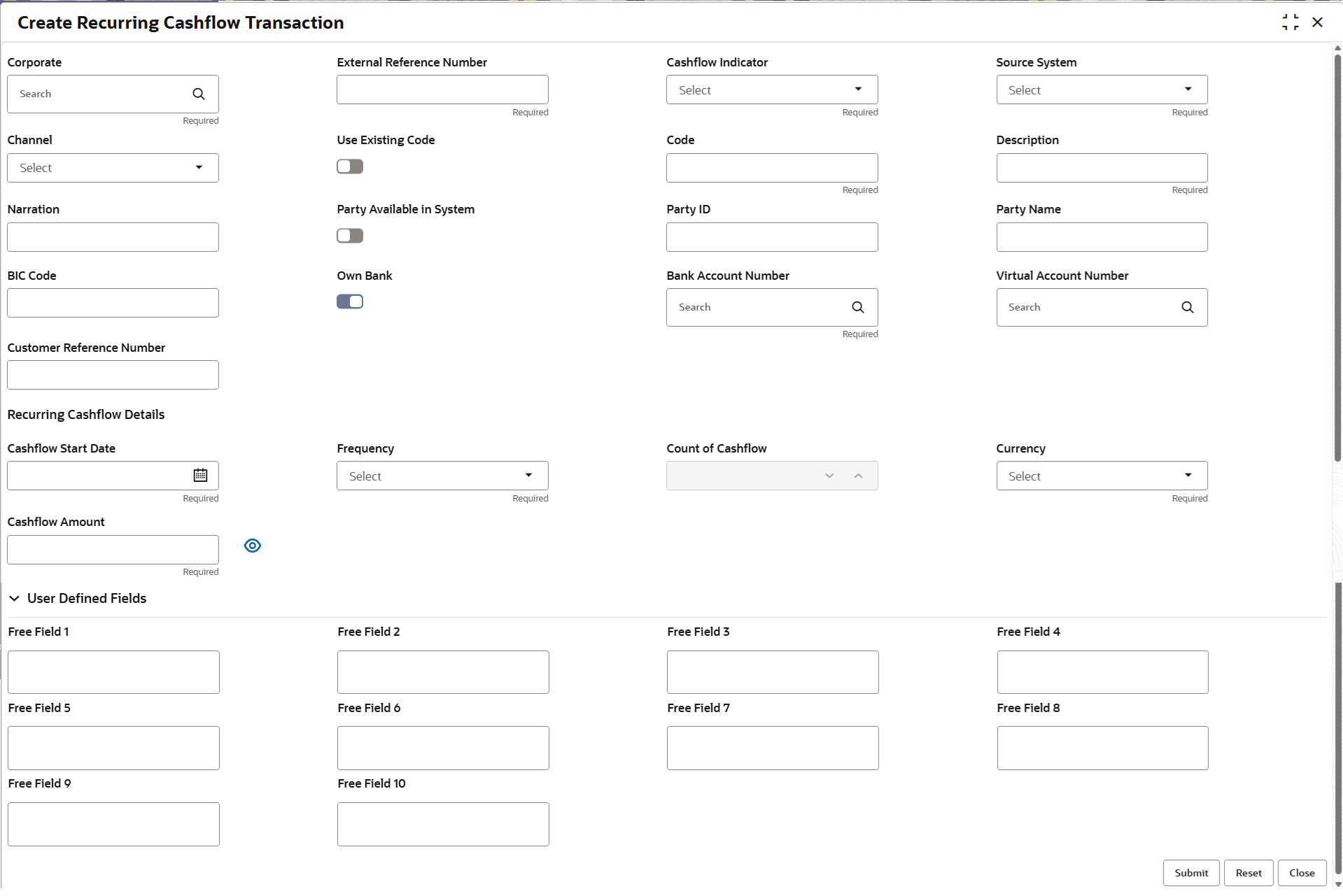
- Under Cashflow, click Create Recurring Cashflow Transaction.The Create Recurring Cashflow Transaction screen displays.
- Specify the fields on Create Recurring Cashflow Transaction screen.For more information on fields, refer to the field description table.
Note:
The fields marked as Required are mandatory.Table 4-1 Create Recurring Cashflow Transaction - Field Description
Field Description Corporate Click the Search icon to select a specific customer for whom the recurring cashflow needs to be created. External Reference Number Specify a reference number that have been generated in the external system. Cashflow Indicator Select whether the cashflow is an Inflow or outflow. The options are:- Inflow
- Outflow
Source System Select the source of the expected cashflow. The options are:- OBCM
- OBDX
- OBSCF
- OTHER
Channel Select the channel of the expected cashflow . The options are:- OBCM
- OBDX
- OBSCF
- OTHER
Use Existing Code Switch the toggle On to search for existing cashflow codes that are created in the Cashflow Code Maintenance screen. Code Specify a new code for the recurring cashflow. Click Search icon to select the code if Use Existing Code option is enabled.
Description Specify the description of the new code. This field will display the description as saved for the code in Cashflow Code Maintenance screen if the Use Existing Code switch is enabled.
Narration Specify the narration of the cashflow transaction. Party Available in System Switch the toggle On to search for corporate already available in Oracle® Banking Cash Management. Party ID Specify the Party Id to or from whom the cashflow is expected. Click Search icon to select the Party Id, if Party Available in System switch is enabled.
Party Name Specify the party name to or from whom the cashflow is expected. This field will display the party name, if the Party Available in System switch is enabled.
BIC Code Specify the BIC code. BIC code is a Bank Identifier Code that helps to identify external bank accounts in a data storing system.
Own Bank Switch the toggle On to indicate if the bank account where the cashflow is received / paid is from own bank or external bank. Bank Account Number Click Search icon to search and select the customer bank accounts from common core or OBLM. Virtual Account Number Specify the virtual account number. Click Search icon to fetch the Virtual Account of the corporate from VAM, if the Own Bank switch is enabled.
Customer Reference Number Specify the reference number other than external reference number. This reference number is typically provided by customer especially when input from channel.
Recurring Cashflow Details This section displays the Recurring Cashflow Details related fields. Cashflow Start Date Select the cashflow start date if the cashflow is of a recurring type. Frequency Select the frequency of the recurring cashflow details. The options are:- Daily
- Weekly
- Fortnightly
- Monthly
- Quarterly
In case Cashflow Type field is Recurring; then frequency of the cashflow needs to be included. Based on this new cashflow txns will be created
Count of Cashflow Specify the count of Cashflow. The frequency of the cashflow needs to be included. Based on this as many number / count of new cashflow txns will be created.
Currency Select the currency of the cashflow transaction. Cashflow Amount Specify the Cashflow amount. Click the
 icon to view the mock transactions that will be created / inserted by OBCM based on the frequency, start date and count of Cashflow.
User Defined Fields This section displays the User Defined fields. Free Field 1 to 10 Specify the additional information, if required.
Parent topic: Recurring Cashflow