5.1 Process to Create Definition
This topic describes the information about Create a Definition.
To create a definition:
- From Home screen, click Collections. Under Collections, click Maintenance.
- Under Maintenance, click Auto Number
Generation, then click Create
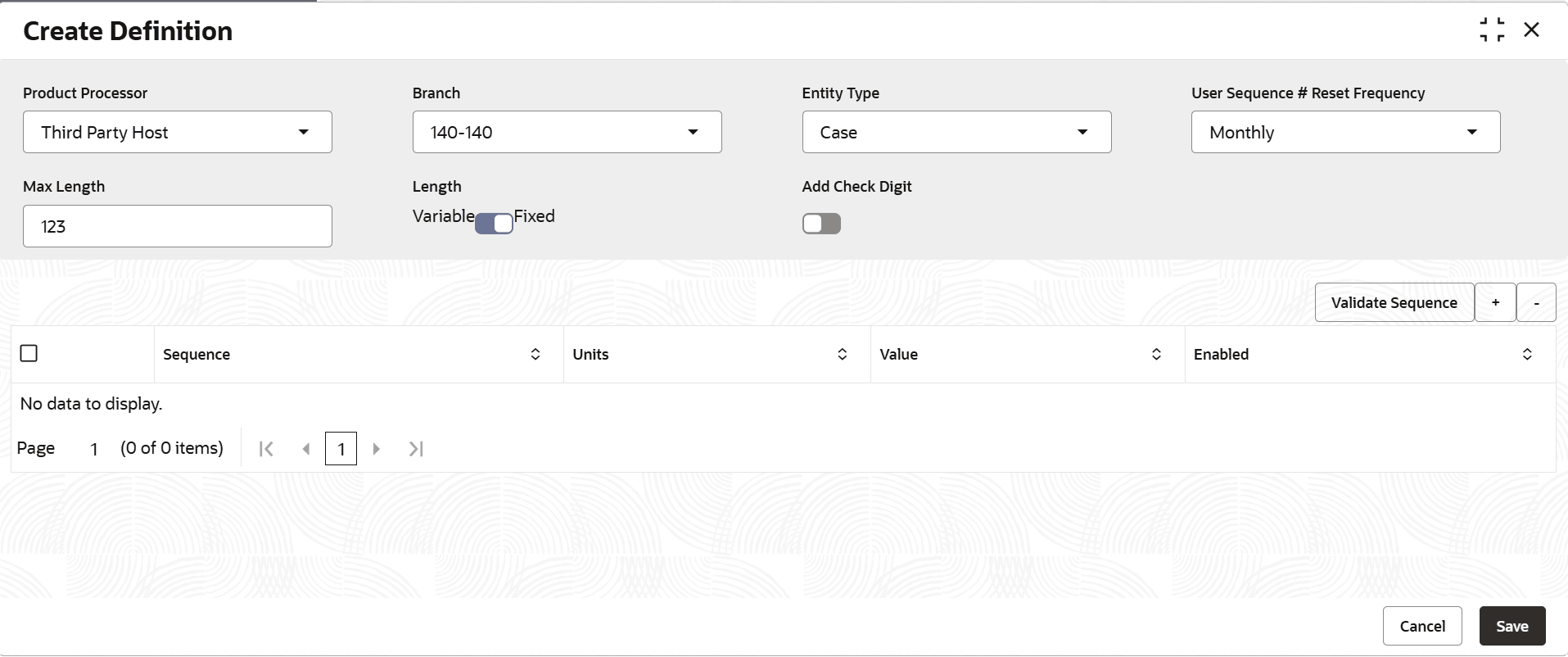
Definition.The Create Definition screen is displayed.
Figure 5-1 Create Definition
- Specify the fields on Create Definition screen.For more information on fields, refer to the field description table.
Note:
The fields marked as Required are mandatory.Table 5-1 Field Description: Create Definition
Field Name Description Product Processor Indicates the product processor. The auto numbers are generated for the accounts received from the selected product processor.
Branch Indicates the branch name. The auto numbers are generated for the accounts of the selected branch.
Entity Type Indicates the entity type for which the auto number should be generated using the definition. The option is Case. By default, the option selected is Case.
The auto numbers are generated for the selected entity type for the accounts received from the specified product processor for the selected branch. The generated auto number is displayed or available in a list for selection for entity type fields wherever it appears in the system.
User Sequence # Reset Frequency Indicates the frequency at which the system should reset the auto number generation logic for an entity type. The options are:- Annual
- None
- Monthly
- Weekly
- Daily
- Semi-Annual
- Quarterly
Max Length Indicates the maximum length of the number that is generated. Length Toggle to indicate whether system should generate number with variable or fixed length. If Variable is selected, system generates number that is of variable length but up to the maximum length specified in the Max Length field.
If Fixed is selected, system generates number equal to the maximum length specified in the Max Length field.
Add Check Digit Toggle to indicate whether system should add a check digit at the end of the auto number generated for the selected entity type. Note: If this toggle is enabled, system checks that length of all the units and check digit together is not greater than the maximum length specified in the Max Length field.
<Unit Details> This section is used to specify what the number should constitute and the sequence of the same in the auto number to be generated. Sequence Indicates the sequence of the unit in the auto number generation logic. The value of the unit appears in the generated auto number as per the sequence number. By default, when you add a row it displays the sequence number. If user add multiple rows, system automatically provides a sequence number depending on the number of rows added in the table. User can modify the sequence number based on how user want the values of the unit should appear in the auto number to be generated. The sequence number must be unique for each unit.
Units Indicates the unit with which the system should generate the number. The options are:- Record Creation Year (YYYY)
- Record Creation (DD)
- Record Creation Year/Month (YYYYMM)
- Random Number > Length
- Record Creation Year (YY)
- System Sequence Number > Length
- User Sequence Number > Length
- Record Creation Month (MM)
- Constant
For example, if user select Constant and specify AN as the value in the Value field with sequence as 1 for entity type as Case. In this scenario, auto number generated for all the case numbers will start with AN as a constant value.
Note: This list displays options based on the selected entity type. By default, Constant is selected.
User can add one or more units for generating auto number for an entity type. However, ensure that the total of values specified for each active unit is less than or equal to the maximum length specified in Max Length field.
It is mandatory to add and enable the System Sequence Number > Length unit. And it must be numbered last in the sequence if more than one units are added.
Value Indicates or displays the length of the unit. For the following options in the Unit field, it displays the values by default and user cannot edit the same.- Record Creation Year (YYYY)
- Record Creation (DD)
- Record Creation Year/Month (YYYYMM)
- Record Creation Year (YY)
- Record Creation Month (MM)
Note: Ensure that the total of the values specified for all the active units is less than or equal to the maximum length specified in the Max Length field.
Enabled Toggle to indicate whether the unit is active. Note: System uses only the active units for generating auto numbers.
- Click Validate Sequence. The popup is displayed to generate the sequence by adding Product segment or product code Code.
- Click Generate Sequence.
The success message is displayed along with the generated sequence sample in the popup window.
- Click OK.
- Click Generate Sequence.
- Click Save to save the details.The Auto Number Generation is successfully created and can be viewed using the screen.
Parent topic: Auto Number Generation