11.1 Process to Create User Group
This topic describes the information about Create a user Group.
- From Homescreen, click Collections. Under Collections, click Maintenance.
- Under Maintenance, click User
Group. Under User Group, click Create User
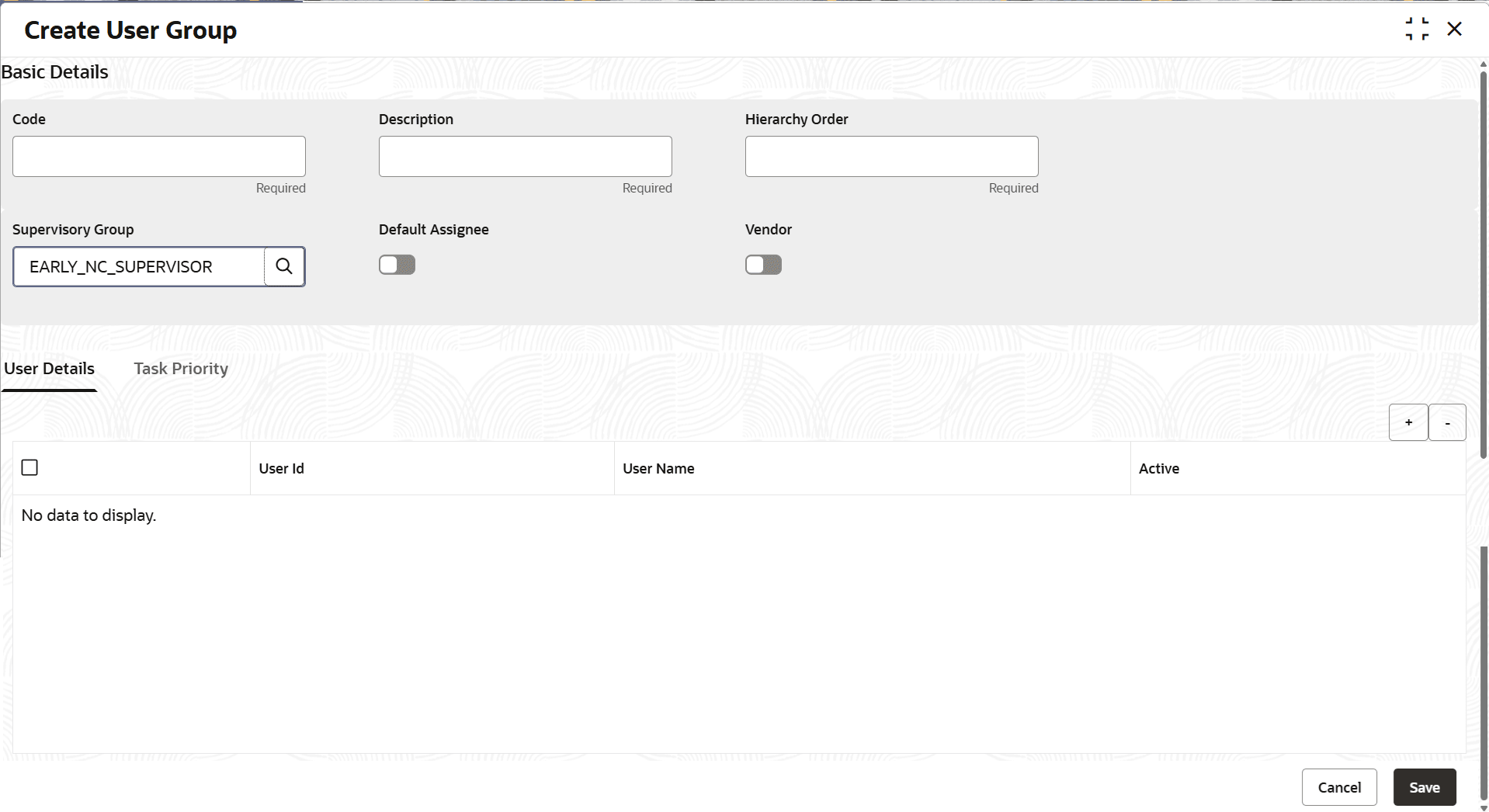
Group.The Create User Group screen is displayed.
- Specify the fields on the Create User Group
screen.For more information on fields, refer to the field description table.
Note:
The fields marked as Required are mandatory.Table 11-1 Field Description: Create User Group
Field Name Description Basic Details This section is used to provide the basic information of the user group. Code Displays the unique identification code of the user group. Description Displays the description of the user group. Hierarchy Order Displays the order of the user group in the hierarchy of user groups. Note: User can set same hierarchy order for multiple user groups. The hierarchy order of the user group user want to create should be less than the hierarchy order of the supervisor group.
Supervisory Group Displays the supervisor group for the user group. Note: User must select only that supervisor group which contains all the managers of the users that user select for the user group. Users are mapped to the managers while creating users in Security Management. For more information, refer Oracle Banking Security Management System User Guide.
Default Assignee Displays whether the user group that user want to create is the default group. If any accounts remain pending for assignment after all the accounts are assigned as per the user assignment priority, then such accounts are assigned to the default user group.
Note: User can mark only one user group as default assignee. If a default assignee user group is not defined in the system, the account pending for assignment are not allocated to any user group or user.
Vendor Displays whether the user group user want to create is for agency. User Details This section is used to assign users to the user group. Note: This section will be displayed only when agency option is selected as off.
User ID Displays the unique identification code of the user that user want to assign to the user group. Note: User must select only those users that have the associated manager present in the selected supervisor group. For more information, refer Oracle Banking Security Management System User Guide.
User Name Displays the user name of the selected user ID. Active Displays whether the user is active for the user group. Vendor Details This section is used to assign agencies to the user group. Note: This section will be displayed only when agency option is selected. It displays the following fields.
Vendor Code Displays the unique identification code of the agency that you want to assign to the user group. Note: User must select only those users that have the associated manager present in the selected supervisor group. For more information, refer Oracle Banking Security Management System User Guide.
Vendor Name Displays the name of the selected agency. Active Displays whether the agency is active for the user group. Task Priority This section is used to define priority of the tasks. Priority Displays the priority sequence number. Parameter Displays the pre-defined list of parameters for prioritization. Sub-Priority Displays the sub-priority to be selected for the parameter. Note: This field will be enabled only when Parameter is selected as Segment, Task Status or Task Type.
- Perform one of the following action:
- Click Save to save the details.The User Group is successfully created and can be viewed using the View User Group screen.
- Click Cancel to discard the changes and close the screen.
- Click Save to save the details.
Parent topic: User Group