11.2 Process to View User Group
This topic describe the information about View List of User Groups.
User can view the list of user groups created in the system and search for a
particular user group.
To view the list of user groups:
- Under Maintenance, click User
Groups. Under User Groups, click View User
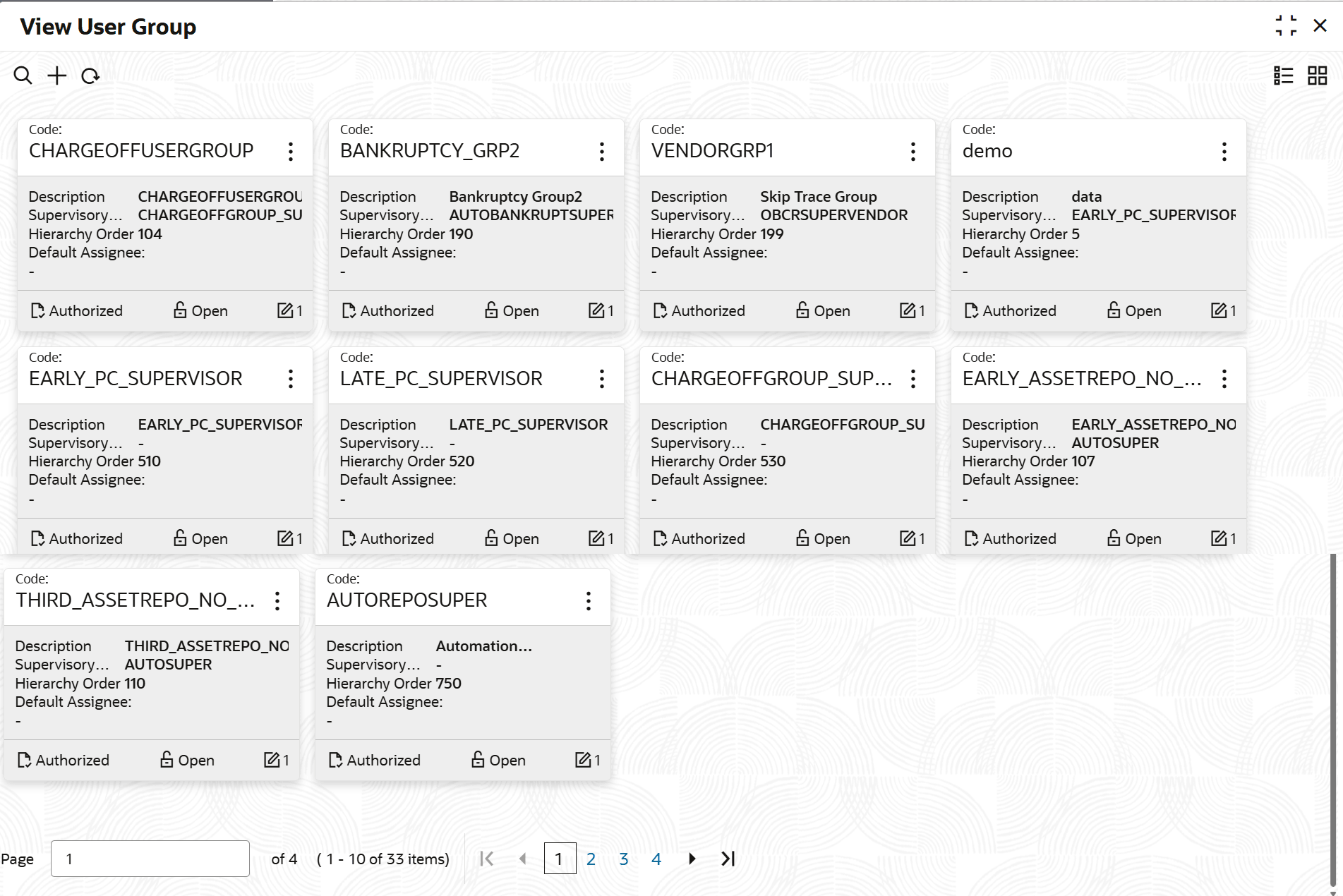
Groups.The View User Groups screen is displayed. For more information on fields, refer to the field description table.
Table 11-2 ViewUser Groups - Field Description
Field Name Description Code Displays the user group code. Description Displays the description of the user group. Supervisory Group Displays the supervisor group for the user group. Hierarchy Order Displays the hierarchy order of the user group. Default Assignee Displays if the user group is marked as default group. <Authorization Status> Displays the authorization status of the user group. The possible options are:- Unauthorized
- Authorized
<Record Status> Displays the status of the record. The possible options are:- Open
- Closed
- On the View User Groups screen, click

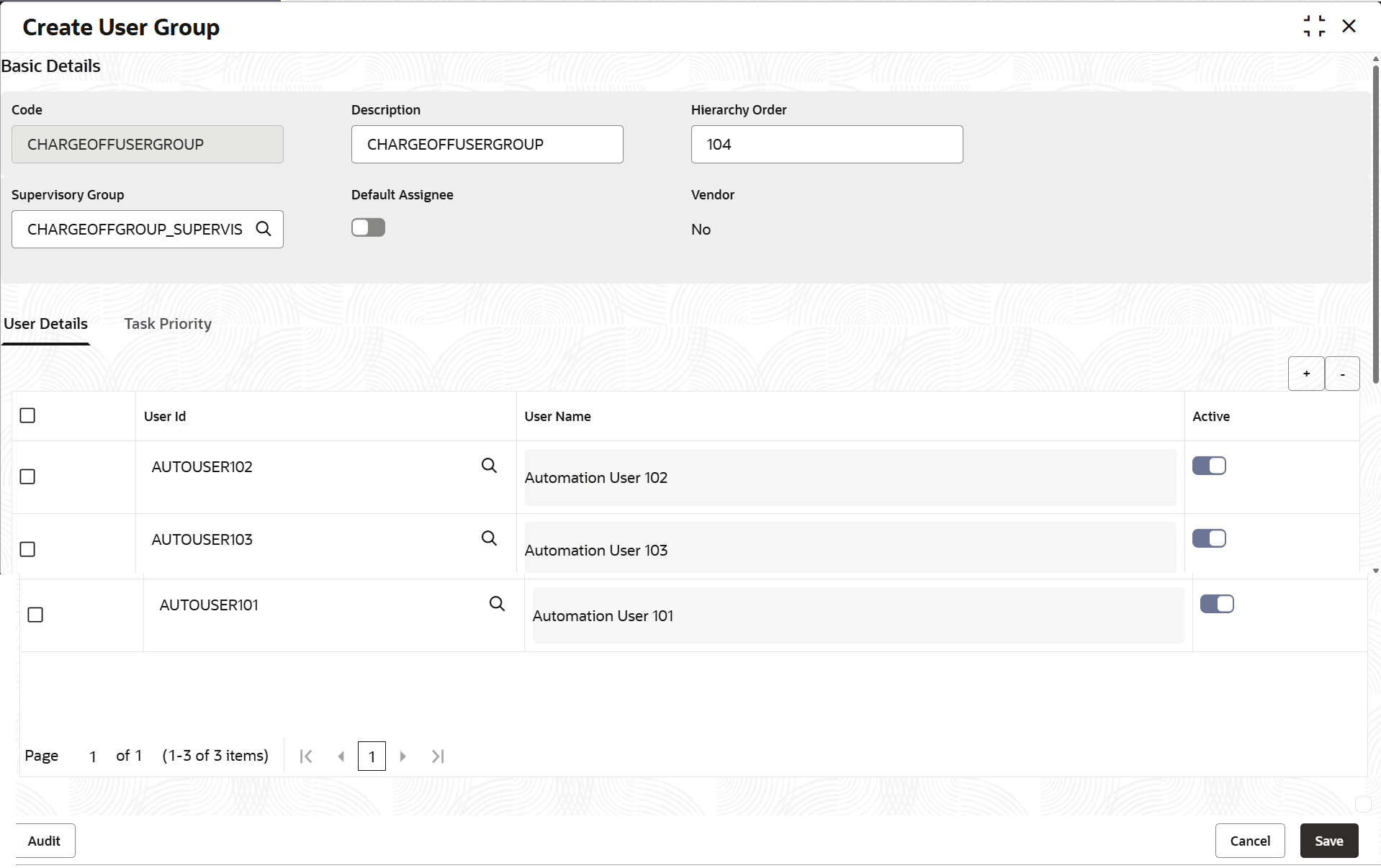
icon.The View User Groups - Search screen is displayed. - Click Unlock to modify the created User Groups.The Create User Groups- Modify screen is displayed.
For more information on fields, refer to the field description table.
Table 11-4 Field Description: Create User Group
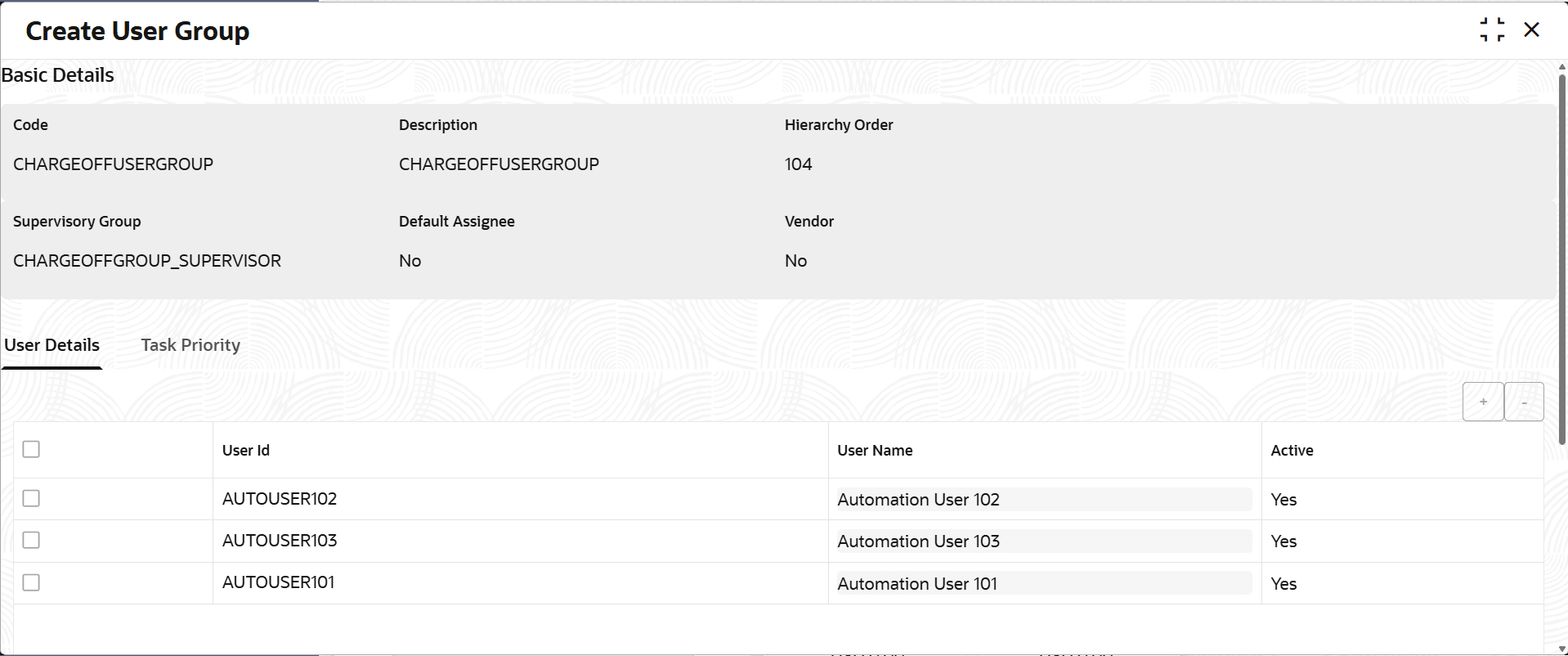
Field Name Description Basic Details This section is used to provide the basic information of the user group. Code Displays the unique identification code of the user group. Description Displays the description of the user group. Hierarchy Order Displays the order of the user group in the hierarchy of user groups. Supervisory Group Displays the supervisor group for the user group. Default Assignee Displays whether the user group that user want to create is the default group. Vendor Displays whether the user group user want to create is for agency. User Details This section is used to assign users to the user group. User ID Displays the unique identification code of the user that user want to assign to the user group. User Name Displays the user name of the selected user ID. Active Displays whether the user is active for the user group. Vendor Details This section is used to assign agencies to the user group. Vendor Code Displays the unique identification code of the agency that you want to assign to the user group. Vendor Name Displays the name of the selected agency. Active Displays whether the agency is active for the user group. Task Priority This section is used to define priority of the tasks. Priority Displays the priority sequence number. Parameter Displays the pre-defined list of parameters for prioritization. Sub-Priority Displays the sub-priority to be selected for the parameter. - Click View to view the created User Group code.The Create User Group - View screen is displayed.
For more information on fields, refer to the field description table.
Table 11-5 Create User Group - View - Field Description
Field Name Description Basic Details This section is used to provide the basic information of the user group. Code Displays the unique identification code of the user group. Description Displays the description of the user group. Hierarchy Order Displays the order of the user group in the hierarchy of user groups. Supervisory Group Displays the supervisor group for the user group. Default Assignee Displays whether the user group that user want to create is the default group. Vendor Displays whether the user group user want to create is for agency. User Details This section is used to assign users to the user group. User ID Displays the unique identification code of the user that user want to assign to the user group. User Name Displays the user name of the selected user ID. Active Displays whether the user is active for the user group. Active Displays whether the agency is active for the user group. Task Priority This section is used to define priority of the tasks. Priority Displays the priority sequence number. Parameter Displays the pre-defined list of parameters for prioritization. Sub-Priority Displays the sub-priority to be selected for the parameter.

Parent topic: User Group