6.1 Process to Create Workflow
This topic describes the information about how to Create a Workflow.
- Under Maintenance, click
workflow. Under workflow, click
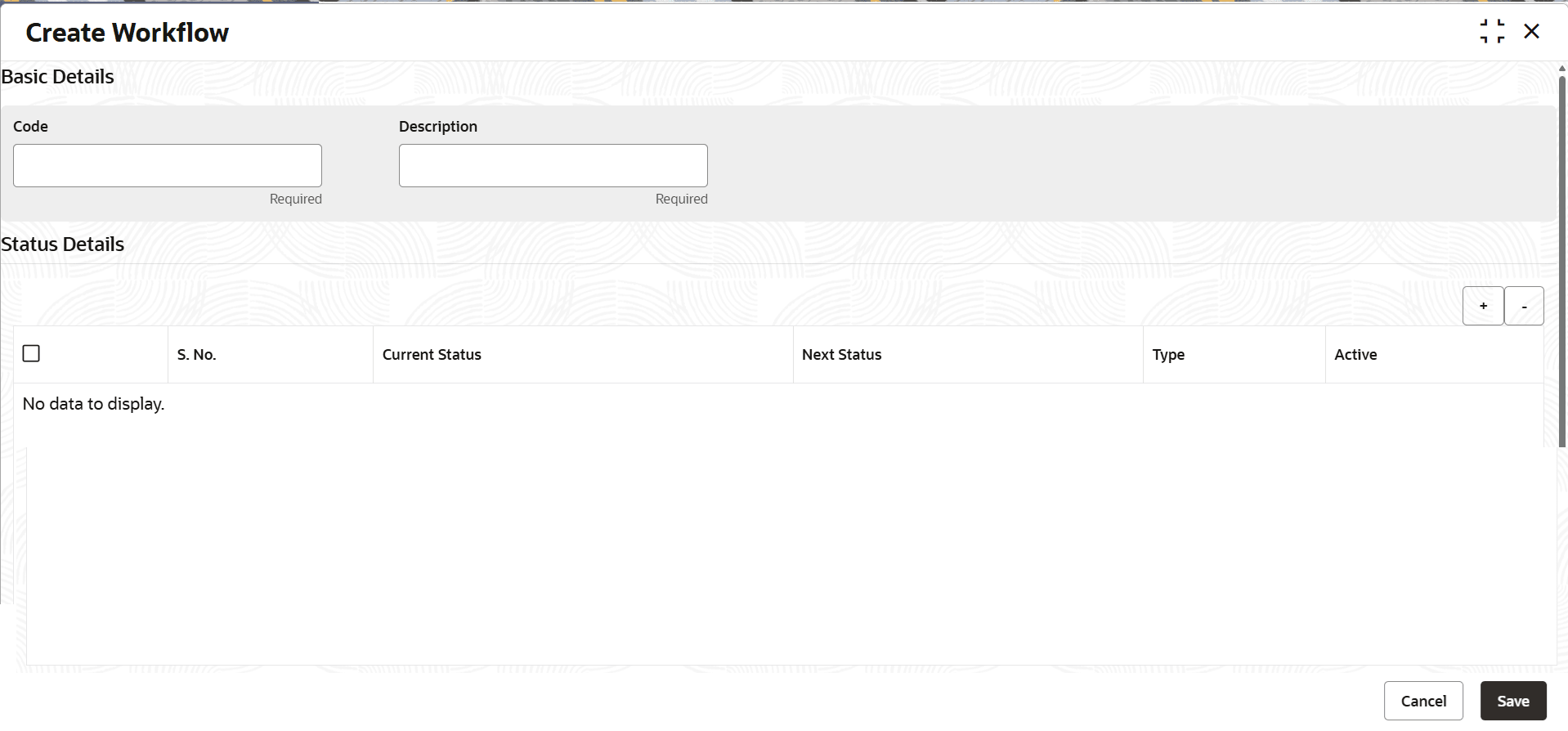
Create workflow.The Create workflow screen is displayed.
Figure 6-1 Create workflow
- Specify the fields on the Create workflow screen.For more information on fields, refer to the field description table.
Note:
The fields marked as Required are mandatory.Table 6-1 Field Description: Create Workflow
Field Name Description Basic Details This section is used to provide basic information of the workflow. Code Indicates the unique identification code of the workflow. Description Indicates the description of the workflow. Status Details This section is used to provide the status transition details of the task. Note: If user click
 corresponding to a row, a section appears using
which user can configure rules for the status transition
record. For more information on how to configure rules,
refer Oracle Banking Common Core User
Guide.
corresponding to a row, a section appears using
which user can configure rules for the status transition
record. For more information on how to configure rules,
refer Oracle Banking Common Core User
Guide.S.No. Displays the serial number of the status transition record. Current Status Indicates the current workflow status of the task. Note: The current status and next status cannot be same.
Next Status Indicates the next workflow status to which the task should move. Note: The current status and next status cannot be same.
Type Indicates how the status transition should happen. The options are: - Manual: Select this option if user want the status transition to be done manually by the user.
- System: Select this option if user want the status transition to be done by the system.
Note: The status transition of type as System can also be done manually by the collector.
Active Toggle to indicate whether the status transition is active. Linked Tasks Displays the list of open tasks linked to the workflow. Note: This section appears if user click Linked Tasks, which is displayed only after user save the details. However, the open tasks details appear only after the tasks are created using Create Task page in which workflow is mapped to the task.
Once the workflow is created, user can view the same using the View Workflow page. Upon creation, the authorization status of the workflow is Unauthorized and the record status is Open. After a workflow is created, it must be authorized to be effective in the system. On authorization, the workflow is visible in the Create Task page from where user can map the task with the required workflow. A task moves through various statuses based on the workflow mapped to it.
Parent topic: Workflow