6.2 Process to View Workflow
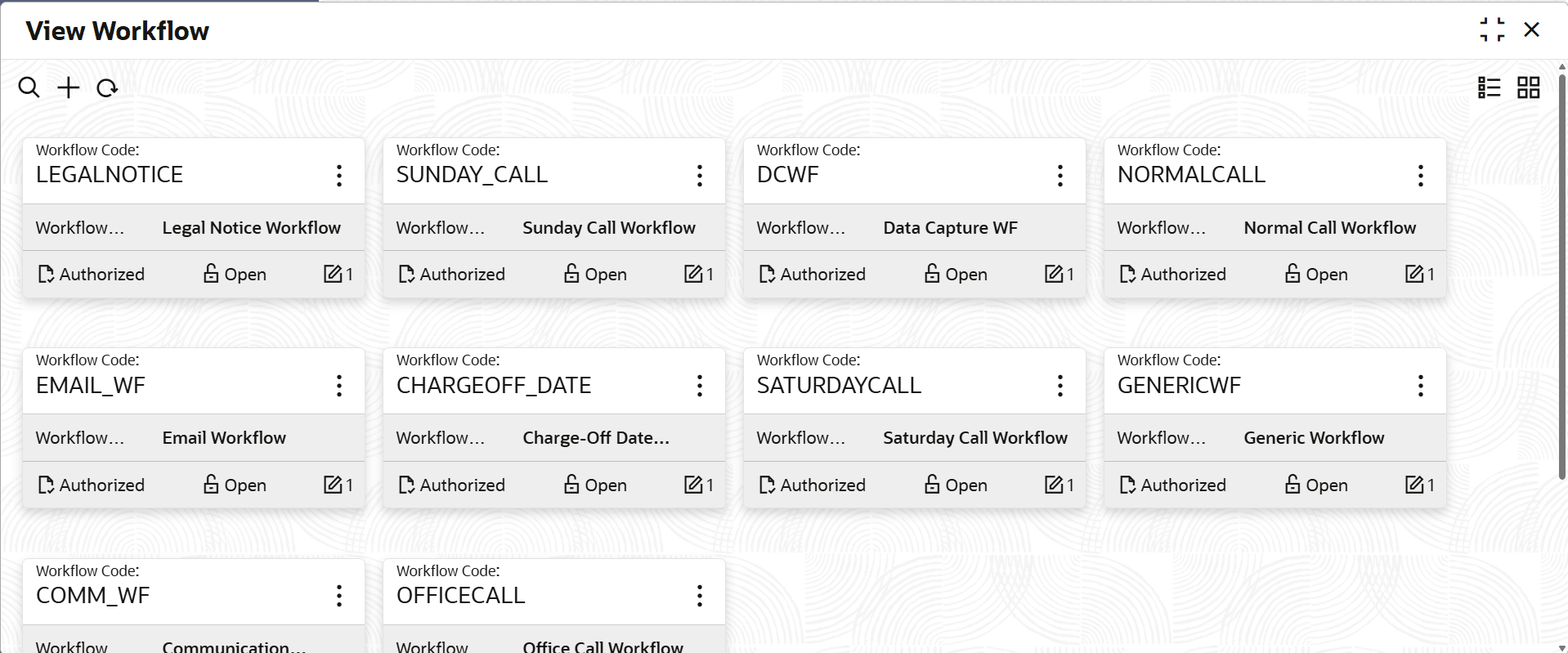
This topic describes the information about Viewing List of Workflows.
User can view the list of workflows created in the system and search for a
particular workflow.
To view the list of workflows:
- Under Maintenance, click
workflow. Under workflow, click
View workflow.The View workflow screen is displayed. For more information on fields, refer to the field description table.
Table 6-2 Field Description: View Workflow - Tile
Field Name Description Workflow Code Displays the workflow code. Workflow Description Displays the description of the workflow. Authorization Status Displays the authorization status of the workflow. The possible options are:- Unauthorized
- Authorized
Record Status Displays the status of the record. The possible options are:- Open
- Closed
- On the View workflow screen, click

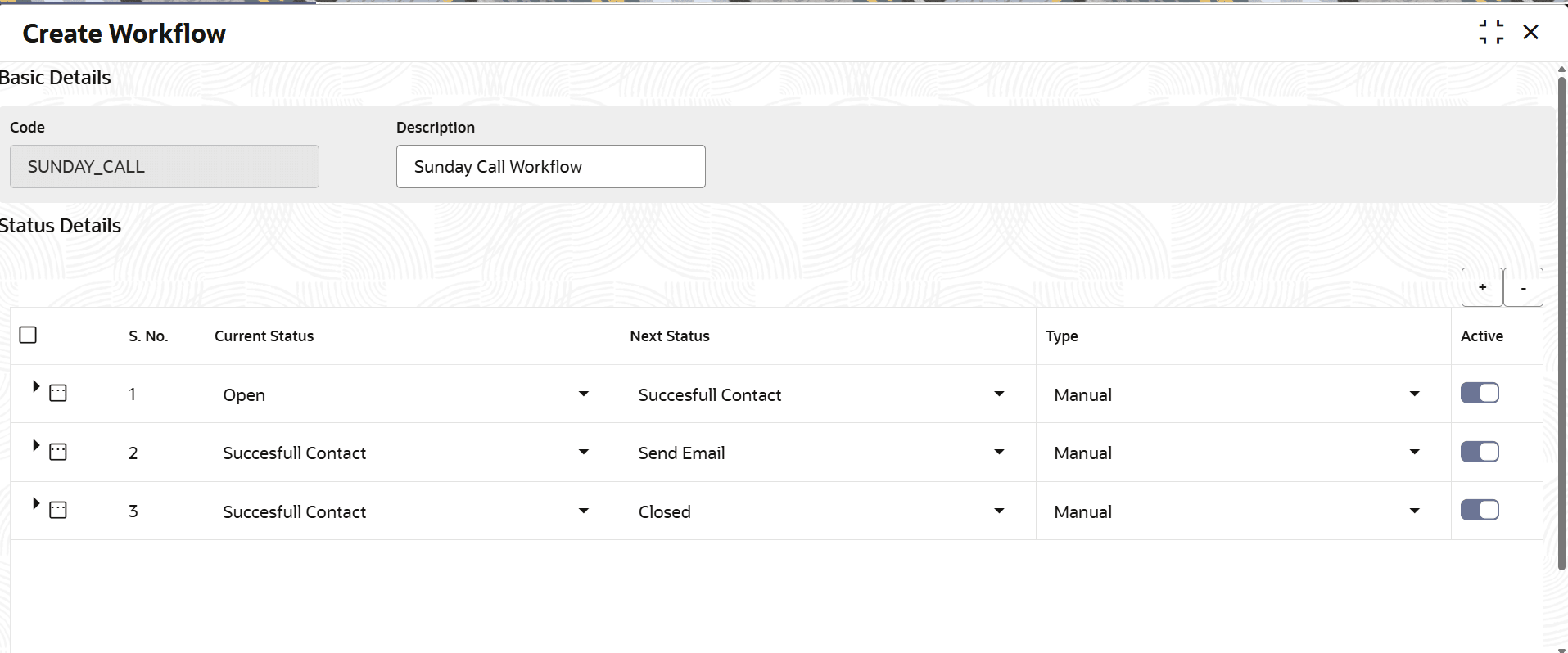
icon.The View workflow - Search screen is displayed. - Click Unlock to modify the created Workflow.The Create Workflow - Modify screen is displayed.
For more information on fields, refer to the field description table.
Table 6-4 Field Description: Create Workflow_Modify
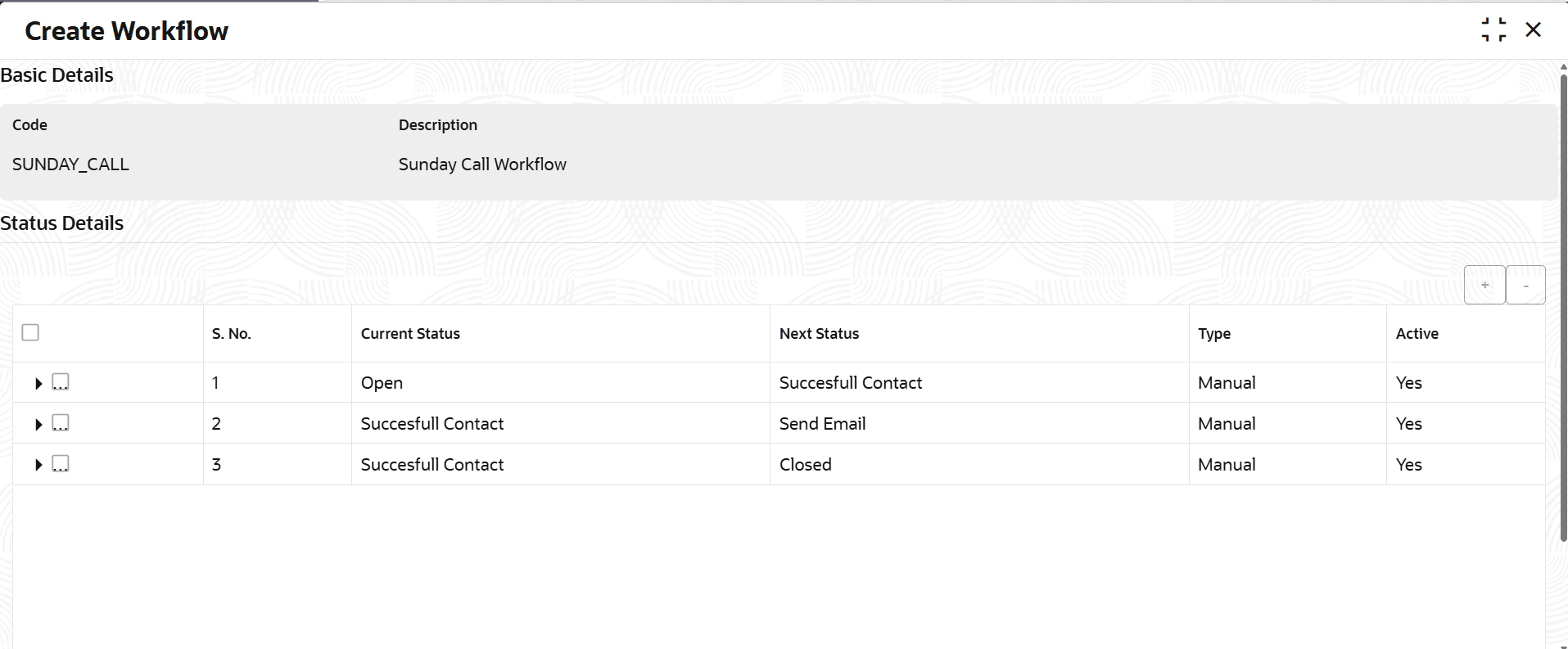
Field Name Description Basic Details This section is used to provide basic information of the workflow. Code Displays the unique identification code of the workflow. Description Displays the description of the workflow. Status Details This section is used to provide the status transition details of the task. S.No. Displays the serial number of the status transition record. Current Status Displays the current workflow status of the task. Next Status Displays the next workflow status to which the task should move. Type Displays how the status transition should happen. Active Toggle to indicate whether the status transition is active. Linked Tasks Displays the list of open tasks linked to the workflow. - Click View to view the created Workflow code.The Create Workflow - View screen is displayed.
For more information on fields, refer to the field description table.
Table 6-5 Field Description: Create Workflow_View
Field Name Description Basic Details This section is used to provide basic information of the workflow. Code Displays the unique identification code of the workflow. Description Displays the description of the workflow. Status Details This section is used to provide the status transition details of the task. S.No. Displays the serial number of the status transition record. Current Status Displays the current workflow status of the task. Next Status Displays the next workflow status to which the task should move. Type Displays how the status transition should happen. Active Toggle to indicate whether the status transition is active. Linked Tasks Displays the list of open tasks linked to the workflow.

Parent topic: Workflow