15.2 Process to View Communication
This topic describes the information about View List of Communication.
User can view the list of communications created in the system and search for
a particular communication.
To view the list of communications:
- Under Maintenance, click
Communication. Under
Communication, click View
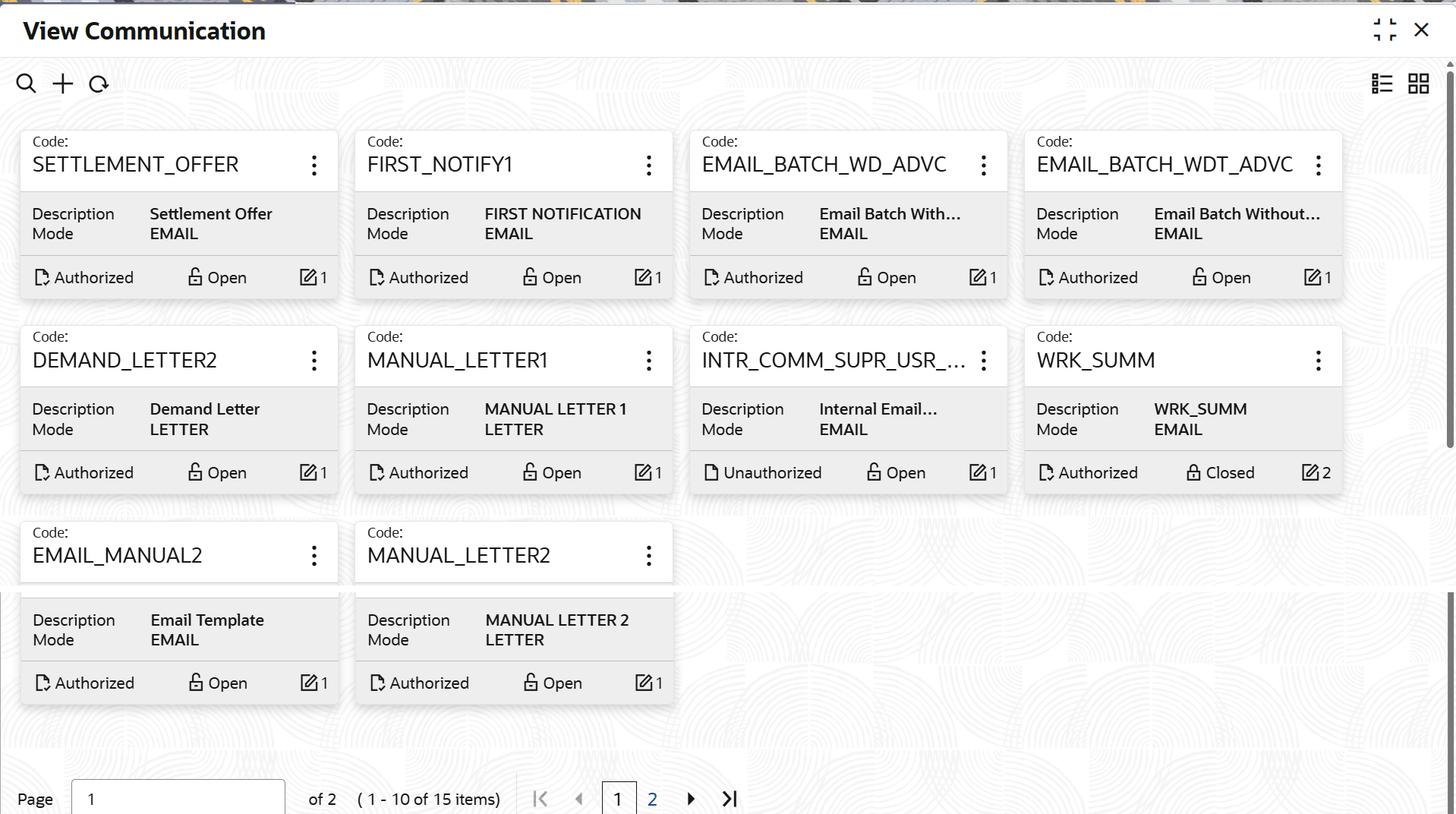
Communication.The View Communication screen is displayed. For more information on fields, refer to the field description table.
Table 15-2 Field Description: View Communication - Tile
Field Name Description Code Displays the communication code. Description Displays the description of the communication. Mode Displays the mode of the communication. Applicability Displays the applicability of the communication. <Authorization Status> Select the authorization status of the communication. The possible values are:- Unauthorized
- Authorized
<Record Status> Select the status of the record. The possible values are:- Open
- Closed
- On the View Communication screen, click

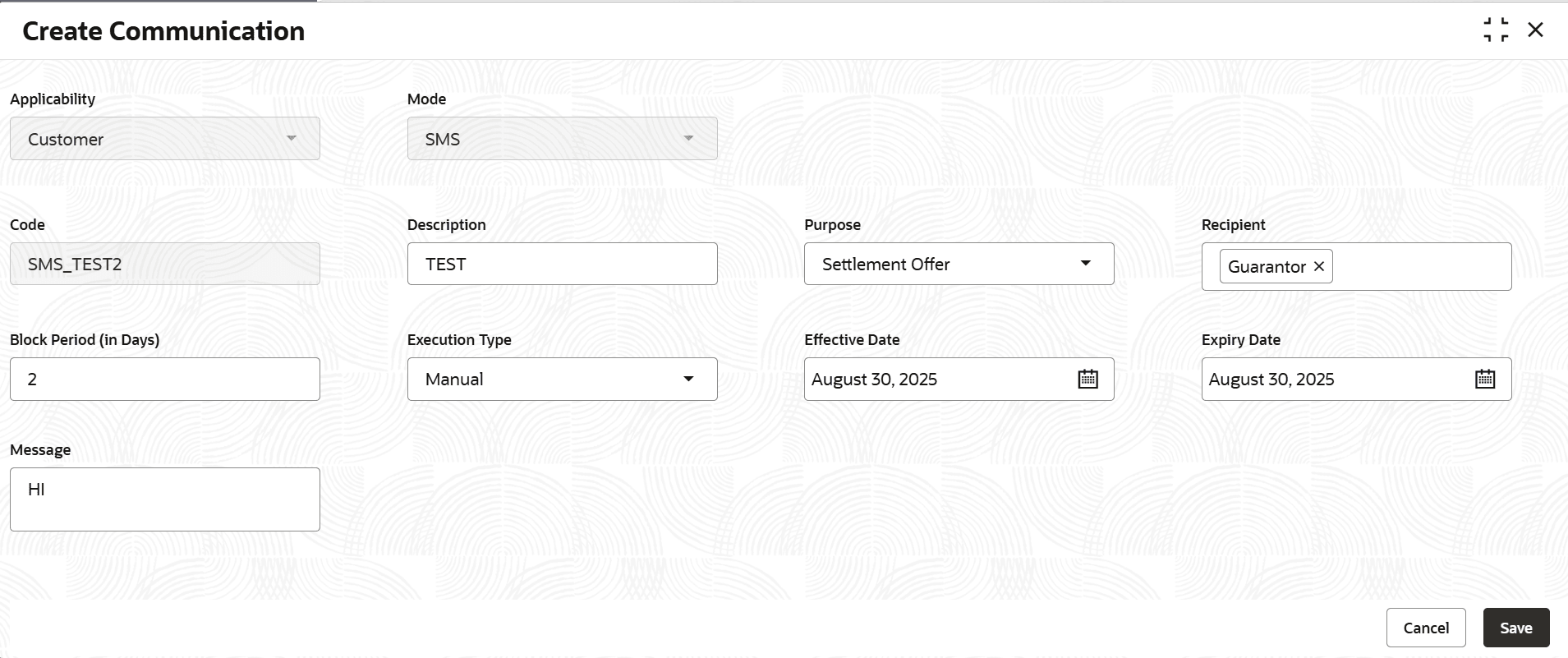
icon.The View Communication - Search screen is displayed. - Click Unlock to modify the created communication.The Create Communication - Modify screen is displayed.
For more information on fields, refer to the field description table.
Table 15-4 Field Description: Create Communication - Modify
Field Name Description Mode Indicates the mode of communication. Code Indicates the unique identification code of the communication. Description Indicates the description of the communication. Purpose Indicates purpose of the communication. For example, bankruptcy, delinquency, and legal. Advice Indicates template for the attachment that should be sent to the customer along with the communication. Recipient Indicates the recipients of the communication. Block Period (in Days) Indicates the number of days for block period. Applicability Indicates applicability of the communication. Execution Type Indicates the execution type for sending communication. Effective Date Indicates the date from when the communication is effective in the system. Expiry Date Indicates the date till when the communication is effective in the system. Subject Indicates the template for subject of the email. User can define the subject to send dynamic values for emails. Message Delivery Preference Indicates the delivery preference. Message Indicates the template for message body of the email. User can define the message body to send dynamic values for emails. Selection Criteria This section is used to configure rules for auto generation of communication by the system. - Click View Communication to view the created
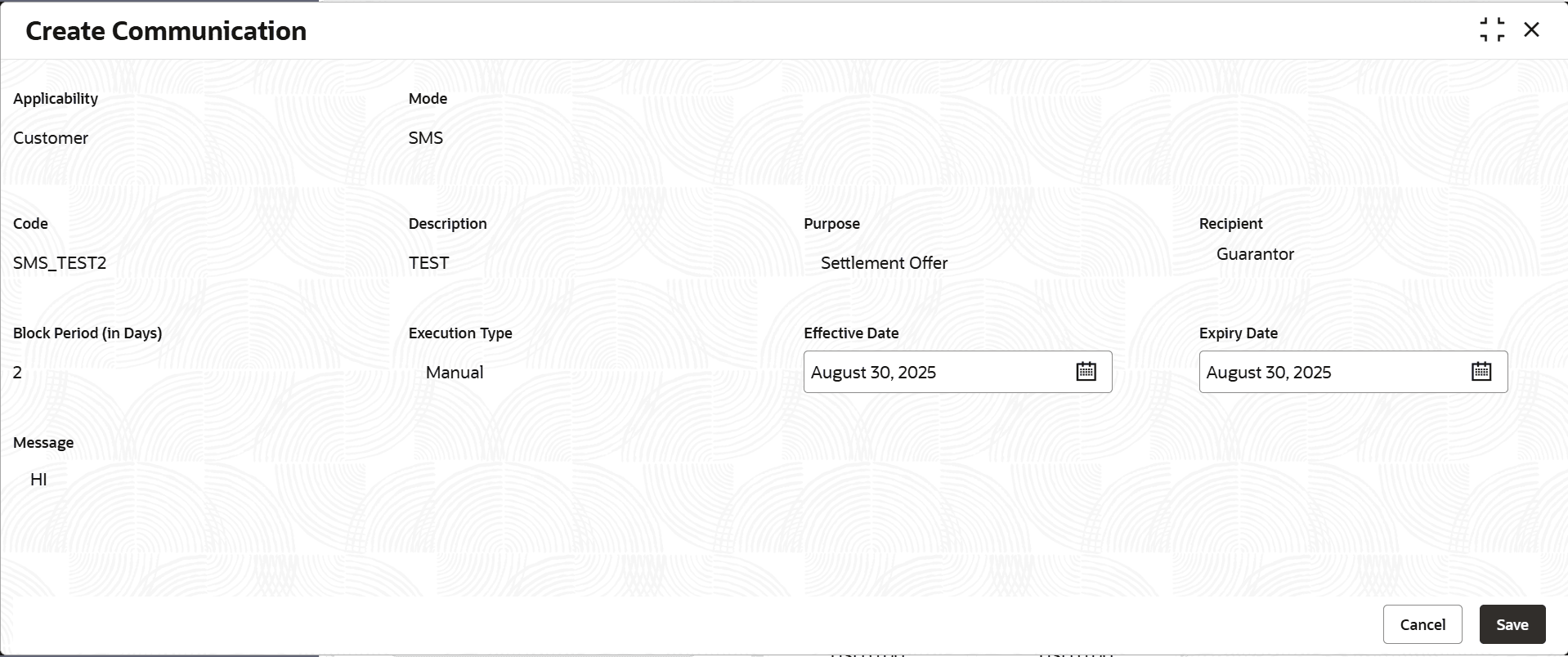
Communication code.The Create Communication - View screen is displayed.
For more information on fields, refer to the field description table.
Table 15-5 Create Communication - View - Field Description
Field Name Description Mode Indicates the mode of communication. Code Indicates the unique identification code of the communication. Description Indicates the description of the communication. Purpose Indicates purpose of the communication. For example, bankruptcy, delinquency, and legal. Advice Indicates template for the attachment that should be sent to the customer along with the communication. Recipient Indicates the recipients of the communication. Block Period (in Days) Indicates the number of days for block period. Applicability Indicates applicability of the communication. Execution Type Indicates the execution type for sending communication. Effective Date Indicates the date from when the communication is effective in the system. Expiry Date Indicates the date till when the communication is effective in the system. Subject Indicates the template for subject of the email. User can define the subject to send dynamic values for emails. Message Delivery Preference Indicates the delivery preference. Message Indicates the template for message body of the email. User can define the message body to send dynamic values for emails. Selection Criteria This section is used to configure rules for auto generation of communication by the system.

Parent topic: Communication