18.1 Process to Create a Regulatory Configuration

For creating a regulatory configuration, user need to specify details, such as country and state.
To create a regulatory configuration:
  1. From Homescreen, click Collections. Under Collections, click Maintenance.
  2. Under Maintenance, click Regulatory Configuration. Under Regulatory Configuration, click Create Regulatory Configuration.

    TheCreate Regulatory Configuration screen is displayed.

    Figure 18-1 Create Regulatory Configuration
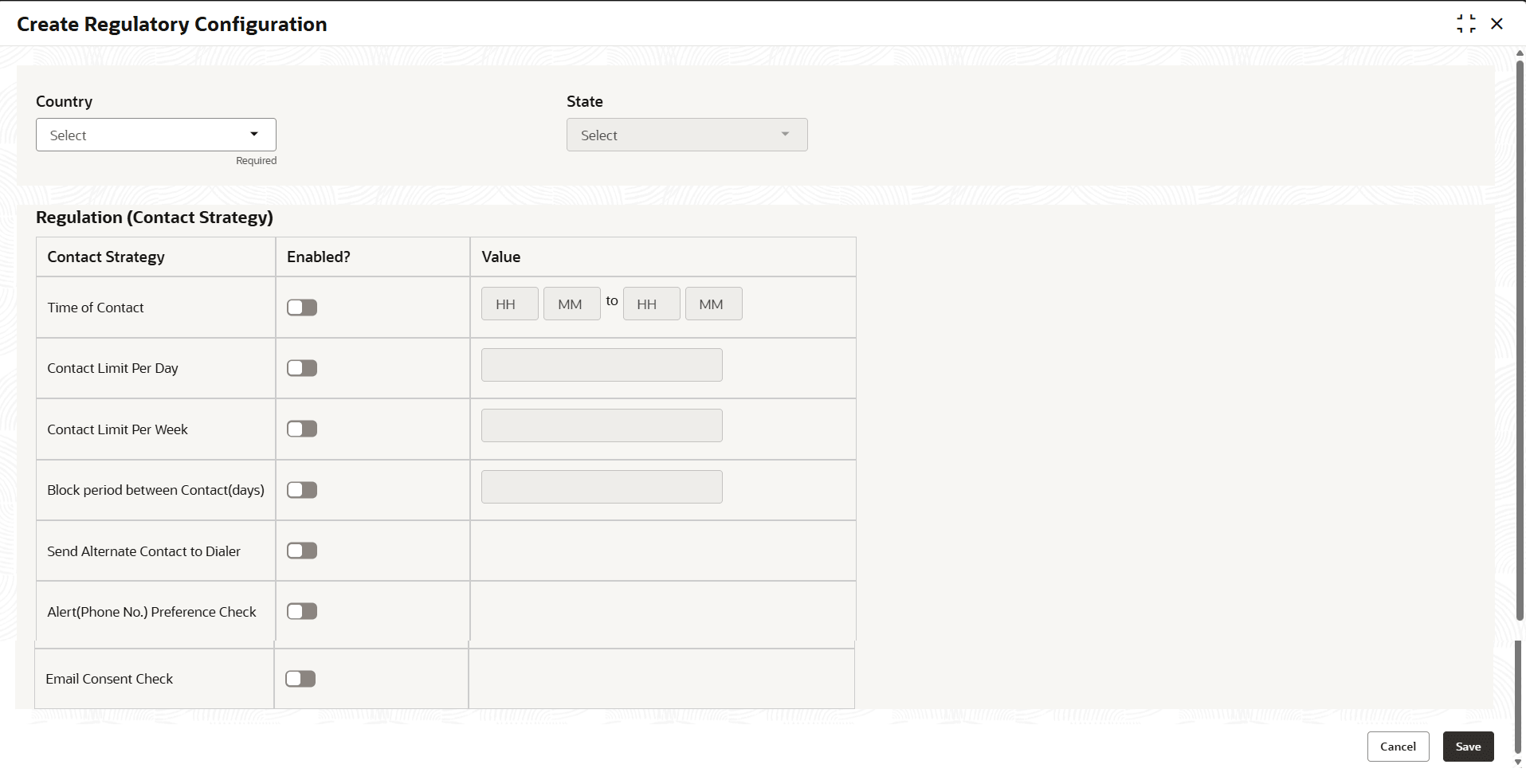


  3. Specify the fields on the Create Regulatory Configuration screen.

    Note:

    The fields marked as Required are mandatory.
    For more information on fields, refer to the field description table.

    Table 18-1 Field Description: Create Regulatory Configuration

    Field Name Description
    Country

    Indicates the list of countries.

    The list displays all the countries configured in the common core maintenance.
    State

    Indicates the list of states.

    The list displays all the states for the selected Country, configured in the common core maintenance.
    Contact Strategy Indicates the list of contact strategies.
    The options are:
    • Time of Contact
    • Contact Limit Per Day
    • Contact Limit Per Week
    • Block period between Contact (days)
    • Send Alternate Contact to Dialer
    • Alert (Phone No.) Preference Check
    • Email Consent Check
    Enabled Indicates the contact strategy is enabled.
    Value Value of contact strategy.
  4. Perform one of the following action:
    1. Click Save to save the details.
      The Regulatory Configuration is successfully created and can be viewed using the View Regulatory Configuration screen.
    2. Click Cancel to discard the changes and close the screen.