18.2 Process to View Regulatory Configuration
This topic describes the information about View a Regulatory Configuration.
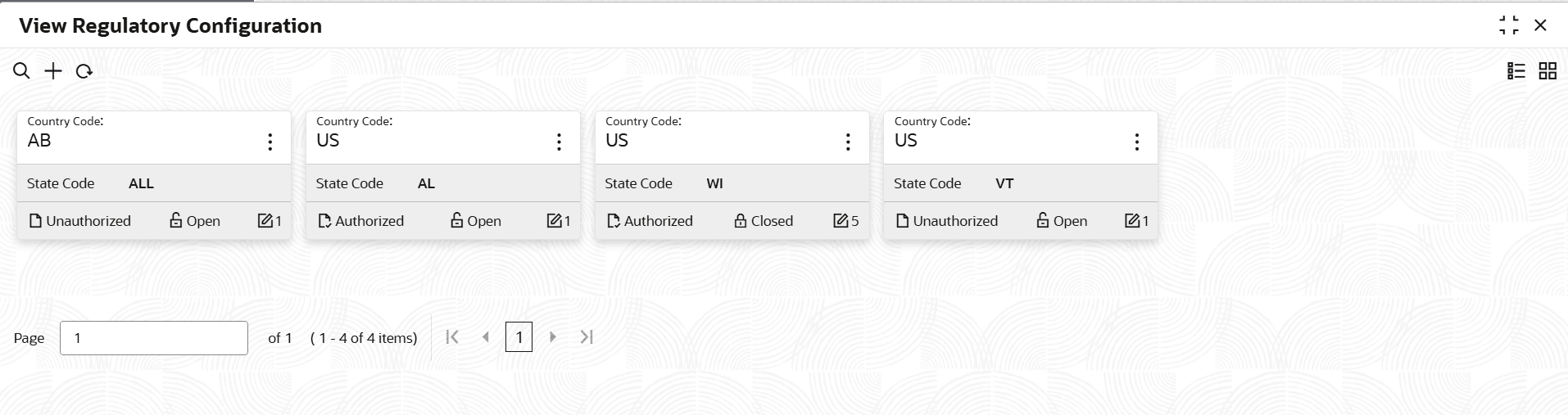
To view the list of regulatory configurations:
- Under Maintenance, click Regulatory
Configuration. Under Regulatory
Configuration, click View Regulatory
Configuration.The View Regulatory Configuration screen is displayed. For more information on fields, refer to the field description table.
Table 18-2 Field Description: View Regulatory Configuration
Field Name Description Country Code Displays the country code. State Code Displays the state code. - On the View Regulatory Configuration screen, click

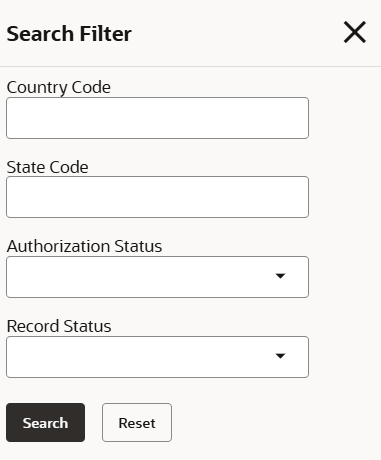
icon.The View Regulatory Configuration - Search screen is displayed.Figure 18-3 View Regulatory Configuration - Search
- Click Unlock to modify the created Regulatory
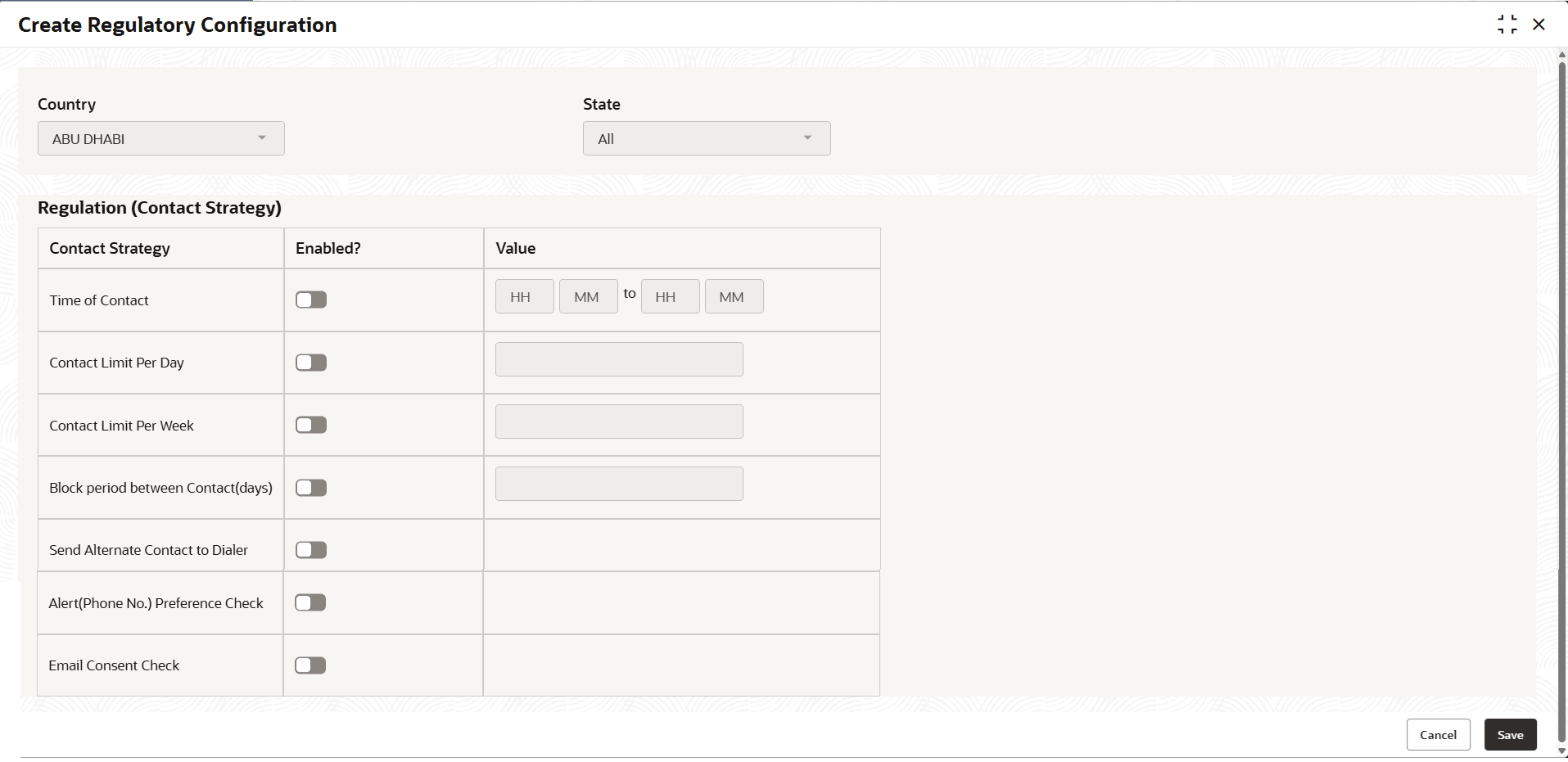
Configuration.The Create Regulatory Configuration - Modify screen is displayed.
Figure 18-4 Create Regulatory Configuration - Modify
For more information on fields, refer to the field description table.
Table 18-4 Field Description: Create Regulatory Configuration - Modify
Field Name Description Country Displays the country name. State Displays the state name Contact Strategy Displays the contact strategy Enabled Displays the Enabled. Value Displays the value. - Click View to view the created regulatory configuration
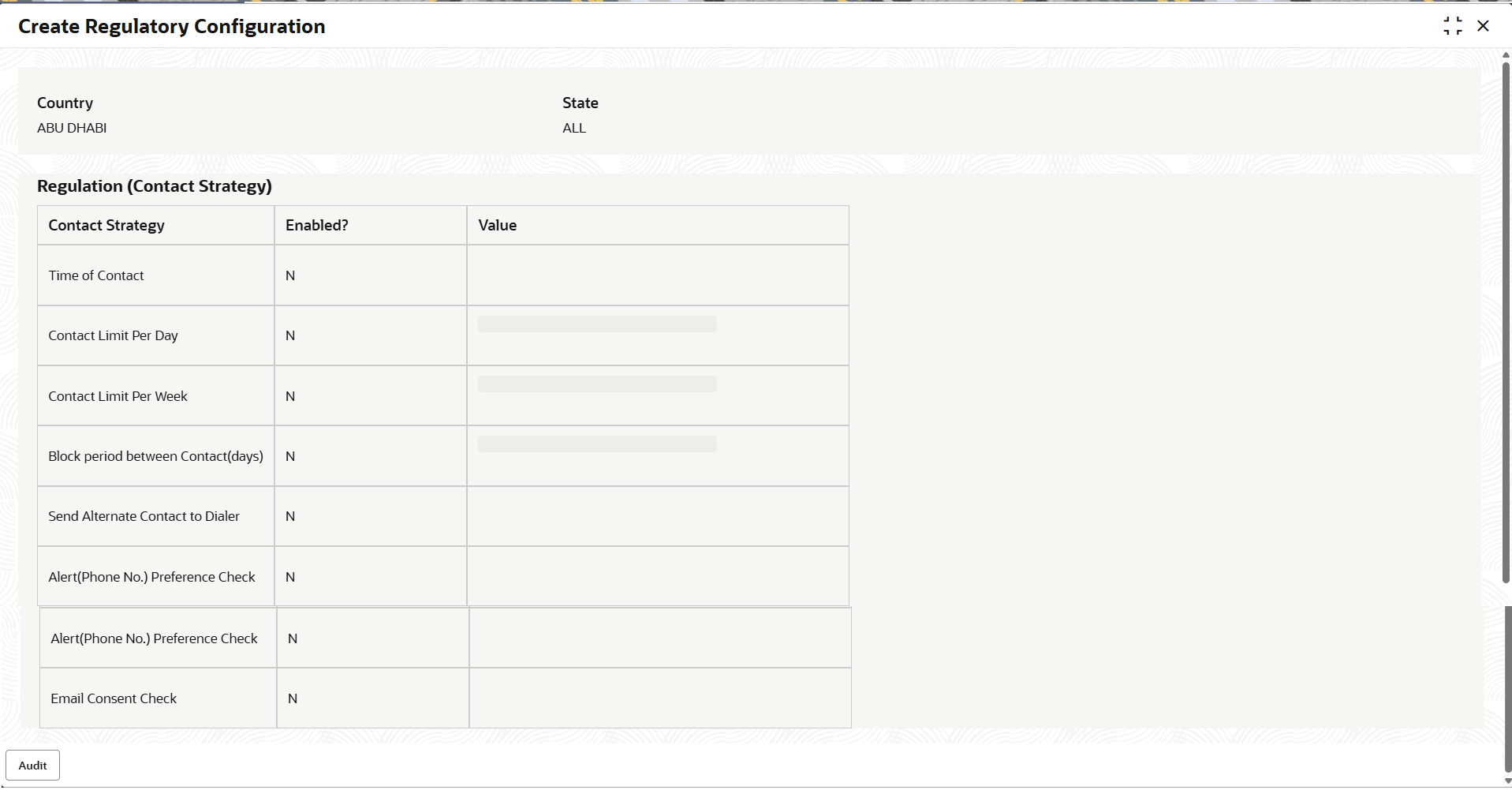
code.The Create Regulatory Configuration - View screen is displayed.
Figure 18-5 Create Regulatory Configuration - View
For more information on fields, refer to the field description table.
Table 18-5 Create Regulatory Configuration - View - Field Description
Field Name Description Country Displays the country name. State Displays the state name Contact Strategy Displays the contact strategy Enabled Displays the Enabled. Value Displays the value.
Parent topic: Regulatory Configuration