4.5 Promise to Pay
This widget facilitates user to create Promise to Pay (PTP) for the promise made by the customer to pay the overdue amount on the account. User can view details of all existing active PTP for an account. Also, user can cancel any existing active PTP, if required.
If user are normal collector, user can create PTP for the tasks that are assigned to user. However, if user are supervisor, user can create PTP for the tasks that are assigned to user or the tasks that are assigned to the collectors under user.
- Quick PTP: A quick PTP facilitates user to create a PTP with minimum details to save time. User can create this PTP if the customer agrees to pay the promised amount in a single payment on a particular date.
- Advanced PTP: An advanced PTP facilitates user to create a
PTP in detail with a payment schedule. User can create this PTP if the customer
agrees to pay the promised amount in single or multiple installments over a
period of time as per a payment schedule. If user create a PTP with multiple
installments, each installment with the promised date and promised amount is
considered as an independent PTP and needs to be tracked separately.
Based on the configurations defined for the frequency of payments, user can create a PTP with single or multiple installments. For example, with frequency type as Ad hoc, user can create a PTP in which the promised amount is payable by the customer in a single installment. However, with frequency type as Weekly or Monthly, user can create a PTP in which the promised amount is payable by the customer in one or more installments.
Once a PTP is created, user cannot modify it. However, user can cancel an active PTP, if required. For example, user may want to cancel a PTP if it is created with incorrect details or the customer requested to cancel the PTP.
Note:
- User cannot create a PTP if an active promise already exists for a particular date. If user want to create a new PTP with the same promise date, user need to cancel the existing active PTP.
- User cannot cancel a PTP if payment appropriation is already done on that PTP.
Table 4-15 Field Description: Promise to Pay
| Field Name | Description |
|---|---|
| Promise to Pay | This widget helps user to create PTP. It also displays details of the existing promises created on the account. |
| Task | Indicates the task for which PTP is created.
Note: The list displays the tasks that are in In Progress and Escalated status. However, it displays only those tasks that are assigned to user. If user are a collector with supervisor role, it also displays the tasks that are assigned to the collectors under user. |
| Promise Type | Indicates the promise type.
Note: The list displays only those promise types, which are:
|
| Amount | Indicates the amount that the customer has promised to pay.
By default, overdue amount is displayed. |
| Date | Indicates the date on which customer has promised to pay the amount.
Note: User cannot select a date prior to the business date. By default, business date is displayed. |
 , the Promise to Pay Summary section is displayed.
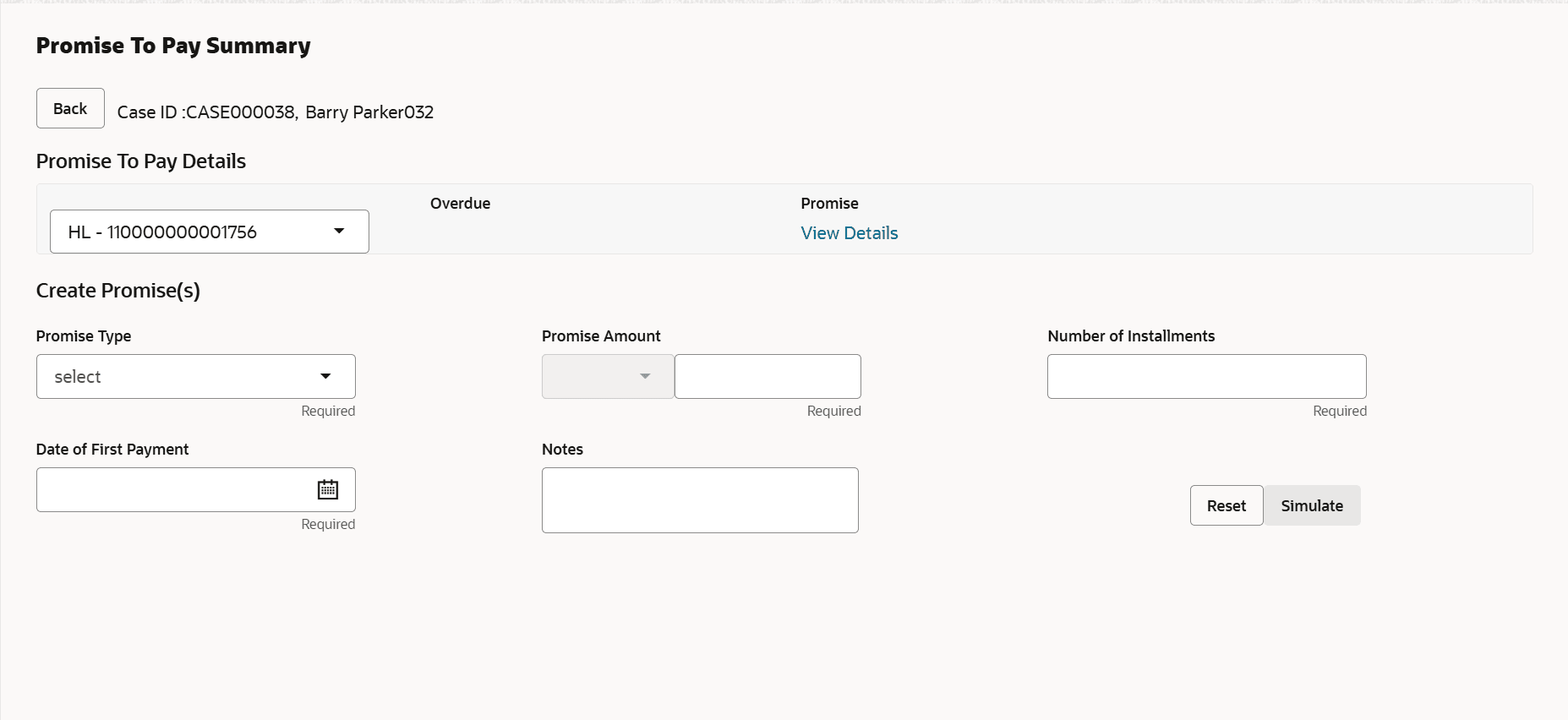
Table 4-16 Field Description: Promise to Pay Summary
| Field Name | Description |
|---|---|
| Case ID,<Customer Name> | Displays the case ID and name of the customer. |
| Promise To Pay Details | This section displays the details of the promise to pay created on the account. |
| <Product Sub Type - Account Number> | Displays the product sub type and account number. |
| Overdue | Displays the overdue amount on the account. |
| Promise | Displays the count of promises that are broken and
kept for the account in context.
If user click View Details, View Promise Details section is displayed. |
| Create Promise(s) | This section is displayed if user click Add Promise in Promise Details section. It is used to specify details of the promise user want to create. If a promise is not yet created on the account, this section is displayed by default. |
| Task | Indicates the task for which PTP is created.
Note: The list displays the tasks that are in In Progress and Escalated status. However, it displays only those tasks that are assigned to user. If user are a collector with supervisor role, it also displays the tasks that are assigned to the collectors under user. |
| Promise Type | Indicates the promise type.
Note: The list displays only those promise types,
which are:
|
| Frequency | Indicates the frequency of payment of the scheduled
installments.
The options are:
|
| Scheduled Repayments | Indicates the method of calculation of promised
amount for the scheduled installments.
The options
are:
If user click View Schedule, View Repayment Schedule section is displayed. |
| Promise Amount | Indicates the amount that the customer has promised
to pay.
Note: By default, overdue amount is displayed. |
| Number of Instalments | Indicates the number of installments in which the
promised amount would be paid by the customer.
Note: If user select Adhoc option in Frequency field, this field displays 1 by default and user cannot modify it. |
| Date Of First Payment | Indicates the date of first payment.
Note: User cannot select a date prior to the business date. By default, business date is displayed. |
| Notes | Indicates notes related to the PTP.
Note: This note is displayed in Notes section with type as Promise to Pay. |
| View Promise Details | This section appears if user click View Details in Promise field. It displays list of all past promises that are in BROKEN, KEPT, or CANCELLED status. |
| Promise Date | Displays date on which customer had promised to make the payment. |
| Promise Amount | Displays the amount that the customer promised to pay. |
| Received Amount | Displays the amount received on the promise to pay. |
| Created By | Displays the name of the user who created the promise to pay. |
| Created On | Displays the date on which promise to pay was created. |
| Status | Displays the status of the promise.
The possible statuses are:
|
| View Repayment Schedule | This section is displayed if user click View
Schedule in Scheduled Repayments field.
It displays the list of future scheduled payments on the account. For loan accounts, it displays the schedule payments with installment date greater than or equal to the business date. For other accounts, if displays future bills with due date greater than or equal to the business date. |
| S. No. | Displays the serial number. |
| Date | Displays the date of payment of the future installment or due date of bill. |
| Amount | Displays the amount of installment or the due amount on bill. |
| Simulate Schedule | This section is displayed once user specify details and click Simulate. It displays details of the payment schedule generated by the system based on the details specified. User can modify the details of the payment schedule, if required. If user click Add Schedule, a row is added in the table to create a new promise. |
| Promise Date | Displays the promise date of the PTP.
Note: The promise date for the first PTP is the date specified in the Date of First Payment field. While modifying an existing installment or selecting date for a new installment, ensure that date is equal to or greater than the business date. |
| Promise Amount | Displays the amount of installment for the promised
amount.
Note: The promised amount for an installment is calculated based on the option selected in Scheduled Repayments field. |
| Action | Click  to delete a row from the payment schedule. to delete a row from the payment schedule.
|
| Promise Details | This section displays the list of existing promises that are active. |
| Promise Date | Displays the promised date of payment. |
| Promise Amount | Displays the amount that the customer promised to pay. |
| Received Amount | Displays the amount received against the PTP.
If user click received amount, the transaction details of the amount is displayed. |
| Task | Displays the task for which promise was created. |
| Created By | Displays the name of the user who created the promise to pay. |
| Created On | Displays the date and time when the promise was created. |
| Action | Click Cancel to cancel a promise to pay.
The Reason for Cancellation section is displayed if user click Cancel. |
| <Transaction Details> | This section is displayed if user click the link in Received Amount field. It displays details of all payments appropriated against the selected promise. |
| Transaction Date | Displays the date on which payment was received. |
| Transaction Type | Displays the type of transaction.
The
possible values:
|
| Amount | Displays the amount appropriated against the selected promise. |
| Reference No. | Displays the transaction reference number. |
| Reason for Cancellation | This section is displayed if user click Cancel in Action field. |
| Reason | Indicates reason for cancellation of promise. For example, Incorrect Promise, Customer Request, and Account Cured. |
| Notes | Indicates notes related to cancellation of promise. |
This section consists of the following topics: