1.2.1 Configure Business Product Code
This topic provides the systematic instructions to configure business product code.
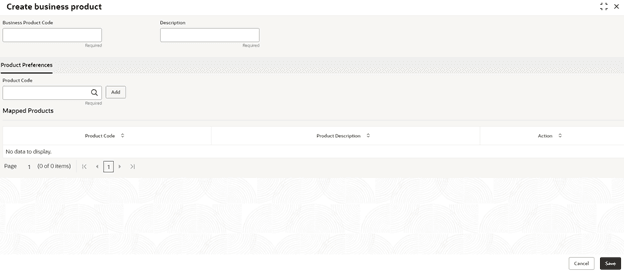
- On the Homepage, from Corporate Lending, under Maintenance, click Business Product Code.The Create Business Product Code screen displays.
- In the Create Business Product screen, provide the required details.
Note:
The fields marked as Required are mandatory.For more information on fields, refer to the field description table.
Table 1-4 Create Business Product
Field Description Business Product Code Specify the code of the Business product. Description Specify the additional information about the Business product. Product Code Select the back office product code that are to be mapped for the Business product from the list of values. The system allows user to map multiple product codes and appropriate product code can be selected as part of loan origination/drawdown process that caters to customer needs. Agency Code Specify the agency code that is required for field investigation. The adjoining list fetches and displays all valid agency codes maintained in the system. Agency Description System defaults the description of the selected agency code. Verification Type Specify the type of verification. The valid options are Address, Business and Collateral. Holiday Preferences This section provides information about the handling holiday preferences if the maturity date, schedule date or revision date falls on a holiday. Holidays can be either on a local holiday or currency holiday. - Holiday Treatment Type: System displays the type of holiday treatment as Payment Schedule, Revision Schedule and Maturity Date. Ignore Holidays No holiday treatment is considered if the maturity date, schedule date or revision date falls on holiday. System processes the entries on the specified date. Holiday Check Specify the basis of holiday check, if user have indicated that the holiday should not be ignored for the loan contract. Move Across Months If selected, allow movement of schedule date, maturity date or rate revision date of the contract across months, if user have indicated that the holiday should not be ignored for the loan contract. If user have chosen to move the schedule date/maturity date of a contract falling due on a currency holiday, either forward or backward to a working day and it crosses over into a different month, the schedule date/ maturity date is moved to the next month only if user indicate so in this field. Schedule Movement If selected, indicates the movement of schedule date, maturity date or rate revision date either move forward to a next working day or move backward to the previous working date. - Click Save.
User can view the configured Business product code details in the Business Product View screen.
Parent topic: Maintenance Screens