5.1 Credit Evaluation
The following table provides high level overview about the Credit Evaluation stage.
| Information available for user | Activities that can be performed by user |
|---|---|
|
|
To perform Credit Evaluation for the proposal, perform the following steps:
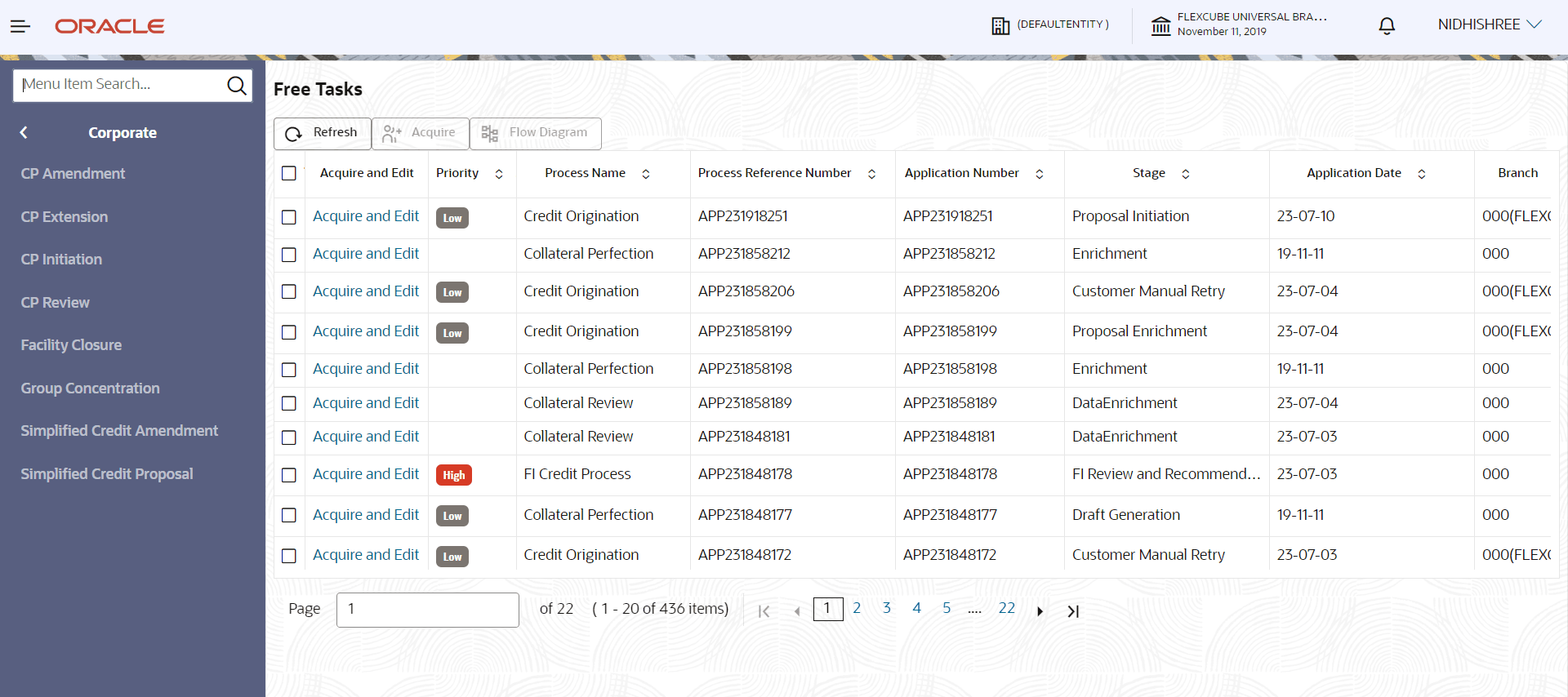
- On Home screen, select Tasks.
Under Tasks, select Free Task.The Free Task screen is displayed.
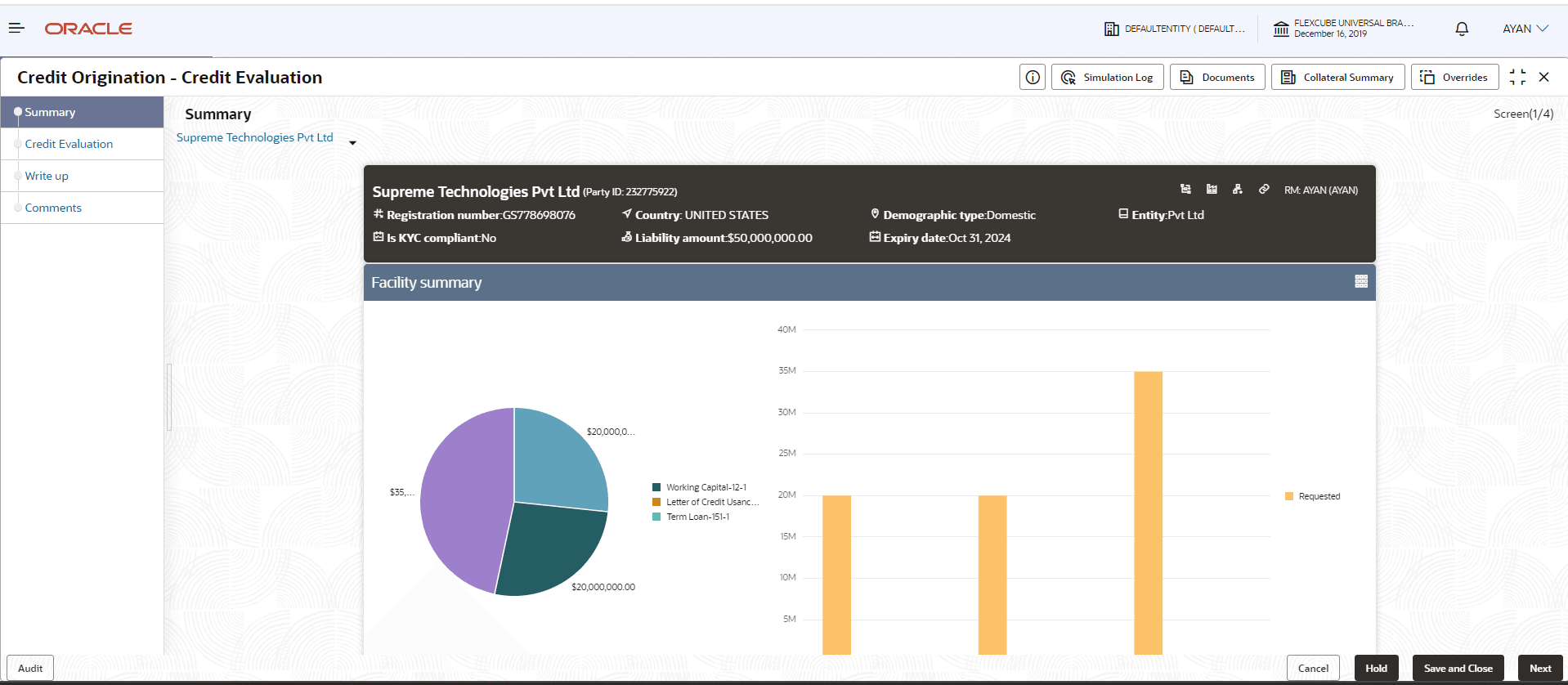
- Acquire & Edit the required Credit Evaluation task. The Credit
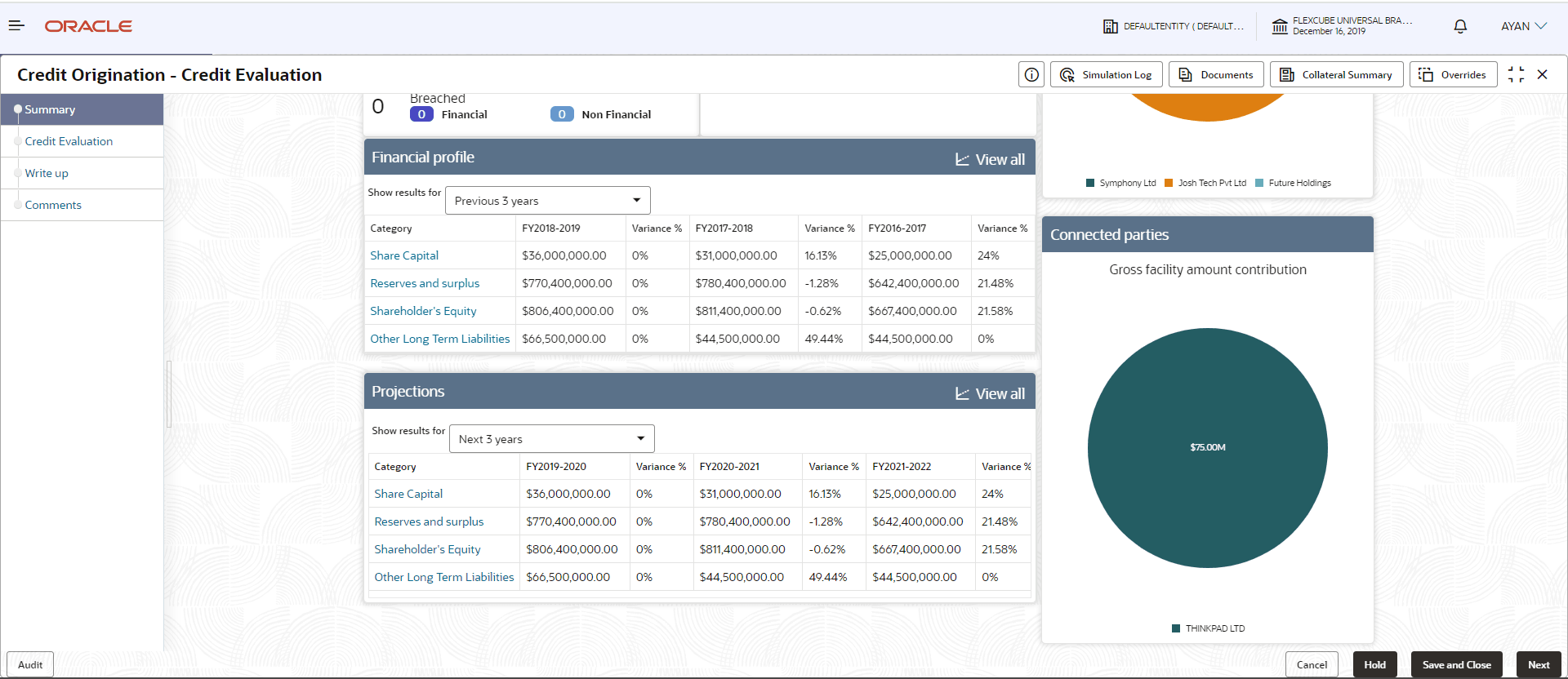
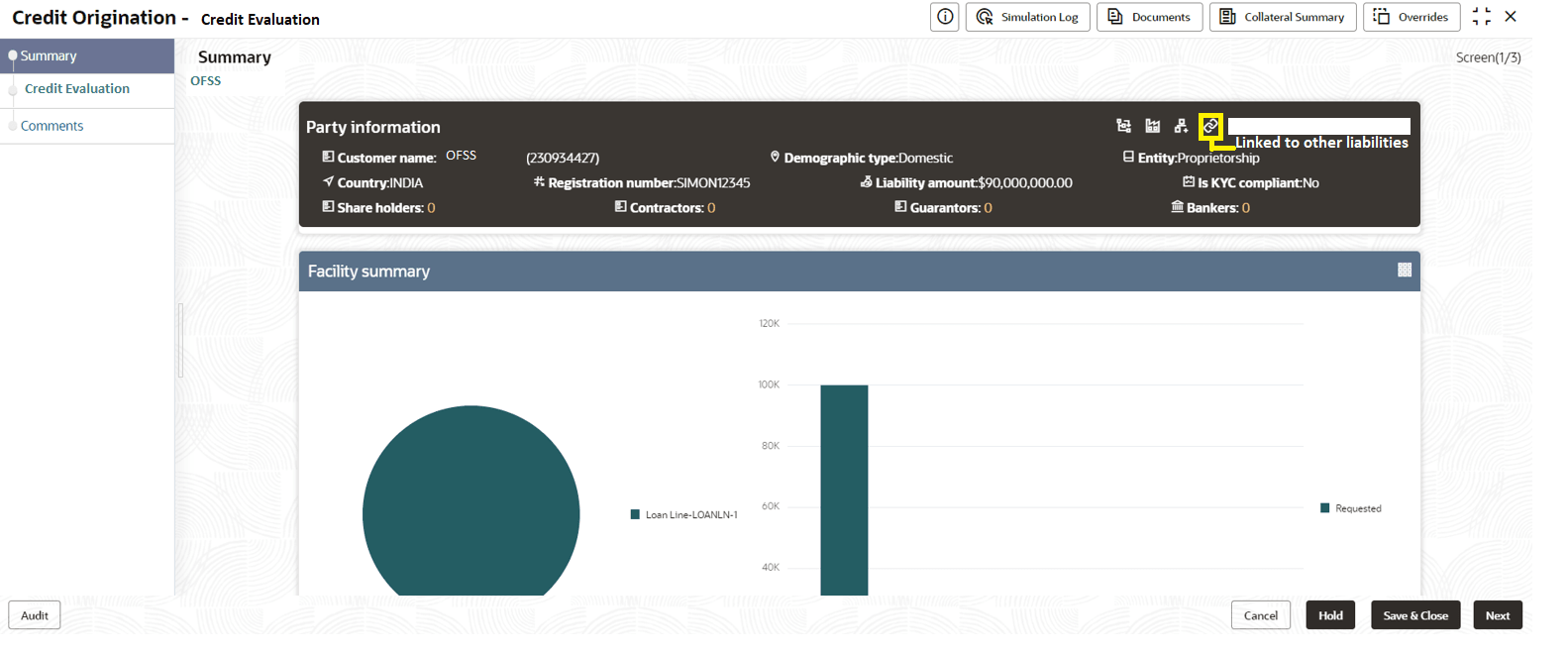
Origination - Credit Evaluation page summarizing the proposal
appears.
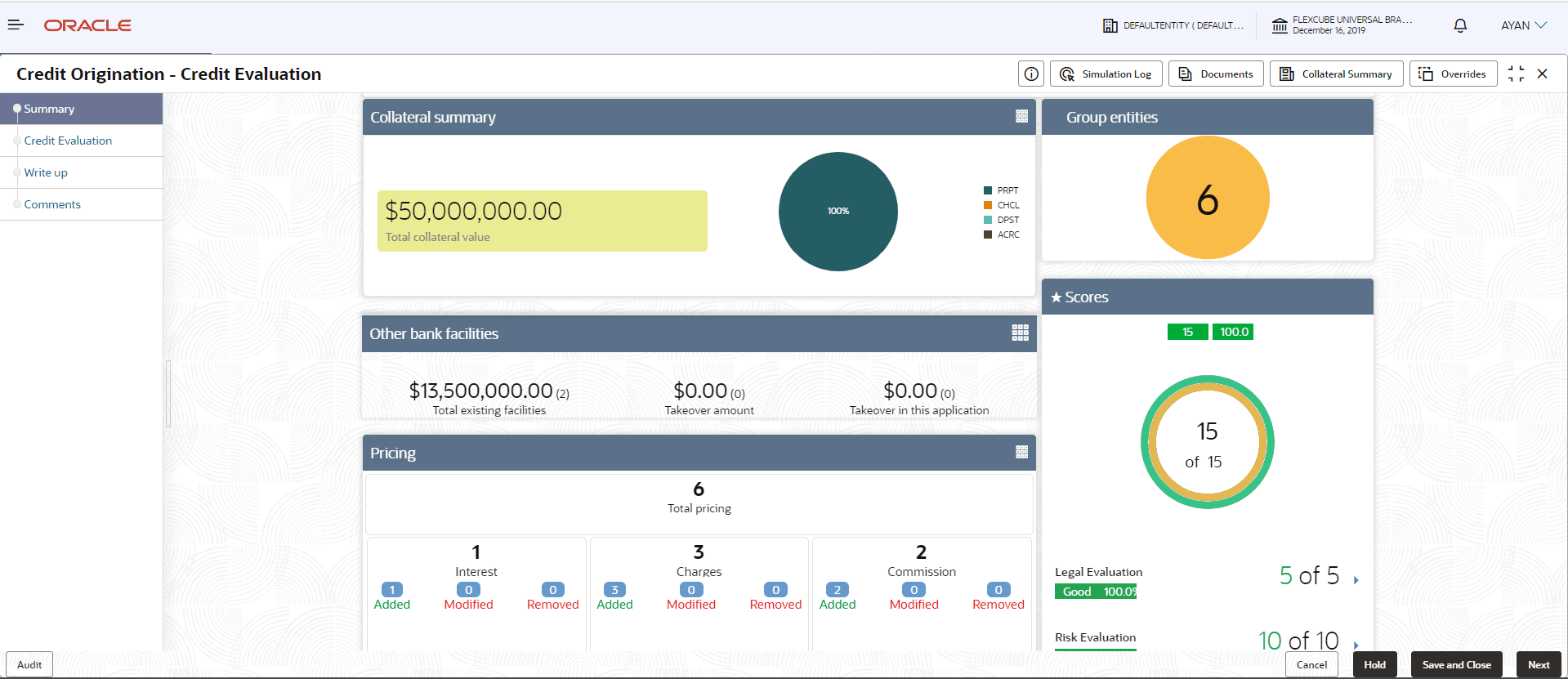
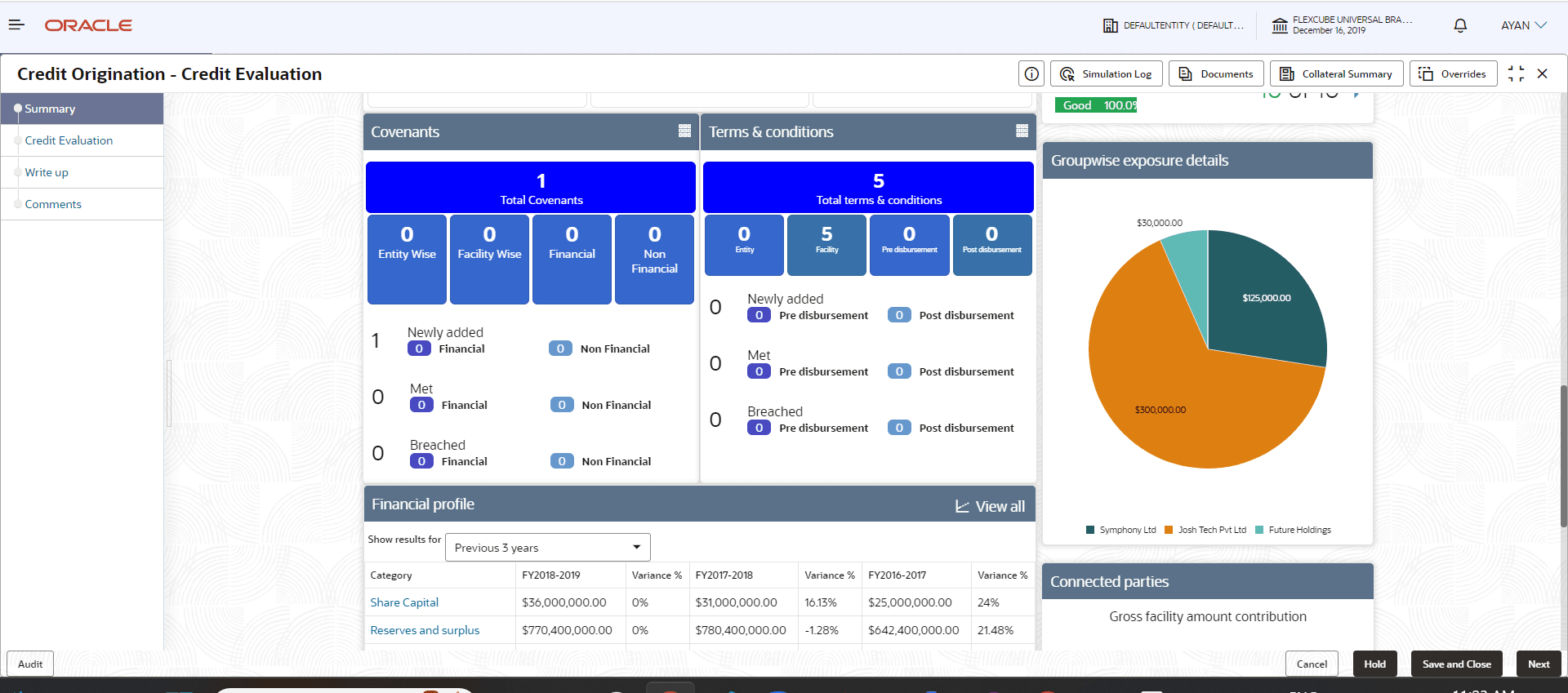
Figure 5-2 Summary
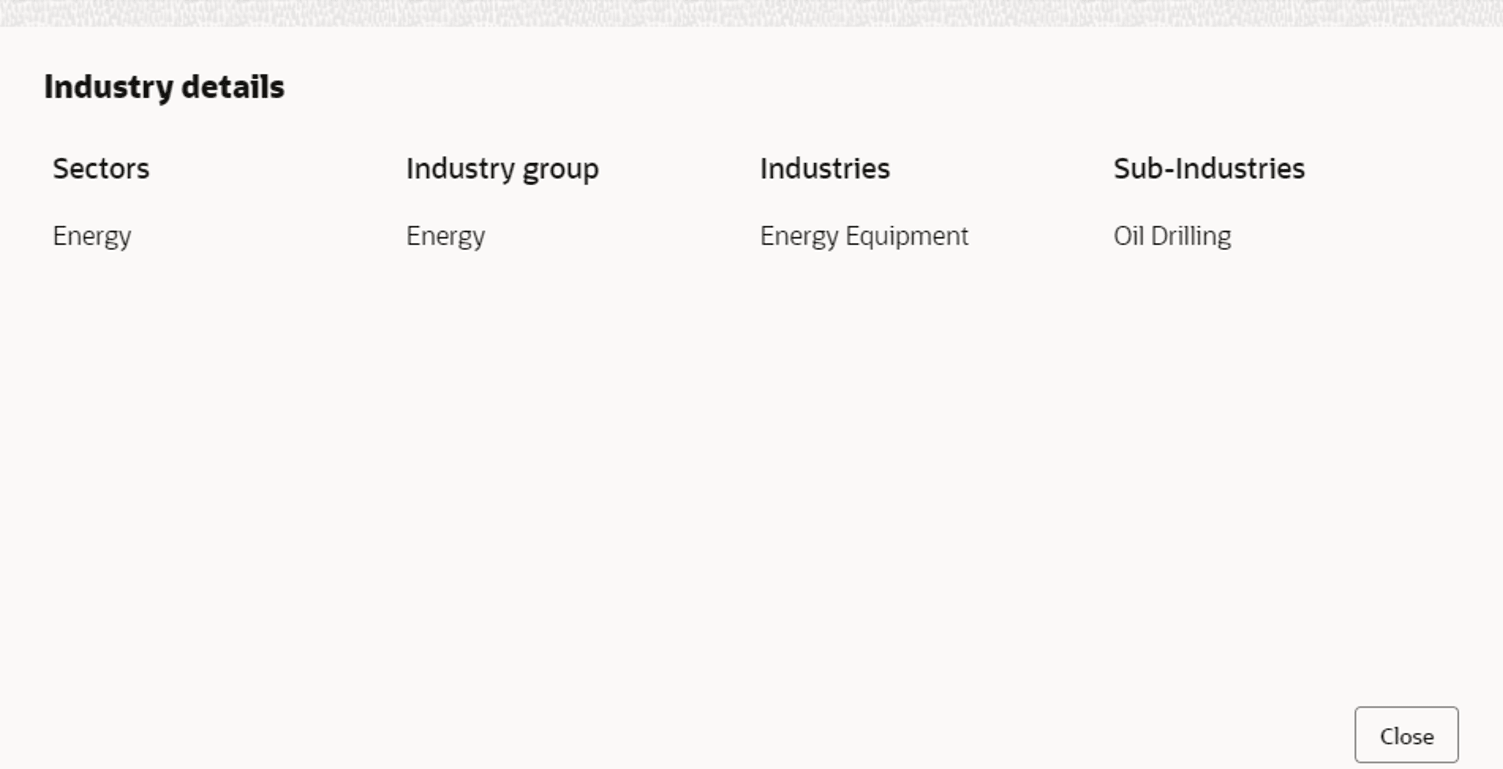
- To view the sector and industry information, click the Industry icon in
Party information section.The Industry Details window is displayed.
Table 5-1 Industry Details
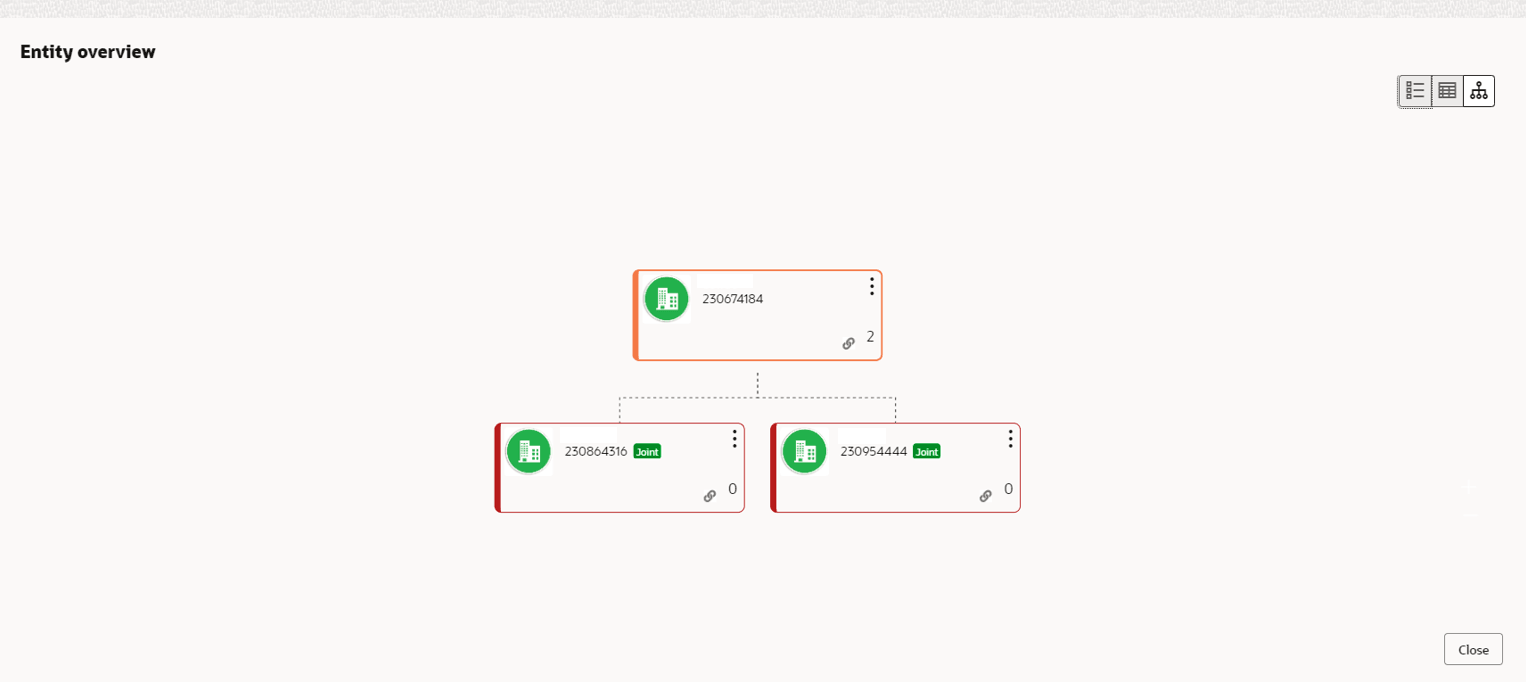
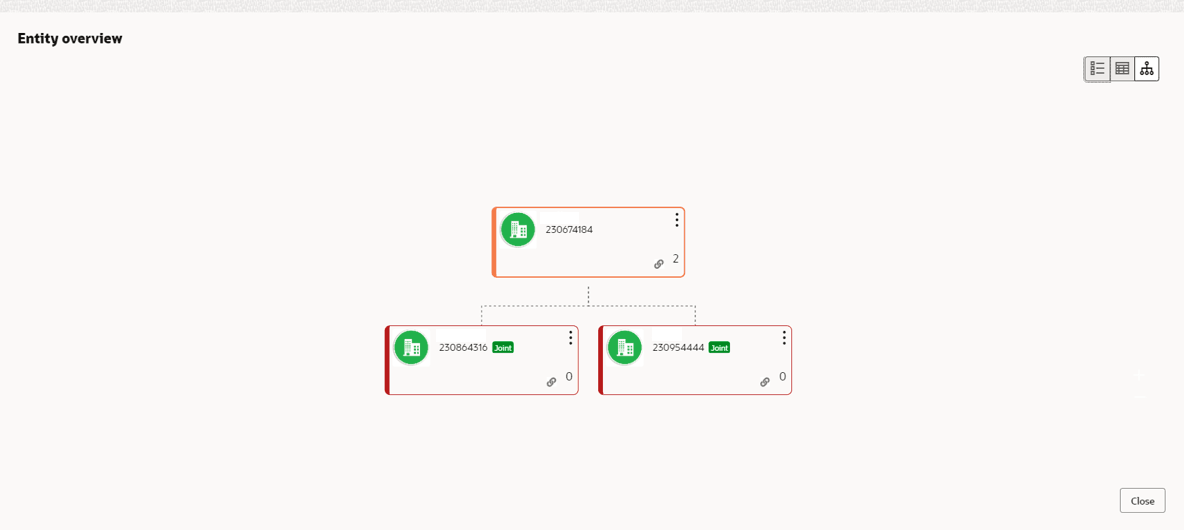
Fields/ Icons Description Close Click Close to exit the Industry Details window. To view the overview of the party, click the Entity Overview icon in Party Information section. The Entity Overview window is displayed.
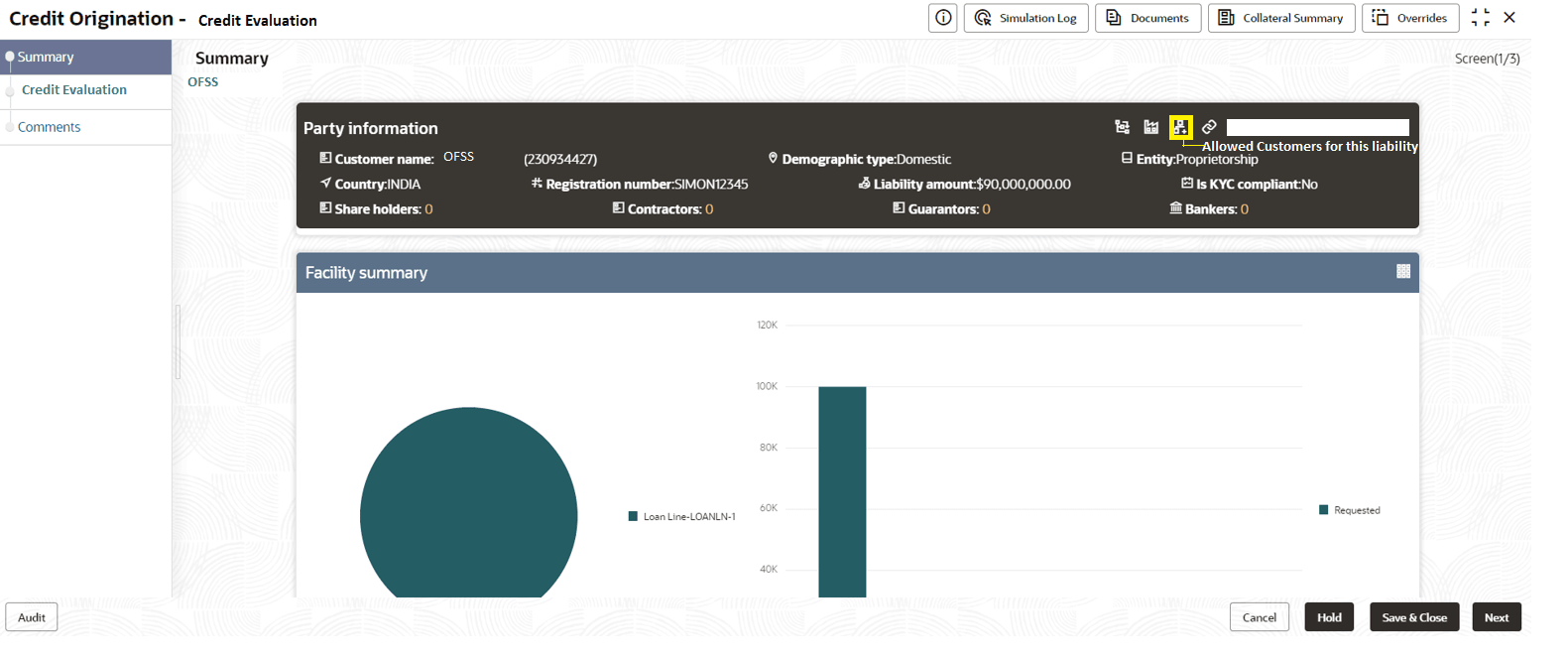
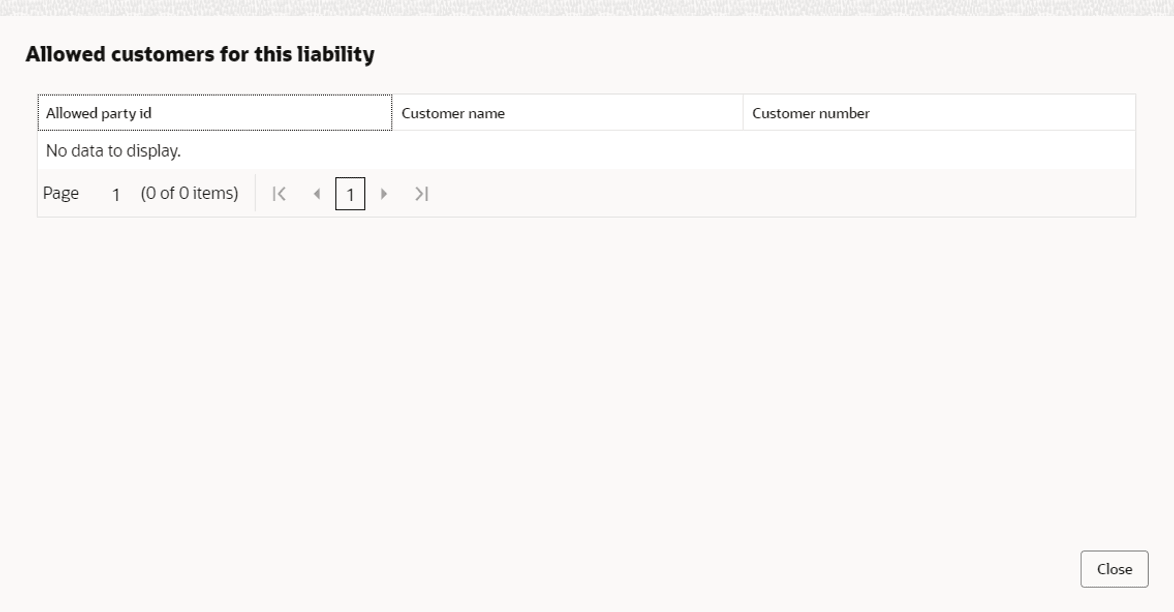
- Click Allowed Customers For This Liability icon in the Party
Information section, to view party's linked to the liability
information.
The Allowed Customers For This Liability window appears.
Figure 5-8 Allowed Customers For This Liability
Figure 5-9 Allowed Customers For This Liability
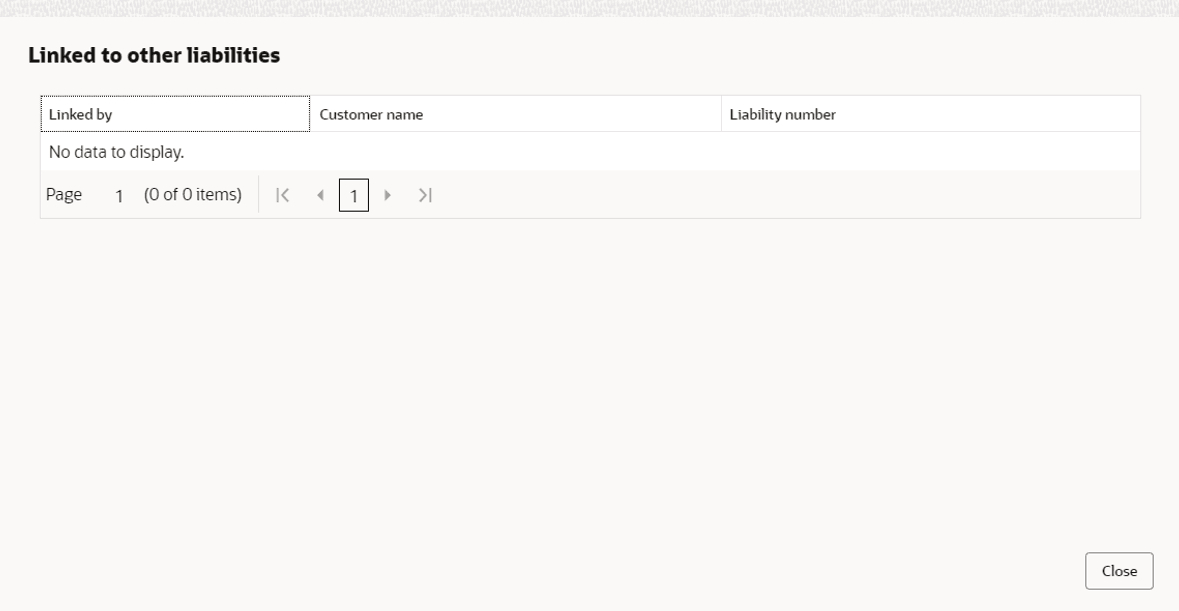
- Click Linked to other liabilities icon in the Party Information
section, to view other liabilities linked to the party information.The Linked to other liabilities window is displayed. If other liabilities are linked, the list of other liabilities details linked to the party window is displayed.
- Click Layout icon at the top right corner, to change the layout of the
Entity Overview. The Layout window is displayed.
- Select the required layout. Entity Overview is changed to the selected
layout as shown below.
For field level information refer the table below.
Table 5-2 Entity Overview
Fields/ Icons Description Close Click Close to exit the Entity Overview window. In Party Information section, the count of Share Holders, Contractors, Guarantors, and Bankers is displayed.
Count Numbers To view the detailed information about the Share Holders, Contractors, Guarantors, and Bankers, click the respective count numbers. Layout Icon To change the layout of the Facility Summary, Collateral Summary, Existing Facilities held with Other Bank, Pricing, Covenants, and Conditions widgets in Summary page, click Layout icon and select the required layout. By default, Financial Profile of the party and financial Projections for the party are listed for 3 years.
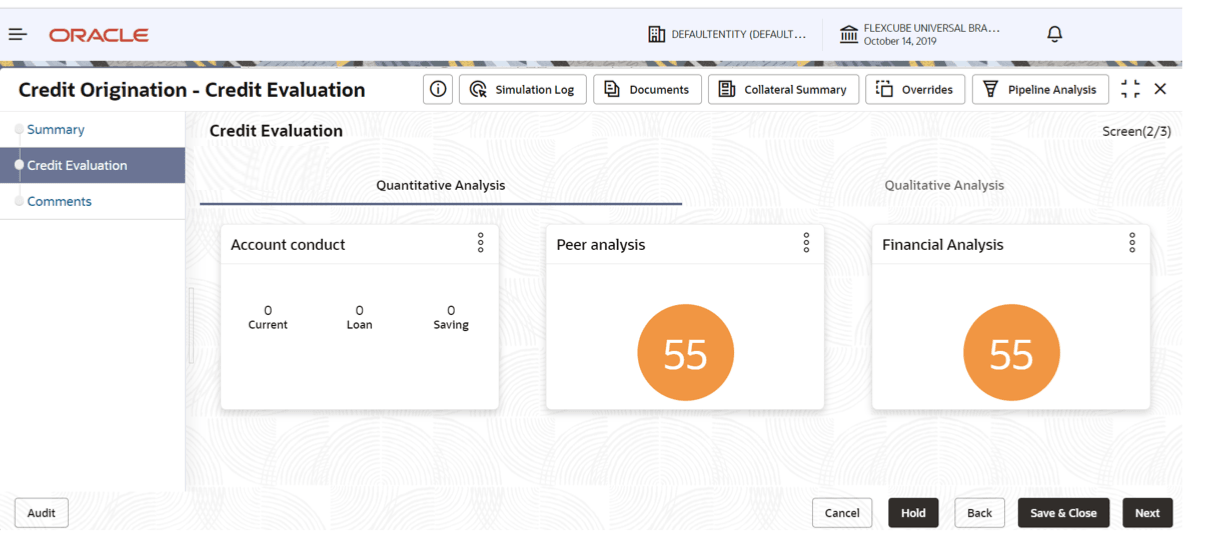
Financial Profile and Projections To view the Financial Profile and Projections for five years, select Previous 5 years option from the Show results for drop-down list. Detailed Financial Profile and Projection To view detailed information about the Financial Profile and Projection, click View all in the respective sections. Click Next in the Entity overview Layout screen. The Credit Evaluation screen is displayed.
In Credit Evaluation page, you can perform the following analysis for the party and the child parties by answering simple questions related to the analysis:
- Quantitative Analysis
- Qualitative Analysis
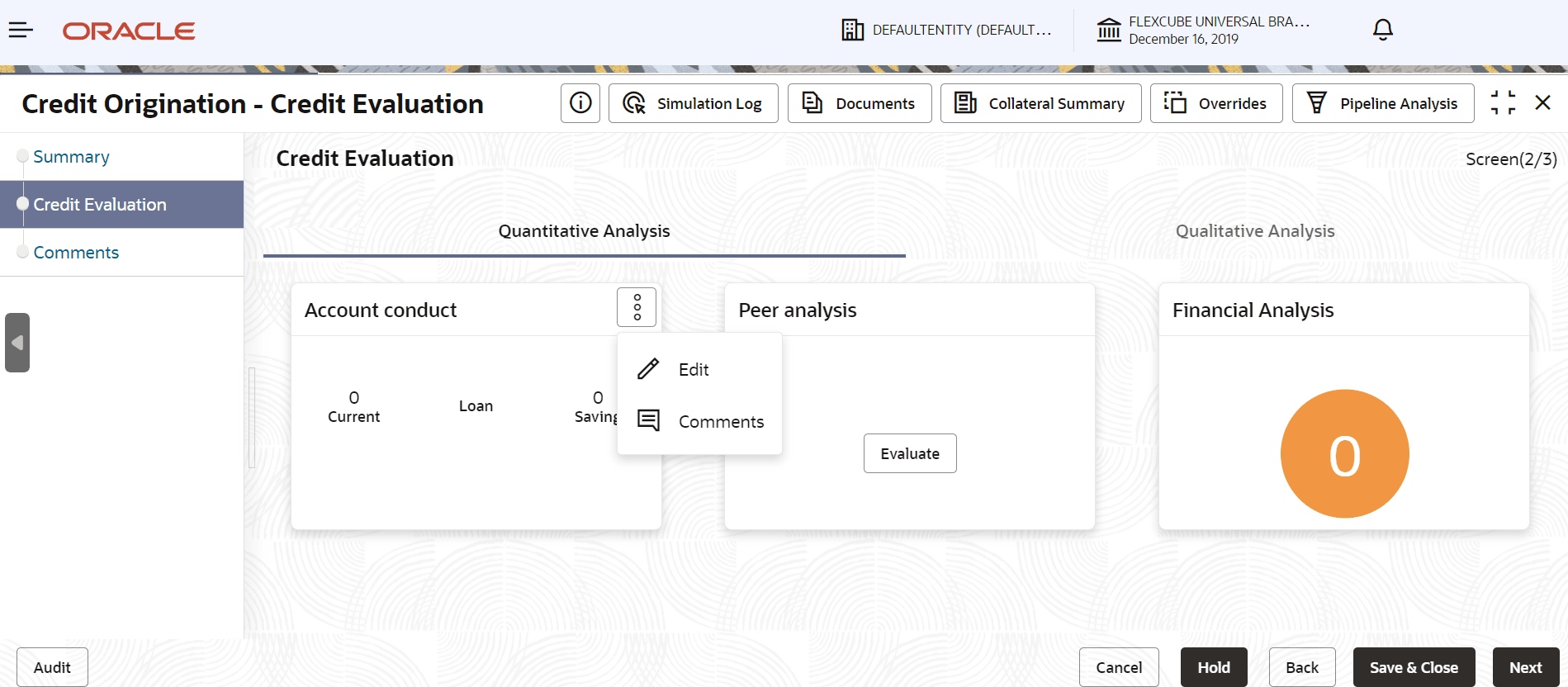
- To edit Account Conduct in Quantitative Analysis, click
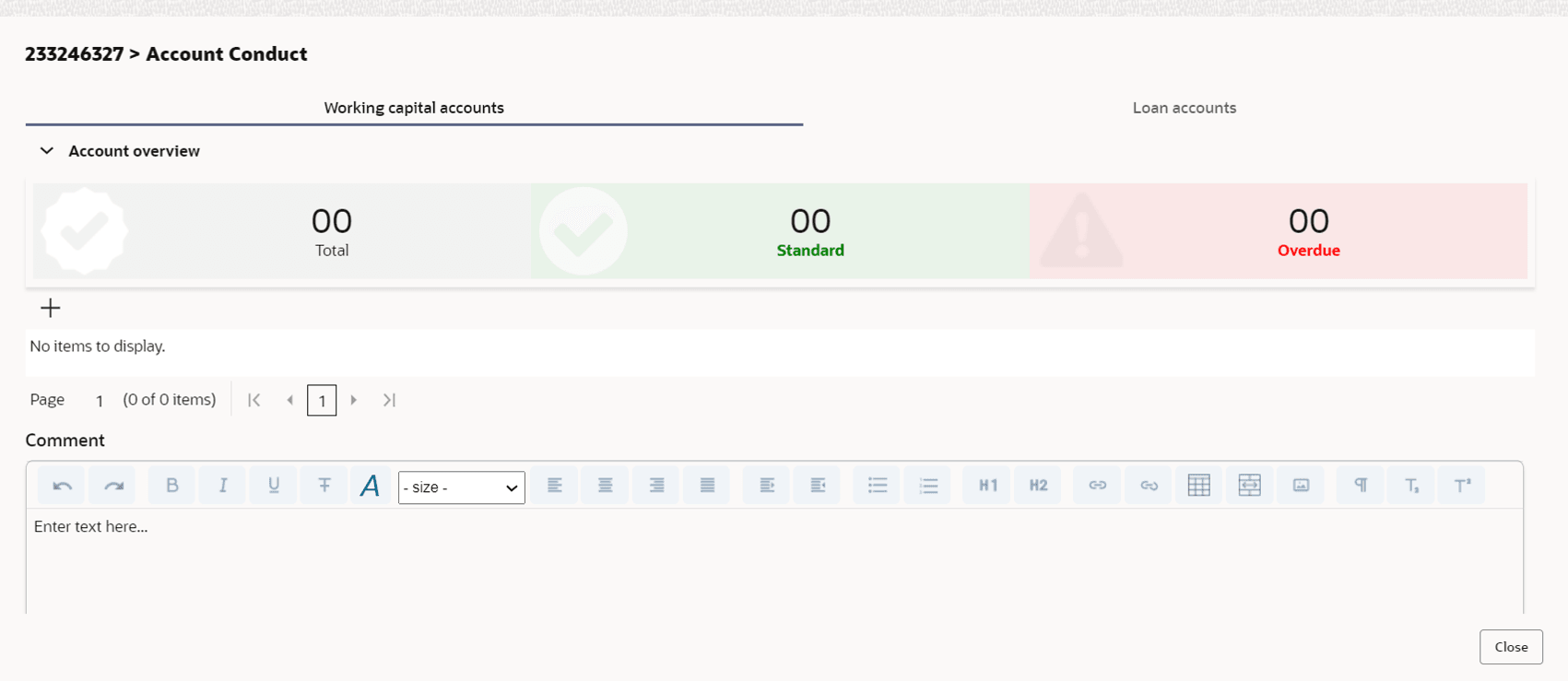
Edit in Account Conduct Action button.Account Conduct page is displayed.
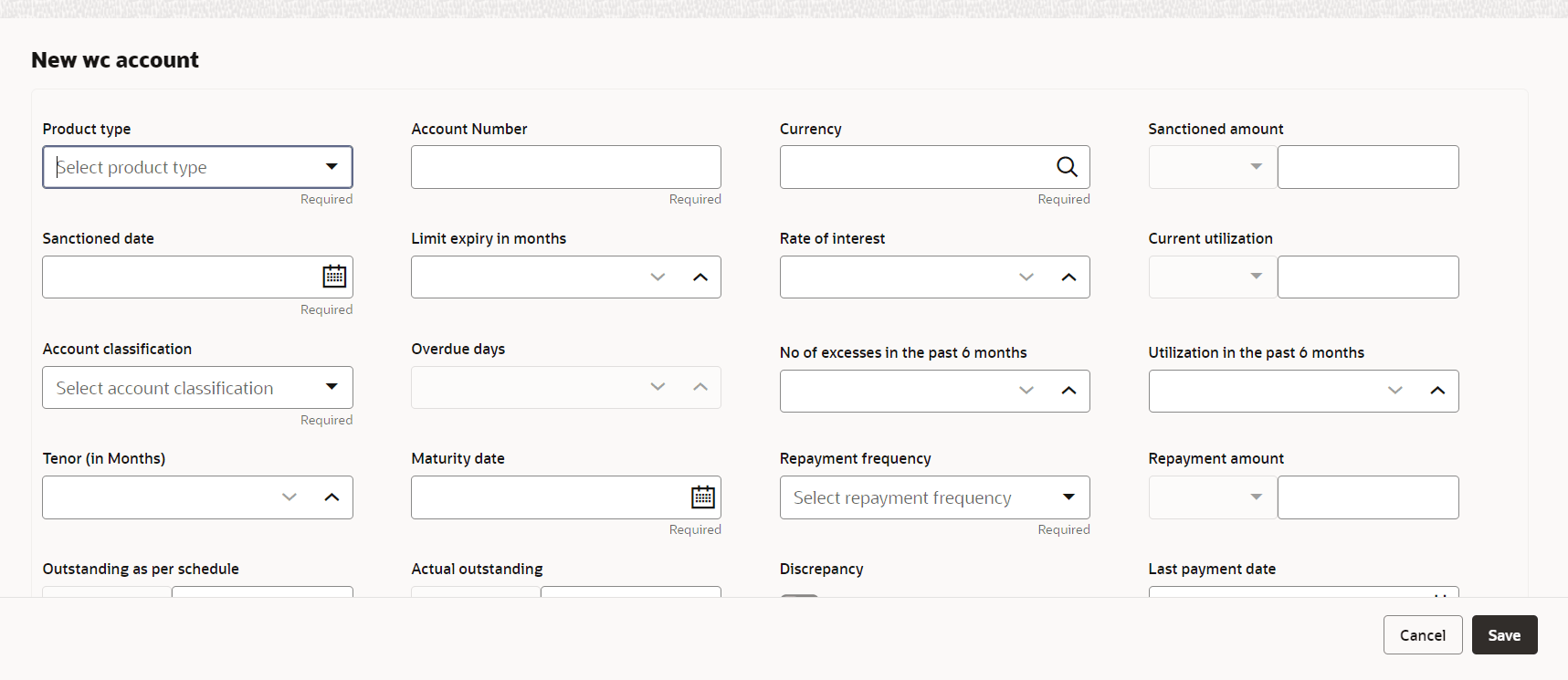
Click + in Working Capital Accounts screen to add new working capital account.
New Working Capital Accounts screen is displayed.
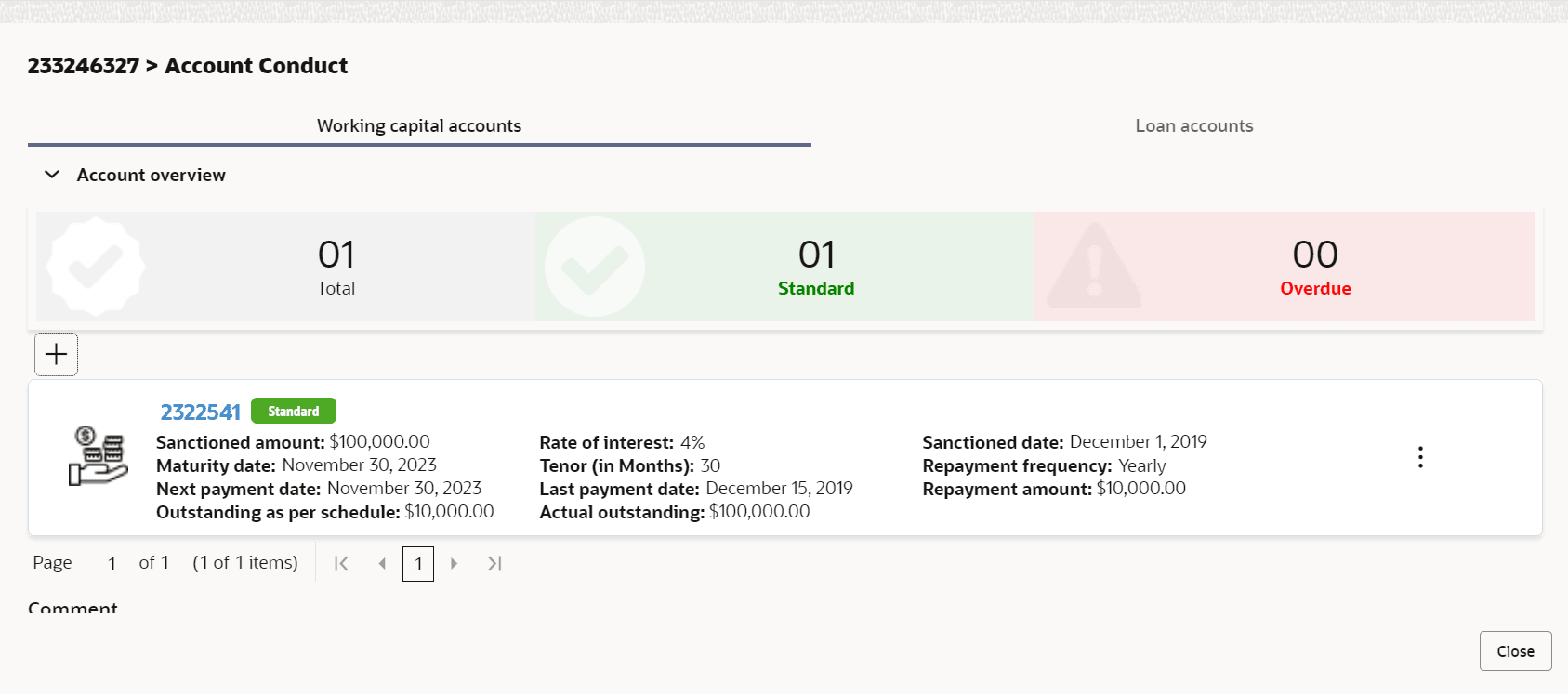
Figure 5-16 Account Conduct - Working Capital Accounts
Figure 5-17 Account Conduct - New Working Capital Accounts
For field level information refer the table below.
Table 5-3 Account Conduct- New Working Capital Accounts
Fields/ Icons Description Product Type Select Product Type from drop-down list. Account Number Enter Account Number for new working capital account. Currency Search and select Currency. Sanctioned Amount Enter Sanctioned Amount. Sanctioned Date Select Sanctioned Date from Calendar icon. Limit Expiry in Months Enter Limit Expiry in Months. Select Decrement and Increment drop-down list option on right to decrease or increase the limit expiry. Rate of Interest Enter Rate of Interest. Select Decrement and Increment drop-down list option on right to decrease or increase the rate of interest. Current Utilization Enter Current Utilization. Account Classification Select Account Classification from drop-down list. Overdue Days Enter Overdue Days. Select Decrement and Increment drop-down list option on right to decrease or increase the overdue days. No of excesses in the past 6 months Enter No of excesses in the past 6 months. Select Decrement and Increment drop-down list option on right to decrease or increase the No of excesses in the past 6 months. Ultilization in the past 6 months Enter Ultilization in the past 6 months. Select Decrement and Increment drop-down list option on right to decrease or increase the ultilization in the past 6 months. Tenor (in months) Enter Tenor (in months). Select Decrement and Increment drop-down list option on right to decrease or increase the tenor. Maturity Date Select Maturity Date from Calendar icon. Repayment Frequency Select Repayment Frequency from drop-down list. Repayment Amount Enter Repayment Amount. Outstanding as per schedule Enter Outstanding as per schedule. Actual outstanding Enter Actual outstanding. Discrepancy Enable Discrepancy. Last Payment Date Enter Last Payment Date from drop-down list. Click Save. Working Captial Accounts details are dispalyed in Account Overview screen.Figure 5-18 Account Conduct - Account Overview
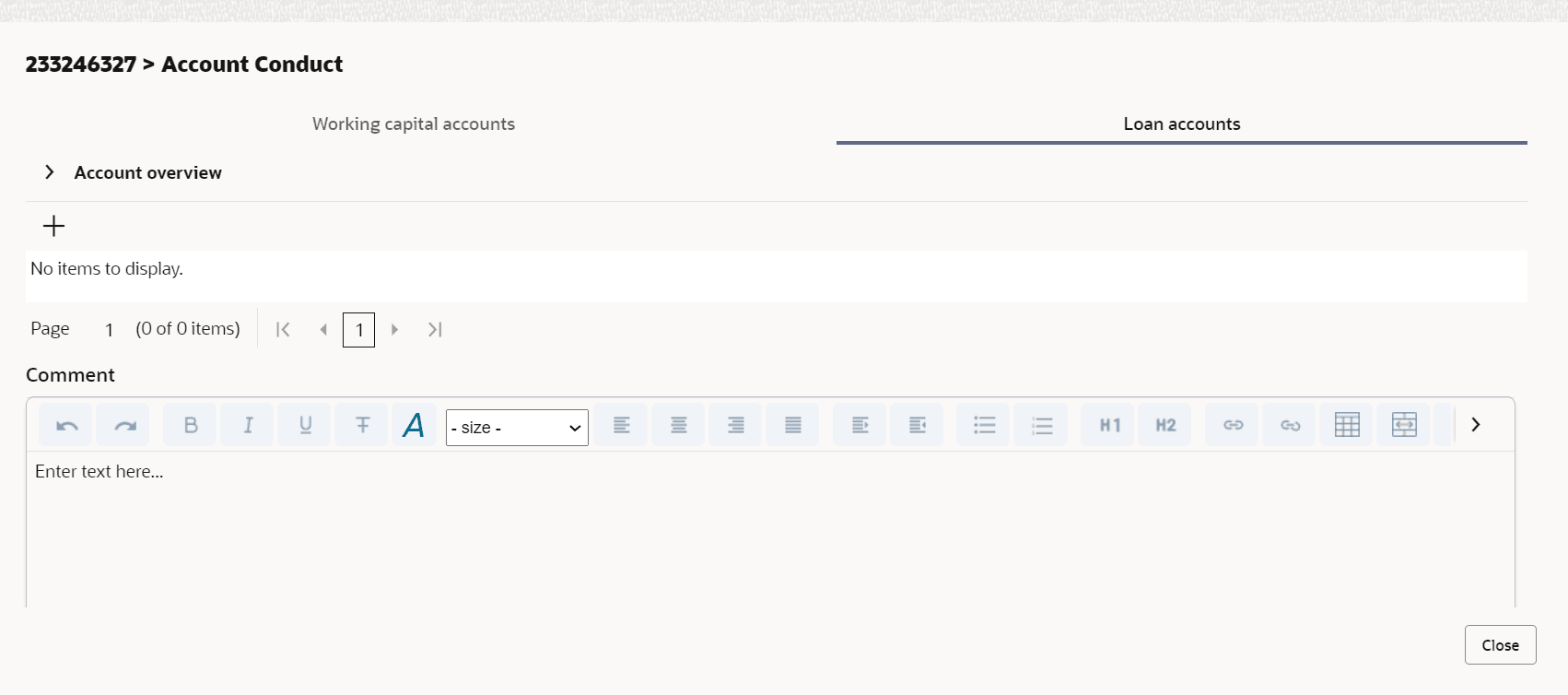
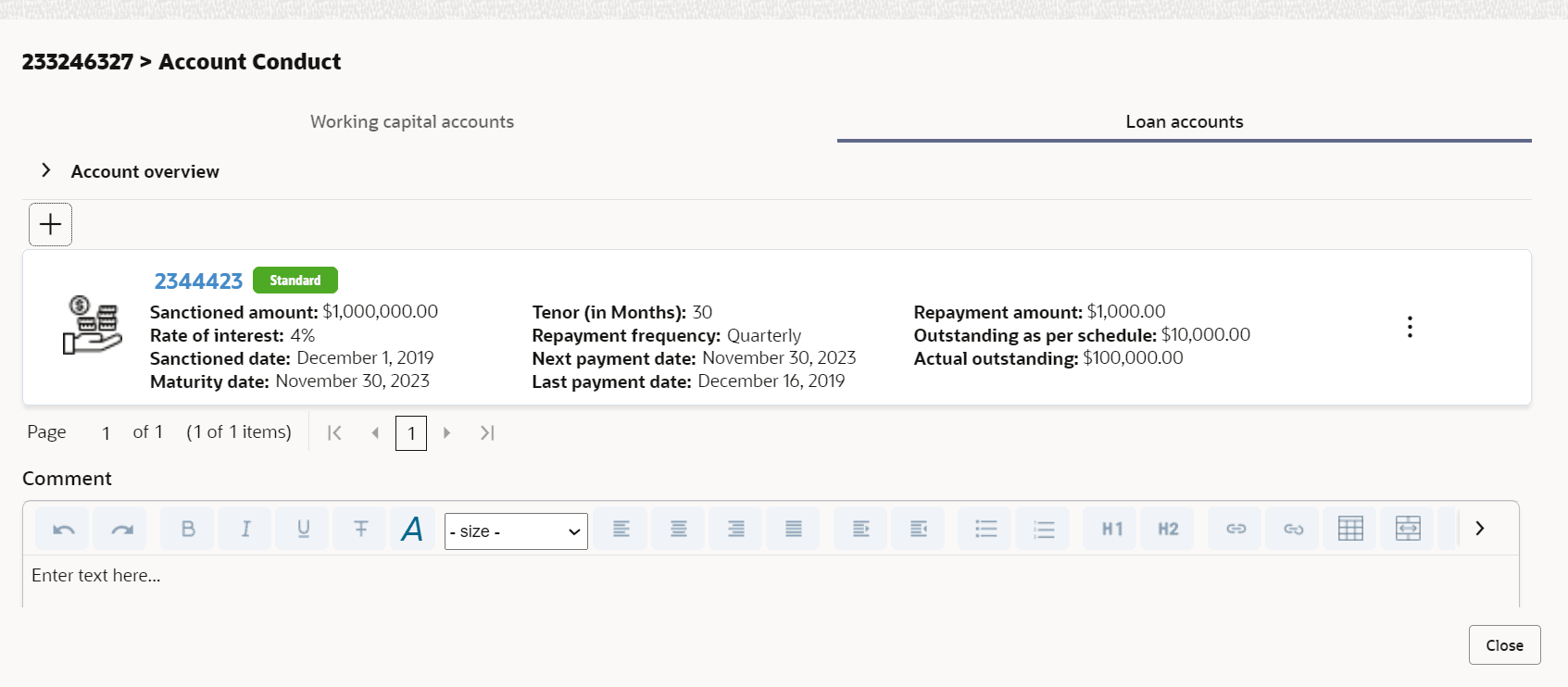
Click + in Loan Accounts screen to add new loan account.
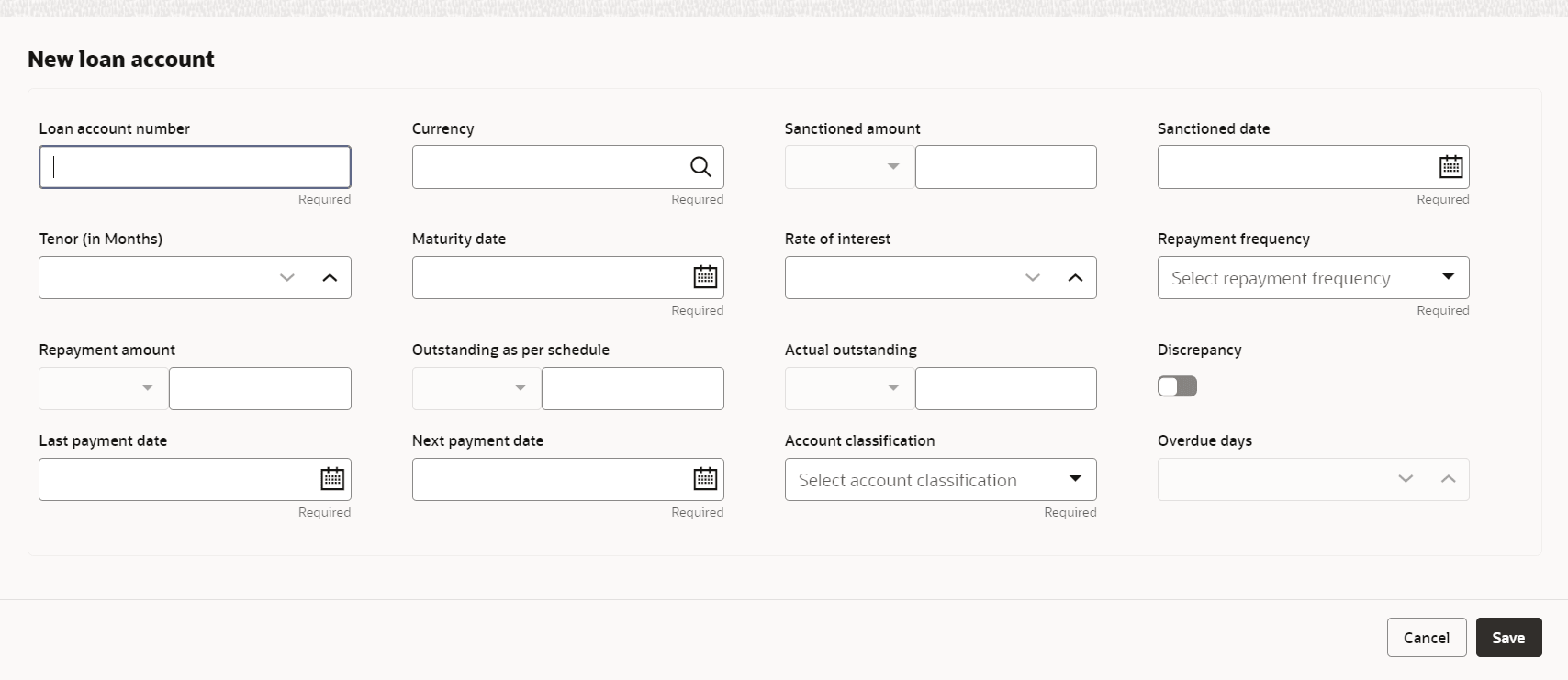
New Loan Account screen is displayed.
Figure 5-19 Account Conduct - Loan Accounts
Figure 5-20 Account Conduct - New Loan Account
For field level information refer the table below.
Table 5-4 Account Conduct - New Loan Account
Fields/ Icons Description Loan Account Number Enter Loan Account Number for new loan account. Currency Search and select Currency. Sanctioned Amount Enter Sanctioned Amount. Sanctioned Date Select Sanctioned Date from Calendar icon. Tenor (in months) Enter Tenor (in months). Select Decrement and Increment drop-down list option on right to decrease or increase the tenor. Maturity Date Select Maturity Date from Calendar icon. Rate of Interest Enter Rate of Interest. Select Decrement and Increment drop-down list option on right to decrease or increase the rate of interest. Repayment Frequency Select Repayment Frequency from drop-down list. Repayment Amount Enter Repayment Amount. Outstanding as per schedule Enter Outstanding as per schedule. Actual outstanding Enter Actual outstanding. Discrepancy Enable Discrepancy. Last Payment Date Enter Last Payment Date from drop-down list. Next Payment Date Enter Next Payment Date from drop-down list. Account Classification Select Account Classification from drop-down list. Overdue Days Enter Overdue Days. Select Decrement and Increment drop-down list option on right to decrease or increase the overdue days. Click Save. Loan Accounts details are dispalyed in Account Overview screen.
Figure 5-21 Account Conduct - Account Overview
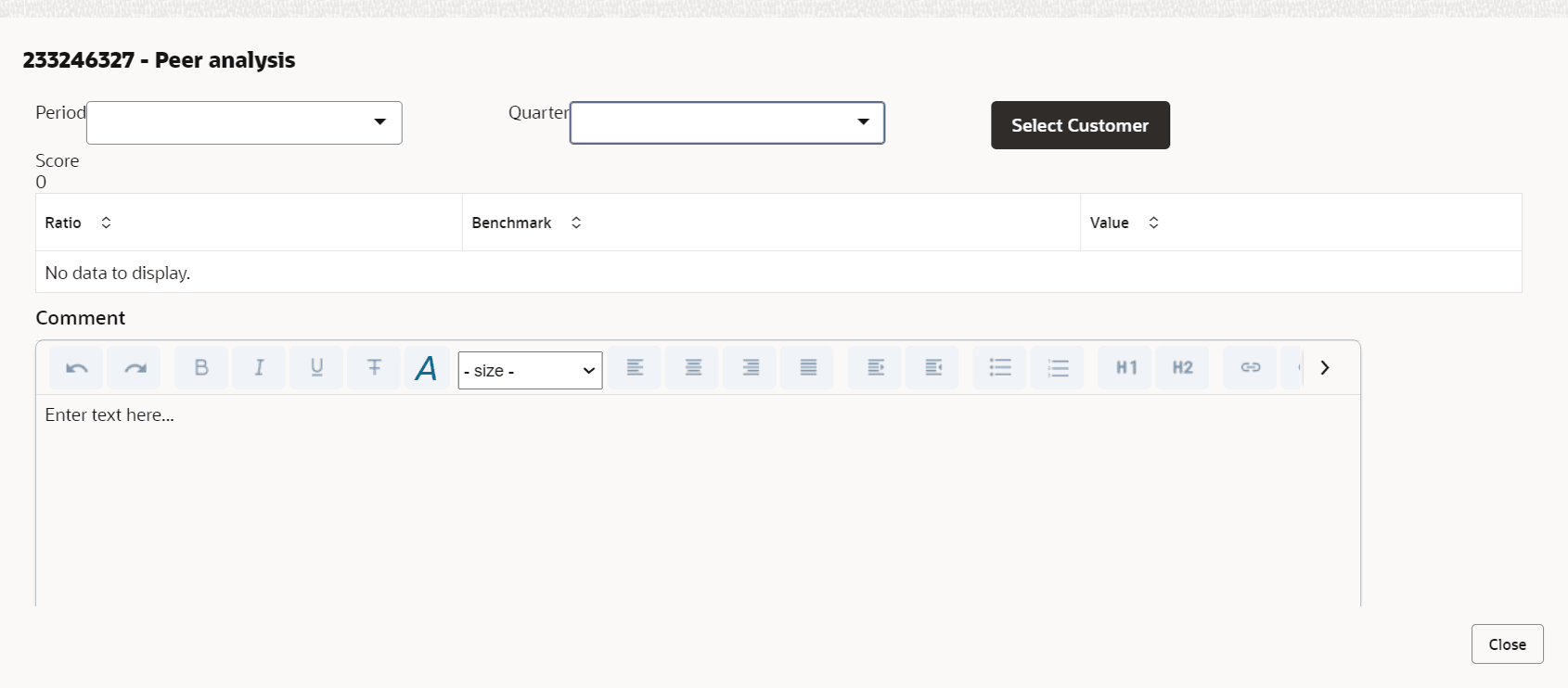
- To edit Peer Analysis in Quantitative Analysis, click Edit
in Peer Analysis Action button.Peer Analysis page is displayed.
Enter/select the following details to view or edit the details.
- Period
- Quarter
- Select Customer
- Comment
Note:
Based on the details selected - Score, Ratio, Benchmark, Value are displayed. - To edit Financial Analysis in Quantitative Analysis, click
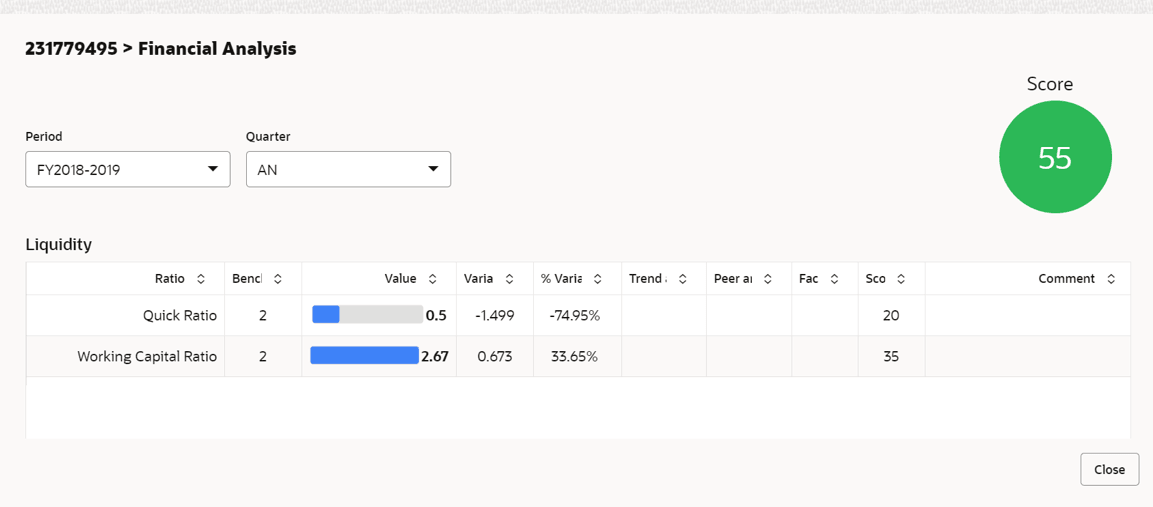
Edit in Financial Analysis Action button.Financial Analysis page is displayed.Enter/Select Period and Quarter, the following Liquidity details are displayed.
- Ratio
- Benchmark
- Value
- Variable
- % Variable
- Score
Note:
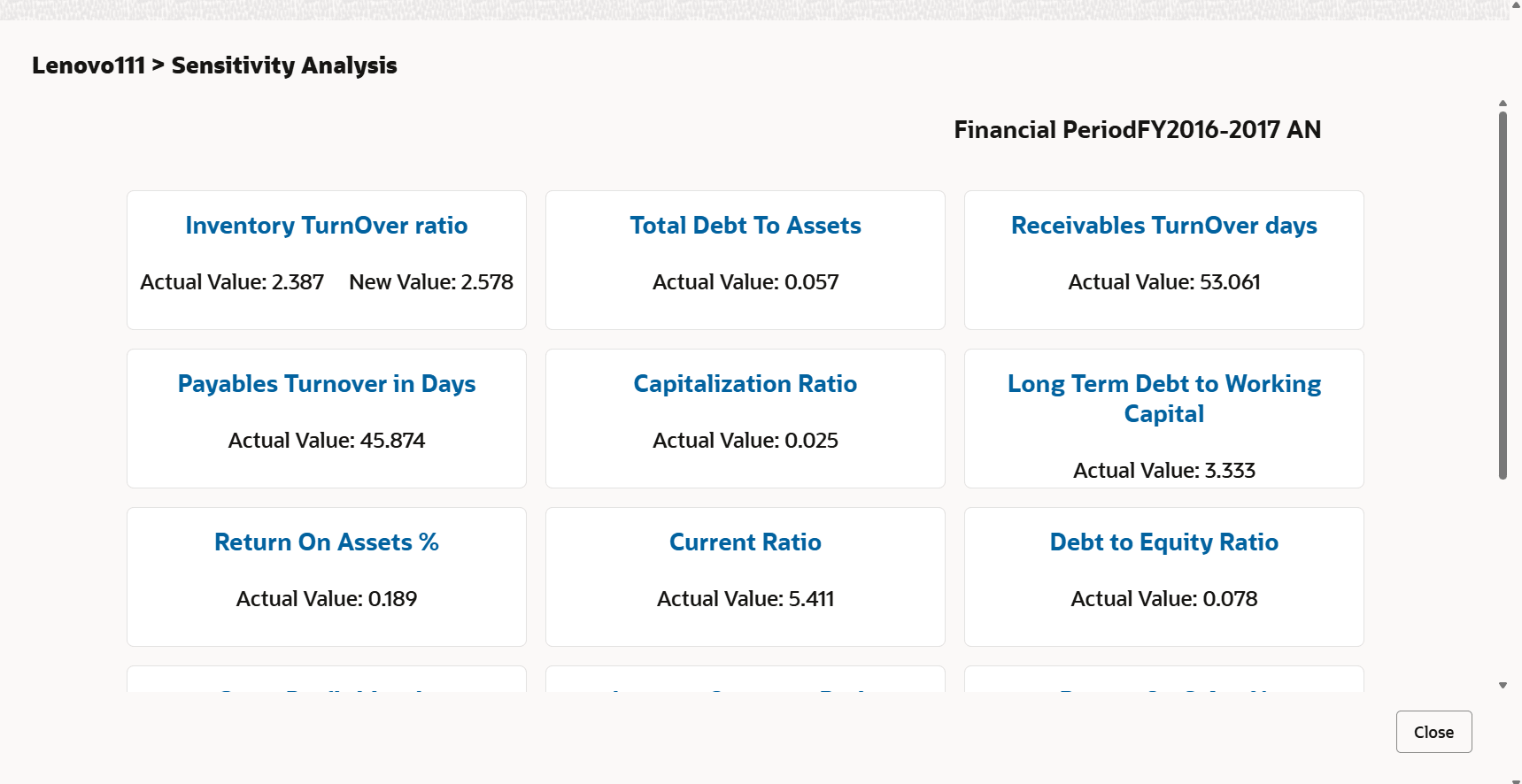
The scores generated for each ratio contributes to the overall Quantitative analysis score generation. - On Financial Analysis tile, Click Sensitive
Analysis.The Sensitive Analysis screen displays.
Note:
For more information on each tab in sensitive analysis screen, refer to the Terms and Definitions section in Preface.Note:
- Actual Value: The actual value represents the existing or current values based on real financial data for the choosen period.
- New Value: The new value shows the recalculated amount after applying a percentage change to the actual value.
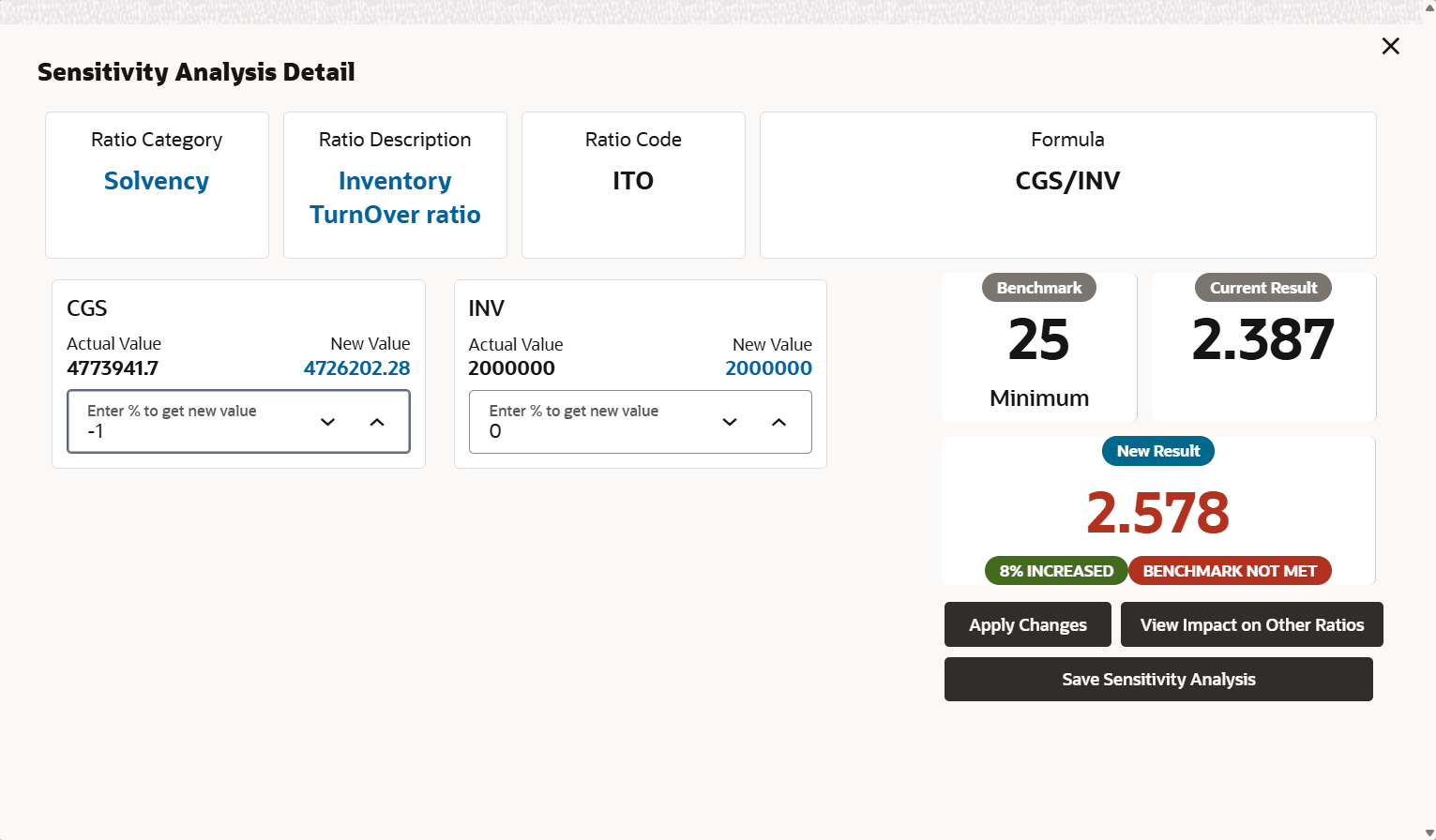
- Click any of the tab on sensitive analysis screen.The Sensitive Analysis Detail screen displays.For more information on fields, refer to the field description table below.
Table 5-5 Sensitive Analysis
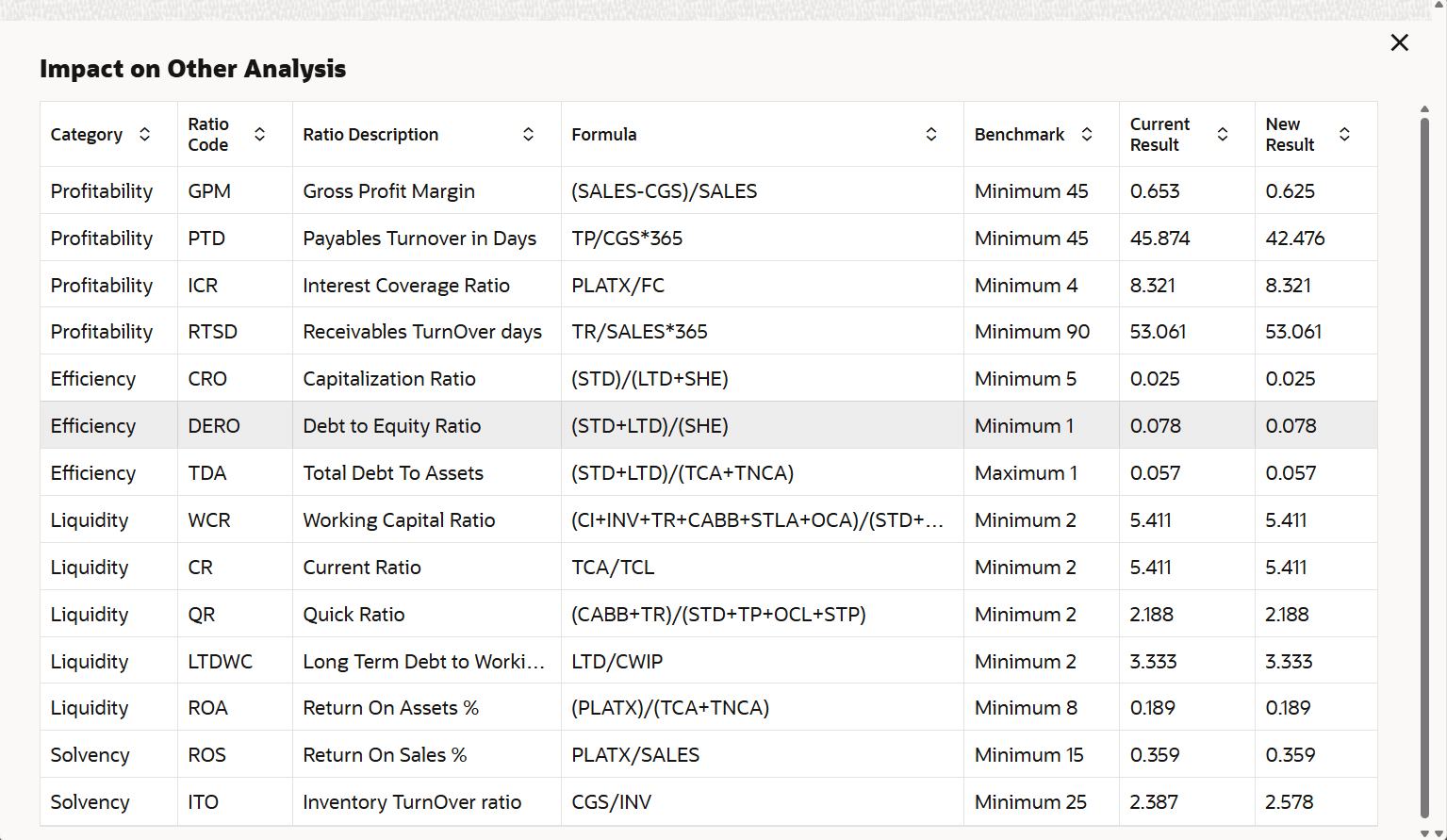
Fields Description Ratio Category Displays the ratio category. Ratio Description Displays the ratio description. Ratio Code Displays the ratio code. Formula Displays the key ratio formula. Actual Value The actual value represents the existing or current values based on real financial data for the chosen period. Bench Mark Displays the benchmark value of the financial code. Current Result The ratio value calculated using the actual values. New Result The ratio value recalculated after applying the percentage changes. - Click on View Impact on Other Ratios.The Impact on Other Analysis screen displays.
Note:
A pop up screen should display the complete list of financial ratios, with clear indicators highlighting the specific ratios impacted by the changes made in the sensitivity analysis.
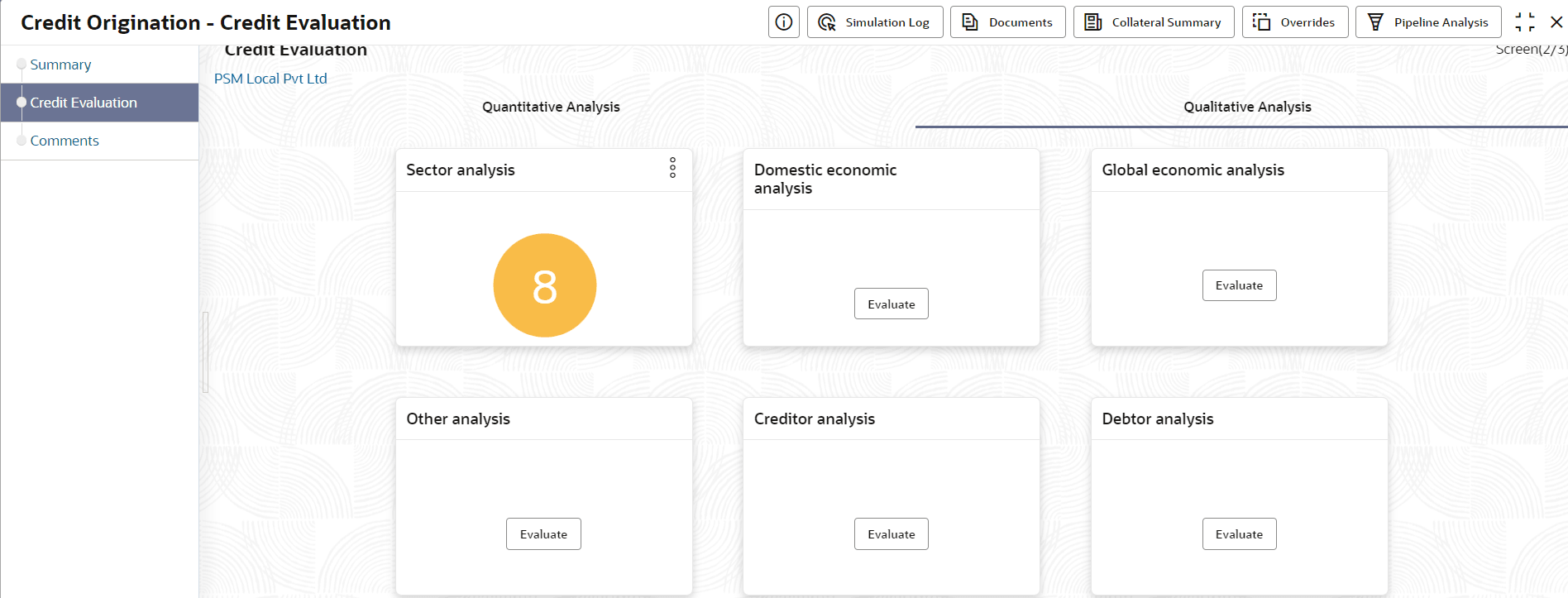
- Click Qualitative Analysis tab. The Qualitative Analysis page is
displayed.
For field level information refer the table below.
After performing the qualitative analysis for both the party and its connected parties.Table 5-6 Credit Evaluation
Fields/ Icons Description Qualitative Analysis To perform Qualitative Analysis, click Qualitative Analysis in Credit Evaluation section. Qualitative Analysis window appears with following analysis. - Sector analysis
- Domestic economic analysis
- Global economic analysis
- Other analysis
- Creditor analysis
- Debtor analysis
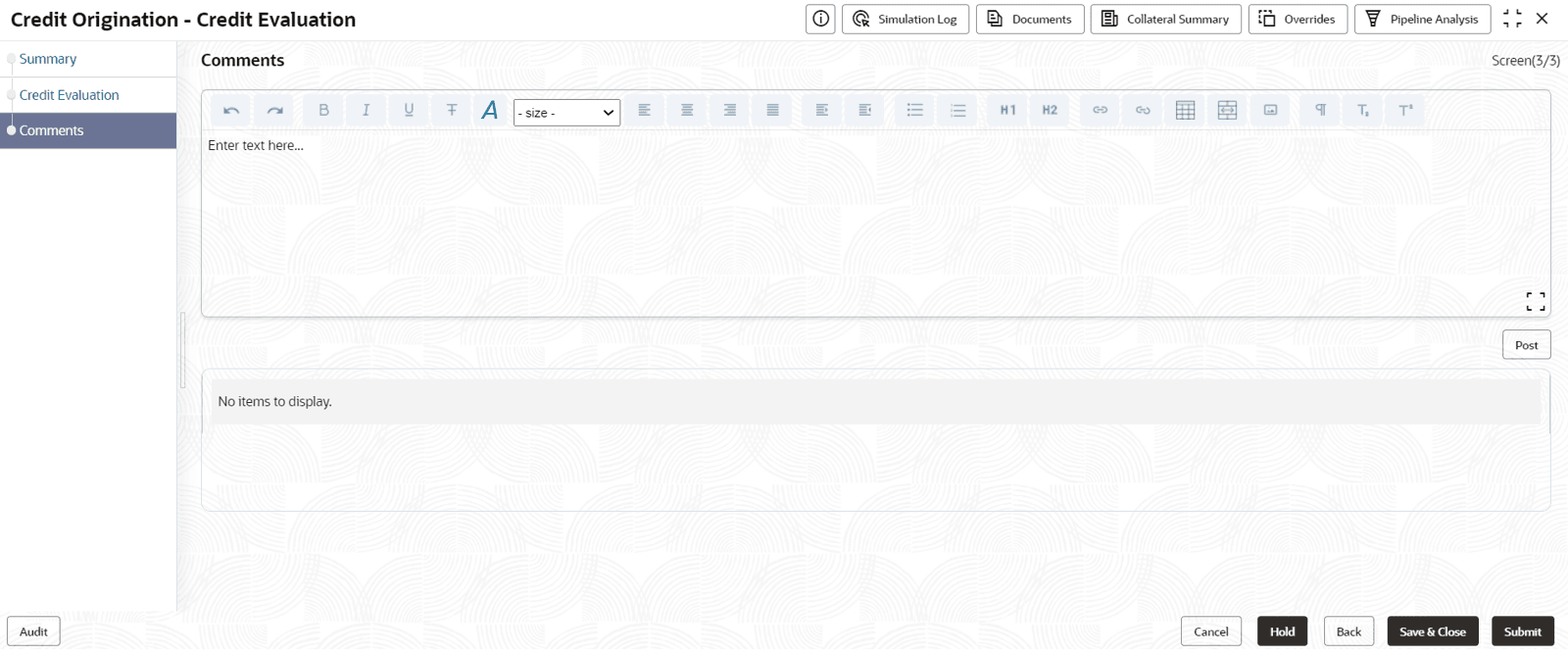
Close Perform the analysis and click Close. Edit To perform the analysis again, click Edit. Comment To capture comments for the analysis, click Comment. Click Next in the Credit Evaluation page. The Comments page is displayed.For field level information refer the table below.
Table 5-7 Comments
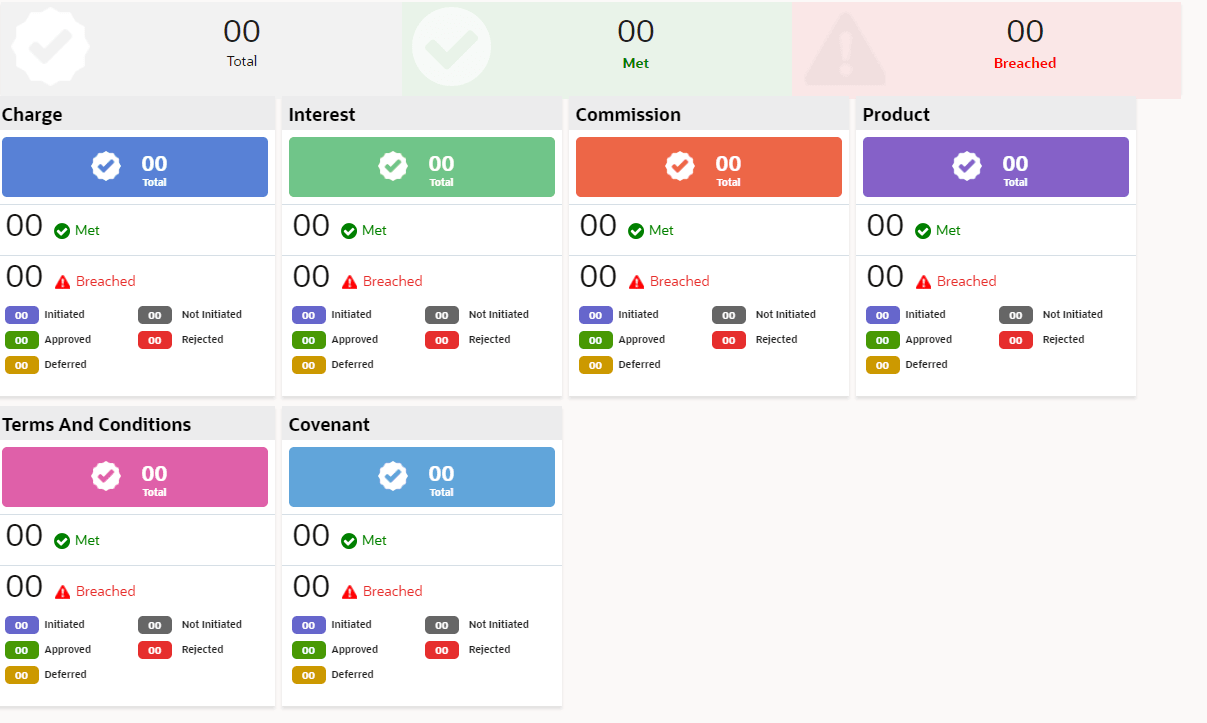
Fields/ Icons Description Comments Enter the overall Comments for the credit evaluation and click Post. Comment is posted below the Comments box. - Click Submit.The Policy Exception window is displayed.
By default, Policy Exceptions are displayed for both the party and its child party.
For field level information refer the table below.
Table 5-8 Policy Exception
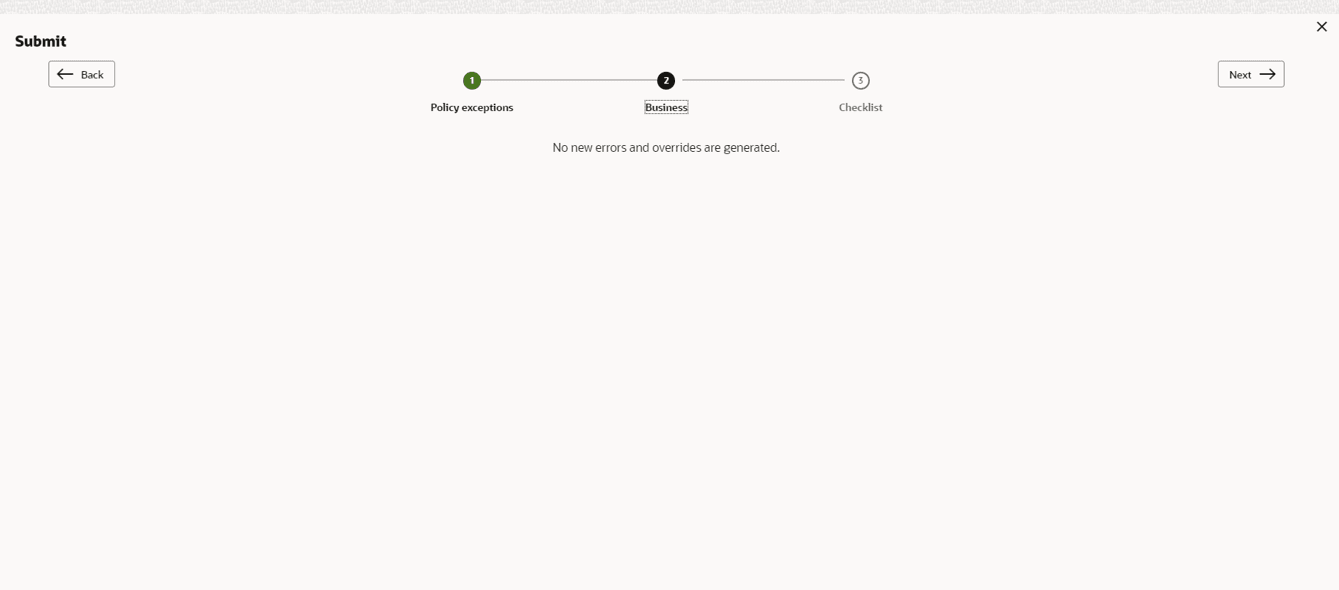
Fields/ Icons Description Party details To view the policy exception detail specific to party or child party, select the party from the drop-down list at top left corner. Next Click Next, the Business screen is displayed. - Click the Business data segment.
Table 5-9 Business
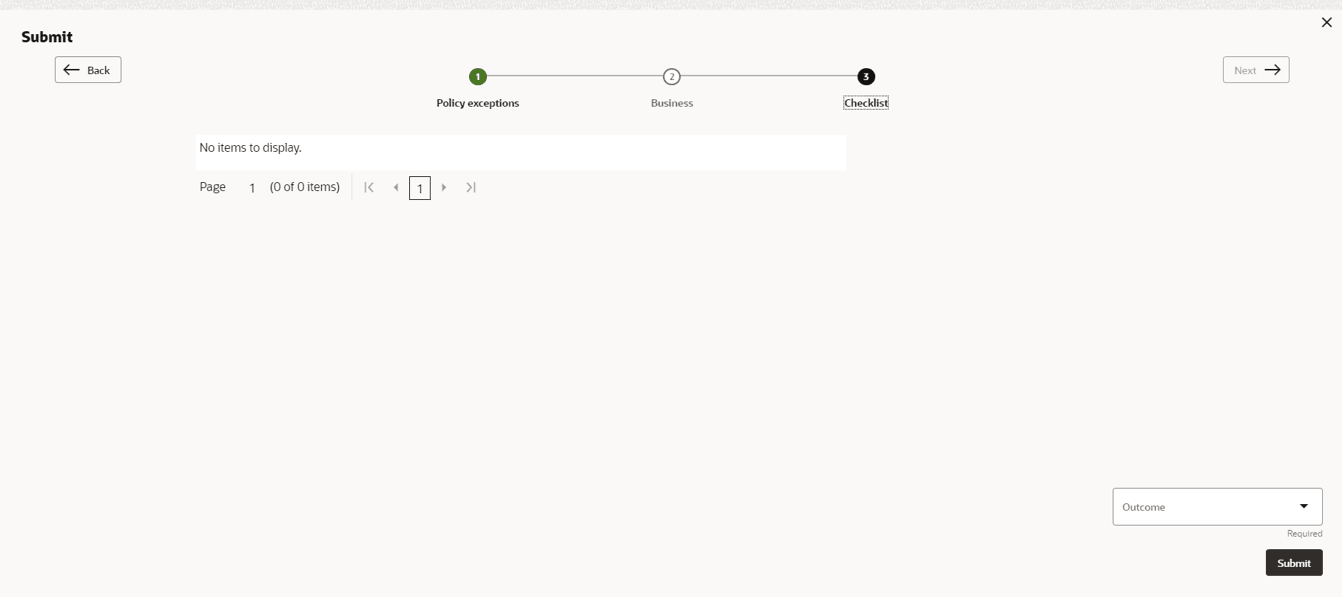
Fields/ Icons Description Next Click Next, the Checklist screen is displayed. - Click the Checklist data segment.
Table 5-10 Checklist
Fields/ Icons Description Outcome Select Outcome as Proceed if additional information is not required. Else, select Outcome as Additional Info. Submit Click Submit.
Parent topic: Proposal Evaluation