5.2 Legal Evaluation
The following table provides high level overview about the Legal Evaluation stage.
| Information available for user | Activities that can be performed by user |
|---|---|
|
|
To perform legal evaluation for the proposal, perform the following steps:
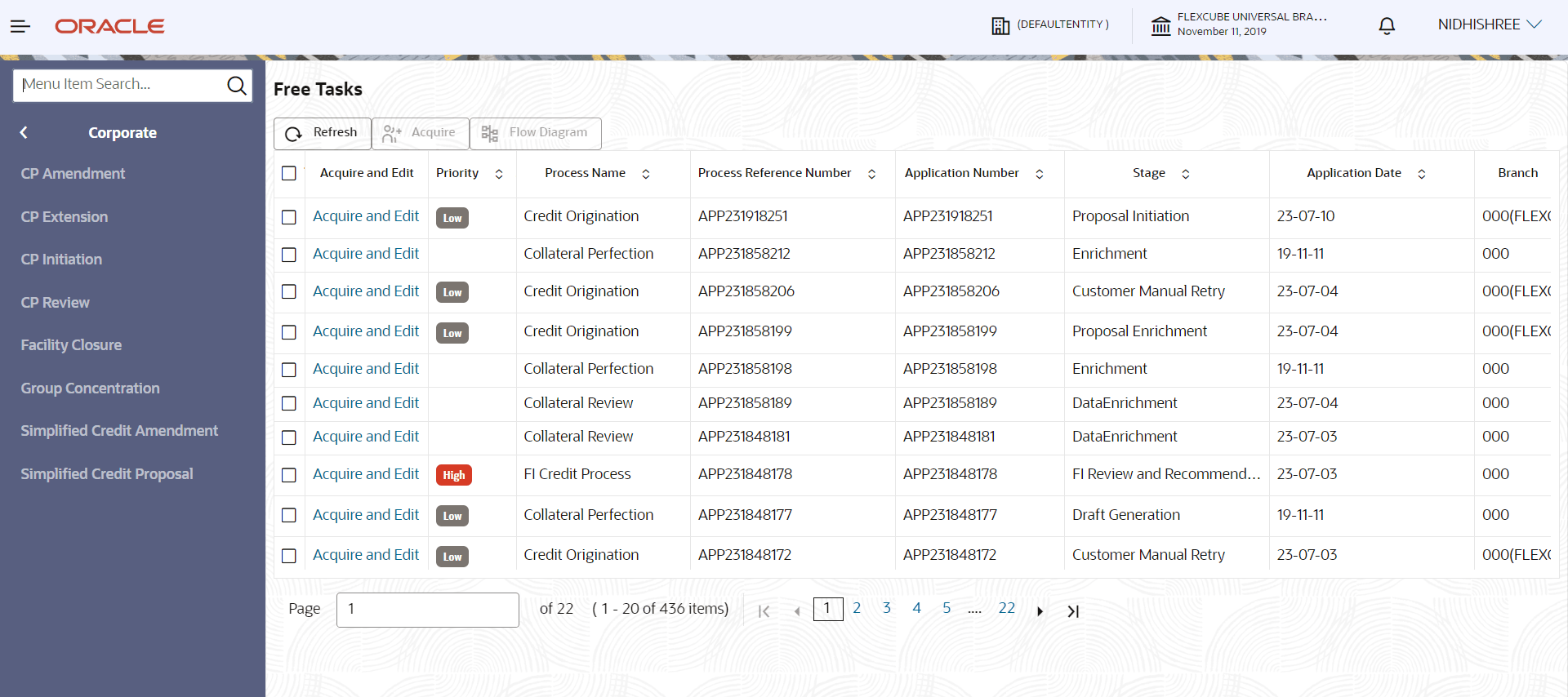
- In OBCFPM, navigate to Tasks > Free Tasks.The Free Task page is displayed.
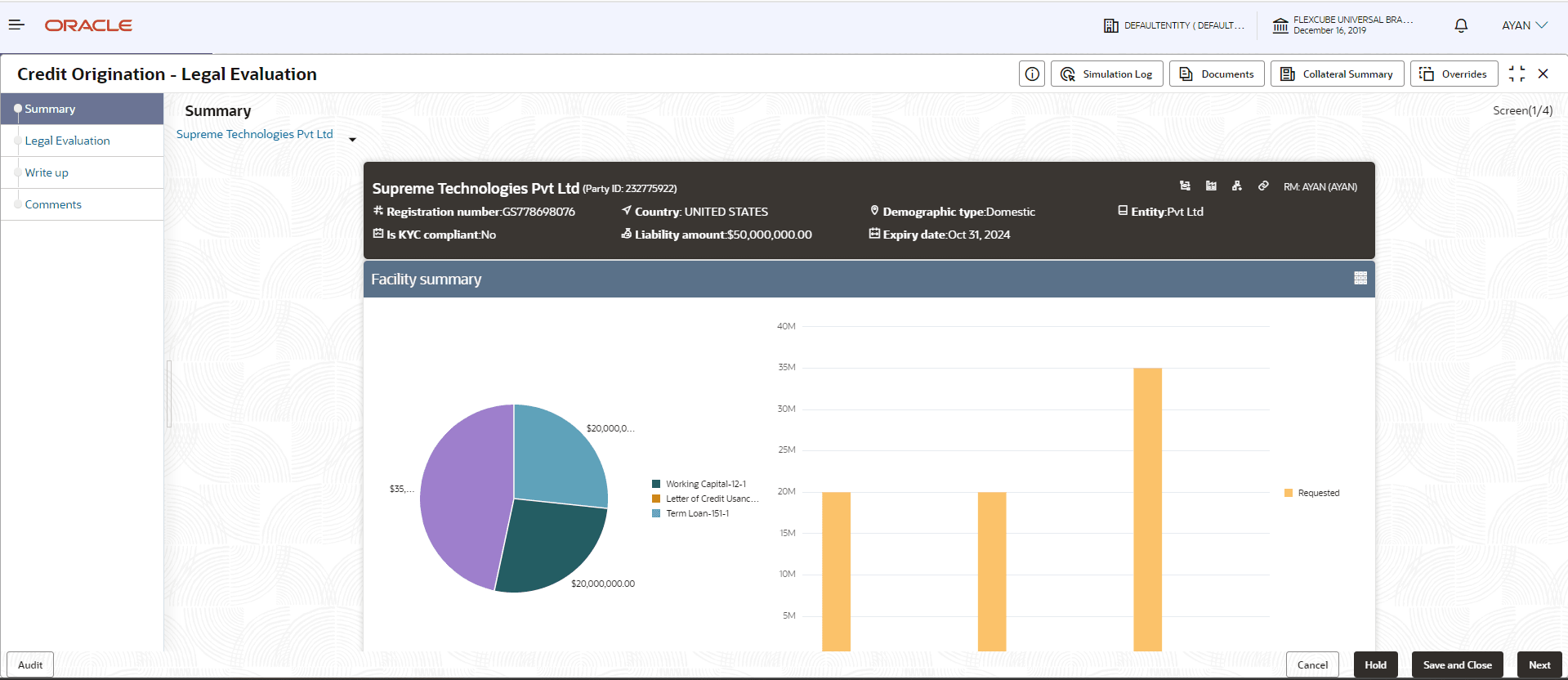
- Acquire & Edit the required Legal Evaluation task. The Credit
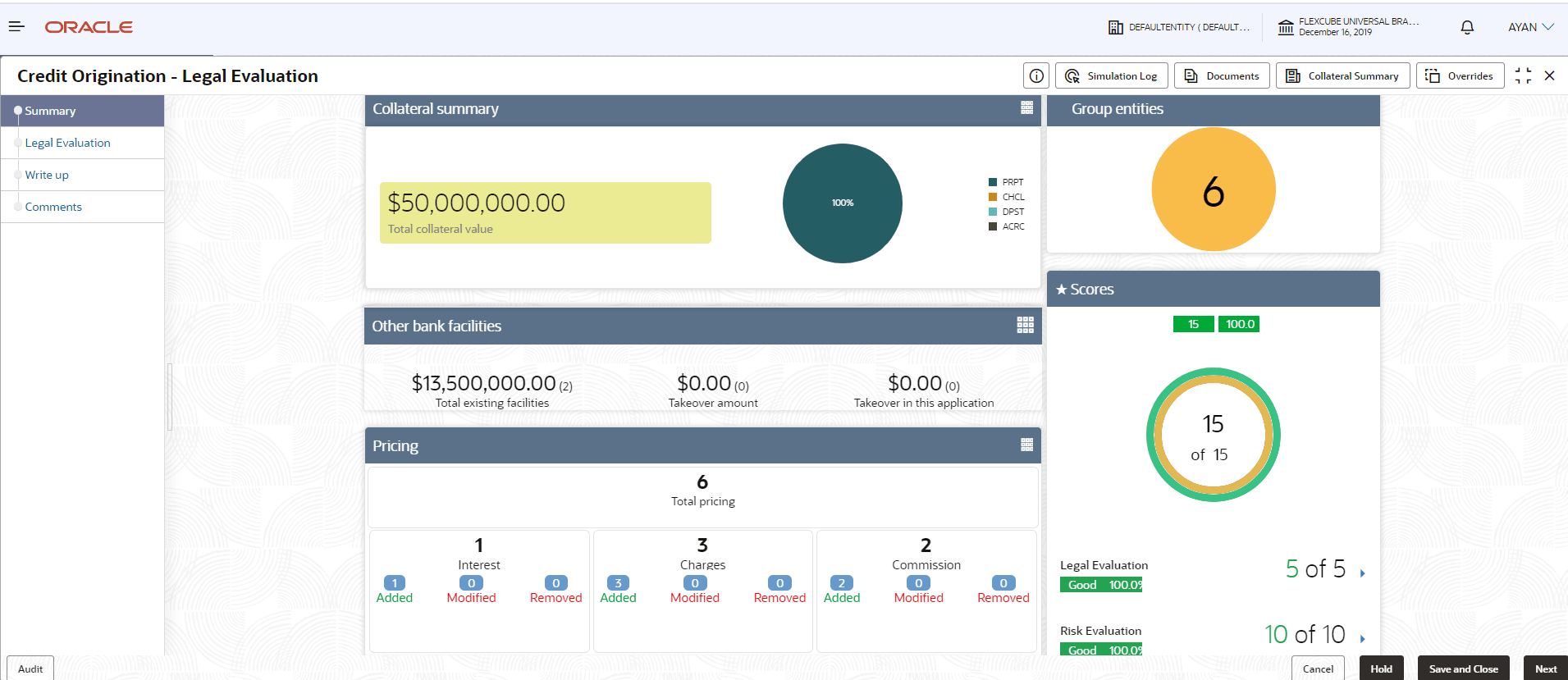
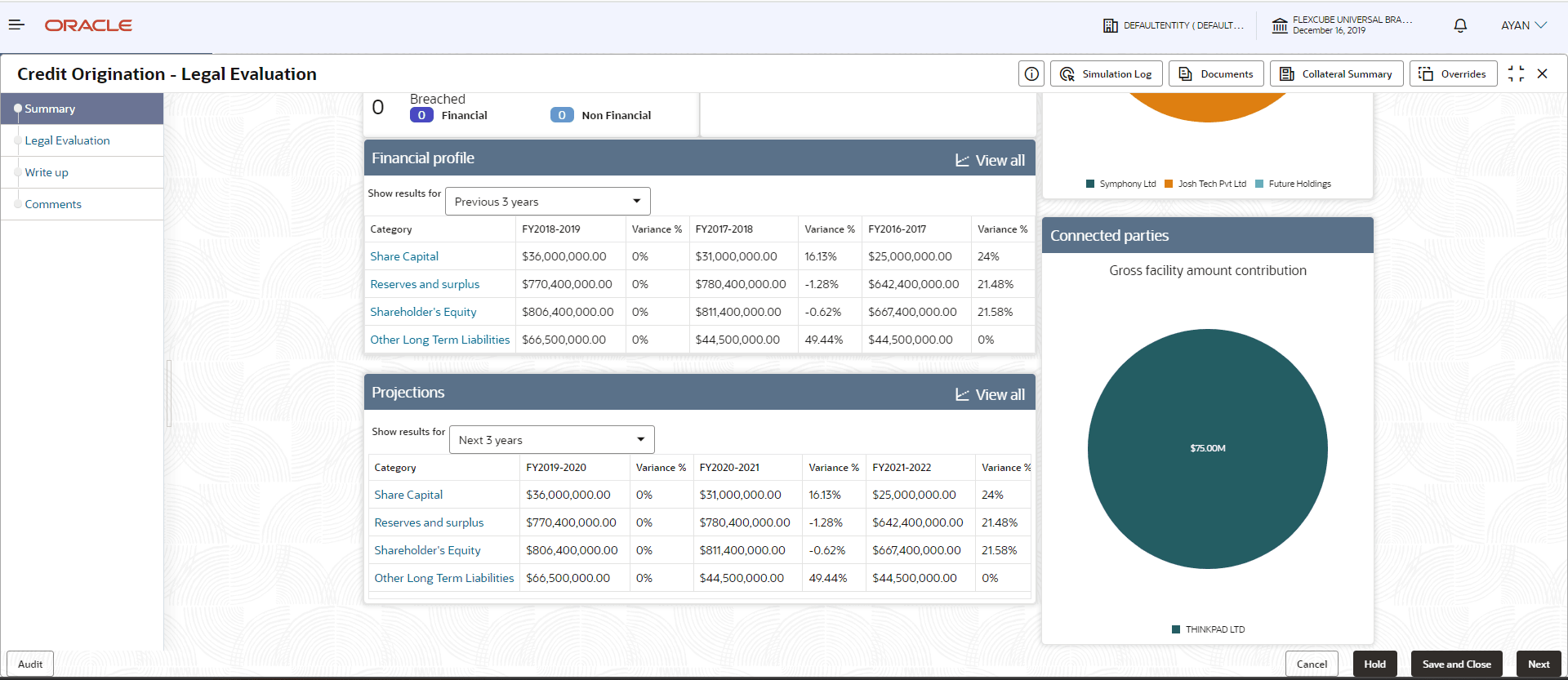
Origination - Legal Evaluation page summarizing the proposal
appears.
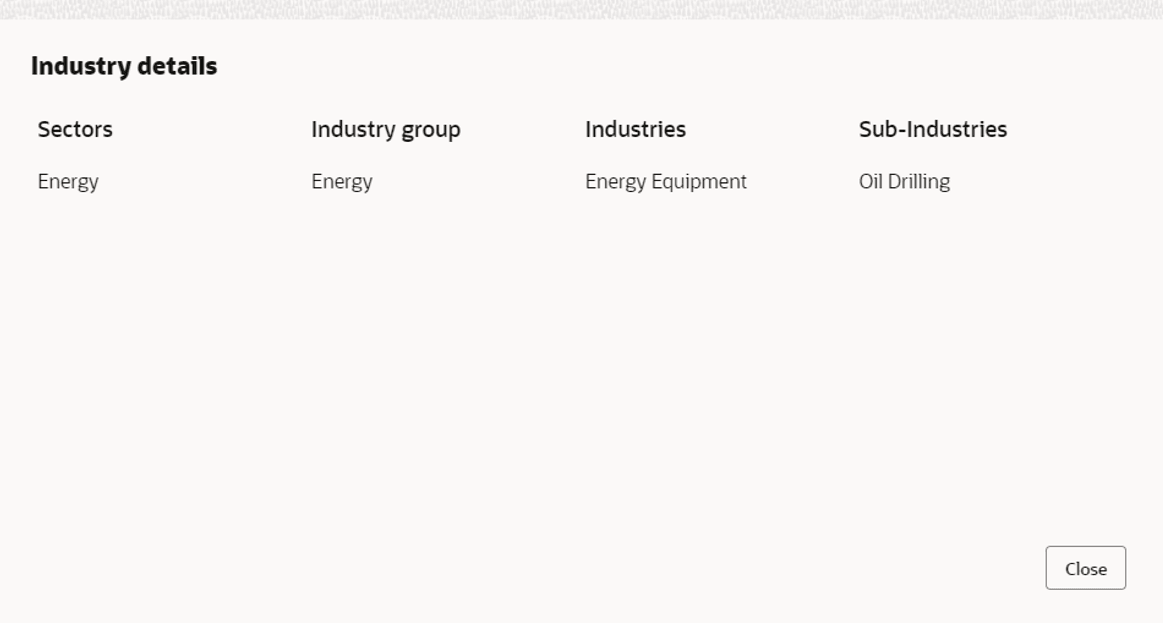
- To view the sector and industry information, click Industry icon in
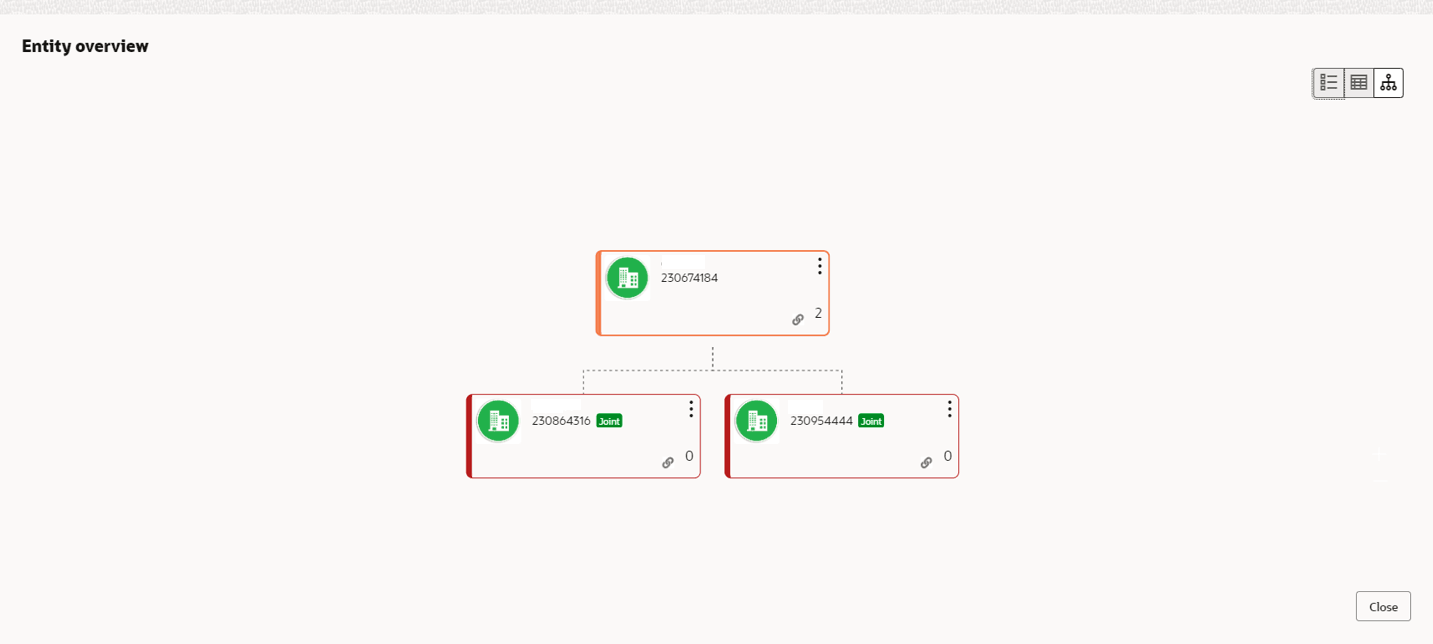
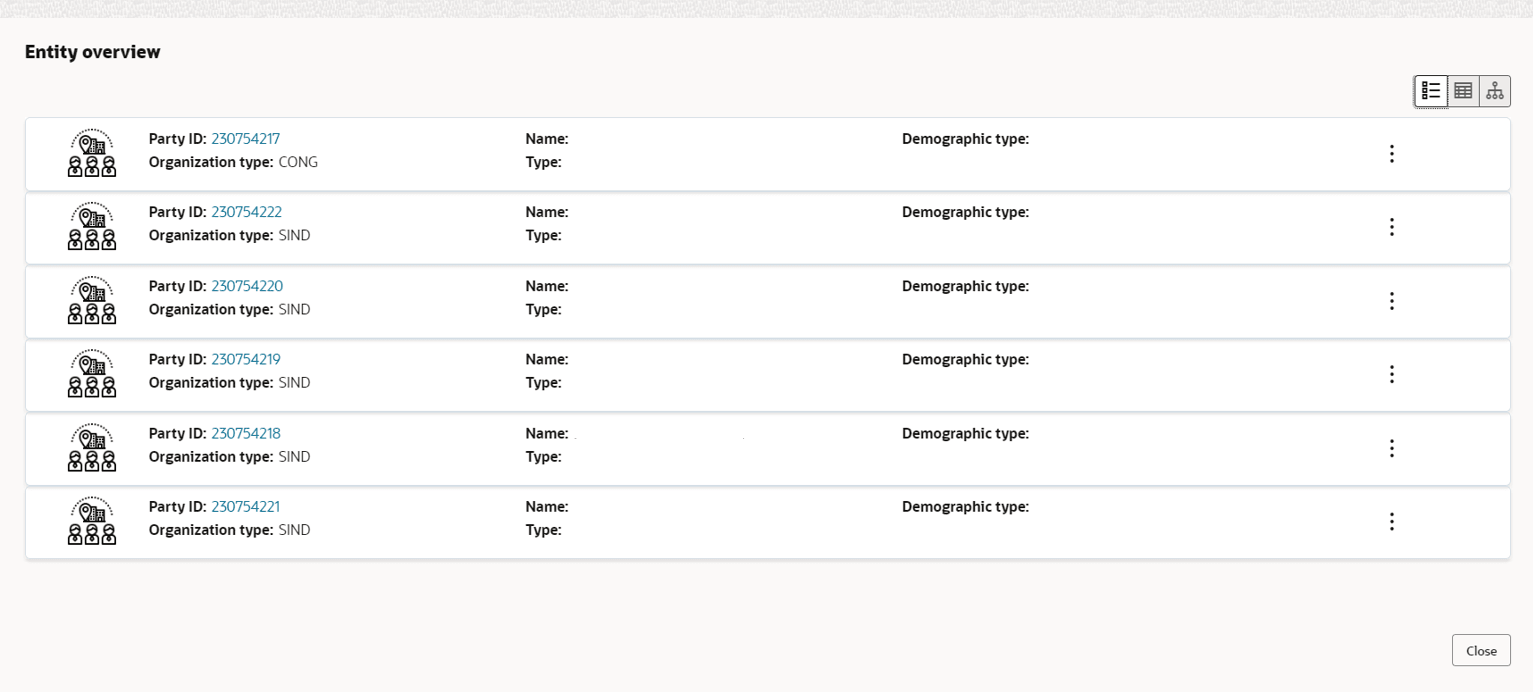
Party Information section.The Industry Details window is displayed.To view the overview of the party, click Entity Overview icon in Party Information section. The Entity Overview window is displayed.
Table 5-11 Industry Details
Fields/ Icons Description Close Click Close, to exit the Industry Details window. - Click Allowed Customers For This Liability icon in the Party
Information section, to view party's linked to the liability
information.The Allowed Customers For This Liability window appears.
Figure 5-39 Allowed Customers For This Liability
Figure 5-40 Allowed Customers For This Liability
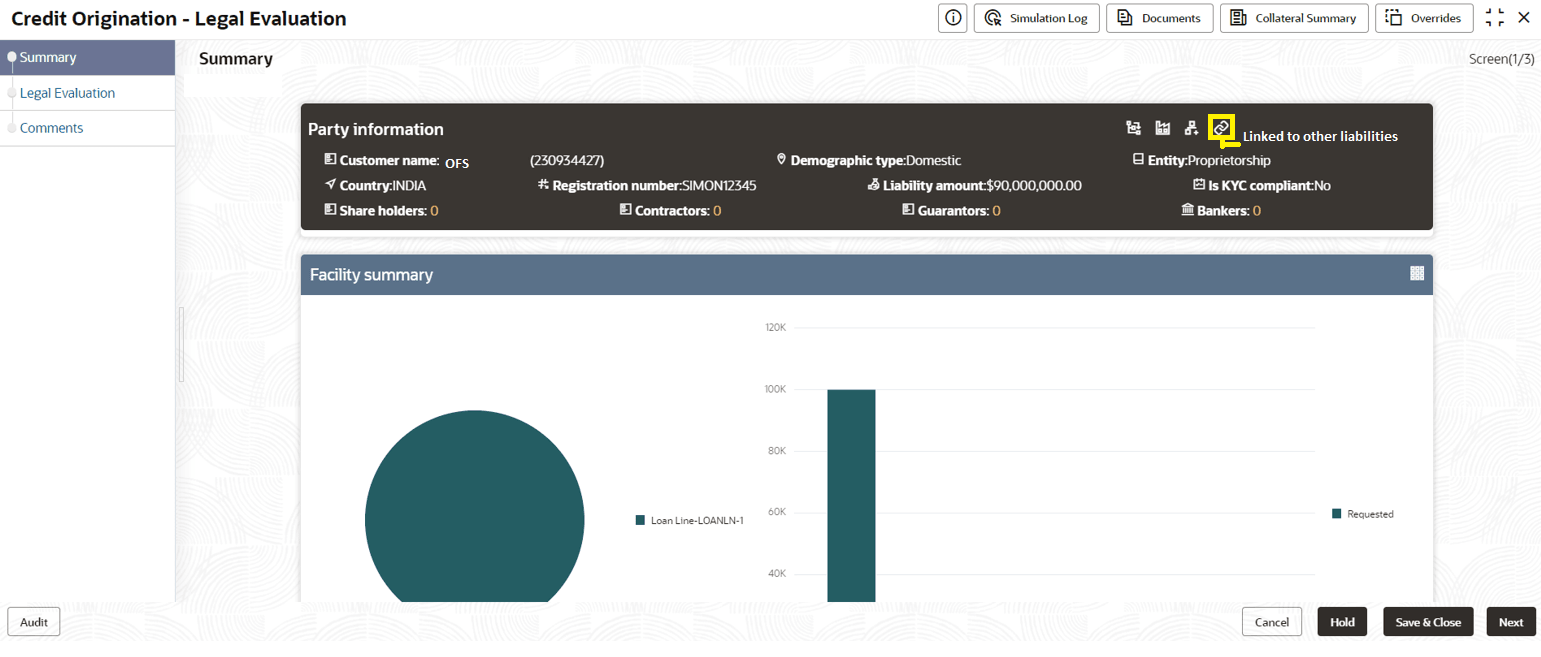
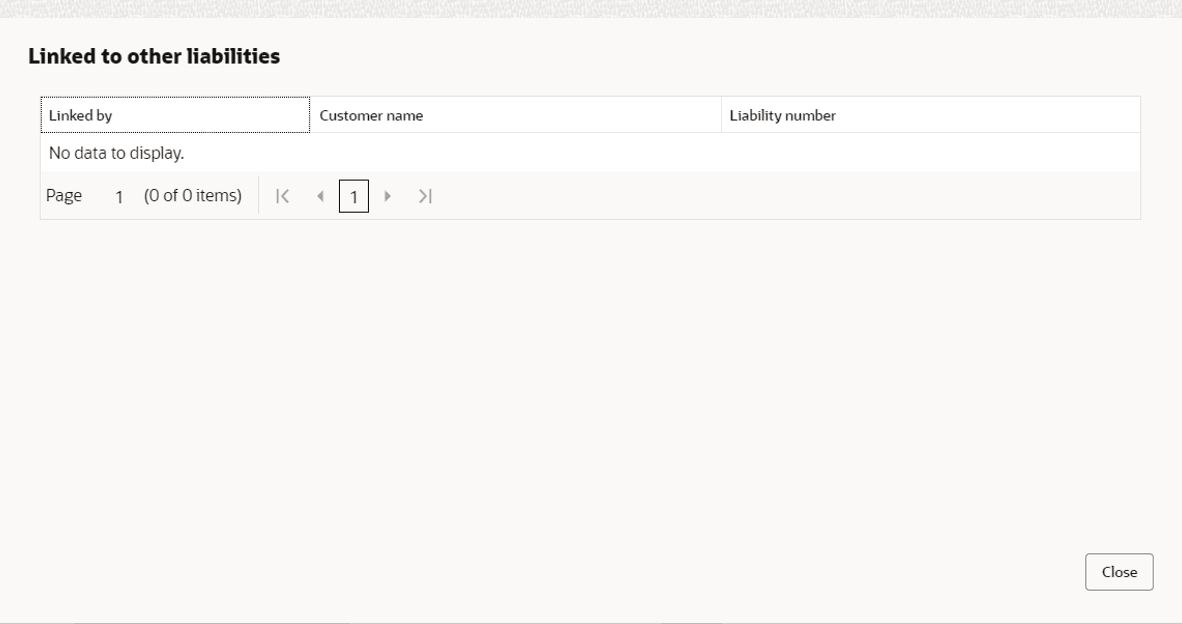
- Click Linked to other liabilities icon in the Party Information
section, to view other liabilities linked to the party information.The Linked to other liabilities window is displayed. If other liabilities are linked, the list of other liabilities details linked to the party window is displayed.
- Click Layout icons at the top right corner, to change the layout of the
Entity Overview. The Layout window is displayed.
- Select the required layout. Entity Overview is changed to the selected
layout as shown below.
Table 5-12 Entity Overview
Fields/ Icons Description Close To exit Entity Overview window, click Close. In Party Information section, the count of Share Holders, Contractors, Guarantors, and Bankers is displayed.
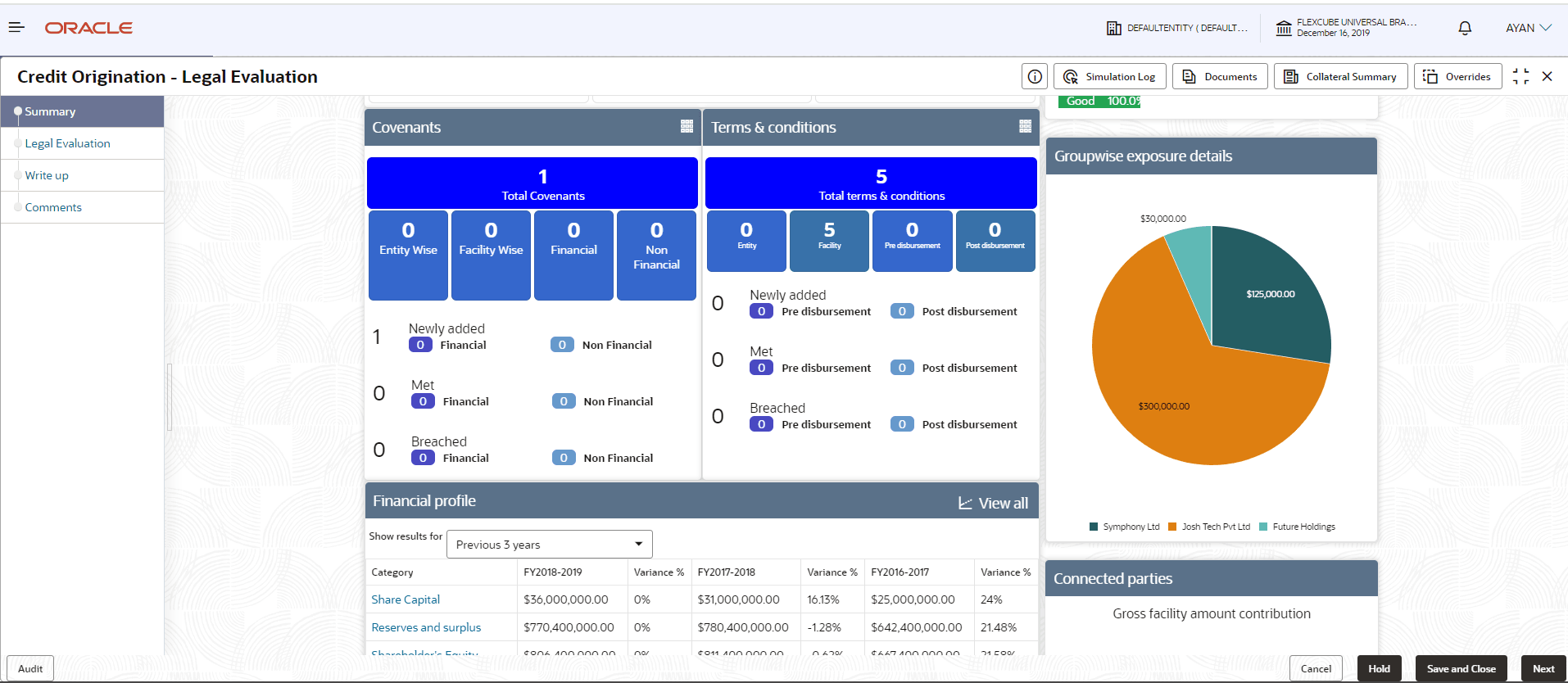
Count numbers To view the detailed information about the Share Holders, Contractors, Guarantors, and Bankers, click the respective count numbers. Layout Icon To change the layout of Facility Summary, Collateral Summary, Existing Facilities held with Other Bank, Pricing, Covenants, and Conditions widgets in Summary page, click Layout icon and select the required layout. By default, Financial Profile of the party and financial Projections for the party are listed for 3 years.
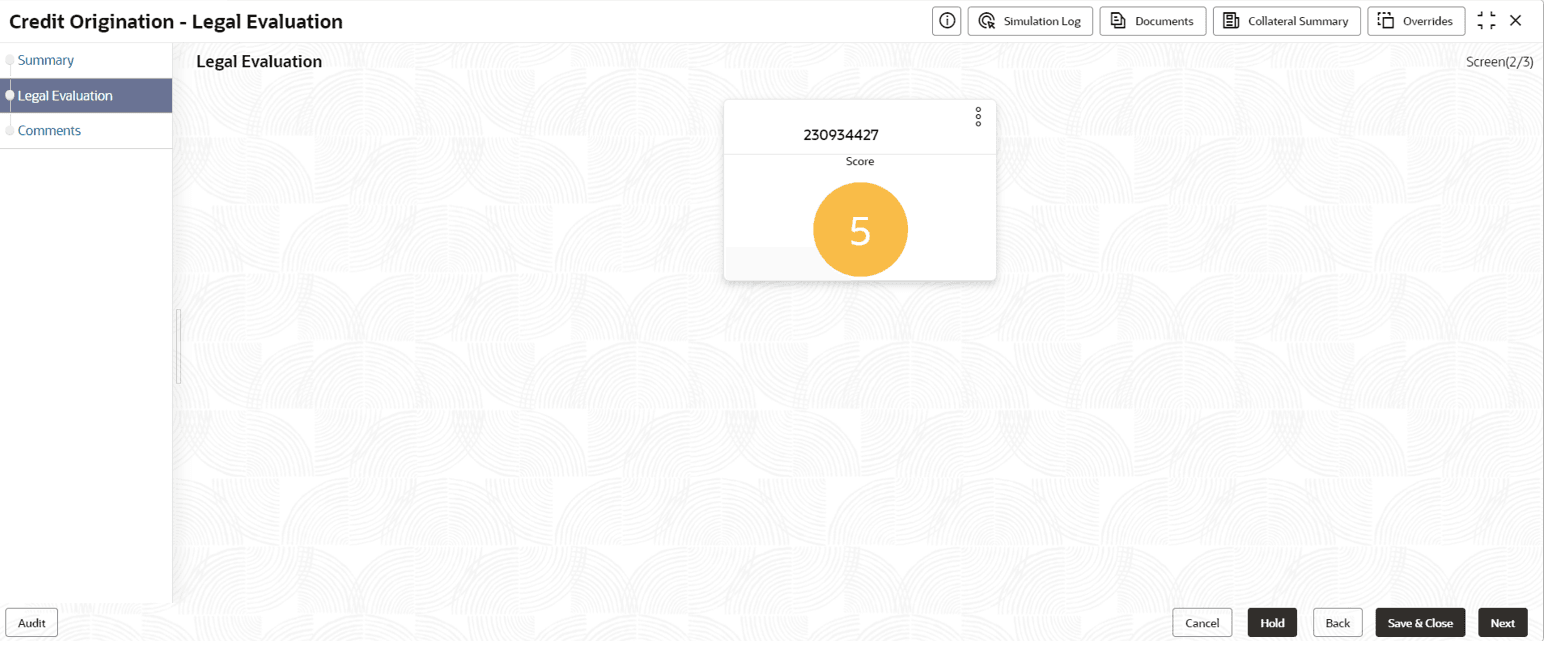
Financial Profile and Projections To view Financial Profile and Projections for five years, select Previous 5 years option from the Show results for drop-down list. Detailed Financial Profile and Projections To view detailed information about the Financial Profile and Projection, click View all in the respective sections. - After reviewing the Summary, click Next.The Legal Evaluation page is displayed.
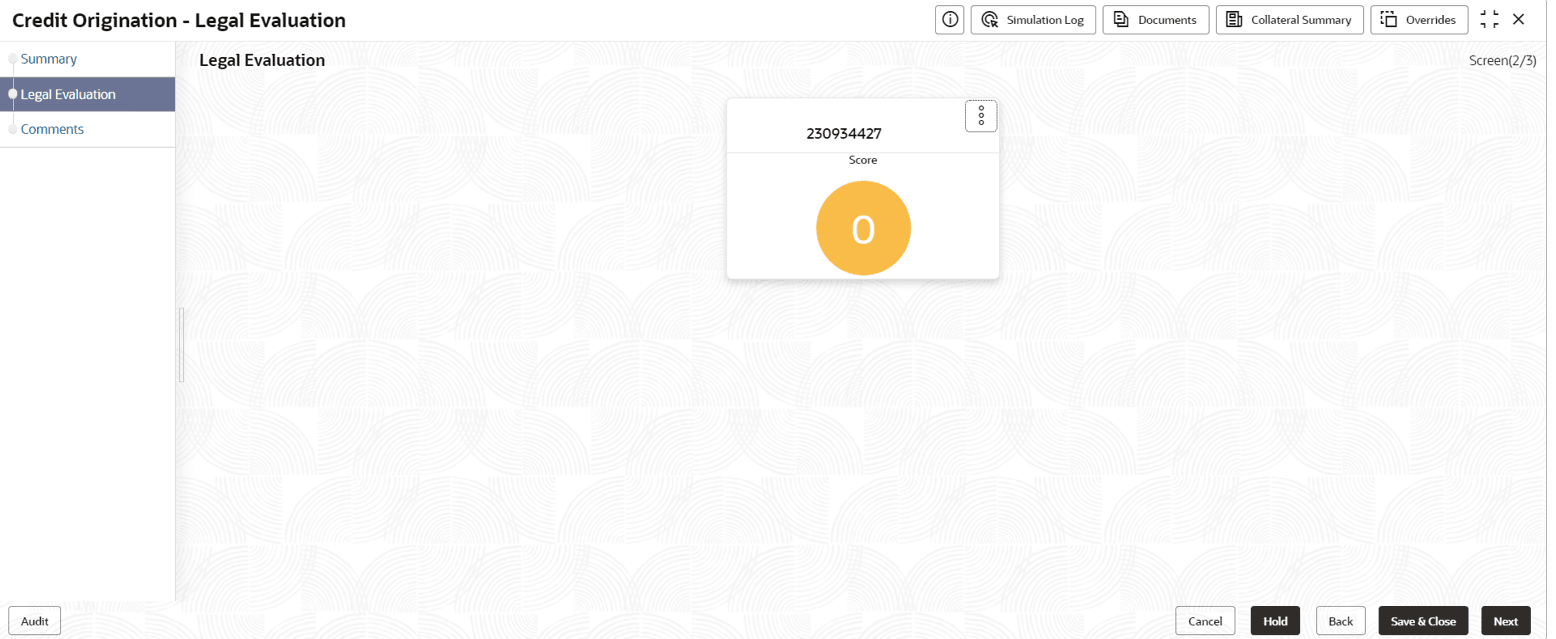
In Legal Evaluation page, you can perform legal evaluation for both the party and its connected parties by using a questionnaire related to the evaluation.
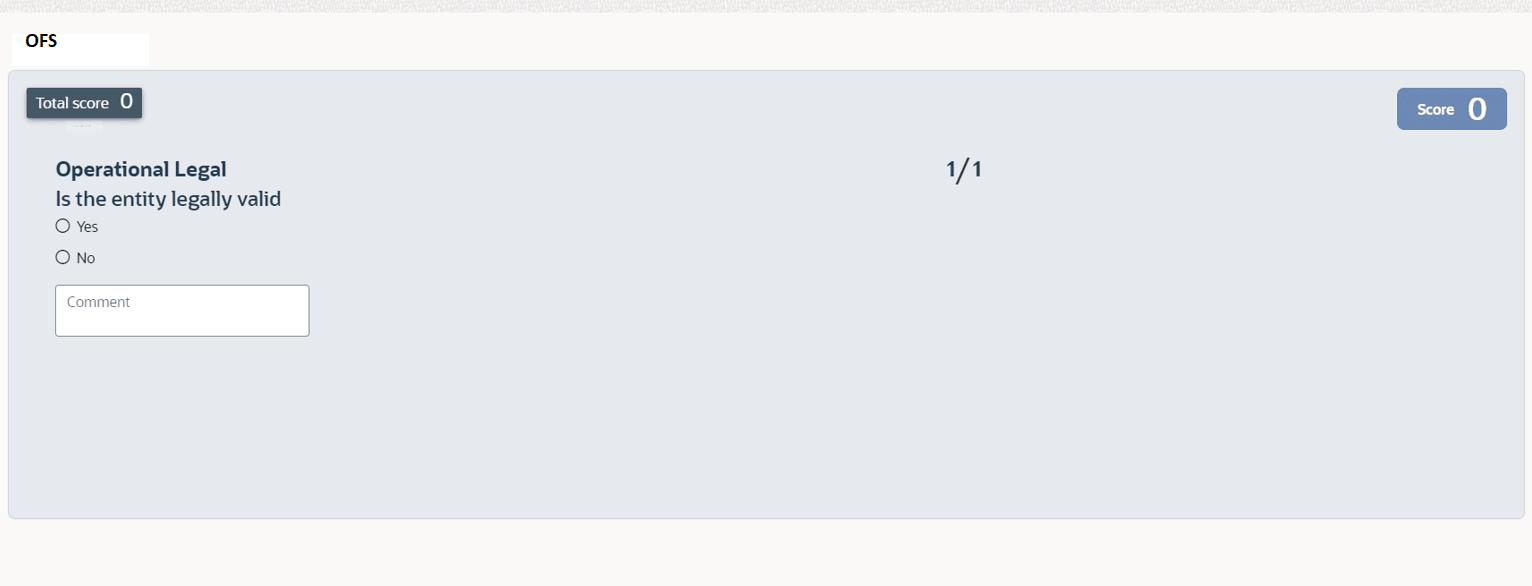
- To initiate the evaluation, click Start.The Questionnaire window is displayed.
Table 5-13 Questions
Fields/ Icons Description Next Category Select answers for the available questions and click Next Category. Right arrow Right arrow icon appears in case of multiple questions, click the right arrow and answer all the questions in all the category. A score is generated and displayed for the sector based on each answer provided.
Save Click Save. A score is generated and displayed for the sector based on each answer provided.
Note: The questions can be of multiple categories. For each question depending on the answer a score is generated.
After performing the legal analysis for both the party and its connected parties, the Legal Evaluation page with a cumulative score appears.
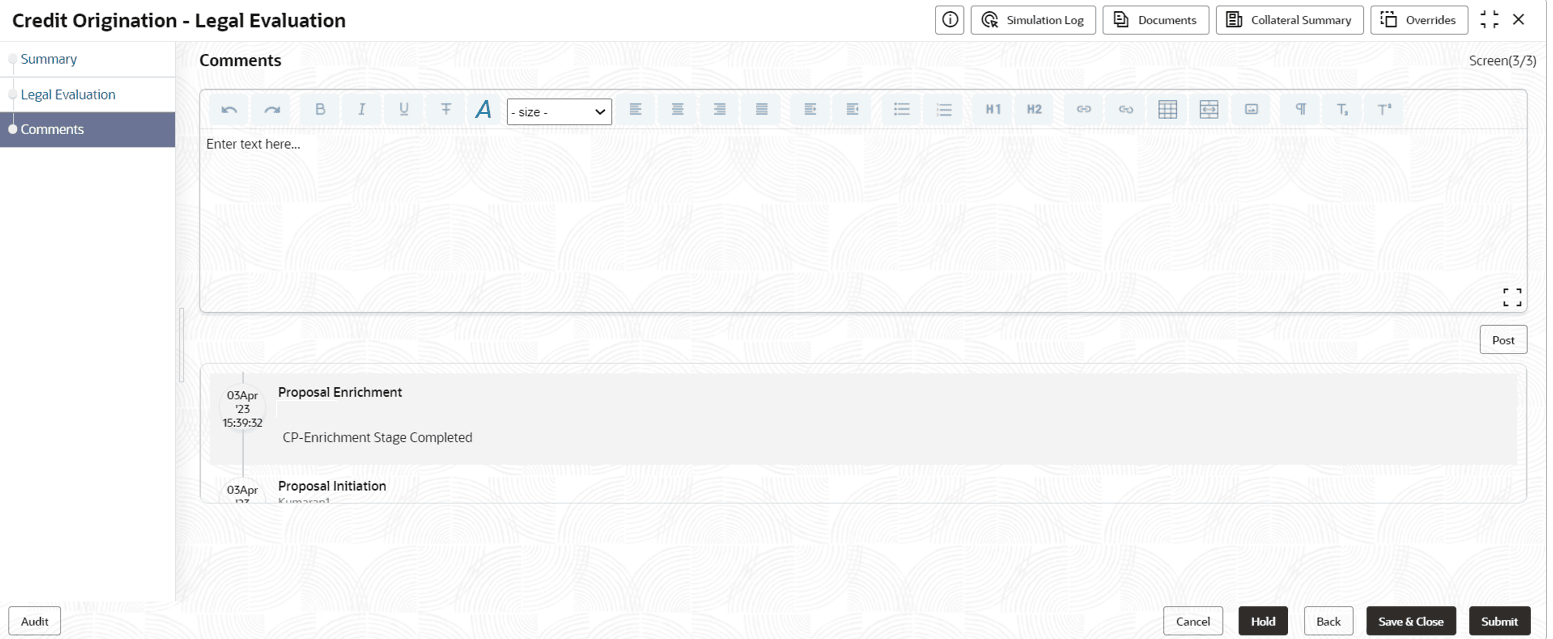
Click Next in the Legal Evaluation page. The Comments page is displayed.For field level information refer the table below.
Table 5-14 Comments
Fields/ Icons Description Comments Enter the overall Comments for the legal evaluation and click Post. The comment is posted below the Comments box section. - Click Submit.The Policy Exceptions window is displayed.
By default, Policy Exceptions are displayed for both the party and its child party.
Table 5-15 Policy Exception
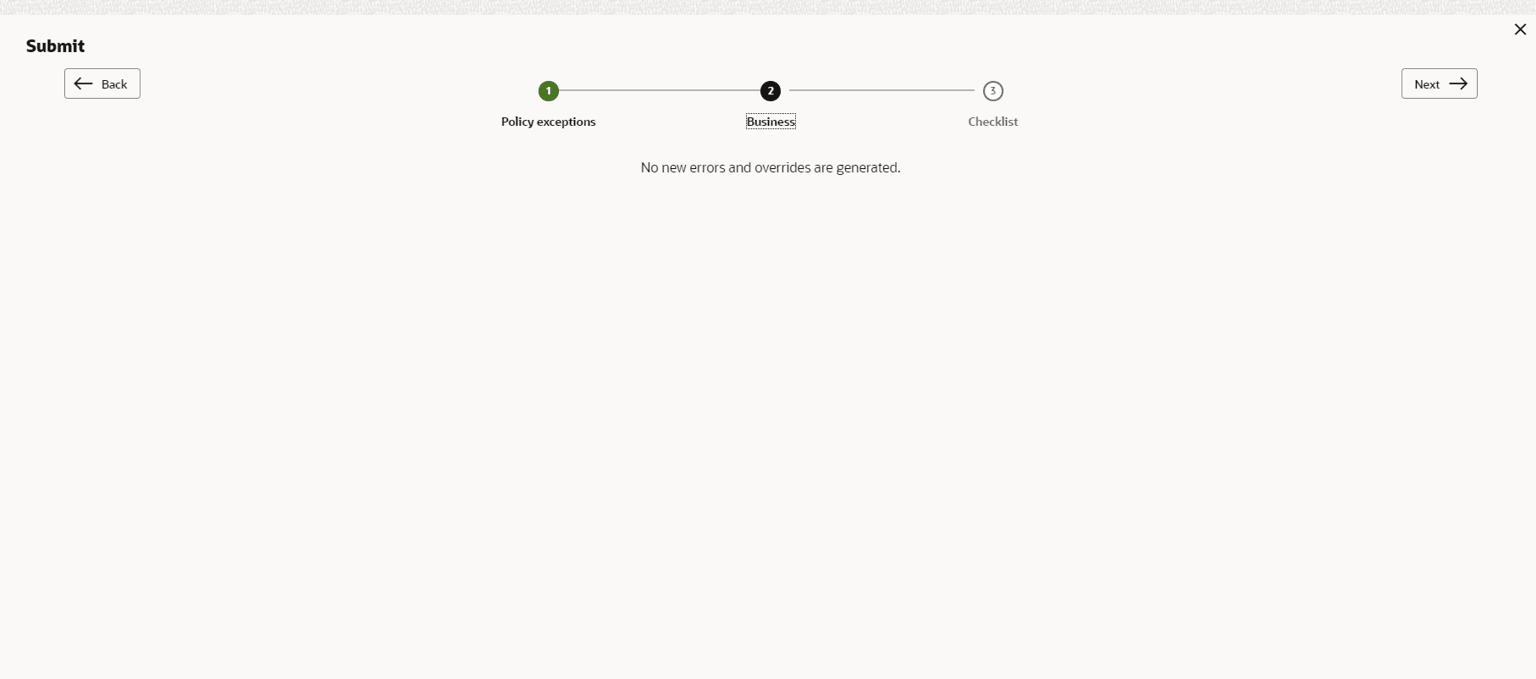
Fields/ Icons Description Party details To view the policy exception detail specific to party or child party, select the party from the drop-down list at top left corner. Next Click Next, the Business screen is displayed. - Click the Business data segment.
Table 5-16 Business
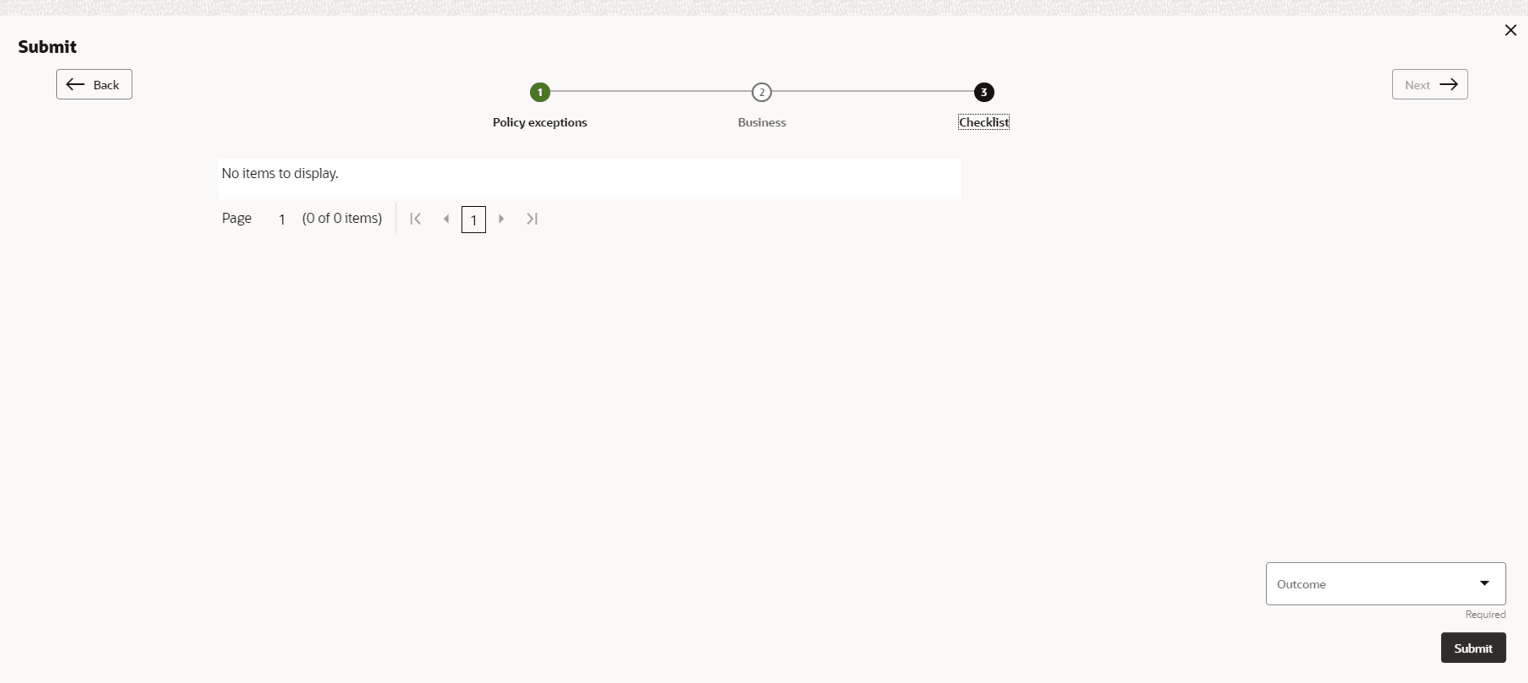
Fields/ Icons Description Next Click Next, the Checklist screen is displayed. - Click the Checklist data segment.
Table 5-17 Checklist
Fields/ Icons Description Outcome Select the Outcome as Proceed if additional information is not required. Else, select the Outcome as Additional Info. Submit Click Submit.


Parent topic: Proposal Evaluation