14 Document Upload and Checklist
This topic provides systematic instructions about the Document Upload and Checklist stage in the Simplified Credit Amendment Process.
In Oracle Banking Credit Facilities Process Management, supporting documents such as financial statements and collateral documents can be uploaded in any stage of credit proposal process. Supporting documents help the senior officers in bank to accurately evaluate the credit worthiness of the party and approve the proposal. Documents added for the proposal can be removed whenever the document becomes invalid.
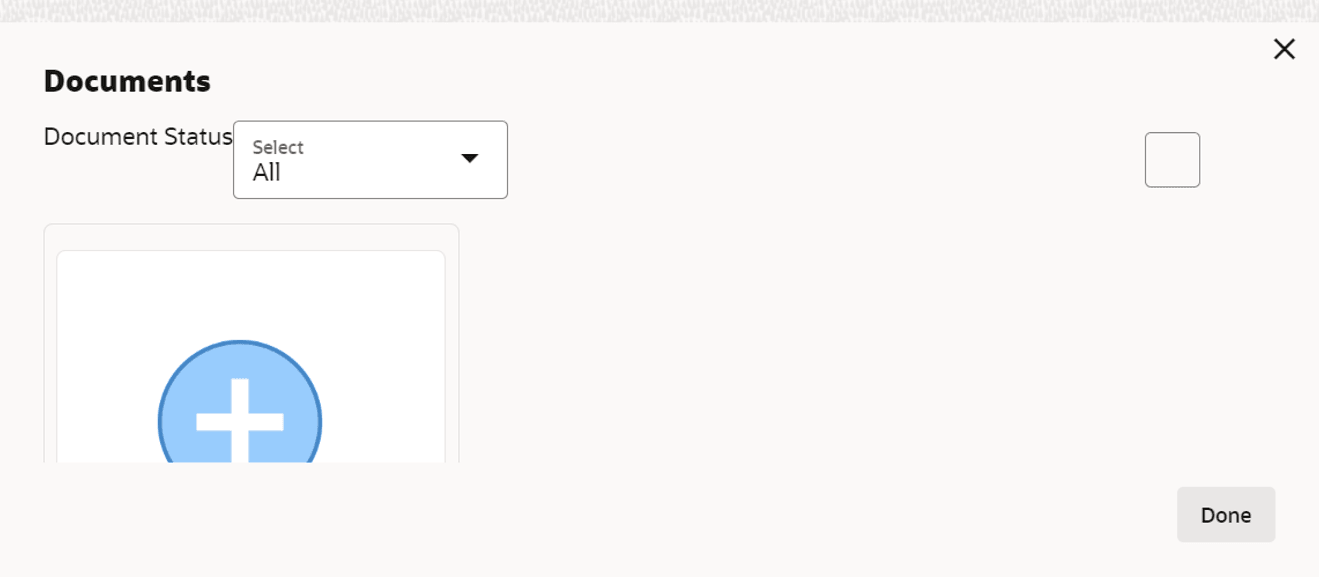
- Click Documents Icon at the top right corner of any page.
The Documents window is displayed.
If the document list is configured in Business Process Maintenance, the same appears in the above window. You can also click the Add icon to upload other documents.
In case the mandatory document is not uploaded, the system prompts an alert. You need to upload the necessary documents and proceed further.
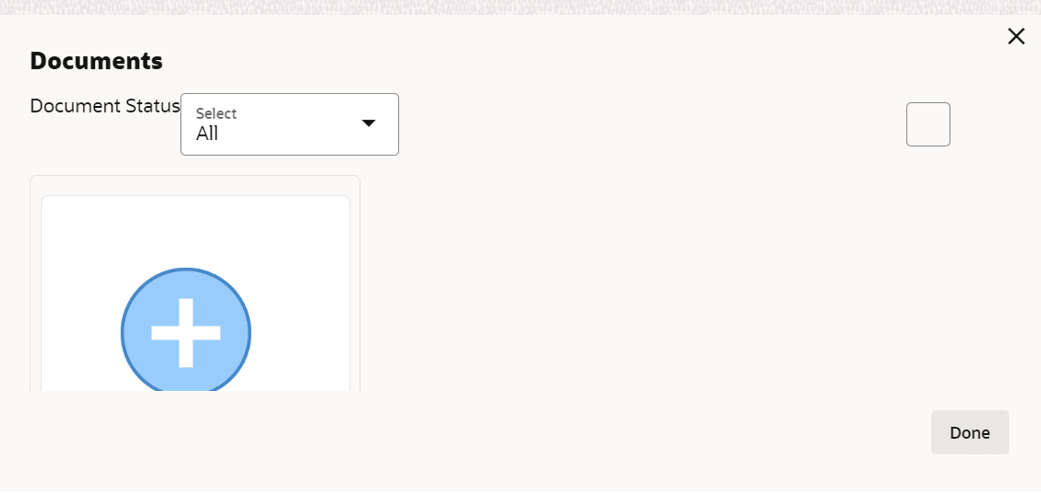
- To change the table view to the list view, click the list icon at the top right
corner. The Documents window appears as shown below.The Documents window is displayed.
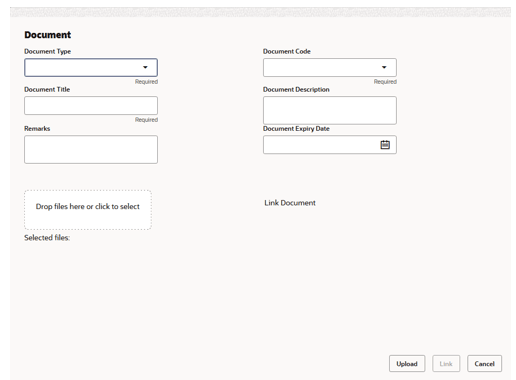
- Click Add icon. The Document Details window is displayed.
For more information on the fields, refer to the fields description table below.
Table 14-1 Document Details
Fields Description Document Type Select the document to be uploaded. The options listed in this field depend on the domain being used. For example, if a finance is being processed, then finance-related options will appear. Similarly, if an application form is being processed, then onboarding-process-related options will appear.
Note: This is a mandatory field. The system validates the value selected in this field, against the value selected in Document Type, to ensure that only the permissible value has been sent in the payload. In other words, user will not be allowed to enter their own values in this field. User can only select from the available options.
Document Code Select the required document-specific code, which identifies the document. The values listed in this field, depend on the value selected in the Document Type field. For example, if shipping-related documents are being uploaded, then the code could be a delivery note, or a warehouse bill. Or, if application/onboarding-related documents are being uploaded, then the code could be identity proof, or the application-form itself.
Note: This is a mandatory field. The system validates the value selected in this field, against the value selected in 'Document Type', to ensure that only the permissible value has been sent in the payload. In other words, user will not be allowed to enter their own values in this field. User can only select from the available options.
Document Title Enter Document Title of the document. Note: A maximum of 22 characters are allowed. Only alpha-numeric characters and spaces are allowed. Special characters are not allowed.
Document Description Enter a brief description about the document in the Document Description field. Remarks Enter Remarks, if any. Note: A maximum of 1000 characters are allowed. Only alpha-numeric characters and spaces are allowed.
Document Expiry Date Click Calendar icon and select Document Expiry Date. Note: The document expiry date should be greater than current business date.
Drop files here or click to select Either drag and drop the document being uploaded. Or click, to browse and select the document from the local machine. Once a document is dragged and dropped, or clicked and selected, the name of the document appears beside selected files.
Note:To upload multiple supporting documents at the same time, drag and drop or click and select all the documents.
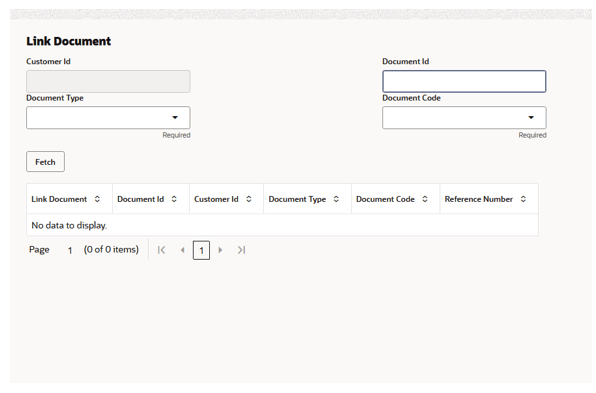
Link Document Click this link, to view all the documents uploaded for the corporate customer. On clicking the link a Link Document window pops up, where all the uploaded documents can be viewed, and specific documents can also be searched. - Click Link Document window.
For more information on the fields, refer to the fields description table below.
Table 14-2 Link Doument
Field Description Customer ID Displays the ID of the customer. Document ID Enter the ID or search the title of the document. Document Type Select the document type. Document Code Select the document code. - Click Upload.The Checklist window is displayed.