13.2 Handoff - Manual Retry
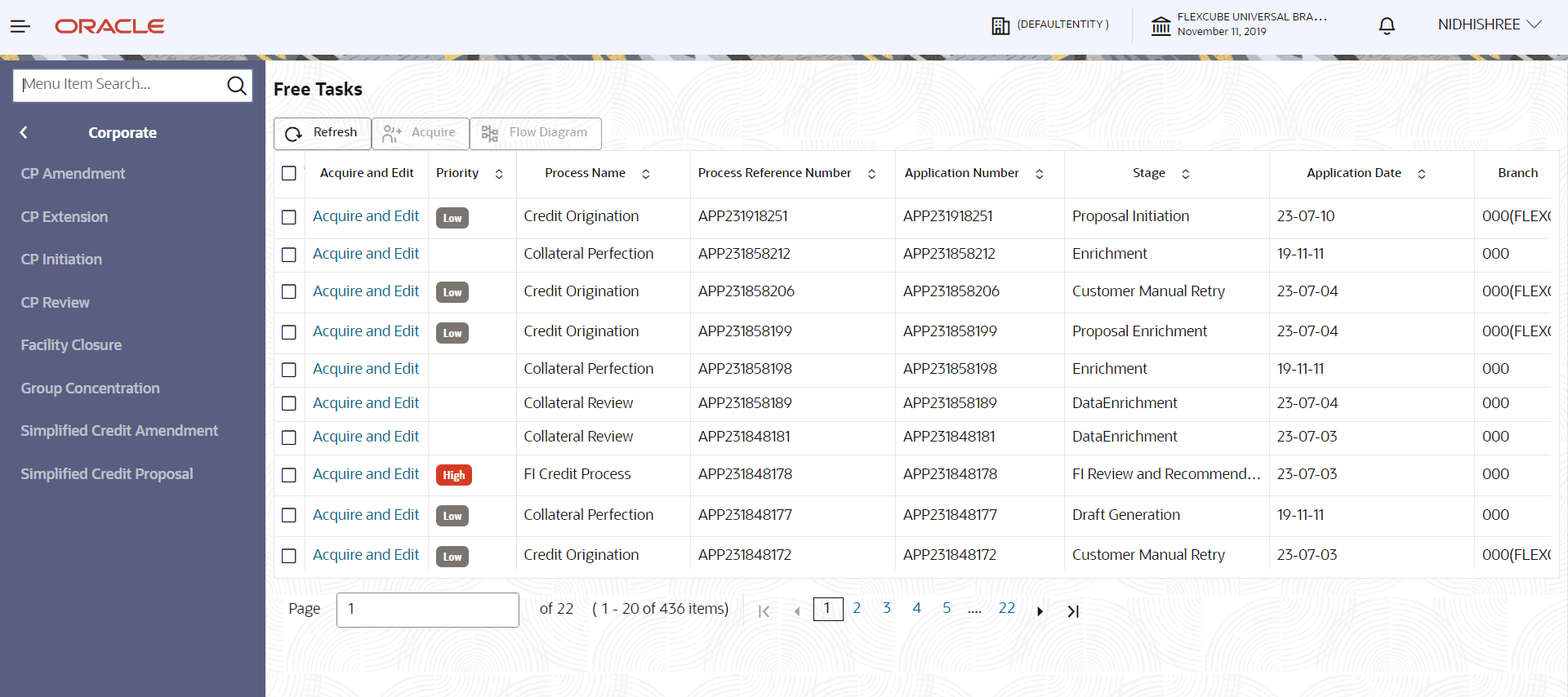
- In OBCFPM, navigate to Tasks > Free Tasks.The Free Tasks page is displayed.
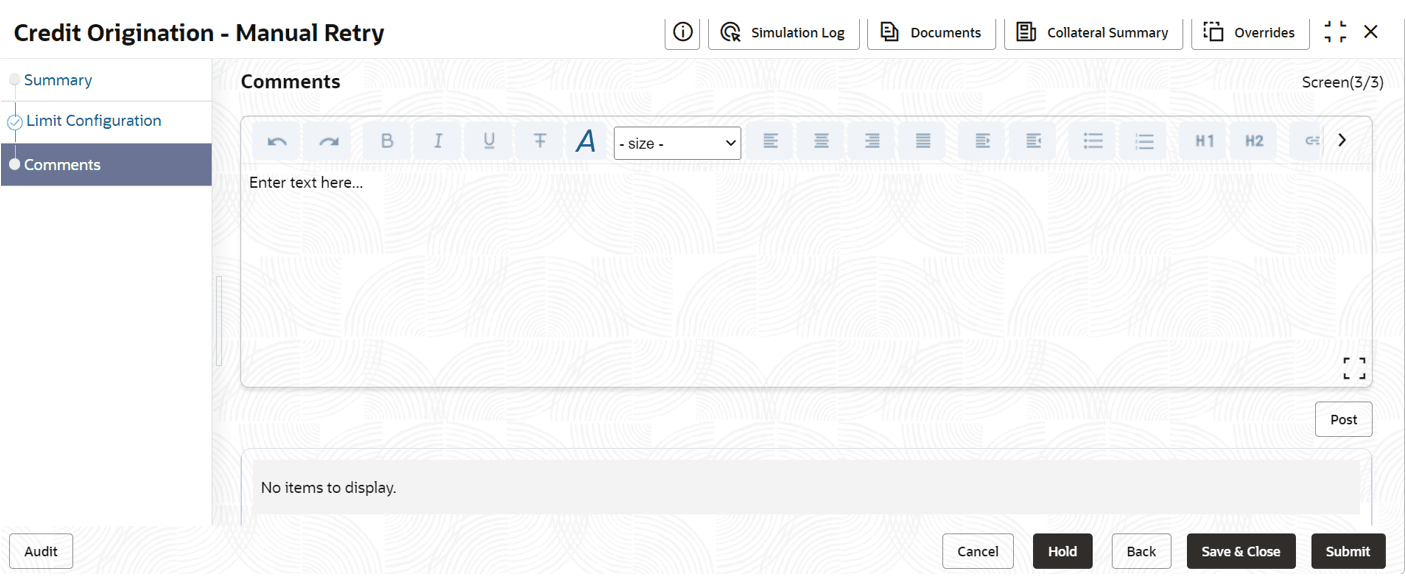
- Acquire & Edit the required Manual Retry task.The Credit Origination- Manual Retry page summarizing the proposal is displayed.
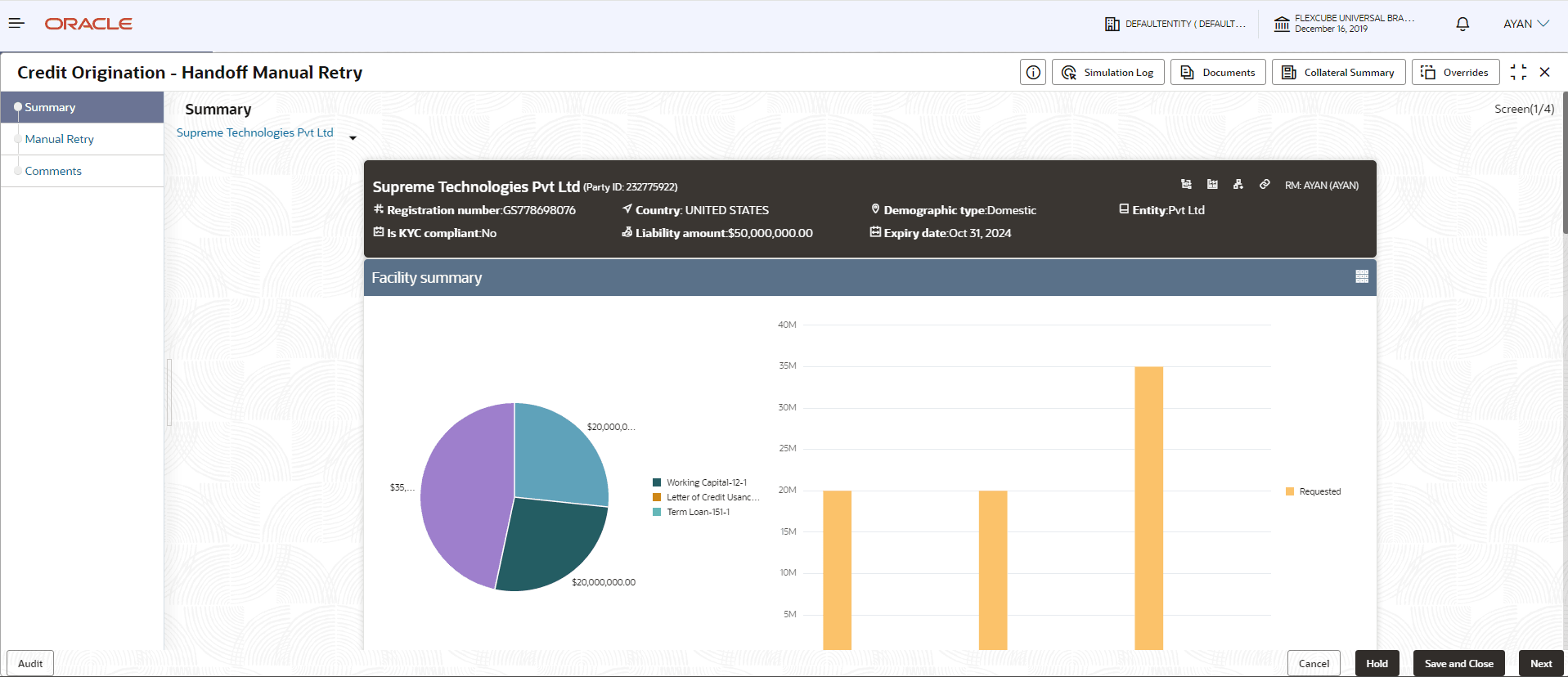
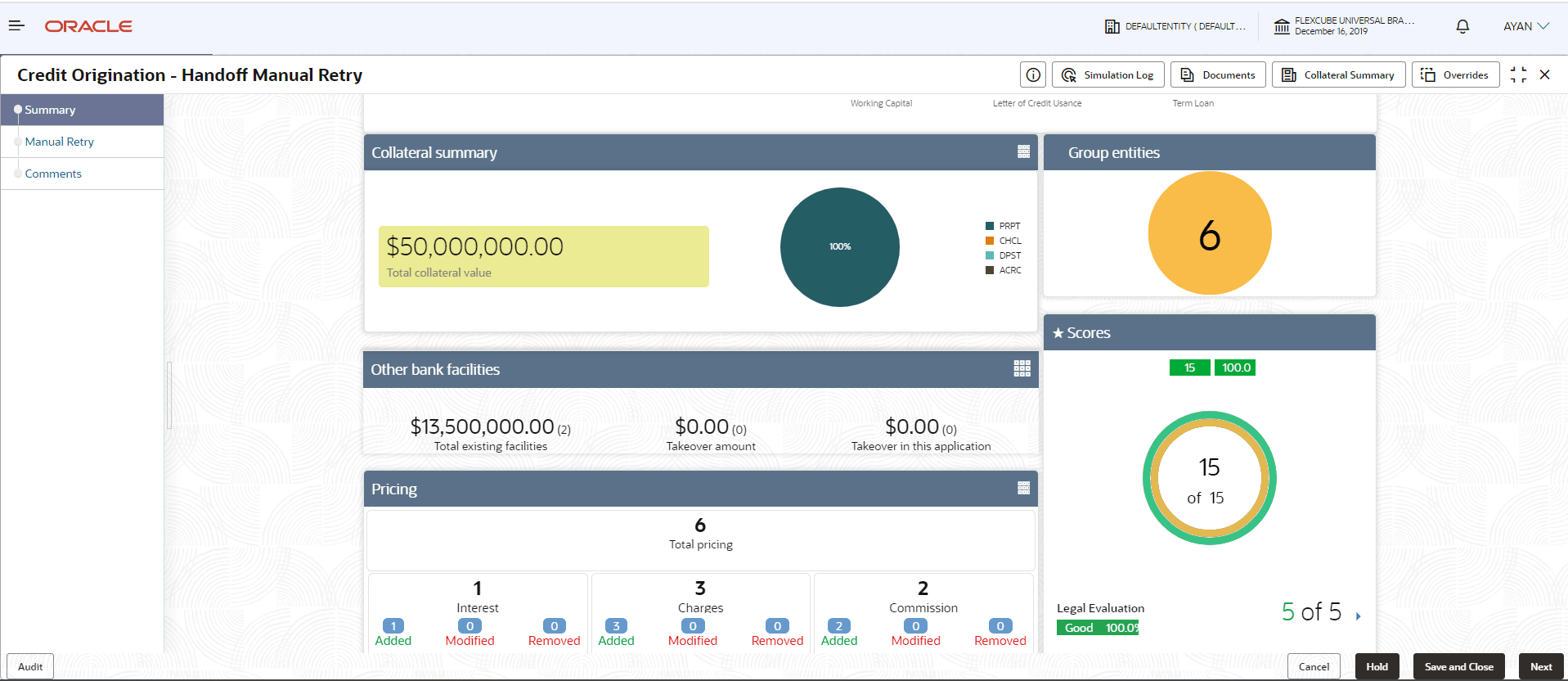
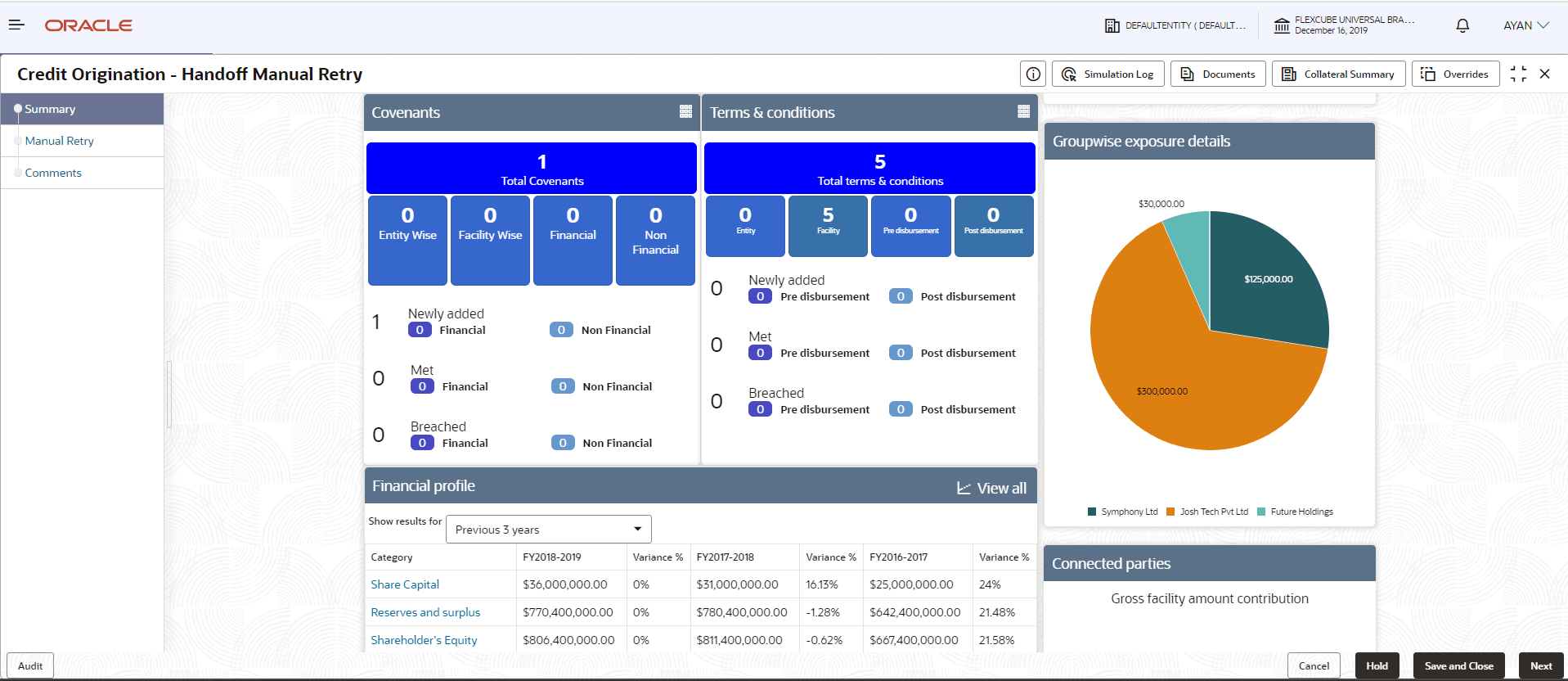
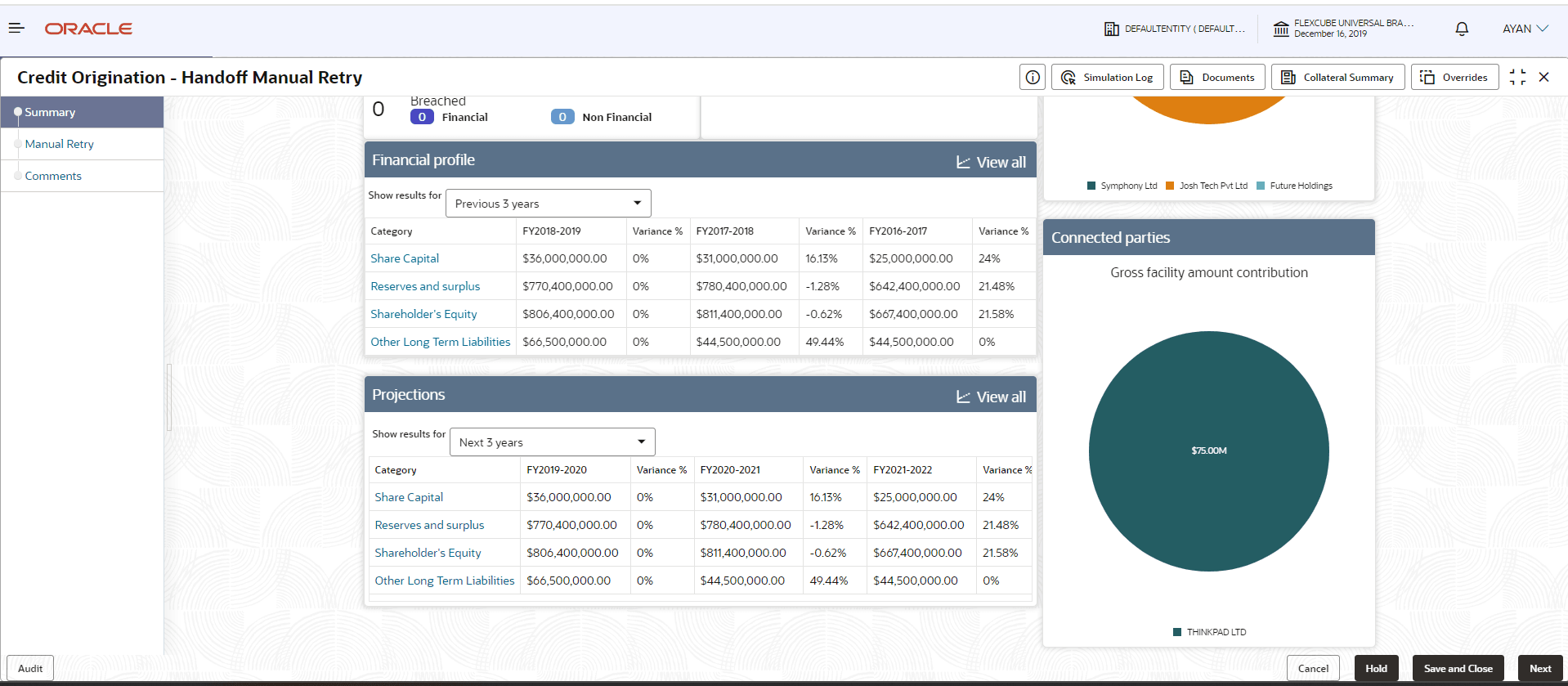
In Summary page the hand-off error details are displayed.
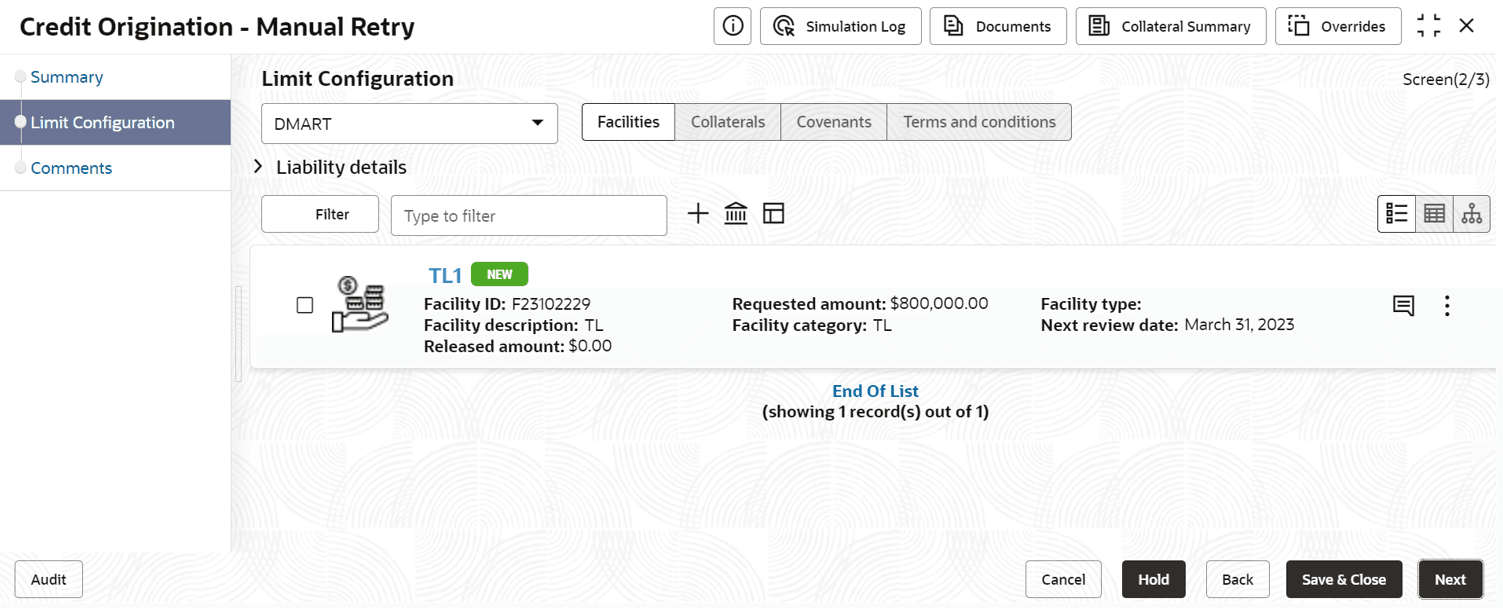
- Click Next.The Limit Configuration page is displayed.
In Limit Configuration page, Facilities, Collateral, Covenants and Conditions added during the proposal initiation are displayed.
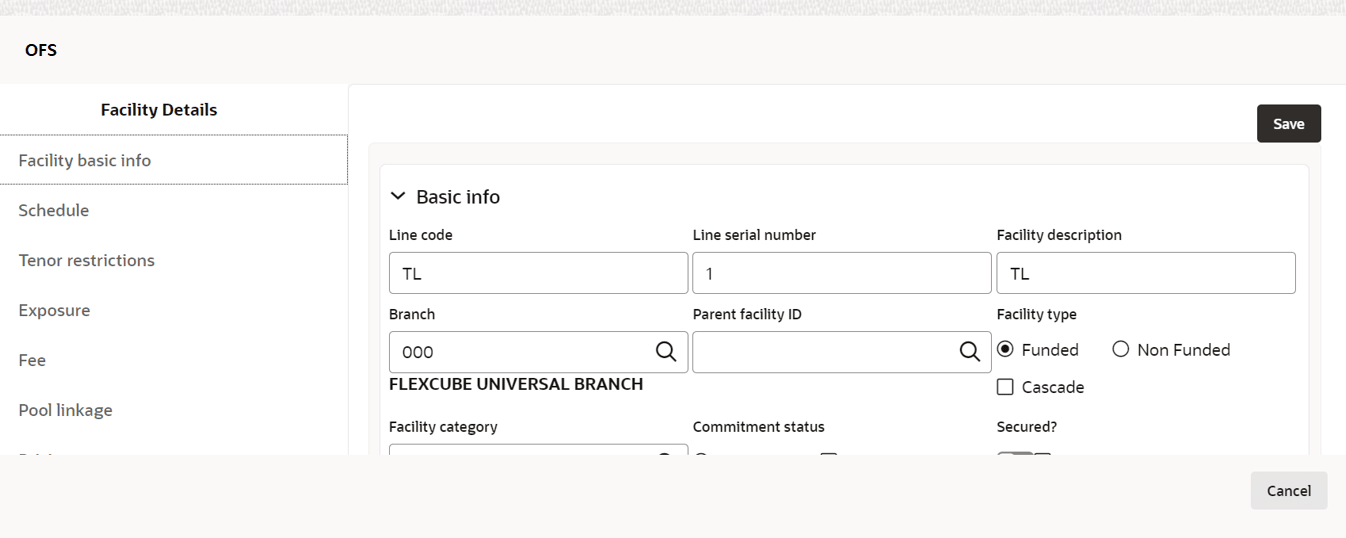
- To configure the limit, click on the Facility and then click Edit
icon. Facility Details window appears.
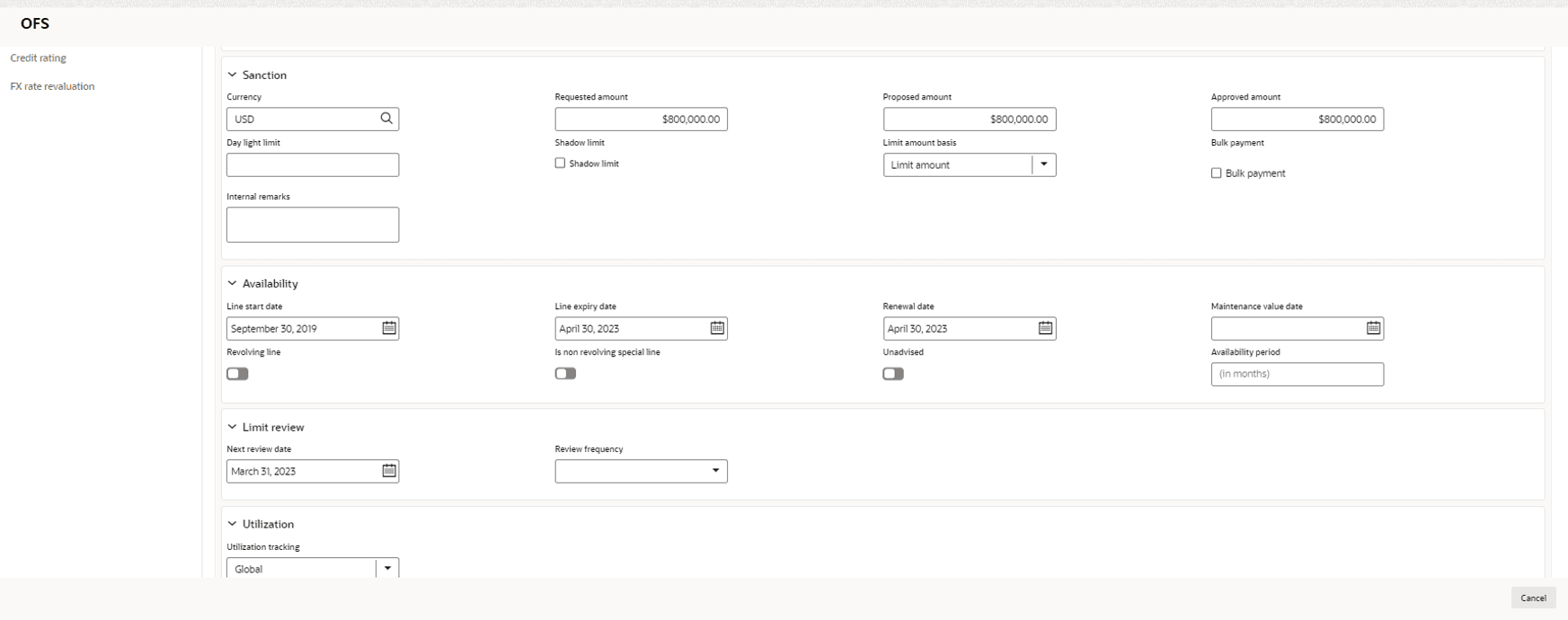
Enter or Select the fields in Facility Details window. For more information on adding facility details refer To Add new facility (step 24) in Funding Requirement section.
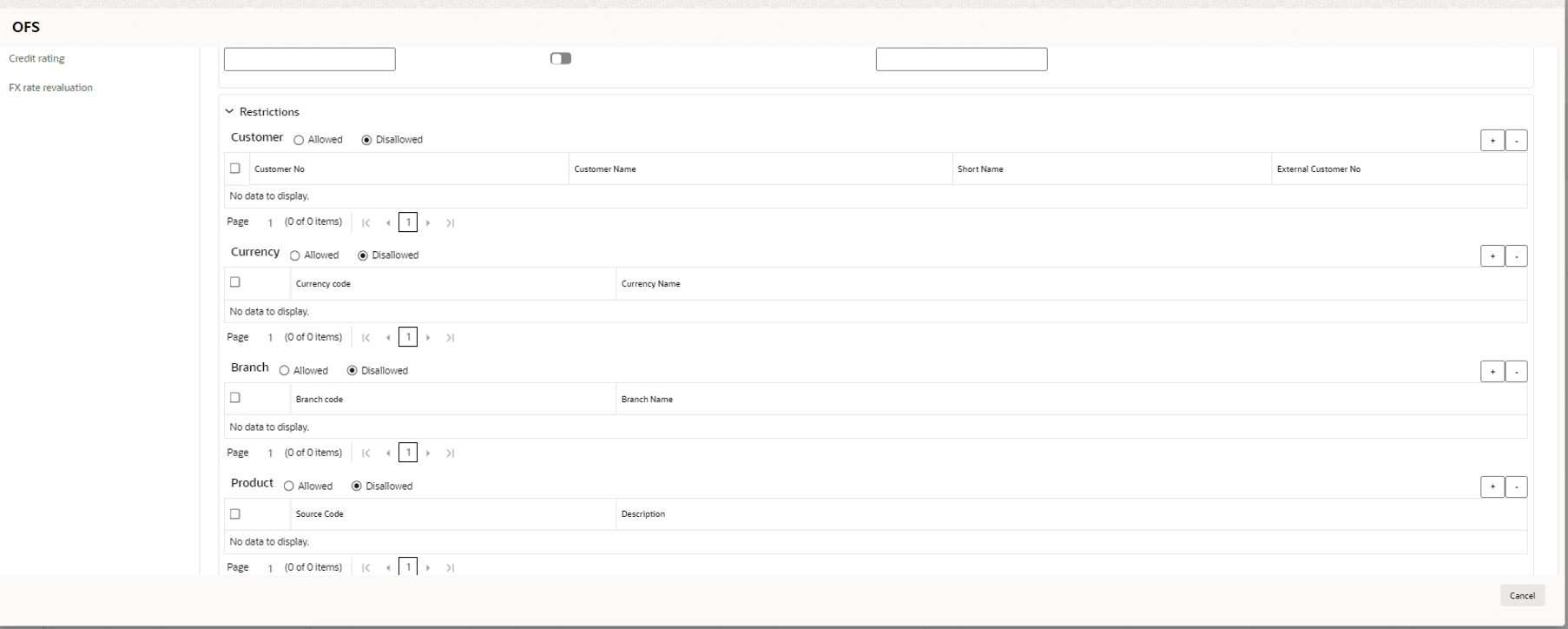
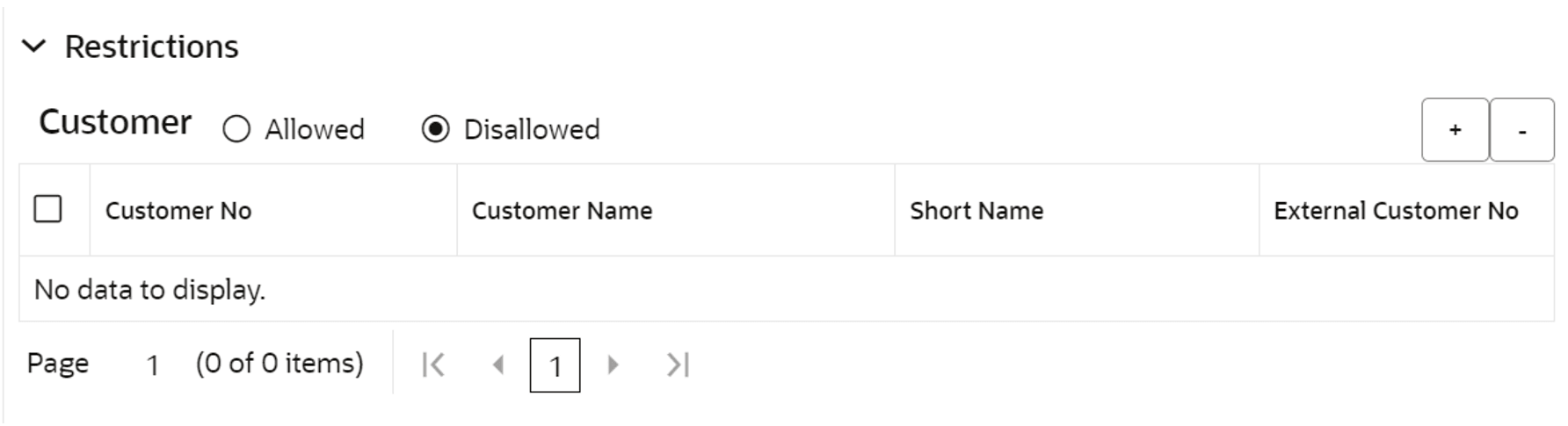
- Click and expand the Restrictions section.
For field level information on Restrictions screen refer the table below.
Table 13-1 Restrictions
Fields/ Icons Description Allowed, Disallowed Allowed or Disallowed for specific Customer, Currency, Branch, Product, and Exposure, based on the requirement. Save Click Save. The Limit Configuration page is displayed. Click Next in the Limit Configuration screen. The Comments page is displayed.
The Comments page is displayed.Post comments, if required. The posted comment is displayed below Comments box section.
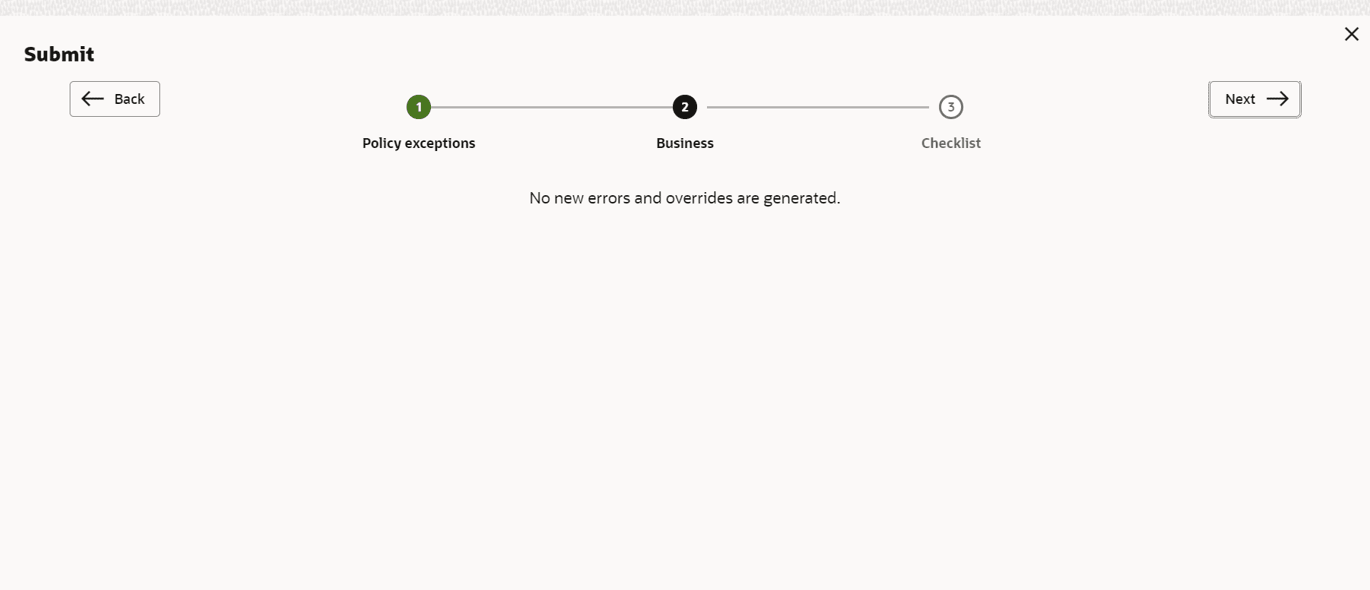
- Click Submit.The Policy exceptions window is displayed.
By default, Policy Exceptions are displayed for both the party and its child party.
To view the policy exception detail specific to party or child party, select the party from the drop-down list at top left corner.
- Click the Business data segment.
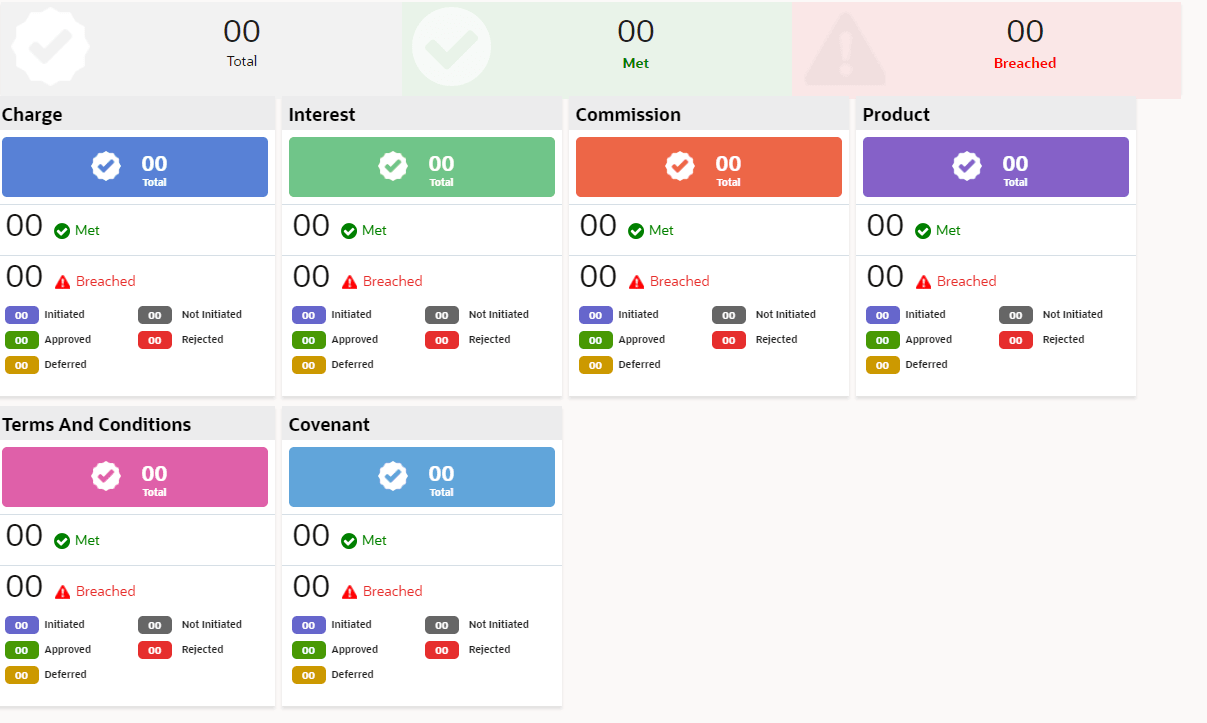
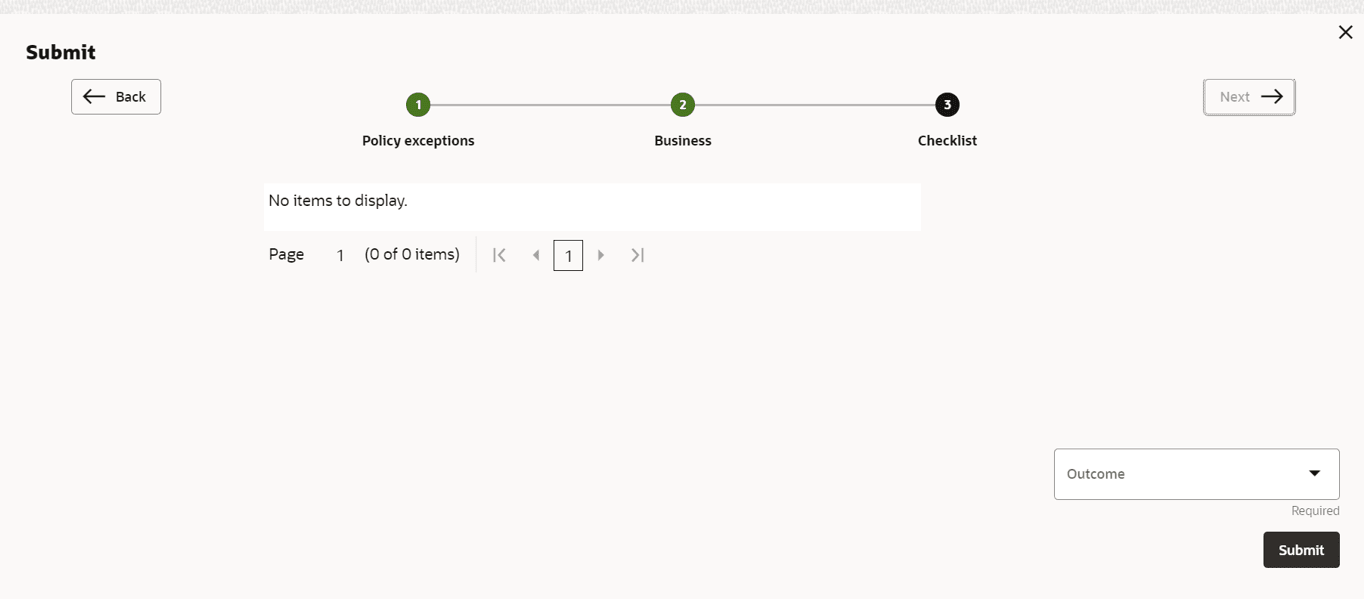
- Click the Checklist data segment.
For field level information on Checklist screen refer the below table.
Table 13-2 Checklist
Fields/ Icons Description Outcome Select Outcome as Proceed if additional information is not required. Else, select the Outcome as Additional Info. Submit Click Submit. The proposal is moved to the Back Office System.
Parent topic: Proposal Handoff