12 Limit Configuration
The following table provides high level overview about the Limit Configuration stage.
Table 12-1 Limit Configuration stage
| Information available for user | Activities that can be performed by user |
|---|---|
|
|
Steps to configure limit
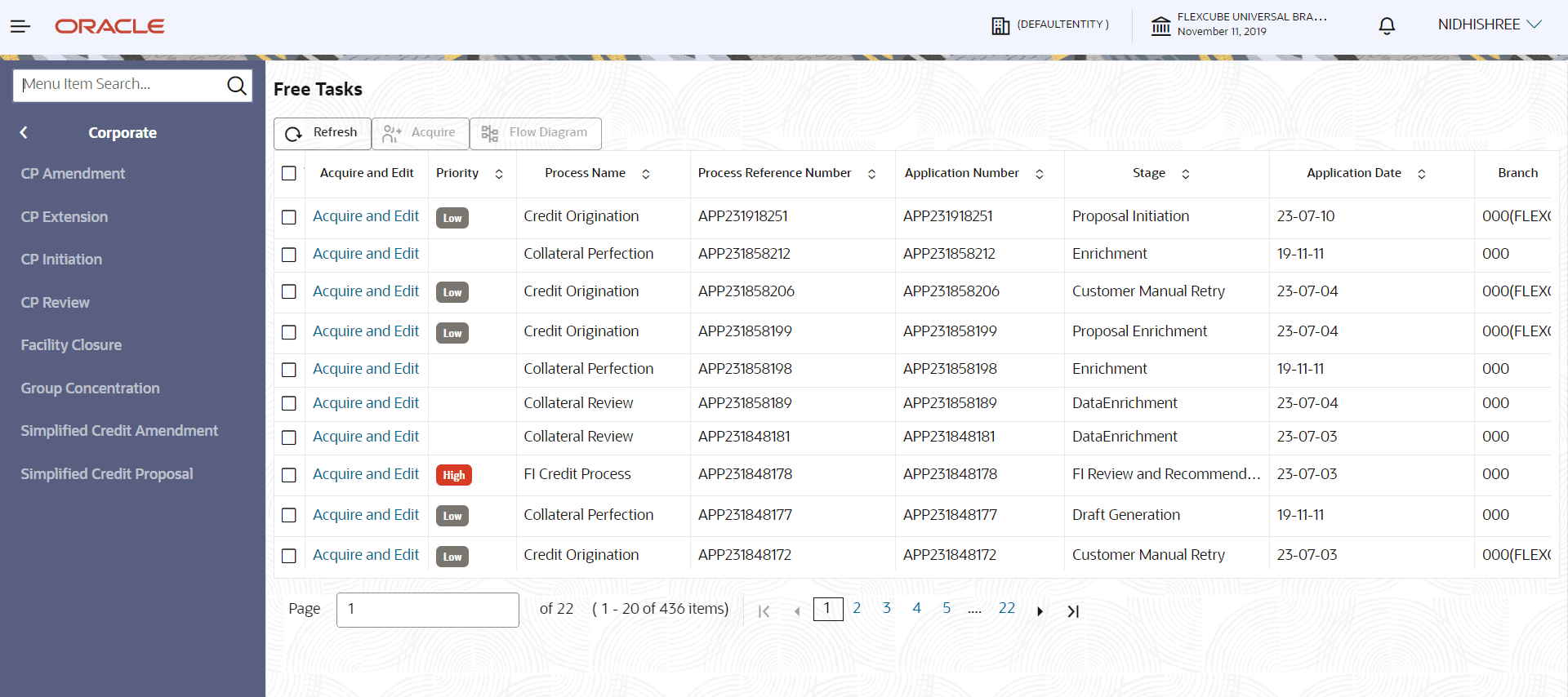
- In OBCFPM, navigate to Tasks > Free Tasks.The Free Tasks page is displayed.
Viewing Summary:
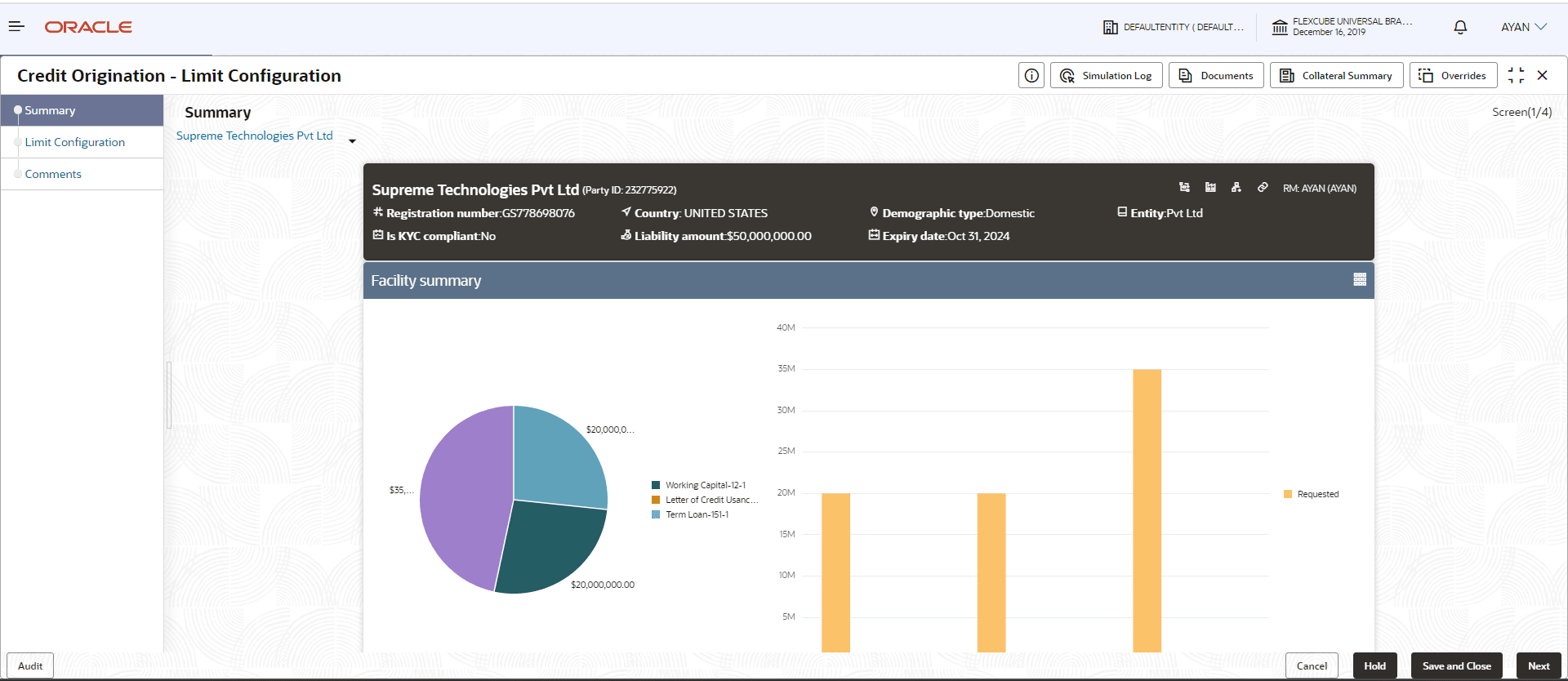
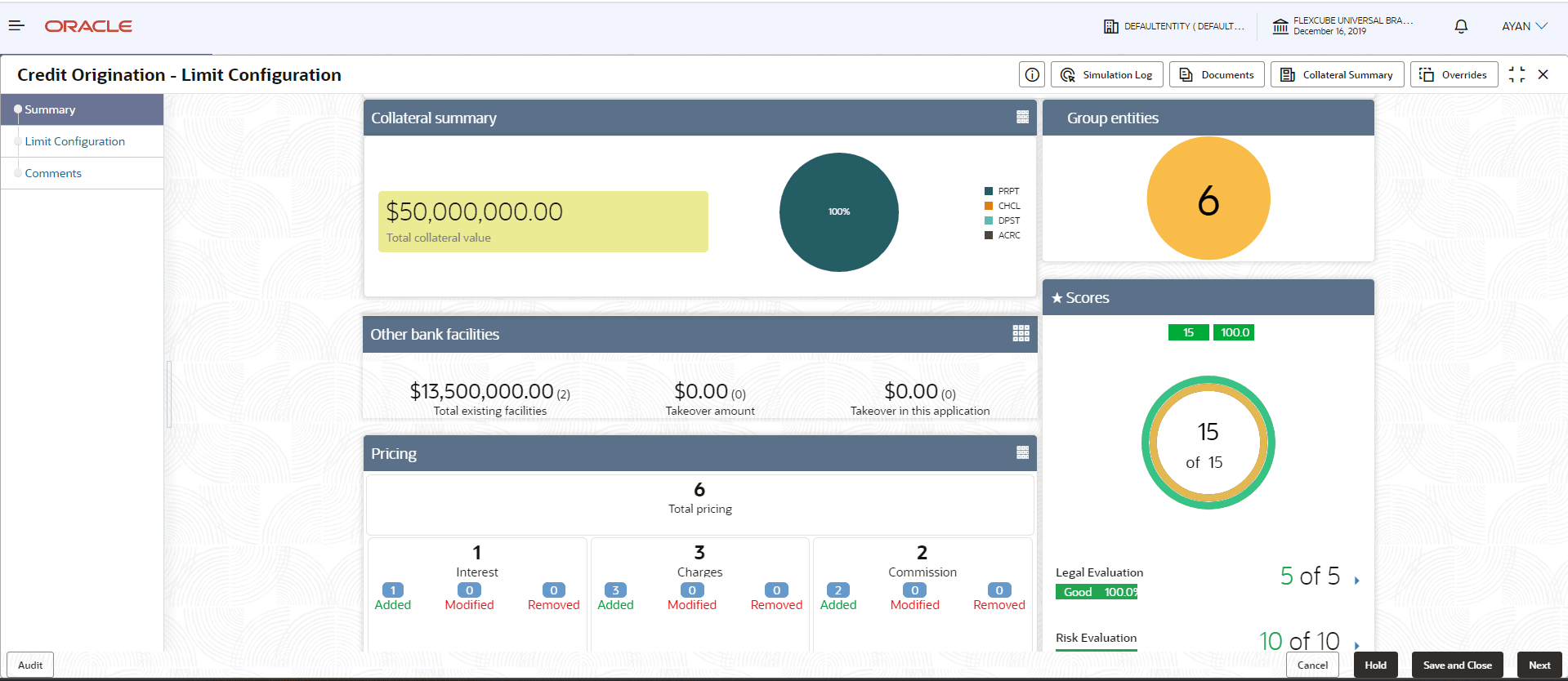
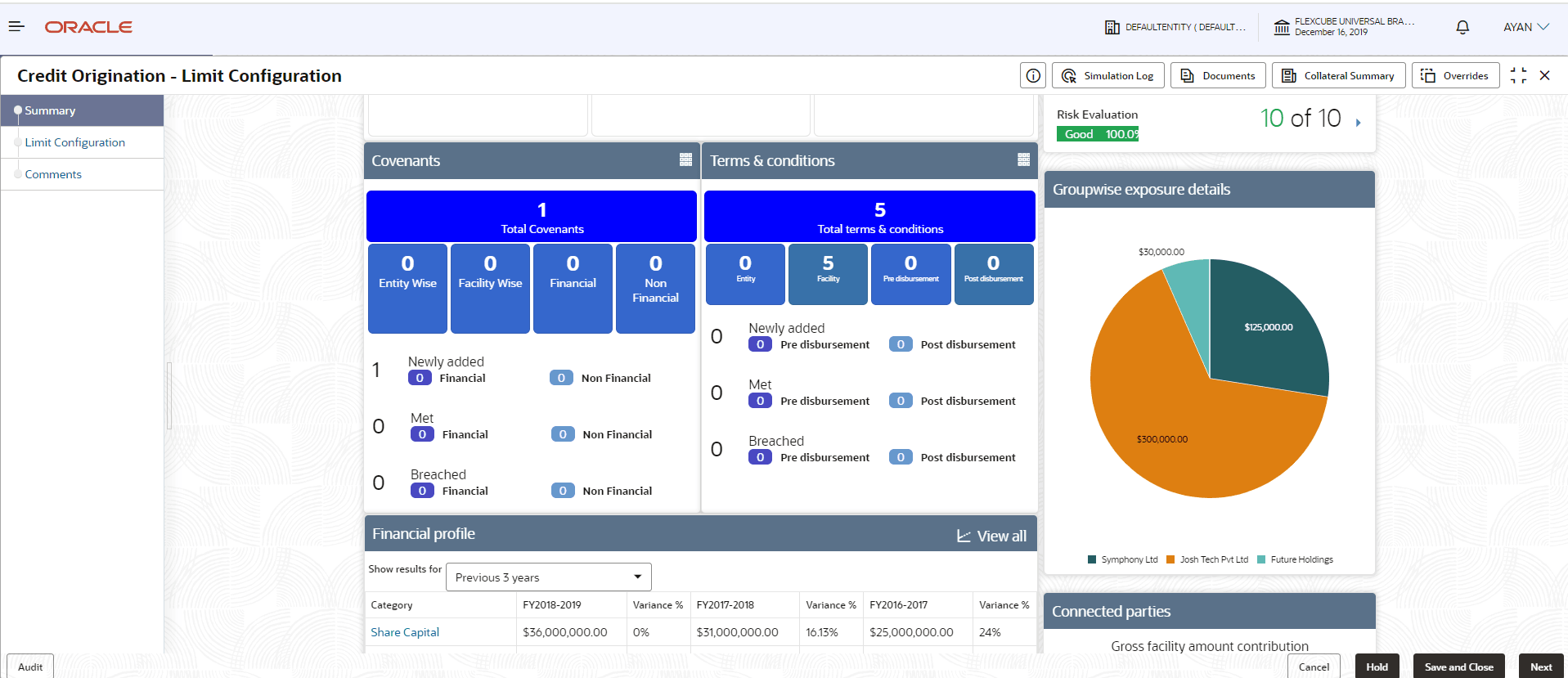
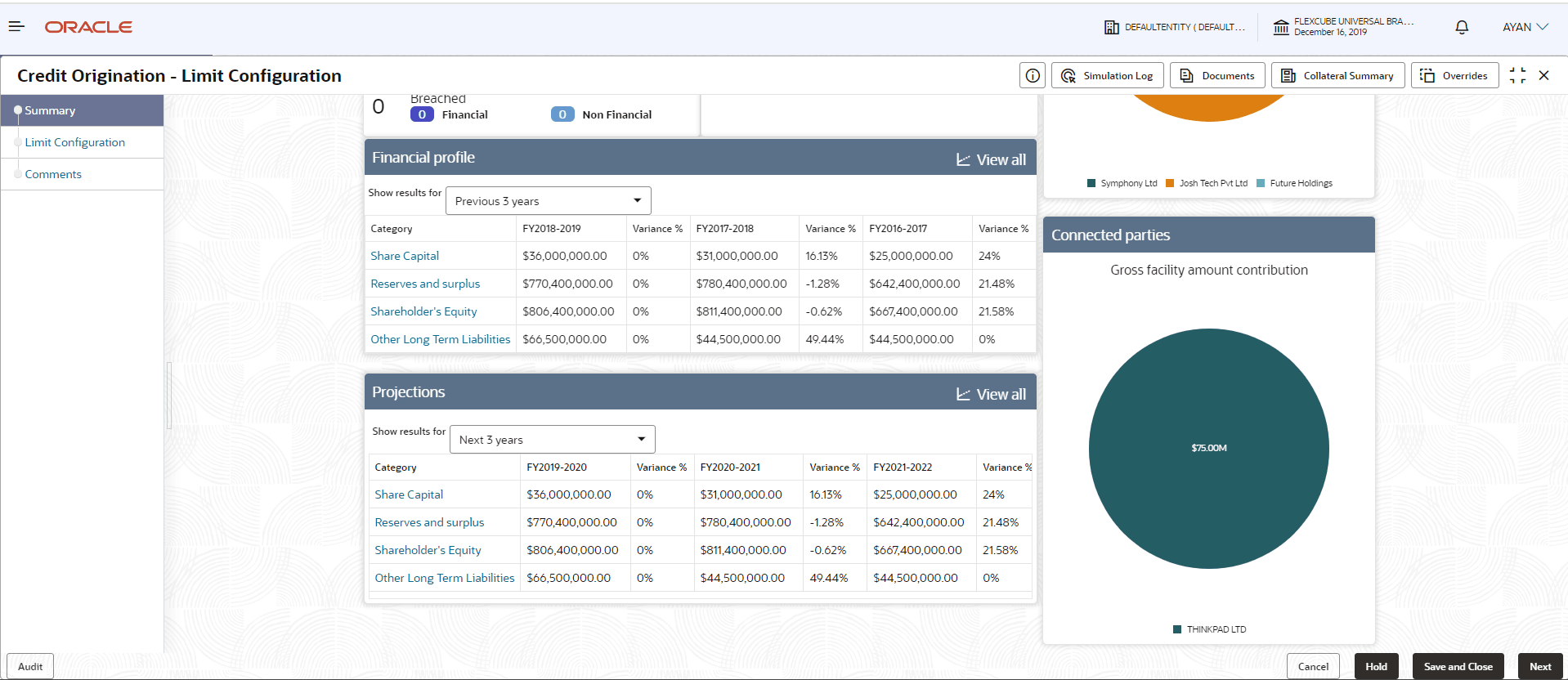
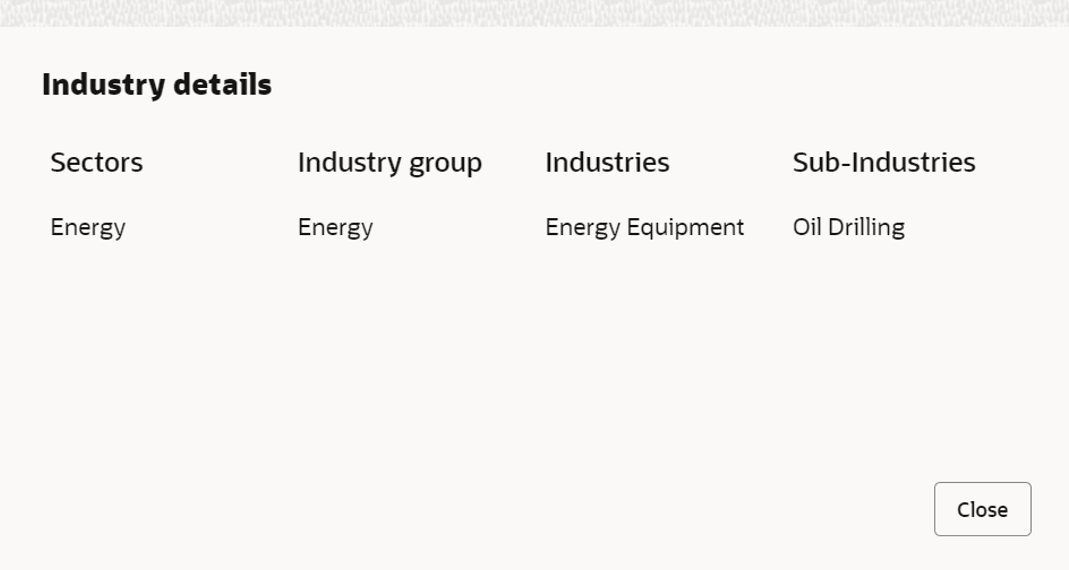
- To view the sector and industry information, click Industry icon in
Party Information section.The Industry Details window is displayed.
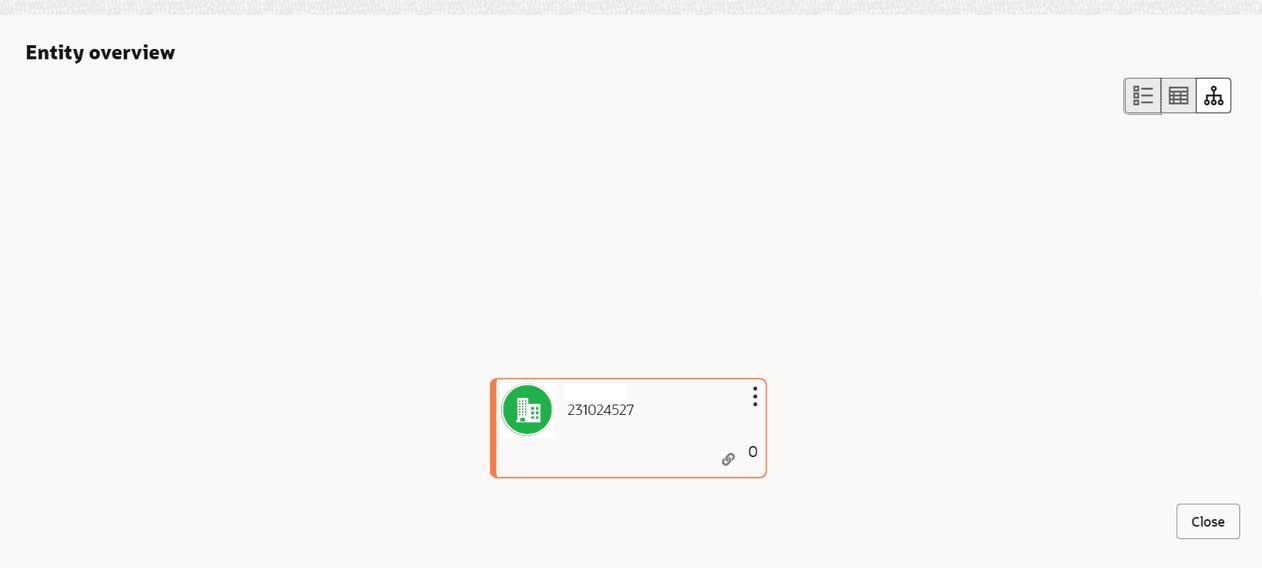
- To view the overview of the party, click the Entity Overview icon in
Party Information section.The Entity Overview window is displayed.
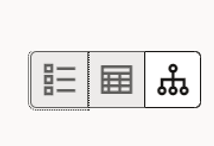
- To change the layout of the Entity Overview, click Layout icon at
the top right corner.The Layout window is displayed.
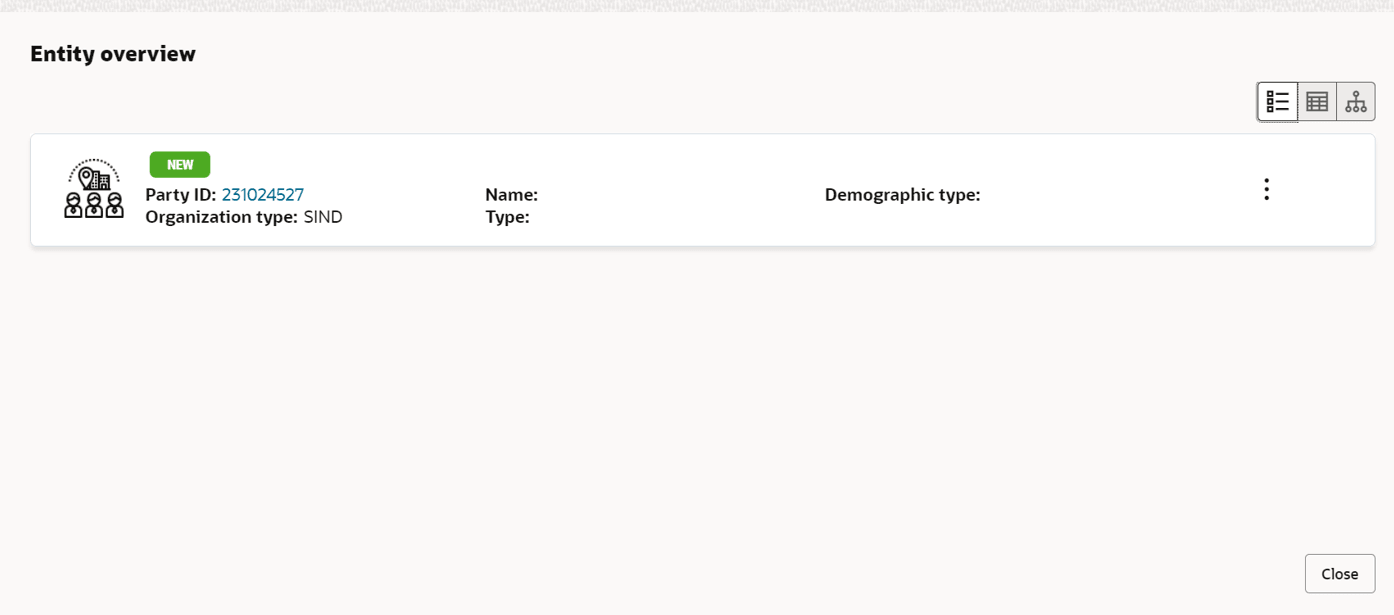
- Select the required layout. Entity Overview is changed to the selected
layout as shown below.
For field level information on Entity Overview screen refer the table below.
Table 12-2 Entity Overview
Fields/ Icons Description Close To exit Entity Overview window, click Close. In Party Information section, the count of Share Holders, Contractors, Guarantors, and Bankers is displayed.
Count numbers To view the detailed information about the Share Holders, Contractors, Guarantors, and Bankers, click the respective count numbers. Layout icon To change the layout of Facility Summary, Collateral Summary, Existing Facilities held with Other Bank, Pricing, Covenants, and Conditions in Summary page, click the Layout icon and select the required layout. By default, Financial Profile of the party and financial Projections for the party are listed for 3 years.
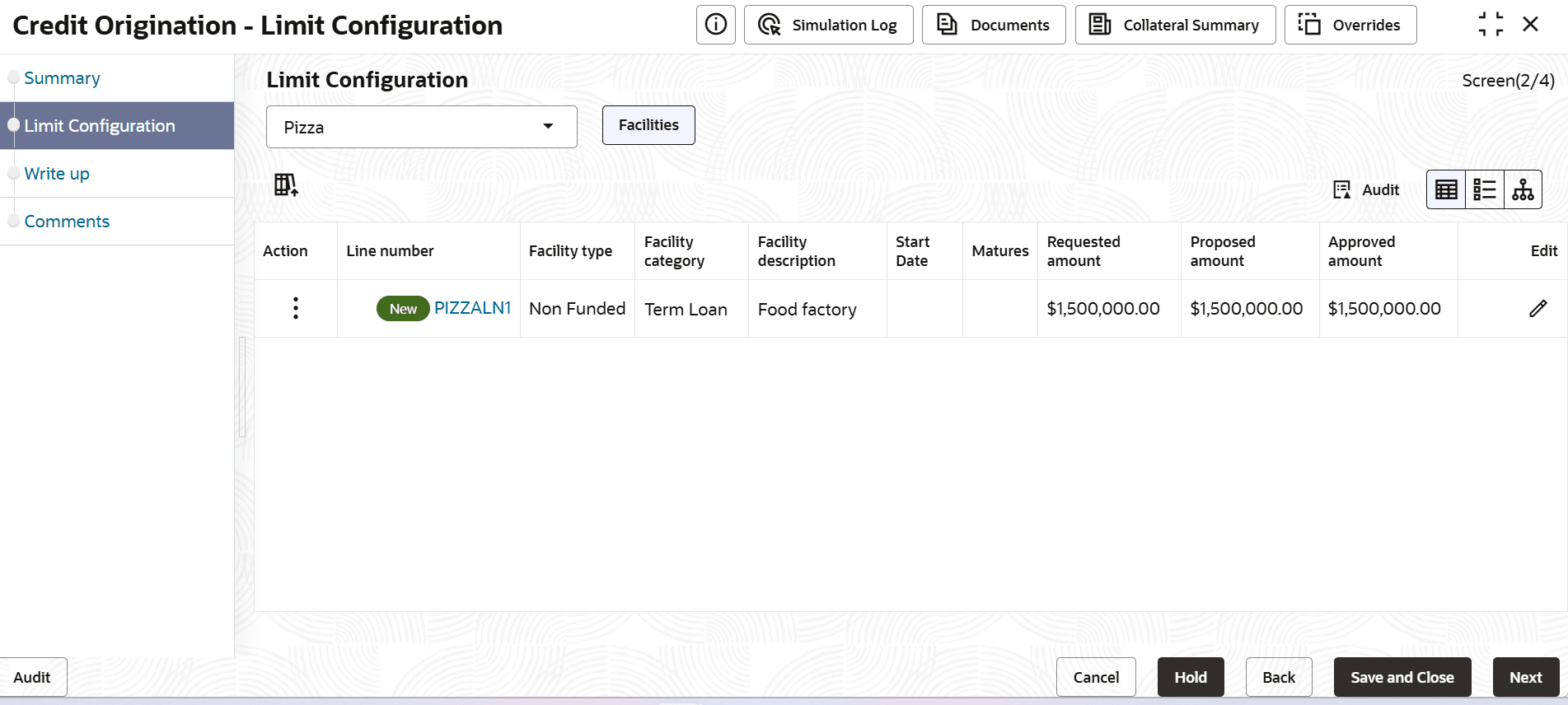
Financial Profile To view Financial Profile and Projections for five years, select Previous 5 years option from the Show results for drop-down list. View all To view detailed information about Financial Profile and Projection, click View all in the respective sections. - After reviewing the Summary, click Next.The Limit Configuration page is displayed.
Configuring Limit:
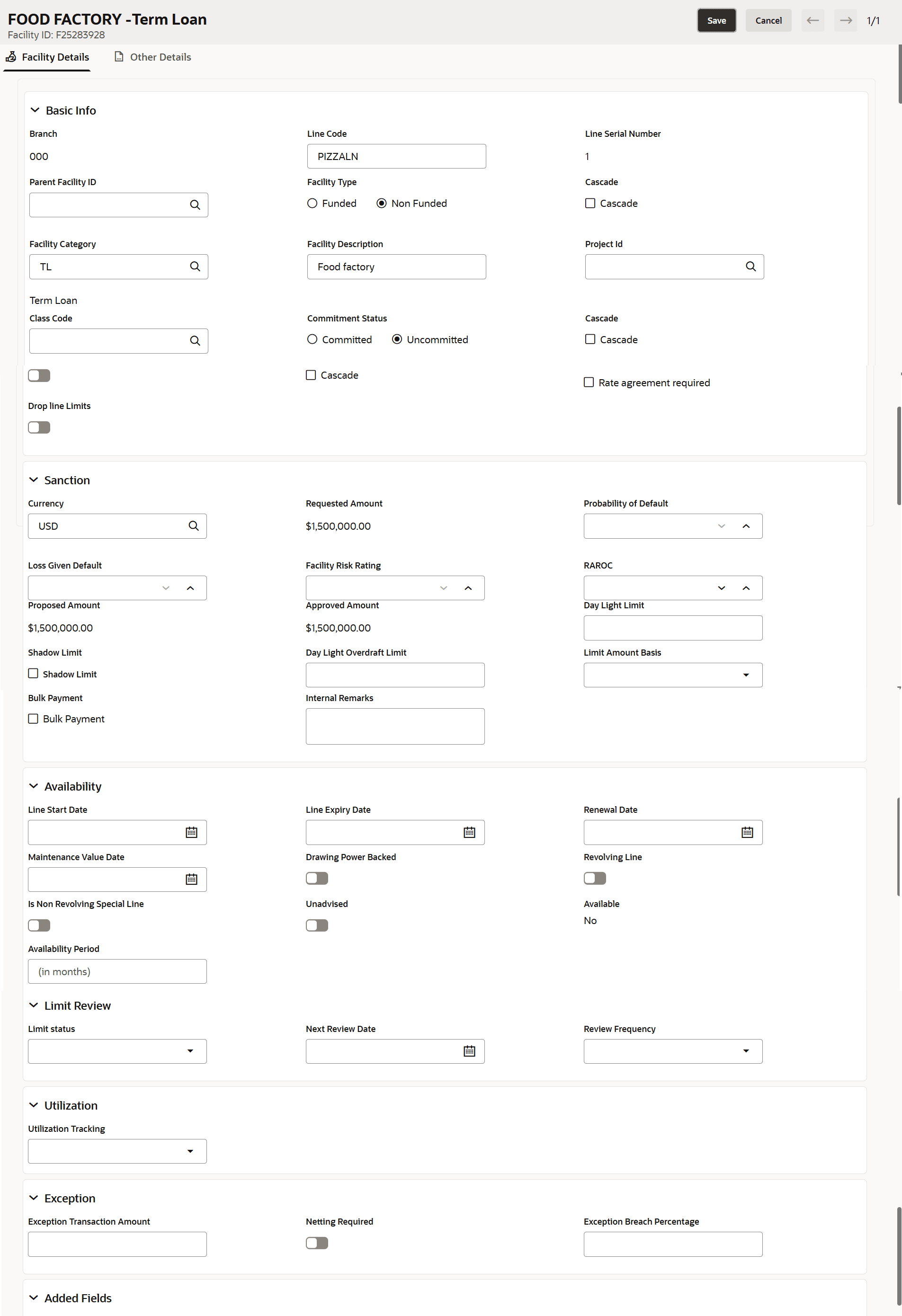
- In Action, select Edit.The Facility details screen displays.For more information on fields, refer to the field description table below.
Table 12-3 Facility
Fields Description Branch Displays the branch number. Line Code Specify the unique line code. Line Serial Number Displays the unique line serial number. Parent Facility ID Search the Facility ID from the list. Facility Type Select the facility type. The available options are: - Funded
- Non Funded
Cascade Specifies whether certain attributes are inherited from the parent facility. Facility Category Search the Facility category from the list. Facility Description Specify the description. Project ID Search the project ID from the list. Class Code Search the class code from the list. Committment Status Select the committment status. The available options are: - Committed
- Uncommitted
Drop Line Limits Select the toggle to indicate if limits should drop or reduce over time. Currency Search the currency from the list. Requested Amount Displays the requested amount. Probability of Default Specify the default probability. Loan Given Default Specify the default loan. Facility Risk Rating Specify the facility risk rating. Proposed Amount Displays the proposed amount. Approved Amount Displays the approved amount. Day Light Limit Specify the day light limit. Shadow Limit Specify the shadow limit. Day Light Overdraft Limit Specify day light overdraft limit. Limit Amount Basis Specify the basis on which the limit was sanctioned. Bulk Payment Specifies whether repayments can be made as lump-sum amounts. Internal Remarks Specify the remarks, if any. Line Start Date Select Date for Line Start Date. Line Expiry Date Click Select Date and select date for Line Expiry Date. Renewal Date Click Renewal Date and select date for Renewal Date. Maintenance Value Date Click Maintenance Value Date and select date for Maintenance Value Date. Drawing Power Backend Enable Drawing Power Backed, if required. Revolving Line Enable Revolving Line, if required. Is Non Revolving Special Line Enable Is Non Revolving Special Line, if required. Unadvised Enable Unadvised, if required. Available Displays the current Available status of the line. Availability Period Specify the Availability Period for the facility. Limit Status Select Limit Status from the drop-down list. The options are: - Active
- Closed
- Frozen
Next Review Date Select Date for Next Review Date. Review Frequency Select Review Frequency from the drop-down list. The options are: - Half yearly
- Monthly
- Quarterly
- Yearly
Utilization Tracking Select Utilization Tracking from the drop-down list. The options are: - Local
- Global
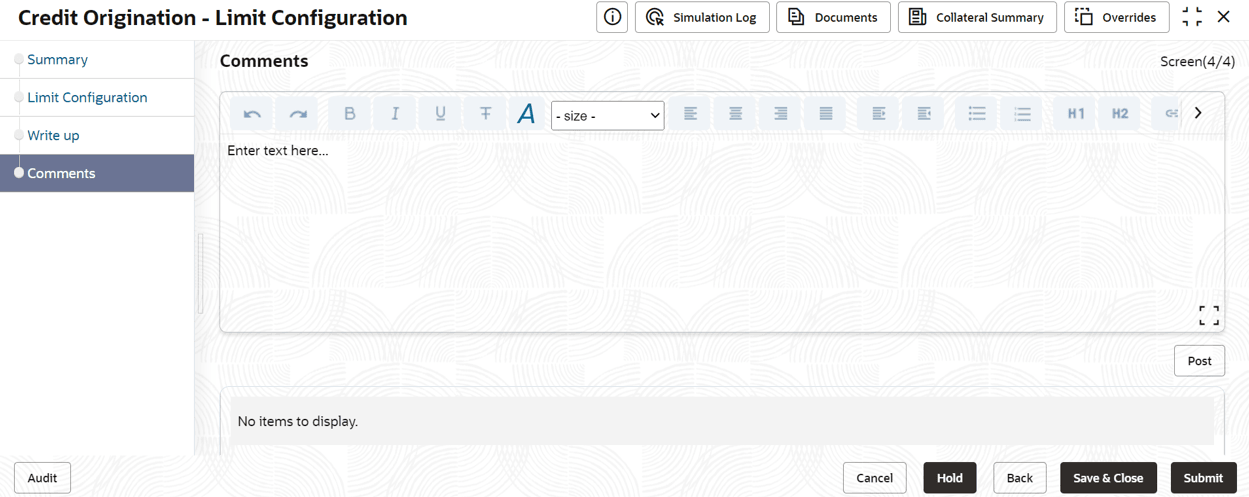
Exception Tansaction Amount Specify the transaction amount. Netting Required Select the option from the available list. Exception Branch Percentage Specify the exception breach percentage. - Click Next in the Limit Configuration screen. The Comments
page is displayed.
Post comments, if required. The posted comment is displayed below the Comments box section.
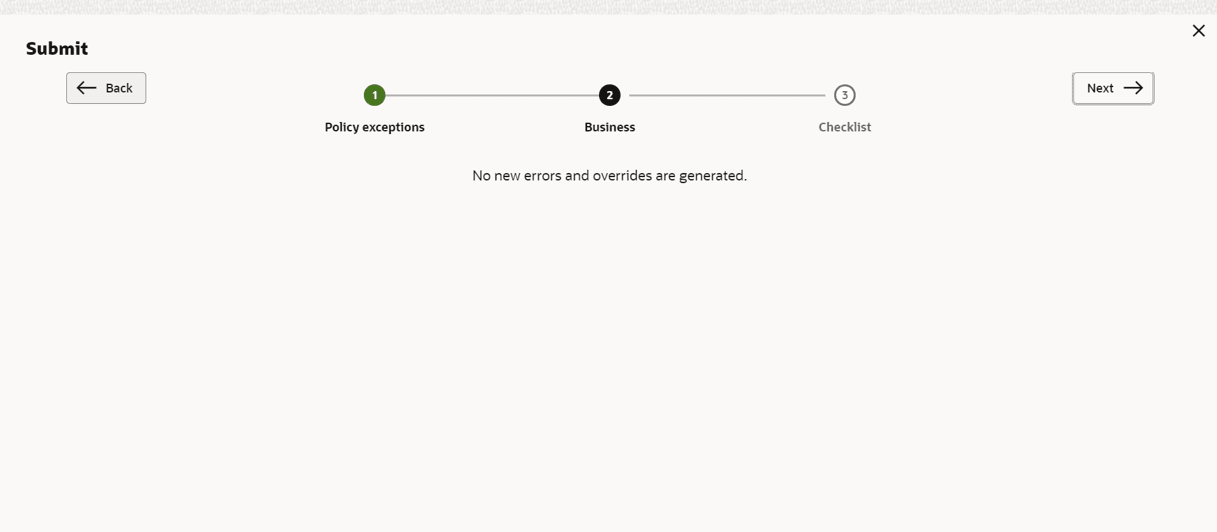
- Click Submit.The Policy exceptions window is displayed.
By default, Policy Exceptions are displayed for both the party and its child party.
- Click the Business data segment.
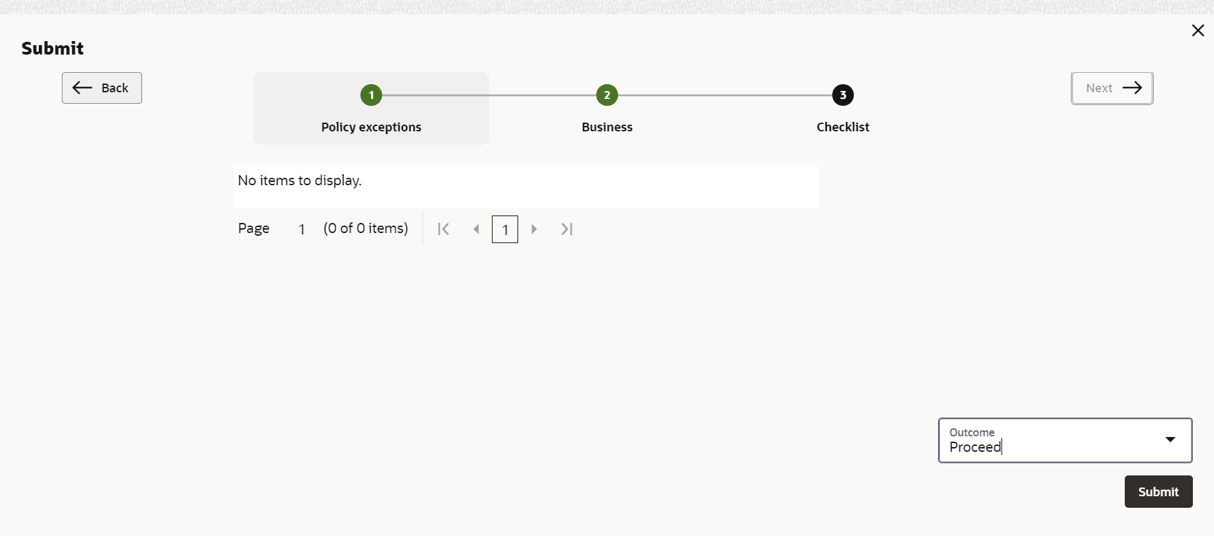
- Click the Checklist data segment.
For field level information on Checklist screen refer the table below.
Table 12-4 Checklist
Fields/ Icons Description Outcome Select Outcome as Proceed if additional information is not required. Else, select Outcome as Additional Info. Submit Click Submit. The proposal is moved to the Handoff stage.