4.8 Collateral Details
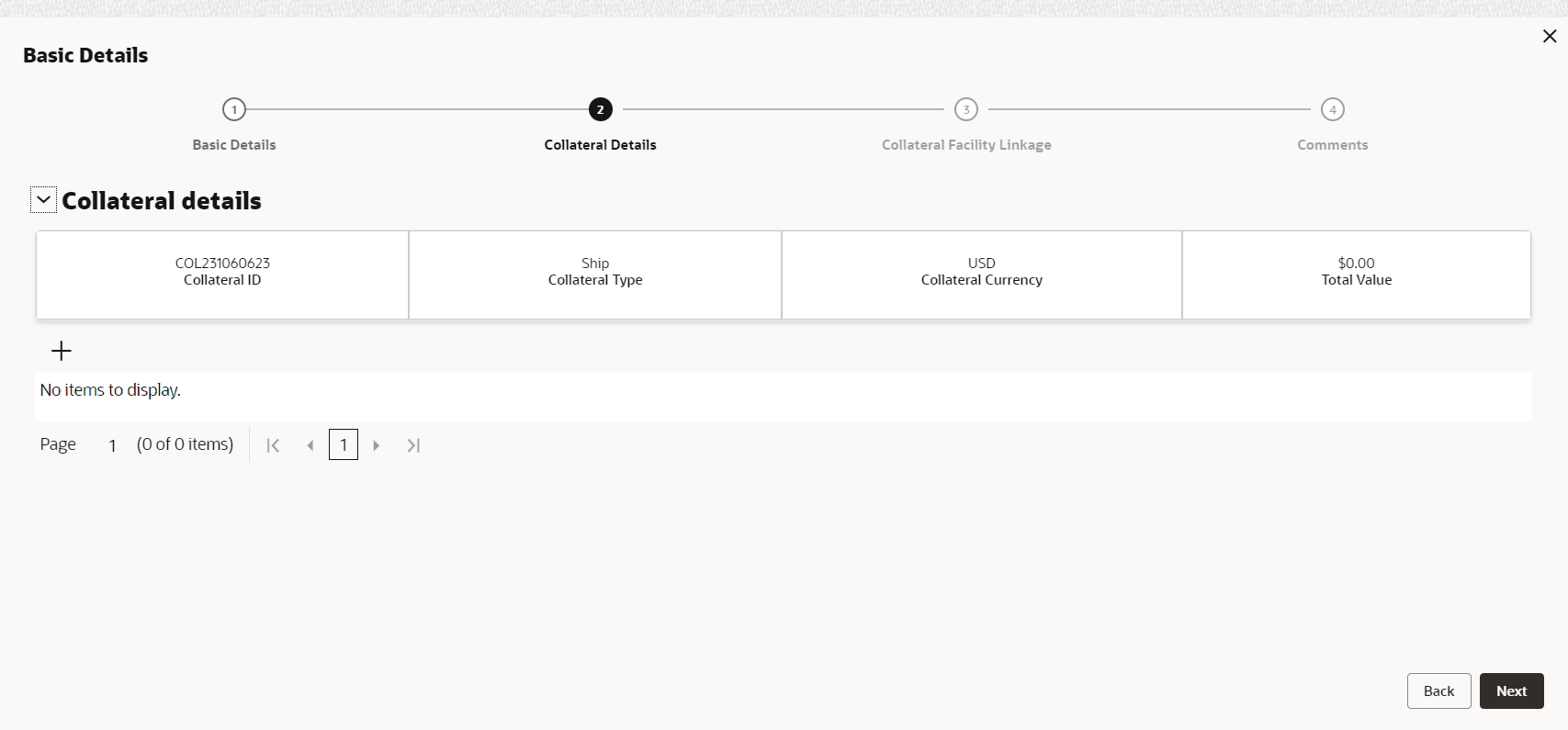
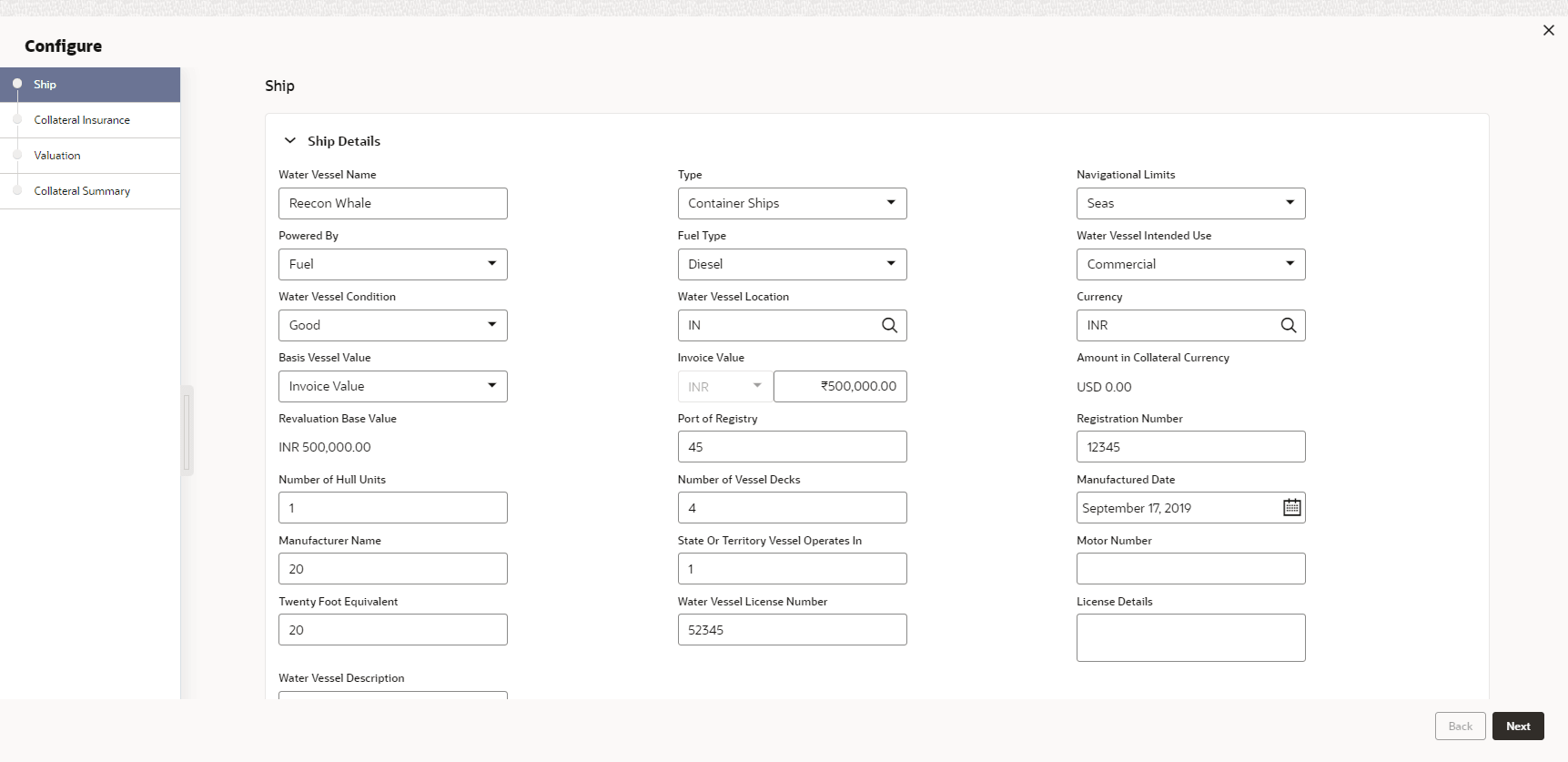
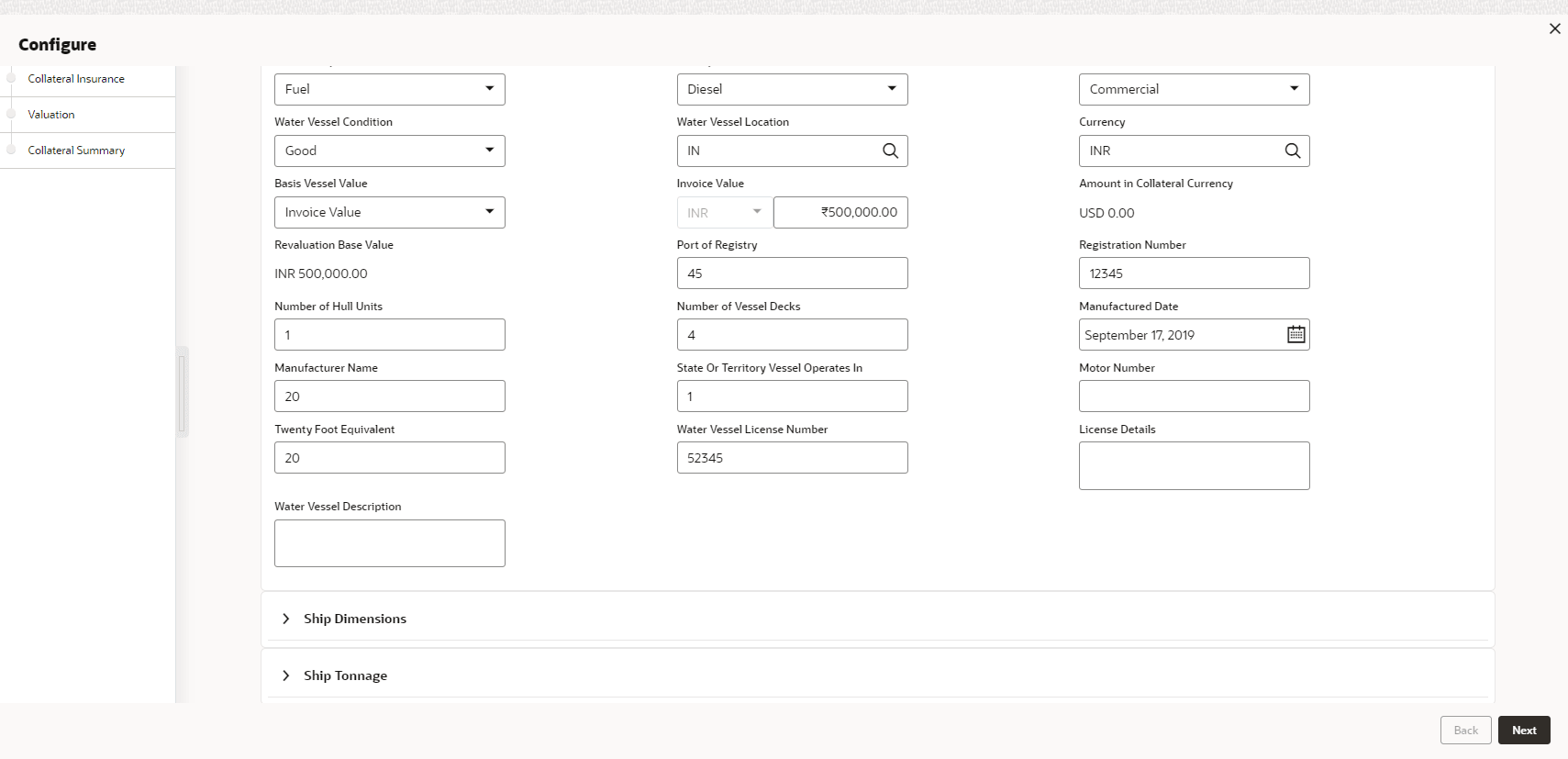
Note:
The above screen varies based on the selected collateral type. For example, if Deposit is selected as the Collateral Type in Basic Details page, deposit related fields appear.For information on fields in the Ship Details screen, refer the table below.
Ship
Table 4-32 Ship Details
| Fields/ Icons | Description |
|---|---|
| Water Vessel Name | Specify name of ship in Water Vessel Name field. |
| Type | Select Type of the ship. The options
available are:
|
| Navigational Limits | Select Navigational Limits from the drop-down
list. The options are:
|
| Powered By | Select Powered By from the drop-down list.
The options are:
|
| Fuel Type | Select Fuel Type from the drop-down list. The
options are:
|
| Water Vessel Intended Use | Select Water Vessel Intended Use from the
drop-down list. The options are:
|
| Water Vessel Condition | Select Water Vessel Condition of ship from the
drop-down list. The options are:
|
| Water Vessel Location | Search and select Water Vessel Location of the ship. |
| Currency | Search and select Currency. |
| Basis Vessel Value | Select Basis Vessel Value of the ship from
the drop-down list. The options are:
|
| Market Value | Enter Market Value of the ship. |
| Amount in Collateral Currency | Amount in Collateral Currency is displayed by default. |
| Port of Registry | Enter Port of Registry of the ship. |
| Registration Number | Enter Registration Number of the ship. |
| Number of Hull Units | Enter Number of Hull Units of the ship. |
| Number of Vessel Decks | Enter Number of Vessel Decks of the ship. |
| Manufactured Date | Click Select Date and specify Manufactured Date. |
| Manufacturer Name | Enter Manufacturer Name of the ship. |
| State Or Territory Vessel Operates In | Enter State Or Territory Vessel Operates In of the ship. |
| Motor Number | Enter Motor Number of the ship. |
| Twenty Foot Equivalent | Enter Twenty Foot Equivalent of the ship. |
| Water Vessel License Number | Enter Water Vessel License Number of the ship. |
| License Details | Enter License Details of the ship. |
| Water Vessel Description | Enter Water Vessel Description of the ship. |
Ship Dimensions

For information on fields in the Configure - Ship Dimensions screen, refer the below table.
Table 4-33 Configure - Ship Dimensions
| Fields/ Icons | Descriptions |
|---|---|
| Dimension Unit | Select unit for ship dimension from Dimension
Unit drop-down list. The options available are:
|
| Water Vessel Length | Specify Water Vessel Length of ship in selected unit. |
| Water Vessel Beam | Specify Water Vessel Beam (width) of ship in selected unit. |
| Water Vessel Height | Specify Water Vessel Height of ship in selected unit. |
| Displacement Unit | Select unit for ship weight from Displacement
Unit drop-down list. The options available are:
|
| Water Vessel Displacement | Specify Water Vessel Displacement in selected unit. |
Ship Tonnage
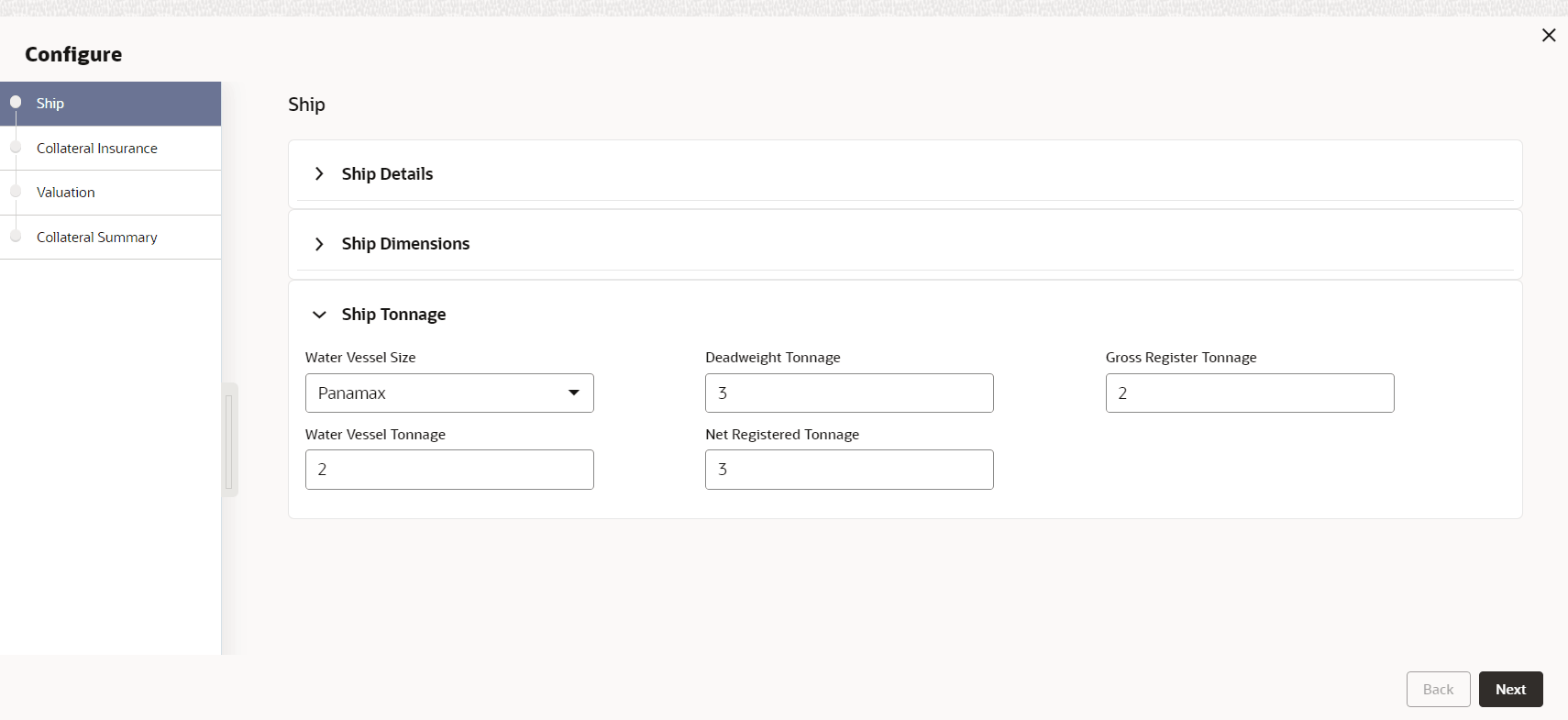
- Click Next. The Collateral Insurance page is displayed.
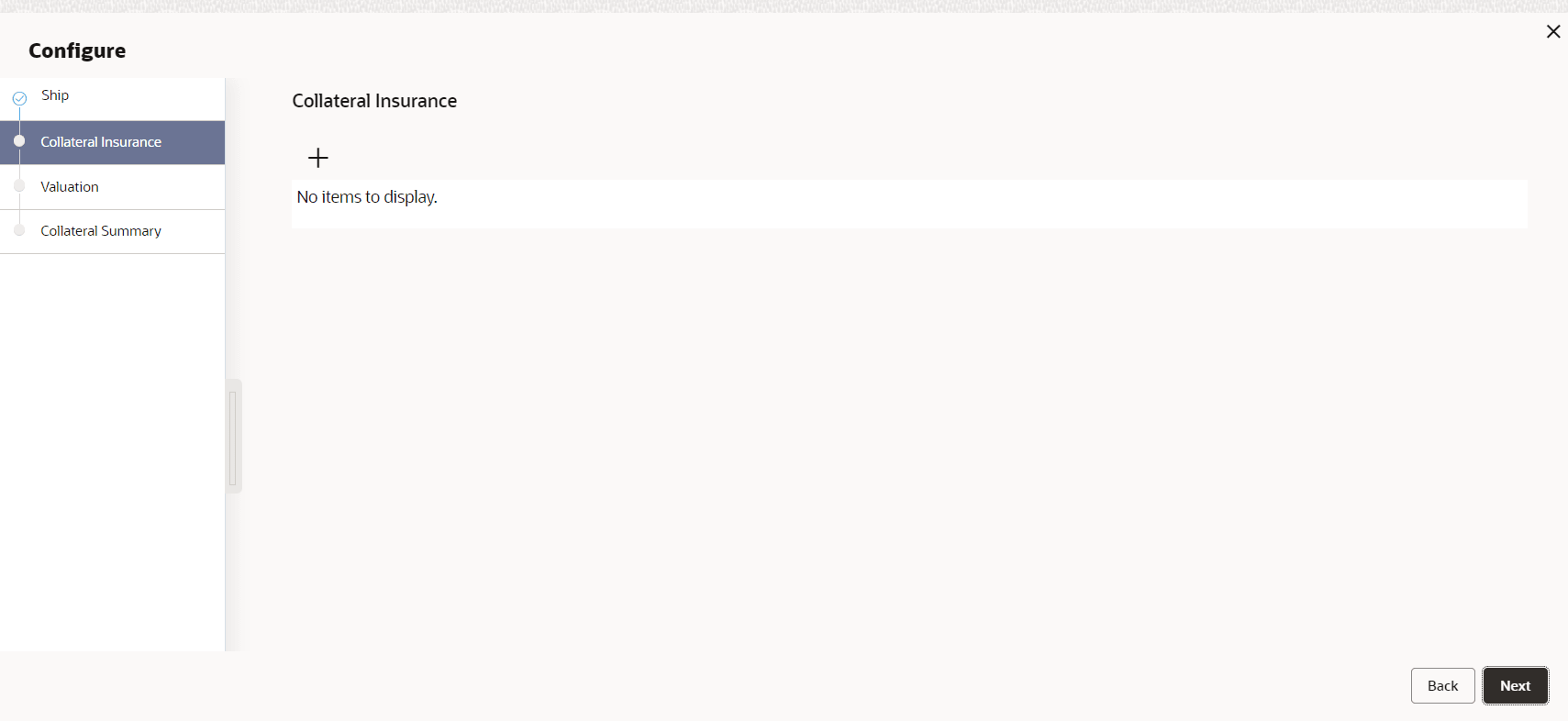
Collateral Insurance
In this page, you can capture insurance details of the collateral
- To add insurance details, click +. The following window is
displayed.
Insurance Basic Details
- Specify the insurance following details in respective fields:
- Insurance Name
- Insurance Number
- Insurance Owner
- Policy Name
For information on fields in the Insurance Basic Details screen, refer the table below.
Table 4-34 Insurance Basic Details
Fields/ Icons Description Insurance Type Select Insurance Type from the drop-down list. The options available are: - Asset Insurance
- Borrower Insurance
- Corporate Insurance
- Life Insurance
Start Date Click Calendar icon and select the insurance Start Date. End Date Click Calendar icon and select the insurance End Date. Revision Date Click Calendar icon and select the insurance Revision Date. Notice Days Specify Notice Days for insurance premium payment. Insurance Currency Search and Select Insurance Currency. Insurance Amount Specify Insurance Amount in selected insurance currency. Grace Days Specify Grace Days for making insurance premium payment. Insurance Code Enter Insurance Code. Policy Assigned To Bank Specify if the policy is assigned to your bank by selecting required option from the Policy Assigned To Bank drop-down list. The options are: - Yes
- No
Date Click Calendar icon and select Date. Insurance Premium Details
Insurance Premium Details screen.
For information on fields in the Insurance Premium Details screen, refer the table below.
Table 4-35 Insurance Premium Details
Fields/ Icons Description Premium Frequency Select Premium Frequency from the drop-down list. Premium Currency Click Search icon in Premium Currency field and select the currency in which insurance premium is paid. Premium Amount Specify Premium Amount in selected premium currency. Premium End Date. Click Calendar icon and select Premium End Date. Premium Status Select Premium Status from the drop-down list. The options available are: - Inforce
- Lapsed
- Paidup
Cover Date Click Calendar icon and select Cover Date. Coverage Enter Coverage details. Remarks Enter Remarks about the insurance, if any. Add Click Add to add the insurance. - Click + icon. The insurance details are added and displayed as shown
below:
For field level information refer the table below.
Table 4-36 Collateral Insurance
Fields/ Icons Description Edit To modify the insurance details, select the record and click Edit on Action button. View To view the added insurance details, select the record and click View on Action button. Delete To delete the insurance details, select the record and click Delete on Action button. - Click Next. The Valuation page is displayed.
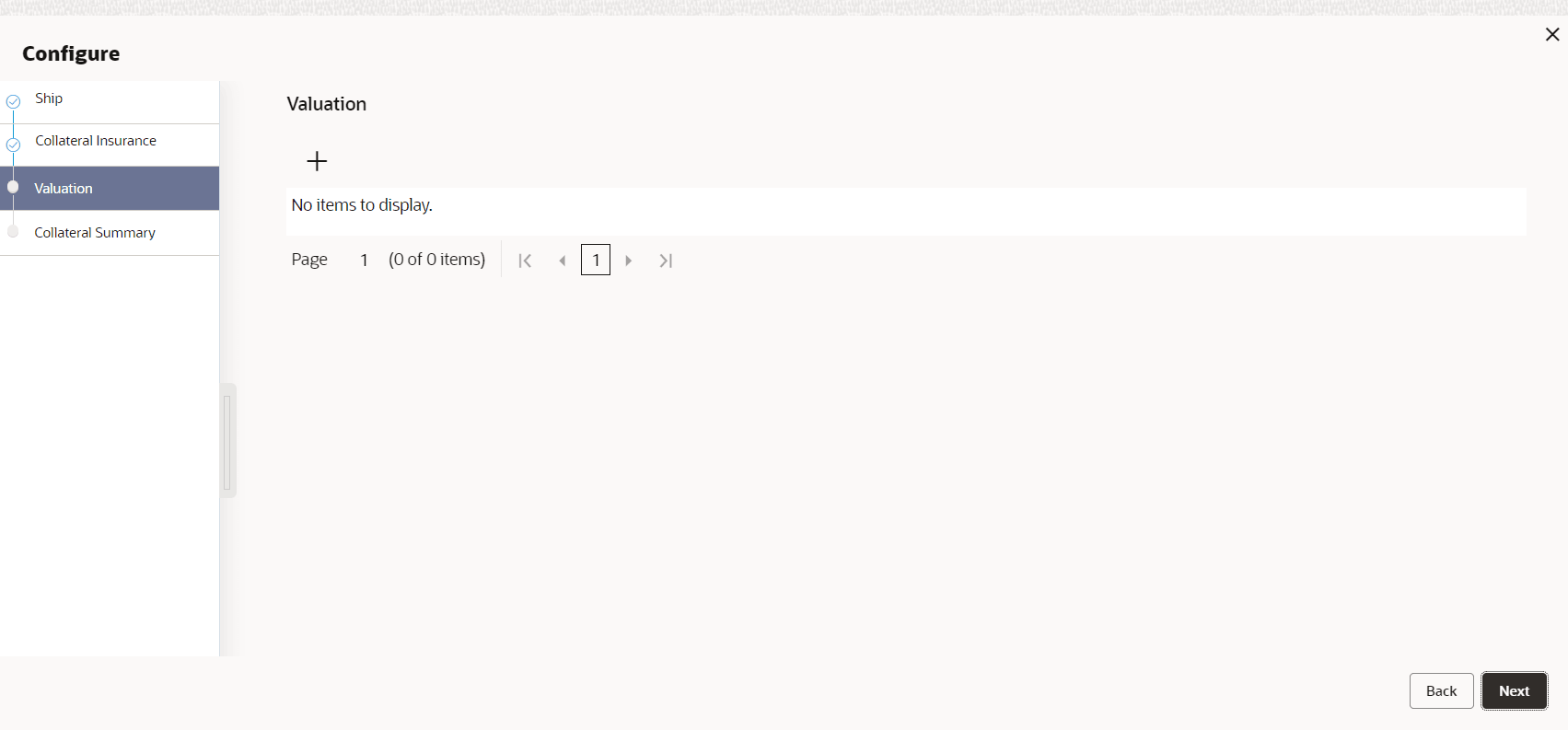
Valuation
Update the monetary value that can be attributed to the collateral in the Valuation page.
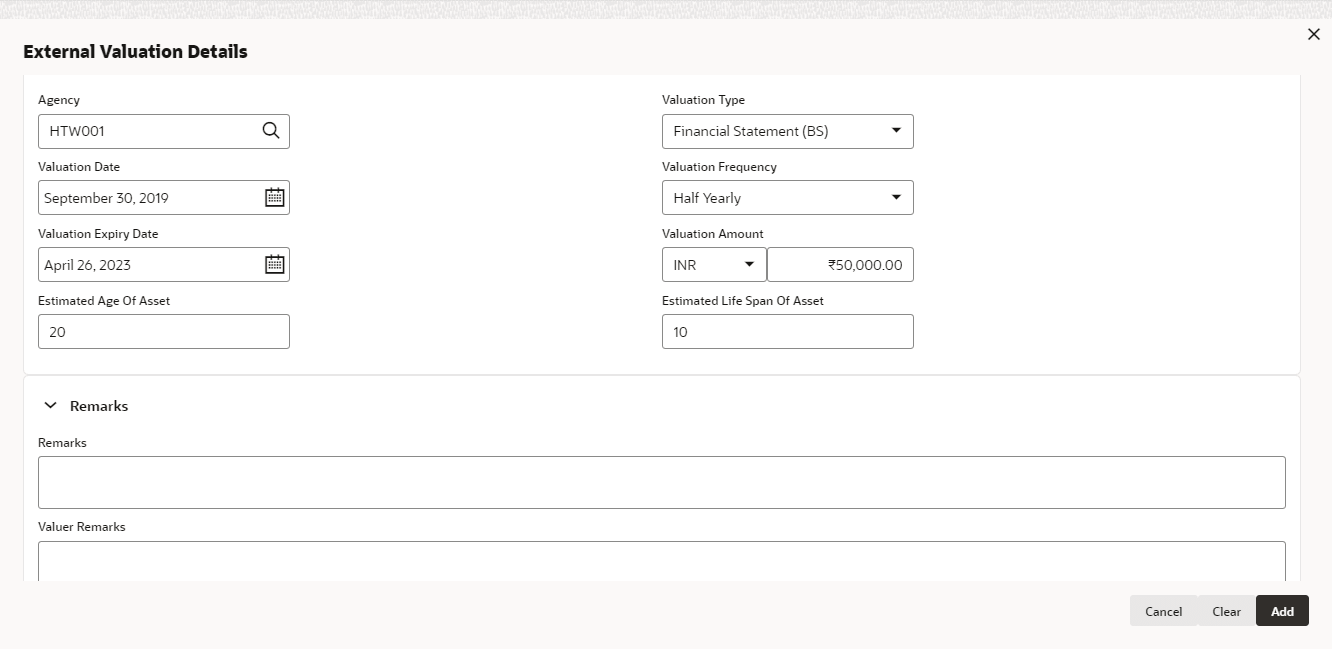
Click + icon. The following window is displayed.
For field level information refer the table below.
Table 4-37 External Valuation Details
Fields/ Icons Description Agency Search and select Agency which valuated the collateral. Valuation Type Select Valuation Type from the drop-down list. Valuation Date Click Calendar icon and select Valuation Date. Valuation Frequency Select Valuation Frequency from the drop-down list. Valuation Expiry Date Click Calendar icon and select Valuation Expiry Date. Valuation Amount Specify Valuation Amount in selected valuation currency. Estimated Age of Asset Specify Estimated Age of Asset. Estimated Life Span of Asset Specify Estimated Life Span of Asset. Remarks Enter Remarks, if any. Valuer Remarks Enter Valuer Remarks, if any. Add Click Add. The collateral valuation details are added and displayed in the Valuation page. - Click Next. The Collateral Summary page is displayed.
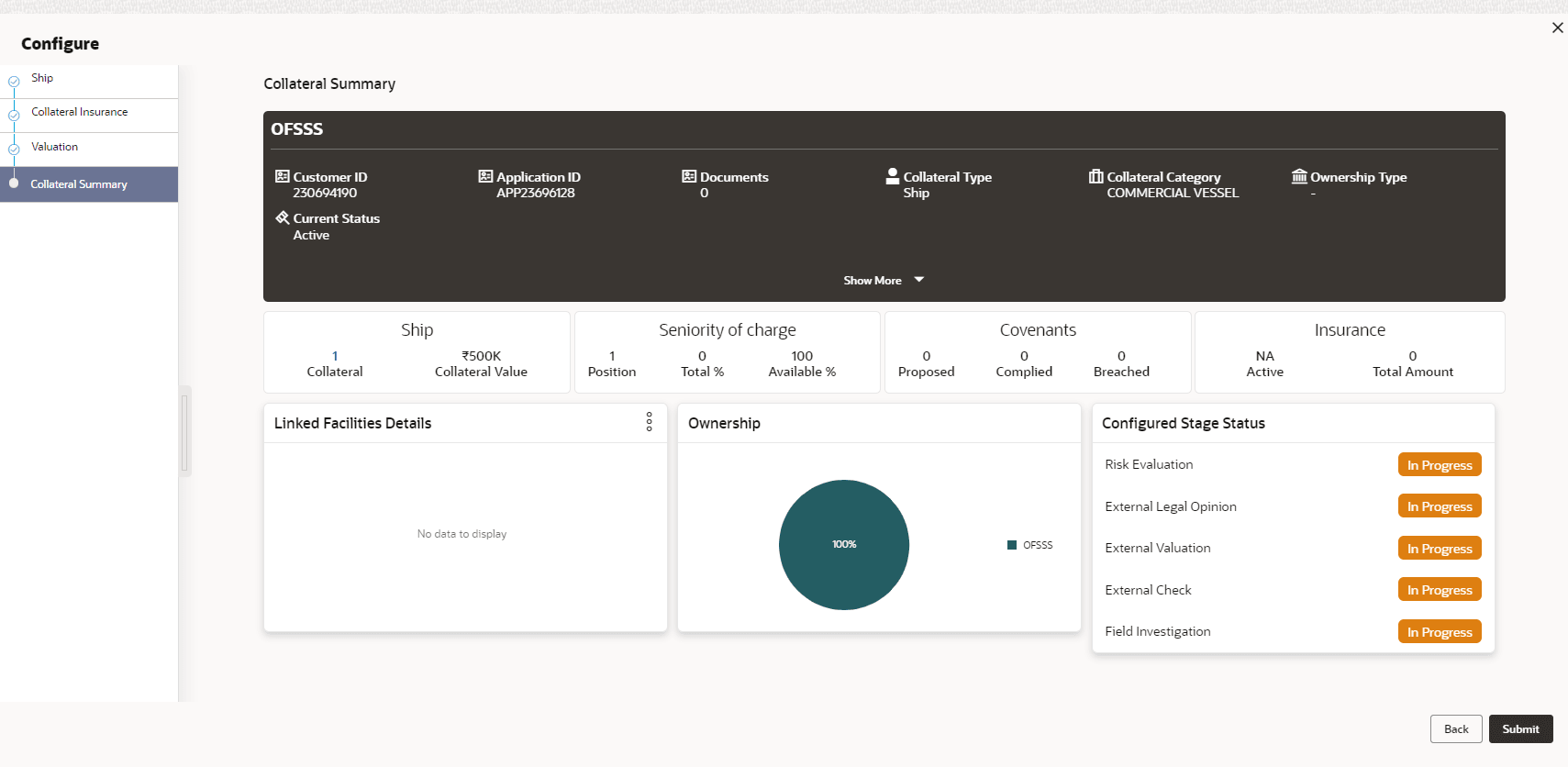
Collateral Summary
The collateral summary provides an overview of collateral based on the information added in previous pages.
For field level information refer the table below
Table 4-38 Collateral Summary
Fields/ Icons Description Submit View the Collateral Summary and click Submit. Collateral record is added and displayed in the Collateral Details page. View/Edit/Delete To View, Edit or Delete the collateral details, click Down Arrow in the corresponding record and select the required option. Next Click Next in the Collateral Details page. The Collateral Facility Linkage page appears.


Parent topic: Proposal Enrichment